1 Feature Summary
This chapter describes the feature enhancements in this release.
Noteworthy Enhancements
This guide outlines the information you need to know about new or improved functionality in the Oracle Retail Store Inventory Operations Cloud Services update and describes any tasks you might need to perform for the update. Each section includes a brief description of the feature, the steps you need to take to enable or begin using the feature, any tips or considerations that you should keep in mind, and the resources available to help you.
Column Definitions
-
Feature: Provides a description of the feature being delivered.
-
Module Impacted: Identifies themodule impacted associated with the feature, if any.
-
Scale: Identifies the size of the feature. Options are:
-
Small: These UI or process-based features are typically comprised of minor field, validation, or program changes. Therefore, the potential impact to users is minimal.
-
Large: These UI or process-based features have more complex designs. Therefore, the potential impact to users is higher.
-
-
Delivered: Is the new feature available for use immediately after upgrade or must the feature be enabled or configured? If no, the feature is non-disruptive to end users and action is required (detailed steps below) to make the feature ready to use.
- Customer Action Required: You must take action before these features can be used. These features are delivered disabled and you choose if and when to enable them.
Table 1-1 Noteworthy Enhancements
| Feature | Module Impacted | Scale | Delivered | Customer Action Required? |
|---|---|---|---|---|
| New and Updated Options | ||||
|
EICS |
Large |
No |
Grant permissions. |
|
|
EICS |
Medium |
No |
Grant permissions. |
|
|
EICS |
Medium |
No |
Grant permissions. |
|
|
EICS and SOCS |
Large |
No |
Turn on configuration, web services, and permissions. |
|
|
EICS |
Small |
Yes |
No |
|
|
EICS |
Medium |
No |
Grant permissions. |
|
|
EICS and SOCS |
Medium |
Yes |
No |
|
|
SOCS |
Medium |
Yes |
No |
|
|
EICS |
Medium |
No |
Grant permissions. |
|
|
EICS and SOCS |
Medium |
No |
Grant permissions, setup. |
|
|
EICS and SOCS |
Medium |
No |
Grant permissions and third-party integration. |
|
|
EICS and SOCS |
Small |
Yes |
No |
|
|
SOCS |
Small |
No |
Grant permissions. |
|
|
SOCS |
Small |
Yes |
No |
|
|
EICS |
Small |
No |
Grant permissions. |
|
|
EICS and SOCS |
Small |
No |
Grant permissions. |
|
|
SOCS |
Medium |
Yes |
No |
|
|
EICS |
Medium |
No |
Connect to Retail Home and run batches. |
|
|
SOCS |
Medium |
No |
Grant permissions. |
|
|
EICS |
Medium |
No |
Grant permissions. |
|
|
EICS and SOCS |
Small |
Yes |
No |
|
|
EICS |
Medium |
No |
No |
|
|
EICS |
Small |
Yes |
If used, the call is a slightly different /simplified URL. |
|
New Feature Descriptions
This section describes the new features.
Store Shipping Network
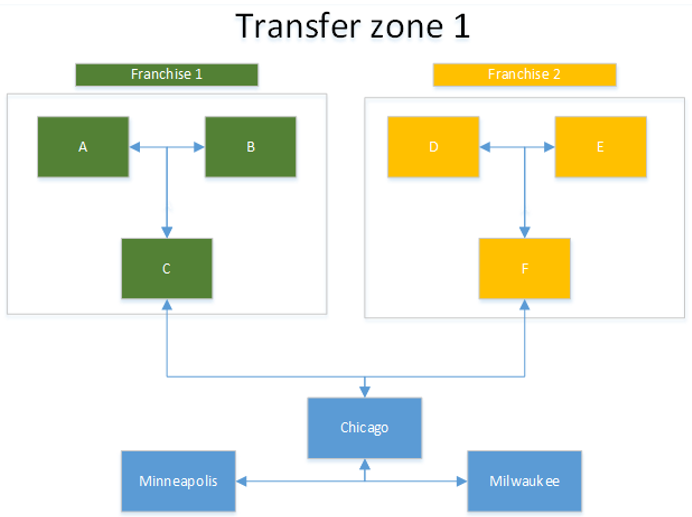
The Store Shipping Network is functionality that controls which store location a store can ship items to. A store can only ship items to the stores that are in its shipping network. Basically, this feature, which is available in the EICS desktop application, enables the retailer to be able to control Transfer Requests and Shipments to a store beyond using transfer zones inside of SIOCS.
For example, if Store A has been closed temporarily, transfer requests and shipments for Store A can be restricted using this feature by excluding the store from the shipping network of other stores. This feature can also be used where the store users should be restricted from transferring items to a store in another franchise. These restrictions are not enforced when external systems, such as a merchandise system, generate transfer movements.
Validation will first need to pass the Transfer zone validation and then the excluded store validation will be done on the stores that passed the Transfer Zone validation.
Store Shipping Network Screen
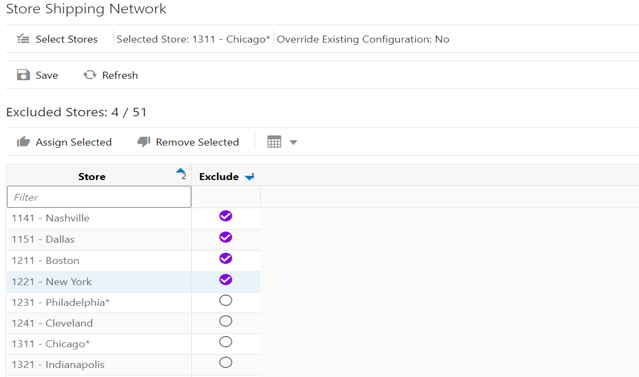
The Store Shipping Network screen can be accessed in the desktop application under the Configuration menu option which can be accessed from Admin main menu. The user must have the appropriate security permission in order to access the screen.
This is an admin screen that enables a user to configure a store’s shipping network. Through this screen, you will basically exclude the stores that a certain store cannot ship to, thus removing it from the shipping network of the store. If Store B is set up as an excluded store for Store A, Store A cannot ship to Store B, unless the transfer is corporate created.
When you enter the screen, all available stores will be listed that can be selected for exclusion. First, you select a store for which you are trying to set the shipping network using the Select Stores popup and then assign the excluded stores for it. You can also remove stores from the existing excluded stores list by deselecting the stores that need to be removed. The stores that have not been selected for exclusion would automatically become part of the store’s shipping network. This screen also provides the ability to select multiple stores at one go to assign the excluded stores.
By default, a new store can ship to all stores within its transfer zone.
Select Stores Popup
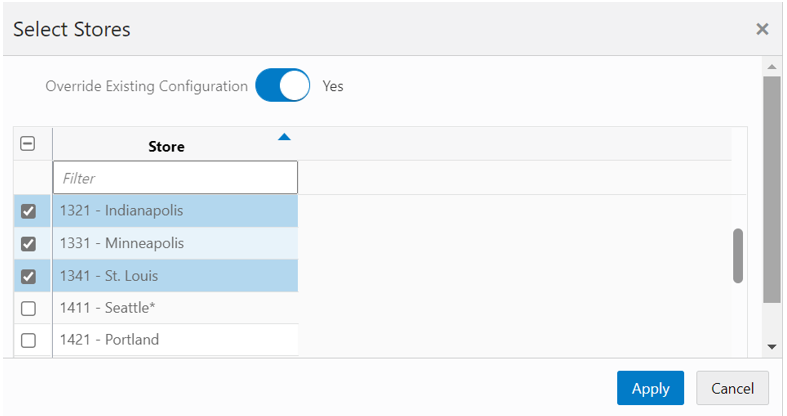
The Select Stores popup is displayed when you click the Select Stores button from the Store Shipping Network screen. This popup enables you to select one or more stores for which you want to assign excluded stores.
It displays only the list of stores you have access to, so that you do not accidently assign excluded stores for the stores that you are not supposed to do.
You also have an option, in this popup, to choose to override the existing configuration if you want to, which would replace the existing excluded stores list with the current selection of excluded stores. If you do not select the override option, the new set of excluded stores will get added to the already existing excluded stores list.
Create Transfer Request
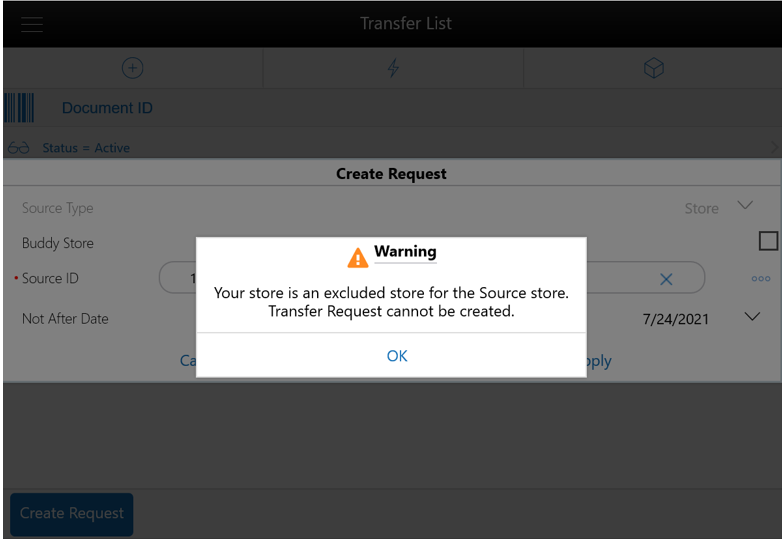
There is an update that has happened with the Create Transfer Request dialog. While creating a transfer request in the mobile application, if your store is in the excluded stores list of the source store, the system stops you from creating the transfer request by displaying an error informing you that “Your store is an excluded store for the Source store. Transfer Request cannot be created.”
Accept Transfer Request
If you do not have overriding permission:
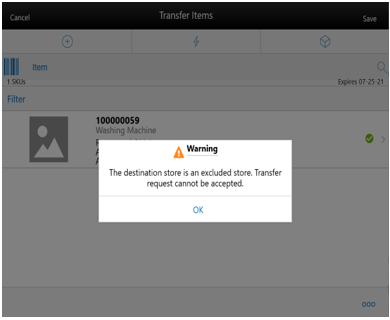
If you do have overriding permission:
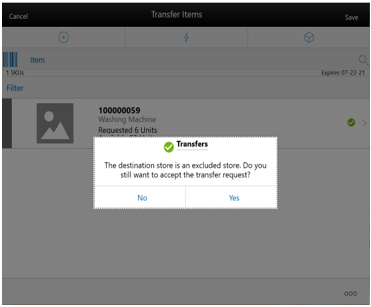
There is an update made to the Accept transfer request flow as well. You should be prevented from approving a transfer request if the requesting store is an excluded store for your store.
In the Transfer Items screen under Transfer within the mobile application, when you try to accept the request, the system validates whether the requesting store is an excluded store for your store. If this is Yes, the system stops you from approving the request. However, if you have the Override Exclude Closed Stores permission, the system displays a warning that you are going to approve a request that is from an excluded store and allows you to decide whether you want to approve this request or not.
An exception to this is a Corporate created transfer request. Such requests are allowed to be approved even if the requesting store is an excluded store for the source store.
Create Shipment
If you do not have overriding permission:
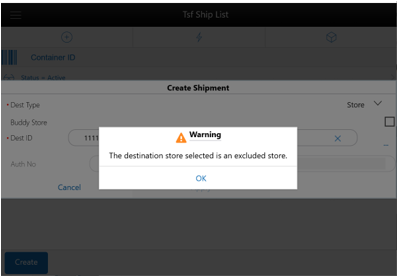
If you do have overriding permission:
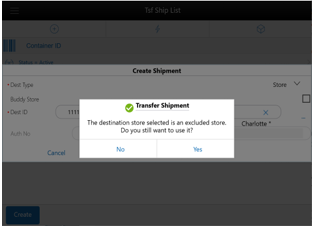
In the same way as transfer requests, when you create a transfer shipment, if the destination store is in the excluded stores list of your store, the system lets you know that you are trying to create a transfer shipment to an excluded store and stops you from creating the shipment. However, if you have the Override Exclude Closed Stores permission, the system displays a warning that you are going to create a shipment to an excluded store and asks for confirmation whether you want to create the shipment or not.
An exception to this is a Corporate created transfer requests. If the shipment is for a corporate created request, then you are allowed to proceed even if the destination store is an excluded store for your store.
Transfer Shipment - Submit/Dispatch
If you do not have overriding permission:
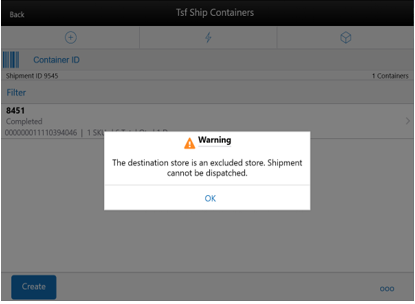
If you do have overriding permission:
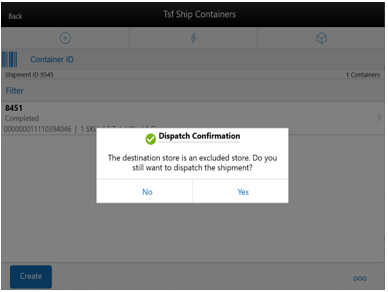
You should be prevented from dispatching items to a store which is an excluded store for your store.
In the Transfer Ship Containers screen under Transfer Shipment within the mobile application, when you try to submit or dispatch a shipment, the system validates whether the destination store is an excluded store for your store. If this is Yes, the system stops you from proceeding further. However, if you have the Override Exclude Closed Stores permission, the system displays a warning that you are going to dispatch the items to an excluded store and asks for confirmation whether you want to dispatch the items or not.
An exception to this is a Corporate created transfer requests. If the shipment is for a corporate created request, then you are allowed to dispatch even if the destination store is an excluded store for your store.
Stock Locator Screen
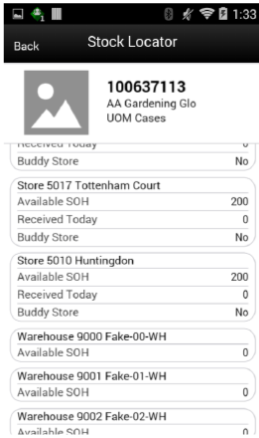
In case a store is not part of the Store Shipping Network, that store will also not be shown as part of the Item Lookup Stock Locator screen in both the desktop and the mobile client.
POS Transaction Resolution
The newly added dialog, POS transaction Resolution, will allow the user to review and edit failed POS transactions.
In a standard flow, a POS transaction is integrated through a web service from the POS or comes in through BDI from ReSA in case ReSA edited or added a transaction. SIOCS will store this information in a staging table and let the integration points know the data was received when appropriate. A subsequent process takes this information and will try to process this. In some cases, for example an item SIOCS is not aware of, this POS transaction will be flagged as failed.
The user can review these failed transactions and make some necessary adjustments if needed. As an example, the user could update the transaction type from/to Sale.
Note: This screen only resolves data processing issues in SIOCS. If the POS transactions in the above example fails, the likely correct solution is to make this adjustment in a POS audit application so both the merchandising solution and SIOCS are updated correctly.
POS Transaction Resolution List Screen
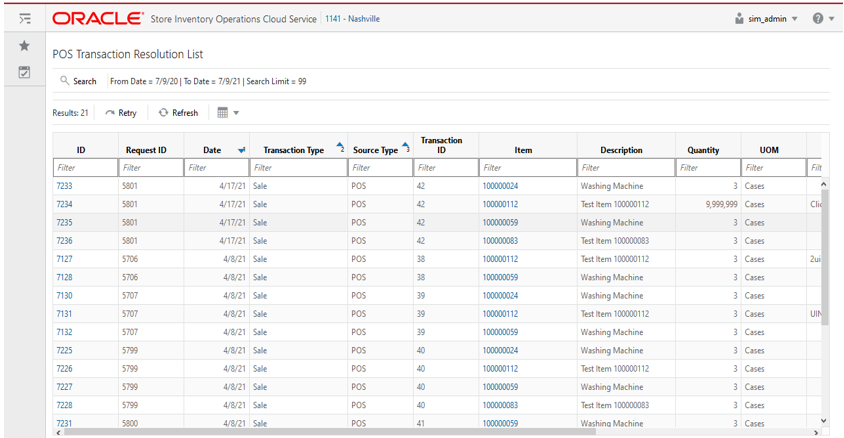
The POS Transaction Resolution List screen appears when the user selects the POS Transaction Resolution menu from the Admin->Technical Maintenance on the desktop client.
When the user enters this screen, the system sets the search criteria to the current date and displays the current day failed transactions that can be resolved.
The user can select the search option to refine the search by providing the search criteria.
The retry option allows the user to retry processing a selected transaction. The user must select a row and the system will process the complete transaction of the selected block id.
Selecting the link on the item will take the user to the Item Detail screen for that item.
On this screen, the list shows the details of the transaction for the user to know and act.
POS Transaction Resolution Search Criteria
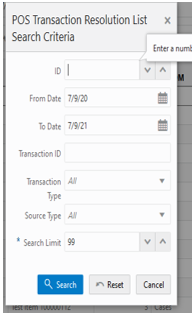
This search criteria screen can be used to filter the records based on the given criteria. By default, the system sets the date range for the current day and allows the user to set various criteria to search the failed POS transactions. The data on the list screen is shown based on the criteria provided.
POS Transaction Resolution Detail
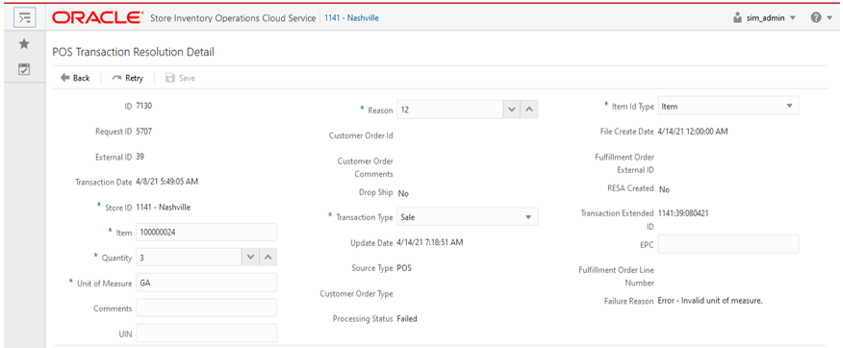
On the POS Transaction Resolution Detail screen, the system displays the transaction attributes of the selected transaction and allows the user to edit certain values and update the transaction. Once the transaction is updated, the system will automatically retry and process it successfully if the system finds the transaction without any error.
Sequence Administration
The Sequence Administration screen is intended to be used for initial implementation between integrated systems to split the sequence ranges. For example, the warehouse system may have the sequence 1-100.000.000 while SIOCS may use 101.000.000 – 201.000.000 for container generation.
If a sequence reaches maximum value, a service request may have to be raised to alter the sequence.
Note: Making alterations in this screen will not reset the cashed DB sequences nor any existing data.
To access this screen, the user needs to be assigned the following:
IDCS app roles: <SIOCS Primary APP>.admin_users
Security Permission: Access Sequence Admin
Sequence Admin Screen
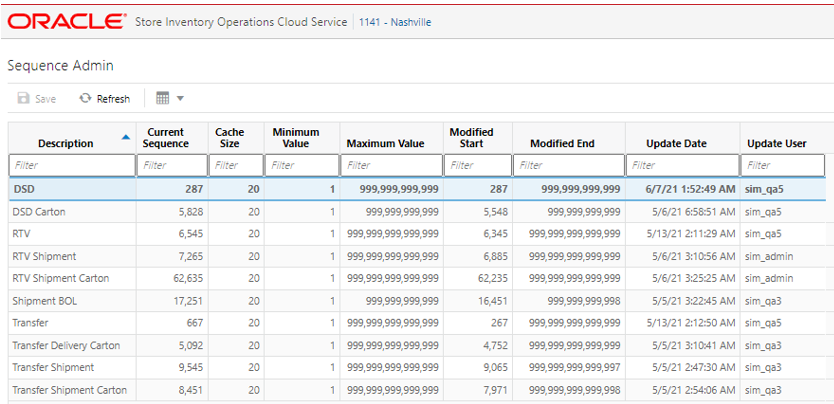
This screen allows the user to modify the sequence properties.
List Buttons
-
Save: Persists currently altered information.
-
Refresh: Refreshes the screen with currently persisted information.
List Attributes
-
Description - Description of the Sequence.
-
Current Sequence -The last currently used number written to Database Disk (Including the sequence caching size).
-
Cache Size - The number of sequences kept in the DB cache.
-
Minimum Value -The minimum value the sequence can become.
-
Maximum Value - The maximum value the sequence can become .
-
Modified Start - Retailer specified start number for the sequence.
-
Modified End - Retailer specified end number for the sequence.
-
Update Date - The last update date.
-
Update User - The last update user.
Detail Edit Panel
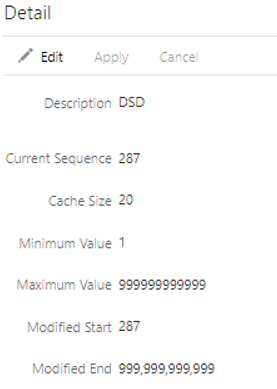
Detail Buttons
-
Edit: Places the detail information displayed into edit mode.
-
Apply: Applies the current data to the credential admin record and updates the list information.
-
Cancel: Places the panel back into display mode without applying the information.
Detail Attributes
-
Description - Description of the sequence.
-
Current Sequence -The Last number written to the Database Disk (Including the sequence caching size).
-
Cache Size - The number of sequences kept in the DB cache.
-
Minimum Value -The minimum value the sequence can become.
-
Maximum Value - The maximum value the sequence can become.
-
Modified Start - Retailer specified start number for the sequence.
-
Modified End - Retailer specified end number for the sequence.
Omni-Channel
Several modifications have been made to better support omni-channel:
-
Line level support: This feature ensures only full lines are processed for an order.
-
Under review: Validation checks have been added with Order Broker Cloud Service to ensure the order is not under review anymore. This is a state where the credit card authorization may have expired, and Order Management Cloud Service needs to revalidate.
-
Shipping address lookup with Order Broker Cloud Service.
-
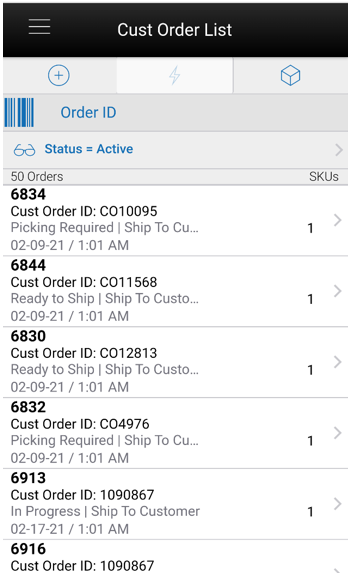
The customer order ID will be displayed on the list screen.
Line Level Support
Line level restrictions are similar in function to the restriction that prevents an order to be shipped if it is not fully filled. The line level however adds flexibility in that it only validates that a full line item is fulfilled. For example, if an order exists of 2 items, A for a quantity of 5 and B for a quantity of 10, and A has 3 units available, while B has 10 units, then only B can be picked, packed, and optionally shipped.
The system parameter that controls this behavior is Customer Order Fulfillment Restriction. It needs to be set to Line Controlled.
The following functionalities are impacted by this feature:
Picking a customer order:
-
If Customer Order Fulfillment Restriction equals Line Controlled, the user will not be able to create the pick if there is not enough available stock to pick at least one item fully.
-
Completing pick: If it is set to Line Controlled, any item that is getting picked must be picked in its entirety.
Dispatching a customer order:
-
If Allow Partial Indicator is set to Yes, the customer order can be delivered partially. If the Customer Order Fulfillment Restriction system parameter is set to Line Controlled and Allow Partial Indicator is set to Yes, if an item is getting delivered then it has to be delivered fully. Partial delivery of an item is not allowed.
-
Submit will check the Allow Partial Indicator. If it is set to No, it will validate that the entire order is being delivered together. If not, the system will restrict the user from submitting. Those users with certain privileges will be able to override this and it will be a warning. If Allow Partial Indicator is set to Yes, the customer order can be delivered partially. If the Customer Order Fulfillment Restriction system parameter is set to Line Controlled and Allow Partial Indicator is set to Yes, if an item is getting delivered then it has to be delivered fully. Partial delivery of an item is not allowed.
Transfer Request:
-
If the Customer Order Fulfillment Restriction system parameter is set to Line Controlled, for transfer requests associated with a customer order, any item getting approved should get approved completely. If the Customer Order Fulfillment Restriction system parameter is set to Line Controlled, for transfer requests associated with a customer order, any item that is getting approved should get approved in its entirety. Having zero Approved Qty for an item is allowed.
Transfer shipment container:
-
If any of the containers on the shipment references a transfer with a customer order with the Allow Partial Delivery indicator set to Yes and the Customer Order Restriction system parameter is set to Line Controlled, the items getting delivered have to be delivered in its entirety. Partial delivery of an item is not allowed. This validation is done on both the Submit and Dispatch of a customer order.
Under Review
When the retailer has chosen to integrate with Order Broker Cloud Services (OBCS) and whenever a customer order goes through payment reauthorization, the Order Broker system informs the Store Inventory system about it and the status of the customer order would move to Under Review. This is to indicate that the customer order is going through payment reauthorization and it is not in the state to be submitted/dispatched. The Store Inventory system would have to wait for the payment reauthorization to be successful in order to submit/dispatch the customer order.
When the customer order moves to Under Review mode, the user can still perform the same actions on the customer order as if it is in New/In Progress/Picking Required/Delivery In Progress, Ready to Ship/Ready for Pickup/Reverse Pick status. That is, the user will be able to approve/reject, create pick/reverse pick/delivery, and so on. A validation will be done on the Submit/Dispatch of the customer order deliveries to ensure that the customer order is not in Under Review mode.
Whenever OBCS informs SIOCS that the payment reauthorization has been successful, the status of the customer order moves back to its previous status or to an appropriate status based on the activities that had happened on the customer order while it was in Under Review mode. The customer order would now be available for Submit/Dispatch. If the payment reauthorization fails, OMS will notify through OBCS for SIOCS to cancel the order.
Integration Flows
Several integration touchpoints exist for this process to function:
-
When the order goes Under Review, or moves off of Under Review, OBCS will be sending a RIB message to indicate this to SIOCS.
-
During the delivery process, when submitting and confirming the dispatch of the order, a check will be performed through a web service call that the order still can be fulfilled.
This new status check impacts the following areas:
-
Customer order acceptance
Accepting a customer order will only be for web order types of customer orders of status New or New but in Under Review mode. After the customer order is accepted at the store, it will go through the required process for it to be shipped.
-
Customer Order list screen
When accessing this screen by selecting the Customer Order menu option from within the Customer Order Management menu in the drawer/menu:
-
If the store parameter Picking Required for Customer Orders is set to No, the screen will display the Active status customer orders by default which is all customer orders which are in New or In Progress or Under Review status.
-
If the store parameter Picking Required for Customer Orders is set to Yes, the screen will display the Active status customer orders by default which is all customer orders which are in one of the following statuses: New, Picking Required, Pick In Progress, Reverse Pick, Ready to Ship, Ready for Pickup, Delivery In Progress, Under Review.
-
Manual Reverse Pick
New Reverse Picks can only be created for web order customer orders that are in any status except New, Under Review mode but in New status, and Completed.
-
Deliveries
New Deliveries can only be created for web order customer orders that are not in New, Under Review mode but in New status, Completed, or Cancelled status, which means there is remaining quantity yet to be fulfilled.
Shipping Address
To support GDPR rules, SIOCS does not store the customer’s address with the customer order. This means a real-time lookup needs to be performed when a user wants to look up the address, or the user wants to ship a customer order.
With this release, SIOCS will add a secondary lookup web service to contact OBCS to get the address information.
This service is called when an approved user wants to view the address on the customer order, or when communicating to a manifest system for printing a shipping label.
External Customer Order ID
The external Customer Order ID associated with the customer order/fulfillment order is displayed in the Cust Order List screen.
Transaction History
The Transaction History Lookup functionality provides users with the ability to view information about existing transactions which have an impact to an item’s stock on hand. Transaction History is a lookup screen that is accessed under the Inventory Management menu option of the application.
This latest version of SIOCS introduces two changes to the Transaction History trail.
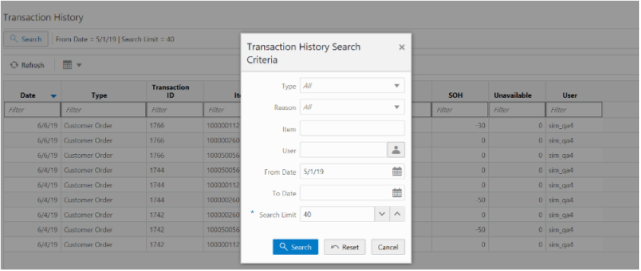
A new configuration parameter will determine the default in the from date. For example, if the system config parameter value is set to 90, the From Date will be defaulted with <today's date> - 90.
Transaction History Search Criteria
A second change impacts the jump capability to transactions. In prior releases, only inventory adjustments and stock count authorization were transactions the user could jump into from the transaction history trail to see details. This feature has been improved to allow the user to jump into the container of shipment and receipts.
Specifically, this feature impacts DSD Receiving, Transfer Shipment, Transfer Receiving, and Return to Vendor. Clicking the transaction ID will navigate to Container Lookup where the list of containers associated with the transactions will be listed. The user can open a container to view the items and other details. If the transaction has only one container, the user will be taken to Container Detail screen directly. There will be a back button in the transaction screens which will navigate the user back to Transaction History. The user must have security access to the transaction for the system to navigate there. The same security permissions should exist as if the user accessed the dialog through the functional area. Also, the mobile application must be licensed by the retailer in order to view the transaction details.
Ticket Printing
Several new changes have been made around ticket printing:
-
Automated ticket generation allows a retail to generate tickets based on price, promotion, or clearance events.
-
Bulk ticket generation for containers.
-
Bluetooth printing from the mobile application.
Automatic Generation of Tickets
Automatic generation of tickets requires the user to assign the tickets and leverage the printer and template data setup features.
Format Assignment
The Format Assignment screen is used to auto assign the formats when generating a ticket event based on a Format type and price event. This allows the retailer to override the default ticket format for specific categories of items and/or events. For example, if the retailer has both clothing and electronics, they could print a hangtag and a ticket with a sticky back label. Since it is by price event, they could use the hangtag to create a clearance ticket that has a sticky back.
Formats can be assigned at the selected item basket level for all stores or selected stores. It could be done for price type wise such as Permanent, Clearance, and Regular.
Format Assignment List Screen
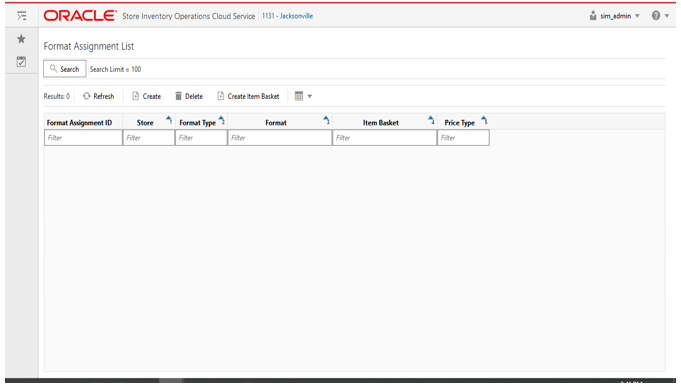
This screen can be accessed from Operations->Format Assignment. When this screen is accessed, the system displays the Format Assignment Search Criteria and allows the user to refine the search for the system to show the results.
To create a new assignment, the user can select the Create option and go to the detail screen and save the assignments.
From this screen, the user has an option to create new item baskets. When the user selects the Create Item Basket, the system takes the user to the Item Basket dialog and use the item basket to assign the format.
Format Assignment Search Criteria
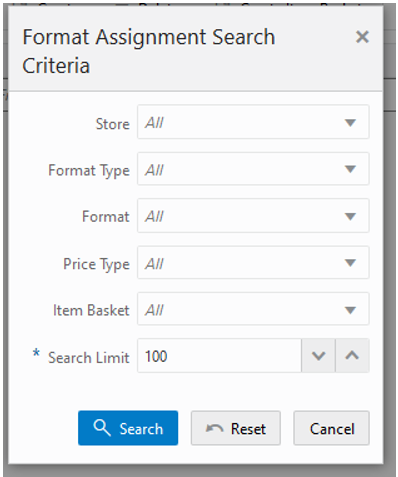
The Format Assignment Search Criteria appears automatically when the user selects the Format Assignment. The user can also select the search option to access this screen and enter the search criteria to refine the search.
The format assignment list displays the results based on the criteria given here.
There is a search limit default which is defaulted based upon a system configuration.
Format Assignment Detail Screen
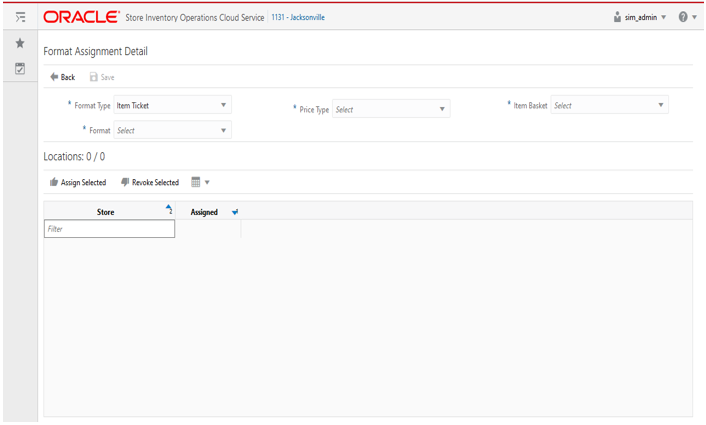
The format assignment detail screen is accessed when the Create option or an existing format assignment id is selected from the Format Assignment List. Format can be assigned based on the Item Basket and assigned store wise.
-
If the Item Basket was not created for All Stores (single store), the Available locations list will be restricted to the single store the Item Basket was created for.
-
If the Item Basket was created for All Stores, the Available locations will list all available locations that the user has privileges for.
Auto Ticket Print
This new feature allows the user to set up a printing schedule to automatically print tickets to an external printer based on the product group schedule and defined items. This process will not generate tickets or labels, but rather look at those ticket and label ticket events already created. If the items match the component criteria, the ticket or label will be printed.
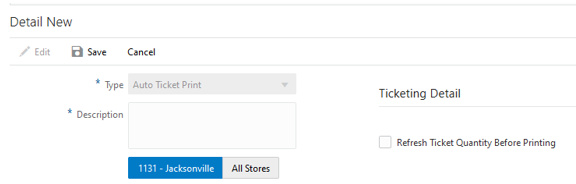
This is the Product Groups screen with focus on the Detail section for an Auto Ticket Print type product group. The print quantity is updated with the stock on hand based on the refresh quantity indicator in the product group.
Several additional rules will be applied depending on the type of print:
-
The system will look at all open tickets regardless of how they have been created based on the components setup.
-
For items with the format type=Item Ticket, the system populates the print quantity of the item tickets with current SOH.
-
For items with the format type=Shelf Label, the system populates the print quantity of the shelf label quantity with the shelf capacity quantity defined in the sequence table.
-
For Item with SOH > 0 then ticket qty = SOH and If SOH <=0 then ticket qty = 0.
-
For shelf label if label quantity > 0 then ticket qty = label quantity and if label<=0 then ticket qty = 0.
-
If the ticket contains the print date, the system sends the tickets to the printer based on the print date. (PRINT DATE <=CURRENT DATE).
-
For manually created tickets, the system checks the auto print flag which indicates whether the system must consider the ticket for the auto printing.
-
If the qty = 0 to print, the system prints nothing.
-
There may be situations in which a request for the same item ticket comes in at the same time and the system is not able to identify the duplicate ticket to consolidate. If that happens, the business process will need to manage the extra ticket printed. This should be an edge case and happen rarely.
-
The system will consolidate tickets and update across all batches within a batch generation method (Product Group, External, or Manual generated) those item tickets matching all of the following:
-
Item number.
-
Print date.
-
Format type.
-
Format.
-
Container Ticket Print
This feature allows the user to access a container shipped, inbound, received and generate a bulk ticket print event for it. For this to be available, the user needs to have the Print ticket from container items permission.
It is available for both the desktop client and mobile MAF client.
Printing Tickets
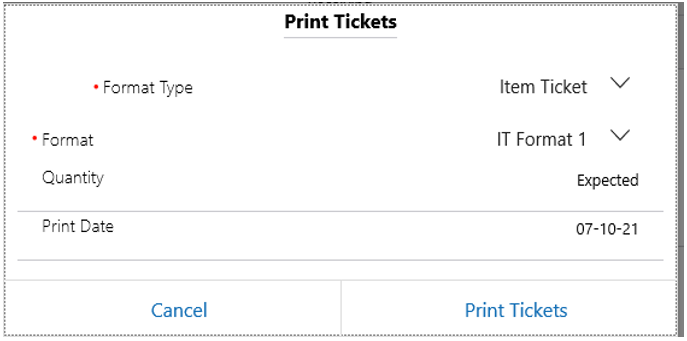
The Print Tickets dialog is available on the following transactions container items screen both through transaction and lookup:
-
Direct Store Delivery
-
Transfer Receiving
-
Transfer Shipment
The system displays the following attributes for the user to select.
Format Type - This allows the user to select the format type. Item Ticket or Shelf Label. Default is Item Ticket.
Format - This will show the list of formats available for the selected format type for the user to select to which format the tickets should be assigned. The default format assigned for the selected format type will be shown as selected by default.
Quantity - This field indicates the quantity populated depending on the transaction and status. This is a read only field. Values: Shipped, Received, or Expected. In case of Shelf Label, the quantity is Label Quantity or 1.
Print Date - This field indicates the print date. This is a read-only field.
When the user selects to print, the system displays the Select Printer screen for the user to select the printer to which the tickets need to be submitted to print.
Bluetooth Ticket Printing
This feature allows the user to select a bluetooth printer and print with it.
Select Printer Screen
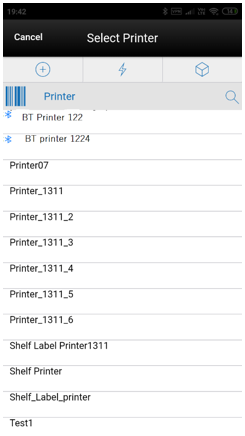
On this screen, the user can select the printer to set for the ticket printing. On the top of the lists, the system displays the paired Bluetooth printers.
The Bluetooth printers are indicated with the Bluetooth symbol and prefix BT and these printers cannot be scanned.
This screen is for the user to select or scan the barcode of the printer and submit the tickets for printing. It is accessed from the Select Printer option on the Auto Print Item screen, Manual Print Items screen. and Print Tickets popup that appears when printing tickets from the Container Items screen. This screen lists all the printers that are available in the system for the item tickets and label type. The selected printer is displayed on the Auto Print Item and Manual Print Item screens for the user to know to which printer the tickets/labels are submitted for printing.
Store Orders
Three new features have been introduced into store orders:
-
Store order creation can be scheduled. This will generate, on a specific date, a store order for a specific set of items that can be used as a guide for items to order by a user.
-
A new extension has been added to provide the user with four additional data elements. These are:
-
History sales data.
-
Days of supply based on sales data.
-
Forecast sales data (requires third-party integration).
-
Days of supply based on forecast sales data.
-
-
Timeslots can now be set up in SIOCS to indicate when an item request store order should be arriving in the store.
Automated Orders
These types of orders are set up on the product group and are auto generated without quantities on a specific time interval.
Automated Orders - Specific Changes
-
Restrictions can be configured as part of the automated process setup.
-
For system generated store orders, the quantity for all items will be initially blank until the user enters or scans in a quantity for the items.
-
System-generated store orders will have the description defined on the Product Group.
-
The info area will display all the information the product group is setup.
-
They are integrated to the merchandising system as an Item Request over the RIB.
System-Generated Order Creation
System-generated store orders are created on the desktop of the EICS application as part of a product group. Those schedules created for today will generate the store order at the time of completing the schedule for stores on the schedule. Other store orders will be generated based upon their schedule in the nightly batch. System-generated store orders will have an origin of system and will be created in a status of New with the items that were defined per the product group component without quantities. The request delivery date will be set per the Days before Delivery.
On the mobile, the store order will allow the user to modify and save or approve it. Items can be added within the defined restrictions defined on the product group if the Add Items indicator was selected on the product group.
Product Groups Detail - Store Order
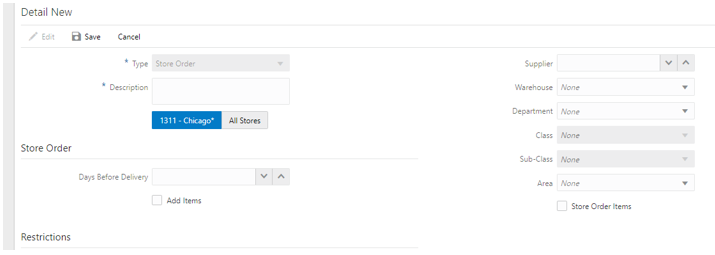
This is the Product Groups screen with focus on the Detail section for a Store Order type product group. Creating and scheduling a product group for store orders, allows for the generation of a system-generated store order. The store order will be generated online for schedules for today’s date, otherwise the store order will be generated through the nightly batch schedule. The store order will be editable and allow for items to be added, edited, and removed.
The product group attributes specific to Store Orders includes:
-
Days Before Delivery - The date the user wants the Store Order to be delivered by. Will be used to set the Request Date on the Store Order.
-
Store Oder Create Date + Days Before Delivery = Request Date
-
-
Add Items
-
Checked - the user will be able to add additional items manually to the store order once it is generated by the system.
-
Unchecked - the user cannot add any other items to the store order, only the items that were added by the system can be ordered.
-
Restrictions – restrictions can be assigned to the store order product group. The assigned restrictions will be used to restrict the items that get added to the system-generated store order on the mobile. These are the same restrictions that are available when creating a manual store order on the mobile. For details around these restrictions, see the Store Orders chapter in the Oracle Retail Store Operations Cloud Service User Guide. The restrictions will not be validated/enforced when adding components to the product group:
-
Supplier
-
Warehouse
-
Department
-
Class
-
Sub-Class
-
Area
-
Store Order Items
Store Order List Screen
A new type of order can exist on this screen. A System store order is generated by the system from a scheduled store order product group.
Sales Data Screen
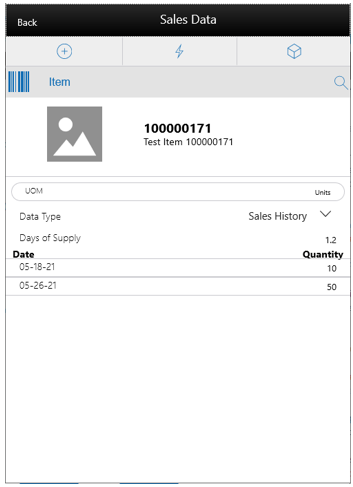
The Sales Data screen is used to display sales data for an item and store. It is accessed by selecting Sales Data from within the footer menu of the (Store Order) Item Detail screen. The screen allows a user to view two types of sales data: Sales History and Sales Forecast. A user must have permission to view Sales History as well as to view Sales Forecast. If the user does not have either permission, this screen will not be available.
Sales History will display the past 30 days (or less if 30 does not exist) of Sales History for the item at the user’s store. Sales History is pulled from sales within the system that are found in Transaction History. This will display in a list with item and quantity.
Sales Forecast will display the next 30 days (or less if 30 does not exist) of future sales for the item at the user’s store. Sales Forecast is retrieved through a web service from an external system such as a forecast planning system. This will display in a list with item and quantity.
Lastly, the system will display the calculated Days of Supply based on either sales or forecast.
Delivery Timeslot
Delivery Timeslot Setup Screen
The Delivery Timeslot screen is an administrative screen for the creating, editing, and deleting of delivery timeslots to be used within the system. The timeslots are used within store orders. The screen is accessed from the Admin -> Data Setup menu, the user must have proper permission. Upon initial install, a list of default delivery timeslots will be available. The delivery timeslots defined here need to match that of the merchandising system; they are not integrated between the two systems.
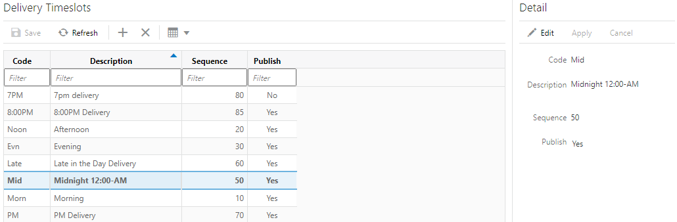
Each delivery timeslot will require the user to give it a unique alphanumeric code. A description is also required to describe the delivery timeslot. A sequence needs to be assigned, which will be used to give an order to the delivery timeslots when populated on the store orders UI. Lastly, there is a publish indicator that will define if the delivery timeslot on the actual store order is published.
Once a delivery timeslot is created, it is saved and can be edited with the exception of the code, which is not editable. Delivery Timeslots can also be deleted, as long as it is not attached to a store order.
Stock Counts
Retailers now have the ability to allow multiple users to execute the same child count.
Stock Count - Unexpected Items
Item lists are created by the merchandise hierarchy or can include all departments. Unit and Amount counts cannot select by item, supplier, style, or item basket, because the merchandising system holds the valuation at the merchandise hierarchy level. Unexpected items can be added during the counting process so long as they are for the same merchandise hierarchy that the stock count was set up for.
For unexpected items that get added during counting:
-
If the snapshot has already been taken for the count, it will take the snapshot of the unexpected item as it gets added to the count.
-
If the snapshot has not been taken for the count yet, the snapshot for the unexpected item will not get taken as the item is added, rather when the snapshot is taken for the stock count.
Stock Count - Variance Display
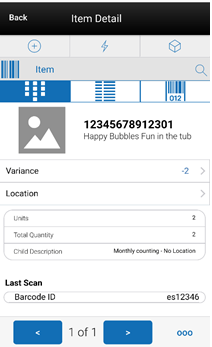
The user will be able to view the difference between the snapshot quantity and the Total quantity counted, provided the user has the View variance security permission.
-
If the snapshot quantity < Total quantity, display '+' symbol before the variance value.
-
If the snapshot quantity > Total quantity, display '-' symbol before the variance value.
-
If the snapshot quantity = Total quantity, display '0' symbol before the variance value.
-
This field will be displayed only when the user has View Variance security permission.
-
This value should be calculated dynamically after each scan(count) happens.
-
This value will be displayed only for counted items.
Transfers
To prevent accidently receiving a delivery with 0-received quantities, a new permission is added.
When confirming the transfer receipt, if there are containers that are in New status (the items will not have any quantities):
-
If the user has the Allow Default Zero at Confirmation permission, the system will prompt the user if they would like to set the quantities to 0. If the user chooses Yes to the prompt, all items that have a blank quantity value will be set to 0. If the user chooses N, the user will return to the screen and nothing is updated.
-
If the user does not have the Allow Default Zero at Confirmation permission, the user will not be able to confirm the delivery and will return to the screen. At this point, the user will have to either save it for someone else with proper permission to confirm or receive the items that are blank.
When confirming the transfer receipt, if there are containers that are in In Progress status with discrepant quantities (Received is not equal to Expected), the user will be prompted that there are discrepant items:
-
If the user has the Allow Default Zero at Confirmation permission, the system will prompt the user to set the quantities to 0. (same as above)
-
If the user does not have the Allow Default Zero at Confirmation permission, the user will not be able to confirm the delivery and will return to the screen. (same as above)
Unit of Measure
The Units of Measure screen is an administrative screen for the creating, editing and deleting of Units of Measure to be used within the system. The screen is accessed from the Admin -> Data Setup menu. The user must have proper permission. Upon initial install, a list of units of measure will be available.
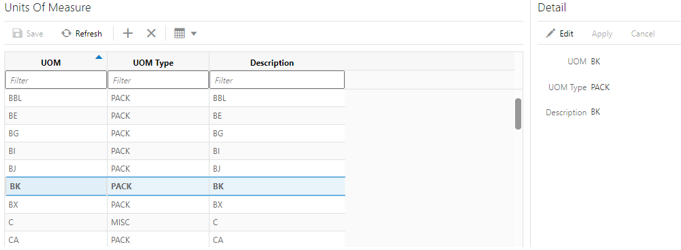
Each Unit of Measure record will require a UOM, which is the alphanumeric code to identify the unit of measure. The code is what is displayed on the UI. It does not need to be unique. Next, a UOM type is assigned to the Unit of Measure. This is selected from a list which is hardcoded in the system, that is, VOL or MASS. Lastly, the unit of measure needs to have a description to describe the UOM.
Once a unit of measure is created, it is saved and edited with the exception of the UOM code, which is not editable. Unit of Measures can also be deleted, as long as it is not being used by an item or a transaction in the system.
UOM codes need to match those in external systems to ensure correct processing.
Item Lookup
Several modifications have been made to item lookup:
-
Display of total quantity for item lookup - desktop client only.
-
Display of price on the desktop client and mobile client for item lookup.
-
Display of the last receipt date - desktop client only.
-
Display of individual delivery and order transactions.
Item Lookup - Mobile UI Display Changes
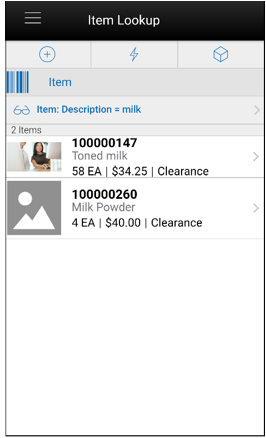
The details of the item such as Item ID, Item Description, Available SOH, Price, Price Type, and Item Image (if configured) are displayed in this screen in order to provide certain basic information about the items. The new pricing related information (Price and Price Type) is displayed only when the system configuration parameter Display Price in Search Result - Execution is set to Yes.
Note: Displaying the price on a list screen can slow down performance on displaying the search results.
Item Lookup - Desktop UI Display Changes
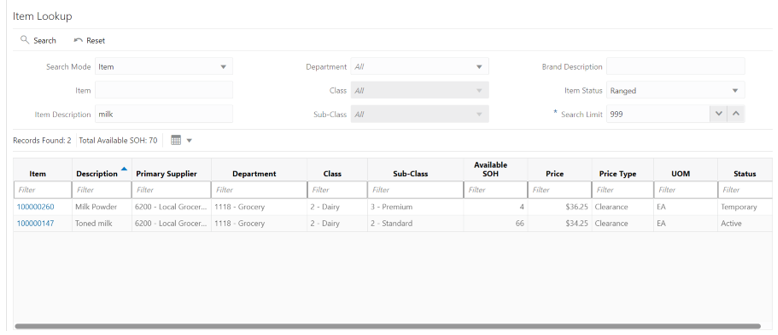
The Total Available SOH field displayed next will show the summation of the Available SOH for all items that are listed on Item Lookup based upon the entered search criteria. There will be different UOMs added together because items returned by the search may have different UOMs, hence there will be no UOM listed for the Total Available SOH field.
The pricing related information (Price and Price Type) is displayed only when the Display Price in Search Result - Operations system parameter is set to Yes. The Reset button displayed in the screen resets the values in the Search criteria fields and clears the search results currently displayed.
Item Detail - Last Receipt Date
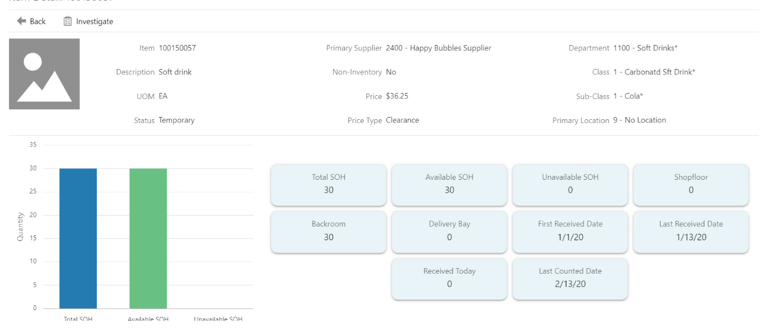
The last receipt date for an item will be displayed on the Item Detail screen for transfers and DSD/PO deliveries.
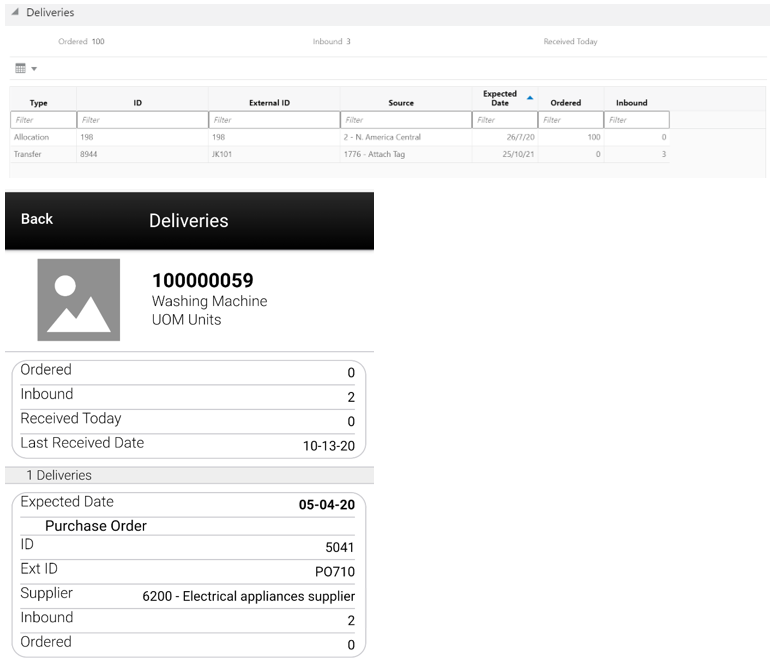
Deliveries - Transaction Display
In prior releases of SIOCS, the delivery records were rolled up. Now they will specifically display the delivery information.
Mobile UI Usability Changes
Several mobile UI enhancements are introduced with this release of SIOCS.
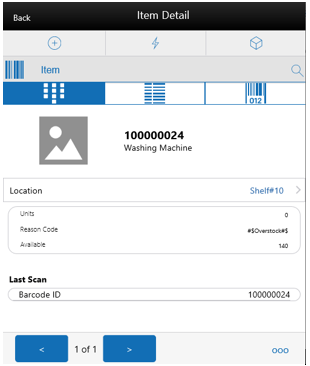
First of all, the last scanned value will be displayed in the applicable item detail dialogs. This allows the user to see the original barcode they scanned versus the transaction item that SIOCS retrieves to work against.
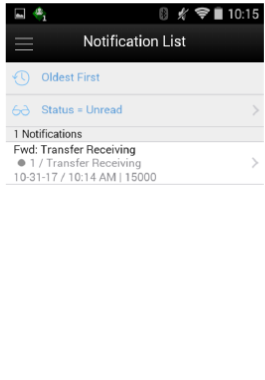
In addition, the notifications name can now be translated into the user’s language.
Last Scanned Value
This functionality is featured in all MAF Item Detail screens. Transactions impacted are:
-
Stock counts
-
RTV
-
In store replenishment
-
Item Basket
-
DSD
-
Transfer shipping and receiving
-
Customer order item detail for picking and delivery
-
Store Orders
-
Ticketing
Notification Translation
The notification description name will from now on be displayed in the user’s preferred language.
Retail Home Subscription Metrics
The subscription dashboard is a dashboard displayed in the Retail Home application which allows customers to view usage metrics for their subscriptions of EICS and SOCS. The usage metrics are captured by the application teams and shared with the Retail platform through the subscription service.
Apart from displaying the Subscription Start/End Date, Total Purchased, and Consumed quantity, and so on, this screen also displays information regarding the usage data of the products for the retailer. A graph or table will be displayed depending on the type of view selected in the Graph View/Table View switch.
The Usage data will be posted by SIOCS every month to PSRAF. In SIOCS, this is accomplished by running the Extract Subscription Usage batch.
The batch does the usage calculation data and will be sent to PSRAF to be displayed in the Retail Home -> Current Subscription Usage. It is a restricted batch which by the default is scheduled to run every month. This schedule can only be updated by a sysop user. It can also be run as an Adhoc batch from EICS > Admin > Technical Maintenance > Job Admin> Adhoc Job.
The batch determines the monthly usage and running usage information for EICS and SOCS and inserts this data into the PSRAF DB.
The monthly usage for a month is defined below:
-
EICS: The total quantity of items that were sold and returned plus the total quantity of items that were fulfilled as part of web orders.
-
SOCS: The distinct users that logged into SOCS.
RFID Scanner Configuration
When using RFID scanners with SOCS, it is very important to have the scanner provide enough power to scan RFID tags, but not too much so it drains the battery too fast.
To facilitate this setup, SOCS added a new configuration screen to better manage RFID scanners.
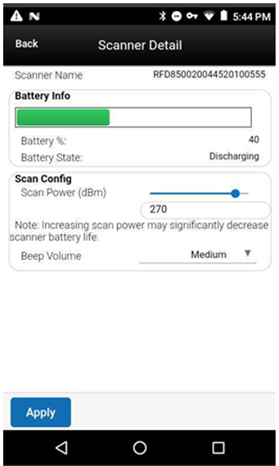
This screen is accessed on the mobile application by selecting the Configure option from the external Scanner List screen after an external scanner has been connected:
-
Scanner Name: <Scanner Name> - the name of the connected scanners whose settings are displayed on the screen.
-
Battery Info Bar - Visual progress bar showing the amount of battery remaining in the scanner:
-
The progress bar will be green if the battery remaining is greater than 30%.
-
The progress bar will be yellow if the battery remaining is between 15% and 30%.
-
The progress bar will be red if the battery remaining is less than 15%.
-
-
Battery %: <Battery %> - shows the amount of battery life remaining as a numeric value (0-100%).
-
Battery State: <State> - Will display either Charging or Discharging depending on if the battery is charging or discharging.
-
Scan Power Slider Bar - Displays the amount of power each scan takes on a slider bar. The slider bar can be dragged to a new value. The values are between 0 and 300 dBM.
-
Scan Power Input Field - Displays the amount of power each scan takes as a numeric value. A user can enter a new numeric value in this field. Any value less than 0 will be set to 0, and any value greater than 300 is set to 300. This value updates if the slider bar value is changed.
-
Scan Volume: <Volume Setting> - Displays the current beep volume during a scan and presents values in a drop down to change. Values are: Quiet, Low, Medium, and High.
Buttons
-
Apply - Will apply the settings to the connected external scanner.
-
Identify - Upon selecting this button, the system makes the scanner you are connected to beep, so the user knows which one is used. Note: This button is displayed only in IOS.
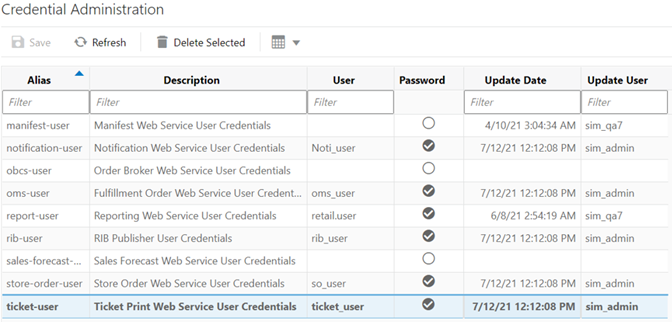
Credential Administration Screen
When integrating a web service to an external system, credentials need to be exchanged. This means a repository of these need to exist in SIOCS so it knows what login and connection information is needed.
The Credential Administration screen is used to set up these integration credentials for connecting with external/third-party systems. The Credential Administration Screen can be accessed through Admin -> Technical Maintenance -> Credential Administration. To access this screen, the user has to be assigned the following:
IDCS app roles: <SIOCS Primary APP>.admin_users
Security Permission: Access Credential Administration
The list of users displayed in the list are based on the external systems that SIOCS has integrated with. A new user record cannot be created using this screen.
The screen displays the list of users with the details such as Alias, Description, User, Password, Update User, and Update Date. The user can select a record and use the Detail pane to edit the credentials.
Reports
Additional fields have been added to the Shipping and Receiving reports.
The following reports have been updated to display additional fields:
-
Direct Delivery Report:
-
Receipt ID (DSD_ID)
-
-
Purchase Order Report:
-
PO ID
-
Receipt Date
-
-
Transfer Report:
-
Receipt Date (If inbound to the store)
-
Shipped Date (If outbound from the store)
-
-
Transfer Receiving Report:
-
Transfer Receipt ID
-
Receipt Date
-
-
Transfer Shipment Report:
-
Shipped Date
-
Inventory Upload
During the SIOCS implementation, often inventory positions need to be updated. In some cases, a retailer may have a legacy system that has accurate inventory positions and serial numbers. This new upload is geared towards those type of implementations. The upload will directly update item locations and insert serial numbers with the correct state.
Note: This upload process is not meant for continuous processing and will not generate transactions in the history trail or close out transactions.
WSDLs Not Using Proxy
Based on the Oracle IDCS team’s concerns around high load, the use of proxy-service was removed.
This changes the SIOCS web service URLs.
Note:
The functionality is not impacted by this change, just the calling URL:
From: https://<Ext-load-balancer/XXXXBean/ProxyService/XXXService?wsdl
To: https://<Ext-load-balancer>/XXXXBean/XXXXService?wsdl