2 Common Usability and Navigation
This chapter describes the method by which you log in, and log out, and navigate. It also describes the common User Interface (UI) controls that are used throughout the mobile UI.
Mobile UI features:
Welcome / Login
Figure 2-1 Welcome Screen
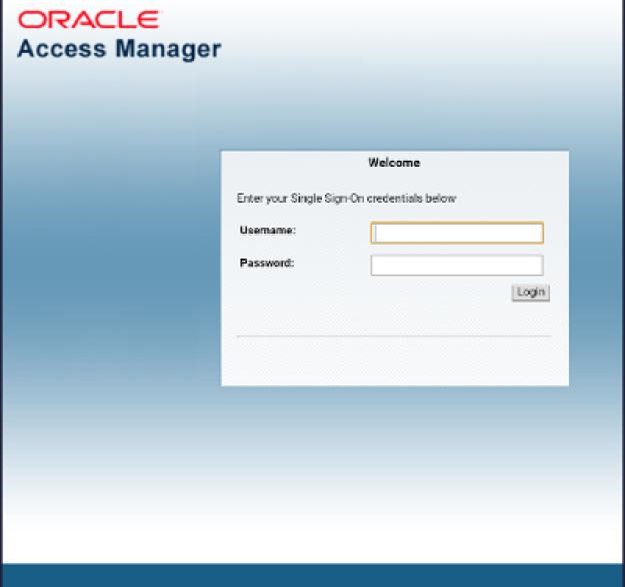
Upon launching the mobile UI application, the login screen is displayed. The first time a user logs into the system, if logon is successful, the system will log in to the user's first assigned store. The system will remember the store the user was last logged into and log in to that store until the store is changed. Upon successful login, the system will navigate you to the Open Transactions dialog.
Menu / Drawer
Figure 2-2 Menu/Drawer
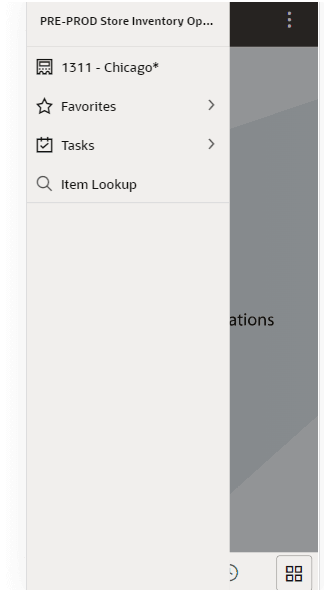
The mobile drawer is displayed as the menu panel on the left side of the screen upon tapping the drawer (hamburger stack which looks like three horizontal lines in the upper left-hand corner of the application). The menu consists of the user’s store to change stores, Favorites, Tasks, and Item Lookup.
Figure 2-3 Tasks
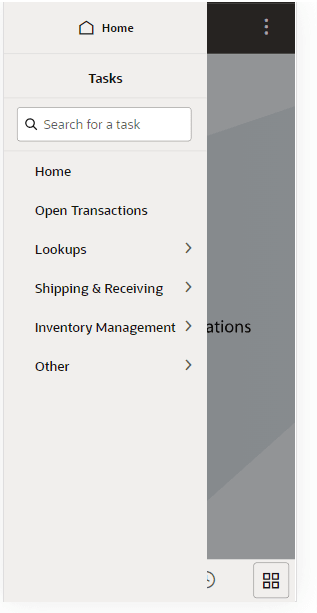
From the menu/drawer the user can select Tasks to access various functionality of the application such as Lookups, Inventory Management, etc. The functional areas are displayed based upon the user’s access permissions. Tasks can also be searched on.
Figure 2-4 Favorites
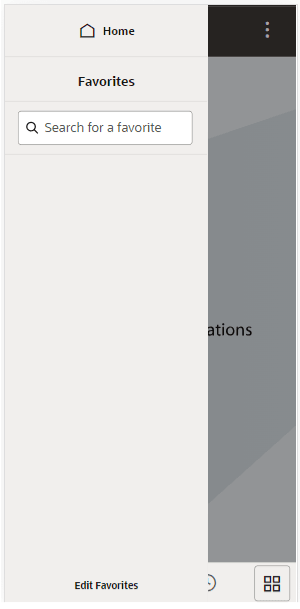
A favorite is a way of creating a shortcut for a task/menu that the user frequents often. A user's favorites are accessed by selecting the Favorites (star) option. The system will list all the favorites. Selecting a favorite will navigate into that dialog. The user can also search for a favorite and select the searched favorite and navigate into the dialog.
See the EICS User Guide Common Usability and Navigation chapter for details on Adding/Removing Favorites, Pinning Favorites, and Editing Favorites
Quick Actions
Figure 2-5 Quick Actions
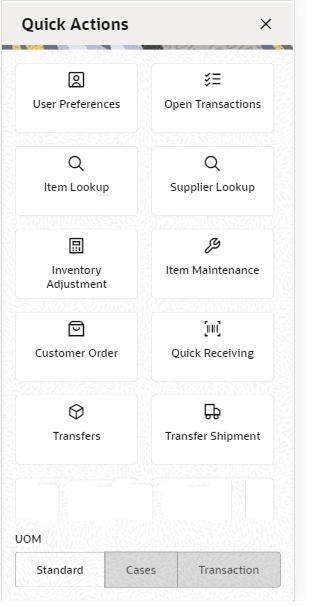
The Quick Actions menu is accessed by selecting the Quick Actions icon from the Application Panel Footer menu. Quick actions will include the same functionalities as the drawer menu such as Item Lookup, Quick Receiving, etc. User must have proper permission for the menu to display. Quick Actions will also be where User Preferences are accessed and an option for user to update UOM from here. The menu items on Quick Actions can be moved and rearranged by selecting the Edit Layout option and then dragging and dropping the menu item, thus allowing the user to put the more used / important menus at the top.
Select Store
Figure 2-6 Select Store
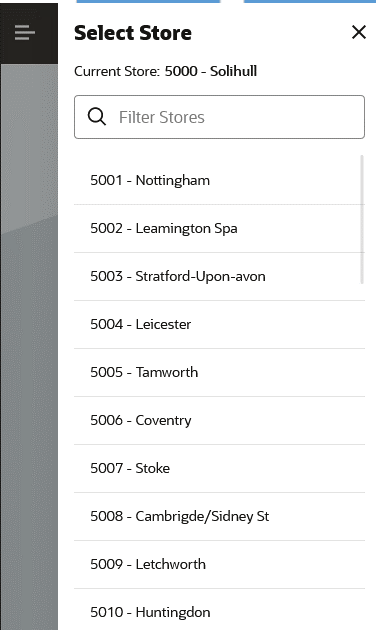
The select store function is available from the drawer/menu by tapping the Store. It is also in the Additional Options menu (…) in the upper right hand corner on the Open Transactions by tapping the User and then selecting Change Store the user is directed to the Select Store screen with an option to change stores.
The Select Store displays all the stores that the user is authorized for. If needed, the user can search for a store by either the store ID or store name. The store list is narrowed down based upon the search. Selecting a store will display the new store in the store field of the drawer/menu. The user is then officially logged in to the new store. All data and transactions will be for the newly selected store. Every time the user logs in to the system, it will be for the store selected until a new store is selected. The system remembers/saves the store for the user.
Select Language
Figure 2-7 Select Language
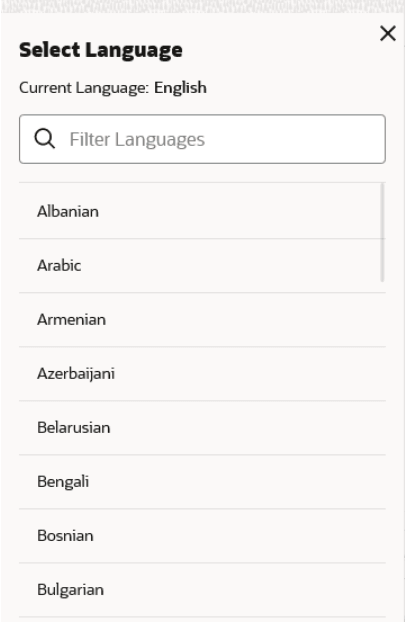
The Select Language screen is displayed by selecting the Change Language menu option within the Additional Options menu (…) in the upper right hand corner on the Open Transactions. Initially when a user is logging into the mobile for the first time ever, it will use the language of the device. The Language screen will display with a list of the available languages supported in the system. User selects a language, and the language will change in the application to the language selected and user will navigate to the Open Transactions. That language will remain for the user (saved on the user) until the user change languages. The locale of the device (date format, currency format, and so on) will remain that of the device
User Preferences
Figure 2-8 User Preferences
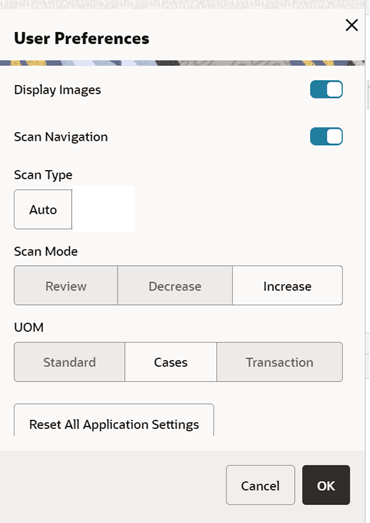
The Preferences dialog is accessed by selecting Preferences from the Quick Actions menu or by selecting Preferences from the Additional Options (…) menu in the upper right-hand corner. Preferences are for the user on the mobile application. Preferences include: displaying images, scan navigation preference, Scan Type, Scan Mode, UOM and configuring the scan power of the connected scanner if any.
The Scan Power Slider Bar displays the amount of power each scan takes on a slider bar. The slider bar can be dragged to a new value. The values are between 0 and 300 dBM. The Battery Level%: <Battery %> shows the amount of battery life remaining as a numeric value (0-100%).
The Display Images preference will be available if the system setting Display Images is set to ‘Yes’.
Scan Type
Figure 2-9 Select Scan Type

The Scan Type is a found in preferences. It is used whenever an item can be entered or scanned within a Scan Bar. The scan type allows you to tell the system what type of item or barcode is being entered.
The only value for this is Auto.
Auto assumes that you can enter or scan any of the supported barcode types such as SKU, type 2, UPC E, GS1, UIN, and so on, and the system will parse through the various algorithms to derive the item.
Scan Mode
Figure 2-10 Select Scan Mode
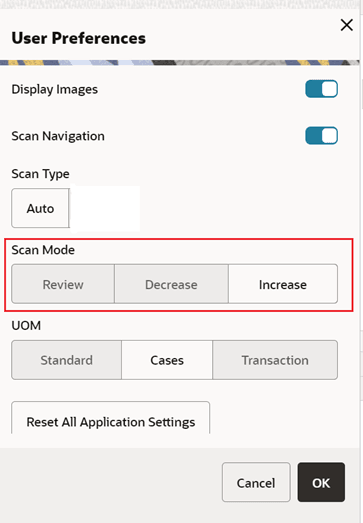
Figure 2-11 Select Scan Mode on Scan Bar
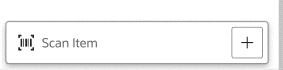
The Scan mode is a found in preferences. It is used whenever an item can be entered or scanned, and the quantity is captured. The scan mode in preferences will be used to default in the scan mode on the scan bar. The default scan mode in preferences when logging into the system initially will be ‘Increase’.
The scan mode will update the quantity as follows:
-
Increase: Adds to the existing item quantity. The Scan Bar will show a ‘+’ sign
-
Decrease: Removes from the exiting quantity. The Scan Bar will show a ‘-‘ sign
-
Review: No change to the quantity. The Scan Bar will show an ‘Eye’ icon
The user can change the scan mode in the scan bar, and that will be the scan mode used upon entering / scanning an item, it trumps that of the preferences. The system will retain the scan bar defined scan mode until the user logs out of the session. Upon relogging in, the system will default the mode in the scan bar to the scan mode defined in the preferences.
Unit of Measure
Figure 2-12 Select Unit of Measure
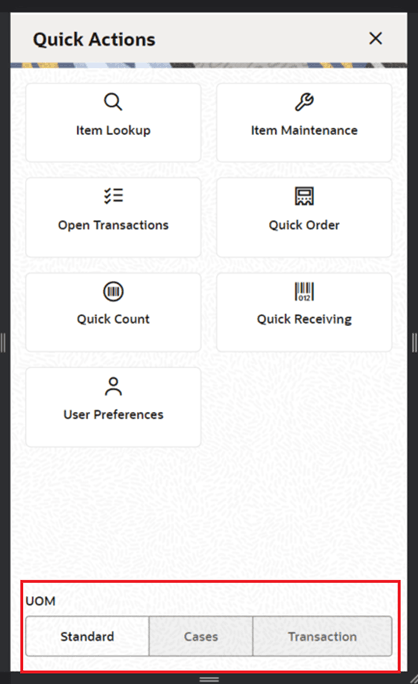
Figure 2-13 Unit of Measure
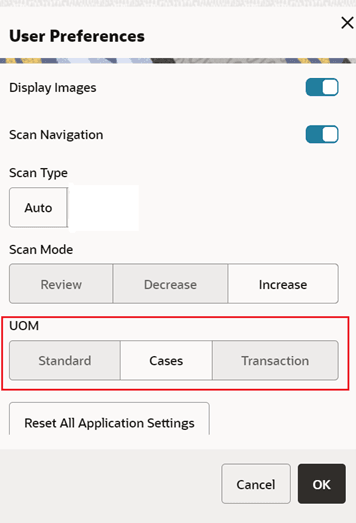
The Unit of Measure selection is a found on the Quick Actions menu as well as in Preferences. It is used whenever a quantity is captured. The unit of measure defines if the quantity displayed is going to be represented in the item's standard unit of measure, cases, or transaction unit of measure.
When switching the Unit of Measure, the quantity on the screen will convert to that unit of measure. When first logging in, the default unit of measure will be set based upon the system configuration Default Unit of Measure. The Unit of Measure selected by the user will remain as the UOM until the user changes it or Resets Application.
Transaction Unit of Measure will only be used where applicable which is in Customer Orders as well as Shipping and Receiving for a Customer Order. If Transaction UOM is selected in dialogs where it is not applicable, the system will use the Standard Unit of Measure even though the Transaction UOM may be selected.
Edit Quantity
Figure 2-14 Edit Item Quantity
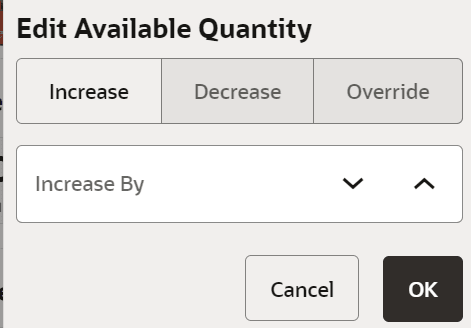
The Edit Item Quantity popup is used whenever there is an editable numeric field such as an item quantity field. The quantity that gets entered into the Edit Item Quantity popup will increase, Decrease, or override the existing quantity on the screen. The mode on the Edit Item Quantity will be defaulted per the system setting, Manual Quantity Entry Default Mode. When set to Scan Mode, the Edit Item Quantity popup defaults based upon what the Scan Mode is set to in Preferences. When set to Override the default will be Override. In all cases, these are only defaults, and the user can always change mode of the Edit Item Quantity.
Examples:
-
Qty = 15, enter in 3 increase, Qty = 18
There is a quantity of 15 on the UI. In the popup, the user enters a quantity of three, selects the increase option, and apply. The new quantity is 18.
-
Qty = 15, enter in 3 reduce, Qty = 12
There is a quantity of 15. In the popup, the user enters a quantity of three, selects the decrease option, and apply. The new quantity is 12.
-
Qty = 15, enter in 3 override, Qty = 3
There is a quantity of 15. In the popup, the user enters a quantity of three, selects override, and apply. The new quantity is three.
Filter Bar
Figure 2-15 Filter Bar
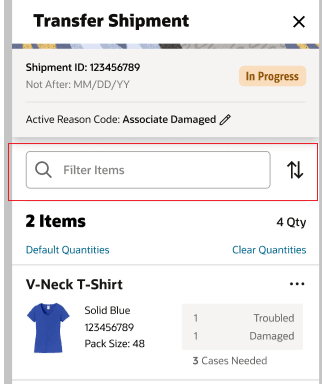
The Filter bar is used to narrow down a list of things such as items, containers, stores, and so on.
You can tap and type into the filter bar or tap and scan into a filter bar. By default, the Filter bar will be displayed on the top of the list. When scrolling down in the list, the filter bar disappears, and it reappears when scrolling back up in the list. The criteria that a user can filter on will be unique per functional area. The search is not case sensitive. The filter can be cleared out to return the full list. The filter will retain the entered criteria until leaving the screen in which it will be cleared out.
Scan Bar
Figure 2-16 Scan Bar
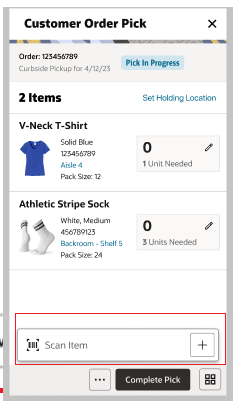
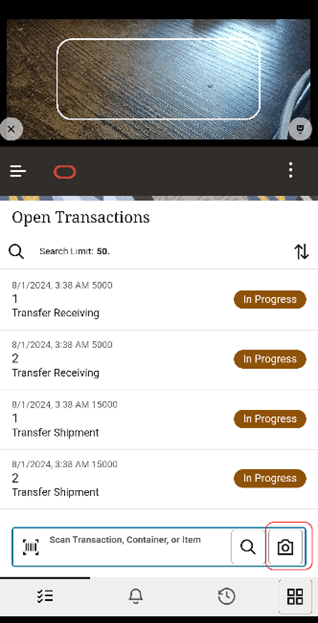
Figure 2-17 Scan Bar Open Transaction
The scan bar is at the bottom of the transaction lists, Item Lists, other lists such as Child Count and Container Lists, and Item Detail screens. It will be anywhere an item, or some other attribute can be entered or scanned to be viewed or edited on a transaction.
This bar allows for one defined attribute to be scanned and that attribute will be stated in the text of the bar. For example: Item, Container or Customer Order ID.
In the Transaction List screens, the scan bar will further filter or funnel down the list of transactions when doing a scan. The scanned attribute will be added in addition to the existing search criteria. It will appear in the search criteria field.
When scanning /entering items from Item Lists, if the Scan Navigation user preference is set to 'Yes' (meaning navigate), the user will navigate to the item detail screen for that item. The quantity will be updated per the scanned/entered item barcode.
If the Scan Navigation user preference is set to 'No' (meaning do not navigate), the user will stay on the Item List and focus will be brought to the that item in the list. The quantities for the item will be updated on the list per the scan/entry of the barcode. This is only applicable in the case where a quantity is editable on the list screen. If the list does not have an editable quantity, then the system will always navigate to the Item Detail on scan.
If the system configuration Enable Device Camera Barcode Scan is set to Yes, then if a camera is detected on the device, the camera icon will be available. The camera icon will allow for scanning in the barcode via the camera on the device. The barcode will be parsed and processed the same as if the scanner was utilized.
The camera will auto scan the barcode every ‘x’ seconds, where ‘x’ is defined by the system admin setting, Device Camera Auto Scan Timer. Lastly, when the camera is open, it will auto close if the Device Camera Auto Close system setting is set to ‘Yes’. If it is set to ‘No’ the camera will stay open until closed by the user.
Note:
Barcodes are case-sensitive. Therefore, the scan bar is also case-sensitive. When a barcode is scanned, the system tries to match uppercase and lowercase letters against the corresponding values stored in the database.Search Criteria
Figure 2-18 Search Criteria 1
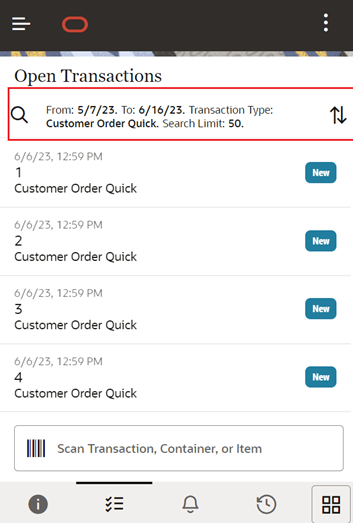
Figure 2-19 Search Criteria 2
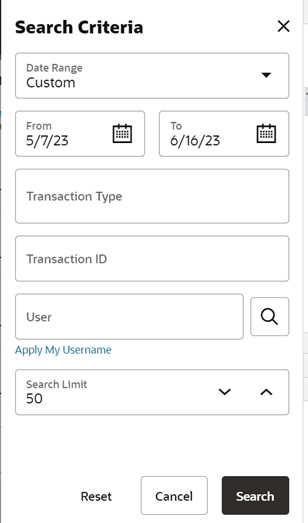
The Search Criteria field is represented by a magnifying glass icon in the header of the screen. Search criteria will be found on transaction list screens, such as Notifications shown in this figure. Criteria will be listed. Initially when entering the dialog, the default search criteria for the functional area will be displayed.
Tapping the Search Criteria field, will navigate to the Search Criteria screen to select and or change criteria to search with. The search criteria field gets updated with the newly selected search criteria fields from the Search Criteria screen. When leaving the dialog, the search criteria will be reset back to the default search criteria. Note: in Open Transactions the search criteria is retained until changed or reset.
Item Image and Item Description
Figure 2-20 Item Detail Item Image
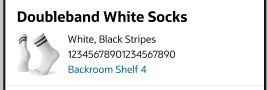
The item image is displayed throughout the application wherever an item is displayed. The item image will be displayed with the Item ID and Item Description in all applicable screens. Item image is displayed based upon a user Preference, Display Images. If it is set to Yes, the image will be displayed in the application for the user. If it is set to No, the image will not be displayed.
The Item Description will display one or two lines depending on the system configuration, Display Item Description Diffs. If it is set to Yes, line one will display either the short or long description per the system configuration Display Item Description. The second line will display the diffs for the item if they exist otherwise it will be blank. If the Display Item Description Diffs. If it is set to No, only one line for the item description will be used and it will be the short or long description per the system configuration.
Figure 2-21 Print
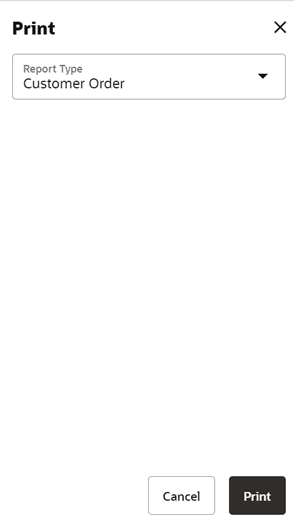
The Print dialog is accessed when selecting print within the application. It is available when selecting Print from the footer menu within a transaction.
The list of applicable reports will be given based upon what was setup on the desktop (Report Setup) for that functional area. The user must have data permissions assigned for the reports to be available. The user can choose to select a different report format to print if other report formats exist for this format type transaction. Once print has been selected for the report, the PDF is retrieved based upon the report format.
Notes
Figure 2-22 Notes
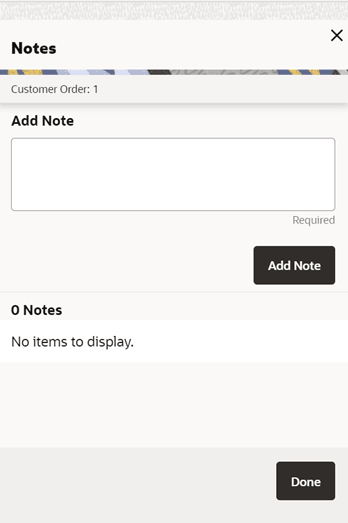
The Notes function is used to capture one or more notes about the transaction. It also allows you to view history or a trail of notes for a transaction. It is an optional process. The notes feature will be accessed from the footer menu within a transaction using the Notes menu option. Notes is available from within all transactions.
To add a note, enter the desired text and select the Add Note button. The note will be posted to the top of the list of notes in the Notes dialog. All notes will be listed in read-only mode with the user who created them and the creation date. Notes will always be available, and the user will always be able to add notes regardless of the transaction status. The user must have Create Notes permission to add notes.
Item Detail Scan Details
Figure 2-23 Item Detail — Scan Details
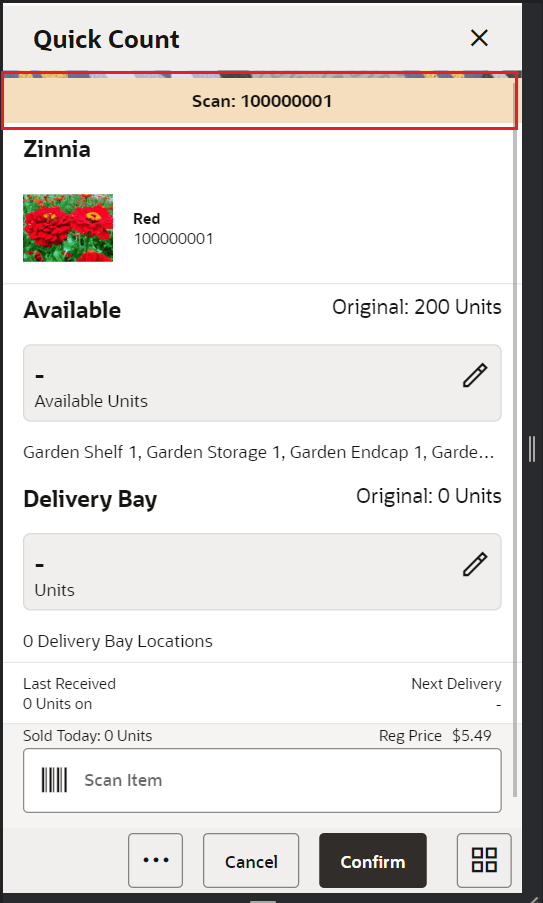
The last scan details are displayed on the top of all of the Item Detail screens in transactions of the mobile application. It includes the details from the barcode for the last item entered/scanned. This field is refreshed for each scan, so if an item has a quantity of 10, the scan details could have displayed different content for all ten barcodes/instances scanned.
-
GS1 barcode - the system will display the barcode, GTIN, and the contents of the barcode (that is, price, UIN, and so on).
-
Type 2, barcode, and Price.
-
All other types of barcodes will display the actual barcode (UPC, UIN, and so on).
Item Detail - UIN
Figure 2-24 Item Detail — UIN
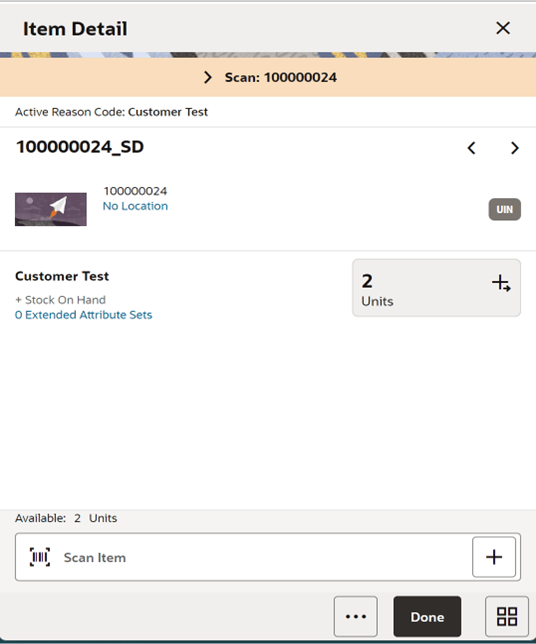
Figure 2-25 Item Detail — UIN — Serial Number
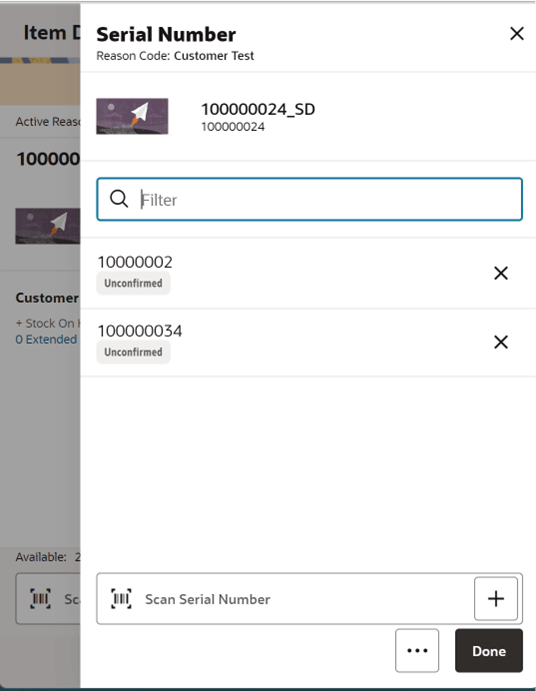
-
If the store is configured to process UIN Items and if the item is an UIN item, the system will allow to capture the UINs/Serial Numbers for the transaction.
-
The user can access the UIN/Serial Number popup by selecting the Quantity Field on the item detail screen within a transaction.
-
On the item detail screens for the UIN items, (AGSN and non AGSN), the quantity field is disabled and the selecting the edit quantity will take the user to the UIN/Serial Number popup screen.
-
The Edit Quantity icon will be a <pen>+, + to show that UINs are needed.
-
Quantity gets updated per UINs being added / removed on the UIN panel .
-
The system does not look for the Edit Quantity permission for the UIN items to see if a quantity is editable or not. With UINs, the quantity field is always disabled with a few exceptions like receiving.
-
On the Serial Number screen, the user can add or delete the serial numbers and it will be updated upon confirming the transaction.
-
The user can select the Remove All option from the footer menu to remove all the Serial Numbers/UINs.
Item Detail - Extended Attributes
Figure 2-26 Item Detail
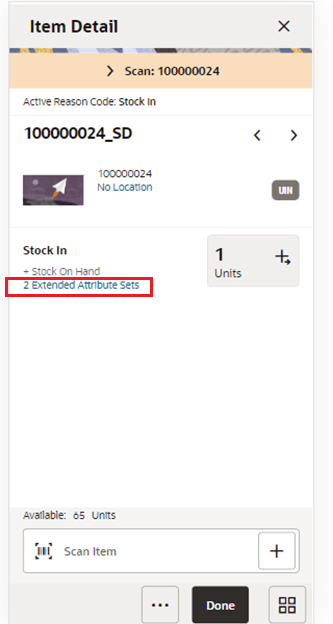
Figure 2-27 Extended Attributes
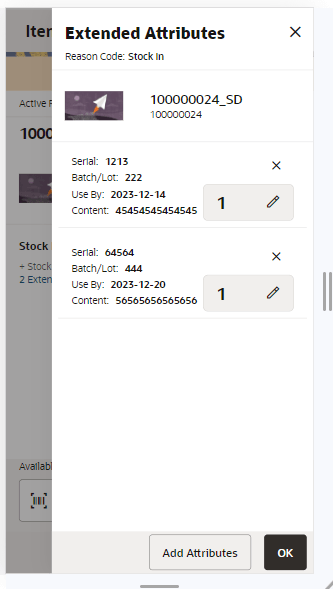
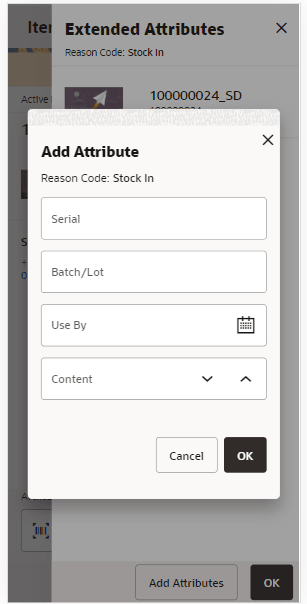
Figure 2-28 Attribute Entry
Extended Attributes are added at the item level on transactions. They can be accessed on the transaction item list screen by selecting the line level overflow menu and then the Extended Attributes option. The Extended Attributes screen is also accessible from the Item Detail screen by selecting the < x> Extended Attribute Sets link.
The Use Extended Attributes config must be set to ‘Yes’ to use extended attributes for the store and the user must have permission for that functional area, Access functional area Attribute. In order to add and remove attributes, a user must have Edit <functional area> Attribute permission.
The Extended Attributes screen is a list that will display attributes that may have been captured automatically from a GS1 barcode scan, or they may have been manually captured.
Sets of attributes can be captured manually by selecting the Add Attributes button. The attributes to be captured depend on the attribute configuration for the item (setup on desktop). The Attribute Entry screen will be displayed to allow manual entry of attributes or to scan them via the GS1 Databar.
The Attribute Entry screen is also displayed when selecting a set from the Attribute List screen. The details of that set will be displayed on the Attribute Entry screen and can be edited. Sets can be removed by selecting the ‘x’ icon for the set. The quantity field will increment each time the GS1 Databar is scanned.
A default badge will display for one of the attribute sets on the list of Extended Attributes. Its purpose is to denote which set of attributes is the default set that should be applied to and have their quantity updated. This is important when scanning an item that is not a GS1, meaning it does not contain attributes in the barcode. When the non GS1 is scanned, the default set will update the quantity. The first newly scanned set in the session will be set as the ‘default’. The default can also be manually selected for only one set on the Attribute Entry popup. The default will clear out as the transaction is saved.
The extended attributes flagged as "required” on setup will be required when manually capturing attributes on the Attributes Entry screen. Validation for required attributes will also be validated upon confirming the transaction. At least one set of attributes must be captured when an extended attribute is required.
Note:
Scanning attributes from the Extended Attributes and Attributes Entry screens as well as the default badge will only be applicable for Inventory Adjustments at this time.
External Scanner Configuration
Figure 2-29 External Scanners
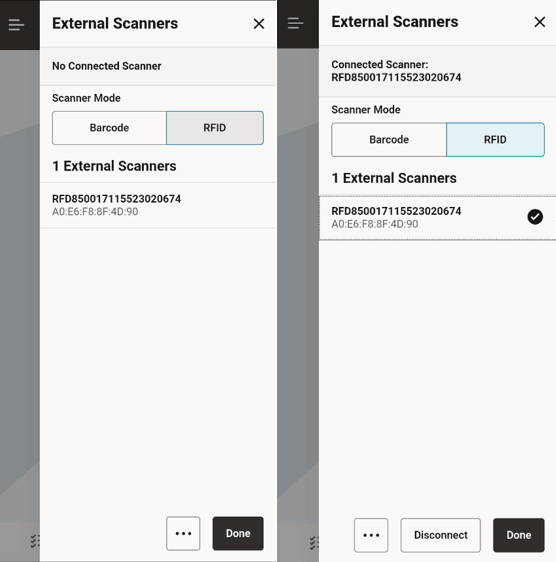
- This screen on the mobile application is to configure the external scanners.
- This screen is displayed by selecting the External Scanners menu option within Configurations from the drawer/menu.
- The system lists the devices available based on the scanner mode type you selected.
Scanner Mode
- Barcode
- Displayed only if the 'Enable External Barcode Scanning' store parameter is set to Yes.
- All scanners that are of BT type are listed here.
- RFID
- Displayed only if the 'Enable External RFID Scanning' store parameter is set to Yes.
- All external RFID scanners are listed under this tab.
- The connected scanner is displayed at the header section and a tick appears at the detail level.
- The user can select the device to connect. Once connected, the system allows to disconnect using the Disconnect button.
- The following functionalities can be accessed from the footer menu (…).
- Locate - This will locate the scanner and produce a beep sound on the device.
- Config - This option is visible if there is currently a connected RFID scanner. This will take you to the External Scanner Configuration dialog.
- Refresh - Upon selecting this button, the system will refresh the list of devices and show the currently Bluetooth paired/USB connected scanners.
Figure 2-30 Scanner Detail
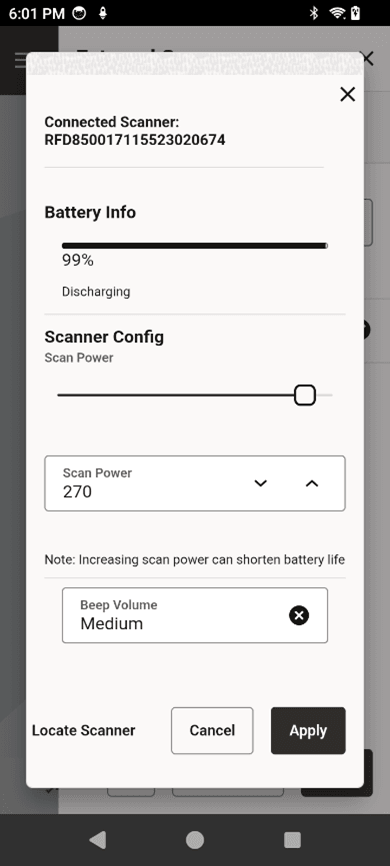
This screen is accessed on the mobile application by selecting the Configure option from the External Scanners screen after an external scanner has been connected. The system displays the following configurations details and allows to configure the scanner.
- Scanner Name: Name of the connected scanner whose settings are displayed on the screen.
- Battery Info Bar: Visual progress bar showing the amount of battery remaining in the scanner.
- Battery %: Shows the amount of battery life remaining as a numeric value (0-100%).
- Battery State: Will display either Charging or Discharging depending on if the battery is charging or discharging.
- Scan Power Slider Bar: Displays the amount of power each scan takes on a slider bar. The slider bar can be dragged to a new value. The values are between 0 and 300 dBM.
- Scan Power Input Field: Displays the amount of power each scan takes as a numeric value. A user can enter a new numeric value in this field. Any value less than 0 will be set to 0, and any value greater than 300 is set to 300. This value updates if the slider bar value is changed.
- Scan Volume: Displays the current beep volume during a scan and presents values in a drop down to change. Values are: Quiet, Low, Medium, and High.
Buttons
- Apply: Will apply the settings to the connected external scanner.
- Locate Scanner: Upon selecting this button, the system makes the scanner you
are connected to beep to help identify which one is used.
Note:
This button is displayed only in IOS.