Green Button - Download My Data
The Green Button - Download My Data feature allows business customers to export their billing data to CSV or XML format. Use the information below to review the available configuration options.
Green Button Example
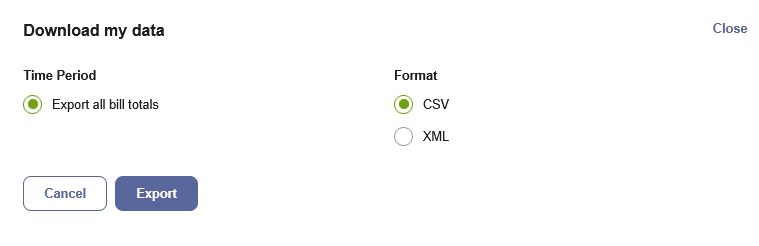
The following image is an example of the Green Button - Download My Data feature.
Configuration Options
For each element listed in the table, indicate the desired configuration in the Input Value column. If you do not provide an input for optional configurations, the default will be used.
| Configuration Option | Input Value |
|---|---|
|
Display File Export Options in a Modal Dialog You can display the file export options as a modal dialog instead of an expandable inline menu. Both display options provide the same fields for entering inputs and produce the same exported files. This configuration is supported for embedded and standalone implementations. Default: Inline. Selecting Download my data expands the file export options in an accordion. |
Optional Choose one of the following:
|
|
Enable Additional Columns Additional columns can be enabled to display in downloaded files for the following types of power data. Such columns may be relevant if the Power view is enabled and should match whatever data is displayed in that view. The columns available are:
Default: Demand (kW) |
Optional Choose one of the following:
|
|
Enable Service Point ID Row You can enable a service point ID row to be displayed in the header of the downloaded file. This configuration option may not be available if your organization uses the Legacy Billing Data Transfer specification. Your Delivery Team can tell you which specification you are using. Default: Disabled. |
Optional Choose one of the following:
|
|
Enable Meter ID Row You can enable a meter ID row to be displayed in the header of the downloaded file. This allows customers with multiple meters per billing account to more easily identify and analyze usage data associated with each specific meter. This configuration option may not be available if your organization uses the Legacy Billing Data Transfer specification. Your Delivery Team can tell you which specification you are using. Default: Disabled. |
Optional Choose one of the following:
|
|
Enable Five-Minute Data Intervals You can enable rows to display five-minute usage data intervals in the downloaded energy use file. This is supported for customers with five-minute AMI data. Default: Disabled. (Five-minute intervals are summed up to 15-minute intervals.) |
Optional
|
|
Enable Account Nickname in CSV File Utilities can provide a personalized identifier, or nickname, for each customer account. This nickname appears in a column of all exported CSV files. The account nickname helps customers identify which account the data is from so they do not need to memorize their billing account number. This feature is helpful when account numbers are long or difficult to remember. Default: Disabled. |
Optional
|
| Enable Custom Meter or Service Point Names in Downloaded File Utilities can allow users to define custom names for their meters or service points in relevant widgets, such as the Data Browser. Those custom names can also be enabled to appear in exported files. This lets customers more easily identify the appropriate meter or service point when reviewing exported data. Default: Disabled. |
Optional Choose one of the following:
|
User Experience Variations
The user experience of the feature may vary for customers and utilities depending upon their service types (gas, electricity, dual fuel, and so on), available data, costs, locale, and other factors.
Account Nickname in CSV File Header
Depending on how the utility program is set up, an account nickname might appear below or instead of the account number in the header of the downloaded CSV file. The account nickname helps customers identify which account the data is from, which can be useful if account numbers are long or hard to remember.
Requirements: The Account data transfer feed must be established.
Modal Dialog
When configured to use a modal dialog, the feature displays a single Download my data button. When the customer selects the button, the export options open in a modal dialog that displays over the page while the background is dimmed. The dialog includes the same time-period and file-format options as the default inline experience.
Multiple Billing Accounts and Service Points
If a business customer has multiple billing accounts, the customer can download a file for each account. However, the feature does not display a menu for switching between accounts. Business customers must switch by clicking an account selector hosted on the utility website.
Dual fuel business customers can download data separately for their gas and electricity usage. If a customer has two or more service points of the same fuel type (for example, a customer with one for regular electric usage and one for an electric vehicle) and clicks to download data, then a zip file is generated containing a CSV or XML file for each service point.
If a dual fuel business customer is in the combined view in the Data Browser and clicks to download data, then a zip file containing two CSV or XML files is generated: one file for electricity and one file for gas.
Multiple Fuels, AMI Data, and Cost Data
The table below describes user experiences depending on the number of fuels or resources, the availability of AMI data, and whether or not the customer has modeled rates. For example, business customers with daily AMI data and rates modeled will see daily cost values. Business customers with subdaily AMI data and rates modeled will see cost values broken down into the appropriate intervals, such as per hour, half hour, or quarter of an hour. Business customers with these same levels of AMI data but without rates modeled cannot see the cost values, but instead can view the energy use values at the same data intervals. The table below lists these and other possible user experience variations.
| Customer Scenario | User Experience |
|---|---|
|
Fuels: Single. Available Data: Billing data. Rates Modeled?: No. |
|
|
Fuels: Single. Available Data: Billing and AMI data. Rates Modeled?: No. |
Business customer can choose to export their data in CSV or XML format. CSV
XML
|
|
Fuels: Single. Available Data: Billing and AMI data. Rates Modeled?: Yes. |
Business customer can choose to export their data in CSV or XML format. CSV
XML
|
|
Fuels: Multiple. Available Data: Billing data. Rates Modeled?: No. |
Business customer can choose to export data in CSV or XML format. CSV
XML
|
|
Fuels: Multiple. Available Data: Billing and AMI data. Rates Modeled?: No. |
Business customer can choose to export their data in CSV or XML format. CSV
XML
|
|
Fuels: Multiple. Available Data: Billing and AMI data. Rates Modeled?: Yes. |
Business customer can choose to export their data in CSV or XML format. CSV
XML
|
Power Data
The downloaded file may include additional columns of data that align with the data that is shown in the Power View of the Data Browser. Depending on the setup and configuration, some or all of the following columns may be included in the downloaded file:
- DEMAND (KW): The rate at which energy is consumed.
- REACTIVE POWER (KVAR): Wasted or lost power.
- APPARENT POWER (KVA): Power used to run machinery and equipment.
- POWER FACTOR (PF): A measure of power efficiency.
Solar Data and Multi-Register Meters
The downloaded file may include additional columns for businesses with multi-register meters and solar technology. This is because multi-register meters can provide more details about energy use within a specific interval of time, such as the amount of energy consumed from the grid and the amount sent back to the grid due to solar power.
When support for multi-register meter businesses is enabled, the downloaded file displays columns for IMPORT (energy consumed from the grid) and EXPORT (energy sent back to the grid). The spreadsheet also displays columns for the START TIME and END TIME of each interval if the business has subdaily AMI data.
Five-Minute Data Reads
For business customers with five-minute AMI data resolution, the downloaded file may show rows for each five-minute usage read. This allows for a more granular view of a business customer's subdaily usage.
Five-minute AMI data is required for this experience, and some additional configuration is needed. Contact your Delivery Team for more information.