Utility Requirements
Same as listed in the product-wide requirements.
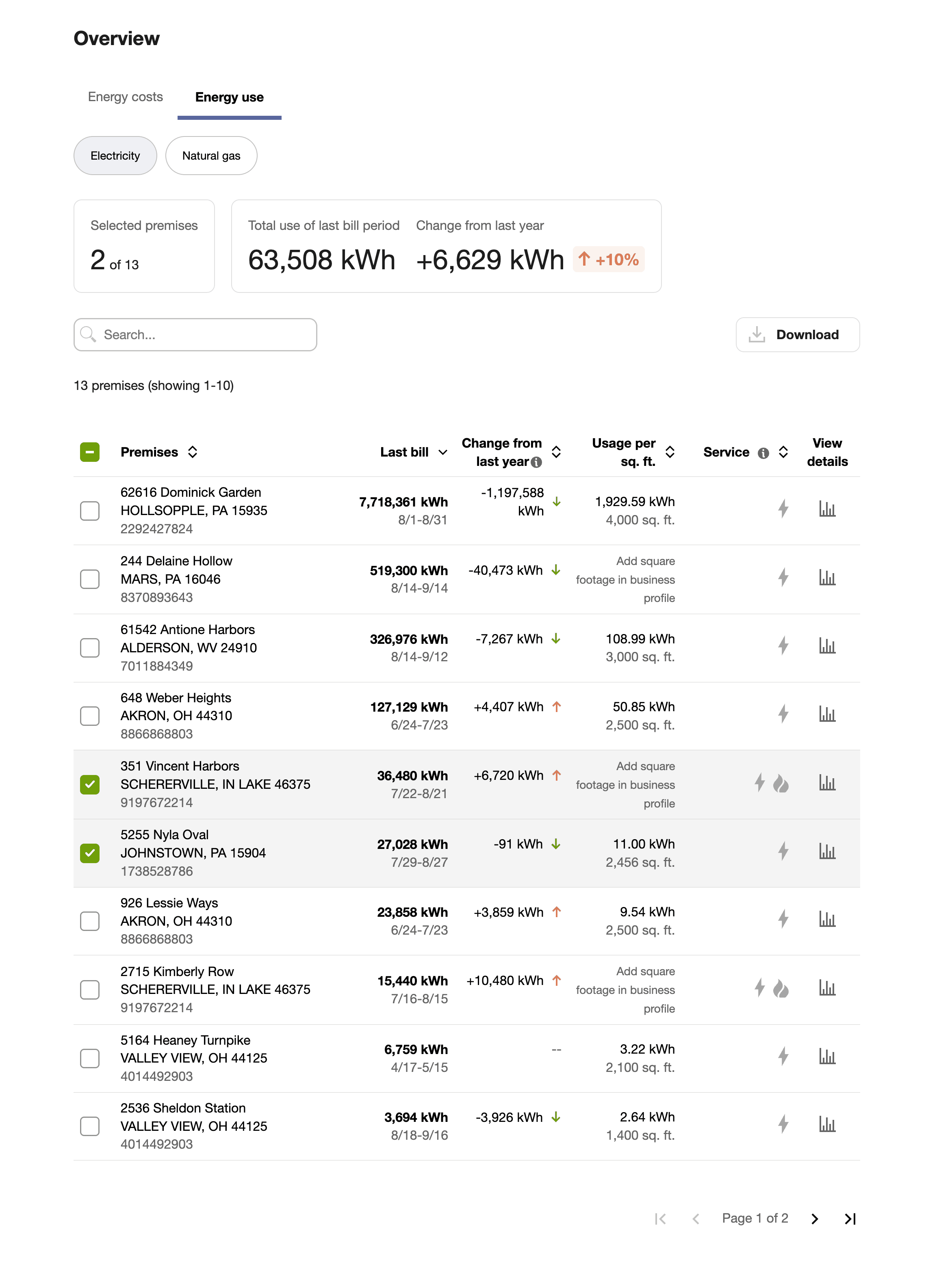
Configuration Options
For each element listed in the table, indicate the desired configuration in the Input Value column. If you do not provide an input for optional configurations, the default will be used.
| Configuration Option | Input Value |
|---|---|
|
Default Column and Sort Order You can configure the default columns and sort order. Default: The following columns are shown and are sorted by the Last bill column in descending order.
|
Optional Choose one of the following:
|
|
Maximum Number of Premises Displayed on a Page You can configure the maximum number of premises that can be displayed per page. Default: A maximum of ten premises per page.
Note: The minimum number of premises that must be shown per page is 10, and the maximum that can be shown is 50. |
Optional Choose one of the following:
|
|
Disable the 'View Details' Column You can disable the View details column that contains a link to the Data Browser for a corresponding premise. For example, you may want to disable this column if the Portfolio View widget as well as other Opower widgets are embedded across multiple pages on your website. In such cases, the billing account or premise selection from the Portfolio View does not persist when you navigate across pages. This means you may arrive at a page in the Data Browser that is showing data from a different billing account or premise from whatever was selected in the Portfolio View. However, if your widgets are all embedded on a single page, then it is recommended that you keep the View details column enabled. Default: Enabled. |
Optional Choose one of the following:
|
|
Enable Account Nickname in Portfolio View and Exported CSV File Utilities can provide a personalized identifier, or alternate nickname, for each billing account number that appears in the Premises column of the Portfolio View. When enabled, the nickname appears beneath the corresponding premises address. It is also included in a column of all exported CSV files. This helps customers identify which billing account the data is from so that they do not need to memorize their full billing account number. This feature is helpful when billing account numbers are long or difficult to remember. Default: Disabled. |
Optional
|
|
Enable Meter ID Row in Exported CSV File You can enable a meter ID row to be displayed in the header of the downloaded file. This allows customers with multiple meters per billing account to more easily identify and analyze usage data associated with each specific meter. This configuration option may not be available if your organization uses the Legacy Billing Data Transfer specification. Your Delivery Team can tell you which specification you are using. Default: Disabled. |
Optional Choose one of the following:
|
|
Disable One or More Columns from Exported CSV File You can disable one or more of the following customer detail columns in the CSV file that is exported from Portfolio View:
This may be useful if you want the information in the file to align with how customers use their data or with the data that is presented in their bills. Default: Enable all columns. |
Optional Choose one of the following:
|
User Experience Variations
The user experience of the feature may vary for customers and utilities depending upon their available data, costs, and other factors. For more information, see Portfolio View - User Experience Variations in the Business Customer Engagement Digital Self Service - Energy Management Overview Guide.