Adding New Fields and Lookup to Field Activity
This section focuses on adding new fields that are not available.
Oracle Fusion Field Service Configurations
For instructions see the Oracle Fusion Field Service Configurations section in Adding New Fields to Field Activity. Add the property, drag and drop it on the UI screen where it is needed and save the UI screen in the user types.
Oracle Integration Cloud Configurations
1. For a customized lookup in Oracle Fusion Field Service, follow the steps in the Oracle Integration Cloud Configurations section in Adding New Fields to Field Activity.
Export the whole project(.car) for specific versions. Extract it & navigate to that flow location. For Oracle Fusion Field Service response use the following xsl file. Navigate to the file location and select it. Navigate to the required xsl tag (based on the location of the new lookup) in the xsl file you are editing as per the process flow.
2. Instead of adding the custom property, modify the following:
<tns:customLookup>
<xsl:value-of select="nsmpr2:lookupValue('tenant/resources/dvms/OFSCSOM_customLookup',
'OFSC_customLookup',
$invokeOFSCGetActivity/nsmpr0:canonical_GETResponse/nsmpr0:activities.definitions.getActivitySchema/nsmpr1:u_Remarktypes, 'SOM_customLookup',
$invokeOFSCGetActivity/nsmpr0:canonical_GETResponse/nsmpr0:activities.definitions.getActivitySchema/nsmpr1:u_Remarktypes)"/>
</tns:customLookup>
3. Upload the xsl file in Oracle Integration Cloud after verification in a browser.
Oracle Utilities Customer Cloud Service Configurations
To configure Oracle Utilities Customer Cloud Service with a new schema element:
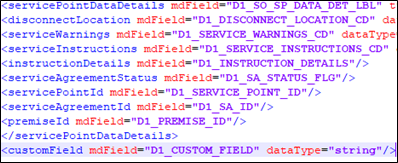
1. Navigate to the “D1-FieldActivityOBComm” business object and identify the data area to add the new schema element.
Example: To make changes to the Service Point Details section, the data area to be modified is a custom data area created for Oracle Fusion Field Service.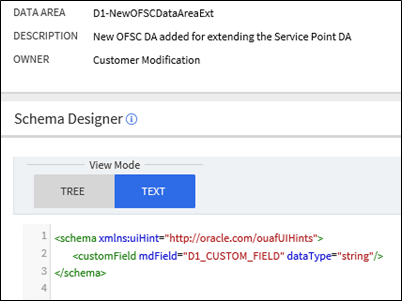
2. Extend the data area by adding the Service Point Details DA in the extended DA section. 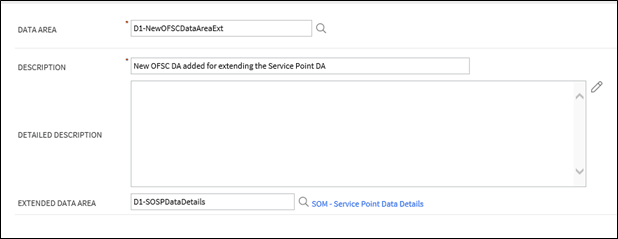
3. New schema element should now be displayed in BO schema.