Creating Connections
Navigate to GoldenGate / Connections and create two connections:
Source (GoldenGate)
- Name: as required
- Compartment: the compartment in which you have created the VCN and GoldenGate deployment
- Type: GoldenGate (because you are connecting to a GoldenGate service for the source, not to the database directly)
- GoldenGate deployment: Enter GoldenGate information:
- Host: kppzfexample.deployment.goldengate.us-ashburn-1.oci.oraclecloud.com
- Port: 443
- Username: GGNET
- Password: your source GGNET secret created above (select from vault)
-
Advanced Options:
- Traffic routing method: Dedicated endpoint via your PRIVATE subnet created above.
Target (Oracle Autonomous AI Database)
- Name: as required
- Compartment: the compartment in which your target DB resides
- Type: Oracle Autonomous AI Database
- Select database (or enter the DB info)
- Database username: GGADMIN
- DB user password secret: your GGADMIN secret created above (select from vault)
Note:
The GGADMIN user on your target database must be unlocked by your database administrator, and supplemental logging must be enabled.ALTER USER ggadmin IDENTIFIED BY "YourSecurePassword123";
ALTER USER ggadmin ACCOUNT UNLOCK;
ALTER PLUGGABLE DATABASE ADD SUPPLEMENTAL LOG DATA; Once you have created these two connections, you must assign them to your GoldenGate deployment:
Figure 17-3 Target Connections
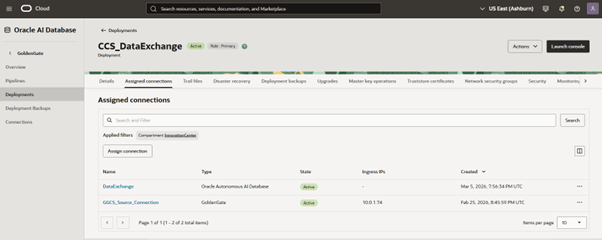
Assigning the connection may attempt to validate it, so at this point correct any connection issues before continuing.
Once successful, you should be able to proceed with GoldenGate configuration via the Admin Service. You may need to use a Bastion to establish a browser session to the GoldenGate Administration Service, which is described below.
Your IT networking admins should be able to assist you and/or provide you with another way to access the GoldenGate Administration Service if needed.