Establishing a Bastion Session
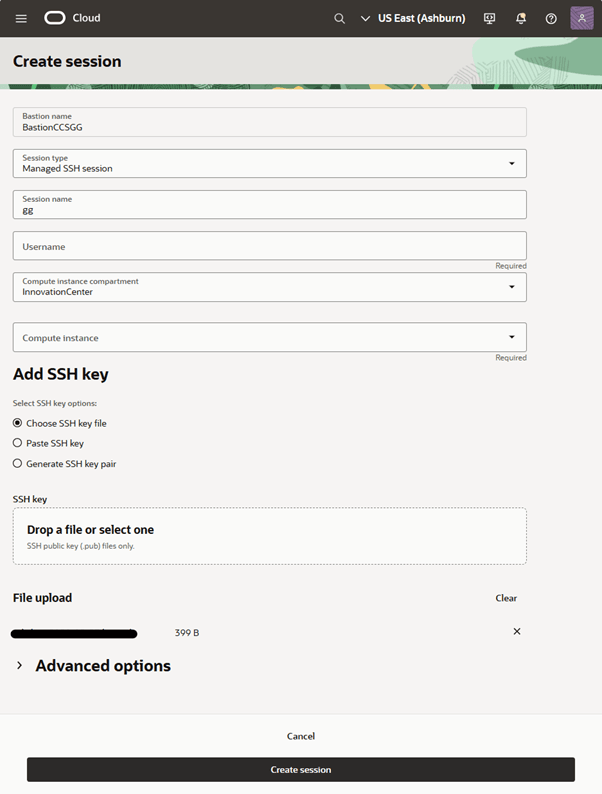
From within your Bastion, under the Sessions tab, create a session with the following characteristics:
- Session type: Port forwarding
- Target resource: the IP of your GoldenGate Administration Service (such as 10.0.1.177)
- Target port: 443
The first time you do this, you will need to generate an SSH key pair to secure the connection. You can do this easily by choosing Generate SSH key pair. If your organization security policies allow, you can re-use that key pair for subsequent connections to the same target via the same bastion.
The public key must be uploaded to create the session, and the private key must be located on your local machine.
Note:
When you download the private key file, you must change the permissions so that only you can view it. This is standard practice when using the private portion of a key pair, and is enforced by most SSL tools. If you don’t do this, you will likely receive an error.For example:
- in unix: chmod 700 <key file>
- in Windows, you need to right click on <key file> and adjust the security permissions.
Note the full path to your private key file: such as “../../ssh-key.key”
You can then create the session. By default the session will last for 3 hours, after which you will need to renew it.
Figure 17-5 Create Session
You should then see the session listed in the Sessions tab of your bastion:
Figure 17-6 Bastion - Sessions
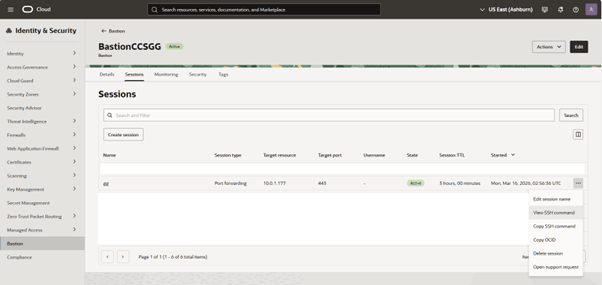
From that session, in the “…” menu option (on the far right end of the title bar) you can access a menu which will let you view the SSH command required to connect to that bastion session. For example:
ssh -i <privateKey> -N -L <localPort>:10.0.1.177:443 -p 22 ocid1.bastionsession.oc1.iad.asdfasdfasdfasdfasdfasdfasdfasdfasdfasdfasdfasdfasdf@host.bastion.us-ashburn-1.oci.oraclecloud.com
In a suitable terminal, run the above command, with the following substitutes:
- <PRIVATEKEY> is replaced with the full path to your private key (noted above).
- <LOCALPORT> is the port you would like to use locally. This can be anything unused (8443 is used in this example).
For example:
ssh -i “../../ssh-key.key” -N -L 8443:10.0.1.177:443 -p 22 ocid1.bastionsession.oc1.iad.asdfasdfasdfasdfasdfasdfasdfasdfasdfasdfasdfasdfasdf@host.bastion.us-ashburn-1.oci.oraclecloud.com
Running this command will create an SSL session which bridges localhost connections on 8443 to remote host 10.0.1.177:443. If you run it with the “-v” option for verbose output, you are looking for a log entries similar to the following, although your specific ssh implementation may vary.
debug1: Entering interactive session.
debug1: pledge: filesystem
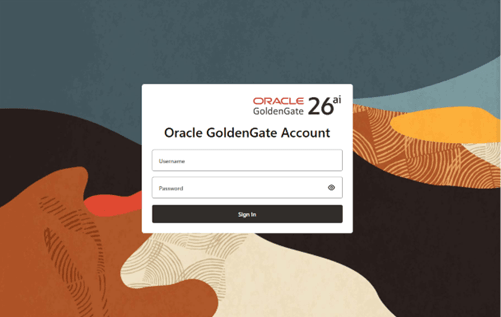
Open your browser, and navigate to localhost:8443
Figure 17-7 GoldenGate Account Login
You will need to configure the GoldenGate deployment per business needs, and so the following sections provide a sample (albeit basic) deployment that you can use as a starting point.