Extending the Field Activities Drawer
You can use VB Studio to extend the data displayed in the Field activity drawer. You can add, remove, or reorder fields that are exposed by the Oracle Utilities Customer Information System Field Activity Summary API and are mapped in the corresponding Utility Data Model template.
The Field activity drawer consists of these sections:
- Information
- Appointment Window
- Parent Activity
- Service Point
You can add, update, reorder the content, or change the layout within each of these sections, but you cannot add new sections, remove existing sections, or rename these sections of the drawer. The overall drawer structure is not extensible. Only the contents within each section can be customized.
This example shows how to configure the Field Activity drawer using extensibility.
This example assumes that the reader understands how to use VB Studio. For additional information, see:
-
Viewing Customer Activities in the Using CX for Utilities Agent Service Guide
-
The Visual Builder Studio library in the Oracle Help Center
-
Customizing Variables and Constants in the Extending Oracle Cloud Applications with Visual Builder Studio Guide
Example: Configuring the Field Activity Drawer
Use these steps to add or modify fields in the Information section and modify the layout of the Parent Activity section of the drawer:
-
Log into CX for Utilities Agent Service as an administrator.
-
Click the menu at the top right of the page and select Edit Page in Visual Builder Studio. Note that if Ask Oracle is enabled, hover over the Oracle button at the bottom right and select the Edit icon.
-
Select your workspace and click Select. Note that you can also create a new workspace if needed.
-
In the Layouts panel, expand Customer Experience For Utilities, then select the FieldActivities layout.
- Open the Rule Sets sub-tab, where you will see a rule set for each section of the drawer.
- Select the fieldActivity dynamic form to access the rule set for the Information section.
- On the left side of the Rule Sets tab, on the default record, click on the Duplicate icon to create a new rule for the Information section.
- Update the rule as needed.
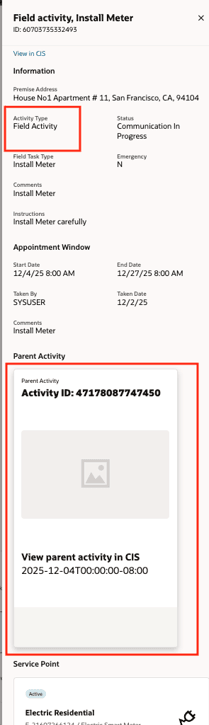
- Select the newly created rule to open a screen where you can add new fields to the display, reorder existing fields, and remove default fields. In this example, add the activityTypeDescription field, which is mapped to an existing template textTemplate.
- Return to Rule Sets and duplicate the default rule set for parentActivity, following the same steps described above for fieldActivity.
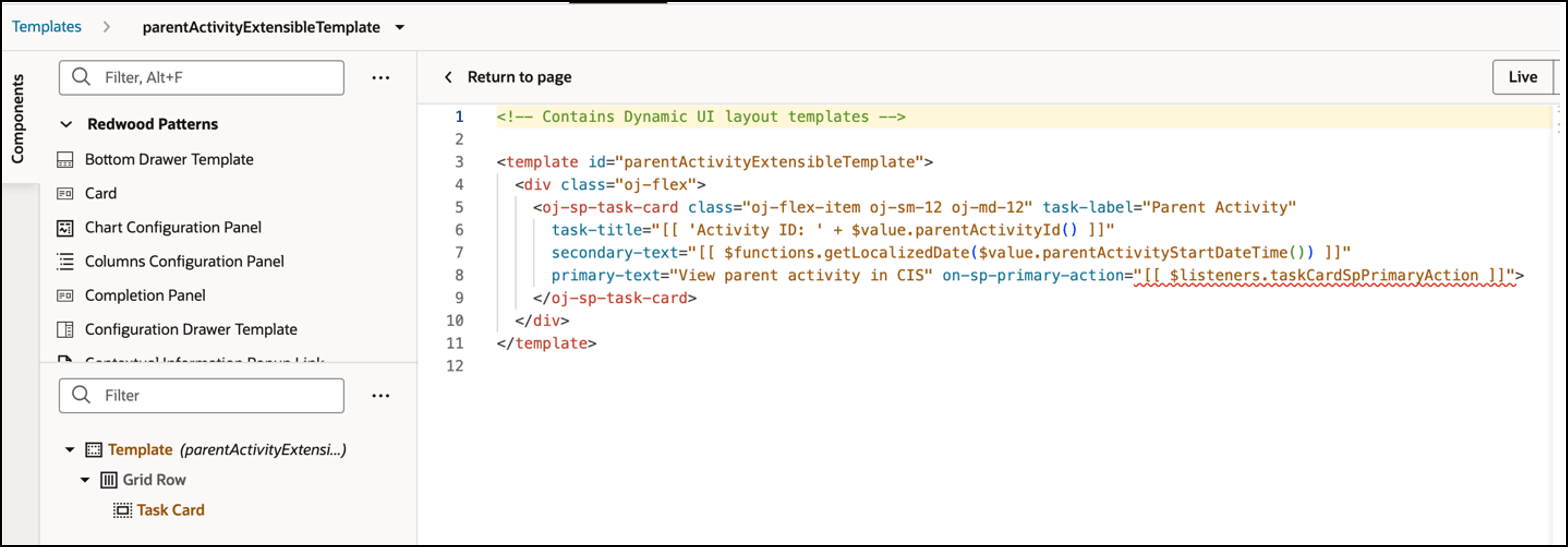
- Open the newly created rule set and navigate to the Create Template screen. A new template is created to define a custom layout for the Parent Activity section of the drawer.
- Navigate to Templates sub tab, where there are five default templates along with the custom template created in the previous step (parentActivityExtensibleTemplate).
- In this example, an oj-sp-task-card layout is added to demonstrate layout extensibility:
- Save your changes and verify that the Field activity drawer appears as follows:
Parent topic: Use Cases for Customer Experience for Utilities