Hiding Actions on the Billing Accounts Summary
You can use VB Studio to hide delivered actions that appear in the Actions menu on the Billing Accounts Summary screen. This screen is available in CX for Utilities Sales.
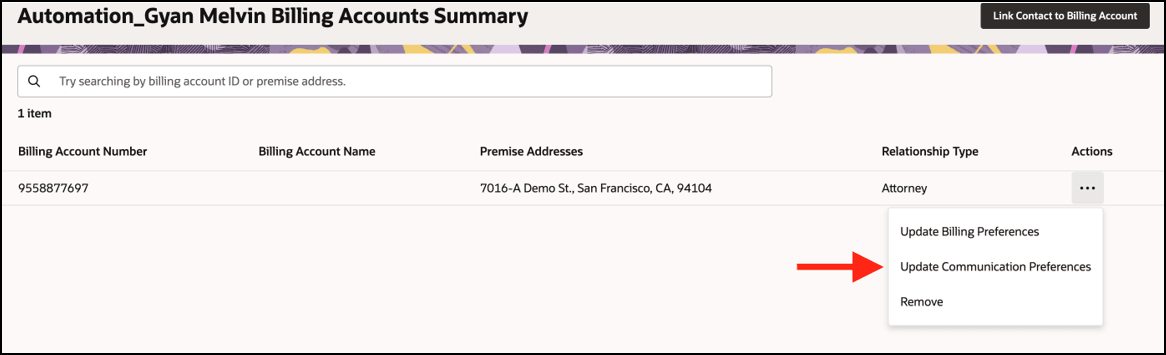
This example assumes that the reader is familiar with Account 360 and understands how to use Visual Builder. For additional information, see:
-
Using Account 360 in the Using CX for Utilities Sales Guide
-
The Visual Builder Studio library in the Oracle Help Center
-
Customizing Variables and Constants in the Extending Oracle Cloud Applications with Visual Builder Studio Guide
Example: Hiding an Action Menu Item on the Billing Account Summary
-
Log into CX for Utilities Sales as an administrator and navigate to Account 360.
- Search for and select a billing account.
-
Click the menu at the top right of the page and select Edit Page in Visual Builder Studio.
-
Select your workspace and click Select. Note that you can also create a new workspace if needed.
-
In the App UIs panel, expand Customer Experience (CX), then expand Customer Experience For Utilities and then expand advanced-customer-care.
- Expand main and then select billing-accounts-summary page.
-
Select the Variables sub-tab to display the constants and variables.
-
Click on the USER_ACTION_CTRL_MENU_ACTIONS constant.
-
On the right side of the screen, enter the following sample code in the Default Value field, which will disable the action:
[{"id":"ACTION_UPDATE_BILLING_PREF","active":false}]Existing actions include:
- ACTION_UPDATE_BILLING_PREF
- ACTION_UPDATE_COMM_PREF
- ACTION_UNLINK_CONTACT
-
Preview your changes to verify that they look as you expected. This will launch a new tab with the Account 360 in the billing account summary view. Validate that your new option is available, and that it navigates to the appropriate URL.
-
When your changes are ready for use, complete the steps to publish your changes to your production environment.
Parent topic: Use Cases for Customer Experience for Utilities