Using the Service Tab
You can use the Service tab to view a list of resolved and unresolved service requests associated with a key account, filter service requests by reference number, title, status or category, or create a new service request.
This image shows an example of the Service tab when viewing an Oracle Fusion account:
Figure 5-18 Service Tab
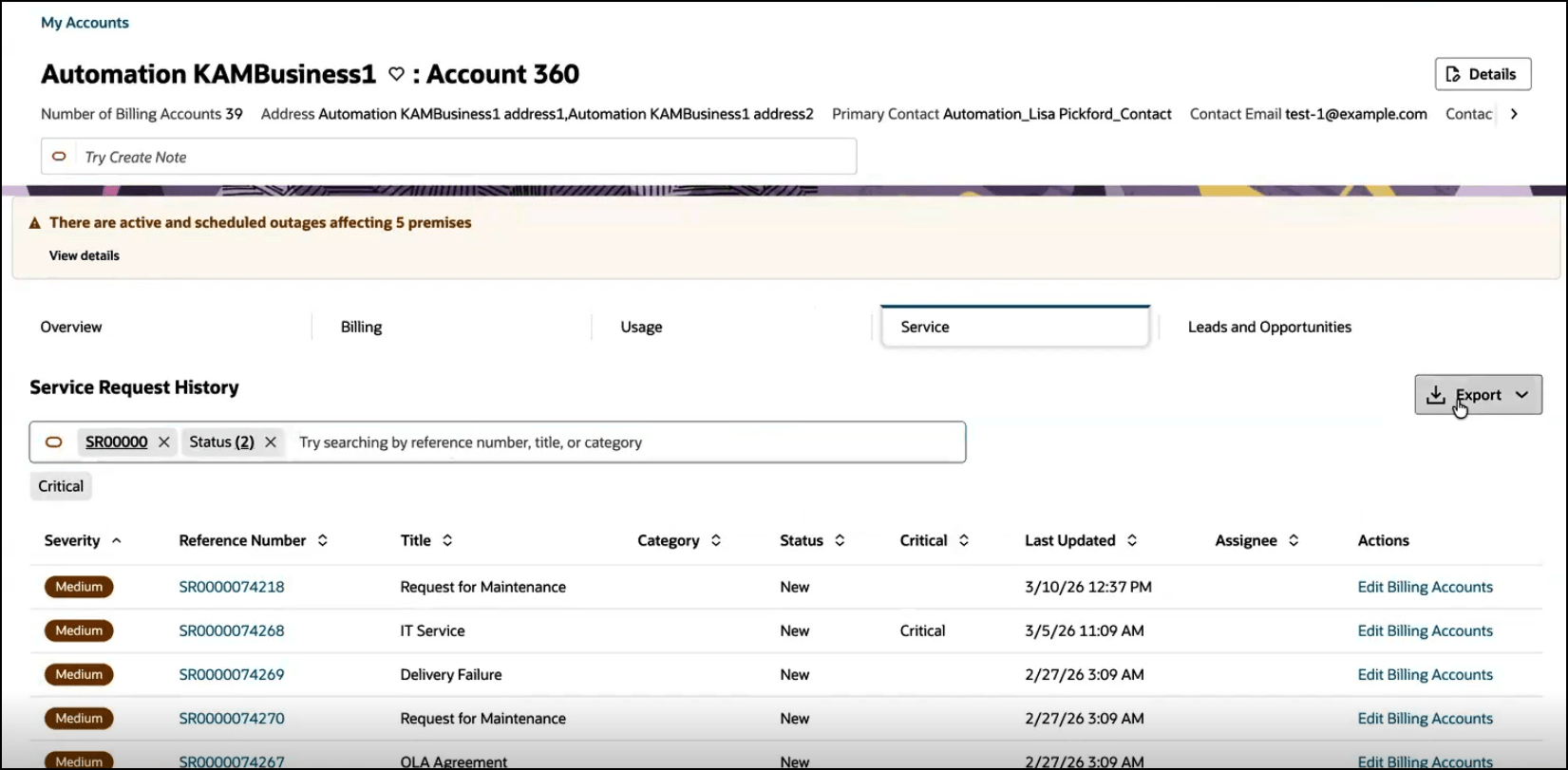
You can search for service request by reference number, category, or title, and you can sort them by clicking the arrows in the following column headers:
- Severity
- Reference Number
- Title
- Category
- Status
- Critical
- Last Updated
- Assignee
You can also use one or both of these filter chips to narrow your search results:
- Status: Click this filter and then select all of the statuses you want to view.
- Critical: Click this filter to view only critical service requests.
When you add search criteria or use a filter, a search object is added to the search bar in the Service Request History section of the tab. You can click on the object to edit it, or you can click the X on the far right of the item to remove it from your search criteria.
When you are viewing an Oracle Fusion account, you can also filter the service request list by billing account using the Smart Action bar to search for a billing account. After you select a billing account, only the requests associated with the selected billing account are displayed in the list. If you access the Service tab when you are viewing a specific billing account, the Smart Action bar is not available, but you can use the Action menu to create a service request for that billing account.
You can use the Smart Action bar to complete the following service-related actions:
- View Work Queue: This option navigates you away from Account 360 and displays the Work Queue.
- Create Service Request: This option opens the Create Service Request drawer, where you can create a service request for your Oracle Fusion account.
See these topics for additional information about the Smart Action bar and Action menu options:
You can also click on the hyperlink in the Reference Number column of an existing service request to access it in the Oracle Fusion Service system. The system opens the service request in Oracle Fusion Service, where you can view and edit information. When you are done updating the service request, save your changes and use the browser back button to return to Account 360.
Topics in this section include: