Oracle Utilities Application Framework V26.10 Release Notes
This section describes enhancements, system data details and deprecation notices in Oracle Utilities Application Framework v26.10 including:
• General
Note: The Steps To Enable, Tips and Considerations, Key Resources, and Role Information sections provide guidelines for enabling each feature, where applicable.
Batch Processing Enhancements
This section describes the new and enhanced batch processing features in this release, including:
Algorithms that Submit a Batch Job Updated to Reduce Duplicate Submissions
The product supplies two base algorithm types that submit a batch job for a given batch control. The algorithms use the default parameter values and mark the batch submission with a submission type of Generated. In this release, both algorithm types have been enhanced to check first if there is a already Pending, "Generated" batch job for the batch control. If one is found, the algorithm will not add another one.
The following algorithm types were impacted:
• F1-SCHEDJOB - Create Batch Job Submission Entry for Batch Control (Business Object Status - Enter plug-in)
• F1-NEXTJOB - Create Batch Job Submission Entry for Batch Control (Batch Control - Post-Processing plug-in)
The base product provides algorithms for the above algorithm types for several steps related to Content Migration Assistant (CMA). If you created several Migration Data Set Import records at once, you may have found that each one created a batch job submission for the Data Set Monitor batch. However, the batch framework only processes one at a time, so the extra batches queued up in Pending status. All the data sets were processed by the first batch run. As a result, subsequent batch runs did not have anything to process.
If your implementation has plugged in any of the base delivered algorithms to help orchestrate the CMA processing, you will see a change, especially when creating multiple Migration Data Sets in a short period of time. Now, the system will ensure that no more than one pending batch job is generated.
If your implementation has not used the base algorithms for CMA and has not created any custom algorithms for the above algorithm types for your own use cases, you are not affected by this change.
Steps To Enable
No steps are required to enable this feature.
Batch Multi-Thread Processing Verification
An explicit indication was added to the batch control record to note whether it supports multi-threaded processing. Typically, this indication is set on the batch program itself and is displayed when available. There is no need to redundantly set this field in that case. This field may be populated when the batch program does not have such explicit annotation or when there is a need to restrict a multi-threaded batch process to be single threaded.
When submitting a batch job, an error is issued when multiple threads are requested for a batch control that indicates it does not support multi-threaded processing.
Steps To Enable
No steps are required to enable this feature.
Monitor Processes Thread Efficiency Improvements
For some monitor batch processes, the number of records to process is unpredictable and can range from zero to a few to many records. Submitting these batches with a fixed number of threads that fits the higher volumes of records means wasting threads with each run.
When there is no data to process, monitor batch process are now enhanced to not create any batch run or any of the thread level artifacts associated with a batch run. The batch job submission record is completed as usual, but it indicates that no batch run was needed.
In addition, a new optional batch parameter Minimum Records per Thread is available for monitor batch processes that allows some batch controls to indicate that the number of threads should be calculated dynamically based on the number of records to process. If it is not provided, the batch works as it currently does. There is no adjustment of the requested thread number. If the parameter is specified, the requested number of threads may be adjusted based on actual record count. The adjusted number of threads will not exceed the requested number and can only be reduced based on the new batch parameter.
For example:
• If the monitor batch is submitted with 100 threads, the parameter is set to 50 records per thread, and there are 1M records to process, then there is no change to the number of allocated threads.
• If the monitor batch is submitted with 100 threads, the parameter is set to 50 records per thread, and there are 109 records to process, then the number of threads allocated is set to 3.
There is no change to monitor processes that have data to process. Thread adjustment is only applied when explicitly requested using the new batch parameter on specific monitor batch controls.
Steps To Enable
Complete these steps:
1. Identify the monitor batch controls that may benefit from a dynamic thread number adjustment.
2. Populate the new Minimum Records per Thread batch parameter on these monitor batch control as per your business needs.
Tips and Considerations
With this enhancement, a batch run record for a monitor batch process will not be created when there is no data for the batch to process. In this situation, the batch job submission record indicates that a batch run was not needed using a new new "No Processing Needed" F1_NO_PROC_NEEDED column added to the Batch Job table.
If there are some custom procedures that rely on the batch run record to exist even when there is no data to process, then these procedures should be adjusted to rely on the new column added to the Batch Job table instead.
Plug-in Driven Extract File Name Trims Trailing Spaces for Batch Control Variable
The plug-in driven extract batch supports a variable in the File Name for the batch control code. Previously, if the batch control code was fewer than 8 characters, the column contained trailing spaces to pad the data to the full 8 characters and the trailing spaces were included for the file name when substituting the code. For example, if the batch control was F1-ABCD and the file name parameter was defined as follows "Extract_{batchControl}_{runNumber}.txt".
The file name for run number 001 would be "Extract_F1-ABCD _001.txt".
In this release, the trailing spaces are trimmed so the file name in the above example would now be "Extract_F1-ABCD_001.txt.".
Steps To Enable
No steps are required to enable this feature.
Tips and Considerations
You should confirm that if you have use cases that use the batch control variable in file names for a batch control with fewer than 8 characters, there is no downstream process that expects the trailing spaces. If there is, the downstream processes should be adjusted to no longer expect the trailing spaces.
Support Fixed Position Extract for Multibyte Characters
Previously, the plug-in driven extract batch program supported a fixed-position file format (FIXD) only for single byte characters. When producing fixed-position extract files, space padding was applied based on byte length rather than character count. When the data contained multilingual characters (for example, Chinese), this resulted in fields not occupying the expected number of character positions.
The batch program now supports a new format option (FIXC) for the File Format batch parameter, which produces fixed-position extract files for multibyte characters. With this option, space padding is applied based on character count.
Steps To Enable
No steps are required to enable this feature.
Submit a Rerun Batch Job from Batch Run Portal
Prior to this release, a request to reprocess a batch run, like submit a rerun batch process for a specific batch run number, was only available via the Batch Job Submission portal. In rare situations where a batch run was not submitted via a batch job submission request, there was no way to request such rerun. As of this release, a Rerun action has been added to the Batch Run portal to request a new batch job request to be submitted for the current batch run.
The ability to submit a rerun batch job request from the Batch Run portal supports situations in which the batch run was not initially submitted via a batch job request.
Steps To Enable
No steps are required to enable this feature.
To Do Types Delivered for Batch Errors for Several Monitor Batches
When possible, the product delivers To Do Types to allow for creating To Do entries for each record error reported by the batch, rather than only writing the error to the batch run tree. It was found that several monitor batch processes delivered previously did not have an associated 'error' To Do Type.
The following monitor batch processes now have related To Do Types to use for errors:
• F1-MGOPB - Migration Object Monitor (Business) Errors
• F1-MIMMN - Inbound Market Message Monitor Errors
• F1-MKMSO - Outbound Market Message Monitor Errors
• F1-MKPRP - Market Process Monitor Errors
• F1-MPEVR - Market Process Event Monitor Errors
• F1-STATS - Statistics Control Monitor Errors
• F1-SYSRQ - Sync Request Monitor (Deferred) Errors
• F1SUBRQN - Request Monitor (Deferred No Cache) Errors
Note that for backward compatibility upgrading clients need to opt in to using To Do entries for existing batches.
The ability to create To Do entries in these cases allows you to take advantage of the standard To Do functionality, such as prioritization, assigning users to do the investigation, and capturing comments or logs.
Steps to Enable
For upgrading clients, the To Do Types are delivered without the associated 'creation batch control' populated. Then means that when running any of the listed batch processes, individual record errors are still reported to the batch run tree only.
If you want To Do entries created for each error instead, complete these steps:
1. Navigate to the To Do Type that has the same code as the batch control that you wish to enable for creating To Do entries. The description should match the batch control description with the word 'Errors' at the end.
2. Edit the To Do Type and set the Creation Batch field to the related Batch Control.
3. Be sure to configure appropriate To Do Roles according to your business practice.
Configuration Tools
This section describes the new and enhanced configuration tools features in this release, including:
Custom Values for Data Type Lookup in Market Message Data Tables
The system provides a Data collection for both Inbound Market Messages and Outbound Market Messages where you can link different types of data associated with the market message. Each entry allows you to indicate a Data Type and the base values provided are Message Data, Process Data, and Raw Data. In this release, the Data Type lookup is now customizable so that you can indicate a different desired data type, for example "CSV".
Steps To Enable
No steps are required to enable this feature.
Enhanced Portal Title Area
Previously, a portal's title area included a single text as its title. Redwood templates support additional components as part of the title area, such as a subtitle and a list of content values.
Now the page title area functionality is enhanced to more closely match Redwood template specifications. While this enhancement aligns with Redwood guidelines, it is supported also in classic UI display mode. An optional new Enhanced Page Title portal option type allows a script to compose the information displayed in the title area. The option is defined for the main tab of the portal and applies to the entire page.
There is no change to existing page titles when the option is not used. This functionality is only available to portal pages and not legacy fixed style pages.
Steps To Enable
No steps are required to enable this feature.
Message Sender Query Portal
Searching for a message sender record was moved to a standard query portal. The query portal supports additional filters by context type and value.
Steps To Enable
No steps are required to enable this feature.
Tips and Considerations
Upgrade scripts ensure that users with Read access to the existing application service will have access to the new application service associated with the new portal. The table below lists the existing and new application services.
Object | New Application Service | Access Added to any User Groups with this Application Service / Read Access |
|---|---|---|
Message Sender Query Portal | F1MSNDRQ | CILXSENP |
Portal Tabs as Scorecards
Previously, a portal's tab menu included a single label for each tab. The Redwood dashboard template supports a more robust scorecard display of each tab.
Now the display of a dashboard portal's tabs area is enhanced to more closely match the Redwood dashboard template specifications. This feature is only supported for portals set with the Dashboard role that are associated with a UI template. While this enhancement aligns with the Redwood template guidelines, it is also supported in classic UI display mode.
An optional new Scorecard portal option type is introduced to allow for a script to compose the information displayed in the portal's tab area. A mixture of scorecard and classic tab display is not supported. The option must be configured on the main portal and also on each tab portal associated with the dashboard page for the tabs to be rendered as a scorecards. There is no change to the display of existing page tabs when this option is not used.
Steps To Enable
No steps are required to enable this feature.
Process Flow Type Query Portal
There is a standard query port for searching for a process flow type record. Using a separate query portal allows for a better and more intuitive organization of information on the maintenance portal.
Steps To Enable
No steps are required to enable this feature.
Tips and Considerations
Upgrade scripts ensure that users with Read access to the existing application service will have access to the new application service associated with the new portal. The table below lists the existing and new application services.
Object | New Application Service | Access Added to any User Groups with this Application Service / Read Access |
|---|---|---|
Process Flow Type Query Portal | F1PROCQ | F1PROC |
Revision Control Comparison Introduced
When you have enabled revision control for any of your maintenance objects, you may now compare the object between two revisions or between the object and its most recent check in.
The Revision Control sidebar zone now includes a link to Compare to Previous Version. The following highlights the behavior:
• When viewing an object that is currently checked out, clicking the link compares the current view of the object with the snapshot view of the object from its most recent checked in revision.
• When viewing an object that is checked in, when clicking the link the behavior differs based on whether or not the current view of the object matches the most recent revision:
• If they match, you are shown the comparison between the most recent check in to the check in before that.
• If they do not match, it means that some process changed the object outside of revisions. In this case, you are shown the difference between the current view of the object and the most recent revision.
The Revisions zone on the Revision History page now has multi-select action and a Compare button. It allows you to select any two revisions and compare them.
Steps To Enable
No steps are required to enable this feature.
Simplified Setup of Portal Configurable Parameters
Previously, a portal may have been designed to make use of configurable parameters defined on a corresponding master configuration record. These parameters are set up by customers and are used by the portal's user interface. For example, setting up defaults and valid values. Populating these parameters using the master configuration portal was disconnected from the corresponding portal definition record.
A new Configuration tab was added to the portal maintenance page to fully maintain the master configuration record if any is associated with the portal. A new portal option Master Configuration business object is used to associate a portal with the master configuration business objects that defines its additional parameters. The new tab appears only if such an option exists.
Note: The master configuration record can still be maintained separately on the master configuration portal, but it is easier to set up a portal's additional parameters on the portal maintenance page itself.
Steps To Enable
No steps are required to enable this feature.
View Details in Portal Drawers
Redwood specifies a view details function where a side panel (drawer) opens to display related extended information. Now portals can be designed to leverage this same functionality. While this enhancement aligns with Redwood guidelines, it is also supported in classic UI display mode.
An optional list of "View Details" zones can be defined as part of a portal's zone configuration. These zones are not rendered as part of the portal's layout. They represent groups of zones to be presented as drawers upon user request. Each view details zone is associated with a "panel name" which represents a uniquely named drawer. When the panel name is launched, all zones that belong to that panel are presented in sequence order.
New syntax was added to launch a "view details" drawer from a UI map, a data explorer column, and a chart.
Steps To Enable
No steps are required to enable this feature.
Configuration Support for External Page Navigation
A new Navigation URL extendable lookup defines named external pages for which customers can provide the actual URLs.
Registering external page URLs in a designated extendable lookup makes it easier to configure and enable such functionality.
Steps to Enable
You don't need to do anything to enable this feature.
Groovy Restriction on Formatter Class
Stricter access to the java.util.Formatter class has been implemented for Groovy scripts. Specifically, constructors that accept a File or file name and are capable of creating or writing to files on the file system are restricted.
The following constructors are allowed:
• Formatter()
• Formatter(Appendable a)
• Formatter(Appendable a, Locale l)
• Formatter(Locale l)
• Formatter(OutputStream os)
• Formatter(OutputStream os, String csn)
• Formatter(OutputStream os, String csn, Locale l)
• Formatter(OutputStream os, Charset charset, Locale l)
• Formatter(PrintStream ps)
Restricting the methods and constructors for this Java class protects against vulnerabilities.
Tips and Considerations (Optional)
You can disable this restriction by setting the com.oracle.ouaf.groovy.formatterAllowlist.enabled property to false:
Example: com.oracle.ouaf.groovy.formatterAllowlist.enabled=false
Insight Action Security Configuration
You can use an insight action to navigate to another page, to launch a BPA script to perform some user interaction, or to invoke an algorithm to perform some action. Previously, it was the responsibility of the insight algorithm that returns the actions to check a user's access to the actions.
The system has been enhanced so that now the system can check security based on configuration, eliminating the need for the insight algorithm to perform explicit security checks.
If the insight action performs navigation or launches a BPA, the action is suppressed if the user does not have access to the underlying application service/access mode related to the navigation or the BPA.
In addition, the insight action collection now includes an optional Application Service/access mode. If an action is configured with this information, the user does not see the action if they do not have access to this application service/access mode.
Validating security from the action-button configuration simplifies how the insight algorithm returns action information.
Steps to Enable
You don't need to do anything to enable this feature.
Content Migration Assistant (CMA)
This section describes the new and enhanced CMA features in this release, including:
Improved CMA Import Errors Review
Previously, the process of reviewing objects in error within a CMA import data set required you to sift through the objects as a list. When the number of objects in error was high, managing this process was inefficient and lacked the ability to distill common issues that impacted many objects.
A new Errors tab was added to the Migration Data Set Import portal that provides a high-level summary of exceptions and a better focus on common issues across many objects.
Steps To Enable
No steps are required to enable this feature.
General
This section describes the new and enhanced general features in this release, including:
File Name and Extension Restrictions
Restrictions have been added to names and extensions for files uploaded to the system via plug-in driven upload batch as well as for attachments and bundles.
• The file's extensions are now validated against an allowlist. The allowlist is defined in a managed content record: F1-FileExtensionAllowList. If you have unusual file extensions that you use for file uploads, you may also define them in a separate custom managed content allowlist.
• File names and attachment names cannot have any of the following characters: /, \, %, \n, \r, .., null bytes, leading or trailing dots, or trailing spaces.
• Allowed characters are those supported by UTF-8.
Ensuring that file names, attachment names, and extension names are following stricter validation ensures compatibility between different systems, prevents errors when sharing files across platforms, and maintains the integrity of system operations.
Steps To Enable
You should confirm that if you have any configured batch file uploads where a file name is defined, the file name conforms to the restrictions.
In addition, if your organization needs to support custom file extensions:
1. Be sure you have authorization to add managed content records.
2. Go to Managed Content and search for F1-FileExtensionAllowList.
3. Duplicate this record using the name to CM-FileExtensionAllowList. Be sure to use this exact name.
4. Change the description and detailed description as desired.
5. Remove the base delivered extensions. Add your valid extensions using the <extension></extension> tags.
Increased Field Size for Several Market Messaging Related Fields
The following fields were increased to 100 bytes:
• EXT_REF_VAL (External Reference Value) on the tables F1_MKTMSG_IN_EXT_REF and F1_MKTMSG_OUT_EXT_REF
• KEY_VALUE1, KEY_VALUE2, KEY_VALUE3, KEY_VALUE4, and KEY_VALUE5 on the table F1_MKTCFG
In order to support more business use cases, you can capture larger size strings in these fields.
Steps To Enable
No steps are required to enable this feature.
Implementation Tools Enhancements
This section describes the new and enhanced implementation tools in this release, including:
Data Correction Self-service - Configurable Data Correction
Implementers could use plug-in driven batches to perform some types of one-off data corrections, but the process required many manual configurations and lacked the built-in approval step supported by the request-based data correction flows. In addition, each custom plug-in driven batch involved creating a few custom algorithms, scripts, and a batch control for just the one-off update.
This release introduces a simplified way to request, approve, and perform plug-in driven based data corrections.
The mechanism is based on a new Configurable Data Correction (F1-DataCorrectPlugIn) Request business object that includes the following components:
• An SQL query for selecting records to correct.
• Either a business object or a script to perform the data correction for each record.
• The number of threads to submit the data correction batch process with.
This business object is a subclass of the existing data correction root business object and leverages the same approval based lifecycle flow.
When a request is approved and a user submits it for processing, a batch job is created for the specific request. The batch job uses the query on the request to select the records to correct and calls the corresponding business object or script to perform the update for each record. The request remains in the Submitted status while the batch process runs.
When the batch is completed it updates the corresponding request to the Processed status, which then creates a monitoring To Do Entry for a user to review the results of the batch. The user marks the request as complete and if further corrections are needed the user can create another request with different correction details as needed.
A corresponding Data Correction via Batch (F1-DataCorrectTypeByBatch) Request Type business object is also provided to define a request type record for creating such requests. To enable this functionality, a request type should be created using this business object.
With this approach, the data correction procedure is as follows:
• Use any tool to compose and test an SQL that selects the records from a primary table of a maintenance object to correct.
• If the change is a simple set of updates to non-list elements on a business object, then note that business object. Otherwise, implement a service script that gets the prime key of a selected record and uses standard scripting logic to perform the update. You can test the script using the Test action on the Script page.
• Create a request of the new type and specify the SQL and the business object or script to use for data correction.
• Progress the request through approval and submit for processing when ready.
• Review the data once the submitted batch is complete.
This request-based data correction process does not require custom algorithms or batch controls. It only requires a custom script for more complicated updates.
Steps To Enable
To enable and configure this feature, complete these steps. You need access to the existing Request Type portal, Request Type Query portal, and to the Request Type MO application services to perform these steps.
1. Add a request type using the Data Correction via Batch business object.
2. Select the "Configurable Data Correction" as the related business object.
3. Setup the to do role as needed.
4. System administrators should grant access to the following application service for any user that is going to create requests for data correction.
• Data Correction Request BO (F1-DATACORRECTIONRBO)
• Request Data Correction (F1DTCREQ)
Tips and Considerations
To enable users to create configurable data correction requests, you must give them access to the application service for the Data Correction Request Root (F1-DATACORRECTIONRBO) business object and to the application service for the Request Data Correction (F1DTCREQ) batch process.
New Methods for Concatenating Groovy Strings/Stricter Validation
There is a 65,535 string size limit in Groovy when using createPreparedStatement. As a result, script writers have used the StringBuilder or String Buffer method to build more complex queries.
A new Groovy method is now provided: concatenateGroovyStrings(String... args). This method allows script writers to concatenate strings to build a query for createPreparedStatement that exceeds the maximum string size. The new method accepts a variable number of strings (varargs of strings) to concatenate. This method validates that the arguments are only strings. The createPreparedStatement method is enhanced to accept the new method as its first argument or to accept a variable that was created using that method. See the Tips and Considerations section for more details about what is supported.
In addition, helper methods are provided for use within the concatenateGroovyStrings method to support dynamically adding information from an array into the SQL statement you are preparing.
The following helper methods are supported:
• concatenateBindName(String bindName, int index): This method allows you to create one or more distinct bind variables representing different instances of data in an array.
• concatenateSqlInClause(String columnExpr, String bindBase, int start, int count): This method is used to generate an 'in' clause, resulting in distinct bind variables for all the data within an array.
• literalFor(int i) / literalFor(long i): These methods allow you to get the value of the current index entry while you are within a 'for' loop
Important: The system has tightened the validation for scripts using StringBuilder or StringBuffer in the createPreparedStatement. A provided property is responsible for enabling the stricter validation and is turned on by default. Scripts using one of these techniques will not compile. The property is com.oracle.ouaf.groovy.strictConcatenationValidation. With this property set to true, you can identify the scripts that need to change by running the Compile All Groovy Scripts batch (F1-CAGVY). If for some reason you need additional time to fix the scripts that fail this compilation, you can override the property and set it to 'false' while you fix your scripts.
Steps To Enable
By default, script validation is tightened to disallow concatenation unless the new method is used. Refer to the description for information about the property and steps for overriding it while you fix any scripts that do not compile.
Tips and Considerations
Here are some examples of valid syntax using the new method:
// Example 1 - use the new method directly in the createPreparedStatement to concatenate strings
def query = createPreparedStatement(concatenateGroovyStrings("SELECT * ", "FROM ", "TABLE_NAME"), 'My Query');
// Example 2 - define a variable using the new method and refer to that variable as the first argument in the createPreparedStatement
def concatStr = concatenateGroovyStrings("SELECT * ", "FROM ", "TABLE_NAME");
def query = createPreparedStatement(concatStr, 'My Query');
// Example 3 - support example 2, but also with reassignment
def concatStr = concatenateGroovyStrings("SELECT * ", "FROM ", "TABLE_NAME");
def concatStr2 = concatStr;
def query = createPreparedStatement(concatStr2, 'My Query');
// Example 4 - support a combination of variables and strings in the prepared statement - as long as the variables were created using the new method
def concatStr = concatenateGroovyStrings("SELECT * ", "FROM ", "TABLE_NAME");
def query = createPreparedStatement(concatStr + " WHERE FIELD_NAME = 'VALUE'", 'My Query');
The createPreparedStatement will not accept any variable that is not created directly from the new method with literal strings. Here are examples of syntax that is not allowed.
// Example 1
def concatStr = concatenateGroovyStrings("SELECT * ", "FROM ", "TABLE_NAME");
def concatStr2 = concatStr + " WHERE FLD_NAME = 'A'";
def query = createPreparedStatement(concatStr2, 'My Query');
// Example 2
def concatStr = concatenateGroovyStrings("SELECT * ", "FROM ", "TABLE_NAME");
def concatStr2 = (new StringBuffer(concatStr)).toString();
def query = createPreparedStatement(concatStr2, 'My Query');
// Example 3
def concatStr = concatenateGroovyStrings("SELECT * ", "FROM ", "TABLE_NAME");
def concatStr2 = new String(concatStr);
def query = createPreparedStatement(concatStr2, 'My Query');
In this release, this previously supported string concatenation is not allowed by default. You should review all your scripts in this release and change them to use the new method. Here is an example:
def query = createPreparedStatement(new StringBuffer("SELECT * FROM TABLE_NAME").
append(" WHERE FLD_A = 'X'").
append(" AND FLD_B = 'Y'").
append(" ORDER BY FLD_C").toString(), 'My Query');
Note that simple concatenation with "+" of literal strings directly in createPreparedStatement is supported and will continue to be supported in the future.
def query = createPreparedStatement("SELECT * " + "FROM " + "TABLE_NAME"), 'My Query');
New Parameter for CSV Upload Servlet
This is only applicable if you have custom UI maps that directly call CSVToXMLDataServlet and have a custom function to prepare the data to pass to this servlet.
The servlet was enhanced to include an extra parameter to ensure that the servlet correctly handles non-ascii characters in the file name. The framework provides the method oraFileUploadFromForm to handle preparing the information to pass to CSVToXMLDataServlet. If you have any UI map that uses this method to prepare information to call the CSVToXMLDataServlet, nothing further needs to occur.
However, if you have any custom maps that call CSVToXMLDataServlet and have custom function to prepare the data to pass to the servlet, you will need to adjust the maps.
Note: Maps using the oraUploadData attribute to upload a csv file are not impacted.
Steps To Enable
Use the UI map query > Additional Information search option to see if you have any custom UI maps that reference csvToXMLDataServlet in the HTML definition.
If so, if the map has a 'form' element that defines action="csvToXMLDataServlet", confirm if the map has a custom function that is invoked by the onClick of the button used to upload an indicated CSV file.
If so, the map must be updated as follows in order to ensure that non-ascii file names are supported:
• Add the following parameter for the function: <input type="hidden" name="originalFileName">
• Update the function to populate the originalFileName parameter with the name of the file.
Quick Action to Maintain Portal
Users that have inquire access to the 'Portal' maintenance portal will now see an action to navigate to Portal Maintenance. When this option is available, users will see the Bookmark and e Portal Maintenance grouped in a 'General Actions' button menu.
For example, if a user is viewing a Business Object record and selected the Portal Maintenance action, it would look like the following.

You are taken to the portal configuration for the Business Object portal.
If you are using the Redwood user experience, the action is visible in the overflow actions menu.
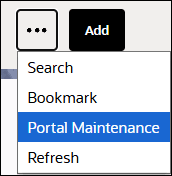
For development users that are managing configuration for a portal, this option is a convenient way to quickly navigate from viewing the rendered portal to viewing the underlying configuration for the portal.
Steps to Enable
You don't need to do anything to enable this feature.
Test a Script or Business Service Rolls Back Changes
Previously, the Test button visible to authorized users on the Script page and the Business Service page performed the script/business service logic. If the script or business service logic included database updates, these were also performed. The Test button's logic is now enhanced to perform the script or business service logic, but to roll back the changes. This allows developers to confirm that the script or business service is performing the expected steps, without updating data. Note that if the script or business service does a web service call, this logic cannot be rolled back. Additionally, if the logic uses the technique to call a service via the save point dispatcher, logic performed in that session is also not rolled back.
The Test button adds an extra layer of security to ensure that only authorized users can use the test action.
Providing the ability to test a script or business service without committing changes ensures that data is not accidentally updated during a test and also allows developers to reuse testing data in subsequent tests.
Steps to Enable
Provide the required access before using the feature. Details are in the Access Requirements section below.
Access Requirements
System administrators should set/grant users/grant access to the Execute access mode for the F1-GEN-SVC-EXEC application service.
Integration Enhancements
This section describes the new and enhanced integration features in this release, including:
Analytics Characteristic Mapping Table List Adjustments
The product provides characteristic mapping functionality for dimensions defined in the Analytics Table feature. The list of characteristic tables available when configuring the mapping sometimes displayed tables that were not supported by the analytics tool. In this release, characteristic tables included in the configuration are now in line with the tables supported by the analytics tool.
The list of tables is as follows:
• Characteristic tables are only supported if the dimension's table is the primary table of the maintenance object. For example, there is a dimension for the Payment Segment table in Oracle Utilities Customer Care and Billing. This is a child table of the Payment table. The analytics tool does not support any characteristic mapping for this dimension. Previously, when configuring information for this dimension, the payment characteristics table was shown as available for mapping, incorrectly. This has been resolved.
• Only characteristic tables that are a child of the primary table are supported. For example, there is a dimension for the Adjustment table in Oracle Utilities Customer Care and Billing. The analytics tool supports only the Adjustment Characteristics table for mapping. Previously, when configuring information for this dimension, the adjustment calculation line characteristics table was incorrectly shown as available for mapping. This has been resolved.
• Note that there is a special exception to this rule for the Distribution Code dimension in Oracle Utilities Customer Care and Billing. In this case, the characteristic table is not a direct child, but it linked through an effective dated collection. This characteristic table is still supported for this dimension.
• Log tables are not supported as part of characteristics mapping. These tables were incorrectly included in previous releases. This has been resolved.
Steps To Enable
No steps are required to enable this feature.
Tips and Considerations
It is possible that you defined characteristic mappings for one of the tables that was not supported. Although the product allowed the mapping to be defined, it would not have been supported in the analytics tool. If you have any records like this they are not causing any issues, but they can be cleaned up by going to the Analytics Attribute Mapping table, search for the dimension and review the list of mapped characteristics to remove the ones that are for unsupported tables.
External System Delivered as Base
The system now delivers a base external system called Cross Product External System (Oracle Utilities Customer to Meter), which is available to use for any product built on the Oracle Utilities Application Framework.
Previously, this external system was only available to a subset of implementations.
Steps To Enable
No steps are required to enable this feature.
Tips and Considerations
Note that this external system was already available previously to any implementation whose product configuration included the "X1" Owner flag.
REST Inbound Web Service Customization
Previously, customization of a base product's REST Inbound Web Service (IWS) was limited to certain types of schema extensions and allowed no custom business rules.
Now you can override the following aspects of a base REST IWS operation:
• Add more elements to the request and response schemas.
• Implement custom logic to populate additional elements or enforce business rules.
• Provide help text for the additional elements and corresponding requests, and response examples when generating an API specification for the customized web service.
Customizing a base product service can significantly change how it works. A new Allow Customization indication is added to the IWS to explicitly indicate whether customization is allowed or not.
When an IWS allows customization, a Custom Script may be specified on an IWS operation to override its underlying base service. The custom script must adhere to the base service schema it overrides and can only extend it. For this reason, the custom script's schema must at least include the operation's base service schema and may include additional elements as needed.
With this approach, there is no change to the URL used to access the web service. If the operation is customized, then internally the custom script is called instead of the base service.
In the same way, the API specification of the operation is adjusted to use the custom script (if any). If a custom web service schema is also provided, then it is used instead of the base web service schema (if any).
The Extensions portal is enhanced to also report on this type of customization as an extension.
Steps To Enable
No steps are required to enable this feature.
Warning When no HTTP Time Out is Configured for a Message Sender
When configuring a Message Sender with one of the following message classes, RTHTTPSNDR, RTJSONSNDR, SOAPSNDR, or HTTPSNDR, a warning is issued if no value is set for the HTTP Time Out context type.
Setting a reasonable time out limit ensures that you will not wait a long time for a response if there is any issue connecting to the third party.
Steps To Enable
To configure this feature, complete these steps:
1. Navigate to the Message Sender.
2. Find any senders that use one of the following classes: RTHTTPSNDR, RTJSONSNDR, SOAPSNDR, HTTPSNDR.
3. Confirm that the HTTP Time Out context is configured and that the value has a reasonable number of seconds that a user should wait before timing out.
Additional OAuth Grant Types
The product now supports a JWT client assertion OAuth grant type, using a signed JSON Web Token to retrieve an access token from Oracle Identity Cloud Service.
In addition, the product supports a JWT user assertion OAuth grant type. This enables the use case where an online action in the application triggers an outbound message to another system and propagates the user identity and authenticates the user without requiring them to interactively sign in again.
Supporting these additional OAuth grant types increases both security and flexibility of outbound messages.
Steps to Enable
To enable and configure this feature, refer to the Message Sender - Context topic in the External Messages chapter of the Framework Administrative User Guide.
Help Text for Outbound Messages
A Field Help Text collection has been added to Outbound Message Type. This allows the product to provide more information related to a delivered outbound message type to help your organization manage your base delivered integrations.
This makes it easy for the integration team to map fields to the target system.
Steps to Enable
You don't need to do anything to enable this feature.
To Do Management and Processing Enhancements
This section describes the new and enhanced To Do features in this release, including:
To Do Management Improvements
There were several improvements to the To Do Management portal and the To Do Details tab on the To Do Dashboard portal:
• You can now search by To Do Role without having to populate the To Do Type or Assignee. Previously, you were required to select at least the To Do Type or the Assignee. As part of this improvement, when selecting the To Do Role, the drop-down for To Do Type includes only those that are valid for the To Do Role. When selecting the To Do Type, the system continues to limit the To Do Role drop-down to those options valid for the selected To Do Type.
• When you select To Do Role without To Do Type, the characteristic collection is available. All the Characteristic Types that are valid for the To Do Entry characteristic entity are available.
• When you are switching To Do Types, if characteristics are populated, the system attempts to retain the characteristic types that are applicable for the newly selected To Do Type. Previously, the page would automatically reset the list of Characteristic Types when you changed the To Do Type.
In addition, there is a new feature related to displaying the Characteristics column in the results of various To Do Related queries. A column shows name/value pairs of characteristics linked to the To Do Entry. If a To Do Entry has many characteristics linked to it, the row takes up more vertical space to show all the values. This means that fewer To Do entries are visible in the list. A more compact way to display this information is to use a standard short summary text and a collapsed details section.
• As of this release, the compact display mode is used by default for new customers.
• There is no change in default display mode for existing customers. A new opt-in option is provided for customers to request the more compact display. The new Collapse Characteristics Column option is added to the "To Do Options" feature configuration type for this purpose.
Note: The feature configuration type "Activity Queue Management" has been renamed to "To Do Options".
There were two fixes also are included with this enhancement:
• If there is a long message, the message filter should no longer cause a horizontal scroll.
• The filter criteria matching a very large number of records (tens of thousands or more records) should no longer cause a timeout. A fetch limit of 5000 was implemented to forestall any timeouts. Using the To Do Dashboard, you are able to see counts of records by certain criteria. If a Role or a To Do Type has a large number of records, you should put as much filter criteria as possible to be sure to get the data you are looking for.
Steps To Enable
Complete these steps to opt in for the compact display mode:
1. Select Admin > General Options > Feature Configuration. Search for an existing feature configuration with the Feature Type 'To Do Options'. If one does not exist, create a feature configuration of this type.
2. Select the Collapse Characteristics Column option and set the value to Y (Yes).
Tips and Considerations
The functionality documented here was delivered in version 25.10 through Maintenance Pack 5.2.0 (Bug 38721796).
User Interface Experience
This section describes the new and enhanced user interfaces in this release, including:
Menu Description Requirement
When defining a menu, you are now required to provide a description.
Ensuring that there is a description on the menu allows the system to provide the standard query tools for searching for and displaying a menu where the description is part of the results.
Steps To Enable
No steps are required to enable this feature.
Tips and Considerations
An upgrade script is provided to populate the Description field if it is not populated. The script first looks to see if there is text populated in the LABEL_LONG field, which is no longer used but may have relevant text from older releases, and uses that if it is available. If it is not available, the description is populated with the Menu Name field.
New User Experience
The product offers a new Redwood user experience. Highlights include the following:
• A lilac theme for the toolbar and the sidebar was applied.
• Fonts and spacing were adjusted.
• The page action button area now includes one primary action button, with the other buttons included in an overflow menu.
• Several system icons were adjusted to newer modern icons.
• For portal based user interfaces, fields now show the label above the field.
• Add/edit dialogs for portal based pages now use the drawer metaphor for displaying the window.
This is an opt-in experience. It may be set at the application level using a feature configuration option. In addition, individual users with appropriate security access can use a Switch UI View option in the user menu drop-down.
Redwood provides a more modern user experience and these updates make the product more consistent with other Oracle applications.
Steps to Enable
To enable and configure this feature, complete these steps:
1. Navigate to Feature Configuration (via Admin Menu, General, Feature Configuration).
2. Look for an existing feature with the Feature Type "Custom Look and Feel". If one does not exist, create a new entry for this feature type.
3. Edit the 'custom look and feel' feature configuration, add the option type 'User Interface Style', and choose the value 'Oracle Redwood'.
Additionally, a user may can select the Switch UI Style option visible from the user badge drop-down to switch between the Oracle Redwood and classic user experience.
Drawer Presentation of Input Forms
Previously, an input form launched from a BPA script and targeted to the page data area, was presented as a large modal window even when the content did not call for that window size. Redwood supports more modern options for presenting an input form in either a small, medium, or a large drawer panel. Now you can design your input forms to render in various drawer panel sizes as needed. While this enhancement aligns with Redwood guidelines, it is also supported in classic UI display mode.
BPA scripting syntax is enhanced to also support a small, medium, or large drawer as target options for an input form.
The maintenance input form used to add or edit a business object entity is one of the most common types of input form. As of this release, when in Redwood UI display mode, the default display of a maintenance input form is set to a large drawer. A new Maintenance Drawer Size business object option is introduced to allow a business object to select a different drawer size.
In classic UI display mode:
• If a business object is not associated with the Maintenance Drawer Size option, the maintenance input form is presented as before in a large modal window.
• The add dialog that prompts for an entity type or business object is presented in a small drawer.
The ability to enter data in a properly sized input drawer allows for a more modern user experience.
Steps to Enable
You don't need to do anything to enable this feature.
Advanced Visualization Options
Previously, badges and cards were visualization options that were only available via the insights configuration. A new ou-visualization web component is now provided to render badges and cards using data available to the UI map schema without relying on any insight type configuration.
Additional styling classes are also available for a more precise user interface look and feel. For example, you may use a new class to display a list of characteristics or any name and value pairs as single elements. Displaying them as single elements and not as a list may simplify the user's review process.
Refer to the UI Map Attributes and Functions section in the online help documentation for more information.
While this enhancement aligns with the Redwood visualization components, it is also supported in classic UI display mode.
The additional visualization options better support Redwood-aligned user experience design.
Steps to Enable
You don't need to do anything to enable this feature.
Default View Details Drawer for an Entity
When a list of entities are presented, a link to the entity's page is typically available allowing the user to navigate to that page for reviewing more information and navigate back to review the next entity. With the introduction of "view details" drawers in the previous release, this type of user interaction can be improved by launching a summary drawer for the entity instead of navigating to its page. The user can proceed with navigation to the entity page if they need further information.
This release supports the association of an entity with a default view details drawer zone via a View Entity Drawer maintenance or business object option.
There is no change to system wide navigation to entity pages. Specific UI lists now use the new navigation approach, which opens an entity’s default drawer, when available, instead of navigating to the entity page.
To support this functionality, the ability of launching a view details zone in a drawer no longer requires that zone to be defined as an explicit panel on the portal it is launched from. You may design to launch a view details zone either as a panel name or as a standalone zone.
Providing a quick view of an entity's details as a drawer eliminates the need to navigate to another page and back, which improves the user experience.
Steps to Enable
You don't need to do anything to enable this feature.
Enhanced Filtering for Drop-downs and Searches
This opt-in feature is only available in portal based user interfaces. It is not available in legacy pages. The following details highlight the system behavior when this feature is turned on.
Drop-down fields:
For input fields that are built as a dropdown, when you click the input field, you see the values and the input area.
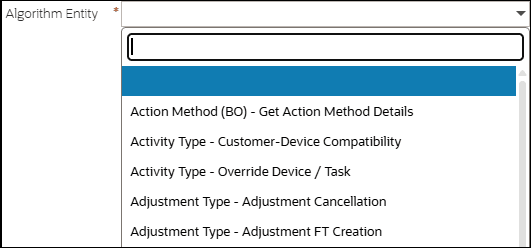
When you start typing, the system makes a match on your text with the values in the drop-down and narrows down your results list accordingly.
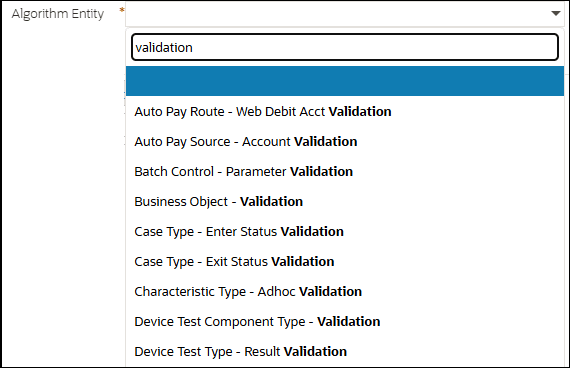
If you select a value and then subsequently click the drop-down again, the current value is highlighted and the text you previously entered is retained.
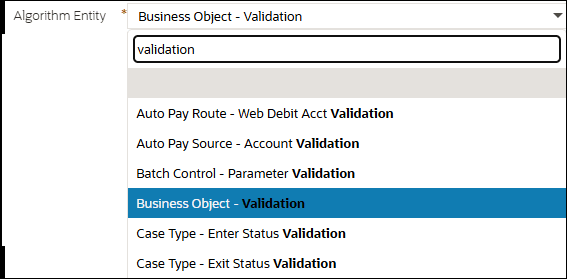
Search fields:
For input fields that have a search associated, the system now supports configuration to enable auto-filtering. Searches that are enabled to support this feature show a down arrow in the input field.

Searches that do not support this feature do not include the down arrow.

The fields with a search associated with them continue to support previous capabilities including:
• Pasting a value or typing a value into the input field and tabbing out. If the value is an exact match, the information string is shown adjacent.

• Typing a partial value and clicking 'enter'. This launches the search passing in the partial value and showing the results list that match that value.
New functionality was added so that if you click the down arrow, an input field is visible to show the label of the filter that has been configured to allow for auto-filtering. You can start typing to get records that match that result. For example:

Typing 'business' displays all the maintenance objects whose description starts with that text. This search has been configured to display the description and the code in the results.
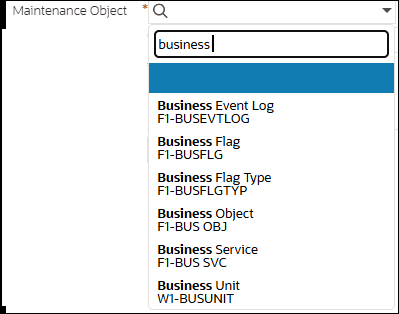
When you start typing, the system uses one of the search's underlying filters that has been configured for this functionality. In contrast to the dropdown behavior, where the system looks for a match on the text anywhere in the string, for the search typeahead functionality, the system relies on the filter's definition as to whether it is 'likeable' and if so, whether it is 'likeable' on the suffix or the prefix or both.
Once a value is selected, the primary key of the chosen record is populated in the input field per existing functionality.

If after selecting a value you subsequently click the down arrow again, as with the dropdown behavior, the previous entered filter text is still visible. The selected value is highlighted and the text matching the filter value is bolded.
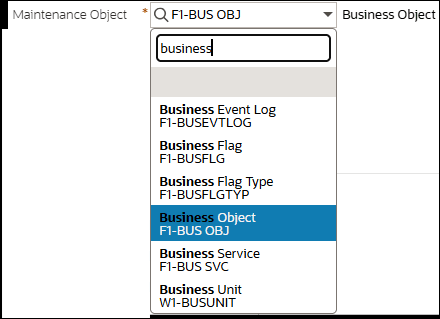
Searches that enable this feature may also be configured to show up to three lines of supporting information for each record. In the example of Maintenance Object above, the search is configured to show both the maintenance object code and description in the results. In the base product, most searches for administrative tables which have a description have been configured to filter by the Description and to show the Description and the Code as shown in the Maintenance Object example.
For master and transaction fields, because only one filter field may be used for auto-filtering, searches are only enabled for this feature if a useful single filter was identified by the product team. For example, Person Name for the Account search.
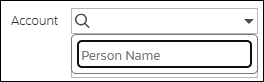
In this case, the search was configured to include the person name, account ID, and relationship type in the output.
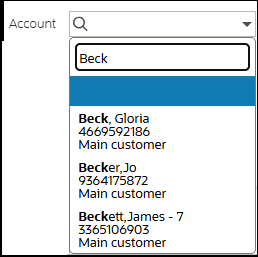
For drop-downs that have a lot of data, typing text to narrow down the list saves scrolling through a long list of values. For search metaphors where there is a reasonable filter value to enter, you save several clicks to get the data you are looking for.
Steps to Enable
To enable and configure this feature, complete these steps:
1. Go to Feature Configuration and find (or create) the feature with the Custom Look and Feel feature configuration type.
2. Edit the record and add an entry for the Enable Auto-Filtering option and set the value to "Yes".
3. Click Save.
4. Flush the server cache and restart the environment.
Tips and Considerations
If you enable this capability and you have custom search zones, you may want to configure the search to support this functionality:
1. Confirm if there is a single filter whose value would be useful for a user to type to get a short list of results. Update that filter's configuration to include the mnemonic 'oraSearchFilter'.
2. If the search zone uses a filter map, confirm that the filter used by the search dropdown metaphor has a proper label for display to the user. If no label is defined, the user will see the generic word 'Filter' and not know what to type.
3. Confirm if the search results for more than one column (up to 3) should be displayed to the user when showing the matching text. If you prefer different or additional text to be displayed, update the appropriate Display Columns parameter (or Initial Columns parameter, when applicable) with the text oraSearchDisplay='Cx,Cy'.
Launch Fusion Knowledge Articles
You can launch a Fusion Knowledge article from various locations in the application. Only HTML content articles are supported, such as 'question and answer' or 'problem and solution'.
UI locations that support the launching of a knowledge article are defined using the 'Knowledge Management Articles' extendable lookup. To enable this feature, update the entry with a corresponding Fusion article ID. When an entry is active and associated with a article, the knowledge book icon appears on the UI location.
Clicking the book icon opens the article in a drawer, where you can also search for other articles as needed.
Note: This feature is only relevant when the application is integrated with Fusion. When applicable, update the context details for the following message senders that are referenced on the Fusion (F1FUSION) external system to reference the complete integration details:
• F1-KMGET - Get Fusion Article
• F1-KMSCH - Search Fusion Articles
Associating UI locations with supporting knowledge articles helps users complete their tasks.
Steps to Enable
To enable and configure this feature, complete these steps:
1. Complete the integration configuration to Fusion for the F1-KMGET - Get Fusion Articlemessage sender.
2. Complete the integration configuration to Fusion for the F1-KMSCH - Search Fusion Articles message sender.
3. Associate UI locations with Fusion articles: Update the 'Knowledge Management Articles' extendable lookup entries to reference corresponding Fusion articles.
Portal Banners
Redwood allows for important notes about the content to be highlighted on a page. This capability is supported for any portal. While this enhancement aligns with Redwood guidelines, it is supported also in classic UI display mode.
A new Portal Banners portal option type allows a script to compose the list of messages in various severity level to be presented on a portal. The option is defined for the main tab of the portal and applies to the entire page. For example, a customer dashboard may show a banner message alerting the agent of an existing outage along with the ability to view outage details in a drawer.
The following describe important aspects of portal banner functionality:
• A banner message may optionally include actions that allow the user to navigate to another page or launch a drawer for more information.
• Up to three banners are displayed. If more exist, a "view more" action is available to view all in a drawer.
• A banner can be temporarily closed while staying on the current page but navigating back to the page redisplays the banners.
The product provides a generic 'Portal Banners by Insight Class - F1BannesInst' script that composes messages based on insights associated with an insight class for a given context. This allows banners to be configurable by the customer.
Highlighting important messages as banners on a portal increases visibility into these situations.
Steps to Enable
You don't need to do anything to enable this feature.
Value Rule Support for a Unified Search Hint Filter
Currently, when a hint based Unified Search query is performed, there is no size limit on the entered filter value. For some searches this may cause performance issues.
You can associate a Unified Search hint filter definition, defined by the 'Search Filter Hint' extendable lookup, with an optional regular expression (regex) that qualifies the value the user enters as a valid filter value. When a hint is used and that hint is associated with such value expression, the search text is considered a valid filter value if it matches that regex. If the value does not match the regex, the search is not performed.
There is no change to hints without a value regex. Their value is used by the search without any value restriction.
Supporting a rule that qualifies the value of a hint based filter allows for performance improvement of hint-based unified search queries.
Steps to Enable
If there is a need to restrict the value entered when a unified search hint is used, complete these steps:
1. Determine the value regex expression that should be used to qualify the entered value for that hint.
2. Update the hint definition in the 'Search Filter Hint' extendable lookup with that regex value.
New Base Display Icon Images
You can use the following new SVG icons in contextual insights, trees, and other user interface features that support SVG icons.
New 26.10 Icons
Icon | Description | Image |
|---|---|---|
F1ACCT | Account |  |
F1ACCTH | Account - Home |  |
F1AI | Artificial Intelligence - AI |  |
F1ASSETS | Assets |  |
F1AUTOCHART | Auto Chart - AI |  |
F1BRAIN | Brain - AI |  |
F1CELLPHN | Cell Phone |  |
F1CGAUGE | Chart - Dial Gauge |  |
F1CHAT | Chat - Comments |  |
F1CLEAN | Clean - AI |  |
F1CLPBA | Add List - Clipboard - Worklist |  |
F1COMPASS | Compass |  |
F1EMAIL | Email |  |
F1FOLDER | Folder |  |
F1GENAI | Generate AI - AI |  |
F1GENTVAI | Generative AI - AI |  |
F1HOUSE2 | House |  |
F1HSHAKE | Handshake |  |
F1HUMAN | Person - Squared - Filled |  |
F1LIST | List |  |
F1METER | Meter - Plain |  |
F1METERG | Meter - Gauges |  |
F1ML | Machine Learning - AI |  |
F1MONEY | Money |  |
F1MONEYB | Money - Bank |  |
F1MONEYS | Money - Stack |  |
F1PAGECNT | Page - Content |  |
F1PAGESUC | Page - Success |  |
F1PERSONRF | Person - Rounded - Filled |  |
F1PERSONRU | Person - Rounded - Outline |  |
F1PWROFF | Power Off |  |
F1PWRON | Power On |  |
F1SA | Service Agreement |  |
F1STORE | Store |  |
F1THRMMTRM | Thermometer - Measure |  |
F1TOOLSWC | Tools - Wrench - Checked |  |
F1WAREH | Warehouse |  |
F1WORK | Briefcase |  |
F1WRKORD | Work Order |  |
F1WRKREQ | Work Request - Wrench |  |
F1WRKREQ2 | Work Request - Folder - Wrench |  |
Additional icons allow for an enhanced user experience for displayed information. These updates have no impact on existing customizations.
Steps to Enable
You don't need to do anything to enable this feature.
Support Portal Actions as a Menu
Portal pages support defining portal-specific actions that are visible in the page title area of the application. In this release, the system supports configuring the portal-specific actions in an actions menu. This is useful when there are a large number of actions.
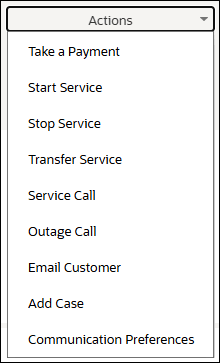
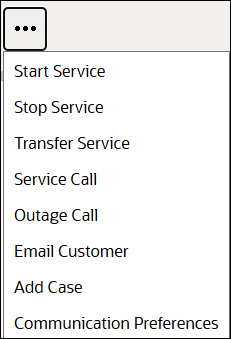
The ability to define portal actions in an actions menu allows you to organize a large number of actions.
Steps to Enable
You don't need to do anything to enable this feature.
Tips and Considerations
See Portal Specific Page Actions in the Understanding Portals and Zones section of the Framework Administrative User Guide.
Data Privacy and Security Enhancements
This section describes the new and enhanced data privacy and security features in this release, including:
Broaden Health Assessment Type User Group Check
The base product delivers many user groups that act as a type of library of system services. One of the main user groups that acts as a library of service is ALL_SERVICES. However, many of the other base delivered user groups act as a library of services, but for targeted functionality. The product strongly advises against granting users access to any of these user groups in production. Besides giving the users broad access when linked to any of these user groups, the product includes application services for new features and functions into these user groups in a new release. This means that users linked to those groups get access to the new features without having a chance to review their purpose and choose to opt into the new functionality.
The user groups may be used in a development or in a testing environment as an easy way for developers and testers to have access to features and functions for testing.
Previously, a health assessment type was delivered to report feedback when a user was found to be linked to ALL_SERVICES. The assessment type has now been expanded to check for users linked to any base delivered user group.
Note: For cloud customers, this check does not include user groups delivered by the Cloud Service Foundation product layer as they are not considered a 'library of services', but rather they are 'functional' user groups that define the services that are appropriate for a type of user role in the system.
Expanding the health check for users linked to base delivered user groups ensures that clients are reviewing their user access and that they are linked only to custom defined user groups.
Steps to Enable
You don't need to do anything to enable this feature.
New Base Delivered User Groups
Previously, the Oracle Utilities Application Framework product delivered one base user group ALL_SERVICES and linked all the framework owned application services linked to this user group. Other products delivered as part of your full product solution may have added their own application services to this user group. However, there are use cases where additional base user groups are delivered for a specific subset of functionality and, in some cases, application services are only linked to this special, fit-for-purpose user group and not to ALL_SERVICES. In this way, the special user groups act as a catalogue of the services related to that specific functionality.
The Oracle Utilities Application Framework now delivers three new user groups to catalogue a specific subset of functionality or capabilities:
• F1_DEV_SERVICES - Developer Services. This user group includes the access modes for the configuration tools objects, such as Script, UI Map, Zone, and Business Service.
• F1_CL_SERVICES - Cloud Services. This user group includes any application service related to a feature or function that is only supported in the cloud.
• F1_AI_SERVICES - AI Services. This user group includes any application service related to a feature or function that that uses AI capability.
Going forward, the ALL_SERVICES user group will not include by default any of the application services/access modes that are linked to the AI or Cloud Services user groups. For application services in the Developer Services user group, ALL_SERVICES includes on the 'inquire' access mode. For backward compatibility, an upgrade script ensures that any of the services that used to belong to ALL_SERVICES in a previous release continue to be included in ALL_SERVICES (with the CM owner flag) for upgrading clients.
In addition, the Oracle Utilities Application Framework delivers a user group for the edge applications to link any application service needed for internal integration flows. Unlike the above user groups, this user group is not a catalogue of services. It is a functional user group that can be used in production for users and is created for internal integration flows.
• F1_INTG_SERVICES - Internal Integration Services.
New user groups provide a more specific catalogue of certain types of services.
Steps to Enable
You don't need to do anything to enable this feature.
Conversion Enhancements
This section describes the new and enhanced conversion features in this release, including:
Conversion Control of Entity Validation Rules
Previously, there was no way to indicate that a entity validation rule is not applicable when the entity is added as part of conversion. Now the validate entity conversion batch process sets an indication available to validation rules, that they are being called as part of a conversion process. This allows a validation algorithm to skip some rules when called as part of conversion. Refer to online help for more information.
Allowing entity validation algorithms to skip rules that are not applicable when the entity is converted improves the quality and performance of the conversion process.
Steps to Enable
If you need to add configuration or prerequisite steps, add them below.
If a custom validation algorithm includes rules that are not applicable when the entity is converted, you can use the new indication to skip them when the algorithm is called from the entity validation batch process.
Refer to Validate Information In The Staging Tables in the Framework Administrative User Guide for more information.
Miscellaneous Enhancements
This section describes the new and enhanced miscellaneous features in this release, including:
Batch Control Search by User
The Batch Control query portal supports a search by User ID as part of the Additional Information search option.
The ability to search for batch control configurations that reference a specific User ID allows a system administrator to review and adjust configurations more easily.
Steps To Enable
No steps are required to enable this feature.
Improved List of ILM Managed Maintenance Objects
Previously, the maintenance objects included in the ILM Managed Maintenance Objects section were only those that have an ILM Eligibility Algorithm, but this is not the only method by which a high volume maintenance object can be managed by the ILM functionality. Some maintenance objects will not have an eligibility algorithm for performance reasons. Instead, they are designed with a specific ILM crawler batch process with built-in ILM eligibility rules. There are other cases where there may not be an ILM eligibility algorithm or an ILM crawler batch control. For example, a snapshot maintenance object that is never updated and therefore its ILM_SW can be set when the entity is created.
These additional ILM managed maintenance objects are now also included in the ILM Managed Maintenance Objects list.
Steps To Enable
No steps are required to enable this feature.
Oracle Utilities Application Framework Deprecation Notices
This section provides information on functionality that has been removed, is no longer supported by Oracle Utilities Application Framework v26.10, or is planned for removal.
Deprecated Items
This is a list of functionality / system data that Oracle already removed from the Oracle Utilities Application Framework.
Cube Viewer
This functionality is no longer supported. Metadata is no longer delivered to new customers.
For upgrading customers, the metadata related to this functionality is updated to be CM owned for backward compatibility purposes.
Table Legacy Page Metadata
Records in the UI metadata program component tables related to the following navigation keys were removed.
• mdTableRefByConstFieldsGrid, mdTableRefCnstFieldsGrid, metaDataTableCFldsGrid, metaDataTableConstPage, metaDataTableConstPage_H, metaDataTableFieldPage, metaDataTableFieldPage_H, metaDataTableFieldsGrid, metaDataTableMainPage, metaDataTableMainPage_H, metaDataTableMaint, metaDataTableRefByConstPage, metaDataTableRefByConstPage_H, utilTableTabMenu
In addition, the following fields were removed:
• F1_CONST_FLD_SUMM, F1_CONST_FLD2_SUMM, F1_CONST_FLD3_SUMM, F1_TBF_SUMM, SNAME_CIPETBLTM
To Do Entry Legacy Page Metadata
Records in the UI metadata program component tables related to the following navigation keys were removed.
• toDoEntryCharGrid, toDoEntryDrillKeyValuesListGrd, todoentrykeyvalue, todoentrykeyvalue_H, todoentrymain, todoentrymain_H, toDoEntryMaint, toDoEntryPopupAdd, toDoEntryPopupForward, toDoEntryPopupSendBack, toDoEntrySortKeyValuesListGrid, toDoLogGrid
In addition, the following fields were removed:
• F1_TD_ENTRY_DRLKY_SUMM, F1_TD_ENTRY_SRTKY_SUMM, F1_TD_LOG_SUMM, SNAME_CIPQTDEPTM, TITLE_CIPQTDEPAP
User Group Legacy Page Metadata
Records in the UI metadata program component tables related to the following navigation keys were removed.
• userGroupMainPage, userGroupMainPage_H, userGroupProfileGrid, userGroupProfilePage, userGroupProfilePage_H, userGroupTabMenu, userGroupTabMenu2, userGroupUserGrid, userGroupUserPage, userGroupUserPage_H, usrGrpAccessModesGrid, usrGrpSecurityGrid
In addition, the following fields were removed:
• F1_ASC_SUMM, F1_UGP_SUMM, F1_UGS_SUMM, F1_UGU_SUMM, SNAME_CIPTUSGPTM
Algorithm Legacy Page Metadata
Records in the UI metadata program component tables related to the above navigation keys were removed.
• algorithmMainGrid, algorithmMainPage, algorithmMainPage_H, algorithmTab
In addition, the following fields were removed:
• F1_ALG_PARM_SUMM, SNAME_CIPTALGPTB
Items Planned for Future Deprecation
This is a list of functionality / system data that Oracle plans to deprecate in a future release.
Support for Print Zone Option
Zones in the application currently support a "zone menu" where an option is Print Zone. In a future release, this feature will no longer be supported.
Support for Several Legacy Pages
When the Oracle Utilities Application Framework product was originally developed, there was a standard for developing UI pages that was used throughout the system. We now refer to these pages as "fixed pages". Subsequently, the product started using a new, more flexible and extendable standard, using portals and zones. All new pages created after that are built using the new standard. There is an ongoing effort to convert fixed pages to use the portal and zone technique.
There are some fixed pages where the product does not plan to ever convert the page. The reason is either because the feature is no longer actively supported or because it has been replaced with a different feature. Historically, the product has continued to support the legacy page for implementations that were previously using that functionality. However, as technology advances and browser support for certain feature changes, there will be a point in an upcoming release where the product will no longer be able to continue supporting these old pages and they will be deprecated.
The following is a list of pages that are expected to be deprecated in an upcoming release.
• Script Merge: This feature was built before the Edit Data step type was introduced. Prior to Edit Data, each script step was very specific and many individual steps were needed to create a script. The script merge was provided to make it easier to copy individual steps from one script to another. With the ability to use the Edit Data step type, it is much easier to copy script step logic from one script to another using simple text copies. Script Merge is not necessary going forward.
• Supervisor To Do Assignment: The functionality in this page can be done in the To Do Management portal or in the To Do Details tab of the To Do Dashboard portal.
• Supervisor To Do Summary: The functionality in this page can be done in the To Do Dashboard portal.
• Supervisor User Summary: This functionality will be covered in a future To Do Assignment Dashboard portal.
• To Do List: The functionality in this page can be done in the To Do Management portal or in the To Do Details tab of the To Do Dashboard portal.
• To Do Summary: The functionality in this page can be done in the To Do Dashboard portal.
• To Do Search: The management of searching for To Do entries that need to be and assigned and worked can be done in the To Do Management portal or in the To Do Details tab of the To Do Dashboard portal. Actions on To Dos related to a given To Do entry may be performed on the To Do entry page. Generally searching for To Dos, including completed To Do entries, by various criteria is planned for an upcoming release.
The following pages are planned to provide display only capability in an upcoming release.
• Function: Functions were implemented prior to the introduction of business services (BS), service scripts (SS) and business objects (BO). The recommendation for implementations going forward is to use one of the mentioned configuration tool objects in a script rather than defining a function.
• XAI Inbound Service: For backward compatibility, the product supports clients to use XAI Inbound Service deployed through IWS as SOAP services. New services should use IWS records directly configured with business services and service scripts.
Stricter Validation for String Concatenation in Groovy "Create Prepared Statement"
In Groovy, the string size limit when using createPreparedStatement is only 65,535. Many Groovy programmers need SQL statements that are more complex and exceed this limit. Some scripts have gotten around this by using a StringBuilder or StringBuffer method in createPreparedStatement to concatenate strings; or to concatenate a variable, which is itself a result of concatenation using StringBuilder or StringBuffer.
In a future release, this will no longer be allowed. You should change your scripts that use this technique to instead use the new method, which accepts varargs of strings: concatenateGroovyStrings(String... args). This method validates that the arguments are only strings. In addition, createPreparedStatement continues to support string concatenation using the plus (+), as long as all the arguments are literal strings.
Support for LegacyCryptographyInstance
The product has not used LegacyCryptographyInstance.java for several releases now. The code itself will be removed in an upcoming release.
Support for Zone Header Map
Currently all base delivered zone types support a parameter called Zone Header Map, which can be used to override the zone's header area. The reasons for using this may be to have more control over Actions in the header and to be able to suppress the header.
In a future release, we are no longer going to support defining a zone header map. Implementations should review any zones that are currently defining a custom zone header map. If the map is used to implement actions, use the existing zone action parameters to implement this functionality. If the map is used to suppress the header, an upcoming release will provide zone configuration to achieve this functionality.
Support for DBMS Scheduler
With the introduction of the next generation cloud scheduler, the product plans to remove specialist objects supporting the original DBMS Scheduler on the cloud.
The following inbound web services will not be supported in a future release:
• F1-DBMSChain
• F1-DBMSGeneral
• F1-DBMSJob
• F1-DBMSThread
The following business services will not be supported in a future release:
• F1-DBMSCancelJob
• F1-DBMSCancelSteps
• F1-DBMSChain
• F1-DBMSChainAddOrChange
• F1-DBMSGetJobDetails
• F1-DBMSGetJobRuns
• F1-DBMSGetJobs
• F1-DBMSJob
• F1-DBMSList
• F1-DBMSProgram
• F1-DBMSProgramAddOrChange
• F1-DBMSRestartChain
• F1-DBMSRestartThread
• F1-DBMSSchedule
• F1-DBMSScheduleAddOrChange
• F1-DBMSSubmitJob
Support for Guiding Business Process Assistant (BPA) Scripts
In the current release, the product supports guiding BPA scripts that surf on top of one or more application pages and interact with these pages in parallel to script execution. This approach is considered legacy functionality and as such limited to fixed pages. It does not work with portal pages. In the future, the product plans to remove support for such scripts.
In the future, the product plans to remove support for such scripts.
Support for Workflow and Notification Functionality
Workflow and notification functionality supported exchanging messages with an external system (notification) and providing a configurable process for acting on incoming messages (workflow). More recently, the functionality for managing external messages is supported using Outbound Message and Inbound Web Service functionality. In addition, there are several features to support processing incoming messages. Service scripts can handle simple use cases. For more complicated processes, the service task or other business object driven objects are available.
The metadata and database tables related to this feature will be removed in a future release. Note that only a portion of the functionality for this feature is managed by Oracle Utilities Application Framework. Most of the functionality is supported in the Oracle Utilities Customer Care and Billing product.
Mobile Application Framework Metadata and Java Packages
Removal of support for the Mobile Application Framework has already been announced in a previous release. However, there is metadata still included in the application related to this functionality.
CM Java code that references services or methods in the ../mobile/.. package should be reviewed.
UI Metadata Related to Converted Pages
The UI metadata related to fixed pages that have been converted to portals will be removed in a future release. The navigation keys listed are related to each maintenance page. The related UI program component data will also be removed. Note that the metadata related to the search pages will not be removed at this time in case they are used on other fixed pages.
• To Do Type
• toDoTypeAlgorithmsGrid
• toDoTypeAlgorithmsPage
• toDoTypeCharacteristicsGrid
• toDoTypeCharacteristicsPage
• toDoTypeCharGrid
• toDoTypeDrillKeysListGrid
• toDoTypeDrillKeysPage
• toDoTypeExclListGrid
• toDoTypeExclListPage
• toDoTypeMainPage
• toDoTypeRolesListGrid
• toDoTypeRolesPage
• toDoTypeSortKeysListGrid
• toDoTypeSortKeysPage
• toDoTypeTabMenu
• Algorithm Type
• algTypeMainPage
• algTypeMaint
• algTypeParamGrid
• Service Program
• serviceGrid
• serviceMainPage
• serviceTabMenu
• serviceTree
• Feature Configuration
• wfmSysMainPage
• wfmSysMessageGrid
• wfmSysMsgPage
• wfmSysOptionsGrid
• wfmSysTabMenu
• UI Map
• uiMapMainPage
• uiMapSchemaPage
• uiMapTabMenu
• Data Area
• dataAreaMaintenanceTabPage
• dataAreaSchemaPage
• dataAreaTabMenu
• Batch Control
• batchContrAlgorithmGrid
• batchContrAlgorithmPage
• batchContrMainPage
• batchControlMenu
• batchCtrParmGrid
• Menu
• menuCtxt
• menuIModsGrid
• menuLineItemsPage
• menuLinesGrid
• menuMain
• menuMaintMainPage
• menuMaintTabMenu
• menuModFlagsGrid
• menuModFlagsPage
• menuSub
• Script
• scriptMaintenanceMainPage
• scriptMaintenanceStepPage
• scriptMaintenanceStepAccordion
• scriptStepSendFieldsGrid
• scriptStepPromptsGrid
• scriptStepReceiveFieldsGrid
• scriptMaintenanceCopyStepPopup
• scriptDataArea
• scriptDataAreaGrid
• scriptSchemaPage
• scriptMaintenanceEligPage
• scriptMaintenanceEligCritGrid
• scriptTree
• scriptMaintenanceTabMenu
• Maintenance Object
• maintenanceObjectAlgorithmsGrid
• maintenanceObjectAlgorithmsPage
• maintenanceObjectGrid
• maintenanceObjectTabMenu
• maintenanceObjectOptionsGrid
• maintenanceObjectMainPage
• Business Service
• businessServiceMainPage
• businessServiceSchemaPage
• businessServiceTabMenu
• Batch Run Portal
• batchRunTreeMaint
• batchRunTree
• batchRunTreePage
• batchRunMaintPage
• batchRunTabMenu
• Batch Job Submission Portal
• batchSubmitMainPage
• batchSubmitTabMenu
• batchJobParmGrid
• Business Object Portal
• businessObjectAccordionPage
• businessObjectAccordionPrtPage
• businessObjectAlgorithmsGrid
• businessObjectAlgorithmsPage
• businessObjectLifecyclePage
• businessObjectMainPage
• businessObjectOptTypeGrid
• businessObjectSchemaPage
• businessObjectStatAlgGrid
• businessObjectStatTRRuleGrid
• businessObjectStatusOptionGrid
• businessObjectSummaryOptTree
• businessObjectSummaryPage
• businessObjectSummaryUseTree
• businessObjectTabMenu
• Lookup Portal
• ctLookUpMaintListGrid
• ctLookUpMaintMainPage
• Any help navigation keys
XSLT Managed Content Type
Entries in the Managed Content table related to XSL should be using the XSLTC managed content type and not the XSLT managed content type. In a future release, the XSLT managed content type will no longer be supported.
REST IWS - Original REST Servlet
The original URL supplied for invoking IWS based REST services included the IWS Service name in its makeup. Support for this will continue for backward compatibility purposes, but it will be deprecated in a future release. You should adjust your existing integrations to use the currently supported URL.
Append Setting from Pagination
There are several known issues with the functionality of the "append" option in pagination. It is recommended that you do not use this pagination setting.
Support for Master/Subordinate Servers for Web Service Catalog
The Service Catalog Configuration (master configuration) enables you to define subordinate servers. Defining subordinate servers is no longer applicable for the Oracle Integration Cloud.
Miscellaneous System Data
The following metadata is no longer in use and will be removed in a future release:
Object | Data | Description/Comments |
|---|---|---|
Lookup Value | CHAR_ENTITY_FLG / F1SE | Characteristic Entity / Sync Request Inbound Exception |
F1-MAINPROC Business Object Read When Pre-processing Exists
In the original implementation of configuration tools, the main framework maintenance BPA (F1-MainProc) did not perform a Read of the BO when a pre-processing script was linked to the BO via options. The pre-processing script was responsible for the Read.
In a subsequent release, a BO Read was added in F1-MainProc (even if a pre-processing script existed) to resolve a UI Hint issue related to child business objects. This solution introduced a problem only visible for specific scenarios and a different fix has been introduced. The new fix made the BO Read unnecessary in F1-MainProc. Because there are many pre-processing scripts that are properly performing the Read of the BO, ideally the BO Read should be removed from F1-MainProc so that multiple reads are not performed. However, there may have been pre-processing scripts introduced after the BO Read was included in F1-MainProc that were coded to not perform a BO read in the pre-processing script. Due to this situation, the BO Read is still performed as part of the processing of F1-MainProc.
When a pre-processing script exists, we plan to remove the BO Read from F1-MainProc logic. You should review your custom pre-processing scripts that are linked to your BO options to ensure that they properly perform a Read of your BO.