Time of Day Hourly Insight
The Time of Day Hourly Insight provides customers with a detailed view of when they use electricity and how their usage compares to a similar group. The module shows average weekday hourly consumption, highlights peak (highest-cost) and off-peak periods, and identifies the peak-hour window when the customer uses the most energy. It also includes a URL directing customers to learn more about their Time of Day rate plan.
Requirements
Utility Requirements
| Category | Description |
|---|---|
| Required Cloud Service | Energy Efficiency Cloud Service |
| Scale | Not applicable. |
Customer Requirements
| Category | Description |
|---|---|
| Billing Frequency | Monthly, bi-monthly, or quarterly. |
| Data Delivery Frequency | Monthly, bi-monthly, or quarterly. |
| Data Requirements |
|
| Data History | A minimum of one historical bill. |
| Data Coverage | Not applicable. |
| Supported Fuels | Electric-only. |
Limitations
- Peak Focused Report: This modules is only available as part of the Peak Focused Report.
- Time of Use Rate Plan: This module is only available to customers on Time of Use rate plans.
- No Rate Data: The no rate data variation of the module may be included in other report types.
User Experience
This section describes the user experience for a customer with two peak periods.
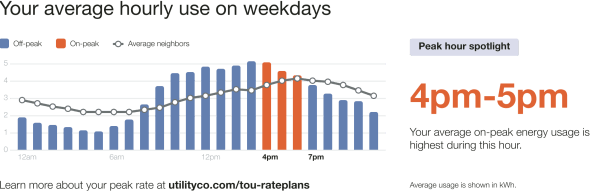
Heading: Highlights the customer's average weekday energy use by hour.
Time of Day Graph: Helps identify opportunities to save by showing average weekday usage, with emphasis on high-cost peak hours.
- Cost Period Labels: Provides a key to the graph elements. For example, "Off-peak," "On-peak," and "Average neighbors."
- Hourly Bar Graph: Displays the customer's hourly usage across off-peak and on-peak periods. Peak hours are highlighted to match the high-consumption time period.
- Comparison Group Usage Line: Shows the average hourly usage of a similar customer group. In "fair" states, this reflects average neighbor data.
- Cost Period Start Times: Mark the hourly intervals along the graph.
- Learn More: Encourages customers to explore peak rates further, with a link to additional information.
Insight Heading: Reinforces the focus on peak-hour energy use.
- Highest Consumption Time Period: Identifies when the customer's average on-peak usage is highest (dynamic by rate plan).
- Insight Description: Explains that this period represents the customer's highest average on-peak energy use.
- Usage Measurement: Specifies the units used in the graph.
User Experience Variations
Three Peak Periods
If there are three peak periods, three peak distinct periods appear in the graph and are identified in the cost period labels.
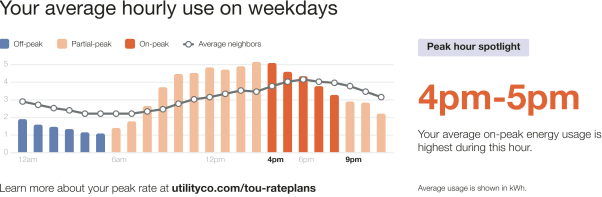
Hourly Bar Graph: Displays the customer's energy use across high ("on-peak"), medium ("partial-peak"), and low ("off-peak") cost periods. Colors are used to clearly distinguish each cost tier and draw attention to pricing differences.
- High Cost Period: Shown in a warning color to indicate the most expensive time range (dynamic by rate plan).
- Medium Cost Period: Shown in a warm color to represent mid-range pricing (dynamic by rate plan).
- Low Cost Period: Shown in a cool color to represent the least expensive time range (dynamic by rate plan).
Cost period labels: Provide a legend that identifies each cost tier and its corresponding color.
Comparison Group Usage Line Data
The data used for the comparison line on the chart varies based on the customer's usage state:
- Fair: Uses average neighbor data.
- Good or Great: Uses data from efficient homes.
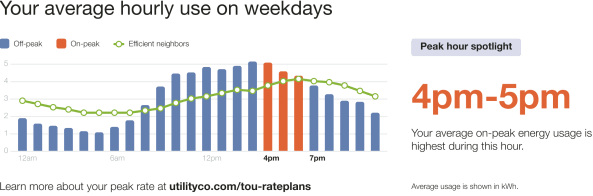
The module varies in the following ways:
- Comparison Group Usage Line: Shows the comparison group's average hourly usage. For customers in a good or great usage state, the line is displayed in green.
- Cost Period Labels: Indicate the source of the comparison data:
- Good or great: "Efficient neighbors"
- Fair: "Average neighbors"
Demand Charge
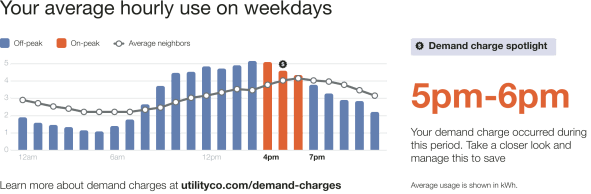
If the customer has demand charges, module varies in the following ways:
- Demand Charge Icon: A dollar icon appears at the hour of maximum on-peak usage within the billing period. The chart reflects average hourly usage across the billing period.
- Insight Heading: Emphasizes the focus on demand charge usage.
- Highest Consumption Time Period Identifies when the demand charge occurred during the billing period (dynamic by rate plan).
- Insight Description: Explains when the demand charge occurred and encourages the customer to learn how to reduce it.
- Learn More Link:Directs customers to the web portal for more information about demand charges.
No Rate Data
When there is no available rate data, or if the module is used in another report besides the Peak Focused Report, the module shows an hourly normative comparison and emphasizes the highest average usage hour.
Note:
The no rate version of the Time of Day Hourly Insight module may be included in other report types for utilities that meet additional data requirements.
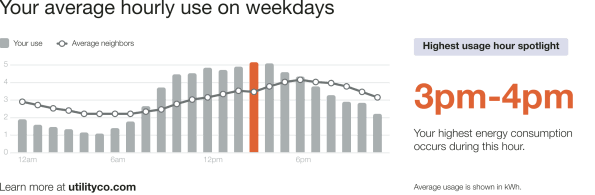
The module varies in the following ways:
Time of Day Graph: Highlights the customer's average weekday energy use, helping identify opportunities to save. Peak hours are not shown.
- Cost Period Labels: Provides a simplified legend, including only "Your use" and "Average neighbors."
- Hourly Bar Graph: Displays the customer's hourly usage, with the highest-use hour highlighted to match the High Consumption Time Period. The x-axis defaults to 12am, 6am, 12pm, and 6pm.
- Comparison Group Usage Line: Shows the comparison group's average hourly usage, with data varying based on the customer's usage state.
- Highest Consumption Time Period: Identifies when the customer's energy use is highest (dynamic by rate plan).
Missing or No Data
If data is missing or unavailable, the module highlights the time periods where data is incomplete. The following image shows an example of the Time of Day Hourly Insight module for a demand charge customer with missing data.
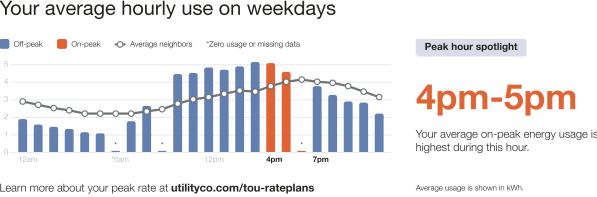
The module varies in the following ways:
- Asterisk: Appears above the time periods with no data.
- Cost Period Labels: Include a label explaining the asterisk as "Zero usage or missing data."