Three-Bar Neighbor Comparison
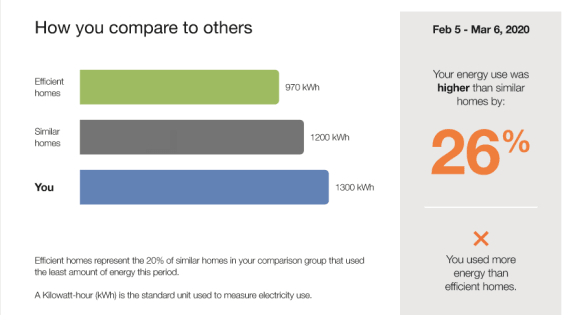
The Three-bar Neighbor Comparison is designed to motivate customers to save energy based on how they see themselves in relation to their neighbors. It compares the customer (“You”) to two groups: Efficient Homes” and “Similar Homes.” The results are displayed in a horizontal bar graph. An insight statement on the right indicates whether the customer falls in one of three states:
- Great
- Good
- Fair
A brief message indicates how the customer compares to efficient homes in the area. An informational section below the bar graph explains that "Efficient Homes" represent the 20% of similar homes in the customer's comparison group that used the least amount of energy in the billing period and provides information about how the graph works.
The neighbor comparison in Digital Self Service - Energy Management mirrors the customer's report experience. For example, a customer that receives the Efficiency Zone in their report will also see an Efficiency Zone in Digital Self Service - Energy Management. For more information about the web version of the neighbor comparison, see Digital Self Service Energy Management Neighbor Comparison.
Appears in: Progress Report,Welcome and Announcement Report , Limited Income Report, Time of Use Report,Solar Report ,Electric Vehicle Report
Note: For most report types, utilities have the option of including either the Three-Bar Neighbor Comparison module or Efficiency Zone in their report.
Three-Bar Neighbor Comparison Examples
This section describes the user experience for each report type.
Three-Bar Neighbor Comparison
This image is an example of the most common version of the Three-Bar Neighbor Comparison as it appears in the Progress Report,Welcome and Announcement Report, Limited Income Report, and Time of Use Report
Solar Three-Bar Neighbor Comparison
Note:
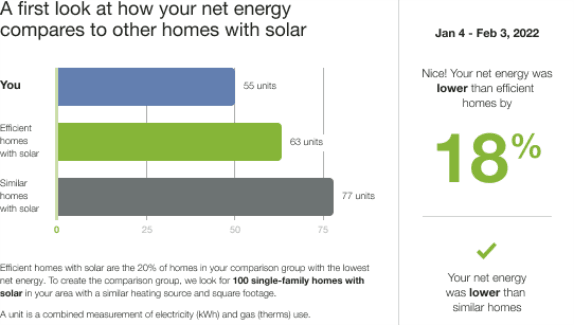
In the Solar Report, ‘energy use’ is replaced with ‘net energy’ to capture both use and production.This image is an example of the Solar Three-Bar Neighbor Comparison that appears in the Solar Report. The module accommodates the net zero and excess generation (negative) reads of solar customers.
Electric Vehicle Three-Bar Neighbor Comparison
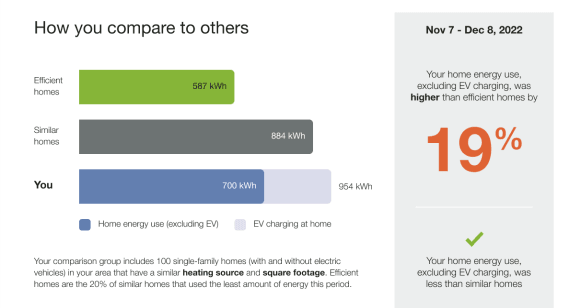
This image is an example of the Electric Vehicle Three-Bar Neighbor Comparison that appears in the Electric Vehicle Report for an electric vehicle customer with a good comparison state and similar homes language. The Electric Vehicle Three-Bar Neighbor Comparison is adapted to show the impact of electric vehicle charging on home energy use.
Configuration Options
For each element listed in the table, indicate the desired configuration in the Input Value column. If you do not provide an input for optional configurations, the default will be used.
| Configuration Option | Input Value |
|---|---|
|
Primary and Secondary Colors Default: Based on utility branding guidelines |
Optional Choose one of the following:
|
| Insight Threshold
The insight threshold is used to ensure that the insights have a material impact on the user. Default: The percentage insight threshold for the top insight is >100%. After the percentage threshold is reached, the alternative insight version of the insights is used. |
Optional Select one of the following:
|
User Experience Variations
The user experience of the feature may vary for customers and utilities depending on their service types (gas, electricity, dual fuel, and so on), available data, costs, locale, and other factors. For more information, see the Three-bar Neighbor Comparison description in the Energy Efficiency Cloud Services Overview Guide and go to the User Experience Variations section.