Conversational Test Data Management
As an alternative to the Edit Test Data GUI, test data can also be provided in XML format through the conversational Test Data Entry page. Before accessing this GUI, the component's test data needs to be populated by providing the web service name and the transaction type.
To navigate to the Conversational Test Data GUI, right-click the component in the flow tree structure (in flow development screen) and select Edit Request.
Note:
This feature is only supported for web service components.The Edit Request feature allows to:
- Open the failed request of a component.
- Make changes to the test data and resend the request to edge application (without running the flow multiple times).
- Observe the response for the modified request.
- Save the modified request as test data for the flow’s component step.
Repeat the above steps until the test data for the successful request is identified.
Figure 8-39 Edit Request Action in Flow Run Status
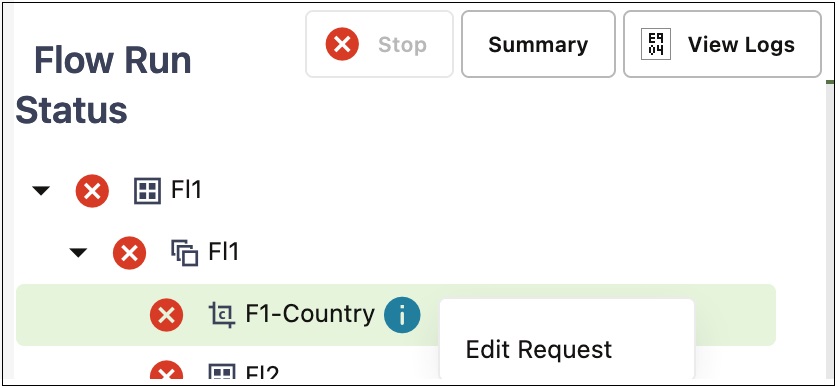
After selecting the Edit Request option from the right-click menu, a new window is displayed and prompts to select the configuration sets to be used. Modify the request by either changing test data value of one or more elements, adding/deleting new elements in the request and click Send to send the request to the application being tested and observe the response. Continue to make modifications until the desired response is received from the edge application.
The user is provided with the following options to manage request content better:
- Repopulate all schema elements. Click Refresh Schema. This helps in resetting fields that are required to make a successful request that were not present/left out in the previous/original request.
- Click Settings to allow the user to control some header level information that is sent as part of the request, including username token, timestamp and whether the request should include any schema elements that do not have any test data filled in.
- Choose to save the test data of the request to a flow test data set. Click Save to select the flow test data set to which the test data needs to be saved to in the dialog box.
Note:
While saving the test data in the request XML in to the component step's test data, only static test data values defined in the component are replaced. The variables defined in the component's test data are not replaced with the test data in the XML request.