Creating Flows by Dragging-and-Dropping Components
Before creating a flow, identify the components required to create the flow.
Note:
The components delivered with Oracle Utilities Testing Accelerator may have to be extended or new components have to be created.To create a flow:
- Navigate to the product/module in the flow tree to create the flow.
- Right-click the product/module and select Create Flow.
- In the Create Flow pane, enter the Flow Name, Flow Type, Tags, and Description.
- Save in either of the following ways:
- Save: Saves the flow and redirects to the Search Flow page.
- Create Structure: Creates the flow with a default scenario and redirects to the Flow Structure page.
- To view or update the flow structure, click the edit icon
 next to the flow name in the flow tree.
Alternatively, right-click the flow name and select Create/Update Flow Structure. The flow contains a default scenario with the same name as the flow name.
- Expand the flow tree. The flow contains a default scenario with the same name as the flow name.
- In the sequence defined by the business scenario being tested, drag and drop the components from the Approved Components pane to the flow scenario or components within the flow structure. The component moved will be added below the scenario/component to which it was moved.
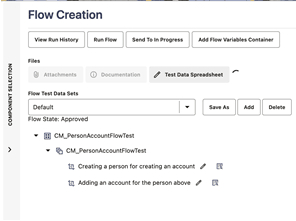
By default, the Approved Components pane is collapsed if the Flow Status is anything other than “In Progress”. To expand it, click “>” on the Component Selection bar.
Figure 8-3 Collapsed Component Selection pane
Note:
Flow definition can be modified (components added or removed) only if the flow is in “In Progress” state. - Make sure to enter the test data at the component step level while defining a flow.