Extending the Base Component Definition
Base components that are delivered by the product in Oracle Utilities Testing Accelerator can be extended to add additional custom elements in the component definition. Custom elements can be added to the component definition through the component definition GUI. When a flow is built using this extended component, test data can be provided for both the base and extended schema elements through the same test data GUI in the Flow Definition screen. Extended elements in the component definition can be added or removed based on the requirement, across upgrades.
To add new custom elements to the component definition:
- Login to the application.
- Navigate to the Components menu.
- On the left pane, navigate to the module where the new component needs to be added.
- Right-click the component and select View Component.
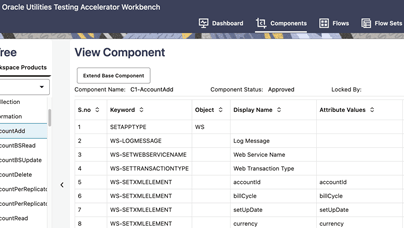
- In the View Component screen, click Extend Base Component.
Figure 7-8 Extend Base Component action
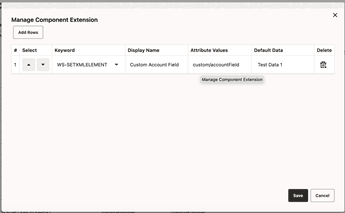
- In the Manage Component Extension GUI, select the “WS-SETXMLELEMENT” or “WS-SETXMLLISTELEMENT” keywords depending on whether the custom element to be added is a list or an individual element.
- Add one or more rows based on the requirement.
- Provide the following information for each row:
- Display Name: The description visible in the flow’s test data GUI against this custom element.
- Attribute Values: The xpath of the element or list element in the Oracle Utilities Application Framework object’s schema.
- Default Data: The data provided in this field is available as default data in the element’s Test Data field, in the flow’s Test Data GUI.
Figure 7-9 Component extension definition
- Click Save to add the custom component lines to the base component.
To update or delete custom elements of the component definition:
- Login to the application.
- Navigate to the Components menu.
- On the left pane, navigate to the module where the new component needs to be added.
- Right-click the component and select View Component.
- On the View Component screen, click Extend Base Component.
- Update or delete the custom component lines.
- Click Save to save the updated custom component definition.