Page Actions Toolbar
In the Page Title Area, control functions appear in the Page Actions Toolbar; such as, Clear, Save, Duplicate, Delete and Refresh buttons.
Note:
Buttons in the Page Title Area appear as the function is available to the user; for example, the Delete button will not appear if the user has made any changes to the page's content, or does not have the necessary security rights for this action.
In addition, other functions that are specific to a portal-based page may appear in the toolbar, if configured. For example, the ability to navigate to the Search zone for a specific maintenance object may be visible on the maintenance portal. The portal specific actions may be displayed as individual actions, or grouped as an action menu.
A portal-based page may be configured to suppress the page title altogether, including the page actions toolbar.
This section describes the standard features that are available in the Page Actions Toolbar.
- Bookmark Button
- Next/Previous Item Buttons
- Duplicate Button
- Delete Button
- Clear Button
- Save Button
- Refresh Button
- Portal Maintenance
Parent topic: Page Title Area
Bookmark Button
Click the Bookmark button on the Page Actions Toolbar to save the current page and context to the bookmarks list.
| Keyboard Shortcut |
|---|
| Ctrl+Alt+B |
Note:
Secured. This button is secured using the F1-BOOKMARKS application service. Users that do not have security for the application service will not see the Bookmark button (or the corresponding sidebar zone).After clicking the Bookmark button, you are prompted to provide a name for the bookmark. After saving, it is visible in the Bookmarks Zone, as well as through the Menu, allowing you to return to this page with this context loaded with one click.
Note:
Unsaved data will not be included in the bookmark. If you view a record and make changes to data without saving the changes and then bookmark the page, the unsaved changes are not included in the bookmark information.You may change the name of the bookmark or change the sequence of the bookmarks by navigating to the User - Bookmarks in the user preferences.
Note:
Depending on other actions available, this action may be grouped with other actions in a 'General Actions' menu.Parent topic: Page Actions Toolbar
Next/Previous Item Buttons

-
You access a fixed page, meaning that it is not portal-based.
-
You use a search page to display an item.
-
There are multiple items in the search results list below or above the selected item.
If, for example, you enter search criteria of "Smith" on the User Search page, you might see the following results:
- Smith, Albert
- Smith, Peter
- Smith, Zane
If you select Smith, Peter, Peter's user information is displayed on the User page. If you then click the Next Item button, Smith, Zane will be displayed. In addition, because Smith, Zane is the last entry in the search results, the Next Item button is no longer needed and will not appear in the Page Actions Toolbar.
If you then click the Previous Item button, Smith, Peter will be displayed; click again and the Smith, Albert record will appear, and, because Smith, Albert is the first entry in the search results, the Previous Item button is no longer needed and will not appear in the Page Actions Toolbar.
| Keyboard Shortcut | Alternate Shortcut |
|---|---|
| Alt+P | |
| Alt+N | Alt+Shift+N |
Note:
Refer to Shortcut Key Summary for information about the alternate shortcut.Parent topic: Page Actions Toolbar
Duplicate Button
Click the Duplicate button in the Page Actions Toolbar to create a duplicate of the currently selected object.
Before the new object is added to the database, a dialog appears in which you must enter the unique identifier for the duplicate object. When you click OK, the system creates the record by copying the original record. It may be helpful to think of the duplication function as the equivalent of a "save as" action.
| Keyboard Shortcut |
|---|
| Ctrl+Alt+D |
Note:
Copying ancillary information for a record sometimes requires confirmation during a duplication request. If so, you may also be asked if you also want to duplicate ancillary information. If, for example, you duplicate a user group, besides supplying the ID of the new user group, you are asked if all users in the original user group should be linked to the new user group.This button does not appear in the Page Actions Toolbar when:
- Duplication is not supported for the current object.
- You are on a portal based page. (For these types of pages, if duplication is supported, the actions are defined in a zone on the portal.)
- You have made changes to the object without committing the changes to the database by clicking Save. (After making changes, you must either discard them using the Refresh button, or save them.)
Parent topic: Page Actions Toolbar
Delete Button
Not all transactions have the capability to be deleted. Deletion is related to the business impact of the action. In some transactions, Delete is present for some scenarios and unavailable for others; for example, you may not be able to delete a record at a certain status level.
Note:
If you make a change to an object and do not save the changes to the database, you cannot delete the object until you either save the changes or refresh the object with the contents on the database.
Before you delete an object, the system verifies that the object is not referenced anywhere in the system. If it is, you cannot delete it. If, for example, you attempt to delete a user, the system ensures this user has not been referenced in a user group or on a To Do.
-
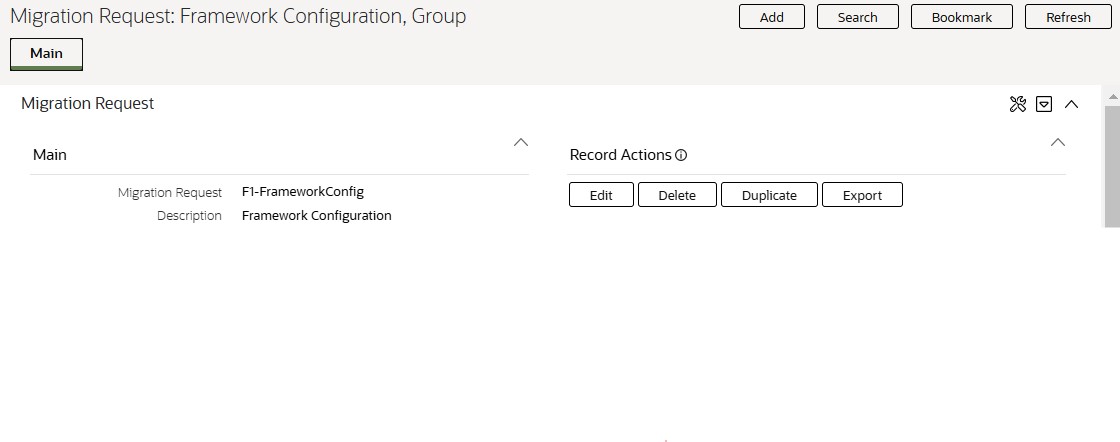
Fixed pages display a Delete button in the page actions toolbar when the option is available.

-
Portal-based pages display the Delete button in the object-related map.
-
List style fixed pages commonly display the Delete button (garbage can icon) next to the entity in the list.

In all cases, before the object is deleted, a confirmation dialog is displayed.
Caution:
A timeout situation could occur as the system attempts to verify the use of the deleted object if the object is referenced in many places and involves large volumes of production data. If this timeout situation occurs, you must with your database administration group to delete the offending object.Parent topic: Page Actions Toolbar
Clear Button
Click the Clear button to remove the values from the currently displayed object’s fields. This action is typically used to clear input fields when adding a new object.

| Keyboard Shortcut |
|---|
| Ctrl+Alt+C |
Parent topic: Page Actions Toolbar
Save Button
Clicking the Save button saves any changes you have made in the data on the current object.

| Keyboard Shortcut | Alternate Shortcut |
|---|---|
| Alt+S | Alt+Shift+S |
Note:
Refer to Shortcut Key Summary for information about the alternate shortcut.The button does not appear unless:
- You enter a page in add mode and default values are loaded.
- You make changes to an object after it is displayed (note that you must tab or click out of the field before the Save button appears).
Parent topic: Page Actions Toolbar
Refresh Button
Click the Refresh button to reload the values on the page with those from the database.

Caution:
All unsaved changes are discarded.| Keyboard Shortcut |
|---|
| Alt+R |
Parent topic: Page Actions Toolbar
Portal Maintenance
The Portal Maintenance action appears in the Page Actions Toolbar under these conditions:
-
You are on a Portal page.
-
You have inquire access to the Portal application service.
Use this action to navigate to the portal definition for the portal page you are currently viewing.
Note:
Depending on other actions available, this action may be grouped with other actions in a 'General Actions' menu.Parent topic: Page Actions Toolbar