Note:
- This tutorial requires access to Oracle Cloud. To sign up for a free account, see Get started with Oracle Cloud Infrastructure Free Tier.
- It uses example values for Oracle Cloud Infrastructure credentials, tenancy, and compartments. When completing your lab, substitute these values with ones specific to your cloud environment.
Deploy OpenAI vLLM Production Stack on Oracle Kubernetes Engine (OKE)
Introduction
Organizations adopting large language models (LLMs) for production workloads face a critical infrastructure decision: Rely on third-party inference APIs or deploy a self-hosted inference stack. Self-hosted deployments offer significant advantages: full data privacy and compliance control, sub-100 millisecond inference latency by eliminating network round-trips, predictable cost at scale, and the freedom to fine-tune and serve any open-source model without vendor lock-in.
However, building a production-grade LLM inference stack from scratch is complex. It requires GPU-aware container orchestration, intelligent request routing across multiple model replicas, persistent storage for large model weights, and continuous monitoring — all integrated and running reliably.
Oracle Cloud Infrastructure offers multiple paths for AI inference. The OCI Generative AI Service provides a fully managed experience with dedicated AI clusters isolated to your tenancy, ideal for teams that want to get started quickly with supported models. This tutorial takes the alternative approach: deploying your own inference stack on OKE. This path is designed for teams that need precise control over GPU drivers, CUDA versions, model configurations, and serving parameters, or teams that are training and fine-tuning custom models and want to serve them directly. OCI provides bare metal GPU instances with NVIDIA A10, A100, and H100 GPUs, connected by ultra-low-latency RDMA cluster networking, giving you the same level of hardware control you would have on-premises while benefiting from cloud elasticity.
The vLLM Production Stack solves the complexity of self-hosted inference by providing an open-source, Kubernetes-native platform built on vLLM, the high-throughput inference engine used in production by organizations such as Meta, Mistral AI, and IBM. It delivers up to 24x higher throughput compared to standard serving frameworks through efficient GPU memory management and KV cache optimization. Combined with OKE and OCI GPU shapes, you get a production-ready inference platform with enterprise-grade networking, storage, and security. The OCI deployment scripts used in this tutorial are contributed and maintained in the official vLLM production-stack repository.
This tutorial walks you through deploying the vLLM Production Stack on OKE, from infrastructure provisioning to running your first inference request.
Note: This tutorial provisions resources step-by-step using the OCI CLI to help you understand the full flow of OCI cloud resources required for a GPU inference deployment. For production environments, it is recommended to codify this infrastructure using Terraform or OCI Resource Manager (Shepherd) for repeatable, version-controlled deployments.
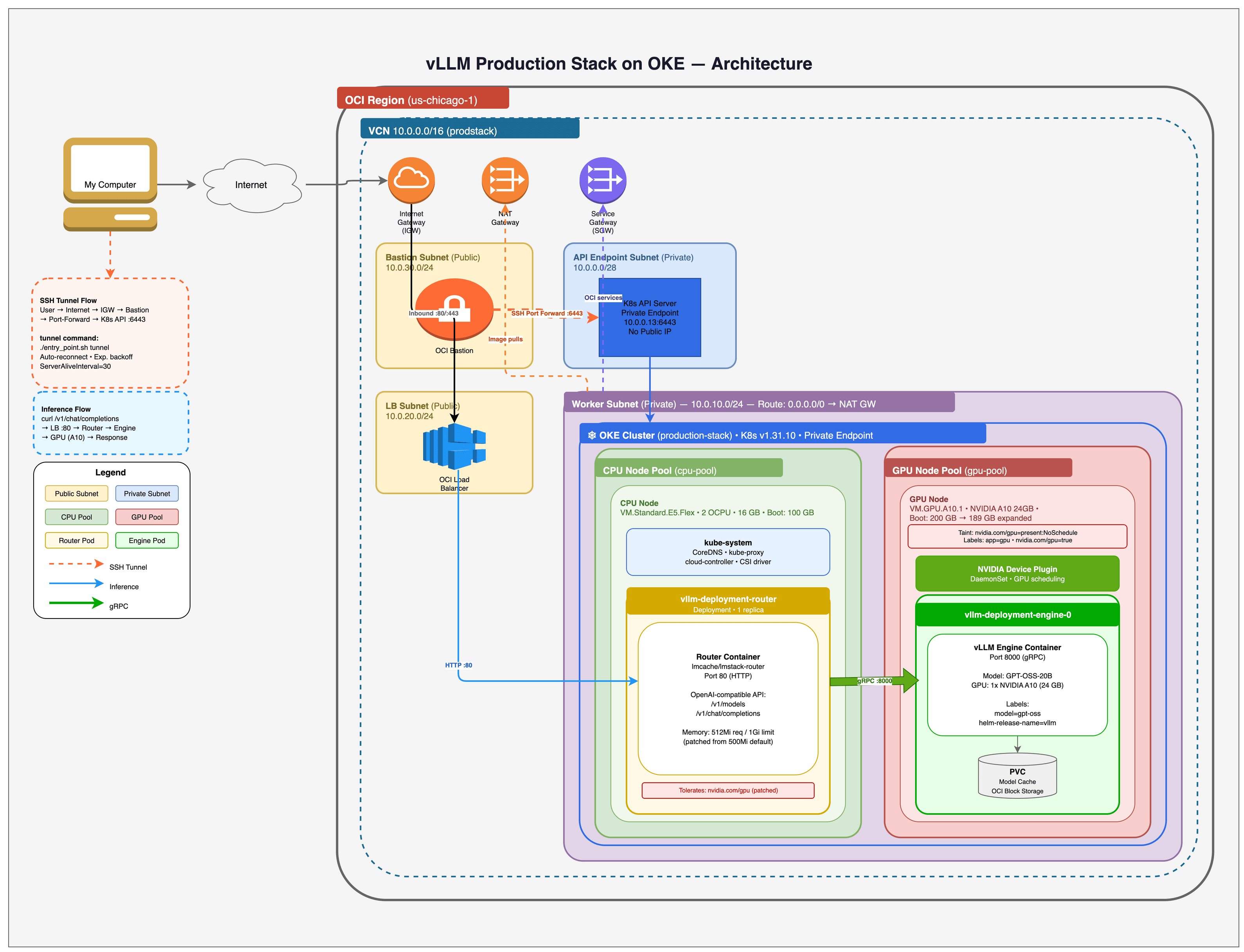
The following OCI services are used in this tutorial:
| Service | Purpose |
|---|---|
| Oracle Kubernetes Engine (OKE) | Managed Kubernetes cluster for container orchestration and GPU workload scheduling |
| OCI Compute (GPU Shapes) | NVIDIA A10 (24GB) and A100 (80GB) GPU instances for model inference |
| OCI Block Volumes | Persistent storage for model weights with configurable performance tiers |
| OCI Virtual Cloud Network (VCN) | Network infrastructure including subnets, gateways, and security lists |
| OCI Load Balancer | External access to inference endpoints |
| OCI Bastion | Managed SSH tunnels for private cluster access |
| OCI Object Storage | Alternative model source using Pre-Authenticated Request (PAR) URLs |
Objectives
In this tutorial, you will:
- Deploy an OKE cluster with GPU-enabled node pools using OCI CLI
- Configure OCI networking (VCN, subnets, gateways) for Kubernetes workloads
- Install and configure the NVIDIA device plugin for GPU scheduling
- Expand the GPU node filesystem to use the full boot volume capacity
- Deploy the vLLM Production Stack with an OpenAI-compatible inference endpoint
- Test LLM inference with API requests against the OpenAI GPT-OSS-20B model
- Configure multi-GPU tensor parallelism for larger models on bare metal shapes
- Use OCI Object Storage as an alternative model source
- Clean up all OCI resources to avoid ongoing charges
Prerequisites
- An Oracle Cloud Infrastructure account with the following:
- A compartment with permissions to create and manage OKE clusters
- GPU compute quota for your desired shape (for example,
VM.GPU.A10.1orBM.GPU.A100-v2.8). If you do not have GPU quota, request it via a support ticket - Permissions to create VCN, subnets, internet gateways, and load balancers
- Access to OCI Block Volumes for persistent storage
- Access to OCI Object Storage (for the advanced model loading section)
Note: The example outputs and screenshots in this tutorial use us-chicago-1. You can deploy in any supported region by setting
OCI_REGION. GPU capacity varies by region and availability domain, so confirm that your target GPU shape is available before deploying. Check GPU shape availability by region and be prepared to try a different availability domain (GPU_AD_INDEX) if you hit capacity errors.
Note: This tutorial provisions paid GPU resources (for example,
VM.GPU.A10.1). It is not an OCI Always Free workload. Always run the cleanup steps when finished to avoid ongoing charges.
-
OCI CLI installed and configured with
oci setup config -
jq installed for JSON parsing
-
kubectl installed
-
Helm installed
-
An SSH key pair (for example,
~/.ssh/id_rsaand~/.ssh/id_rsa.pub) for bastion access. Generate one withssh-keygen -t rsa -b 4096if needed -
Familiarity with Kubernetes concepts (pods, services, deployments, node pools)
Note: This tutorial deploys
openai/gpt-oss-20b, an Apache 2.0 licensed model from OpenAI. No Hugging Face token is required. If you want to deploy gated models such as Meta Llama 3.1, you will need a Hugging Face account with an API token.
Task 1: Configure Environment Variables
Set the required OCI configuration before deploying the infrastructure.
-
Find your compartment OCID in the OCI Console. Navigate to Identity & Security > Compartments, then click on your target compartment and copy the OCID.
oci iam compartment list --query 'data[].{name:name,id:id}' --output table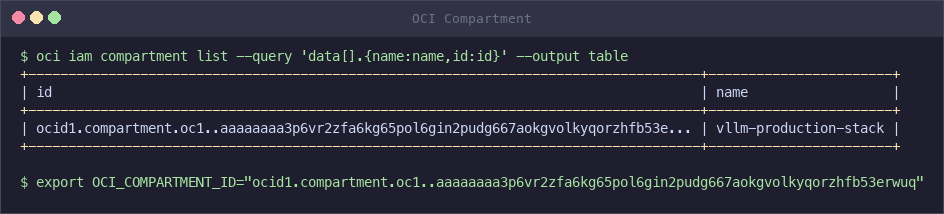
-
Export the required environment variable.
export OCI_COMPARTMENT_ID="ocid1.compartment.oc1..xxxxx" -
Optionally, override the default configuration by setting any of the following environment variables.
Variable Default Description OCI_REGIONus-ashburn-1OCI region for deployment OCI_PROFILEDEFAULTOCI CLI configuration profile CLUSTER_NAMEproduction-stackName of the OKE cluster GPU_SHAPEVM.GPU.A10.1GPU compute shape for the node pool GPU_NODE_COUNT1Number of GPU nodes in the pool GPU_BOOT_VOLUME_GB200Boot volume size in GB for GPU nodes CPU_BOOT_VOLUME_GB100Boot volume size in GB for CPU nodes GPU_AD_INDEX1Availability domain index (0-based) for GPU placement PRIVATE_CLUSTERtrueSet to falsefor a public Kubernetes API endpointKUBERNETES_VERSIONv1.31.10Kubernetes version for the OKE cluster For example, to deploy with two A100 GPU nodes:
export OCI_COMPARTMENT_ID="ocid1.compartment.oc1..xxxxx" export GPU_SHAPE="BM.GPU.A100-v2.8" export GPU_NODE_COUNT="2" -
Review the available GPU shapes and select one based on your model size requirements.
Shape GPUs GPU Type GPU Memory Recommended For VM.GPU.A10.11 NVIDIA A10 24 GB 7B–13B parameter models VM.GPU.A10.22 NVIDIA A10 48 GB Tensor parallel with small models BM.GPU4.88 NVIDIA A100 40 GB 320 GB 70B models, cost-effective BM.GPU.A100-v2.88 NVIDIA A100 80 GB 640 GB 70B+ parameter models BM.GPU.H100.88 NVIDIA H100 640 GB Largest models, RDMA support Note: Bare metal shapes (
BM.*) provide dedicated hardware with no virtualization overhead and support multi-GPU tensor parallelism. Virtual machine shapes (VM.*) are more cost-effective for smaller models.Note: This tutorial uses
VM.GPU.A10.1(single NVIDIA A10 with 24 GB GPU memory) to deployopenai/gpt-oss-20b, a Mixture of Experts (MoE) model with 3.6B active parameters that typically fits on a single A10 GPU. The advanced sections demonstrate multi-GPU configurations usingBM.GPU.H100.8for larger models such as Llama 3.1 70B.
Task 2: Deploy Using the Automated Script (Quick Start)
The vLLM Production Stack includes an automated deployment script that provisions all OCI resources and deploys the inference stack with a single command. Use this approach for a quick deployment. Tasks 3 through 10 cover each step individually for users who want to customize the process.
-
Clone the vLLM Production Stack repository.
git clone https://github.com/vllm-project/production-stack.git cd production-stack/deployment_on_cloud/oci -
Export your compartment OCID.
export OCI_COMPARTMENT_ID="ocid1.compartment.oc1..xxxxx" -
Run the deployment script.
./entry_point.sh setup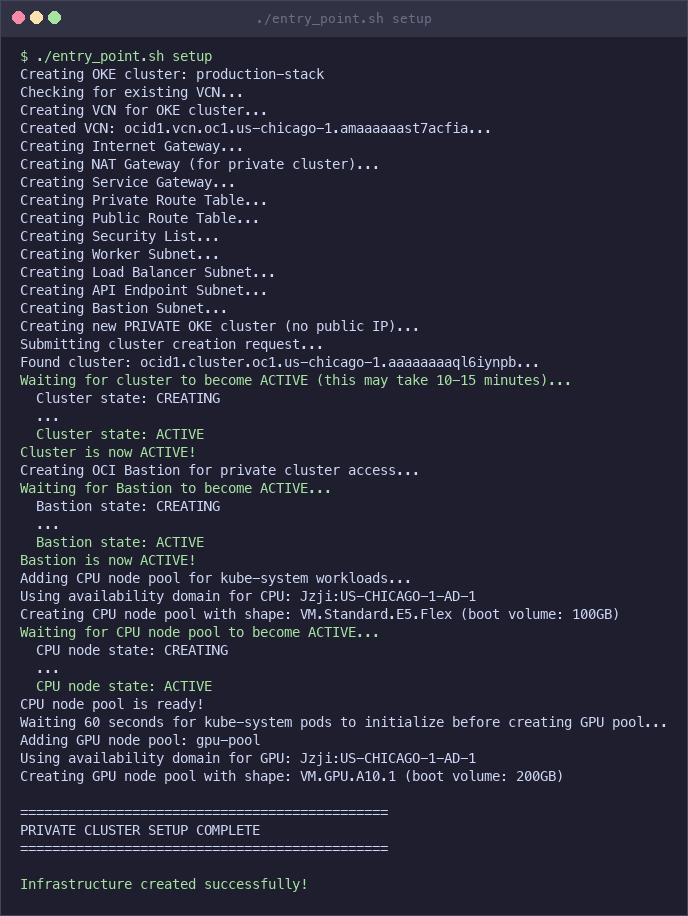
For public clusters (
PRIVATE_CLUSTER=false), setup creates all infrastructure and deploys the vLLM stack in a single command. Pass the Helm values file as a second argument:PRIVATE_CLUSTER=false ./entry_point.sh setup ./production_stack_specification.yamlFor private clusters (the default), setup creates the infrastructure but cannot reach the Kubernetes API directly. Open a separate terminal and start the tunnel, then deploy:
# In a separate terminal, start the SSH tunnel (auto-reconnects on drops): ./entry_point.sh tunnel # Back in the first terminal, deploy vLLM: ./entry_point.sh deploy-vllm ./production_stack_specification.yaml -
Verify the deployment is running.
kubectl get podsExpected output:
NAME                                            READY   STATUS    RESTARTS   AGE
vllm-deployment-router-xxxxxxxxxx-xxxxx          1/1     Running   0          5m
vllm-gpt-oss-deployment-vllm-xxxxxxxxxx-xxxxx    1/1     Running   0          5m
Note: If both pods show
Runningstatus, your deployment is ready. Skip ahead to Task 10: Test the Inference Endpoint.
Note: GPU instances are subject to OCI capacity constraints. If the script stays in the “Waiting for GPU node” loop for more than 15 minutes, the GPU shape may not be available in the selected availability domain. Check the node pool status with
oci ce node-pool getand look for “Out of host capacity” errors. To resolve this, clean up with./entry_point.sh cleanupand redeploy with a different availability domain (for example,GPU_AD_INDEX=0orGPU_AD_INDEX=2) or a different GPU shape (for example,GPU_SHAPE=VM.GPU.A10.2).
Note: The deployment script uses GPU instances that incur significant costs (~$50/day for a single A10 GPU). Always run
./entry_point.sh cleanupwhen you are done to avoid ongoing charges.
Task 3: Create VCN and Networking
Create the OCI network infrastructure required for the OKE cluster. This includes a Virtual Cloud Network (VCN), gateways, route tables, security lists, and subnets. Each networking resource is created in a few seconds; the full set of commands completes in under 2 minutes.
-
Create a VCN with a
10.0.0.0/16CIDR block.VCN_ID=$(oci network vcn create \ --compartment-id "${OCI_COMPARTMENT_ID}" \ --display-name "${CLUSTER_NAME}-vcn" \ --cidr-blocks '["10.0.0.0/16"]' \ --dns-label "prodstack" \ --query "data.id" \ --raw-output) -
Create an Internet Gateway for public subnet routing.
IGW_ID=$(oci network internet-gateway create \ --compartment-id "${OCI_COMPARTMENT_ID}" \ --vcn-id "${VCN_ID}" \ --display-name "${CLUSTER_NAME}-igw" \ --is-enabled true \ --query "data.id" \ --raw-output) -
Create a NAT Gateway for outbound traffic from private subnets.
NAT_ID=$(oci network nat-gateway create \ --compartment-id "${OCI_COMPARTMENT_ID}" \ --vcn-id "${VCN_ID}" \ --display-name "${CLUSTER_NAME}-nat" \ --query "data.id" \ --raw-output) -
Create a Service Gateway for access to Oracle Services Network. The OKE cloud controller uses Oracle Services to initialize worker nodes (set availability domain labels, remove initialization taints). Without a Service Gateway, GPU nodes may remain in an uninitialized state and block volume provisioning will fail.
SGW_SERVICE_ID=$(oci network service list \ --query "data[?contains(name, 'All') && contains(name, 'Services')].id | [0]" \ --raw-output) SGW_SERVICE_NAME=$(oci network service list \ --query "data[?contains(name, 'All') && contains(name, 'Services')].\"cidr-block\" | [0]" \ --raw-output) SGW_ID=$(oci network service-gateway create \ --compartment-id "${OCI_COMPARTMENT_ID}" \ --vcn-id "${VCN_ID}" \ --display-name "${CLUSTER_NAME}-sgw" \ --services "[{\"serviceId\": \"${SGW_SERVICE_ID}\"}]" \ --query "data.id" \ --raw-output) -
Create route tables for private and public subnets.
PRIVATE_RT_ID=$(oci network route-table create \
    --compartment-id "${OCI_COMPARTMENT_ID}" \
    --vcn-id "${VCN_ID}" \
    --display-name "${CLUSTER_NAME}-private-rt" \
    --route-rules "[
        {\"cidrBlock\": \"0.0.0.0/0\", \"networkEntityId\": \"${NAT_ID}\"},
        {\"destination\": \"${SGW_SERVICE_NAME}\", \"destinationType\": \"SERVICE_CIDR_BLOCK\", \"networkEntityId\": \"${SGW_ID}\"}
    ]" \
    --query "data.id" \
    --raw-output)

PUBLIC_RT_ID=$(oci network route-table create \
    --compartment-id "${OCI_COMPARTMENT_ID}" \
    --vcn-id "${VCN_ID}" \
    --display-name "${CLUSTER_NAME}-public-rt" \
    --route-rules "[{\"cidrBlock\": \"0.0.0.0/0\", \"networkEntityId\": \"${IGW_ID}\"}]" \
    --query "data.id" \
    --raw-output)
Note: The private route table has two rules: a NAT Gateway route for general internet access (pulling container images, downloading models), and a Service Gateway route for direct access to Oracle Services Network. The Service Gateway route is critical. Without it, the OKE cloud controller cannot initialize worker nodes, which prevents block volume provisioning. The public route table uses the Internet Gateway for load balancer access.
-
Create a security list with the required ingress and egress rules for OKE.
SL_ID=$(oci network security-list create \
    --compartment-id "${OCI_COMPARTMENT_ID}" \
    --vcn-id "${VCN_ID}" \
    --display-name "${CLUSTER_NAME}-sl" \
    --egress-security-rules '[{"destination": "0.0.0.0/0", "protocol": "all", "isStateless": false}]' \
    --ingress-security-rules '[
        {"source": "0.0.0.0/0", "protocol": "6", "isStateless": false, "tcpOptions": {"destinationPortRange": {"min": 22, "max": 22}}, "description": "SSH access"},
        {"source": "10.0.0.0/16", "protocol": "all", "isStateless": false, "description": "VCN internal traffic"},
        {"source": "10.244.0.0/16", "protocol": "all", "isStateless": false, "description": "Kubernetes pods CIDR"},
        {"source": "10.96.0.0/16", "protocol": "all", "isStateless": false, "description": "Kubernetes services CIDR"},
        {"source": "0.0.0.0/0", "protocol": "1", "isStateless": false, "icmpOptions": {"type": 3, "code": 4}, "description": "Path MTU discovery"}
    ]' \
    --query "data.id" \
    --raw-output)
Security Note: This example security list is intentionally broad for simplicity. For production, restrict SSH to the bastion subnet and your IP range, and prefer separate security lists or NSGs per subnet so the load balancer subnet does not allow SSH from
0.0.0.0/0.Secure default: Start by limiting SSH to your public IP and attaching SSH rules only to the bastion subnet. You can keep the Kubernetes pod/service CIDRs on the worker subnet and omit SSH entirely from the load balancer subnet.
Optional (recommended) split: Create a small SSH-only security list for the bastion subnet and a separate list for worker/LB subnets.
BASTION_SL_ID=$(oci network security-list create \
    --compartment-id "${OCI_COMPARTMENT_ID}" \
    --vcn-id "${VCN_ID}" \
    --display-name "${CLUSTER_NAME}-bastion-sl" \
    --egress-security-rules '[{"destination": "0.0.0.0/0", "protocol": "all", "isStateless": false}]' \
    --ingress-security-rules '[
        {"source": "YOUR_PUBLIC_IP/32", "protocol": "6", "isStateless": false, "tcpOptions": {"destinationPortRange": {"min": 22, "max": 22}}, "description": "SSH from your IP"}
    ]' \
    --query "data.id" \
    --raw-output)

WORKER_SL_ID=$(oci network security-list create \
    --compartment-id "${OCI_COMPARTMENT_ID}" \
    --vcn-id "${VCN_ID}" \
    --display-name "${CLUSTER_NAME}-worker-sl" \
    --egress-security-rules '[{"destination": "0.0.0.0/0", "protocol": "all", "isStateless": false}]' \
    --ingress-security-rules '[
        {"source": "10.0.0.0/16", "protocol": "all", "isStateless": false, "description": "VCN internal traffic"},
        {"source": "10.244.0.0/16", "protocol": "all", "isStateless": false, "description": "Kubernetes pods CIDR"},
        {"source": "10.96.0.0/16", "protocol": "all", "isStateless": false, "description": "Kubernetes services CIDR"},
        {"source": "0.0.0.0/0", "protocol": "1", "isStateless": false, "icmpOptions": {"type": 3, "code": 4}, "description": "Path MTU discovery"}
    ]' \
    --query "data.id" \
    --raw-output)

LB_SL_ID=$(oci network security-list create \
    --compartment-id "${OCI_COMPARTMENT_ID}" \
    --vcn-id "${VCN_ID}" \
    --display-name "${CLUSTER_NAME}-lb-sl" \
    --egress-security-rules '[{"destination": "0.0.0.0/0", "protocol": "all", "isStateless": false}]' \
    --ingress-security-rules '[
        {"source": "10.0.0.0/16", "protocol": "all", "isStateless": false, "description": "VCN internal traffic"},
        {"source": "0.0.0.0/0", "protocol": "6", "isStateless": false, "tcpOptions": {"destinationPortRange": {"min": 80, "max": 80}}, "description": "HTTP (public LB)"},
        {"source": "0.0.0.0/0", "protocol": "6", "isStateless": false, "tcpOptions": {"destinationPortRange": {"min": 443, "max": 443}}, "description": "HTTPS (public LB)"}
    ]' \
    --query "data.id" \
    --raw-output)
Note: If you only use an internal load balancer, replace the
0.0.0.0/0sources above with10.0.0.0/16(or your VCN CIDR). Usage: AttachBASTION_SL_IDto the bastion subnet,WORKER_SL_IDto the API/worker subnets, andLB_SL_IDto the load balancer subnet.Note: The Kubernetes pods CIDR (
10.244.0.0/16) and services CIDR (10.96.0.0/16) rules are required for GPU worker nodes to register with the cluster. The ICMP type 3 code 4 rule enables path MTU discovery, which prevents packet fragmentation issues. -
Create the subnets. The cluster requires four subnets: one for the Kubernetes API endpoint, one for worker nodes, one for load balancers, and one for the bastion host used to access the private cluster.
API_SUBNET_ID=$(oci network subnet create \
    --compartment-id "${OCI_COMPARTMENT_ID}" \
    --vcn-id "${VCN_ID}" \
    --display-name "${CLUSTER_NAME}-api-subnet" \
    --cidr-block "10.0.0.0/28" \
    --route-table-id "${PRIVATE_RT_ID}" \
    --security-list-ids "[\"${SL_ID}\"]" \
    --dns-label "kubeapi" \
    --prohibit-public-ip-on-vnic true \
    --query "data.id" \
    --raw-output)

WORKER_SUBNET_ID=$(oci network subnet create \
    --compartment-id "${OCI_COMPARTMENT_ID}" \
    --vcn-id "${VCN_ID}" \
    --display-name "${CLUSTER_NAME}-worker-subnet" \
    --cidr-block "10.0.10.0/24" \
    --route-table-id "${PRIVATE_RT_ID}" \
    --security-list-ids "[\"${SL_ID}\"]" \
    --dns-label "workers" \
    --prohibit-public-ip-on-vnic true \
    --query "data.id" \
    --raw-output)

LB_SUBNET_ID=$(oci network subnet create \
    --compartment-id "${OCI_COMPARTMENT_ID}" \
    --vcn-id "${VCN_ID}" \
    --display-name "${CLUSTER_NAME}-lb-subnet" \
    --cidr-block "10.0.20.0/24" \
    --route-table-id "${PUBLIC_RT_ID}" \
    --security-list-ids "[\"${SL_ID}\"]" \
    --dns-label "loadbalancers" \
    --query "data.id" \
    --raw-output)

BASTION_SUBNET_ID=$(oci network subnet create \
    --compartment-id "${OCI_COMPARTMENT_ID}" \
    --vcn-id "${VCN_ID}" \
    --display-name "${CLUSTER_NAME}-bastion-subnet" \
    --cidr-block "10.0.30.0/24" \
    --route-table-id "${PUBLIC_RT_ID}" \
    --security-list-ids "[\"${SL_ID}\"]" \
    --dns-label "bastion" \
    --query "data.id" \
    --raw-output)
Subnet CIDR Visibility Purpose API endpoint 10.0.0.0/28Private Kubernetes API server Worker nodes 10.0.10.0/24Private GPU compute nodes Load balancers 10.0.20.0/24Public External service access Bastion 10.0.30.0/24Public SSH tunnel for private cluster access
Task 4: Create the OKE Cluster
Deploy a managed Kubernetes cluster on OKE using the networking resources created in Task 3. The cluster takes approximately 10 minutes to provision. This tutorial creates a private cluster (the script default), which does not consume a reserved public IP for the Kubernetes API endpoint. Private clusters are the recommended approach for production workloads because the API server is not exposed to the public internet.
-
Create the OKE cluster with a private endpoint.
oci ce cluster create \
    --compartment-id "${OCI_COMPARTMENT_ID}" \
    --name "${CLUSTER_NAME}" \
    --vcn-id "${VCN_ID}" \
    --kubernetes-version "${KUBERNETES_VERSION}" \
    --endpoint-subnet-id "${API_SUBNET_ID}" \
    --service-lb-subnet-ids "[\"${LB_SUBNET_ID}\"]" \
    --endpoint-public-ip-enabled false
The command returns a work request ID. Get the cluster ID from the cluster list.
CLUSTER_ID=$(oci ce cluster list \
    --compartment-id "${OCI_COMPARTMENT_ID}" \
    --lifecycle-state CREATING \
    --query 'data[0].id' \
    --raw-output)
echo "CLUSTER_ID=${CLUSTER_ID}"
Note: Private clusters do not require a reserved public IP. Worker nodes still access the internet through the NAT Gateway to pull container images and download models. Only
kubectlaccess requires an SSH tunnel through the bastion (configured in the next steps). -
Wait for the cluster to become ACTIVE. This step takes approximately 10 minutes.
oci ce cluster get \
    --cluster-id "${CLUSTER_ID}" \
    --query "data.\"lifecycle-state\"" \
    --raw-output
Poll the command until the output returns
ACTIVE.Optional: display a concise status summary (including the private API endpoint).
oci ce cluster get \
    --cluster-id "${CLUSTER_ID}" \
    --query 'data.{name:name,state:"lifecycle-state","k8s-version":"kubernetes-version",endpoint:endpoints."private-endpoint"}' \
    --output table
kubectl get nodes -o wide
-
Create an OCI Bastion to access the private cluster. The bastion provides a managed SSH tunnel to the private Kubernetes API endpoint.
BASTION_ID=$(oci bastion bastion create \
    --compartment-id "${OCI_COMPARTMENT_ID}" \
    --bastion-type STANDARD \
    --target-subnet-id "${BASTION_SUBNET_ID}" \
    --name "${CLUSTER_NAME}-bastion" \
    --client-cidr-list '["YOUR_PUBLIC_IP/32"]' \
    --query "data.id" \
    --raw-output)
Note: Replace
YOUR_PUBLIC_IP/32with your current public IP. For shared networks, use your corporate CIDR block instead.Wait for the bastion to become ACTIVE (approximately 1 minute).
oci bastion bastion get \
    --bastion-id "${BASTION_ID}" \
    --query "data.\"lifecycle-state\"" \
    --raw-output
Security Note: For production, do not use
0.0.0.0/0. Restrict--client-cidr-listto your public IP or corporate CIDR (for example,"YOUR_PUBLIC_IP/32"), otherwise anyone on the internet can attempt a bastion session. -
Download the kubeconfig using the private endpoint.
oci ce cluster create-kubeconfig \ --cluster-id "${CLUSTER_ID}" \ --file "${HOME}/.kube/config" \ --region "${OCI_REGION}" \ --token-version 2.0.0 \ --kube-endpoint PRIVATE_ENDPOINT -
Get the private endpoint IP address for the SSH tunnel.
PRIVATE_ENDPOINT=$(oci ce cluster get \ --cluster-id "${CLUSTER_ID}" \ --query "data.endpoints.\"private-endpoint\"" \ --raw-output) PRIVATE_IP="${PRIVATE_ENDPOINT%:*}" echo "Private endpoint IP: ${PRIVATE_IP}" -
Create a bastion port-forwarding session. You will need an SSH public key file.
SESSION_ID=$(oci bastion session create-port-forwarding \
    --bastion-id "${BASTION_ID}" \
    --target-private-ip "${PRIVATE_IP}" \
    --target-port 6443 \
    --session-ttl 10800 \
    --display-name "kubectl-tunnel" \
    --ssh-public-key-file ~/.ssh/id_rsa.pub \
    --query "data.id" \
    --raw-output)
Wait for the session to become ACTIVE, then get the SSH command.
oci bastion session get \ --session-id "${SESSION_ID}" \ --query "data.{state:\"lifecycle-state\", ssh:\"ssh-metadata\".command}" 2>&1 -
Open a separate terminal and start the SSH tunnel using the command from the previous step. The tunnel forwards local port 6443 to the private Kubernetes API.
ssh -i ~/.ssh/id_rsa -o IdentitiesOnly=yes -N -L 6443:<PRIVATE_IP>:6443 \
    -p 22 -o ServerAliveInterval=30 \
    <SESSION_OCID>@host.bastion.<REGION>.oci.oraclecloud.com
Note: Replace
<PRIVATE_IP>,<SESSION_OCID>, and<REGION>with the values from the previous step. Keep this terminal open for the duration of your session. The-o IdentitiesOnly=yesflag prevents “too many authentication failures” errors when your SSH agent has multiple keys loaded. -
Update the kubeconfig to connect through the local tunnel.
CLUSTER_NAME_KUBE=$(kubectl config view --minify -o jsonpath='{.clusters[0].name}')
kubectl config set-cluster "${CLUSTER_NAME_KUBE}" \
    --server=https://127.0.0.1:6443 \
    --insecure-skip-tls-verify=true
Note: The
--insecure-skip-tls-verifyflag is required because the cluster certificate was issued for the private endpoint IP, not127.0.0.1. This is safe because traffic is encrypted through the SSH tunnel. -
If you are using a non-default OCI CLI profile (for example,
API_KEY_AUTH), update the kubeconfig to use it. The generated kubeconfig defaults to theDEFAULTprofile for token generation.kubectl config set-credentials \ $(kubectl config view --minify -o jsonpath='{.users[0].name}') \ --exec-env=OCI_CLI_PROFILE=${OCI_PROFILE}Tip: Steps 6-9 are automated by
./entry_point.sh tunnel, which also auto-reconnects if the SSH tunnel drops during long-running operations like disk expansion. Run it in a separate terminal and leave it running for the duration of your session. -
Verify cluster access.
kubectl get nodesAt this point the output will show no nodes, since the GPU node pool has not been added yet.
No resources foundTask 5: Add GPU Node Pool
Add a node pool with GPU compute instances to the OKE cluster.
-
Find the latest GPU-compatible OKE node image. OKE requires specific images with kubelet and node registration components pre-installed. Use the
node-pool-optionsAPI to find the correct image for your Kubernetes version.GPU_IMAGE_ID=$(oci ce node-pool-options get \ --node-pool-option-id all \ --compartment-id "${OCI_COMPARTMENT_ID}" \ --query "data.sources[?contains(\"source-name\", 'GPU') && contains(\"source-name\", 'OKE-${KUBERNETES_VERSION#v}') && contains(\"source-name\", '8.10')].\"image-id\" | [0]" \ --raw-output) echo "GPU Image: ${GPU_IMAGE_ID}"Note: The query filters for Oracle Linux 8.10 GPU images matching your Kubernetes version (for example,
OKE-1.31.10). If you need ARM-based images, replace8.10with the appropriate filter. -
Determine the availability domain that has GPU shapes. Not all availability domains have GPU capacity.
AD=$(oci iam availability-domain list \
    --compartment-id "${OCI_COMPARTMENT_ID}" \
    --query "data[${GPU_AD_INDEX}].name" \
    --raw-output)
echo "Availability Domain: ${AD}"
Note: GPU capacity varies by region and availability domain. If node pool creation fails with an “Out of host capacity” error, try a different availability domain (
GPU_AD_INDEX) or GPU shape, or request capacity via your normal OCI process. -
Create the GPU node pool with a 200 GB boot volume.
oci ce node-pool create \
    --compartment-id "${OCI_COMPARTMENT_ID}" \
    --cluster-id "${CLUSTER_ID}" \
    --name "${GPU_NODE_POOL_NAME:-gpu-pool}" \
    --kubernetes-version "${KUBERNETES_VERSION}" \
    --node-shape "${GPU_SHAPE}" \
    --node-image-id "${GPU_IMAGE_ID}" \
    --node-boot-volume-size-in-gbs "${GPU_BOOT_VOLUME_GB:-200}" \
    --size "${GPU_NODE_COUNT}" \
    --placement-configs "[{\"availabilityDomain\": \"${AD}\", \"subnetId\": \"${WORKER_SUBNET_ID}\"}]" \
    --initial-node-labels '[{"key": "app", "value": "gpu"}, {"key": "nvidia.com/gpu", "value": "true"}]'
Note: The node labels
app=gpuandnvidia.com/gpu=trueare used later by the vLLM Helm chart to schedule inference pods on GPU nodes. The 200 GB boot volume provides space for the vLLM container image (~10 GB) and model weights, but the filesystem must be expanded before use (see Task 8). -
Wait for the GPU nodes to become Ready. This typically takes 5–10 minutes while the node provisions, boots, installs GPU drivers, and registers with the cluster.
Note: GPU instances are subject to capacity constraints. If the node pool stays in CREATING state, check the node status in the OCI Console or with
oci ce node-pool get. An “Out of host capacity” error means no GPU instances are available in that availability domain. To resolve this, try a different availability domain (GPU_AD_INDEX=0orGPU_AD_INDEX=2), try a different GPU shape, or request a capacity reservation through the OCI Console or a support ticket.kubectl get nodes -wExpected output once the node is ready:
NAME STATUS ROLES AGE VERSION 10.0.10.x Ready node 5m v1.31.10 -
Verify that the GPU is detected on the node.
kubectl get nodes -o=custom-columns=NAME:.metadata.name,GPUs:.status.capacity.'nvidia\.com/gpu'Expected output:
NAME GPUs 10.0.10.x 1 -
Patch CoreDNS to schedule on GPU nodes. OKE GPU nodes have a
nvidia.com/gpu=present:NoScheduletaint. In clusters that only have GPU nodes, system pods like CoreDNS cannot schedule without a toleration for this taint. Without DNS, pods cannot resolve external hostnames to download models.kubectl patch deployment coredns -n kube-system --type='json' \ -p='[{"op": "add", "path": "/spec/template/spec/tolerations/-", "value": {"key": "nvidia.com/gpu", "operator": "Exists", "effect": "NoSchedule"}}]' kubectl patch deployment kube-dns-autoscaler -n kube-system --type='json' \ -p='[{"op": "add", "path": "/spec/template/spec/tolerations/-", "value": {"key": "nvidia.com/gpu", "operator": "Exists", "effect": "NoSchedule"}}]'Verify CoreDNS is running.
kubectl get pods -n kube-system | grep corednsNote: If your cluster has a dedicated CPU node pool for system workloads, this step is not necessary. This patch is only needed when GPU nodes are the only nodes in the cluster.
oci ce node-pool list --compartment-id "${OCI_COMPARTMENT_ID}" --cluster-id "${CLUSTER_ID}" \
    --query 'data[].{name:name,state:"lifecycle-state",shape:"node-shape",size:"node-config-details".size}' --output table
Task 6: Install NVIDIA Device Plugin
Install the NVIDIA device plugin so Kubernetes can detect and schedule workloads on the GPU.
-
Apply the NVIDIA device plugin DaemonSet.
kubectl apply -f https://raw.githubusercontent.com/NVIDIA/k8s-device-plugin/v0.14.1/nvidia-device-plugin.yml -
Wait for the plugin pods to be ready.
kubectl wait --for=condition=Ready pods -l name=nvidia-device-plugin-ds -n kube-system --timeout=300sNote: Some OKE GPU node images include a pre-installed NVIDIA device plugin (
nvidia-gpu-device-plugin). If the image already includes it, applying the upstream DaemonSet creates a second instance which does not cause conflicts. The automated script (entry_point.sh deploy-vllm) always installs it to ensure GPU detection works regardless of the node image version. -
Confirm the GPU is allocatable by Kubernetes.
kubectl get nodes -o=custom-columns=NAME:.metadata.name,GPUs:.status.allocatable.'nvidia\.com/gpu'Expected output:
NAME GPUs 10.0.10.x 1 -
Patch CoreDNS to tolerate GPU node taints. In clusters where GPU nodes are the only worker nodes, CoreDNS pods cannot schedule because OKE GPU nodes carry a
nvidia.com/gpu=present:NoScheduletaint. Without DNS, pods cannot resolve image registries or model download URLs.kubectl patch deployment coredns -n kube-system --type='json' -p='[ {"op": "add", "path": "/spec/template/spec/tolerations/-", "value": {"key": "nvidia.com/gpu", "operator": "Exists", "effect": "NoSchedule"}} ]' kubectl rollout status deployment/coredns -n kube-system --timeout=60sNote: This step is only needed when GPU nodes are the sole worker nodes in the cluster. If you have a dedicated CPU node pool for system workloads, CoreDNS schedules there by default and this patch is unnecessary.
Task 7: Configure Storage
Apply the OCI Block Volume StorageClass to provide persistent storage for model weights.
-
Apply the StorageClass definition.
kubectl apply -f oci-block-storage-sc.yamlThe file defines two performance tiers:
apiVersion: storage.k8s.io/v1
kind: StorageClass
metadata:
  name: oci-block-storage-enc
provisioner: blockvolume.csi.oraclecloud.com
parameters:
  vpusPerGB: "10"
reclaimPolicy: Delete
volumeBindingMode: WaitForFirstConsumer
allowVolumeExpansion: true
StorageClass Performance Use Case oci-block-storage-encBalanced ( vpusPerGB: 10)Default, cost-effective for most models oci-block-storage-hpHigh performance ( vpusPerGB: 20)Faster model loading for larger models -
Verify the StorageClasses are available.
kubectl get storageclass
Note: For multi-node deployments requiring shared storage across multiple pods, use OCI File Storage Service (NFS) with
ReadWriteManyaccess mode instead of Block Volumes.
Task 8: Expand GPU Node Filesystem
OCI boot volumes have a fixed ~47 GB partition regardless of the boot volume size you specify. The vLLM container image alone is approximately 10 GB, and model weights require additional space. You must expand the filesystem before deploying vLLM to avoid DiskPressure evictions.
Note: This is an OCI-specific requirement. The boot volume is provisioned at 200 GB, but the operating system only partitions ~47 GB by default. The remaining space must be claimed manually.
-
Verify the current filesystem size on the GPU node.
GPU_NODE=$(kubectl get nodes -l app=gpu -o jsonpath='{.items[0].metadata.name}')
kubectl run check-disk --rm -i --restart=Never \
  --image=busybox:latest \
  --overrides="{\"spec\":{\"nodeName\":\"${GPU_NODE}\",\"tolerations\":[{\"operator\":\"Exists\"}],\"containers\":[{\"name\":\"check\",\"image\":\"busybox:latest\",\"command\":[\"sh\",\"-c\",\"chroot /host df -h / | tail -1\"],\"securityContext\":{\"privileged\":true},\"volumeMounts\":[{\"name\":\"host\",\"mountPath\":\"/host\"}]}],\"volumes\":[{\"name\":\"host\",\"hostPath\":{\"path\":\"/\"}}]}}"
The output will show approximately 47 GB total, confirming expansion is needed.
-
Create a privileged pod on the GPU node to run the expansion commands.
kubectl run expand-disk --restart=Never \
  --image=busybox:latest \
  --overrides="{\"spec\":{\"nodeName\":\"${GPU_NODE}\",\"tolerations\":[{\"operator\":\"Exists\"}],\"containers\":[{\"name\":\"expand\",\"image\":\"busybox:latest\",\"command\":[\"sleep\",\"600\"],\"securityContext\":{\"privileged\":true},\"volumeMounts\":[{\"name\":\"host\",\"mountPath\":\"/host\"}]}],\"volumes\":[{\"name\":\"host\",\"hostPath\":{\"path\":\"/\"}}]}}"
Wait for the pod to start.
kubectl wait --for=condition=Ready pod/expand-disk --timeout=60s -
Run all four expansion steps in a single
kubectl execcommand. Running them together avoids the risk ofkubectl execreturning exit code 137 (SIGKILL) between steps, which can happen during heavy disk I/O on the host.kubectl exec expand-disk -- chroot /host bash -c ' set -x growpart /dev/sda 3 || echo "growpart: partition may already be expanded" sleep 3 pvresize /dev/sda3 lvextend -l +100%FREE /dev/ocivolume/root || echo "lvextend: may already be extended" xfs_growfs / echo "EXPANSION_COMPLETE" df -h / 'Step Command Purpose 1 growpart /dev/sda 3Expand partition 3 to use full disk 2 pvresize /dev/sda3Resize LVM physical volume 3 lvextend -l +100%FREE /dev/ocivolume/rootExtend logical volume 4 xfs_growfs /Grow XFS filesystem to fill the volume Note: All four operations are idempotent. If the exec returns exit code 137, you can safely re-run the entire block. Look for
EXPANSION_COMPLETEin the output to confirm success. -
Restart kubelet so the node reports the updated allocatable storage, then verify and clean up.
kubectl exec expand-disk -- nsenter -t 1 -m -p -- systemctl restart kubelet 2>/dev/null \
    || echo "Warning: kubelet restart returned non-zero (non-critical)"
kubectl exec expand-disk -- chroot /host df -h /
kubectl delete pod expand-disk --force
Note: The
nsentercommand enters the host’s PID namespace to access systemd. A plainchroot /host systemctl restart kubeletfails because it cannot connect to the systemd bus from within a chroot.Expected output should show approximately 189 GB total.
Task 9: Deploy the vLLM Production Stack
Install the vLLM inference stack using Helm.
-
Add the vLLM Helm repository.
helm repo add vllm https://vllm-project.github.io/production-stack helm repo update -
Review the Helm values file. The
production_stack_specification.yamlconfigures the model, resources, and storage for OCI.servingEngineSpec: runtimeClassName: "" modelSpec: - name: "gpt-oss" repository: "vllm/vllm-openai" tag: "latest" modelURL: "openai/gpt-oss-20b" replicaCount: 1 requestCPU: 4 requestMemory: "24Gi" requestGPU: 1 # No HF token needed - Apache 2.0 licensed OpenAI open source model pvcStorage: "100Gi" pvcAccessMode: - ReadWriteOnce storageClass: "oci-block-storage-enc" nodeSelector: app: gpu tolerations: - key: "nvidia.com/gpu" operator: "Exists" effect: "NoSchedule" extraArgs: - "--max-model-len=8192" - "--gpu-memory-utilization=0.90"Note: The
openai/gpt-oss-20bmodel is a Mixture of Experts (MoE) model with 20B total parameters and 3.6B active parameters per forward pass. It is released under the Apache 2.0 license, so no Hugging Face token is required. Thevllm/vllm-openaicontainer image provides an OpenAI-compatible API server, allowing clients to use standard OpenAI SDK calls against your self-hosted endpoint. -
Deploy the stack. Do not use
--waithere because the router pod will CrashLoop until patched in the next step.helm upgrade -i \ vllm vllm/vllm-stack \ -f production_stack_specification.yamlWait for the vLLM engine pod to start (the router will be patched next).
kubectl wait --for=condition=Ready pods -l model=gpt-oss --timeout=600sNote: The engine pod takes several minutes to become Ready because it downloads the model weights on first start. If the pod stays in
ContainerCreating, the container image (~10 GB) is still being pulled. Usekubectl describe pod <pod-name>to check progress. -
Patch the router deployment. The router needs a GPU toleration (so it can schedule when GPU nodes are the only nodes with capacity) and increased memory limits (the default 500 Mi can cause OOMKill).
kubectl patch deployment vllm-deployment-router --type='json' -p='[
  {"op": "add", "path": "/spec/template/spec/tolerations", "value": [{"key": "nvidia.com/gpu", "operator": "Exists", "effect": "NoSchedule"}]},
  {"op": "replace", "path": "/spec/template/spec/containers/0/resources/requests/memory", "value": "512Mi"},
  {"op": "replace", "path": "/spec/template/spec/containers/0/resources/limits/memory", "value": "1Gi"}
]'
Note: The GPU toleration is needed because OKE GPU nodes have a
nvidia.com/gpu=present:NoScheduletaint that prevents non-GPU workloads from scheduling. Since the router does not use a GPU but needs to run somewhere, this toleration allows it to schedule on GPU nodes. In clusters with dedicated CPU node pools, this toleration is not needed. -
Confirm the Helm release is deployed.
helm list
-
Verify the pods are running.
kubectl get podsExpected output:
NAME                                            READY   STATUS    RESTARTS   AGE
vllm-deployment-router-xxxxxxxxxx-xxxxx          1/1     Running   0          5m
vllm-gpt-oss-deployment-vllm-xxxxxxxxxx-xxxxx    1/1     Running   0          5m
kubectl get pods
-
Check the model loading progress in the pod logs.
kubectl logs -f deployment/vllm-gpt-oss-deployment-vllmWait until you see a message indicating that the model has loaded and the server is ready to accept requests.
Task 10: Test the Inference Endpoint
Validate that the deployment is serving inference requests. The vLLM Production Stack exposes an OpenAI-compatible API through the router service, so any OpenAI SDK client or curl command can interact with it.
The following diagram shows the inference request lifecycle: from client request through the router’s engine selection logic, into the vLLM engine’s prefill and decode phases, and back as a streamed response.
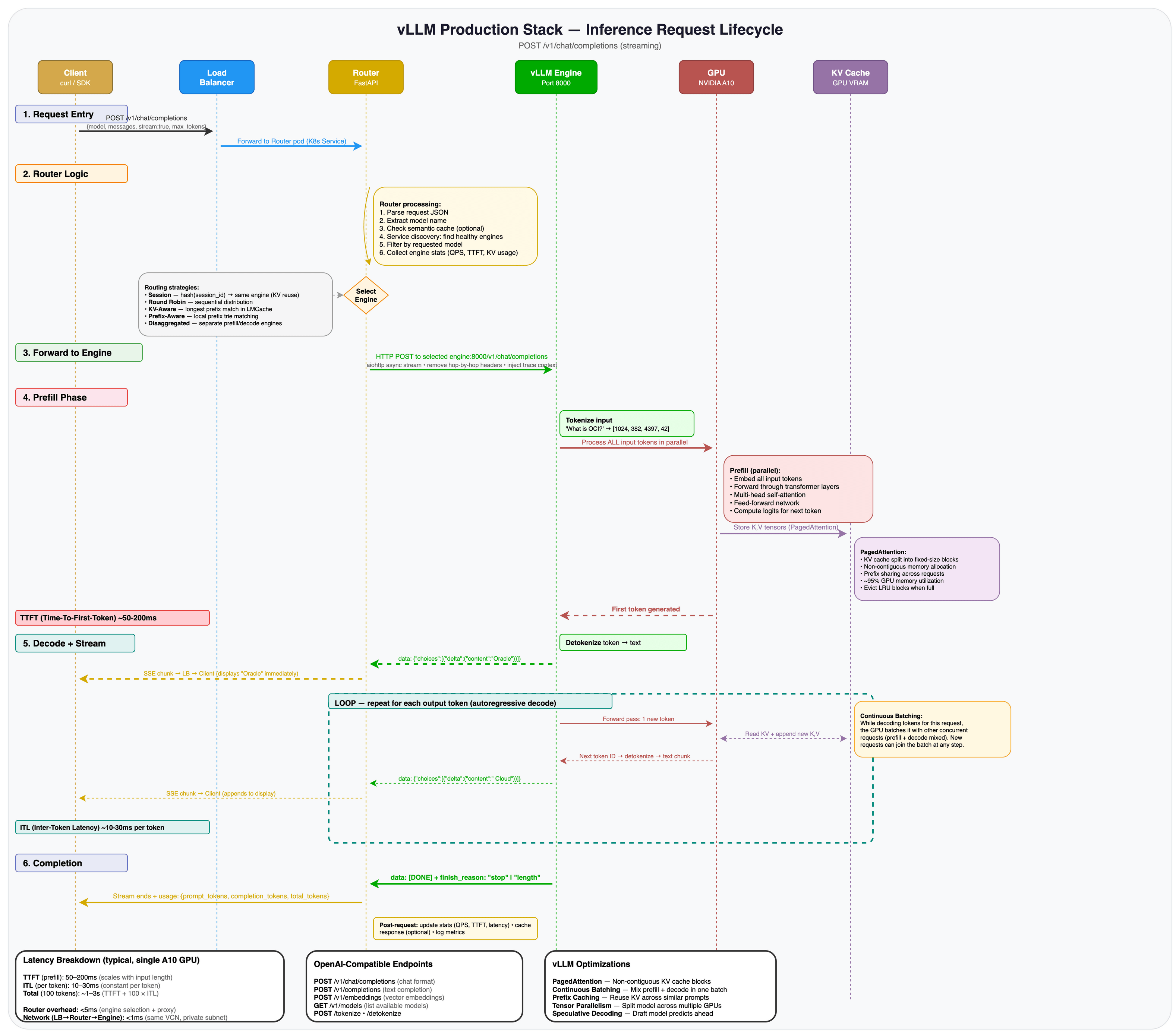
-
List the available models to confirm the deployment is healthy.
kubectl get svc vllm-router-serviceThe router service provides the API gateway to all deployed models. Since the cluster uses a private endpoint, you access the service through
kubectl port-forward. -
Start a port-forward from your local machine to the router service. Open a new terminal (keep the SSH tunnel running in the other one) and run:
kubectl port-forward svc/vllm-router-service 8080:80This maps
localhost:8080on your machine to port 80 on the router service inside the cluster.Security Note:
kubectl port-forwardbinds locally and does not expose the service publicly. This is the safest way to test when using a private cluster over a bastion tunnel.Note: The port-forward command runs in the foreground. Keep this terminal open while testing. Press Ctrl+C to stop it when done.
-
In another terminal, verify the model is available by querying the models endpoint.
curl -s http://localhost:8080/v1/models | python3 -m json.toolExpected output:
{ "object": "list", "data": [ { "id": "openai/gpt-oss-20b", "object": "model", "created": 1234567890, "owned_by": "vllm" } ] } -
Send a text completion request.
curl -s http://localhost:8080/v1/completions \
  -H "Content-Type: application/json" \
  -d '{
    "model": "openai/gpt-oss-20b",
    "prompt": "Oracle Cloud Infrastructure is",
    "max_tokens": 50
  }' | python3 -m json.tool
Expected output (abbreviated):
{ "id": "cmpl-xxxxxxxxxxxx", "object": "text_completion", "model": "openai/gpt-oss-20b", "choices": [ { "index": 0, "text": " a cloud computing platform that provides ...", "finish_reason": "length" } ], "usage": { "prompt_tokens": 5, "completion_tokens": 50, "total_tokens": 55 } } -
Send a chat completion request. This is the same format used by the OpenAI Python SDK and is the most common way to interact with LLMs programmatically.
curl -s http://localhost:8080/v1/chat/completions \
  -H "Content-Type: application/json" \
  -d '{
    "model": "openai/gpt-oss-20b",
    "messages": [{"role": "user", "content": "What is Oracle Cloud Infrastructure in one sentence?"}],
    "max_tokens": 100
  }' | python3 -m json.tool
Expected output (abbreviated):
{
    "id": "chatcmpl-xxxxxxxxxxxx",
    "object": "chat.completion",
    "model": "openai/gpt-oss-20b",
    "choices": [
        {
            "index": 0,
            "message": {
                "role": "assistant",
                "content": "Oracle Cloud Infrastructure (OCI) is Oracle's enterprise-grade cloud platform that provides a full range of services for building, deploying, and managing applications and workloads..."
            },
            "finish_reason": "length"
        }
    ],
    "usage": {
        "prompt_tokens": 71,
        "completion_tokens": 100,
        "total_tokens": 171
    }
}
Both responses include the model’s generated text in the
choicesarray, token usage statistics, and afinish_reasonof eitherstop(the model finished naturally) orlength(output was truncated atmax_tokens).Note: The model name in the API request is the full model path (
openai/gpt-oss-20b), which matches themodelURLfield in the Helm values. Any OpenAI-compatible client can use this endpoint by settingbase_urltohttp://localhost:8080/v1.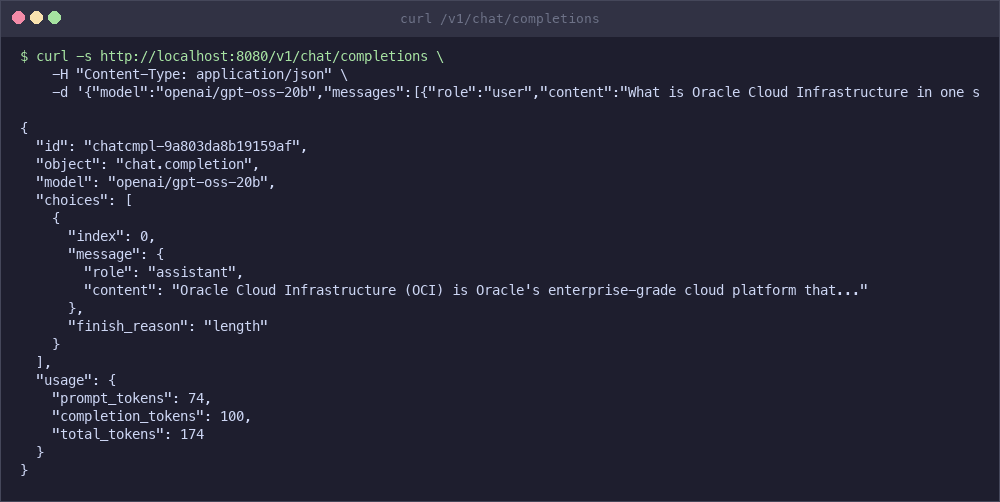
-
Measure end-to-end latency for a short request.
time curl -s http://localhost:8080/v1/chat/completions \
    -H "Content-Type: application/json" \
    -d '{"model":"openai/gpt-oss-20b","messages":[{"role":"user","content":"What is Kubernetes?"}],"max_tokens":50}' > /dev/null
On a single A10 GPU, expect 1-3 seconds end-to-end for short completions. Time to first token (TTFT) is typically 50-200ms depending on prompt length. For higher throughput, increase
replicaCountin the Helm values to add more engine replicas behind the router.
Task 11: Expose via OCI Load Balancer (Optional)
Make the inference endpoint accessible externally through an OCI Load Balancer.
Security Note: This exposes the inference API to the public internet by default. Do not enable this in production without TLS, authentication (API key/JWT/mTLS), and IP allow-listing or WAF controls. If you must expose it, front it with an ingress controller or API gateway that enforces auth and rate limits, or use an internal load balancer.
-
Patch the router service to use a LoadBalancer type.
kubectl patch svc vllm-router-service \
  -p '{"spec": {"type": "LoadBalancer"}}'
Note: If you want an internal load balancer, add the OCI annotation to the service (example below). This keeps the endpoint private inside the VCN.
kubectl annotate svc vllm-router-service \ "service.beta.kubernetes.io/oci-load-balancer-internal"="true" -
Wait for the external IP to be assigned.
kubectl get svc vllm-router-service -wExpected output once the load balancer is provisioned:
NAME                   TYPE           CLUSTER-IP     EXTERNAL-IP      PORT(S)
vllm-router-service    LoadBalancer   10.96.x.x      129.xxx.xxx.xx   80:xxxxx/TCP
kubectl get svc
-
Test the external endpoint.
curl http://<EXTERNAL-IP>/v1/completions \
  -H "Content-Type: application/json" \
  -d '{
    "model": "openai/gpt-oss-20b",
    "prompt": "Hello from OCI!",
    "max_tokens": 50
  }'
Task 12: Configure Multi-GPU Tensor Parallelism (Advanced)
Deploy larger models across multiple GPUs on bare metal shapes.
Tensor parallelism splits a model across multiple GPUs on a single node. This is required when a model’s memory requirements exceed a single GPU. For example, Meta Llama 3.1 70B requires approximately 140 GB of GPU memory, which exceeds the capacity of any single GPU but fits across 8x A100 80 GB or 8x H100 GPUs.
-
Create a Kubernetes secret with your Hugging Face token. Gated models such as Llama 3.1 70B require authentication.
kubectl create secret generic hf-token-secret \ --from-literal=token=YOUR_HUGGINGFACE_TOKEN -
Update the
production_stack_specification.yamlwith a multi-GPU configuration.servingEngineSpec: modelSpec: - name: "llama70b" repository: "vllm/vllm-openai" tag: "latest" modelURL: "meta-llama/Llama-3.1-70B-Instruct" replicaCount: 1 tensorParallelSize: 8 requestCPU: 32 requestMemory: "256Gi" requestGPU: 8 hf_token: secretName: "hf-token-secret" secretKey: "token" pvcStorage: "500Gi" pvcAccessMode: - ReadWriteOnce storageClass: "oci-block-storage-enc" nodeSelector: node.kubernetes.io/instance-type: "BM.GPU.H100.8" tolerations: - key: "nvidia.com/gpu" operator: "Exists" effect: "NoSchedule" extraArgs: - "--max-model-len=8192" - "--gpu-memory-utilization=0.95" - "--tensor-parallel-size=8" -
Deploy with the updated values. As with Task 9, do not use
--wait. The router will CrashLoop until patched.helm upgrade -i \ vllm vllm/vllm-stack \ -f production_stack_specification.yaml kubectl wait --for=condition=Ready pods -l model=llama70b --timeout=900sThen patch the router (same as Task 9, step 4) and verify:
kubectl patch deployment vllm-deployment-router --type='json' -p='[ {"op": "add", "path": "/spec/template/spec/tolerations", "value": [{"key": "nvidia.com/gpu", "operator": "Exists", "effect": "NoSchedule"}]}, {"op": "replace", "path": "/spec/template/spec/containers/0/resources/requests/memory", "value": "512Mi"}, {"op": "replace", "path": "/spec/template/spec/containers/0/resources/limits/memory", "value": "1Gi"} ]' -
Verify the pod is running and all GPUs are in use.
kubectl get pods
kubectl logs -f deployment/vllm-llama70b-deployment-vllm
Note: Ensure your OKE cluster has a node pool with the appropriate bare metal GPU shape (for example,
BM.GPU.H100.8) before deploying a multi-GPU configuration.
Task 13: Use OCI Object Storage for Models (Advanced)
Load model weights from OCI Object Storage instead of downloading from Hugging Face. This is useful for private models, faster downloads within OCI, or environments without external internet access.
-
Upload your model weights to an OCI Object Storage bucket. Navigate to Storage > Object Storage in the OCI Console and create a bucket if you do not already have one.
-
Create a Pre-Authenticated Request (PAR) URL for your bucket. In the OCI Console, select your bucket, click Pre-Authenticated Requests, and create a new request with read access.
-
Update the
production_stack_specification.yamlto use the PAR URL.servingEngineSpec: modelSpec: - name: "custom-model" repository: "iad.ocir.io/YOUR_TENANCY/vllm-custom:latest" modelURL: "/models/custom-model" env: - name: BUCKET_PAR_URL value: "https://objectstorage.us-ashburn-1.oraclecloud.com/p/xxx/n/namespace/b/bucket/o" - name: MODEL_NAME value: "custom-model" -
Deploy with the updated values (Without
--wait. See Task 9 for why).helm upgrade -i \ vllm vllm/vllm-stack \ -f production_stack_specification.yaml kubectl wait --for=condition=Ready pods -l model=custom-model --timeout=600s -
Verify the model loads from Object Storage by checking the pod logs.
kubectl logs -f deployment/vllm-custom-model-deployment-vllm
Task 14: Clean Up Resources
Remove all deployed resources to avoid ongoing charges.
-
Remove the Kubernetes resources using the cleanup script.
cd production-stack/deployment_on_cloud/oci
./clean_up.sh
This uninstalls the Helm release, deletes all PersistentVolumeClaims, PersistentVolumes, and custom vLLM resources.
-
Delete the OKE cluster and all OCI networking resources.
./entry_point.sh cleanupThis deletes the following resources in order:
- GPU node pool
- OKE cluster
- Bastion host (if created)
- Subnets (API, worker, load balancer, bastion)
- Security lists
- Service Gateway, NAT Gateway, and Internet Gateway
- Route tables
- VCN
-
Verify that all resources have been removed in the OCI Console under Developer Services > Kubernetes Clusters and Networking > Virtual Cloud Networks.
./entry_point.sh cleanup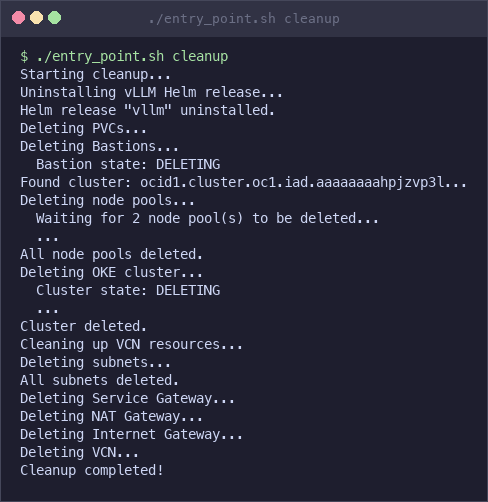
Note: Ensure all resources are deleted to avoid ongoing charges. GPU instances and block volumes incur costs even when idle.
What’s Next
This tutorial deployed a functional inference stack. For production workloads, consider the following enhancements:
- Monitoring: vLLM exposes Prometheus metrics at
/metricson each engine pod. Connect a Prometheus + Grafana stack to track time to first token, tokens per second, KV cache utilization, and request queue depth. - Autoscaling: Configure Kubernetes Horizontal Pod Autoscaler with custom metrics (request queue depth or GPU utilization via DCGM) to scale engine replicas automatically under load.
- Security hardening: Restrict
BASTION_CLIENT_CIDRto your IP range, add Kubernetes network policies to isolate the inference namespace, and store model credentials in OCI Vault instead of Kubernetes secrets. - High availability: Spread GPU nodes across multiple availability domains and increase
replicaCountin the Helm values so the router can failover between engine replicas. - Cost optimization: Use
./entry_point.sh cleanupwhen not in use. For dev/test workloads, consider preemptible GPU instances. Monitor GPU utilization to right-size your node pool. - Infrastructure as Code: Codify this deployment with the OCI Terraform provider or OCI Resource Manager for repeatable, version-controlled infrastructure.
Related Links
Acknowledgments
- Author - Federico Kamelhar (Senior Principal Architect, Agentic AI)
More Learning Resources
Explore other labs on docs.oracle.com/learn or access more free learning content on the Oracle Learning YouTube channel. Additionally, visit education.oracle.com/learning-explorer to become an Oracle Learning Explorer.
For product documentation, visit Oracle Help Center.
Deploy OpenAI vLLM Production Stack on Oracle Kubernetes Engine (OKE)
G50911-01