Integrate with Content-Sharing Platforms for Sharing Visualizations

Integrate with content-sharing platforms and social channels (such as Slack and X) so it's easy for users to share their visualizations with colleagues.

About Sharing Visualizations on Other Platforms

If your organization uses content-sharing platforms and social channels such as Slack or Microsoft Teams, administrators can configure access to such platforms so it's easy for content authors to share their data visualizations with others.

Once set up, additional content-sharing options are listed on the Export dialog for visualizations. For example, if you configure and activate Slack, users see an option to export their visualization to Slack when they click the Export icon.
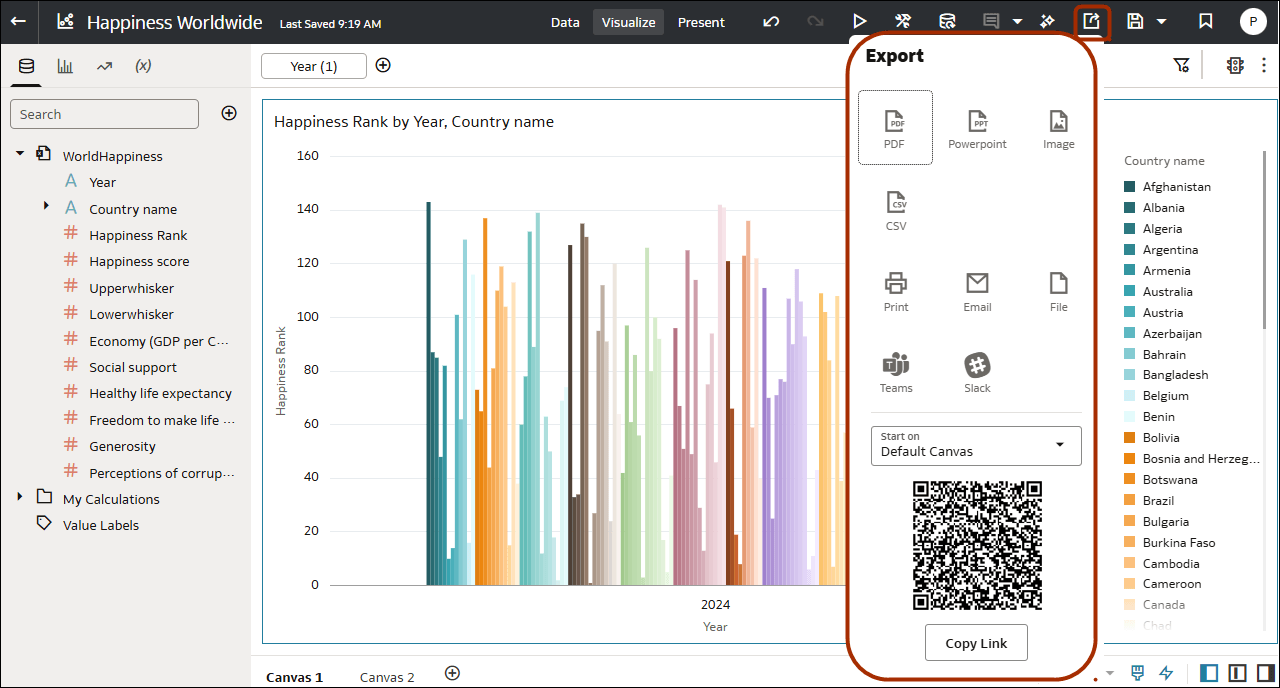
Export menu offers additional content-sharing platforms

Some platforms are displayed in inactive mode by default, for example, Slack, and others are hidden by default. When you set up a content-sharing platform, you can set the status to one of the following:
Status Description
Active Display the content-sharing platform on the Export dialog and enable users to share content using it. For example, you might display Slack as an Export option.
Inactive Display the content-sharing platform on the Export dialog, for example, Slack, but don't enable users to share content using it. When users select an inactive option, they see a message that advises them to contact their administrator.
Hidden Don't display the content-sharing platform on the Export dialog, whether it's configured or not. For example, you might configure it ready for rollout but keep it hidden until a future date.

Enable Workbook Users to Share Content on Slack

Administrators can set up a Slack channel in Oracle Analytics to enable workbook users so content authors can share their content directly to their organization’s Slack channel..

  1. Obtain the client ID and client secret values for the Slack app that you want to use to share data visualizations.
    1. Open the Your Apps page in Slack, that is, https://api.slack.com/apps.
    2. Select the app that you want to use or create a new one.
    3. On the Basic Information tab, navigate to the App Credential section and obtain the Client ID and Client Secret values.
  2. Configure the Slack app in Oracle Analytics.
    1. On your home page, click Navigator Navigator icon used to display the Navigator, then click Console.
    2. Click Content-Sharing Platforms.
    3. For Service, select Slack.
    4. Change Status to Active.
    5. For Application Name, enter the name of the app that you set up in Slack.
    6. For Client ID and Client Secret, enter the values that you obtained in Slack (Step 1).
    7. Click Update.
    8. Click Copy to Clipboard to copy the redirect URL for Oracle Analytics.
  3. In Slack, configure the callback URL for Oracle Analytics.
    1. Open the Your Apps page in Slack.
    2. Select the app that you want to use.
    3. On the Basic Information tab, click OAuth and Permissions.
    4. Click Add New Redirect URL, paste the clipboard content in the Redirect URL field, and click Add.
    5. Click Save URLs.
  4. Verify you can share a visualization on the Slack channel.
    1. In Oracle Analytics, open a workbook.
    2. On the Visualize or Narrate canvas, click the Export icon.
    3. Click Slack.
    If you set up and activate the channel correctly, Slack displays as an option on the Export menu.
Workbook users can now share their content in an organization's Slack channel. See Post a Visualization or Canvas on Messaging Platforms.

Enable Workbook Users to Share Visualizations in Microsoft Teams

Administrators can set up a Microsoft Teams channel in Oracle Analytics so content authors can share their content directly to their organization’s Teams channel.

  1. Optional: If you haven't created a Microsoft Teams app on which to share analytics content, register a new app:
    1. In the Microsoft Azure Portal, go to Microsoft Entra ID and select Manage > App Registrations.
    2. Select New registration, provide the application name, complete the required details, and then click Register.

    After registration, you're redirected to the application’s Overview page. Alternatively, you can access the Teams app by signing in to the Microsoft Azure Portal and navigating to Microsoft Entra ID > App Registrations, and selecting the application.

  2. In the Microsoft Azure Portal, obtain the client ID, tenant ID, and client secret values for the Microsoft Teams app that you want to use.
    1. After you create an application in the Microsoft Azure Portal, navigate to Microsoft Entra ID, then App Registrations.
    2. Select the application.
    3. On the Overview page, copy the Application (client) ID and Directory (tenant) ID values from the Essentials area.
    4. Click Certificates & secrets, then click Client secrets, then click New client secret and copy the Value displayed.
  3. In the Microsoft Azure Portal, as an administrator, grant these permissions for delegated access:
    1. Select API Permission.
    2. Select Add Permission.
    3. Select Microsoft Graph in Microsoft APIs, then select Delegated Permissions.
    4. Added these permissions:
    • Channel.ReadBasic.All

    • ChannelMessage.Send

    • Files.ReadWrite.All

    • offline_access

    • Team.ReadBasic.All

    • User.Read

  4. Configure the Teams channel in Oracle Analytics.
    1. On your home page, click Navigator Navigator icon used to display the Navigator, then click Console.
    2. Click Content-Sharing Platforms.
    3. For Service, select Teams.
    4. Change Status to Active.
    5. For Application Name, enter the user-friendly display name of the app that you set up in Azure Portal.
    6. For Client ID, Tenant ID, and Client Secret, enter the values that you obtained in Step 1.
      Use Application (client) ID for Client ID.
      Use Directory (tenant) ID for Tenant ID.
      Use New client secret for Client Secret.
    7. Click Update.
    8. Click Copy to Clipboard to copy the Redirect URL for Oracle Analytics.
  5. In Microsoft Azure Portal, configure the redirect URL for Oracle Analytics.
    1. Under App registrations, select your app, then click Manage, then click Authentication.
    2. Click Add a platform, then click Web, and add the copied Redirect URL from Oracle Analytics to the Redirect URIs list.
  6. Verify you can share workbook content on the Teams channel.
    1. In Oracle Analytics, open a workbook.
    2. On the Visualize or Narrate canvas, click Export.
    3. Click Teams.
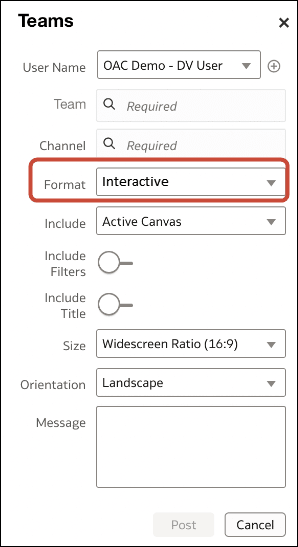
    4. Specify the details and click Post.

      For example, if you select "Interactive" under Format, users accessing the content on the Microsoft Teams channel can filter and rearrange the visualizations (however they can't save changes in the Microsoft Teams channel).
Workbook users can now share their content in an organization's Teams channel. See Post a Visualization or Canvas on Messaging Platforms.

Enable Workbook Users to Share Visualizations on X

Administrators can set up an X (formerly Twitter) channel in Oracle Analytics, so that content authors can share their data visualizations on their organization's X feed.

To enable Oracle Analytics to share data visualization workbooks through your organization’s X app:

Before you start, make sure that you have an X app feed set up.
  1. Obtain the client ID and client secret values for the X app that you want to use to share data visualizations.
    1. Open X Application Manager, for example developer.twitter.com.
    2. Click the app that you want to use for tweets.
    3. On the Keys and Tokens tab, obtain the Consumer Key and Consumer Secret Key values.
    4. On the Permissions tab, select Read, write, and direct messages.
  2. Configure the X channel in Oracle Analytics.
    1. On your home page, click Navigator Navigator icon used to display the Navigator, then click Console.
    2. Click Content-Sharing Platforms.
    3. For Service, select X.
    4. Change Status to Active.
    5. For Application Name, enter the name of the app that you set up in X Application Manager.
    6. For Client ID and Client Secret, enter the Consumer Key and Consumer Secret values that you obtained in X Application Manager (Step 1).
    7. Click Update.
    8. Click Copy to Clipboard to copy the redirect URL for Oracle Analytics.
  3. In X Application Manager, configure the callback URL for Oracle Analytics.
    1. In X Application Manager, click the app to use for tweets.
    2. On the App Details tab, click Edit and paste the clipboard content in the Callback URL field.
    3. Click Save.
  4. Verify you can share a visualization on the X channel.
    1. In Oracle Analytics, open a workbook.
    2. On the Visualize or Narrate canvas, click the Export icon.
    3. Click Twitter.
    If you set up and activate the channel correctly, Twitter displays as an option on the Export menu.