15 Apply Data Access Security to Repository Objects
Learn about data access security available for Oracle BI repository objects.
Data access security controls the right to view and modify data. You can use the following data access security methods:
-
Row-level security.
-
Object permissions.
-
Query limits.
Tasks required to implement data access security include managing users, groups, and application roles, setting up custom LDAP servers, and managing custom authenticators, are covered in Managing Security for Oracle Analytics Server.
-
Setting up SSL connections.
-
Defining application roles and functional groups.
You must create users and application roles before you can implement data access security.
-
Assigning users to application roles and functional groups.
-
Setting up LDAP servers.
-
Defining and managing custom authenticators.
In the Model Administration Tool, you use online mode to implement data access security. If you're using offline mode, see About Applying Data Access Security in Offline Mode. Oracle Analytics Server usage tracking performs data access security auditing. See Administering Oracle Analytics Server.
This chapter contains the following topics:
About Data Access Security
After developing your metadata repository, you need to set up your data access security architecture.
Data access security accomplishes the following goals:
-
Protects business data from unauthorized access.
-
Protects your repository metadata such as measure definitions.
-
Prevents individual users from damaging overall system performance.
You can implement and enforce row-level data security in both the repository and in the database. Object permissions and query limits are set up in the repository and are enforced only by the Oracle BI Server.
If you choose to implement row-level security in the database, you should also implement object permissions and query limits in the repository. Database-level object restrictions on individual tables or columns, and other objects don't prevent users without access from seeing these repository objects. However, queries against those tables, columns, and other objects fail. You should set up object permissions in the repository to hide these objects from all clients.
Because a variety of clients can connect to the Oracle BI Server, you can't implement or enforce data security in Oracle BI Presentation Services. You can use the Oracle BI Presentation Services set of security controls that enable setting up privileges to access functionality in the Oracle Analytics Server user interface, as well as dashboards and analyses objects. If you only implement security controls in Oracle BI Server, the repository and database are exposed to SQL injection hacker attacks and other security vulnerabilities. You must provide object-level security in the repository to create rules that apply to all incoming clients.
Where to Find Information About Security Tasks
The table lists the location of security task information for Oracle Analytics Server.
| Task | Location |
|---|---|
|
Setting up user authentication with the default authentication provider or an alternative authentication provider |
Manage Security Using the Default Security Configuration in Security Guide for Oracle Business Intelligence Enterprise Edition |
|
Creating and managing users and groups in the default authentication provider |
Manage Users and Groups in the Embedded WebLogic LDAP Server in Managing Security for Oracle Analytics Server |
|
Creating application roles and managing policies in the default policy store |
Managing the Policy Store in Securing Applications with Oracle Platform Security Services |
|
Viewing and understanding the default permissions used with application roles in the policy store |
Default Permissions in Security Guide for Oracle Business Intelligence Enterprise Edition |
|
Applying data access security in offline mode and setting up placeholder application roles |
|
|
Setting up row-level data security |
|
|
Setting repository object permissions |
|
|
Setting query limits (governors) |
|
|
Setting up single sign-on (SSO) |
Enable SSO Authentication in Managing Security for Oracle Analytics ServerSecurity Guide for Oracle Business Intelligence Enterprise Edition |
|
Enabling SSL communication |
SSO Configuration in Oracle Business Intelligence in Managing Security for Oracle Analytics Server |
|
Managing custom authenticators |
Authenticate by Using a Custom Authenticator Plug-In in Security Guide for Oracle Business Intelligence Enterprise Edition |
Row-Level Security
Oracle Analytics Server enables you to configure data security.
Some data sources apply data security policies to determine what data can be queried by an individual user. Data security is described using various terms such as row-level security, data-level security, or Virtual Private Database (VPD) policies. This document uses the term, row-level security.
Some data sources support connections using a privileged user that can impersonate the end user, who is running a query. Oracle Analytics Server connection pools allow parameterization of connection string information, and on-connection and on-query scripts that run prior to data queries. When Oracle Analytics Server connects to a data source by using a privileged user that can impersonate the actual end user, the data source’s data security policies apply to the end user queries.
In addition to the connection string and query script configuration, the Oracle Business Intelligence connection pools include a Virtual Private Database (VPD) option. If you use Virtual Private Database (VPD), you can prevent sharing of Oracle Analytics Server query cache between users, because each user needs to retrieve only the data they are permitted to query.
The image shows how row-level security is enforced in the database for queries. The security rules are applied to all incoming clients and can't be breached, even when the Logical SQL query is modified. In this example, the results returned are different depending on the user that generated the query, even though the SQL query generated by the Oracle BI Server is the same. The returned results are based on rules created and enforced in the database.
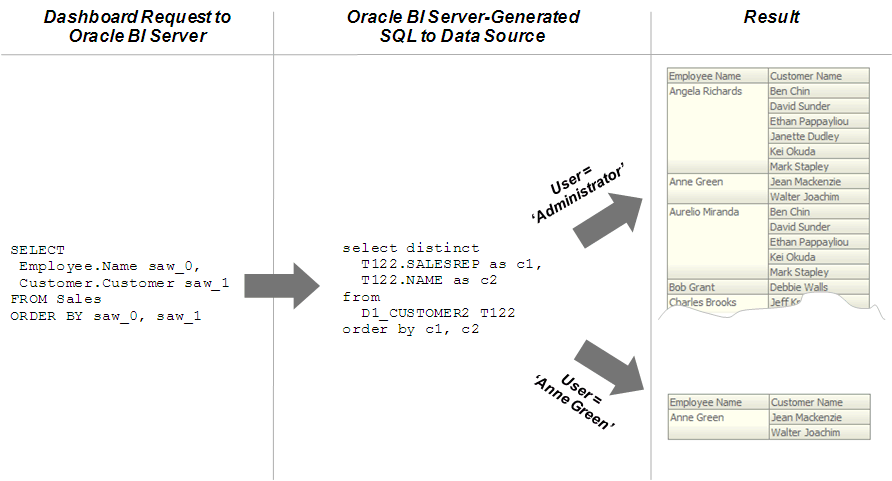
You must define the users, permissions, and security policies in the database. Refer to your database documentation for more information.
When setting up row-level security consider the following configuration information:
-
Row-level security doesn't work when SSO is used, or for any cases that involve impersonation such as Delivers, because the password for the end user isn't available to the Oracle BI Server.
-
A connection script can be used to achieve the same functionality for Oracle Database data sources.
-
For Essbase or Hyperion Financial Management data sources, the connection pool displays an additional option to implement SSO.
Set Up Row-Level Security
You can choose to set up row-level security in the repository, or in the database.
Implementing row-level security in the repository provides many benefits, including the following:
-
All users share the same database connection pool for better performance
-
All users share cache for better performance
-
You can define and maintain security rules that apply across many federated data sources
Implementing row-level security in the database, in contrast, is good for situations where multiple applications share the same database. When you design and implement row-level security in the database, you should also define and apply object permissions in the repository.
Although it's possible to set up row-level security in both the repository and in the database, you typically don't enforce row-level security in both places unless you've a particular need to do so.
This section contains the following topics:
Data Filters
Use the Model Administration Tool to define data filters on repository objects for specific application roles.
You typically don't set up data filters if you've implemented row-level security in the database, because in this case, your row-level security policies are being enforced by the database rather than the Oracle BI Server.
You can set data filters for objects in the Business Model and Mapping layer and the Presentation layer. Applying a filter on a logical object impacts all Presentation layer objects that use the object. If you set a filter on a Presentation layer object, it's applied to the object along with any other filters that are set on the underlying logical objects.
The image shows how data filter rules are enforced in the Oracle BI Server. The security rules are applied to all incoming clients and can't be breached, even when the Logical SQL query is modified.
In this example, a filter has been applied to an application role. When Anne Green, who is a member of that role, sends a request, the return results are limited based on the filter. Because no filters have been applied to the application roles for the Administrator user, all results are returned. The Oracle BI Server-generated SQL takes into account any data filters that have been defined.
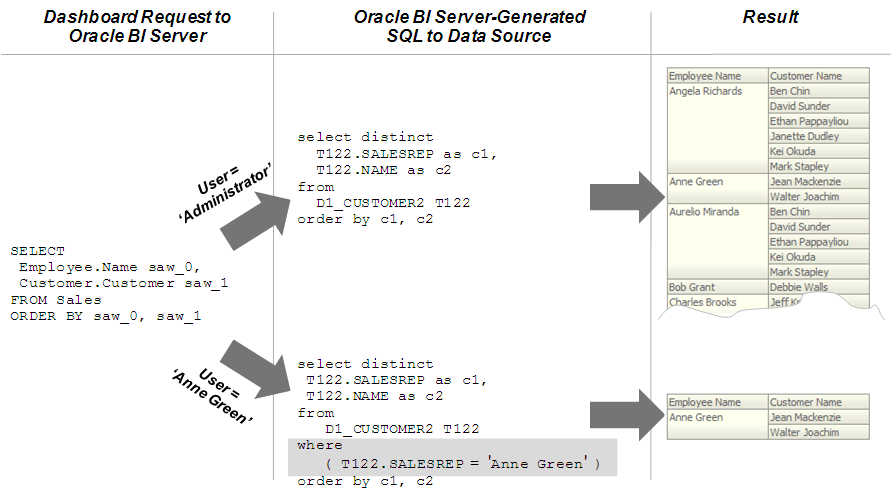
Set Up Data Filters in the Repository
Use these steps to assign data filters to enforce row-level security rules in the repository.
You should always set up data filters for a specific application roles rather than for individual users.
To create filters, you first select objects from subject areas on which you want to apply the filters. Then, you provide the filter expression information for the individual objects. For example, you might want to define a filter like "Sample Sales"."D2 Market"."M00 Mkt Key" > 5 to restrict results based on a range of values for another column in the table.
If you're in offline mode, and application roles don't appear in the Identity Manager, see About Applying Data Access Security in Offline Mode.
You can also use repository and session variables in filter definitions. Use Expression Builder to include these variables to ensure the correct syntax.
When a repository object such as a logical fact table is accessed by multiple application roles with different levels of access, create functional groups to prevent application roles from viewing data restricted from view by that specific application role. For example, you want your regional sales associates to see the revenue for a quarter in their assigned region, but you don’t want your regional sales associate to see to total segment sales for all of the regions, to avoid exposing sensitive information, you create functional groups with different levels of access as appropriate for the specific application role to the filter. See Specify a Functional Group for an Application Role.
- In the Model Administration Tool, open your repository.
- Select Manage, then select Identity.
- In the Identity Manager dialog, double-click an application role.
- In the Application Role dialog, click Permissions.
- In the Application Role Permissions dialog, click the Data Filters tab.
- From the Subject Area list, select a repository object to use in the filter.
- Do one of the following:
- Click Add button to browse to locate the object to use, and then click Select.
- Double-click the Name field in an empty row, then browse to locate the object, and double-click to select the object.
- Select the data filter to define, click the Expression Builder icon.
- In the Expression Builder, define the condition using the repository objects and operators.
- Optional: From the Status list.
- Click OK, then click OK again to return to the Identity Manager.
Specify a Functional Group for an Application Role
Use these steps to specify a functional group for application roles with different data access filters on the same repository object, usually a logical fact table.
When there are no functional groups defined, all the security filters applied to a given table, regardless of the associated role, and are combined using the OR operator. Using the OR operator works in most cases because a user can view a union of all the rows selected by the security filters. For example, consider the following filters:
Role A is assigned the filter, Product = 'Coke'
Role B is assigned the filter, Product = 'Pepsi'
If a user is given Role A and Role B, then the user can view data for both the Coke and Pepsi products.
When the two security filters from the same table are combined in the query, the filter conditions are combined using the OR operator, this is appropriate for most security filters defined on dimension tables, for example:
Product = 'Coke' OR Product = 'Pepsi'
Using functional groups are necessary is when securing a single fact table, using data filters from different dimensions.
In this example, a fact table is secured using the following filters:
Role A is assigned the filter, Product = 'Coke'
Role B is assigned the filter, Product = 'Pepsi'
Role C is assigned the filter, Region = 'Southwest'
If you don't use functional groups, a user with roles A, B, and C would have all three filter conditions combined in the query using the OR operator, for example:
(Product = 'Coke' OR Product = 'Pepsi' OR Region = 'Southwest')
Combining the results of Role A, B, and C doesn't make sense because Product and Region are independent dimensions. Combining data filters from different dimensions using OR operator provides the user access to more data values than the user should view.
In this example, the user can see data for all products within the Southwest region as well as data for all regions within the Pepsi and Coke products.
To get the expected behavior, that is allowing the user to see data only for the Pepsi and Coke products within the Southwest region, you need to change the filter to combine the product filters with the region filter using the AND operator, for example:
(Product = 'Coke' OR Product = 'Pepsi') AND (Region = 'Southwest')
To achieve this using functional groups, assign the security filters to functional groups as follows:
Role A is assigned the filter, Product = 'Coke' with functional group "Product"
Role B is assigned the filter, Product = 'Pepsi' with functional group "Product"
Role C is assigned the filter, Region = 'Southwest' with functional group "Region"
All the filters in the same functional group are combined using the OR operator and all sets of filters in different functional groups are combined using the AND operator. By choosing the functional groups associated with each security filter, you can control how the filters are combined using the OR and AND operators.
To create a data filter, see Set Up Data Filters in the Repository.
- In the Model Administration Tool, from Manage, select Identity.
- In the Identity Manager, double-click an application role.
- In Application Role, click Permissions.
- In Application Role Permissions, click the Data Filters tab.
- In the Data Filter tab, select the filter to assign to a functional group.
- In the Functional Group column, select an existing group, or typing the name of a new group to use.
- Click OK.
Set Up Row-Level Security in the Database
If multiple applications share the same database, it's good to implement row-level security in the database.
This procedure is applicable for making database queries through RPD queries (Common Enterprise Information Model), if you have configured the database to use the Virtual Private Database (VPD) feature.
After you've set up row-level security for the data the database, you can set up object permissions in the repository for Presentation layer or other objects. You can also set query limits (governors). See Set Up Object Permissions and Set Query Limits.
Object Permissions
You can set up object permissions in your repository to control access to Presentation layer and Business Model and Mapping layer objects
You set object permissions using the Model Administration Tool.
To set up object permissions:
-
Set the data access for specific application roles.
-
Specify functional groups when multiple application roles have different levels of access to the same object.
-
Select individual objects in the Presentation layer.
Set up object permissions for application roles when you want to define data access permissions for a set of objects that are common to users assigned the specific application role. You should set up object permissions for specific application roles rather than for individual users to simplify data access management.
The following image shows how object permissions can restrict users from viewing specific repository object. Security rules are applied to all incoming client queries, and can't be breached, even when the Logical SQL query is modified. In this example, the Administrator application role has been granted access to the Booked Amount column allowing the Administrator to view the returned results. The user, Anne Green, who isn't a member of an application role with access to the Booked Amount column, can't see the column in the Subject Area pane of Answers . Even if the query is modified, results aren't returned for the Booked Amount column because of the application role-based object permissions have been set.
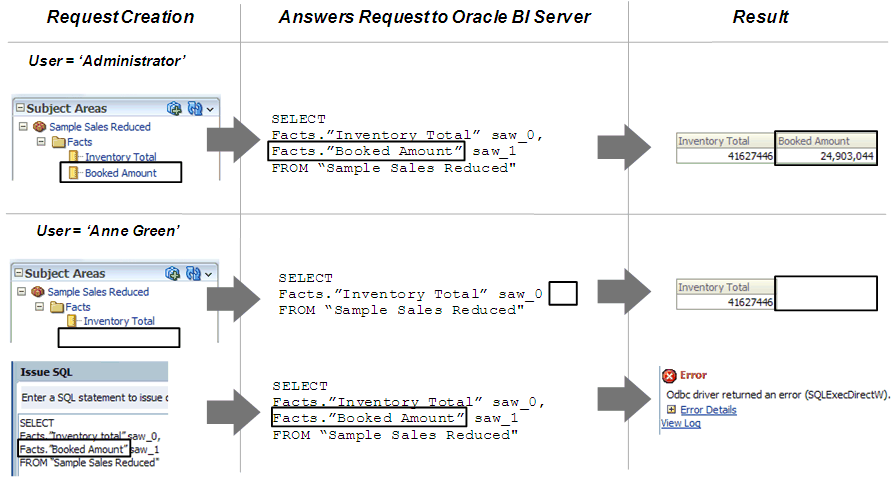
-
If an application role has permissions on an object from multiple sources, for example, explicitly and through one or more additional application roles, the permissions are applied based on the order of precedence.
-
If you explicitly deny access to an object that has child objects, users who are members of the individual application role are denied access to the child objects. For example, if you explicitly deny access to a particular logical table, you're implicitly denying access to all of the logical columns associated with that table.
-
Object permissions don't apply to repository and session variables, so values in these variables aren't secure. Anyone who knows or can guess the name of the variable can use it in an expression in Answers or in a Logical SQL query. Don't put sensitive data like passwords in session or repository variables.
-
You can control the level of privilege is granted by default to the AuthenticatedUser application role. The AuthenticatedUser is the default application role associated with new repository objects.
The AuthenticatedUser application role means any authenticated user. The AuthenticatedUser application role is internal to the Oracle BI Repository. The AuthenticatedUser application role appears in the Permissions dialog for connection pools and Presentation layer objects. The AuthenticatedUser doesn't appear in the list of application roles in the Identity Manager.
Update the
DEFAULT_PRIVILEGESparameter in theNQSConfig.INIfile. See Security Section Parameters in Administering Oracle Analytics Server.
Set Up Object Permissions
Use these steps to set up object permissions for individual application roles in your repository to control access to Presentation layer and Business Model and Mapping layer objects.
Application roles aren't displayed if you're using offline mode unless you've first modified them in online mode. See About Applying Data Access Security in Offline Mode.
- Open your repository in the Model Administration Tool.
- Select Manage, then select Identity.
- In the Identity Manager dialog, in the tree pane, select BI Repository.
- In the right pane, select the Application Roles tab, then double-click the application role for which you want to set object permissions.
- In the Application Role dialog, click Permissions.
- In the User/Application Role Permissions dialog, in the Object Permissions tab, do one of the following to select an object:
- Click the Add button, locate the object, and then click Select.
- Click the Name field in an empty row, locate the object, and then click Select
- Assign the appropriate permission for each object. You can choose one of the following options:
- Read: Only allows read access to this object.
- Read/Write: Provides both read and write access to this object.
- No Access: Explicitly denies all access to this object.
- Click OK, then click OK again to return to the Identity Manager.
About Permission Inheritance for Users and Application Roles
Users can have explicitly granted permissions. They can also have permissions granted through membership in application roles, that in turn can have permissions granted through membership in other application roles.
Permissions granted explicitly to a user have precedence over permissions granted through application roles, and permissions granted explicitly to the application role take precedence over any permissions granted through other application roles.
If there are multiple application roles acting on a user or application role at the same level with conflicting security attributes, then the user or application role is granted the least restrictive security attribute. Oracle currently requires that the application role with access to an object also have access to the object's container. For example, if ApplicationRole 1 has permission to access Column A, which is part of Table B, then ApplicationRole1 must also have permission to access Table B. Any explicit permissions acting on a user take precedence over any permissions on the same objects granted to that user through application roles.
In previous releases, the application role didn't require access to an object's container, as described above. To revert to this behavior, go to the Oracle BI Server machine and create environment variable OBIS_SECURITY_10g_COMPATIBLE and set it to 1.
Filter definitions, however, are always inherited. For example, if User1 is a member of Role1 and Role2, and Role1 includes a filter definition but Role2 doesn't, the user inherits the filter definition defined in Role1.
You should always define object permissions for application roles rather than for individual users.
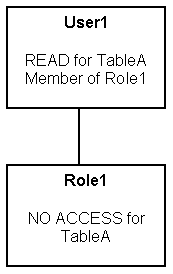
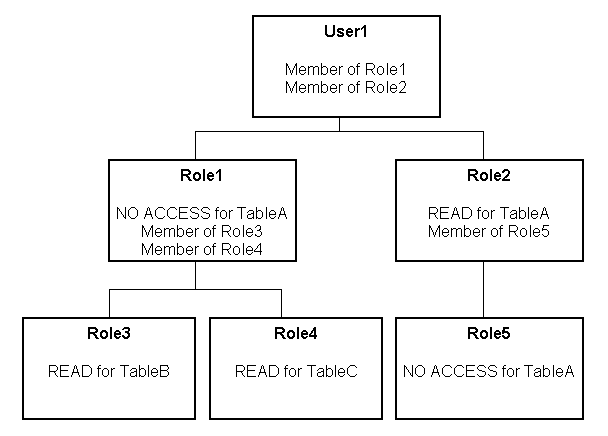
These are the resulting permissions:
-
User1 is a direct member of Role1 and Role2, and is an indirect member of Role3, Role4, and Role5.
-
Because Role5 is at a lower level of precedence than Role2, its denial of access to TableA is overridden by the
READpermission granted through Role2. The result is that Role2 providesREADpermission on TableA. -
The resultant permissions from Role1 are
NO ACCESSfor TableA,READfor TableB, andREADfor TableC. -
Because Role1 and Role2 have the same level of precedence and because the permissions in each cancel the other out (Role1 denies access to TableA, Role2 allows access to TableA), the less restrictive level is inherited by User1. In other words, User1 has
READaccess to TableA. -
The total permissions granted to User1 are
READaccess for TableA, TableB, and TableC.
Permission Inheritance 1
You might have a user (User1) who is explicitly granted permission to read a given table (TableA). Suppose also that User1 is a member of Role1, and Role1 explicitly denies access to TableA. The resultant permission for User1 is to read TableA.
Because permissions granted directly to the user take precedence over those granted through application roles, User1 has the permission to read TableA.
Set Query Limits
You can manage the query environment by setting query limits (governors) in the repository for particular application roles.
You can limit queries by the number of rows received, by maximum run time, and by restricting to particular time periods. You can also allow or disallow direct database requests or the Populate privilege.
You should always set query limits for particular application roles rather than for individual users.
This section contains the following topics:
Access the Query Limits Functionality in the Administration Tool
Learn how to access the Query Limits tab of the User/Application Role Permissions dialog.
If you're in offline mode, no application roles appear in the list unless you've first modified them in online mode, see About Applying Data Access Security in Offline Mode.
- Open your repository in the Model Administration Tool to access the query limits functionality for an application role.
- Select Manage, then select Identity.
- In the Identity Manager dialog, in the tree pane, select BI Repository.
- In the right pane, select the Application Roles tab, then double-click the application role for which you want to set query limits.
- In the Application Role dialog, click Permissions.
- In the User/Application Role Permissions dialog, click the Query Limits tab.
Limit Queries By the Number of Rows Received
You can control runaway queries by limiting queries to a specific number of rows.
Any query limits you set should exceed the Presentation Server settings for Maximum Number of Rows Processed when Rendering a Table View and Maximum Number of Rows to Download by at least 500 to avoid error messages. If you choose to impose data source rows limits on certain users or Application Roles using the repository Max Rows query limits setting, then those users may receive Max Row Limit Exceeded messages.
See Use Fusion Middleware Control to Set Configuration Options for Data in Tables and Pivot Tables and Use Fusion Middleware Control to Set the Maximum Number of Rows Processed to Render a Table in Administering Oracle Analytics Server.
The options for Status Max Rows are:
-
Enable: This limits the number of rows to the value specified. If the number of rows exceeds the Max Rows value, the query is terminated.
-
Disable: Disables any limits set in the Max Rows field.
-
Warn: Doesn't enforce limits, but logs queries that exceed the set limit in the Query log.
-
Ignore: Limits are inherited from the parent application role. If there is no row limit to inherit, no limit is enforced.
Follow the steps in Accessing the Query Limits Functionality in the Administration Tool to access the Query Limits tab.
- In the Max Rows column, type the maximum number of rows for users to retrieve from each source database object.
- In the Status Max Rows field, select an option for each database.
- Click OK, then click OK again to return to the Identity Manager.
Limit Queries By Maximum Run Time and Restricting to Particular Time Periods
You can forbid queries during certain time periods, or you can specify the maximum time a query can run on a database.
If you don't select a particular time period, access rights remain unchanged. If you allow or disallow access explicitly in one or more application roles, users are granted the least restrictive access for the defined time periods. For example, if a user is a member of an application role that's explicitly allowed access all day on Mondays, but that user also belongs to another application role that's disallowed access during all hours of every day, then the user has access on Mondays only.
-
Follow the steps in Access the Query Limits Functionality in the Administration Tool to access the Query Limits tab.
-
To specify the maximum time a query can run on a database, in the Max Time (Minutes) column, enter the maximum number of minutes you want queries to run on each database object. Then, in the Status Max Time field, select one of the following options for each database:
-
Enable: This limits the time to the value specified.
-
Disable: Disables any limits set in the Max Time field.
-
Warn: Doesn't enforce limits, but logs queries that exceed the set time limit in the Query log.
-
Ignore: Limits are inherited from the parent application role. If there is no time limit to inherit, no limit is enforced.
-
-
To restrict access to a database during particular time periods, in the Restrict column, click the Ellipsis button. Then, in the Restrictions dialog, perform the following steps:
-
To select a time period, click the start time and drag to the end time.
-
To explicitly grant access, click Allow.
-
To explicitly deny access, click Disallow.
-
Click OK.
-
-
Click OK, then click OK again to return to the Identity Manager.
Allow or Disallow Direct Database Requests
Use this task to allow or disallow the ability to run direct database requests for a particular application role.
For the selected role, this privilege overrides the Allow direct database requests by default property for the database object in the Physical layer.
The options for the Execute Direct Database Requests field are:
- Allow
Explicitly grants the ability to run direct database requests for this database.
- Disallow
Explicitly denies the ability to run direct database requests for this database.
- Ignore
Limits are inherited from the parent application role. If there is no limit to inherit, then direct database requests are allowed or disallowed based on the
Allow direct database requests by defaultproperty for the database object.
Follow the steps in Access the Query Limits Functionality in the Administration Tool to access the Query Limits tab.
- In the Query Limits tab for each database object, in the Execute Direct Database Requests field, select an option.
- Click OK, then click OK again to return to the Identity Manager.
Allow or Disallow the Populate Privilege
When a criteria block is cached, the Populate stored procedure writes the Cache/Saved Result Set value to the database.
You can grant or deny this Populate privilege to particular application roles.
For the selected application role, this privilege overrides the Allow populate queries by default property for the database object in the Physical layer.
The options for the Populate Privilege field are:
- Allow
Explicitly grants the Populate privilege for this database. For all Marketing data warehouses, select Allow.
- Disallow
Explicitly denies the Populate privilege for this database.
- Ignore
Limits are inherited from the parent application role. If there is no limit to inherit, then the Populate privilege is allowed or disallowed based on the
Allow populate queries by defaultproperty for the database object.
Follow the steps in Access the Query Limits Functionality in the Administration Tool to access the Query Limits tab.
- For each database object, in the Populate Privilege field, select an option.
- Click OK, and then click OK again to return to the Identity Manager.
About Applying Data Access Security in Offline Mode
You should perform data access security tasks in the Model Administration Tool in online mode.
The Model Administration Tool doesn't store users in the repository, and you can't create a query that returns repository users.
When you open the repository In online mode, you can retrieve the latest list of application roles from the policy store by selecting Action, then selecting Synchronize Application Roles in the Identity Manager.
Set Up Placeholder Application Roles for Offline Repository Development
Application roles are created and managed in the policy store using the Oracle WebLogic Administration Console and Fusion Middleware Control.
These application roles are displayed in the Model Administration Tool in online mode so that you can use them to set data filters, object permissions, and query limits for particular roles. The application roles in the policy store are retrieved by the Oracle BI Server when it starts.
In some cases, you may want to proceed with setting up data access security in your repository for application roles that haven't yet been defined in the policy store. You can do this by creating placeholder application roles in the Model Administration Tool, then proceeding with setting up data access security in the repository.
If you create placeholder application roles in the Model Administration Tool, you must eventually add them to the policy store. Run a consistency check in online mode to identify application roles that have been defined in the Model Administration Tool, but that haven't yet been added to the policy store. Be sure to use the same name in the policy store that you used for the placeholder role in the Model Administration Tool.
Use caution when defining and using placeholder roles. If you make changes to a role in offline mode that also exists in the policy store, the changes are overwritten the next time you connect to the Oracle BI Server.
-
Open your repository in the Model Administration Tool.
-
Select Manage, then select Identity.
-
In the Identity Manager dialog, select Action, select New, and then select Application Role.
-
In the Application Role dialog, provide the following information:
-
Name: Provide a name for the role.
-
Display Name: Enter the display name for the role.
-
Description: (Optional) provide a description of this application role.
-
Members: Use the Add and Remove buttons to add or remove users and other application roles as appropriate.
-
Permissions: Set object permissions, data filters, and query limits for this application role as appropriate. Refer to the other sections in this chapter for detailed information.
-
-
Click OK to return to the Identity Manager.
Perform the steps in Run the Consistency Check Manager. Record any entries related to application roles, then add the appropriate roles to the policy store as appropriate. See Use Tools to Configure Security in Oracle Business Intelligence in the Managing Security for Oracle Analytics Server for information about adding application roles to the policy store. You can check an individual application role by right-clicking the application role in the Identity Manager dialog and then selecting Check Consistency.