First Developer Checks Out
An administrator configures their Administration Tool clients for the master repository, check out their projects, and begin working.
The developer, Sally starts by setting up her Model Administration Tool client to use the master repository. She selects Tools, select Options, and then selects the Multiuser tab. She sets up the pointer to the master repository directory in the Multiuser tab. She also enters her full name, used in logs and locks. She checks out her project and begins work.
In the Master Repository directory, two new files have been created the sales.000 and sales.mhl files. The image shows the new files.
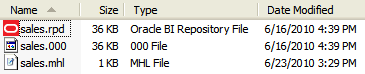
The sales.000 file is an automatic backup created for sales.rpd file that was created when Sally checked out the repository. The backup file is used if a roll back is needed resulting from a problem. The sales.mhl file tracks her checkout status and parameters, including project, computer, and user.
Three files have been created in Sally's local repository directory:
-
The originalProjRevenue.rpd file is the project subset repository at the time of checkout. The originalProjRevenue.rpd used later as the original in the three-way merge process, and also when Sally discards her changes.
-
The ProjRevenue.rpd file contains only the self-consistent subset project, ProjRevenue. The ProjRevenue.rpd file that's open for editing.
-
The ProjRevenue.rpd.Log file is the log file for the editing session in the Model Administration Tool. You can view ProjRevenue.rpd.Log files contents in the Model Administration Tool using File, select Multiuser , and then select History.
The image shows the three files in the local repository directory.

Sally begins to work on the model for her application in offline mode. She doesn't need to change her connection pool settings because she used her own test data source connection pool details when she created the starter content.
Sally starts by opening her fact table and deleting the unused keys based on the modeling best practice. Then, she adds SUM aggregation rules to three measures, Discnt_Value, Revenue, and Units. She also changes the name of Discnt_Value to Discount Amount, Units to Units Sold, and Revenue to Sales Revenue.
Sally also needs to add a new column to the D10 Product table, an upper-case version of the Prod_Dsc column called PRODUCT DESCRIPTION. The column uses the following expression: Upper("Sales"."D10 Product (Dynamic Table)"."Prod_Dsc"). Sally adds dimension hierarchies, creates a variable called Constant One, and initializes it to the value 1. She uses the variable to create a new measure, Constant One. Finally, she saves her work.
Sally starts her sandbox stack so that she can add application roles, and then test her repository using Answers. She follows these steps to start her components in the right order and to configure her system environment:
-
Start the database containing the RCU schema, using its standard controls. This database is the local sandbox developer database.
-
Start the sandbox Oracle WebLogic Server Administration Server. For example, on Windows, from Start, select Programs, select Oracle WebLogic. In Oracle WebLogic, select User Projects, select bifoundation_domain, and then select Start Admin Server for WebLogic Server Domain and enter the user and password created during installation when prompted.
If you used an Enterprise or Software-Only install type, you must also start the Oracle WebLogic Server Managed Server using the Oracle WebLogic Server Administration Console. Typically, you use the Simple install type when installing development sandboxes.
-
Log in to the local sandbox Fusion Middleware Control and upload the repository file, making sure to enter the correct repository password. You upload the local subset repository, in Sally's case, the MUD checked-out repository, ProjRevenue.rpd, not the master repository.
-
Also in Fusion Middleware Control, turn off Oracle BI Server caching, so that interpreting the query log is simpler.
-
Still in Fusion Middleware Control, start the system components from the Business Intelligence Overview page.
See Use Tools to manage and Configure the System in Administering Oracle Analytics Server provides more information about steps 2 - 5.
Because Sally's Oracle BI Server is on a Linux system, she must set up ODBC connectivity on her Windows computer so that her Model Administration Tool client can access the Oracle BI Server there.
Sally manually adds an Oracle BI Server ODBC DSN pointing to the Oracle BI Server on the Linux computer. See Integrating Other Clients with Oracle Business Intelligence in Integrator's Guide for Oracle Business Intelligence Enterprise Edition for information about how to create an ODBC DSN for the Oracle BI Server.
Sally is using the Oracle WebLogic Server embedded policy store and needs to add two application roles, Sales Management and Sales Rep. To add the roles, she opens a Web browser on her Windows computer and logs in to Fusion Middleware Control, pointing to her stack on Linux. She uses Fusion Middleware Control to create the new roles, maps it to the appropriate users, groups, or other roles, and grants the appropriate permissions to the role. (See Managing Security for Oracle Analytics Server.)
Sally needs to add the new application roles to her repository, and then use them for object permissions and data access filters. Sally uses the following steps:
- Sally opens the Model Administration Tool and selects File, then Open, and then Online. She picks the local Windows ODBC DSN that connects to her local stack, enters her repository password, and also enters the default user name and password for administering her stack that she created upon install.
- Next, Sally selects Manage, and then selects Identity to open the Identity Manager. She clicks BI Repository in the navigation tree and then clicks the Application Roles tab. She sees the five default application roles, as well as the new ones she just created.
- Sally double-clicks the Sales Rep application role, and then clicks Permissions. On the Data Filters tab, she adds a data filter with an expression that only allows users who belong to this role to see sales that they themselves have made. On the Object Permissions tab, she sets Read, Read/Write, or No Access permissions that allow Sales Rep users to see revenue, but not quota or cost information. On the Query Limits tab, she keeps the defaults for Max Rows and Max Time, and doesn't set any time restrictions. She clicks OK to return to the Identity Manager.
- Next, Sally double-clicks the Sales Management application role and sets up Data Filters, Object Permissions, and Query Limits appropriate for this role, based on the decisions of the governance committee.
- Finally, Sally exits the Identity Manager.
- Sally commits the changes she made in online mode by using the Check In Changes menu option. This action propagates the online mode changes to her local subset, ProjRevenue.rpd, but doesn't commit them to the master MUD repository. Sally publishes her changes to the master repository in a later step.
For the new variable and application roles to be in Sally's project the next time she checks it out, she must add them to the project before she checks in her changes. To do this, she performs the same steps that Adam did when he created the projects: She selects Manage, and then selects Projects. Sally selects her project, selects the new objects, and clicks Add.