A Managing Security for Dashboards and Analyses
This appendix explains how to manage security for dashboards and analyses such that users have only:
-
Access to objects in the Oracle BI Presentation Catalog that are appropriate to them.
-
Access to features and tasks that are appropriate to them.
-
Access to saved customizations that are appropriate to them.
This appendix contains the following sections:
Managing Security for Users of Presentation Services
As a system administrator, you must configure a business intelligence system to ensure that all functionality including administrative functionality is secured by providing access only to authorized users that are allowed to perform appropriate operations. You must configure the system to secure all middle-tier communications.
This overview section contains the following topics:
Security Settings in Presentation Services
Security settings that affect users of Presentation Services are made in the following Oracle Analytics Server components:
-
Use the Model Administration Tool to perform the following tasks:
-
Set permissions for business models, tables, columns, and subject areas.
-
Specify database access for each user.
-
Specify filters to limit the data accessible by users.
-
Set authentication options.
-
-
Presentation Services Administration enables setting privileges for users to access features and functions such as editing views and creating agents and prompts.
-
Presentation Services enables assigning permissions for objects in the Presentation Catalog.
Note:
Security Administrators should advise report users to not edit Subject Area security privileges within Presentation Services. The Security Administrator should enforce data security.
What Are the Security Goals in Oracle BI Presentation Services?
This topic provides guidelines for security with Oracle BI Presentation Services.
When maintaining security in Presentation Services, you must ensure the following:
-
Only the appropriate users can sign in and access Presentation Services. You must assign sign-in rights and authenticate users through the BI Server.
Authentication is the process of using a user name and password to identify someone who is logging on. Authenticated users are then given appropriate authorization to access a system, in this case Presentation Services. Presentation Services doesn't have its own authentication system; it relies on the authentication system that it inherits from the BI Server.
All users who sign in to Presentation Services are granted the
AuthenticatedUserrole and any other roles that they were assigned in Fusion Middleware Control.For information about authentication, see About Authentication.
-
Users can access only the objects that are appropriate to them. You apply access control in the form of permissions, as described in Visualizing Data in Oracle Analytics Server.
-
Users have the ability to access features and functions that are appropriate to them. You apply user rights in the form of privileges. Example privileges are Edit system wide column formats and Create agents.
Users are either granted or denied a specific privilege. These associations are created in a privilege assignment table, as described in Managing Presentation Services Privileges.
You can configure Oracle Analytics Server to use the single sign-on feature from the web server. Presentation Services can use this feature when obtaining information for end users. See Enable SSO Authentication.
How Are Permissions and Privileges Assigned to Users?
When you assign permissions and privileges in Presentation Services, you can assign them in one of the following ways:
-
To application roles — This is the recommended way of assigning permissions and privileges. Application roles provide much easier maintenance of users and their assignments. An application role defines a set of permissions granted to a user or group that has that role in the system's identity store. An application role is assigned in accordance with specific conditions. As such, application roles are granted dynamically based on the conditions present at the time authentication occurs.
-
To individual users — You can assign permissions and privileges to specific users, but such assignments can be more difficult to maintain and so this approach isn't recommended.
Using Oracle BI Presentation Services Administration Pages
You can use the Administration pages in Oracle BI Presentation Services to perform the tasks that are described in the following sections:
Understanding the Administration Pages
The main Oracle BI Presentation Services Administration page contains links that allow you to display other administration pages for performing various functions, including those related to users in Presentation Services.
You can obtain information about all these pages by clicking the Help button in the upper-right corner.
Note:
Use care if multiple users have access to the Administration pages, because they can overwrite each other's changes. Suppose User A and User B are both accessing and modifying the Manage Privileges page in Presentation Services Administration. If User A saves updates to privileges while User B is also editing them, then User B's changes are overwritten by those that User A saved.
Managing Presentation Services Privileges
This section contains the following topics about Presentation Services privileges:
What Are Presentation Services Privileges?
Presentation Services privileges control the rights that users have to access the features and functionality of Presentation Services. Privileges are granted or denied to specific application roles and individual users using a privilege assignment table.
Like permissions, privileges are either explicitly set or are inherited through role or group membership. Explicitly denying a privilege takes precedence over any granted, inherited privilege. For example, if a user is explicitly denied access to the privilege to edit column formulas, but is a member of an application role that has inherited the privilege, then the user can't edit column formulas.
Privileges are most commonly granted to the BIContentAuthor or BIConsumer roles. This allows users access to common features and functions of Presentation Services.
See Setting Presentation Services Privileges for Application Roles.
Presentation Services Privileges
You can manage privilege assignments:
- Click My Profile and Administration.
- Under Security click Manage Privileges.
Access to Oracle Analytics Server Actions
You must set the Action privileges that determine whether the Actions functionality is available to users, and specify which user types can create Actions.
The following list describes these privileges:
-
Create Navigate Actions
The Create Navigate Actions privilege indicates whether the user can create a Navigate action type. Users who are denied this privilege don't have the user interface components that allow the creation of Navigate Actions. Users without the Create Navigate Actions privilege can add saved actions to analyses and dashboards, and execute an action from an analysis or dashboard that contains an action.
-
Create Invoke Actions
The Create Invoke Actions privilege indicates whether the user can create an Invoke action type. The Invoke Actions options include Invoke a Web Service, and Invoke an HTTP Request. However, users who are denied this privilege can add saved actions to analyses and dashboards. And, users who are denied this privilege can execute an action from an analysis or dashboard that contains an action.
-
Save Actions Containing Embedded HTML
The Save Actions Containing Embedded HTML privilege indicates whether users can embed HTML code in customized web service action results. You should use extreme care in assigning the Save Actions Containing Embedded HTML privilege, because users with this privilege can pose a security risk allowin users to run HTML code.
Access to Oracle BI for Microsoft Office Privilege
If your users have the Access to Oracle BI for Microsoft Office privilege, they can interact with Microsoft Office from Oracle Analytics Server.
When a user has the Access to Oracle BI for Microsoft Office privilege, then the Smart View for MS Office link is available from the Download Desktop Tools menu on the Oracle Analytics Server Home page.
The Access to Oracle BI for Microsoft Office privilege doesn't affect the display of the Copy link for analyses. The link is always available there.
Save Content with HTML Markup Privilege
By default, Presentation Services is secured against cross-site scripting (XSS).
Securing against XSS escapes input in fields in Presentation Services and renders it as plain text. For example, an unscrupulous user can use an HTML field to enter a script that steals data from a page.
By default, end users can't save content that's flagged as HTML. Only administrators who have the Save Content with HTML Markup privilege can save content that contains HTML code. Users that have the Save Content with HTML Markup privilege can save an image with the fmap prefix. If users try to save an image with the fmap prefix when they don't have this privilege assigned, then they see an error message. See EnableSavingContentWithHTML.
Users with this privilege can also save mission and vision statements in Oracle Scorecard and Strategy Management.
EnableSavingContentWithHTML
The EnableSavingContentWithHTML element along with the Save Content With HTML Markup and Save Actions Containing Embedded HTML privileges determine whether the Contains HTML Markup option is available in properties dialogs when editing analyses.
As the BI Service Administrator, you can use the EnableSavingContentWithHTML element to enable all HTML editing and you can grant the related privileges to users. You set the EnableSavingContentWithHTML element to true in the instanceconfig.xml file, and you grant users the Save Content With HTML Markup and Save Actions Containing Embedded HTML privileges in the Manage Privileges page to enable the Contains HTML Markup option. See Default Presentation Services Privileges Assignments and Making Advanced Configuration Changes for Presentation Services.
For the location of the instanceconfig.xml file, see Configuration Files.
Managing Sessions in Presentation Services
Using the Session Management page in Presentation Services Administration, you can view information about active users and running analyses, cancel requests, and clear the cache.
-
From the Home page in Presentation Services, select Administration.
-
Click the Manage Sessions link.
The Session Management screen is displayed with the following tables:
-
The Sessions table, which gives information about sessions that have been created for users who have logged in:
-
The Cursor Cache table, which shows the status of analyses:
-
To cancel all running requests:
-
Click Cancel Running Requests.
-
Click Finished.
Cancel one running analysis as shown below.
-
In the Cursor Cache table, identify the analysis and click the Cancel link in the Action column.
The user receives a message indicating that the analysis was canceled by an administrator.
Use these steps to clear the web cache.
- In the Cursor Cache table, identify the analysis and click Close All Cursors.
- Click Finished.
Clear the cache entry associated with an analysis as described below.
-
In the Cursor Cache table, identify the analysis and click the Close link in the Action column.
View the query file for information about an analysis as described below.
-
In the Cursor Cache table, identify the analysis and click the View Log link.
Note:
Query logging must be turned on for data to be saved in this log file.
Determining a User's Privileges and Permissions in Presentation Services
Presentation Services privileges and Presentation Services Catalog item permissions, use an Access Control List (ACL) to control who has privilege to access Presentation Services functionality and what permissions any given user can have on Presentation Services Catalog items. Privileges are set using the Administration pages in Oracle BI Presentation Services. Permissions are set for Presentation Services Catalog objects through the Analytics user interface.
When you try to access functionality in Presentation Services, the appropriate privilege is checked; for example, to view the Oracle Analytics Server page you must have the Access to Answers privilege. Also, when you try to perform any action on a Presentation Services Catalog item, that item's permissions are checked; for example, to view an item in Oracle Analytics Server, the item's permissions are checked to see if you have read access.
The types of records that you may add to an ACL:
-
Individual user records
It is difficult to administer individual user records especially when there might be thousands of users, and hundreds of thousands of Catalog items.
-
Application roles records
This is the recommended way of managing ACLs.
Oracle Analytics Server determines user access by sequentially checking the types of records. A user's effective privileges or permissions are deduced using the ACL records, looking for an explicit record for the user (if there's one); and then looking for any records with application roles granted to the user either explicitly or implicitly.
This section contains the following topics:
Rules for Determining a User's Privileges or Permissions
The following tasks describe the sequential checks completed to determine a user's effective privileges and permissions.
Note:
Each earlier step takes precedence over any later step.
Note:
Within an individual step, a privilege access control (ACL) record that's Denied always takes precedence over any other grants. Within an individual step, a permission ACL record that has No Access always takes precedence over any access grant.
The privilege Denied is the same as the permission No Access. The term deny is used interchangeably for both privileges and permissions.
Task 1 - Check for an explicit record for this user
The following sequence represents the checks completed for a user record.
- If there's an explicit record for this user, then return that access, Done.
- If there's no explicit record for this user. Go to Step 2.
Task 2 - Check records for this user's application roles
The following sequence represents the checks completed for a user's application roles.
Task 3 - Fall back default behavior
The following sequence represents the checks completed for a specific application role called Authenticated User.
Note:
The Authenticated User application role is deliberately not included in the list of application roles for a user in Task 2, even though that user does technically have this application role.
- If there's a record for the authenticated user application role, return that record's access. Done.
- Else there's no record for the special application role. Go to Task 4.
Example of Determining a User's Privileges with Application Roles
The diagram shows an example of how privileges are determined with application roles.
At the top of the diagram is a rectangle labelled User1, which specifies that User1 has been explicitly given the application roles Executive and BI Author. Attached beneath the User1 rectangle are two more rectangles - one on the left that represents the Executive role and one on the right that represents the BI Author role.
-
The Executive role rectangle specifies that Executive is granted the Access to Administration privilege, and that the application roles Finance and Sales have in turn been given to Executive.
-
The BI Author role rectangle specifies that BI Author is granted the Catalog privilege, is Denied the Agents privilege, and that the application role BI Consumer has in turn been given to BI Author.
Attached beneath the Executive Role rectangle are two more rectangles - one on the left that represents the Finance role and one on the right that represents the Sales role:
-
The Sales Role rectangle specifies that Sales is Denied the Access to Administration privilege and granted the Access to Answers privilege.
And finally, attached beneath the BI Author Role rectangle is a rectangle that represents the BI Consumer role:
-
The BI Consumer Role rectangle specifies that BI Consumer is granted the Catalog privilege and is granted the Agents privilege.
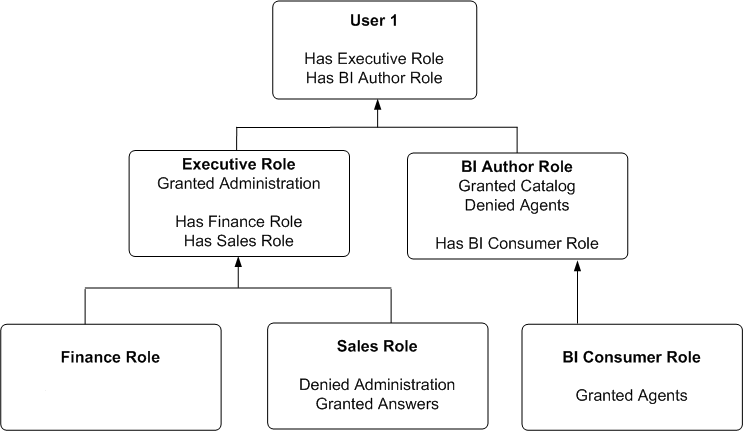
In this example:
-
User1 explicitly has the Executive role, and thus implicitly has Finance role and also Sales role.
-
User1 also explicitly has the BI Author role, and thus also implicitly has BI Consumer role.
-
So User1's flattened list of application roles is Executive, BI Author, Finance, Sales and BI Consumer.
-
The effective privileges from Executive Role are Denied Administration privilege, granted Scorecard privilege, and granted Answers privilege. The Sales' Denied Administration privilege takes precedence over Executive's granted privilege, as Deny always takes precedence.
-
The effective privileges from the BI Author role are granted Catalog privilege, and Denied Agents privilege. The BI Author's Denied Agents privilege takes precedence over BI Consumer's granted, as deny always takes precedence.
The total privileges granted to User1 are as follows:
-
Denied Administration privilege, because the privilege is specifically denied for Sales.
-
Granted Scorecard privilege.
-
Granted Answers privilege.
-
Granted Catalog privilege.
-
Denied Agents privilege, because the privilege is specifically denied for BI Author.
Example of Determining a User's Permissions with Application Roles
The diagram below shows an example of how permissions are determined with application roles.
At the top of the diagram is a rectangle labelled User1, which specifies that User1 has been explicitly given the application roles Executive and BI Author. Attached beneath the User1 rectangle are two more rectangles - one on the left that represents Executive Role and one on the right that represents BI Author Role.
-
The Executive Role rectangle specifies that Executive has no access to DashboardA, and that the application roles Finance and Sales have in turn been given to Executive.
-
The BI Author Role rectangle specifies that BI Author role has open access to DashboardD, has no access to DashboardE, and that the BI Consumer role has in turn been given to BI Author.
Attached beneath the Executive Role rectangle are two more rectangles, one on the left that represents Finance role and one on the right that represents Sales role:
-
The Finance Role rectangle specifies that Finance role has open access to DashboardB.
-
The Sales Role rectangle specifies that Sales role has no access to DashboardA and full control of DashboardC.
And finally, attached beneath the BI Author Role rectangle is a rectangle that represents BI Consumer role:
-
The BI Consumer Role rectangle specifies that BI Consumer role has modify access to DashboardD and open access to DashboardE.
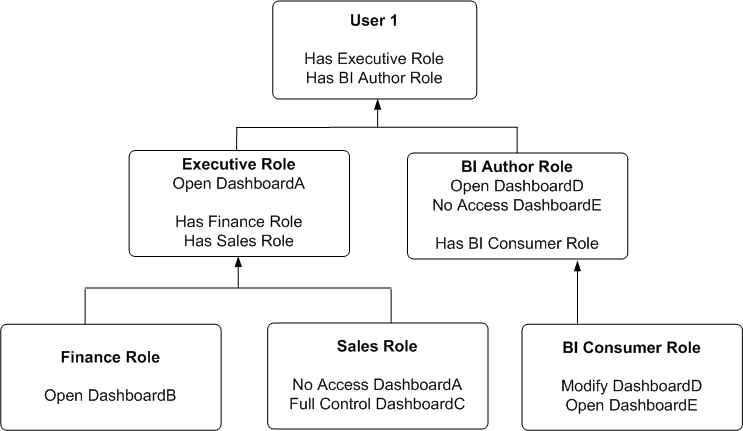
In this example:
-
User1 explicitly has Executive role, and thus implicitly has Finance role and also Sales role.
-
User1 also explicitly has BI Author role, and thus also implicitly has BI Consumer role.
-
So User1's flattened list of application roles is Executive, BI Author, Finance, Sales and BI Consumer.
-
The effective permissions from Executive role are no access to DashboardA, open access to DashboardB, and full control for DashboardC. The Sales role's No Access to DashboardA takes precedence over Executive role's Open, as Deny always takes precedence.
-
The effective privileges from BI Author role are Open&Modify access to DashboardD, and No Access to DashboardE. The BI Author role's No Access to DashboardE takes precedence over BI Consumer role's Open, as Deny always takes precedence.
The total permissions and privileges granted to User1 are as follows:
-
No Access to DashboardA, because access is specifically denied for Sales role.
-
Open Access to DashboardB.
-
Full Control for DashboardC.
-
Open&Modify access to DashboardD, the union of Role2's and Role5's access.
-
No Access to DashboardE, because access is specifically denied for BI Author role.
Providing Shared Dashboards for Users
This section contains the following topics on providing shared dashboards for users:
Understanding the Catalog Structure for Shared Dashboards
Learn about the catalog structure of My Folders and Shared Folders for shared dashboards.
The Oracle BI Presentation Catalog has two main folders:
-
My Folders contain the personal storage for individual users. Includes a Subject Area Contents folder where you save objects such as calculated items and groups.
-
Shared Folders contain objects and folders that are shared across users. Dashboards that are shared across users are saved in a Dashboards subfolder under a common subfolder under the
/Shared Foldersfolder
Note:
If a user is given permission to an analysis in the Oracle BI Presentation Catalog that references a subject area to which the user doesn't have permission, then the BI Server still prevents the user from executing the analysis.
Creating Shared Dashboards
After setting up the Oracle BI Presentation Catalog structure and setting permissions, you can create shared dashboards and content for use by others.
One advantage to creating shared dashboards is that pages that you create in the shared dashboard are available for reuse. Users can create their own dashboards using the pages from your shared dashboards and any new pages that they create. You can add pages and content as described in Visualizing Data in Oracle Analytics Server.
If you plan to allow multiple users to modify a shared default dashboard, then consider putting these users into an application role. For example, suppose that you create an application role called Sales and create a default dashboard called SalesHome. Of the 40 users that have been assigned the Sales application role, suppose that there are three who must have the ability to create and modify content for the SalesHome dashboard. Create a SalesAdmin application role, with the same permissions as the primary Sales application role. Add the three users who are allowed to make changes to the SalesHome dashboard and content to this new SalesAdmin application role, and give this role the appropriate permissions in the Oracle BI Presentation Catalog. This allows those three users to create and modify content for the SalesHome dashboard. If a user no longer requires the ability to modify dashboard content, then you can change the user's role assignment to Sales. If an existing Sales role user must have the ability to create dashboard content, then the user's role assignment can be changed to SalesAdmin.
Testing the Dashboards
Before releasing dashboards and content to the user community, perform some tests.
- Verify that users with appropriate permissions can correctly access it and view the intended content.
- Verify that users without appropriate permissions can't access the dashboard.
- Verify that styles, skins, and themes are displayed as expected, and that other visual elements are as expected.
- Correct any problems you find and test again, repeating this process until you're satisfied with the results.
Controlling Access to Saved Customization Options in Dashboards
This section provides an overview of saved customizations and information about administering saved customizations. It contains the following topics:
Overview of Saved Customizations in Dashboards
Saved customizations allow users to save and view dashboard pages in their current state with their most frequently used or favorite choices for items such as filters, prompts, column sorts, drills in analyses, and section expansion and collapse.
By saving customizations, users need not make these choices manually each time that they access the dashboard page.
Users and groups with the appropriate permissions and dashboard access rights can perform the following activities:
-
Save various combinations of choices as saved customizations, for their personal use or use by others.
-
Specify a saved customization as the default customization for a dashboard page, for their personal use or use by others.
-
Switch between their saved customizations.
You can restrict this behavior in the following ways:
-
Users can view only the saved customizations that are assigned to them.
-
Users can save customizations for personal use only.
-
Users can save customizations for personal use and for use by others.
Administering Saved Customizations
This topic describes the privileges and permissions that are required to administer saved customizations.
In Oracle BI Presentation Services Administration, the following privileges in the Dashboards area, along with permission settings for key dashboard elements, control whether users or groups can save or assign customizations:
-
Save Customizations
-
Assign Default Customizations
You can set either privilege, one privilege, or both privileges for a user or group, depending on the level of access desired. For example, a user who has neither privilege can view only the saved customization that's assigned as his or her default customization.
Permissions are required so users can administer Oracle BI Presentation Catalog on shared and personal saved customizations.
Permission and Privilege Settings for Creating Saved Customizations
The topic describes user roles and specific permission settings that you can grant to users for creating saved customizations.
| User Role | Permission and Privilege Settings |
|---|---|
|
Power users such as IT users perform the following tasks:
|
In the Shared section of the catalog, requires Full Control permission to the following folders:
You don't need to assign additional privileges. |
|
Technical users such as managers perform the following tasks:
Users can't create or edit underlying dashboards, or assign view customizations to others as default customizations. |
In the Shared section of the catalog, requires
In the Shared section of the catalog, requires
You don't need to assign additional privileges. |
|
Everyday users that save customizations for personal use only. |
In Oracle BI Presentation Services Administration, requires the following privilege to be set:
In the dashboard page, requires that the following option is set:
In the catalog, you don't need to assign additional privileges. |
|
Casual users who must view only their assigned default customization. |
In the Shared section of the catalog, the user needs
In the catalog, you don't need to assign additional privileges. |
Example Usage Scenario for Saved Customization Administration
Depending on the privileges set and the permissions granted, you can achieve various combinations of user and group rights for creating, assigning, and using saved customizations.
For example, suppose a group of power users can't change dashboards in a production environment, but they're allowed to create saved customizations and assign them to other users as default customizations. The following permission settings for the group are required:
-
Open access to the dashboard, using the Catalog page.
-
Modify access to the
_selectionsand_defaultssubfolders within the dashboard folder in the Oracle BI Presentation Catalog, which you assign using the Dashboard Properties dialog in the Dashboard Builder. After selecting a page in the list in the dialog, click Specify Who Can Save Shared Customizations and Specify Who Can Assign Default Customizations.