Add Interactivity to Analyses
You can make views more interactive by adding interactions that are available to users who left-click in a view or right-click to display a popup menu. For example, you might specify the default primary interaction (the left-click action) for a geographical region column as Drill. This enables users to drill down to sub-regions.
For hierarchical data, the default left-click interaction is to drill down to detail in the data. You can add right-click options that display a web page or link to a view.
- Click OK.
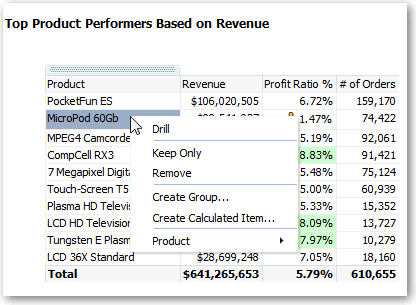
You can specify the interactions that are available at runtime when you right-click a dashboard column or data cell. Here’s an example of the available interactions when you right-click a product name in the Products column. This column is in a Top Product Performers Based on Revenue table.
Of the selections shown, you can set Drill, Create Group, and Create Calculated Item.