Reload a Dataset's Data
Keep your analytics content up-to-date by reloading dataset data when it's been updated.

About Reloading a Dataset's Data
You can reload data in a dataset to keep it up-to-date.
Reloading data ensures that workbooks and visualizations contain current data. The most current data is displayed in workbooks and visualizations after the dataset reload is complete and you refresh the workbooks. See Refresh a Workbook's Data.
How you reload a dataset depends on how the data is sourced.
| Dataset Source Type | How You Reload Data |
|---|---|
| Data from external connections | When you reload data for a dataset with an external connection, the dataset's
SQL statement is rerun and the current data for the tables with the
Data Access field set to
Automatic Caching is loaded into cache.
If your dataset contains one or more tables with the Data Access field set to Automatic Caching, then you can use the Data page to reload the tables in the dataset. You can also set up a schedule to reload your dataset's tables as often as once per hour. See Schedule a Dataset Reload. |
| Data from Excel, CSV, or TXT File | When you reload a Microsoft Excel file (XLSX or XLS), the newer spreadsheet file
must contain a sheet with the same name as the original file. And
the sheet must contain the same columns that are in the dataset. The
data reload fails if the file you load is missing
columns.
When you reload a CSV or TXT file, it must contain the same columns that are in the dataset. A reload will fail if the file you load is missing columns. To reload a dataset that uses one file as its source, use the Data. |
| Data from Oracle Fusion Cloud Applications Suite |
You can reload data and metadata for Fusion Applications Suite data sources. If the Fusion Applications Suite data source uses logical SQL, reloading data reruns the dataset's SQL statement. |
Reload Data from the Workbook Editor
When you're editing a workbook, you can reload data to update the workbook with the most up-to-date data.
- On your home page, locate the workbook and click Open.
- Click the Visualize tab.
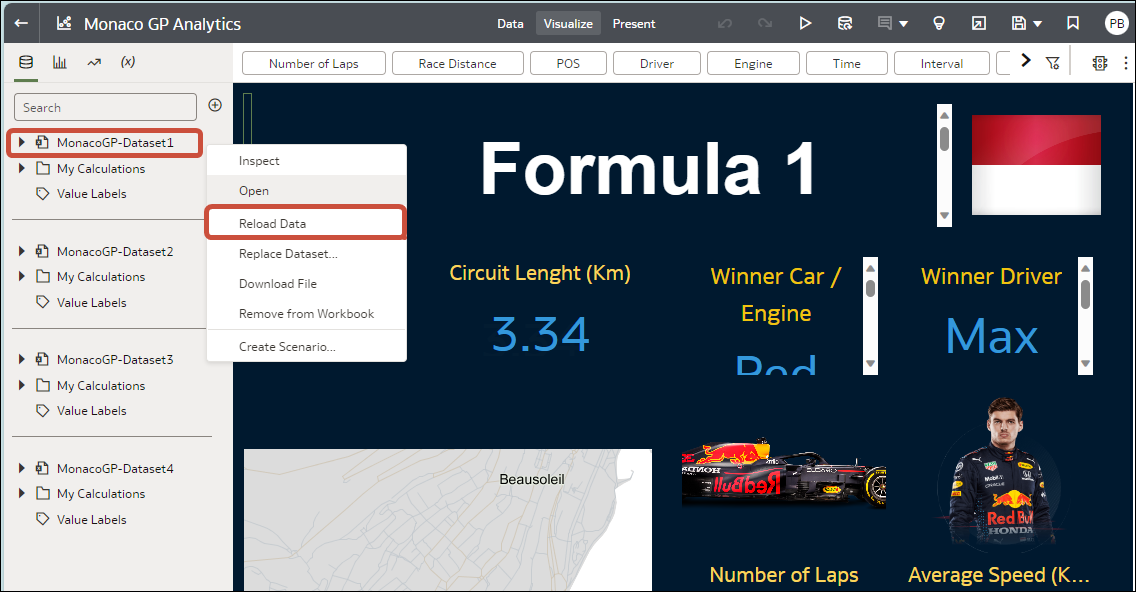
- On the Data pane, right-click the connection name or dataset name and select Reload
Data.
Reload an Individual Table in a Dataset
Use the Dataset editor to reload data for an individual dataset table that uses a connection. Reloading queries the table's data source and loads the current data into cache.
- On your home page, click Data and then click Data.
- Click the Datasets tab.
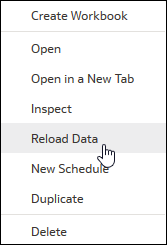
- Hover over the dataset that you want to reload, click Actions, and then click Reload Data.
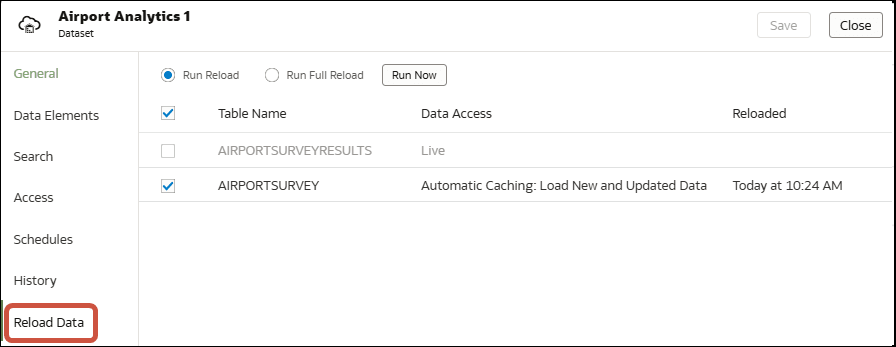
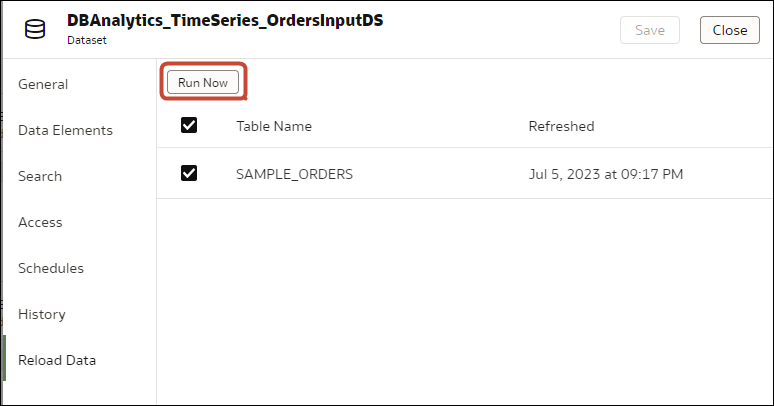
- Select the table, then click Run Now.
Reload Tables in a Dataset
Use the Datasets tab to reload data for the dataset's tables that use connections and have the Data Access field set to Automatic Caching. Reloading queries the tables' data sources and loads the current data into cache.
Note:
You can also programmatically reload data for an existing dataset that's based on a connection using the REST API. See Reload data for a dataset in the REST API for Oracle Analytics Cloud.Reloading data ensures that workbooks and visualizations contain current data. The most current data is displayed in workbooks and visualizations after the dataset reload is complete and you refresh the workbooks.
- On your home page, click Navigator
 , and then click Data.
 - Hover over the dataset that you want to reload, click Actions, and then
click Reload Data
. - Select the tables that you'd like to reload then click Run Now.
Reload a Dataset's Files
Reload data in a dataset based on a XLSX, XLS, CSV, or TXT file to make sure that you have the most up-to-date workbook content.
Reloading a dataset's files ensures that workbooks and visualizations contain current data. The most current data is displayed in workbooks and visualizations after the file reload is complete and you refresh the workbooks.
- On your home page, click Navigator , and then click Data.
- Click the Datasets tab.
- Hover over the dataset that you want to reload, click Actions, and then click Reload Data.
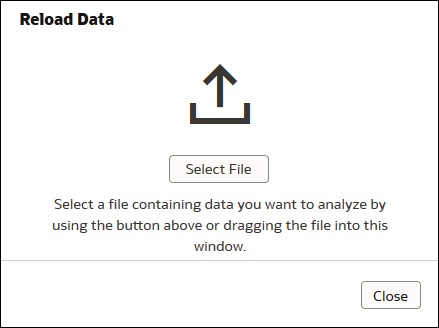
- In the Upload File dialog, drag and drop the file onto the dialog or click Select File to browse for the file.
- Click OK.

View a Dataset's Reload History
Historical information is generated for dataset reloads at the job level and at the table level.
- Use only files.
- Use a connection and a file. Oracle Analytics generates historical information only for a dataset's tables that use a connection.
- Use an Oracle EPM Cloud or Oracle Essbase connection.
- On your home page, click Navigator , and then click Data.
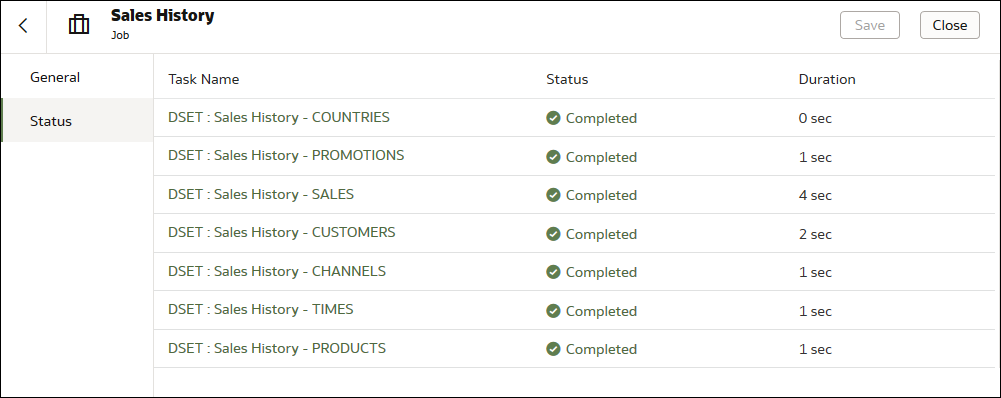
- Click the History tab to see data load jobs that have completed on that dataset.
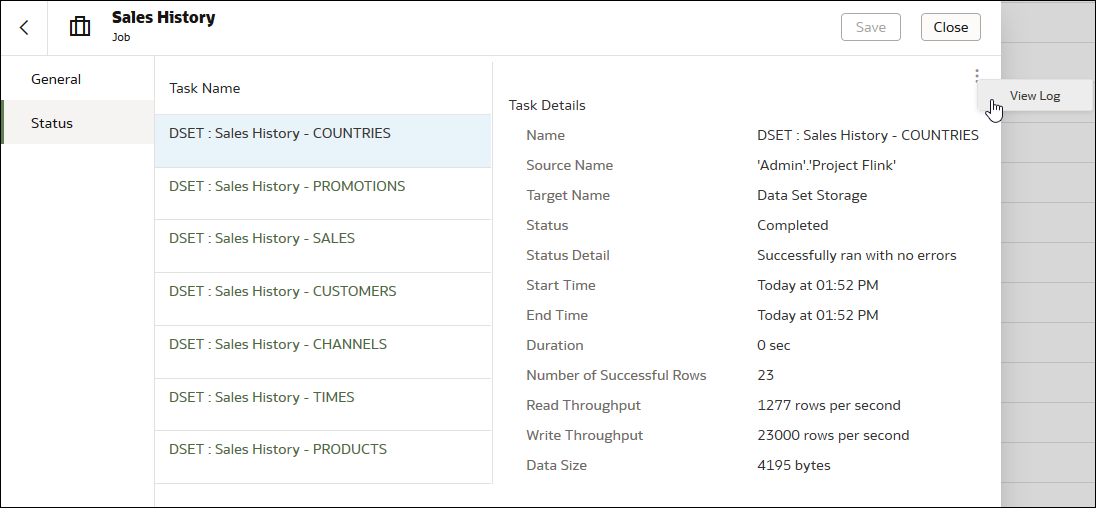
- Optional: Click the Status tab display tasks that were executed as part of the job.Click a task in the list to display log information for the task. If the load was incremental, you'll see the Refresh Mode set to "Incremental".


View and Download Log Files for a Dataset Reload Job
You can review log files for dataset reloads to help you troubleshoot dataset reload issues.
- On your home page, click Navigator , and then click Data.
- On the Datasets tab, hover over a dataset, click Actions, and then click Inspect.
- Click the History tab, then click the job that you want to look at.
- In the General tab, click Job details menu
 in the top right-hand corner and select View Log to view the log, or select Download Logs to save the logs to a local file area.
 - If the job reloaded more than one table and you want to view log information for a specific table, then click Status, then the table's reload task name, then click Job Task Menu in the top right-hand corner, then click View Log.