Navigating Through the SOA Folder Home Page and Menu
You can navigate to administrative tasks for a specific folder in the SOA Infrastructure.
To navigate through the SOA Folder home page and menu:
- Click SOA > soa-infra in the Target Navigation pane.

The SOA Infrastructure page appears.
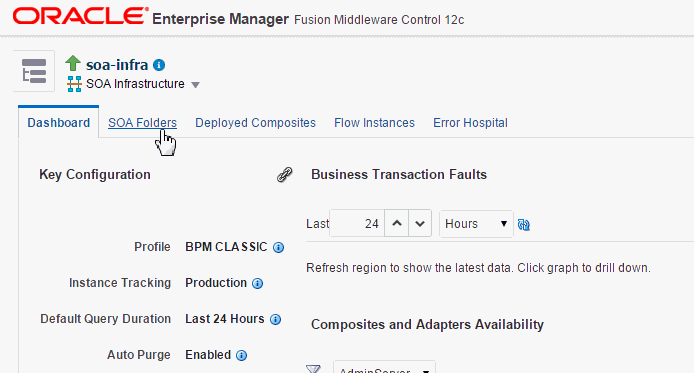
- Click the SOA Folders tab.
The SOA Folders page appears. Use the SOA Folders page to see all the folders in your SOA Infrastructure and the count of composites in each folder. You can also see the number of active and retired composites for each folder. You can navigate to the Dashboard tab or Deployed Composites tab of any folder.
- Click a folder name to navigate to the home page (Dashboard) for the folder.

The Dashboard page enables you to monitor important configuration settings, composite and adapter endpoint availability, business transaction faults, business flow instances and bulk recovery job search capabilities, and error notification rule alerts for the folder.
- At the top of the page, select the SOA_Folder _Name menu.

These administrative options enable you to perform the following tasks:
Option Description Composites Control
This option displays the following bulk lifecycle management tasks:
-
Start Up All: Invokes a dialog for starting all composites in this folder.
-
Shut Down All: Invokes a dialog for shutting down all composites in this folder.
-
Activate All: Invokes a dialog for activating all composites in this folder.
-
Retire All: Invokes a dialog for retiring all composites in this folder.
For information about these composite states, see Managing the State of All Applications at the SOA Infrastructure Level.
SOA Deployment
This option displays the following management tasks.
-
Deploy To This SOA Folder: Invokes the Deploy SOA Composite wizard for selecting a composite to deploy in this SOA folder.
-
Undeploy All From This Folder: Invokes a dialog for undeploying all composites in this folder.
-
Redeploy: Invokes the Redeploy SOA Composite wizard to select composites to redeploy in this folder.
For more information, see Deploying and Managing SOA Composite Applications.
Delete This SOA Folder
This option invokes a dialog to delete this folder. All composites in the folder are automatically undeployed before the folder is deleted.
Resequencing Groups
This option enables you to access the Mediator Resequencing Groups page for finding all resequencing groups processed within a specified time period. Resequencing places unsynchronized Oracle Mediator messages back into the correct order.
For more information, see Monitoring Resequencing Groups.
BPEL Recovery A shortcut to the BPEL Recovery page where you can recover or abort messages marked as recoverable. BPMN Recovery A shortcut to the BPMN Recovery page where you can recover or abort messages marked as recoverable. -
For information about folders, see Introduction to SOA Folders and Managing SOA Folders and Work Manager Groups.