Navigating Through the SOA Composite Application Home Page and Menu
To navigate through the SOA composite application home page and menu:
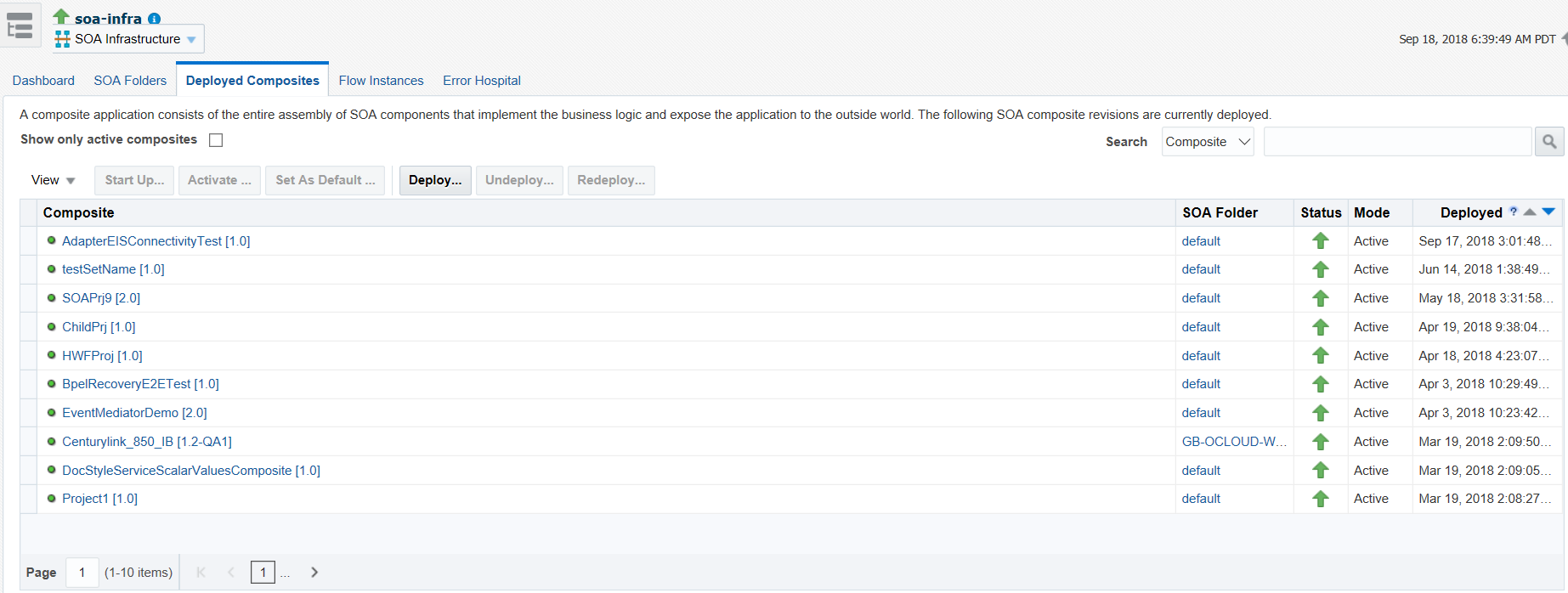
- Expand SOA and click soa-infra (server_name) in the navigator.
 The soa-infra page is displayed.
 - Click Deployed Composites.You can also right click soa-infra (server_name), navigate to Home, and select Deployed Composites to directly open Deployed Composite tab.
- Select a SOA composite application.
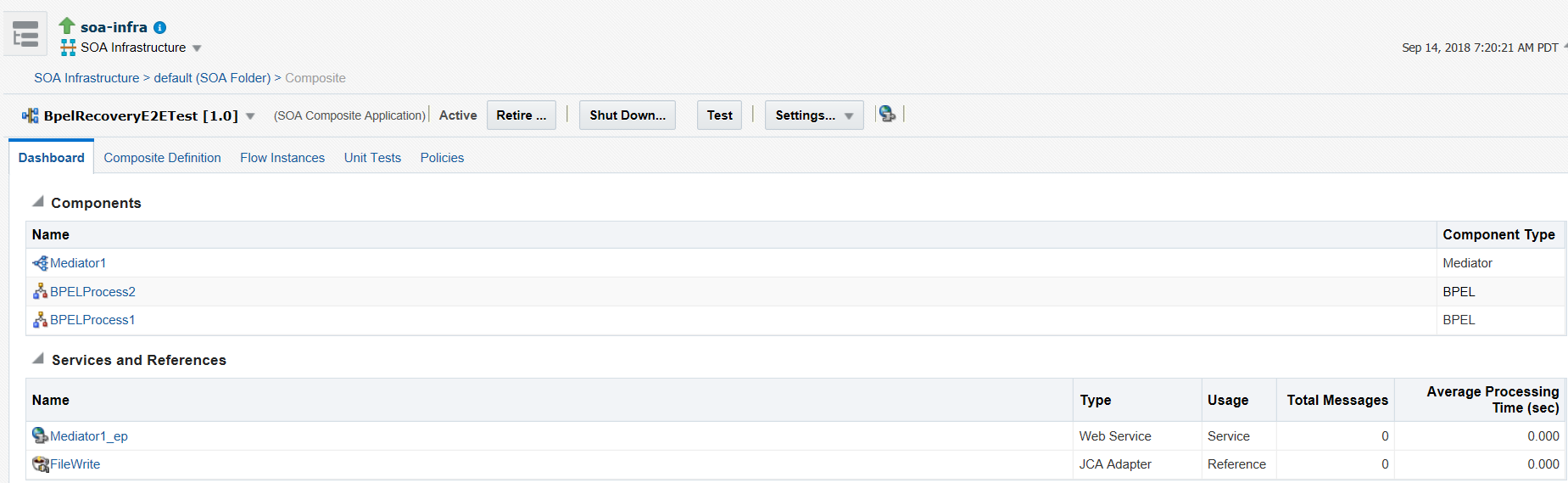
The home page for the selected SOA composite application is displayed. This page enables you to perform composite management tasks (retire, activate, shut down, start up, test, and so on) and view the service components and service and reference binding components included in the SOA composite application.
This screen enables you to navigate through the following options of the SOA composite application.
Option Description Dashboard
Manage the state of an individual SOA composite application (retire, shut down, activate, start up, test, and so on) from the application's home page. For more information, see Managing the State of an Application from the SOA Composite Application Home Page.
Composite Definition
View a graphical display of the SOA composite applications designed in Oracle JDeveloper 12c. This view is similar to the display of the SOA composite application in Oracle JDeveloper. SOA composite applications designed in Oracle JDeveloper 11g are not displayed. To resolve this issue, reopen the SOA composite application in Oracle JDeveloper 12c and redeploy it.
Flow Instances
View the list of business flow instances in this SOA composite application. Business flows can consist of multiple SOA composite applications connected together in a flow.
Unit Tests
Run test cases that simulate the interaction between the current SOA composite application and its web service partners before deployment to a production environment. This option generates test instances of the composite. For more information, see Introduction to SOA Composite Application Automated Testing and Automating the Testing of SOA Composite Applications.
Policies
View and attach or detach policies to or from the SOA composite application. For more information, see Introduction to Policies and Managing SOA Composite Application Policies.
Test
Manually initiate an instance of this deployed SOA composite application through the Test Web Service page.
For more information, see Initiating a Test Instance of a Business Flow.
Settings
View and set the configuration profile, set the SOA Infrastructure audit level, enable the payload validation of incoming messages, update the default query duration, specify the callback server and server URLs, disable analytics and sensors, set the Universal Description, Discovery and Integration (UDDI) registry properties, view the data source JNDI locations, set the nonfatal connection retry count, and set web service binding properties.
For more information, see Configuring SOA Infrastructure Properties.
- Below the name of the SOA composite application, select the SOA Composite menu.
These administrative options enable you to perform the following tasks.
Option Description Monitoring
View the performance summary statistics for the selected SOA composite application.
SOA Deployment
Undeploy or redeploy this SOA composite application, or deploy another SOA composite application.
For more information, see Deploying SOA Composite Applications.
Export
Export a deployed SOA composite application to a JAR file.
For more information, see Exporting a Deployed SOA Composite Application.
Service/ Reference Properties
Configure WSDL file properties for the service and reference binding components included in the SOA composite application.
For more information, see Configuring Service and Reference Binding Component Properties.
Composite Logs
View log messages.