12 Using Transactions with WebLogic JMS
Learn how to use local JMS transactions, JTA user transactions, and container-managed transactions with message-driven beans.
Note:
For the standard messaging APIs used in this chapter, see the Jakarta Messaging 3.1 specification and API documentation.
Overview of Transactions
A transaction enables an application to coordinate a group of messages for production and consumption, treating messages sent or received as an atomic unit.
When a transaction commits successfully, its received messages are acknowledged and its sent messages become eligible for delivery, subject to their delivery and expiration settings. Rolling back discards its sends and makes its received messages eligible for redelivery, subject to the destination’s redelivery and expiration policies.
A rolled-back queue message may be redelivered to another eligible consumer on that queue. A rolled-back topic message remains associated with its subscription; for a shared subscription, another consumer on that subscription may receive it.
For example, when shopping online, you select items and store them in an online shopping cart. Each ordered item is stored as part of the transaction, but your credit card is not charged until you confirm the order by checking out. At any time, you can cancel your order and empty your cart, rolling back all orders within the current transaction.
This chapter describes these transaction approaches:
-
Use a local JMS transaction to group sends and receives within one session.
-
Use an application-managed JTA transaction, where permitted, to coordinate JMS work with other participating resources.
-
Use a message-driven bean with container-managed transactions for transactional asynchronous message processing.
The following sections describe these approaches.
Note:
For standalone clients, a connection ExceptionListener can report asynchronous connection problems. Handle exceptions from messaging and transaction-completion calls as well; the listener does not replace that error handling. See Defining a Connection Exception Listener. EJB and servlet applications must follow their container’s restrictions on listener registration.
In a locally transacted session, Message.acknowledge() has no effect, and Session.recover() throws jakarta.jms.IllegalStateException. Complete the transaction with Session.commit() or Session.rollback(). For JMS work enlisted in JTA, completion is controlled by the JTA transaction.
Using JMS Transacted Sessions
A locally transacted JMS session groups its sends and receives in a transaction controlled by that session.
The following procedure describes an application-managed local JMS transaction. Its commit or rollback affects the sends and receives on that session, not independent database work. A native WebLogic JMS locally transacted session uses its own transaction rather than the calling thread’s JTA transaction. For sessions used through Jakarta EE resource references in EJBs or servlets, follow the container transaction rules described in Automatically Enlisting Transactions.
Local JMS transactions begin implicitly. After a local transaction is committed or rolled back, the session begins the next local transaction automatically.
Before using a locally transacted session, review the connection factory’s Transaction Timeout setting and adjust it if necessary for the application.
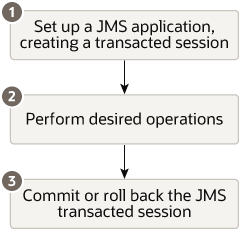
Figure 12-1 shows the steps required to set up and use a JMS transacted session.
Figure 12-1 Setting Up and Using a JMS Transacted Session
Description of "Figure 12-1 Setting Up and Using a JMS Transacted Session"
Step 1: Set Up JMS Application, Creating Transacted Session
Set up the JMS application as described in Setting Up a JMS Application, when creating sessions, as described in Step 3: Create a Session Using the Connection, specify that the session is to be transacted by setting the transacted Boolean value to true.
For example, the following methods show how to create a transacted session for the point-to-point and Publish/subscribe messaging models, respectively:
  qsession = qcon.createQueueSession(
   true,
   Session.AUTO_ACKNOWLEDGE
  );

  tsession = tcon.createTopicSession(
   true,
   Session.AUTO_ACKNOWLEDGE
  );
After a session is defined, you can determine whether or not a session is transacted using the following session method:
  public boolean getTransacted(
  ) throws JMSException
Note:
The acknowledge value is ignored for transacted sessions.
Step 2: Perform Desired Operations
Perform the desired operations associated with the current transaction.
Step 3: Commit or Roll Back the JMS Transacted Session
After you have performed the desired operations, execute one of the following methods to commit or roll back the transaction.
To commit the transaction, execute the following method:
  public void commit(
  ) throws JMSException
The commit() method commits all messages sent or received during the current transaction. Sent messages are made visible, while received messages are removed from the messaging system.
To roll back the transaction, execute the following method:
  public void rollback(
  ) throws JMSException
The rollback() method cancels any messages sent during the current transaction and returns any messages received to the messaging system.
If either the commit() or rollback() methods are issued outside of a JMS transacted session, then a jakarta.jms.IllegalStateException is thrown.
Using JTA User Transactions
Jakarta Transactions (JTA) coordinates transactions across participating resources. Applications can use UserTransaction where programmatic transaction demarcation is permitted, or use container-managed transactions.
Use jakarta.transaction.UserTransaction to begin, commit, and roll back an application-managed JTA transaction. See the Jakarta Transactions 2.0 UserTransaction API. In an EJB, use UserTransaction only with bean-managed transaction demarcation; container-managed beans rely on their configured transaction attributes. See Transactions in EJB Applications in Developing JTA Applications for Oracle WebLogic Server.
A native WebLogic JMS locally transacted session does not join a calling thread’s JTA transaction. For the direct JMS client procedure below, create a nontransacted session and use a WebLogic JMS connection factory with XA Connection Factory Enabled set to true.
WebLogic Server supports two-phase commit to coordinate a JTA transaction across participating resource managers. Applications must handle transaction-completion exceptions: a commit request can result in rollback, and a heuristic outcome can require administrative resolution.
The XA Connection Factory Enabled setting allows nontransacted sessions created by that factory to participate in the calling thread’s JTA transaction. Begin the transaction before the JMS operations that must participate. For container-managed resource references, also follow Automatically Enlisting Transactions.
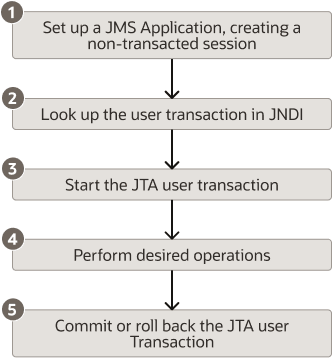
Figure 12-2 shows the steps required to set up and use a JTA user transaction.
Figure 12-2 Setting Up and Using a JTA User Transaction
Description of "Figure 12-2 Setting Up and Using a JTA User Transaction"
Step 1: Set Up JMS Application, Creating Non-Transacted Session
Set up the JMS application as described in Setting Up a JMS Application, however, when creating sessions, as described in Step 3: Create a Session Using the Connection, specify that the session is to be non-transacted by setting the transacted boolean value to false.
For example, the following methods illustrate how to create a non-transacted session for the PTP and Pub/sub messaging models, respectively.
  qsession = qcon.createQueueSession(
   false,
   Session.AUTO_ACKNOWLEDGE
  );

  tsession = tcon.createTopicSession(
   false,
   Session.AUTO_ACKNOWLEDGE
  );
Note:
When a session’s JMS operations participate in an active JTA transaction, transaction completion controls their acknowledgement; the session’s acknowledgement mode does not control those operations.
Step 2: Look Up the User Transaction in JNDI
The application uses JNDI to return an object reference to the UserTransaction object for the WebLogic Server domain.
For a WebLogic client using an established JNDI Context named ctx, look up the UserTransaction as follows. The enclosing method must handle or declare javax.naming.NamingException.
jakarta.transaction.UserTransaction xact =
    (jakarta.transaction.UserTransaction)
        ctx.lookup("jakarta.transaction.UserTransaction");
In a Jakarta EE component that permits UserTransaction access, use injection or the component-environment name java:comp/UserTransaction.
Step 3: Start the JTA User Transaction
Start the JTA user transaction using the UserTransaction.begin() method. For example:
xact.begin();
Step 4: Perform Desired Operations
Perform the desired operations associated with the current transaction.
Step 5: Commit or Roll Back the JTA User Transaction
Once you have performed the desired operations, execute one of the following commit() or rollback() methods on the UserTransaction object to commit or roll back the JTA user transaction.
To commit the transaction, execute the following commit() method:
xact.commit();
The commit() method asks the transaction manager to complete the current transaction across its enlisted resources. Handle the declared completion exceptions; calling commit() does not by itself guarantee that the transaction committed.
To roll back the transaction, execute the following rollback() method:
xact.rollback();
The rollback() method causes WebLogic Server to call the Transaction Manager to cancel the transaction, and roll back all operations performed during the current transactions.
Once you call the commit() or rollback() method, you can optionally start another transaction by calling xact.begin().
JTA Transactions Using Message-Driven Beans
Use a message-driven bean with container-managed transactions to process asynchronously delivered messages transactionally.
For a JMS message-driven bean using container-managed transactions and the Required transaction attribute, the container establishes the transaction for the message-listener invocation. Message receipt and enlisted resource operations participate in that transaction. The bean does not call UserTransaction.begin() to establish this container-managed transaction.
A bean-managed transaction started inside onMessage() does not include receipt of the triggering message. Use container-managed transactions when message receipt and processing must share the transaction.
See Designing Message-Driven EJBs in Developing Jakarta Enterprise Beans Using Deployment Descriptors.
Example: JMS and EJB in a JTA User Transaction
Learn how to set up an application for mixed EJB and JMS operations in a JTA user transaction.
These fragments illustrate a standalone WebLogic client that uses an application-managed JTA transaction for JMS operations and calls to an EJB configured to participate in that transaction. Use a JMS connection factory with XA Connection Factory Enabled set to true. The client must establish its JNDI context, connection, session, and EJB reference, start the connection before receiving messages, and handle naming, messaging, and transaction exceptions. These fragments omit application-specific operations and error handling; they are not a complete executable application.
Note:
When the WebLogic Server examples are installed, see the JMS/JDBC transaction example in WL_HOME/samples/server/examples/src/examples/jta/jmsjdbc, where WL_HOME is the WebLogic Server installation directory.
Import the required Java and Jakarta APIs, including the jakarta.transaction.UserTransaction interface.
import java.io.*;
import java.util.*;
import jakarta.transaction.UserTransaction;
import javax.naming.*;
import jakarta.jms.*;
Define the WebLogic JNDI lookup-name constant.
public static final String JTA_USER_XACT =
    "jakarta.transaction.UserTransaction";
Step 1 Set Up the JMS Application
Set up the JMS application, creating a non-transacted session. For more information on setting up the JMS application, refer to Setting Up a JMS Application.
//JMS application setup steps including, for example:
 qsession = qcon.createQueueSession(false,
                Session.CLIENT_ACKNOWLEDGE);
Step 2 Look Up the User Transaction
Look up the UserTransaction using JNDI.
UserTransaction xact = (UserTransaction)
        ctx.lookup(JTA_USER_XACT);
Step 4 Perform the Desired Operations
Perform the desired operations.
// Perform some JMS and EJB operations here.
Using Cross-Domain Security
For transactions involving multiple domains, configure the participating domains for compatible, secure transaction communication.
Review Cross Domain Security together with the effective JTA Security Interoperability Mode for the participating servers, including applicable cluster-level JTA configuration. These settings have different purposes; do not treat them as interchangeable enable flags. See Configuring Secure Inter-Domain and Intra-Domain Transaction Communication in Developing JTA Applications for Oracle WebLogic Server.