2 Getting Started Administering Capture
This chapter describes the initial steps you need to take to administer Oracle WebCenter Enterprise Capture. It includes information on how to access Capture functions using Oracle Enterprise Manager and the Oracle WebLogic Server Administration Console.
This chapter includes the following sections:
2.1 Initial Steps to Begin Administering Capture
The weblogic user is assigned the CaptureWorkspaceManager role when the domain is created. The system administrator can add other users to the CaptureWorkspaceManager role using Oracle Enterprise Manager.
Use the following tools to administer Capture:
-
Use Oracle Enterprise Manager Fusion Middleware Control to configure system settings, monitor the overall Capture environment, and assign security roles. For more information, see the Enterprise Manager documentation.
-
Use Oracle WebLogic Server Administration Console to manage database connections for database lookups, and manage users and groups. See Using the WebLogic Server Administration Console in Understanding Oracle WebLogic Server.
-
Use the Oracle WebLogic Scripting Tool (WLST), a command-line scripting tool, to create, manage, and monitor Oracle WebLogic Server domains. You can use WLST commands to configure Capture parameters, review log files, and more. See Oracle WebCenter Enterprise Capture Custom WLST Commands in WebCenter WLST Command Reference.
2.2 Starting Capture Functions in Enterprise Manager
Oracle Enterprise Manager Fusion Middleware Control is a browser-based management application that is deployed when you install Oracle WebCenter. From Oracle Enterprise Manager, you can monitor and administer a farm (such as one containing Oracle WebCenter and Oracle WebCenter applications).
To navigate to Oracle WebCenter Enterprise Capture pages in Oracle Enterprise Manager:
-
Enter the Oracle Enterprise Manager Fusion Middleware Control URL, which includes the name of the host and the port number assigned to Oracle Enterprise Manager during the installation. The following shows the format of the URL.
https://hostname.domain:port/emPort is the IP port number of the Administration Server running on Oracle WebLogic Server. By default, the port number is 7001.
-
Enter the system administrator username and password, and click Login.
-
From the navigation pane, expand the farm and then WebCenter, select Content, then Capture, and then select the Capture server node.
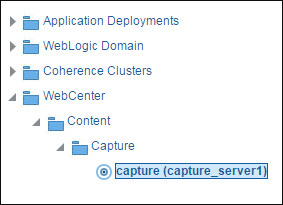
Description of the illustration domain-capture.png
The WebCenter Capture home page displays.
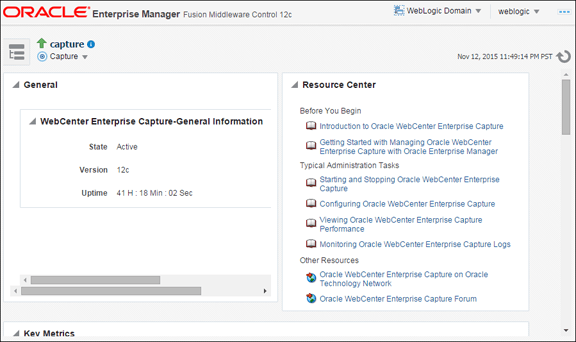
-
Click Capture in the top left pane to display the Capture Server menu.
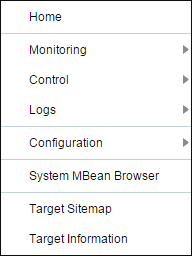
Description of the illustration capserver_menu.png
The following table lists all the configuration parameters that you can set in this page.
Table 2-1 Capture Server Menu Options
Menu Option Description Home Use this option to navigate to the Oracle WebCenter Enterprise Capture home page. See Viewing Capture Status. Monitoring Use this option to monitor key performance metrics for the Oracle WebCenter Enterprise Capture system. See Monitoring Capture. Control Use this option to start or stop the Oracle WebCenter Enterprise Capture application deployed on the server. See Starting and Stopping Oracle WebCenter Enterprise Capture. Logs Use this option to view the logs or to control the log level. See Configuring and Viewing Capture Log Files. Configuration Use this option to change the system configuration and manage client bundles. See Configuring Capture. System MBean Browser The System MBean Browser lists all the configured, runtime and application defined MBeans. Use this option to access the attributes of the MBeans and to perform operations on them. See Browsing Capture MBeans. Target Sitemap Use this option to view the sitemap. Target Information Use this option to view basic information about the Oracle WebCenter Enterprise Capture server.
2.3 Starting and Stopping Oracle WebCenter Enterprise Capture
To start or stop Oracle WebCenter Enterprise Capture from Oracle Enterprise Manager:
-
Log in to Oracle Enterprise Manager using the steps listed in Starting Capture Functions in Enterprise Manager.
-
Click the Capture server in the top left pane to display the Capture menu options.
-
To start or stop Oracle WebCenter Enterprise Capture, select Control and then Start or Shut Down.
2.4 Using Oracle Enterprise Manager Help
At any time while using the Oracle Enterprise Manager Fusion Middleware Control, you can use the links available in the Resource Center on the Capture home page to get help on typical system administrator tasks.
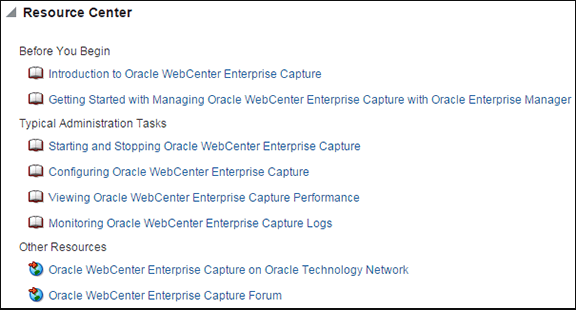
Description of the illustration resource_center.png
The Resource Center provides information in the following categories:
-
Before You Begin – Lists topics that provide an introduction to Capture and how to get started administering Capture using Oracle Enterprise Manager.
-
Typical Administration Tasks – Lists topics related to typical administrator tasks such as starting and stopping Capture, configuring Capture, viewing Capture performance metrics, and configuring and viewing Capture log files.
-
Other Resources – Contains the following links:
-
Oracle WebCenter Enterprise Capture on Oracle Technology Network
-
Oracle WebCenter Enterprise Capture Forum
-
2.5 Starting Capture Functions in the WebLogic Server Console
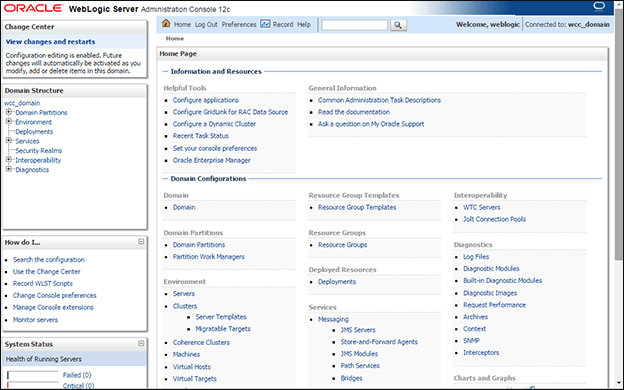
The Oracle WebLogic Server Administration Console is a browser-based user interface that you use to manage a WebLogic Server domain. The Administration Server hosts the Administration Console, which is a Web application accessible from any supported Web browser with network access to the Administration Server.
To navigate to Oracle WebCenter Enterprise Capture functions in WebLogic Server:
-
Enter the WebLogic Server URL, which includes the name of the host and the port number assigned to WebLogic Server during the installation. The following shows the format of the URL.
https://hostname.domain:port/consolePort is the IP port number of the Administration Server running on Oracle WebLogic Server. By default, the port number is 7001.
-
Enter the system administrator username and password and click Login.
-
From the navigation pane, expand the farm and then WebLogic Domain, and select the capture_domain component.
The Capture domain page displays.
-
In the WebLogic Server Administration Console, you can do the following:
-
Manage the Capture environment including servers, clusters, virtual hosts, and work managers. See Getting Started Managing Oracle Fusion Middleware in Administering Oracle Fusion Middleware.
-
Manage database connections for database lookups. See Configuring JDBC Data Sources in Administering JDBC Data Sources for Oracle WebLogic Server.
-
Manage users and groups. See Using the WebLogic Server Administration Console in Understanding Oracle WebLogic Server.
-