Adding Analytics to a Portal
Add Analytics to a portal to provide traffic and usage metrics for administrators, portal managers and other business users.
Permissions: To perform the tasks in this chapter, you must be a portal manager or a portal member with the portal-level permissions
Manage Security and ConfigurationorManage Configuration.
Any user who accesses administration settings for a portal and does not have Manage permission (for example, a user with Customize Pages permissions, granted permission to edit a page in the portal) will see only the settings available to their role and permissions.
See About Roles and Permissions for a Portal.
Topics
About Analytics
Analytics allows system administrators and portal managers to track and analyze WebCenter Portal traffic and usage. Analytics provides the following basic functionality:
-
Usage Tracking Metrics: Analytics collects and reports metrics of common WebCenter Portal functions, including community and portlet traffic.
-
Behavior Tracking: Analytics can be used to analyze WebCenter Portal metrics to determine usage patterns, such as page visit duration and usage over time.
-
User Profile Correlation: Analytics can be used to correlate metric information with user profile information. Usage tracking reports can be viewed and filtered by user profile data such as country, company or title.
Note: Profile information is cached meaning that changes to a user profile are not visible in reports until the cache is updated. The default cache time is 60 minutes, but this value can be changed by your administrator.
This section contains the following topics:
Understanding the Analytics Administration Page in WebCenter Portal
The Analytics console displays metrics for the entire WebCenter Portal application. It is available to system administrators with the Manage Configuration permission.
Out-of-the-box, this console is only available through a business role page named Analytics. It is the system administrator’s responsibility to grant people permissions to see the Analytics page. This page is intended for anyone who needs to analyze access and usage statistics; this could include administrators, sales or marketing managers or directors, business analysts, and so on.
Just like other business role pages, the Analytics page is pushed to all the users to whom it is assigned, appearing in the Home portal. Once the Analytics page is available in the Home portal, users can show and hide the page through the Manage Page dialog. For more information, see Specifying the Target Audience for a Business Role Page in Administering Oracle WebCenter Portal.
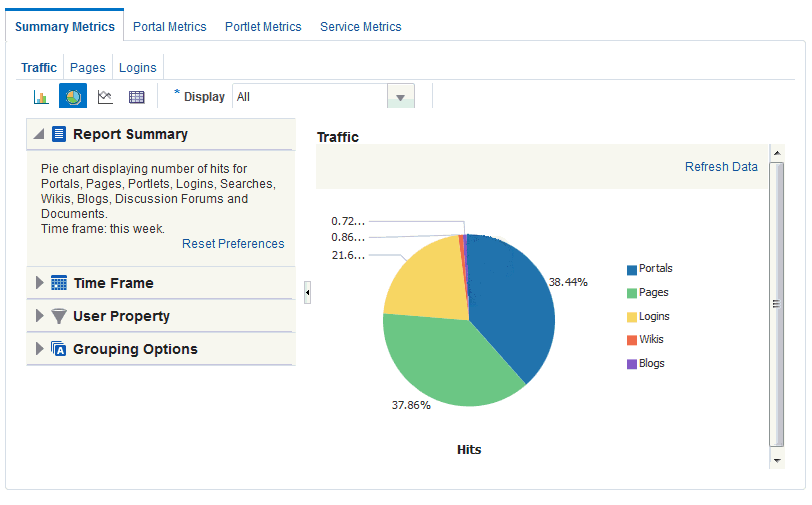
Figure: Analytics Console for Administrators
Description of the illustration wcsug_analytics_console.gif
The console consists of four pages, grouping several different reports:
-
Summary Metrics – portal traffic, page views, and login metrics:
-
Traffic provides a summarized view of common events in WebCenter Portal. Use the Traffic view to track application-wide events, such as portal views, page views, portlet views, logins, number of searches, wiki views, blog views, discussion forum views, and document views.
-
Pages tracks the number of page hits and unique users who have visited any portal page. Use this for a quick view of the most visited pages (top pages) and/or the least visited pages (bottom pages).
-
Logins reports the number of times users log in to WebCenter Portal. Use this view to see the total number of WebCenter Portal logins and/or the number of times unique users logged-in to WebCenter Portal.
-
-
Portal Metrics – portal usage and response times
-
Traffic shows usage information for individual portals. Usage information includes the number of page hits, number of unique users, and the number of unique visits (multiple consecutive page views within the same portal during the same WebCenter Portal session is treated as one visit). Use this task flow to quickly see the most popular portals (top), and the least popular portals (bottom).
-
Response Time displays page performance information—average, minimum, or maximum response time—for individual portals over any time period you specify. Use this view to quickly see the slowest portals (bottom), and the fastest portals (top).
-
-
Portlet Metrics – portlet usage and response times:
-
Traffic displays portlet usage information—the number of portlet hits (the number of times a portlet is displayed) and number of unique users that access a portlet. Use this view to quickly see the most popular portlets (top), and the least popular portlets (bottom).
-
Instances Traffic displays usage information—the number of portlet hits (the number of times a portlet is displayed) and number of unique users that access a portlet—for individual portlet instances. If the same portlet displays on several different pages, each placement is considered as a portlet instance. Use this view to quickly see the most popular portlet instances (top), and the least popular portlet instances (bottom).
-
Response Time displays performance information—average, minimum, and maximum response time—for individual portlets. Use this view to quickly see the slowest portlets (bottom), the fastest portlets (top), and compare performance data. Portlet response times are important because there is often a direct link between page performance and the slowest portlets. When troubleshooting poor performance within a portal, it is important to identify the worst performing portlets.
-
Instances Response Time displays performance information—average, minimum, and maximum response time—for individual portlet instances. If the same portlet displays on several different pages, each placement is considered as a portlet instance. Use this view to quickly see the slowest portlet instances (bottom), the fastest portlet instances (top), and compare performance data.
-
-
Service Metrics – search usage, documents, wikis, blogs:
-
Search Metrics tracks searches performed within WebCenter Portal. Use this view to quickly see the most popular (top) and least popular (bottom) search phrases.
-
Document Metrics tracks how often a document is accessed. Use this view to quickly see the most popular (top) and least popular (bottom) documents. Documents in the Home Portal are included in this report. If you have two different documents with the same name, they are treated as two separate documents. The metrics includes the parent folder for context.
-
Wiki Metrics tracks how often wikis are accessed within WebCenter Portal. Use this view to quickly see the most popular (top) and least popular (bottom) wikis.
-
Blog Metrics tracks how often blogs are accessed within WebCenter Portal. Use this view to quickly see the most popular (top) and least popular (bottom) blogs.
-
Understanding Analytics Task Flows
This section lists and describes all the Analytics task flows that are provided with WebCenter Portal. Note that those marked with “Administrator” are only available to users with the Administrator role. The following task flows are available out-of-the-box:
Application Analytics:
Portlet Analytics:
Service Analytics:
-
Usage Tracking Metrics: Analytics collects and reports metrics of common WebCenter Portal functions, including community and portlet traffic.
-
Behavior Tracking: Analytics can be used to analyze WebCenter Portal metrics to determine usage patterns, such as page visit duration and usage over time.
-
User Profile Correlation: Analytics can be used to correlate metric information with user profile information. Usage tracking reports can be viewed and filtered by user profile data such as country, company or title.
Note: Profile information is cached meaning that changes to a user profile are not visible in reports until the cache is updated. The default cache time is 60 minutes, but this value can be changed by your administrator.0
Note: The images shown in the following sections represent one view of each report. However each report can be customized to display the data in different ways (for example, a bar chart, a pie chart, a line chart, or a table). For information on customizing reports, see Customizing Analytics Reportsand Personalizing Your Analytics Report View.
WebCenter Traffic
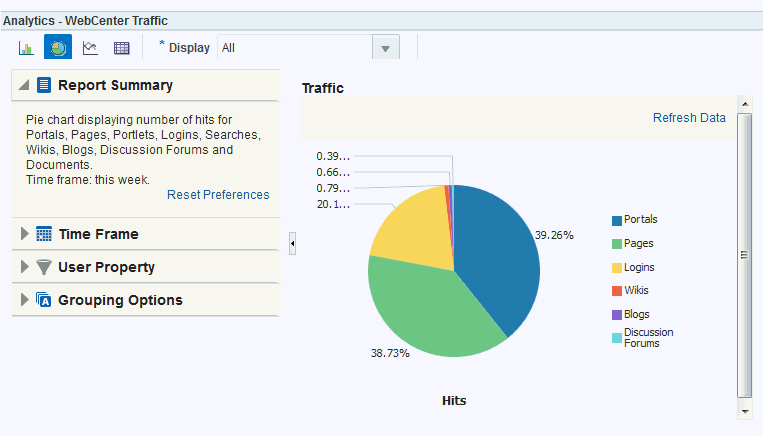
The WebCenter Traffic task flow (Figure 41-2) displays a summarized view for common events within the portal.
Use this task flow to track application-wide events—portal views, page views, portlet views, logins, number of searches, wiki views, blog views, and document views.
Figure: Analytics Task Flow - WebCenter Traffic
Description of the illustration wcsug_as_traffic.gif
Page Traffic (Administrator)
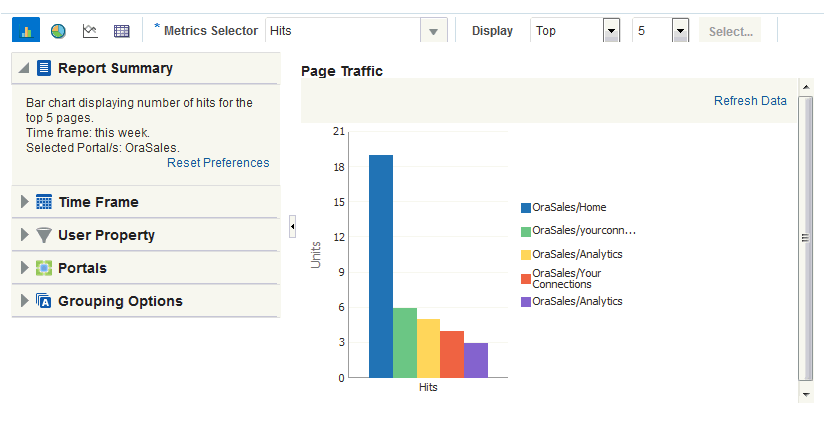
The Page Traffic task flow (Figure 41-3) displays the number of page hits and the number of unique users who have visited any portal page.
Use this task flow to quickly see the most visited pages (top pages) and/or the least visited pages (bottom pages). You can view page data by hits (total number of page views) and/or users (unique number of users who viewed pages). You can filter the report to show data only for specific pages (in the Display options list, select Specify, then click Select, select pages, then click OK) or pages from specific portals (in the WebCenter Portal query options).
Figure: Analytics Task Flow - Page Traffic
Description of the illustration wcsug_as_trafficpge.gif
Note: Pages belonging to the Home portal are excluded by default but there is an option to include this information if you want to do so.
Portlet Traffic (Administrator)
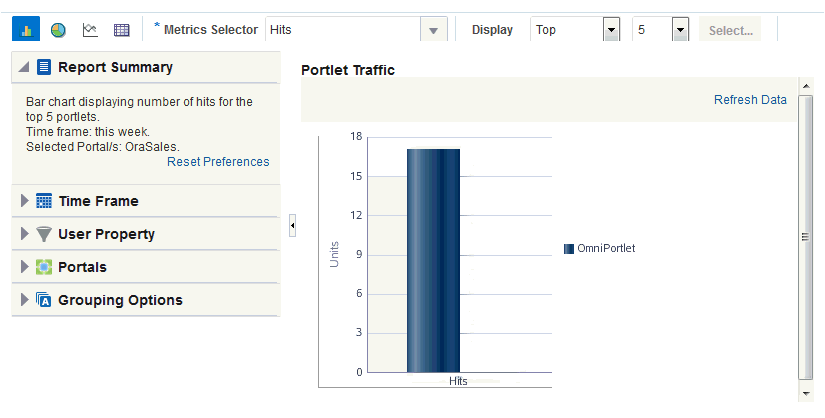
The Portlet Traffic task flow (Figure 41-4) displays portlet usage information—the number of portlet hits (the number of times a portlet is displayed) and number of unique users that access a portlet.
Use this task flow to quickly see the most popular portlets (top), and the least popular portlets (bottom). You can filter the data to only show specific portlets or show all portlets. Similarly, you can filter the portlet data by portal.
Figure: Analytics Task Flow - Portlet Traffic
Description of the illustration wcsug_as_trafficport.gif
Note: The Home portal is not included in the data.
Portlet Instance Traffic (Administrator)
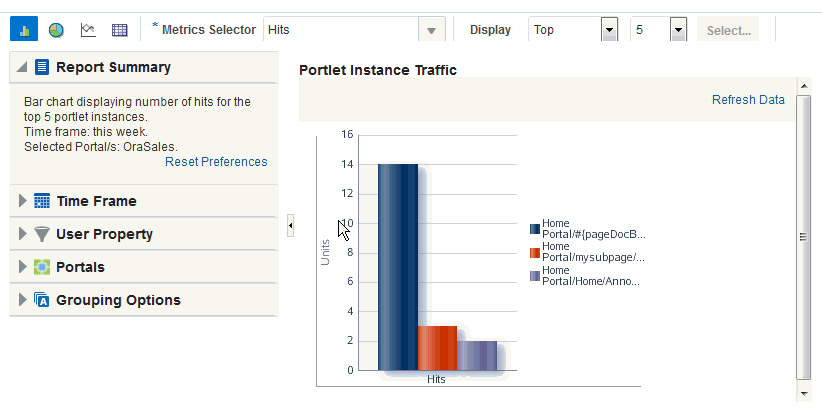
The Portlet Instance Traffic task flow (Figure 41-5) displays usage information—the number of portlet hits (the number of times a portlet is displayed) and number of unique users that access a portlet—for individual portlet instances. If the same portlet displays on several different pages, each placement is considered as a portlet instance.
Use this task flow to quickly see the most popular portlet instances (top), and the least popular portlet instances (bottom). You can filter the data to only show specific portlet instances or show all portlet instances. Similarly, you can filter the portlet data by portal.
Figure: Analytics Task Flow - Portlet Instance Traffic
Description of the illustration wcsug_as_trafficportin.gif
Note: The Home portal is not included in the data.
Portlet Response Time (Administrator)
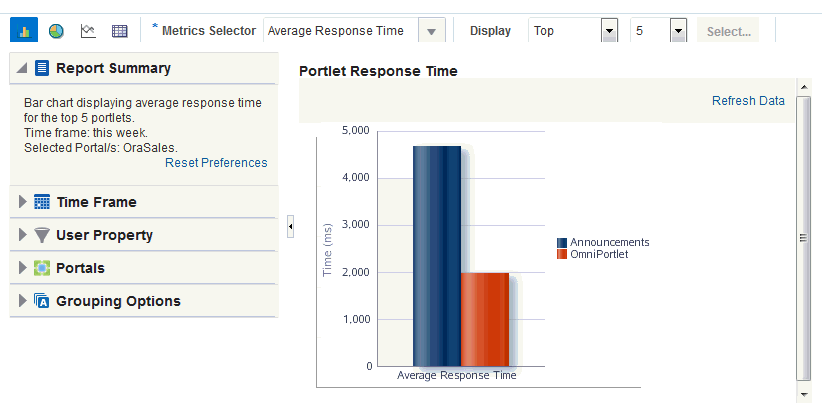
The Portlet Response Time task flow (Figure 41-6) displays performance information—average, minimum, and maximum response time—for individual portlets.
Use this task flow to quickly see the slowest portlets (bottom), the fastest portlets (top), and compare performance data. Portlet response times are important because there is often a direct link between page performance and the slowest portlets. When troubleshooting poor performance within a portal, it is important to identify the worst performing portlets. You can filter the data to only show specific portlets or show all portlets. Similarly, you can filter the portlet data by portal.
Figure: Analytics Task Flow - Portlet Response Time
Description of the illustration wcsug_as_perf_port.gif
Portlet Instance Response Time (Administrator)
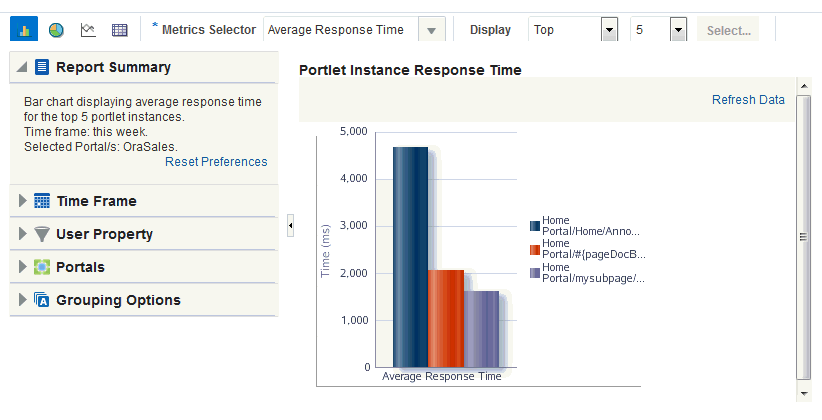
The Portlet Instance Response Time task flow (Figure 41-7) displays performance information—average, minimum, and maximum response time—for individual portlet instances. If the same portlet displays on several different pages, each placement is considered as a portlet instance.
Use this task flow to quickly see the slowest portlet instances (bottom), the fastest portlet instances (top), and compare performance data. You can filter the data to only show specific portlet instances or show all portlet instances. Similarly, you can filter the portlet data by portal.
Figure: Analytics Task Flow - Portlet Instances Response Time
Description of the illustration wcsug_as_perf_portin.gif
Search Metrics
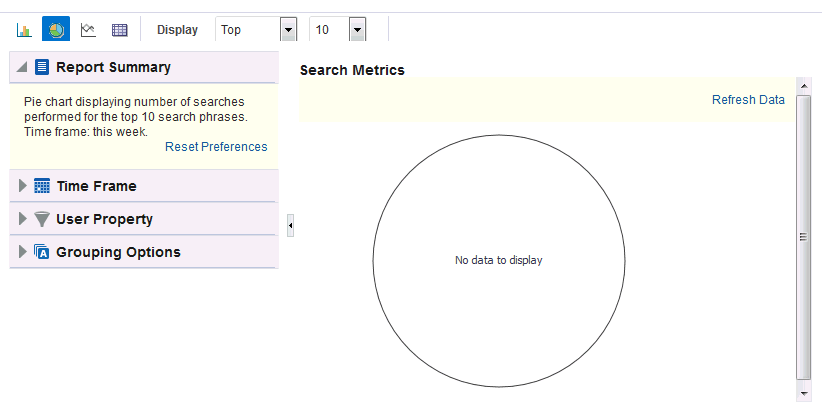
The Search Metrics task flow (Figure 41-8) tracks searches performed within the portal.
Use this task flow to quickly see the most popular (top) and least popular (bottom) search phrases.
Figure: Analytics Task Flow - Search Metrics
Description of the illustration wcsug_as_search.gif
Access to Analytics Task Flows inWebCenter Portal
In WebCenter Portal, resource catalogs only display analytics task flows to users with appropriate permissions:
-
Usage Tracking Metrics: Analytics collects and reports metrics of common WebCenter Portal functions, including community and portlet traffic.
-
Behavior Tracking: Analytics can be used to analyze WebCenter Portal metrics to determine usage patterns, such as page visit duration and usage over time.
-
User Profile Correlation: Analytics can be used to correlate metric information with user profile information. Usage tracking reports can be viewed and filtered by user profile data such as country, company or title.
Note: Profile information is cached meaning that changes to a user profile are not visible in reports until the cache is updated. The default cache time is 60 minutes, but this value can be changed by your administrator.1
After a task flow is added to a page, anyone with access to the page can see the task flow.
Adding an Analytics Task Flow to a Page
For the steps to add an Analytics task flow to a page, see Adding a Component to a Page.
Tip: The presence or location of the Analytics task flow in the resource catalog depends on how the resource catalog is configured. For example, in the default resource catalog, the Analytics task flow is included under the Analytics folder.
Note: When you add an Analytics task flow to a portal, it displays information for that portal, not for all portals.
Working with Analytics Task Flow Properties
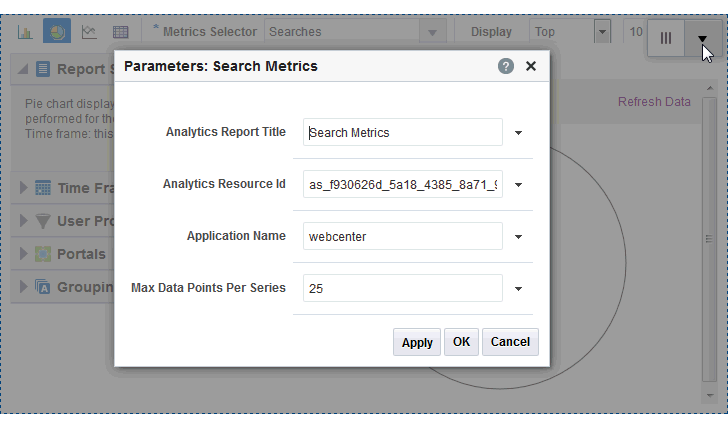
Analytics task flows have associated properties, which users with sufficient privileges can access through the task flows’ View Actions menu. For example, select Parameters to show the Parameters dialog (Figure 41-9).
Figure: Analytics Task Flow: Parameters Dialog
Description of the illustration wcsug_as_taskflowproperties.gif
See Also: Setting Properties on a Component
The following sections provide information about properties of the Analytics task flows and describe the task flow parameters:
-
Usage Tracking Metrics: Analytics collects and reports metrics of common WebCenter Portal functions, including community and portlet traffic.
-
Behavior Tracking: Analytics can be used to analyze WebCenter Portal metrics to determine usage patterns, such as page visit duration and usage over time.
-
User Profile Correlation: Analytics can be used to correlate metric information with user profile information. Usage tracking reports can be viewed and filtered by user profile data such as country, company or title.
Note: Profile information is cached meaning that changes to a user profile are not visible in reports until the cache is updated. The default cache time is 60 minutes, but this value can be changed by your administrator.2
Setting Analytics Task Flow Properties
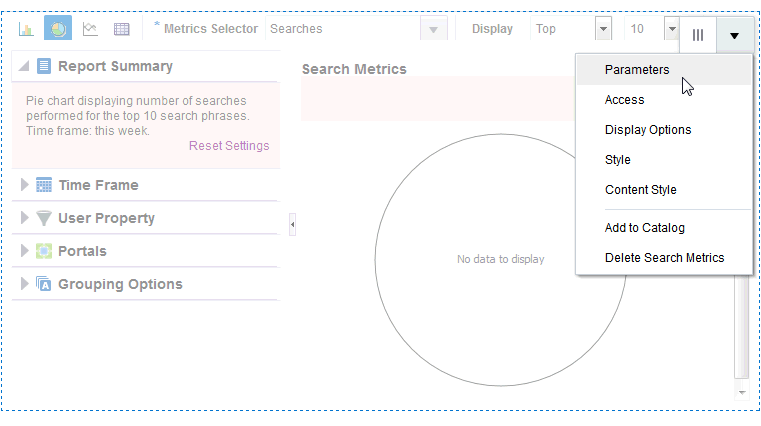
In the page editor, selecting any component exposes a View Actions menu (Figure 41-10), which provides access to the component’s properties: Parameters, Access, Display Options, Style, and Content Style.
Figure: View Actions Menu on an Analytics Task Flow
Description of the illustration wcpaa_view_act_analytics.gif
To set Analytics task flow properties:
-
Usage Tracking Metrics: Analytics collects and reports metrics of common WebCenter Portal functions, including community and portlet traffic.
-
Behavior Tracking: Analytics can be used to analyze WebCenter Portal metrics to determine usage patterns, such as page visit duration and usage over time.
-
User Profile Correlation: Analytics can be used to correlate metric information with user profile information. Usage tracking reports can be viewed and filtered by user profile data such as country, company or title.
Note: Profile information is cached meaning that changes to a user profile are not visible in reports until the cache is updated. The default cache time is 60 minutes, but this value can be changed by your administrator.
Analytics Task Flow Parameters
Table 41-1 describes the parameters that are unique to the Analytics task flows.
Table 41-1 Analytics Task Flow Parameters
| Parameter | Description |
|---|---|
|
Analytics Report Title |
Specifies the display title that appears above the analytics data. Note:
|
|
Analytics Resource Id |
Specifies the MDS document used to store user customizations/application customizations for the task flow instance in MDS. Warning: Do not edit this value. |
|
Application Name* |
Specifies the portal for which you want to display analytics data. For WebCenter Portal, this is always The analytics database can be used to store event data from multiple applications so this parameter is required to identify which application data to display. If omitted, the task flow displays analytics data for all supported portals. |
|
Max Data Points Per Series |
Indicates the maximum number of data points to be displayed in a bar or line chart. The default value is 25. Valid values are between 1 and 1000. Note: Increasing the number of data points might increase the time it takes to render the report. |
Working with Analytics Task Flows
This section contains the following topics:
-
Usage Tracking Metrics: Analytics collects and reports metrics of common WebCenter Portal functions, including community and portlet traffic.
-
Behavior Tracking: Analytics can be used to analyze WebCenter Portal metrics to determine usage patterns, such as page visit duration and usage over time.
-
User Profile Correlation: Analytics can be used to correlate metric information with user profile information. Usage tracking reports can be viewed and filtered by user profile data such as country, company or title.
Note: Profile information is cached meaning that changes to a user profile are not visible in reports until the cache is updated. The default cache time is 60 minutes, but this value can be changed by your administrator.
Customizing Analytics Reports
If you want to set defaults for Analytics reports, you can do so by editing the report settings in the page editor. Any changes you make while in the page editor will become the default report settings for all users in page View mode. For example, you can edit the Analytics page, changing the following settings on the Summary Metrics page in the Traffic report: set the report type to pie chart, set the time frame to this week. When users visit the Analytics page, those settings will be applied by default. Users can then edit the report as necessary for their needs. This can be useful if there are particular settings you know are commonly used by your users, or to customize a particular instance of an Analytics task flow on a group-specific page.
You can also configure the report settings to determine the controls available to users in View mode. In the page editor, click the Configure report preferences icon to display the Report Settings popup. In this popup, you can specify whether to show or hide the following report settings:
-
Usage Tracking Metrics: Analytics collects and reports metrics of common WebCenter Portal functions, including community and portlet traffic.
-
Behavior Tracking: Analytics can be used to analyze WebCenter Portal metrics to determine usage patterns, such as page visit duration and usage over time.
-
User Profile Correlation: Analytics can be used to correlate metric information with user profile information. Usage tracking reports can be viewed and filtered by user profile data such as country, company or title.
Note: Profile information is cached meaning that changes to a user profile are not visible in reports until the cache is updated. The default cache time is 60 minutes, but this value can be changed by your administrator.
Personalizing Your Analytics Report View
Analytics task flows include display options at the top of the report and query options to the left of the report. These options enable you to personalize the report for your needs by changing the metrics included in the report and the way the report is presented. Most options are the same for all Analytics task flows.
This section includes the following subsections:
Report Display Options
The report display options at the top of the report enable you to select the type of report, select the type of metrics to include, and, for some task flows, control the top/bottom range to display.
Report Types
You can display your report as a bar chart, pie chart, line chart, or table depending on the display and query options you select. To select your report type, click the associated icon.
Table 41-2 lists the report types available for different display and query options. It includes the following columns:
Table 41-2 Display Options for the Analytics Task Flows
| Selected Metrics | Group By Option | Bar | Pie | Line | Table |
|---|---|---|---|---|---|
|
Single metric Login Traffic task flow |
No selection |
N |
N |
N |
Y |
|
Single metric All other task flows |
No selection |
Y |
Y |
N |
Y |
|
Single metric |
Time interval, user property, or Both* |
Y |
N |
Y |
Y |
|
Multiple metrics WebCenter Traffic and Login Traffic task flows |
No selection |
Y |
Y |
N |
Y |
|
Multiple metrics All other task flows |
No selection |
Y |
N |
Y |
Y |
|
Multiple metrics WebCenter Traffic and Login Traffic task flows |
Time interval or user property |
Y |
N |
Y |
Y |
|
Multiple metrics All other task flows |
Time interval or user property |
N |
N |
N |
Y |
|
Multiple metrics Login Traffic task flow |
Both* |
N |
N |
N |
Y |
- The grouping option Both is available only for the Login Traffic task flow.
Metrics
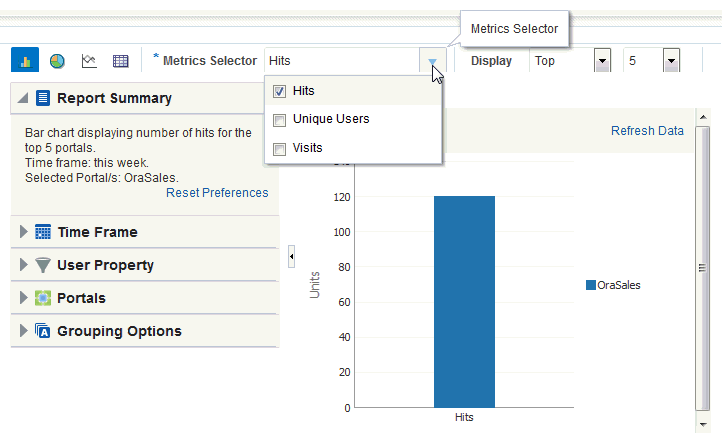
You can select which type of metrics to include in your report. Your metrics options differ depending on the task flow you are using:
To select which metrics to include in your report, select the metrics from the list above the report.
Figure: Analytics Task Flow - Metrics Selection
Description of the illustration wcsug_as_metrics.gif
Top, Bottom, or Custom Ranges
With some task flows you can specify whether you want to see the top, bottom, all, or a custom ranges of metrics in your report. Use these options to see the most and least popular items in your portal.
To display the top or bottom ranges of metrics in your report, in the lists above the report, select Top or Bottom, and then select a number to define the range.
To display a custom range, in the list above the report, select Specify, then click Select.
The top and bottom options are available for Pages, Portlet Traffic, Portlet Instances Traffic, Response Time, Portlet Response Time, Portlet Instances Response Time.
The custom range option is available for Pages, Traffic, Response Time, Portlet Traffic, Portlet Instances Traffic, Response Time, Portlet Response Time, Portlet Instances Response Time, Search Metrics, Document Metrics, Wiki Metrics, Blog Metrics.
Query Options
Analytics task flows include the following query options to the left of the report:
Note: This setting affects the available display options for the report.
See Table 41-2.