Configuring Elasticsearch in a Portal
WebCenter Portal uses Elasticsearch for searching in a portal. As a portal manager, you can tailor the search settings for a portal such as customizing the scope of the search, customizing the custom attributes or facets, and enabling saved search task flows on a portal page.
Permissions: To perform the tasks in this chapter, you must be a portal manager or a portal member with the portal-level permission
Basic Services: Edit Page Access and Structure(simple permissions) orPages: Edit Pages(advanced permissions).
For more information about permissions, see About Roles and Permissions for a Portal.
Topics
About Searching in WebCenter Portal
WebCenter Portal uses Elasticsearch for searching a portal. See Understanding Search with Elasticsearch.
In addition to the WebCenter Portal search functionality, the Documents tool provides its own search engine for file searches. This saves time and increases the relevancy of results by narrowing the scope of a search to files. The Documents tool searches within a specific portal’s document library.
Another type of search is used for finding users in the identity store (for example, by clicking the Find User icon in a Mail compose window.
Figure: Find User Icon in a Mail Compose Window

Description of the illustration wcsug_mail_finduser.gif
Understanding Search with Elasticsearch
Elasticsearch is a highly scalable search engine. It allows you to store, search, and analyze big volumes of data quickly and provides a distributed, multitenant-capable full-text search engine with an HTTP web interface and schema-free JSON documents.
Advantages of Elasticsearch
-
Elasticsearch provides full-text search capabilities as it is built on Lucene.
-
Elasticsearch is document-oriented. It stores data as structured JSON documents and indexes all fields by default, with a higher performance result.
-
Elasticsearch is API driven; actions can be performed using a simple Restful API.
-
Elasticsearch retrieves search results fast because it searches an index instead of searching the text directly.
You can configure Elasticsearch to search the following resources in WebCenter Portal:
-
Documents, including wikis and blogs
-
Portals, page metadata, page content (contents of HTML, Text and Styled Text components), lists, and people resources
Customizing Search Using Elasticsearch
Search settings for WebCenter Portal are configured by the system administrator in WebCenter Portal Administration. Portal managers have the option to configure the scope of the search to include search results for the Home portal only or all portals.
This section contains the following topics:
Accessing Search Settings in Portal Administration
-
In the portal administration, click Tools and Services in the left navigation pane.
-
Click Search
The Search Settings page opens.
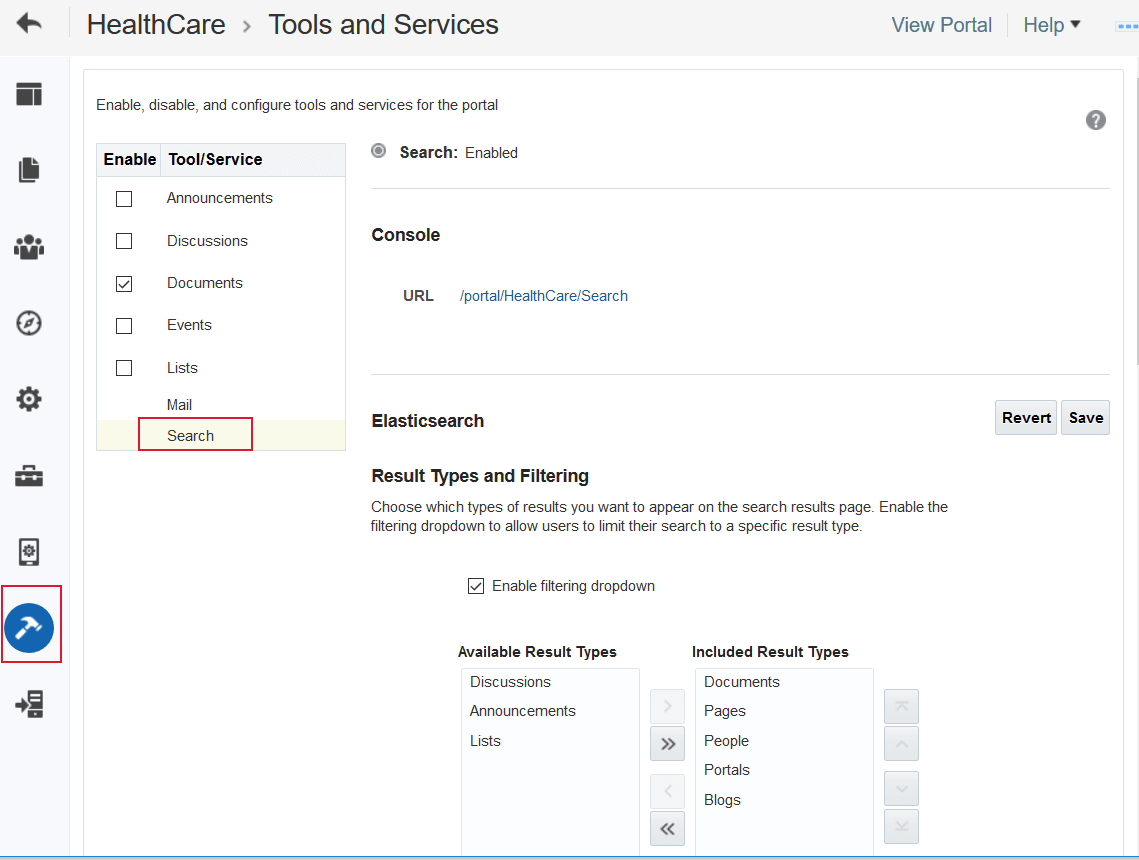
From the Search Settings page, you can configure the following:
-
Configure the result type and enable filtering. See Configuring the Result Types with Elasticsearch
-
Set the search scope. See Configuring the Search Scope with Elasticsearch
-
Configure the facets for your search results. See Configuring Facets with Elasticsearch
-
Configure the custom attributes for your search results. See Enriching Search Results Using Custom Attributes with Elasticsearch
-
Configuring the Result Types with Elasticsearch
The Result Types and Filtering section lets you choose which types of results to display in search results and what, if anything, to include in the filtering drop-down. Filtering allows users to narrow their search results using a filter list in the search results or in the global search box.
To set the result type and enable the filtering option:
-
On the Tools and Services page, select Search.
The right pane shows the search option that has been configured for WebCenter Portal. Your search environment varies depending on the type of search configured.
-
In the Result Types and Filtering ** section, select **Enable filtering drop down to enable filtering the search results based on selected services.
-
Select the desired WebCenter Portal services and move them between the Available Result Types and Included Result Types lists. Thus image shows the Result Type and Filtering option.
-
Click Save.
Configuring the Search Scope with Elasticsearch
To set the search scope in WebCenter Portal:
-
On the Tools and Services page, select Search.
The right pane shows the search option that has been configured for WebCenter Portal. Your search environment varies depending on the type of search configured.

-
Select the desired Search Scope to show results from either the current portal only or from all portals (including the Home portal).
-
Click Save.
Configuring Facets with Elasticsearch
Faceted search allows you to find information by applying multiple filters, for example, search by author, portal, or last modified date. The Facets section lets you choose which facets to display with search results for this portal. Facets let users navigate indexed data without running a new search. Faceted navigation within search lets users clarify exactly what they are looking for, or even discover something new.
To configure custom facet in WebCenter Portal:
-
On the Tools and Services page, select Search.
The right pane shows the search option that has been configured for WebCenter Portal. Your search environment varies depending on the type of search configured.
-
In the Facet section, select the desired facets and move them between the Available Facets and Included Facets lists.
You can also change the order in which the facets display.
This figure shows the facets option in Elasticsearch.
-
Click Save.
Enriching Search Results Using Custom Attributes with Elasticsearch
In the Custom Attributes section of the Search Settings page, you can select which custom search attributes should appear in search results and the order in which they appear.
To configure the custom attributes:
-
On the Tools and Services page, select Search.
The right pane shows the search option that has been configured for WebCenter Portal. Your search environment varies depending on the type of search configured.
-
In the Custom Attributes section, select the desired custom attribute and move them between the Available Attributes and Included Attributes lists.
You can also change the order in which the attributes display.
The figure shows the custom attributes in Elasticsearch.
-
Click Save.
Saving the Search Results
Enable users to add and manage the saved searches on portal pages. Portal users can save the search results and manage the saved searches on a portal page.
WebCenter Portal supports the following saved search task flows:
-
Elasticsearch provides full-text search capabilities as it is built on Lucene.
-
Elasticsearch is document-oriented. It stores data as structured JSON documents and indexes all fields by default, with a higher performance result.
-
Elasticsearch is API driven; actions can be performed using a simple Restful API.
-
Elasticsearch retrieves search results fast because it searches an index instead of searching the text directly.0
Topics:
-
Elasticsearch provides full-text search capabilities as it is built on Lucene.
-
Elasticsearch is document-oriented. It stores data as structured JSON documents and indexes all fields by default, with a higher performance result.
-
Elasticsearch is API driven; actions can be performed using a simple Restful API.
-
Elasticsearch retrieves search results fast because it searches an index instead of searching the text directly.1
Adding a Saved Search Task Flow to a Page
When you add a Saved Search task flow to a page, WebCenter Portal users can view, customize, and run the saved search on a portal page.
For the steps to add one or more Saved Search task flows to a page, see Adding a Component to a Page.
Note:
The presence or location of the Saved Search task flows in the resource catalog depends on how the resource catalog is configured. For example, in the default resource catalog, the Saved Search task flows are included under the Tagging and Searching folder.
Working with Saved Search Task Flow Properties
Saved Search task flows have associated properties, which users with sufficient privileges can access through the task flows’ View Actions menu. For example, select Parameters to display the Parameters dialog.
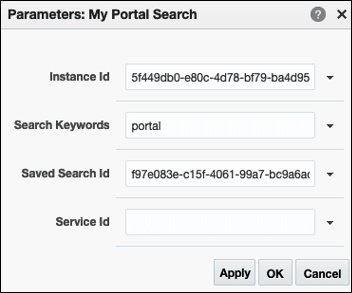
See Also: Setting Properties on a Component.
The following sections provide information about properties of Saved Search task flows and describe the task flow parameters:
-
Elasticsearch provides full-text search capabilities as it is built on Lucene.
-
Elasticsearch is document-oriented. It stores data as structured JSON documents and indexes all fields by default, with a higher performance result.
-
Elasticsearch is API driven; actions can be performed using a simple Restful API.
-
Elasticsearch retrieves search results fast because it searches an index instead of searching the text directly.2
Setting Saved Search Task Flow Properties
In the page editor, selecting any component exposes a View Actions menu, which provides access to the component’s properties: Parameters, Access, Display Options, Style, and Content Style.
To set the Saved Search task flow properties:
-
Elasticsearch provides full-text search capabilities as it is built on Lucene.
-
Elasticsearch is document-oriented. It stores data as structured JSON documents and indexes all fields by default, with a higher performance result.
-
Elasticsearch is API driven; actions can be performed using a simple Restful API.
-
Elasticsearch retrieves search results fast because it searches an index instead of searching the text directly.3
Saved Search Task Flow Parameters
The following table describes the parameters that are unique to the Saved Searches task flow.
Note:
The All Saved Searches task flow does not have any unique properties, and therefore no parameters are shown in the Parameters dialog.
Table 1: Saved Searches Task Flow Parameters
| Parameter | Description |
|---|---|
Instance Id |
The unique ID of the instance. |
Search Keywords |
The keywords or terms used to search. |
Save Search Id |
The unique ID of the saved search. |
Service Id |
The unique ID of the service. |
Working with Saved Search Task Flows
For information about how users work with Saved Search task flows, see in Saving Your Search Results in Using Portals in Oracle WebCenter Portal.