Prerequisites
This topic explains the prerequisites for backing up and restoring your databases in Oracle AI Database@Azure.
Oracle Database Autonomous Recovery Service
This topic explains how to enable Autonomous Recovery Service for Exadata Database(s) and Exascale Database(s).
Note:
- You must complete the following steps before proceeding to Backup Exadata Database and Backup Exascale Database for Automatic Database Backups using Autonomous Recovery Service.
Ensure Tenancy Resource Limits Are Sufficient for Recovery Service
-
From the OCI console, navigate to Governance & Administration.
-
From the Tenancy Management section, select the Limits, Quotas and Usage link.
-
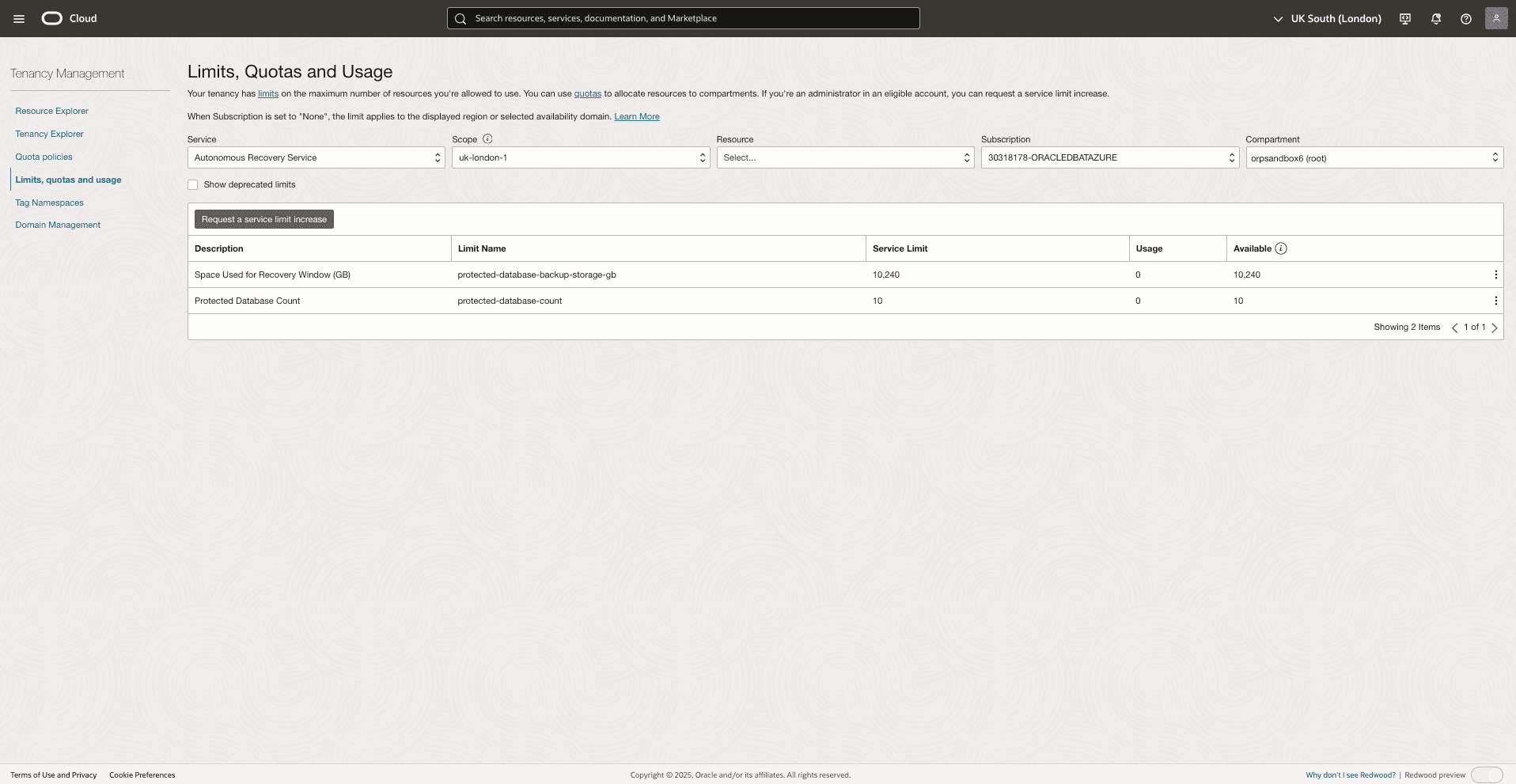
Use the Service, Scope, Resource, Subscription and Compartment fields to filter the limits.
-
From the Service dropdown list, select the Autonomous Recovery Service option.
-
From the Subscription dropdown list, select your subscription.
-
From the Scope dropdown list, select your region.
-
-
Check the availability of the following limits.
-
Protected Database Count
-
Space Used for Recovery Window (GB)
-
-
If it is required, you can create a Service Limit Request.
Verify Required Group and Set OCI Policies
-
Use the existing Oracle AI Database@Azure groups which are created as a part of onboarding, or create new group(s) to administer Autonomous Recovery Service.
-
Create the required IAM policies for the recovery services at root compartment.
-
From the OCI console, navigate to Identity & Security, and then select the Identity.
-
From the left menu, select the Policies section, and then select the Create Policy button.
-
To create an IAM policies for Oracle AI Database@Azure Autonomous Recovery Service usage, complete the following substeps.
-
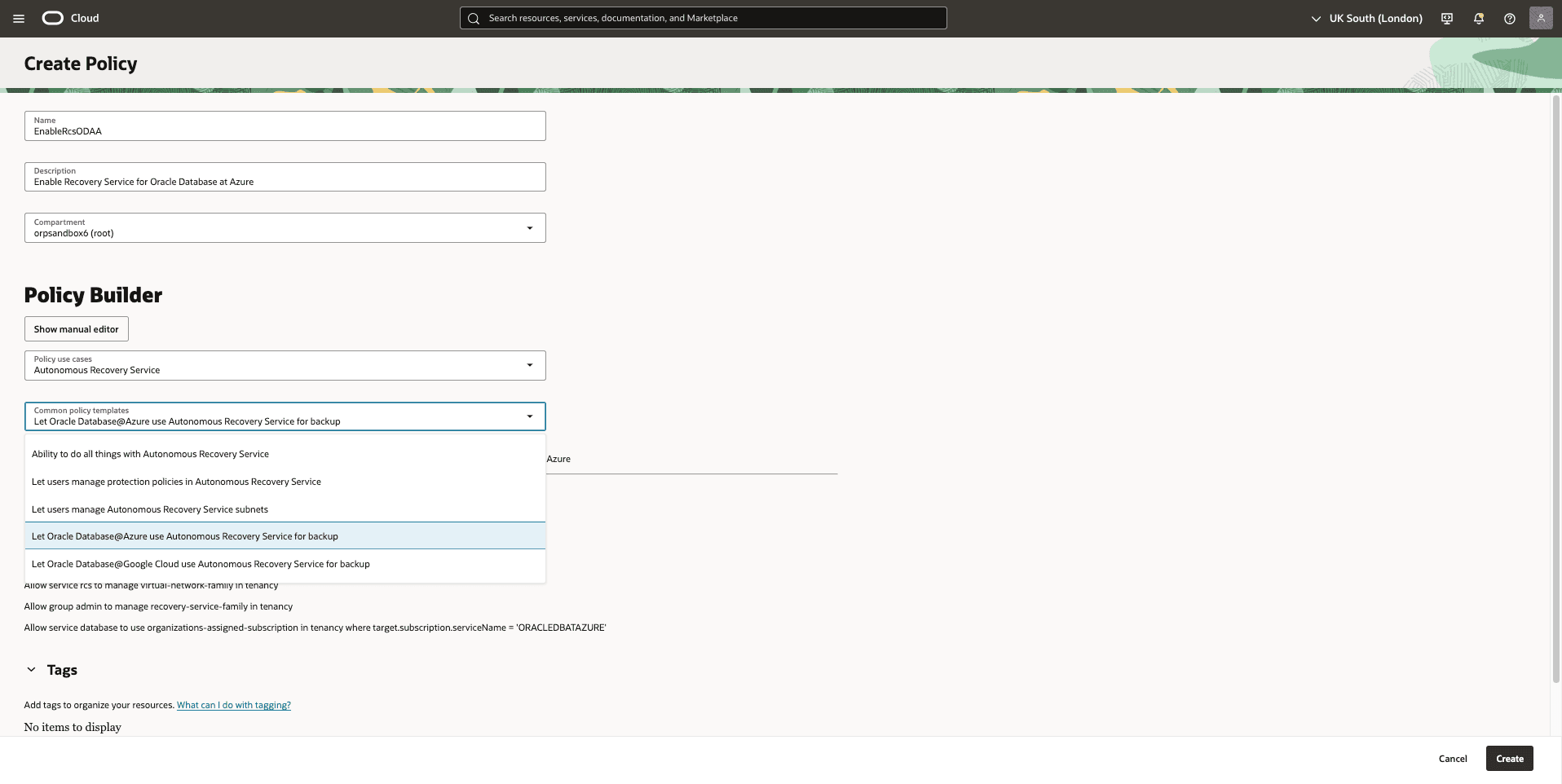
Create the related policy using the Policy Builder by selecting:
-
Policy use cases: Select the Autonomous Recovery Service from the list.
-
Common policy templates: Select the Let Oracle AI Database@Azure use Autonomous Recovery Service for backup option from the list.
-
-
Alternatively, you can use manual editor to add related IAM policy statements.
-
To allow Oracle AI Database@Azure use Autonomous Recovery Service for backup, use the following policy statements.
Allow service database to manage recovery-service-family in tenancy Allow service database to manage tagnamespace in tenancy Allow service rcs to manage recovery-service-family in tenancy Allow service rcs to manage virtual-network-family in tenancy Allow service database to use organizations-assigned-subscription in tenancy where target.subscription.serviceName = 'ORACLEDBATAZURE' -
To allow users to manage or use Autonomous Recovery Service in the appropriate groups created above, use the following policy statements.
allow group odbaa-db-family-administrators to manage recovery-service-family in tenancy
allow group odbaa-db-family-administrators to use recovery-service-family in tenancy
allow group odbaa-db-systems-administrators to manage recovery-service-family in tenancy
allow group odbaa-db-systems-administrators to use recovery-service-family in tenancy
-
-
Note:
The manage permission allows editing Autonomous Recovery Service, policies and subnets, in addition to configuring database backups with Autonomous Recovery Service, whereas the use permission only allows configuring database backups.
Configure Network Resources for Recovery Service
-
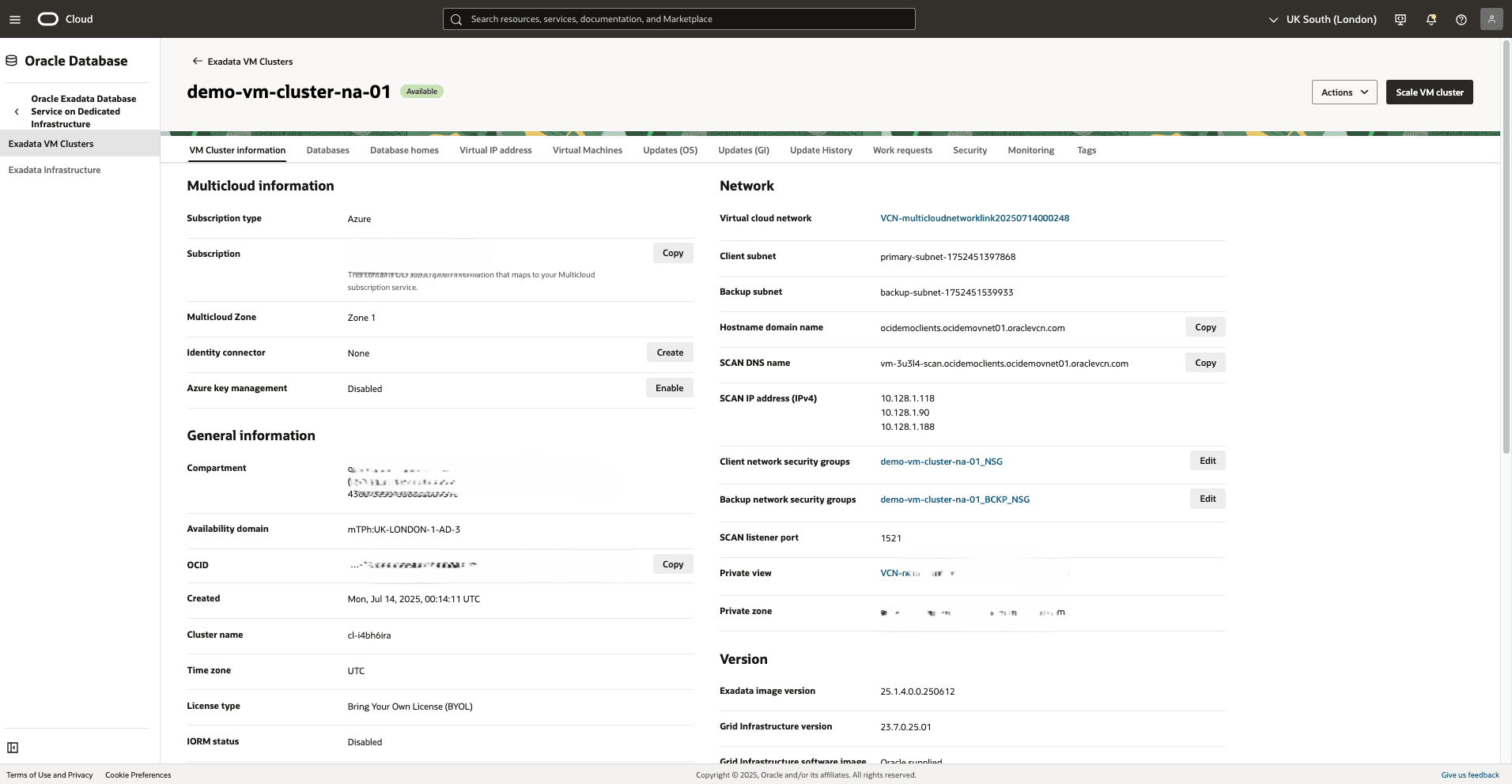
From the OCI console, navigate to Exadata VM Clusters, and then select your Exadata VM Cluster.
-
Select the VM Cluster information tab, and then ensure the VM Cluster name on the OCI console matches the intended name.
-
From the VM Cluster information page, make a note of the names of the Virtual cloud network, Backup subnet, and Backup network security groups.
-
In the VM Cluster Information tab, right-click the link next to Virtual Cloud Network and open it in a new browser tab.
-
Navigate to the Subnets tab.
-
Make sure the IPv4 CIDR block of the backup subnet is at least /24 (256 IP addresses). If it is not, you must create a new subnet with a CIDR block of at least /24.
-
-
Navigate to Oracle Database, and then select Database Backups.
-
From the Recovery Service Subnets section, and then select the Register Recovery Service subnet button.
-
Enter a descriptive Name for your recovery service subnet.
-
From the dropdown list, select your compartment where the recovery service subnet will be created.
-
Select the Compartment and Virtual cloud network from the list.
-
From the Subnets section, select your Compartment and Subnets information.
-
Expand the Advanced options section, and then enable the Use network security groups to control traffic option.
-
Select the Backup network security group of the VM cluster that you are using.
-
Once you complete, select the Register button.
-
If it is successful, the State of Recovery Service subnet will change to Active.
-
-
In the VM Cluster Information tab, right-click the link next to Backup network security groups, and open it in a new browser tab.
-
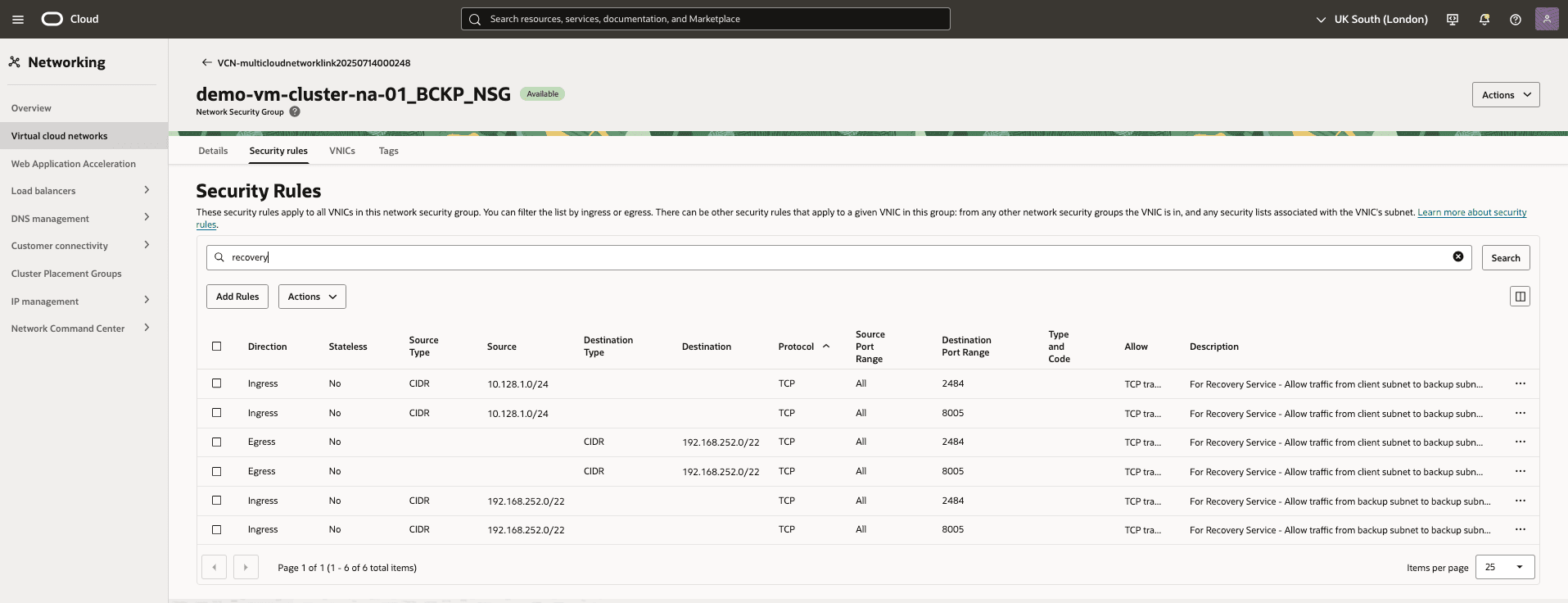
Navigate to the Security rules tab.
-
Add stateful ingress rules to allow access from the entire CIDR range of the VCN where the database resides, permitting all source ports to destination ports 2484 and 8005.
-
Add egress rules to allow access to destination ports 2484 and 8005 from the full CIDR range of the VCN where the database resides.
-
Create Autonomous Recovery Service Protection Policy(s) with locality enforcement
-
Navigate to Oracle Database, select Database Backups, and then select the Protection policies.
-
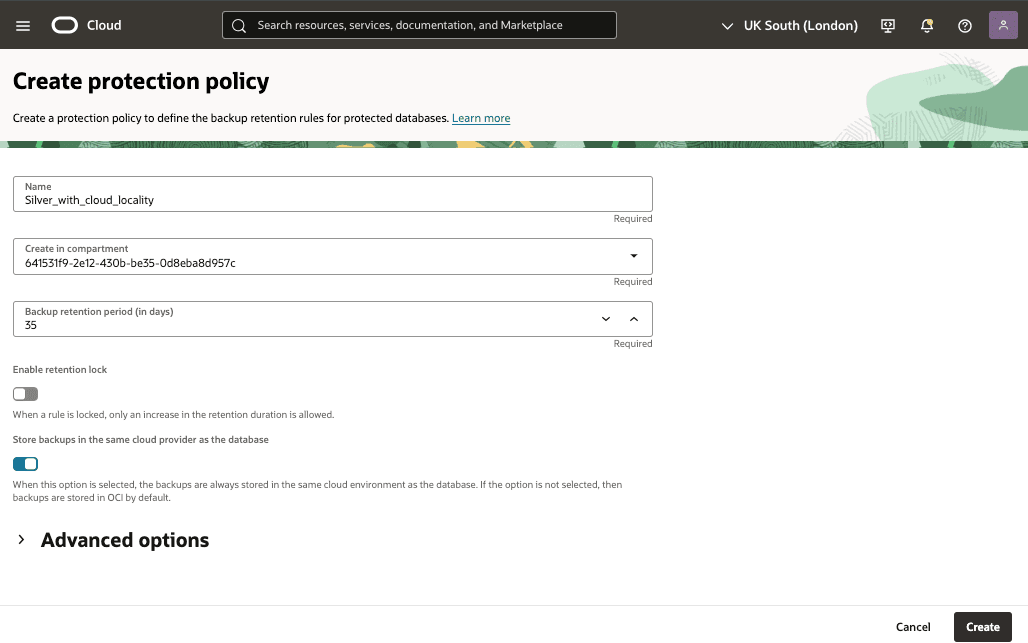
To create protection policies, select the Create protection policy, and then complete the following substeps.
-
Enter a descriptive Name for your protection policy.
-
Select the Create in compartment from the list.
-
Select your Backup retention period ( in days).
-
Enable the retention lock option if it is required.
-
Enable the Store backups in the same cloud provider as the database option if you want to store the backups in Azure.
-
OCI Object Storage
This topic explains the prerequisites for connecting to the Object Storage service and accessing Object Storage nodes using a Static Route.
-
From the OCI console, navigate to the Virtual cloud network from the VM Cluster information page.
-
Select the Gateways tab, and then ensure a Service Gateway is attached.
-
Select the Routing tab, and add the routing rule for Service Gateway if it is not already created.
-
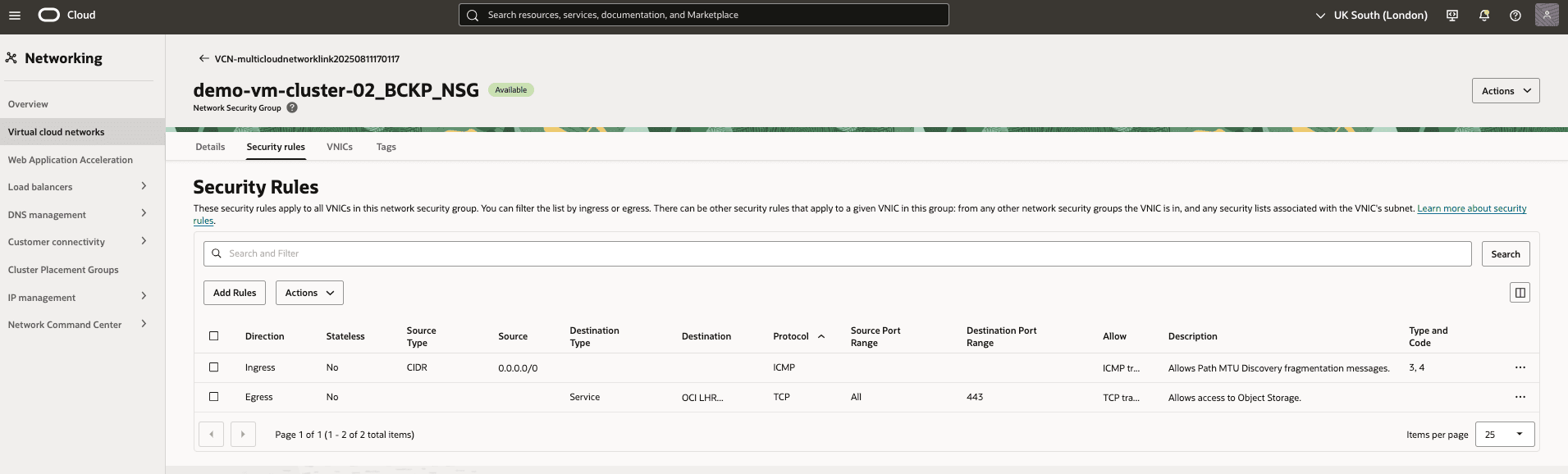
Navigate back to VM Cluster information tab, and then click the link next to Backup network security groups.
-
Add the Egress rule to allow access to Object Storage if it not already created.
-
-
Node Access to Object Storage via Static Route.
-
This step is not required if you’re using automatic backup.
- When you enable the first automatic backup for a database the static route configuration will be automatically done on the service.
-
If you are not creating automatic backups, you must configure a static route for Object Storage access on each compute node.
-
For more information, see the following resource: