Exadata Database
This topic explains how to configure Oracle Data Guard from the OCI Console.
To configure cross-zone or cross-region network connectivity, complete the Prerequisites section.
Note:
-
The following steps describe how to configure Oracle Data Guard for Oracle-managed keys and customer-managed keys.
-
For step-by-step instructions to configure a customer-managed key, see Protect Exadata Database.
Configure Oracle Data Guard on Exadata Database in Oracle AI Database@Google Cloud
These steps describe how to enable Oracle Data Guard for Oracle Exadata Database Service on Dedicated Infrastructure.
-
From the Google Cloud Console, select the primary instance and then select the Manage in OCI button to open the OCI Console.
-
Or, from the OCI console, select Oracle AI Database, and then select Exadata Database Service on Dedicated Infrastructure or Exadata Database Service on Exascale Infrastructure.
-
From the left menu, select Exadata VM Clusters, and then select the name of your Exadata VM Cluster.
-
Select the Databases tab, then select the database that you want to configure with Oracle Data Guard.
-
Select the Data Guard Group tab, then select the Add standby button.
-
From the Add standby page, enter the following information:
-
Choose Use the new Data Guard Group resource or Use the existing Data Guard Association resource as your Data Guard resource Type.
-
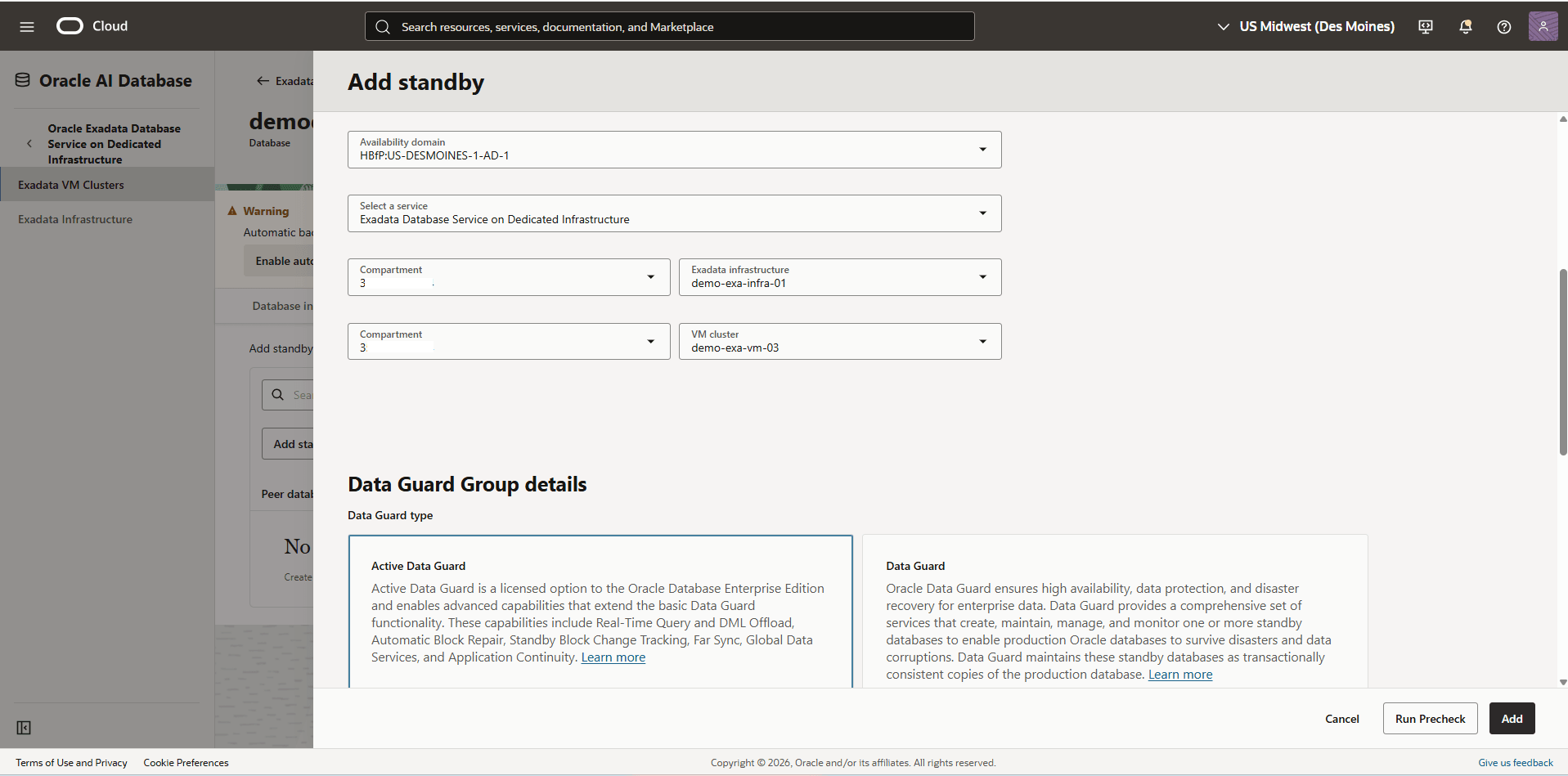
Select the Peer region where the standby database will be running.
-
Select the Availability domain where the standby Oracle Exadata Database Service on Dedicated Infrastructure is deployed.
Note
Note:
-
For cross-region Data Guard, make sure to select a different region than the source.
-
For cross-zone Data Guard, make sure to select the same region and a different Availability Domain than the source.
-
-
From the Select a service dropdown list, select Exadata Database Service on Dedicated Infrastructure.
-
Select Compartment and Exadata Infrastructure from the dropdown list. Select the Exadata Infrastructure where the standby will be running. If the standby database will be running on an infrastructure on a different compartment, select the corresponding compartment. By default, the same compartment as the primary database is selected.
-
Select Compartment and VM Clusters from the dropdown list. Select the VM cluster where the standby database will be running. If the standby database will be running on a VM cluster on a different compartment, select the corresponding compartment. By default, the same compartment as the primary database is selected.
-
Select Active Data Guard or Data Guard as Data Guard type. Active Data Guard provides additional features including: Real-Time Query and DML Offload, Automatic Block Repair, Standby Block Change Tracking, Far Sync, Global Data Services, and Application Continuity.
Note
Note:
-
Active Data Guard requires an Oracle Active Data Guard license. For more information on Active Data Guard, see Active Data Guard.
-
For a complete overview of both Data Guard types, see Introduction to Oracle Data Guard.
-
-
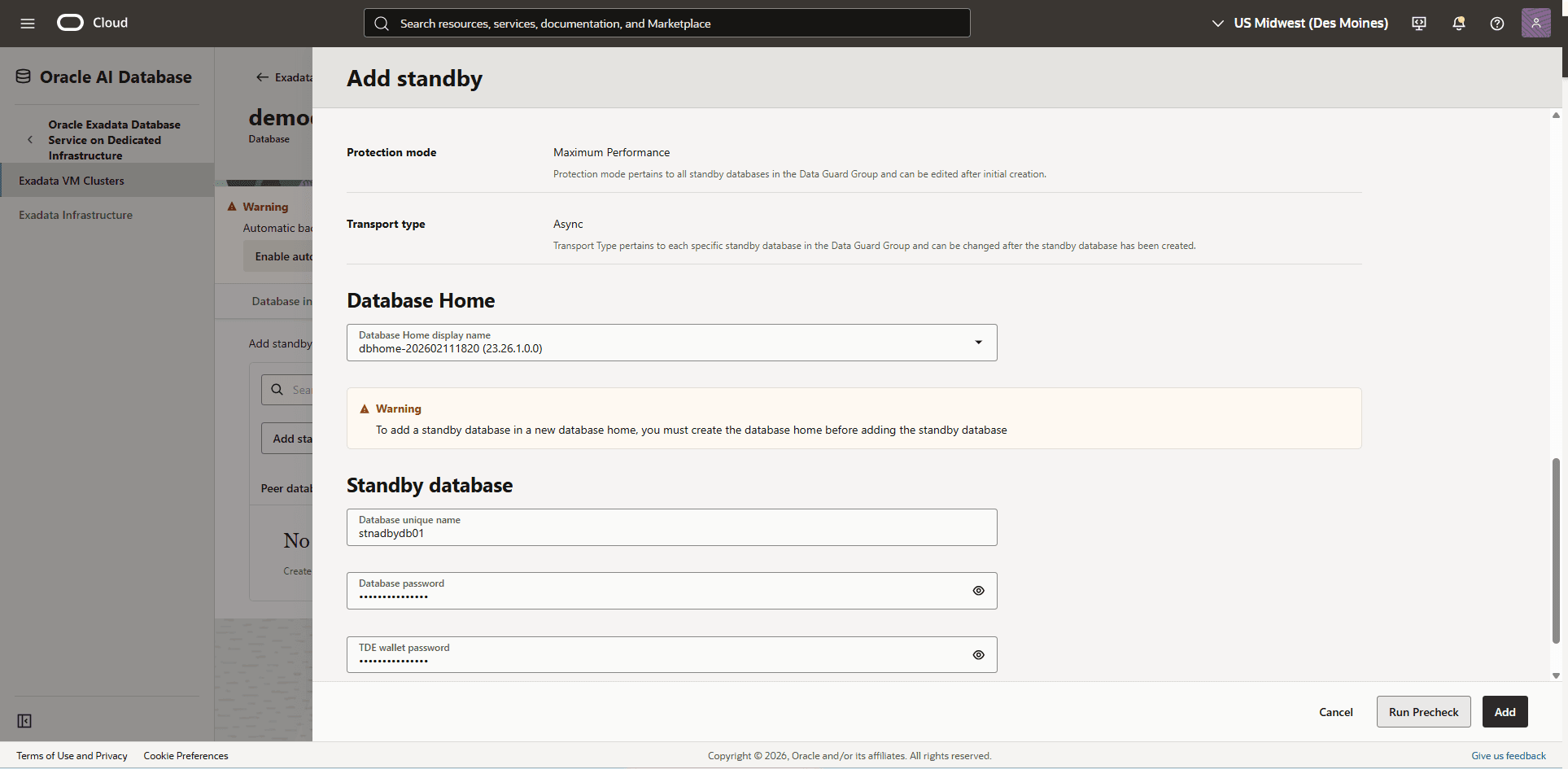
The Protection mode field is set to Maximum Performance by default.
-
The Transport type field is set to Async by default. This is the only supported option for cross-region Data Guard.
Note
Note: For cross-region Data Guard, the Maximum Performance protection mode and Async Transport type are supported. -
From the Database Home display name dropdown list, select your existing Database Home. Ensure the database home runs the same Oracle AI Database software version and patches as the primary.
-
Enter a name in the Database unique name field for the peer standby database.
Note
Note:
You cannot modify the
db_unique_nameand SID prefix after creating the database.-
Database unique name: Optionally, specify a value for the
DB_UNIQUE_NAMEdatabase parameter. This value must be unique across the primary and standby cloud VM clusters. The unique name must meet the requirements:- Maximum of 30 characters
- Contain only alphanumeric or underscore (_) characters
- Begin with an alphabetic character
- Unique across the VM cluster. Recommended to be unique across the tenancy.
If not specified, the system automatically generates a unique name value, as follows:
<db_name>_<3_chars_unique_string>_<region-name>
-
-
Enter the database administrator password of the primary database. Use this same database administrator password for the standby database.
Note
Note: The administrator password and the TDE wallet password must be identical. If the passwords are not identical, then follow the instructions in Changing the Database Passwords to ensure that they are. -
Enter the TDE wallet password.
-
Expand the Advanced options section to specify settings for the standby database.
-
In the Management section, you can specify Oracle SID prefix. The Oracle AI Database instance number is automatically added to the SID prefix to create the
INSTANCE_NAMEdatabase parameter. The INSTANCE_NAME parameter is also known as the SID. If not provided, then the SID prefix defaults to the first 12 characters of thedb_unique_name.Note
Note:
Entering an SID prefix is only available for Oracle 12.1 databases and above.
The SID prefix must meet the requirements:
- Maximum of 12 characters
- Contain only alphanumeric characters
- Begin with an alphabetic character
- Unique in the VM cluster and across primary and standby databases
-
In the Tags section, you can add tags to the database. To apply a defined tag, you must have permissions to use the tag namespace. For more information about tagging, see Resource Tags.
-
-
Select the Run Precheck button to initiate the precheck tasks.
Note
Note:
When you select the Run Precheck button, the following actions are performed:
-
The system closes the Add Standby page.
-
A message appears on the Primary Database Details page indicating that the Data Guard precheck is in progress, and the Add Standby button is disabled.
Select the View Details link to navigate to the Work Requests page for the status:
-
Review the precheck status: Succeeded or Failed.
-
If the precheck has failed, then resolve the reported errors and retry the Data Guard setup.
While the precheck is running, the primary database and the VM Cluster remain in the AVAILABLE state.
-
-
Once the precheck tasks have successfully finished, select the Data Guard Associations tab, then select the Add button.
-
Repeat the configuration steps previously outlined in Step 5, then select the Add button.
Note
Note:
-
A work request is issued to configure the Data Guard association. The progress of the request and the stages of provisioning can be viewed on the Work Requests page of the respective Standby database.
-
When the association is created, the details for a database and its peer display their respective roles as Primary or Standby.
-
After the work request is complete, a new database is created in the standby VM Cluster, and a Data Guard Group or Association is created between the two databases. The new database is configured as a standby database.
-
-