Prerequisites
This section describes how to set up network connectivity between the primary database and the standby database across zones or regions for Oracle Data Guard.
You can route traffic by using either the Oracle Cloud Infrastructure network or the Google Cloud network.
The following steps describe how to configure cross-zone and cross-region setups. These steps apply to Oracle Exadata Database Service on Dedicated Infrastructure, Oracle Exadata Database Service on Exascale Infrastructure and Oracle Base Database Service.
After you set up connectivity, follow the Data Guard documentation to enable replication.
For Application continuity configuration, and Maximum Availability Architecture (MAA), see Oracle Maximum Availability Architecture for Oracle AI Database@Google Cloud.
Cross-Zone
This section guides you through the complete setup of the network configuration to establish data replication by using either an OCI network or a Google Cloud network across Google Cloud availability zones.
Connectivity by OCI Network
The following diagram illustrates the architecture diagram for configuring cross-zone by OCI network in a single Google Cloud region.
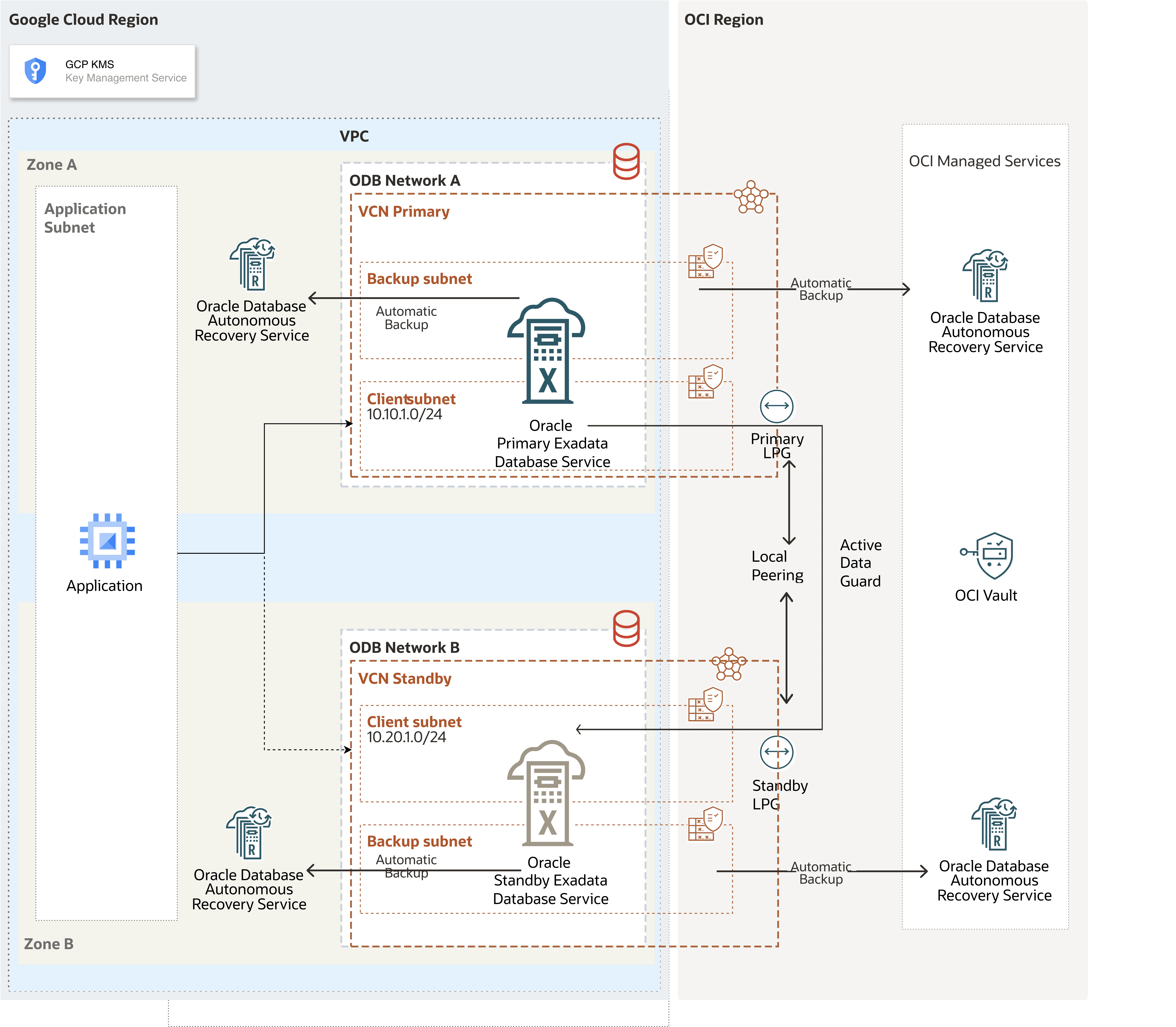
Oracle AI Database@Google Cloud runs in the primary zone. For data protection, Oracle Data Guard replicates data to a standby zone.
In this architecture, the Google Cloud VPC spans in the region, the application subnet is regional and the ODB networks are deployed in each zones with non-overlapping CIDR ranges.
This architecture directs primary-to-standby network traffic through the OCI network to improve network throughput and latency. The VCNs on the OCI site are created automatically after Oracle AI Database@Google Cloud creates the deployments for the primary and standby databases.
In this architecture:
-
The primary Exadata VM Cluster is deployed in the primary zone, ODB network A,
Primary VCNand the client subnet CIDR10.10.1.0/24. -
The standby Exadata VM Cluster is deployed in the standby zone and uses ODB network B,
Standby VCN, and the client subnet CIDR10.20.1.0/24.
Configure the Network in the Primary Zone
Configure the network in the primary zone by using the following steps:
-
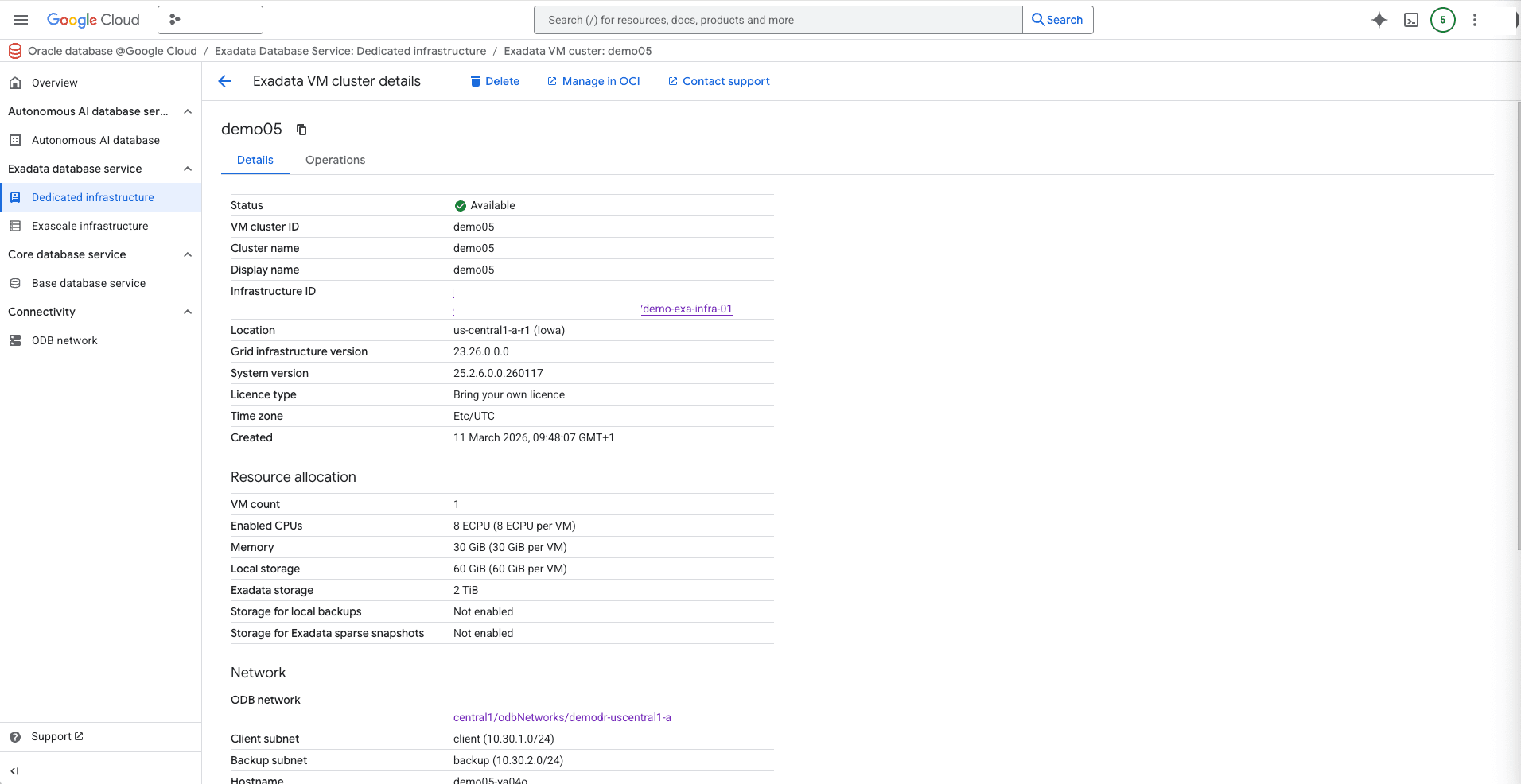
From the Google Cloud Console, select the primary instance and then select Manage in OCI to open the OCI Console.
-
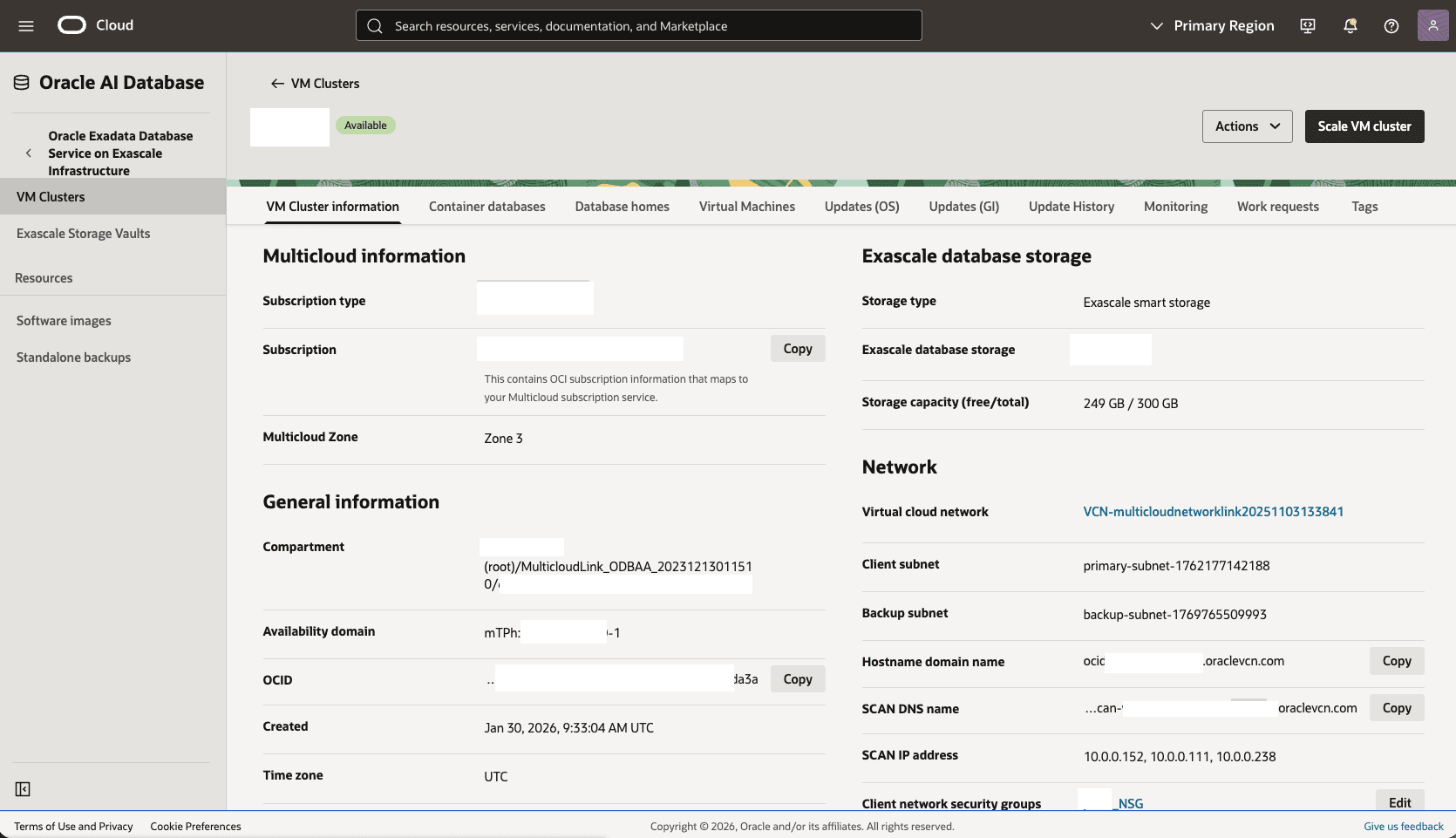
From the OCI console, scroll down to the Network section, then select the Virtual Cloud Network.
-
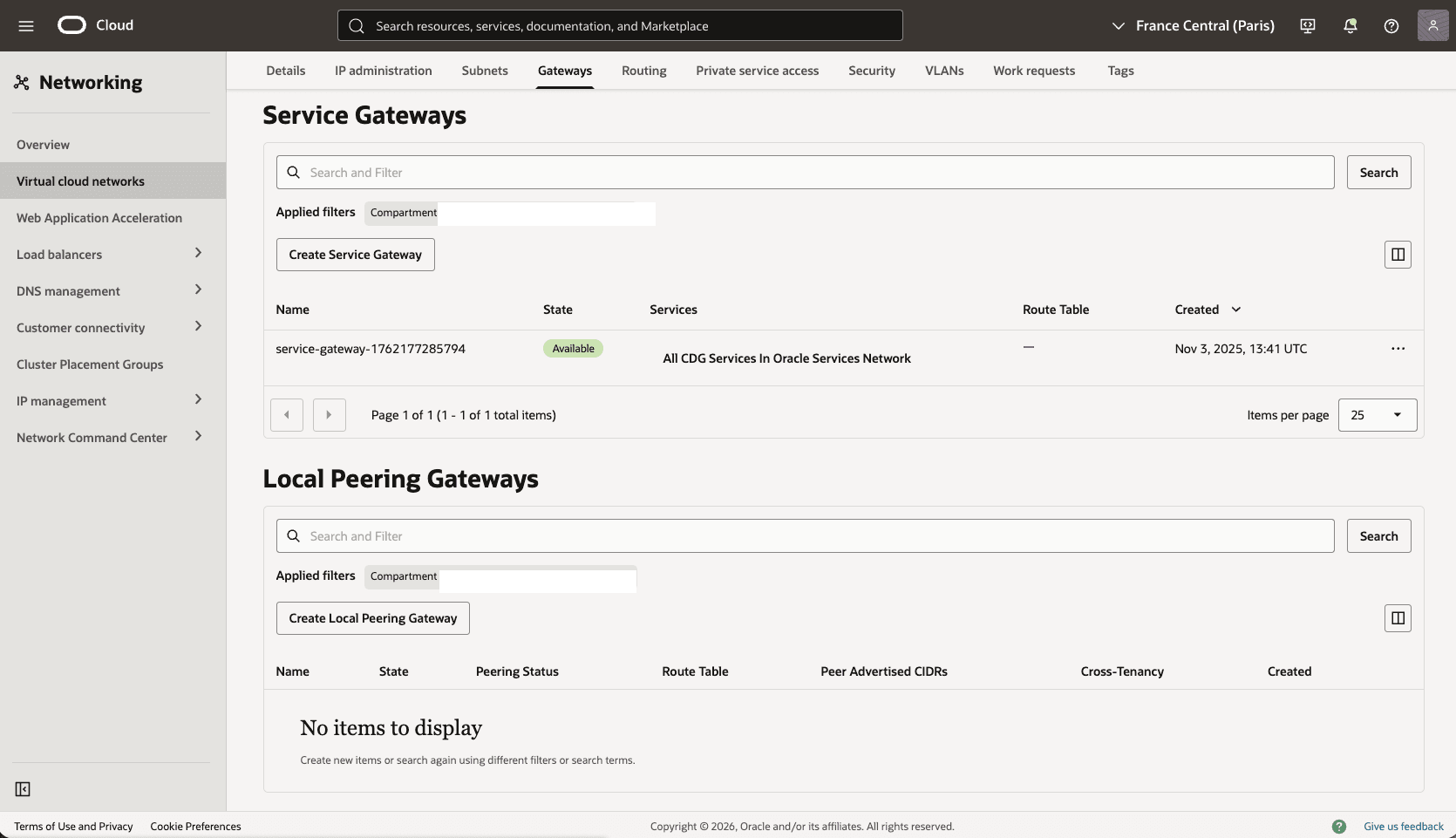
In the Virtual Cloud Networks detail page, select the Gateways tab.
-
Scroll down to the Local Peering Gateways section, and then select the Create Local Peering Gateway button.
-
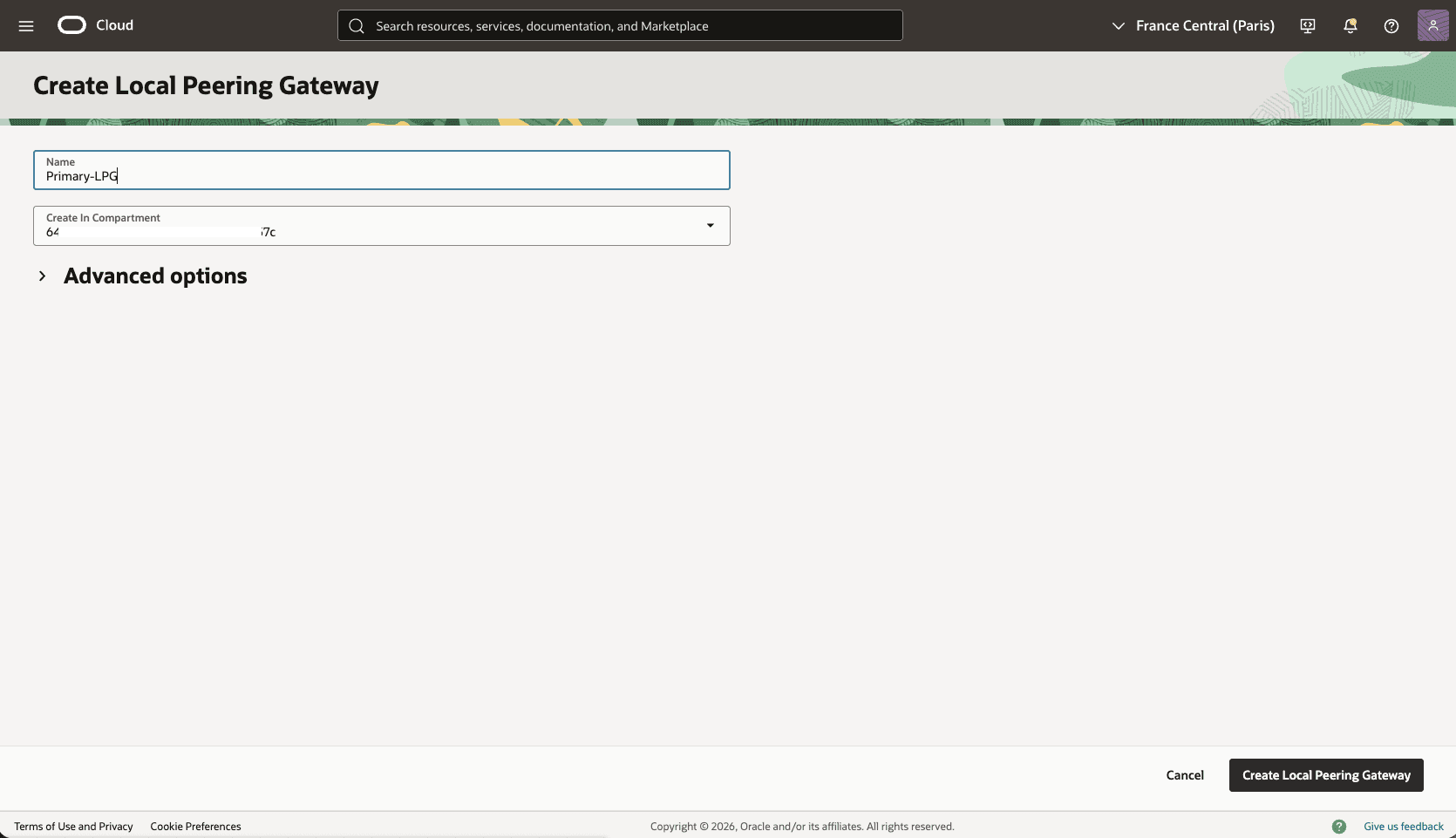
Choose a name, for example,
Primary-LPG, and then select the Create Local Peering Gateway button. Record the local peering gateway OCID. -
The Advanced options section is optional.
-
Select the Create Local Peering Gateway button.
-
-
Update the OCI network security group for your primary VM cluster to allow traffic from the standby network.
-
In the Virtual Cloud Networks detail page, select the Security tab, scroll down to the Network Security Groups section, and then select the name of your VM Cluster Network Security Groups.
-
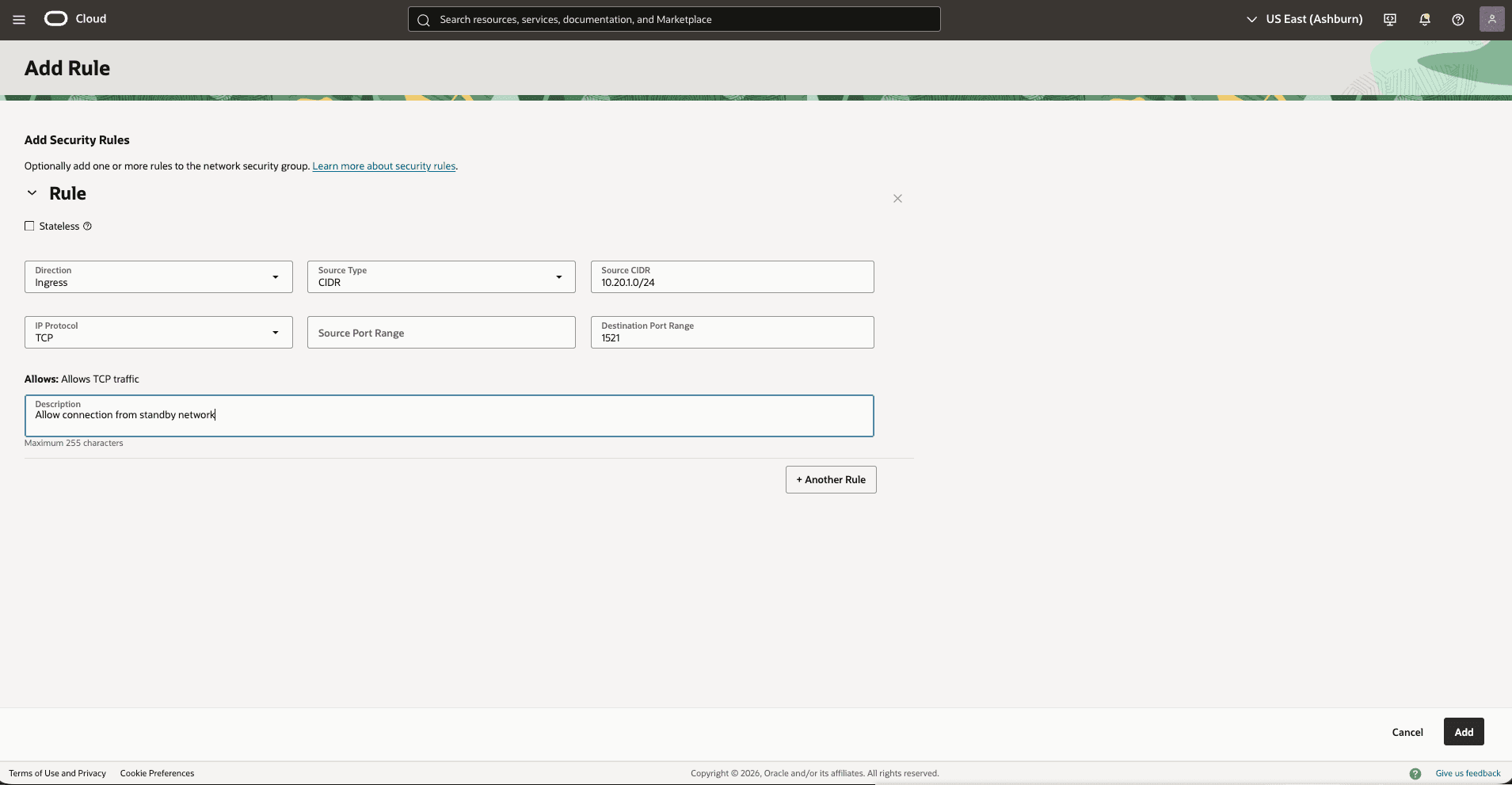
Select the Security rules tab. Select Add Rules, and then create a rule with the following specifications.
-
Direction: Ingress
-
Source Type: CIDR
-
Source CIDR: Enter your stand by CIDR block. For example,
10.20.1.0/24 -
IP Protocol: TCP
-
Source Port Range: Empty (All)
-
Destination Port Range: 1521
-
Description: Enter a description for this rule,
-
Select the Add button.
-
-
-
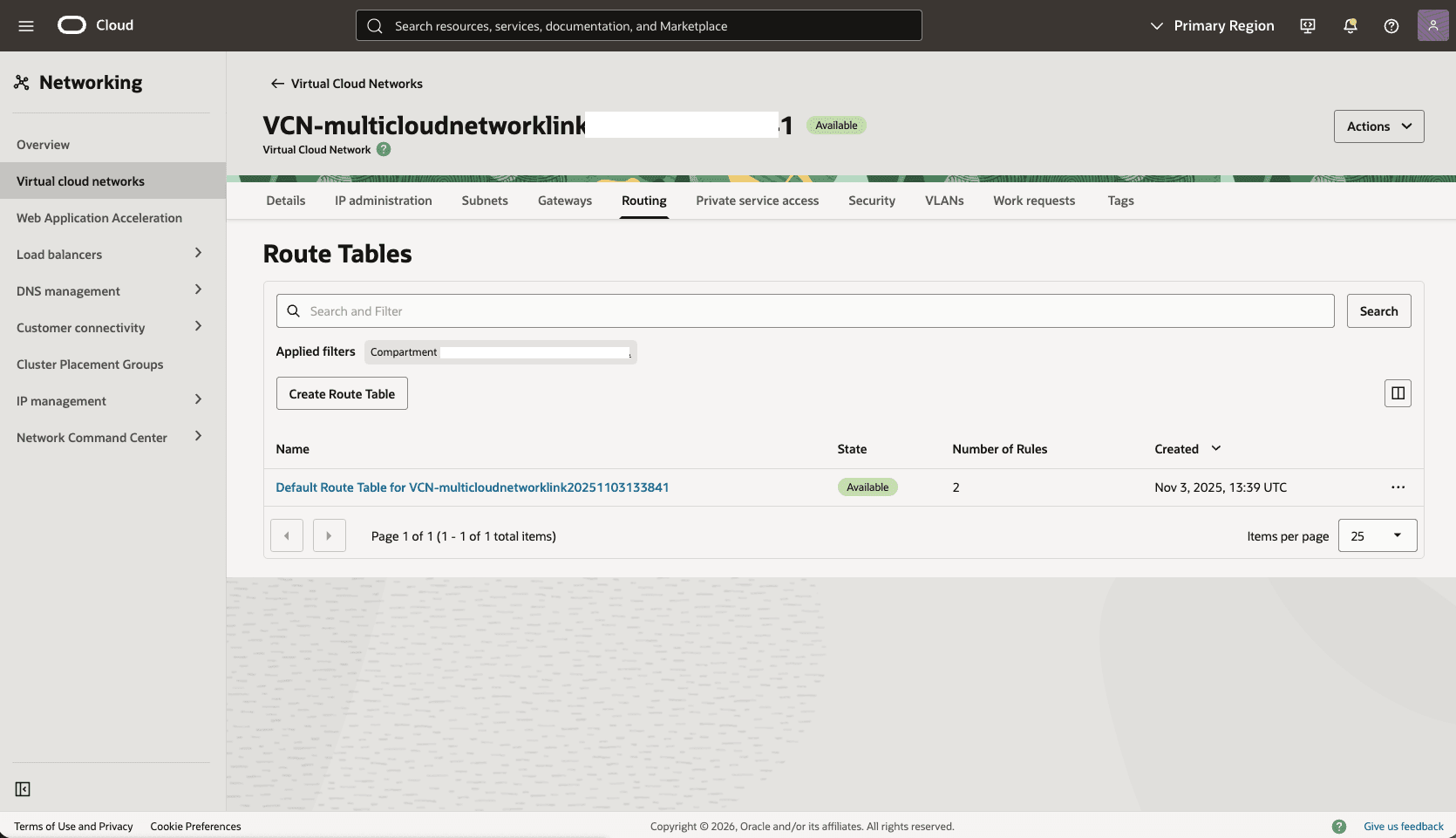
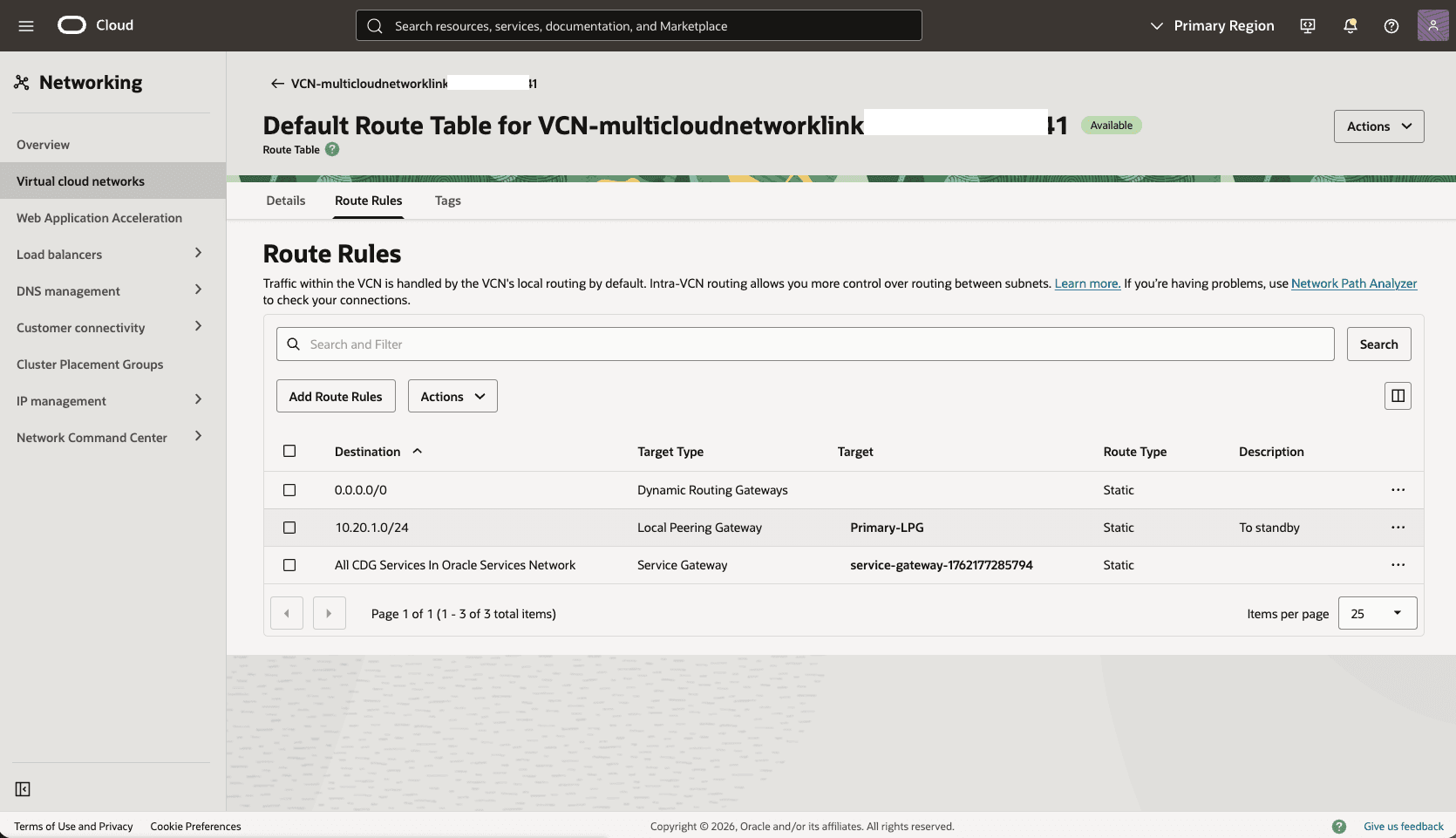
Add a route rule to the default route table in the primary VCN to route standby traffic to Primary-LPG.
-
In the primary Virtual Cloud Networks detail page, select the Routing tab, select the name of your default route table.
-
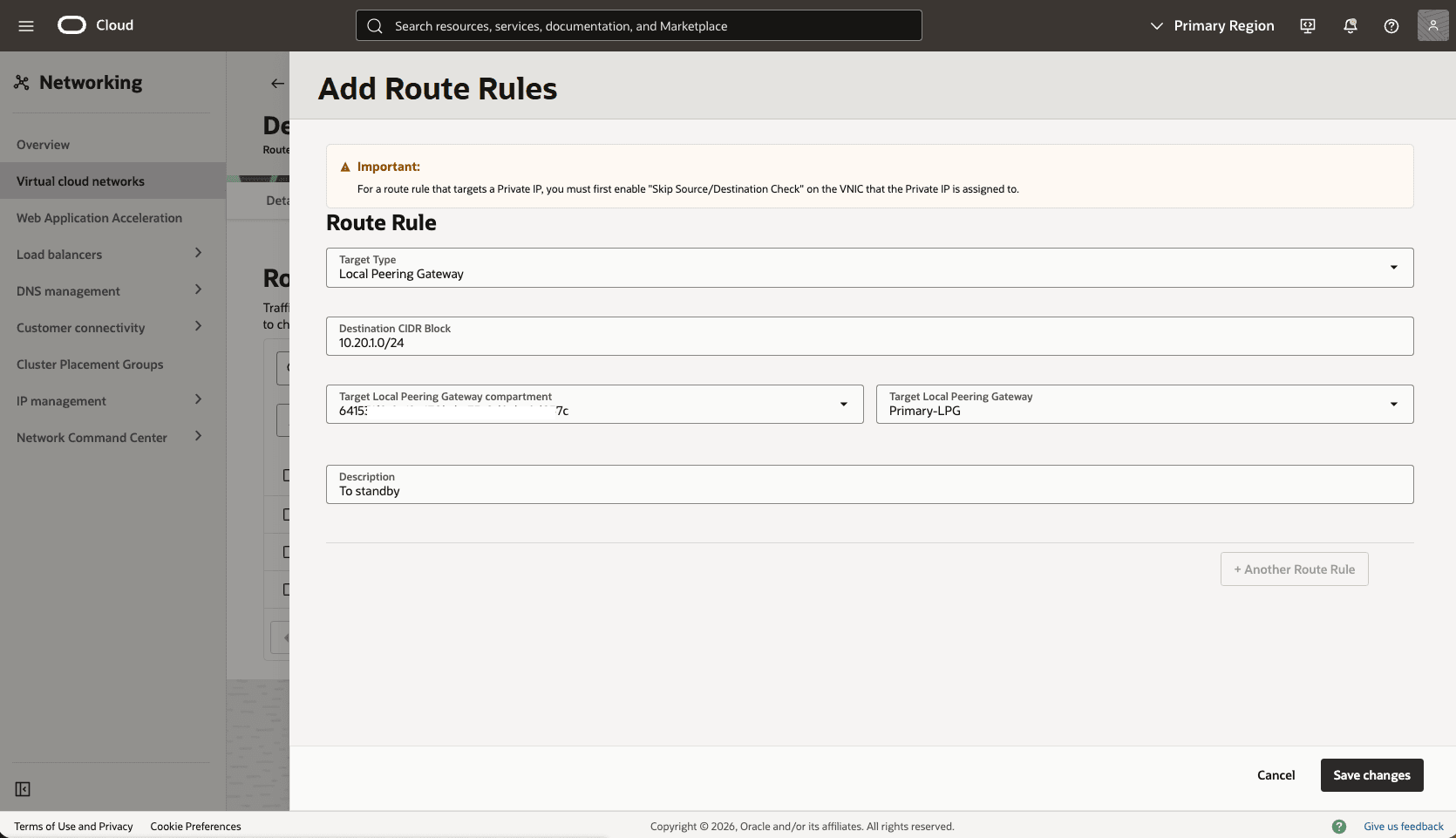
Select the Route Rules tab, and then select the Add Route Rules button.
-
Route Rule: Local Peering Gateway
-
Destination CIDR Block: Enter your standby CIDR block. For example,
10.20.1.0/24 -
Target Local Peering Gateway Compartment: Select the compartment that you created the local peering gateway in the previous step.
-
Target Local Peering Gateway: Select your Local Peering Gateway.
-
Description: Enter a description for this Route rule.
-
Select the Add Route Rules button.
-
-
Configure the Network in the Standby Zone
Configure the network in the standby availability zone by using the following steps:
-
From the OCI console select the name of your standby VM Cluster, Scroll down to the Network section, and then select the standby Virtual cloud network link.
-
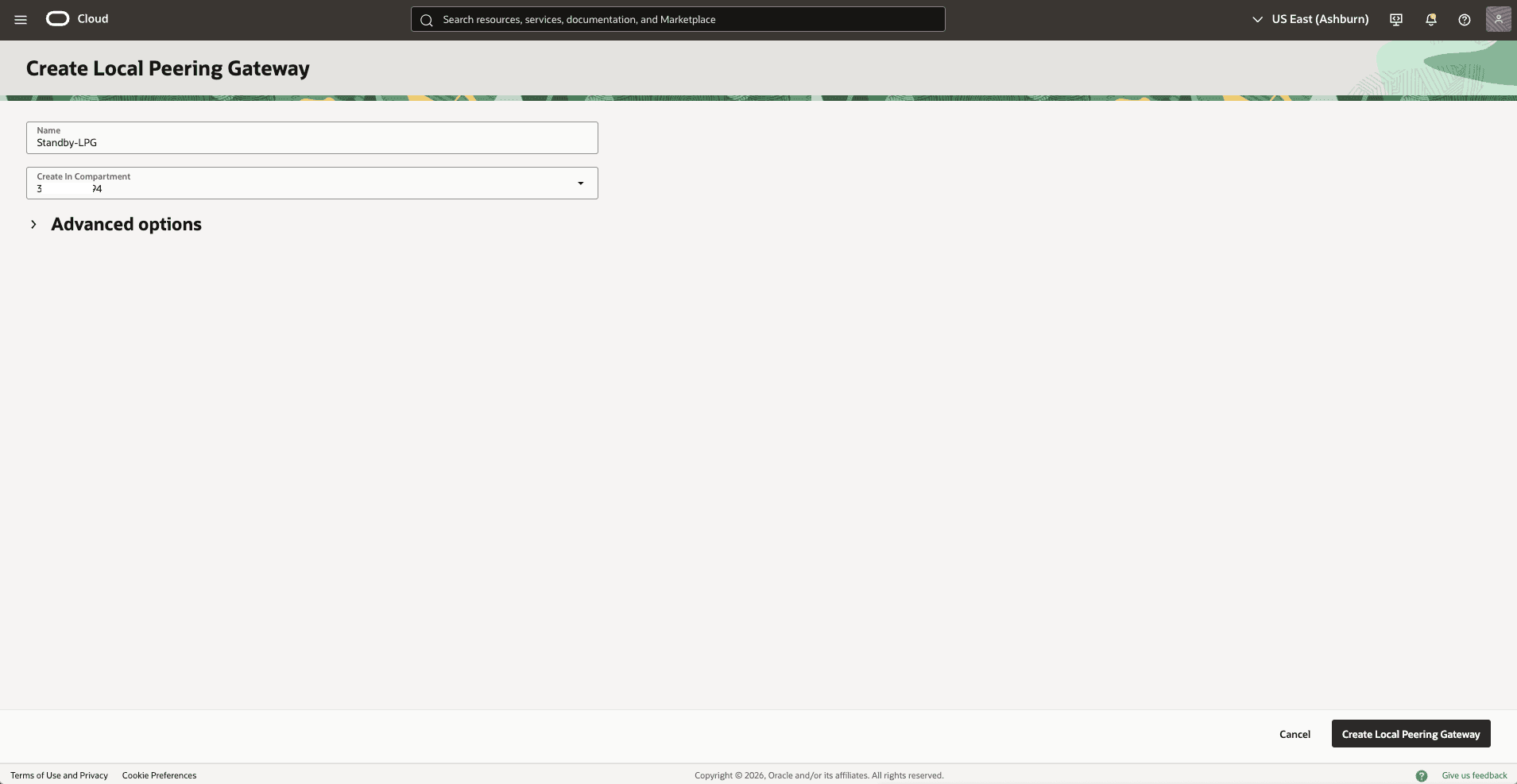
Create Local Peering Gateway
Standby-LPGin Virtual Cloud Network.-
In the Virtual Cloud Networks detail page, select the Gateways tab.
-
Scroll down to the Local Peering Gateways section, and then select the Create Local Peering Gateway button.
-
Choose a name, for example,
Standby-LPG, and then select the Create Local Peering Gateway button. -
The Advanced options section is optional.
-
Select the Create Local Peering Gateway button.
-
-
-
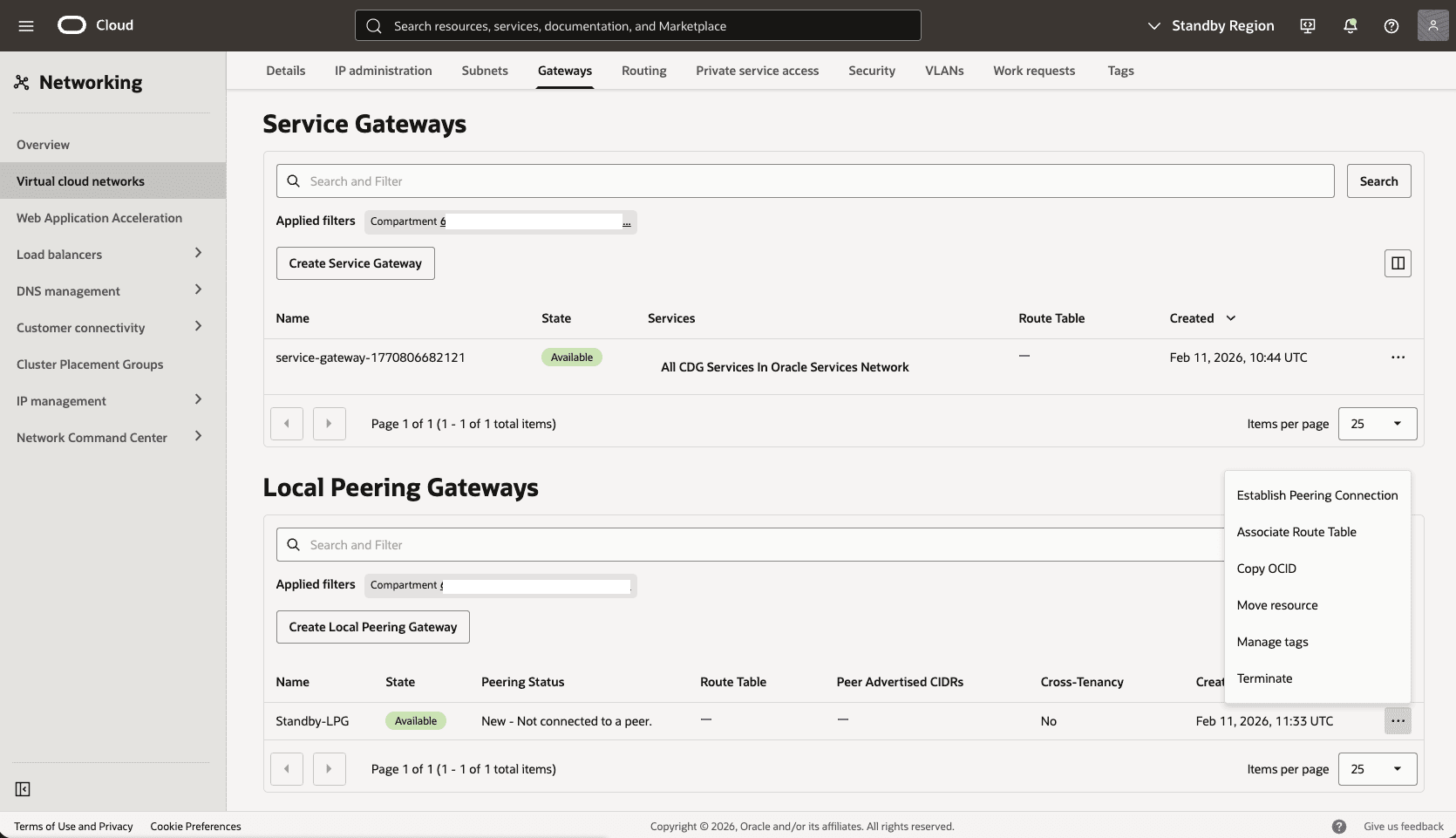
Establish a peering connection between the Standby LPG and the primary LPG OCID.
-
In the Local Peering Gateways section, identify the LPG created in the previous step, select the three dots, then select the Establish Peering Connection option.
-
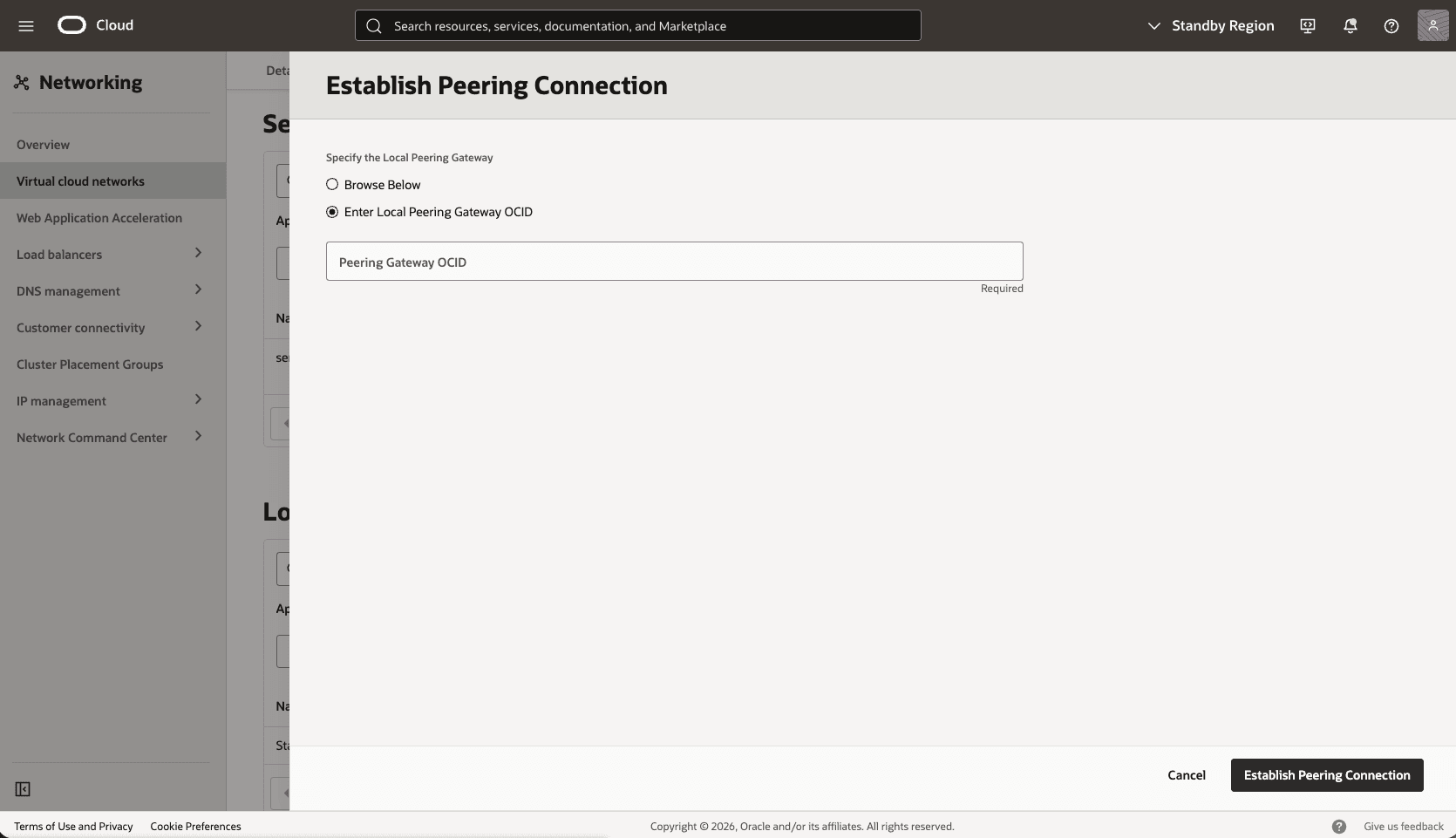
Select the Enter Local Peering Gateway OCID option, paste the Primary LPG OCID that you copied in the previous step, and then select the Establish Peering Connection button.
-
-
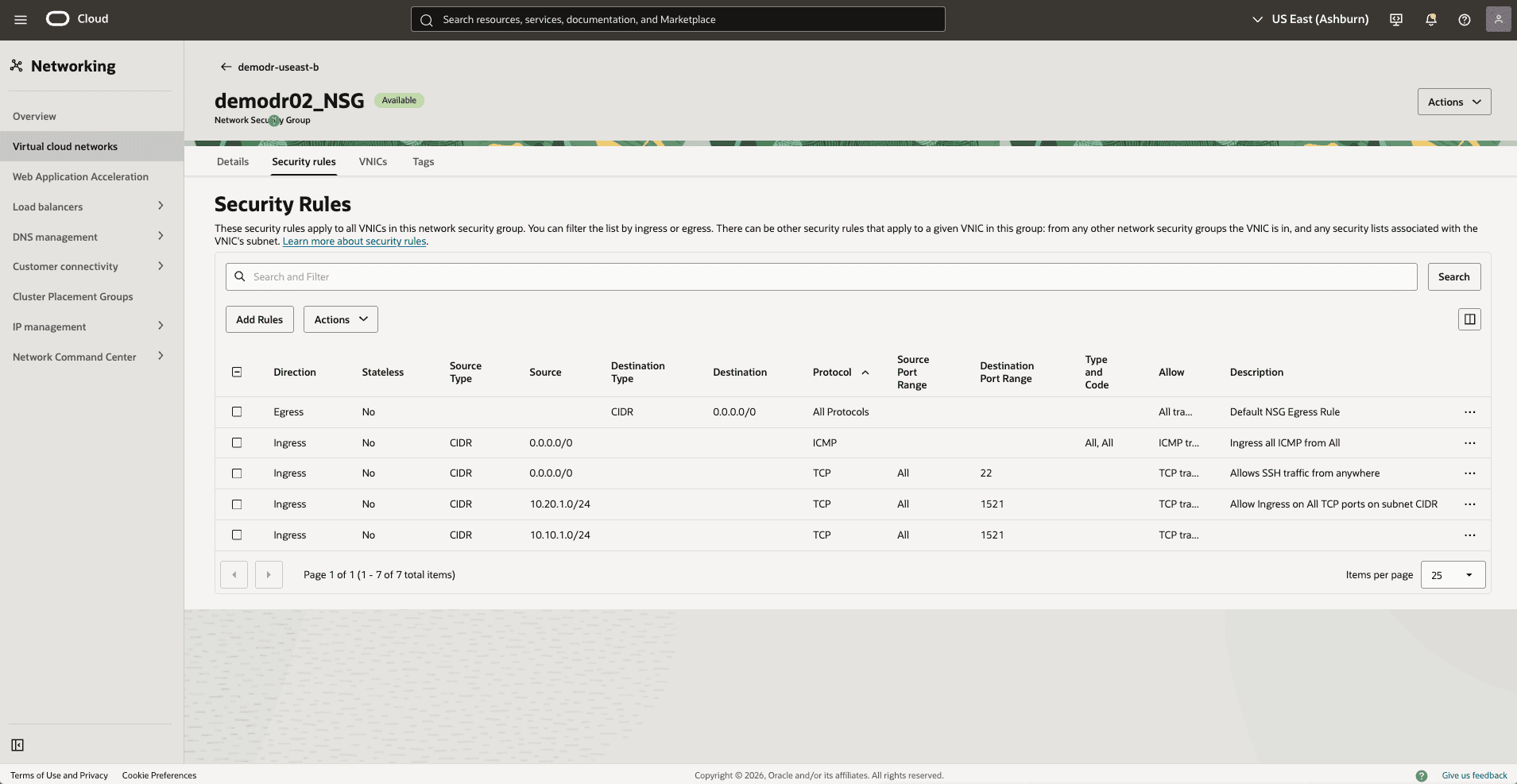
Update the OCI network security group for your standby VM cluster to allow traffic from the primary network.
-
In the standby Virtual Cloud Networks detail page, select the Security tab, scroll down to the Network Security Groups section, and then select the name of your VM Cluster Network Security Groups.
-
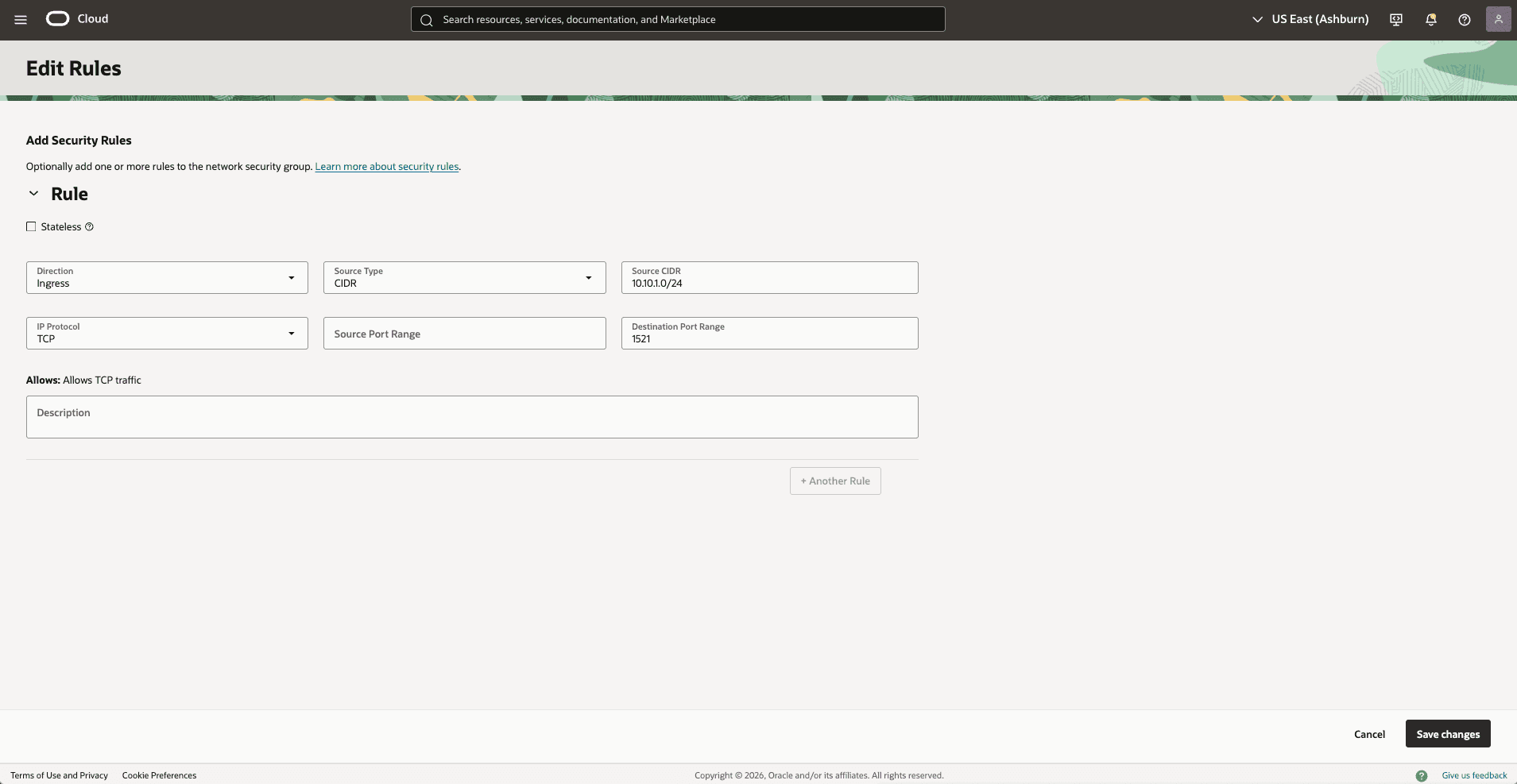
Select the Security rules tab, and select the Add Rules button, and then create a rule with the following specifications.
-
Direction: Ingress
-
Source Type: CIDR
-
Source CIDR: enter your primary CIDR block. For example:
10.10.1.0/24. -
IP Protocol: TCP
-
Source Port Range: Empty (All)
-
Destination Port Range: 1521
-
Description: Enter a description for this rule.
-
Select the Add button.
-
-
-
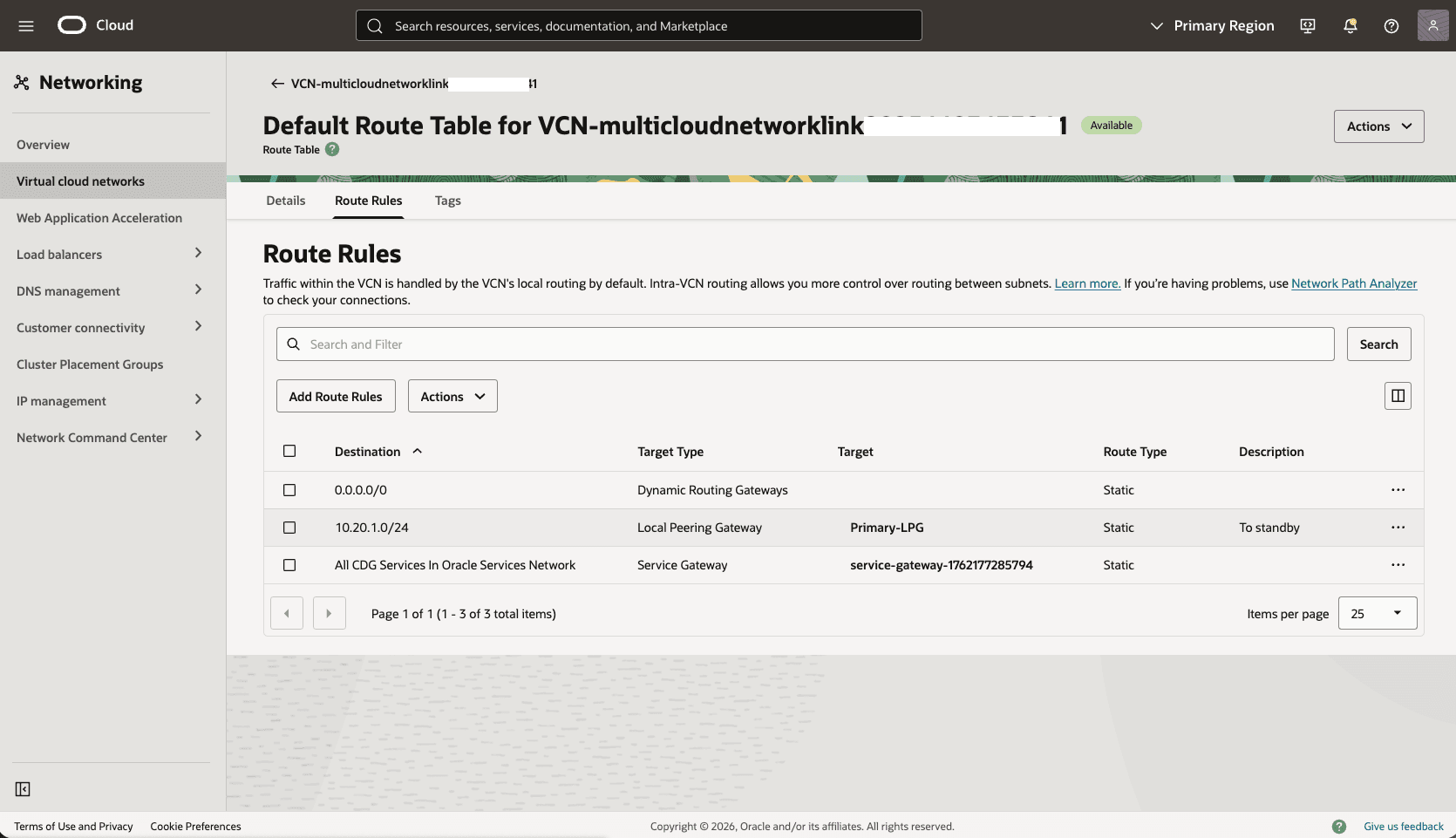
Add a route rule to the default route table in the standby VCN to route primary traffic to Stanby-LPG.
-
In the Standby Virtual Cloud Networks detail page, select the Routing tab, and then select the name of your default route table.
-
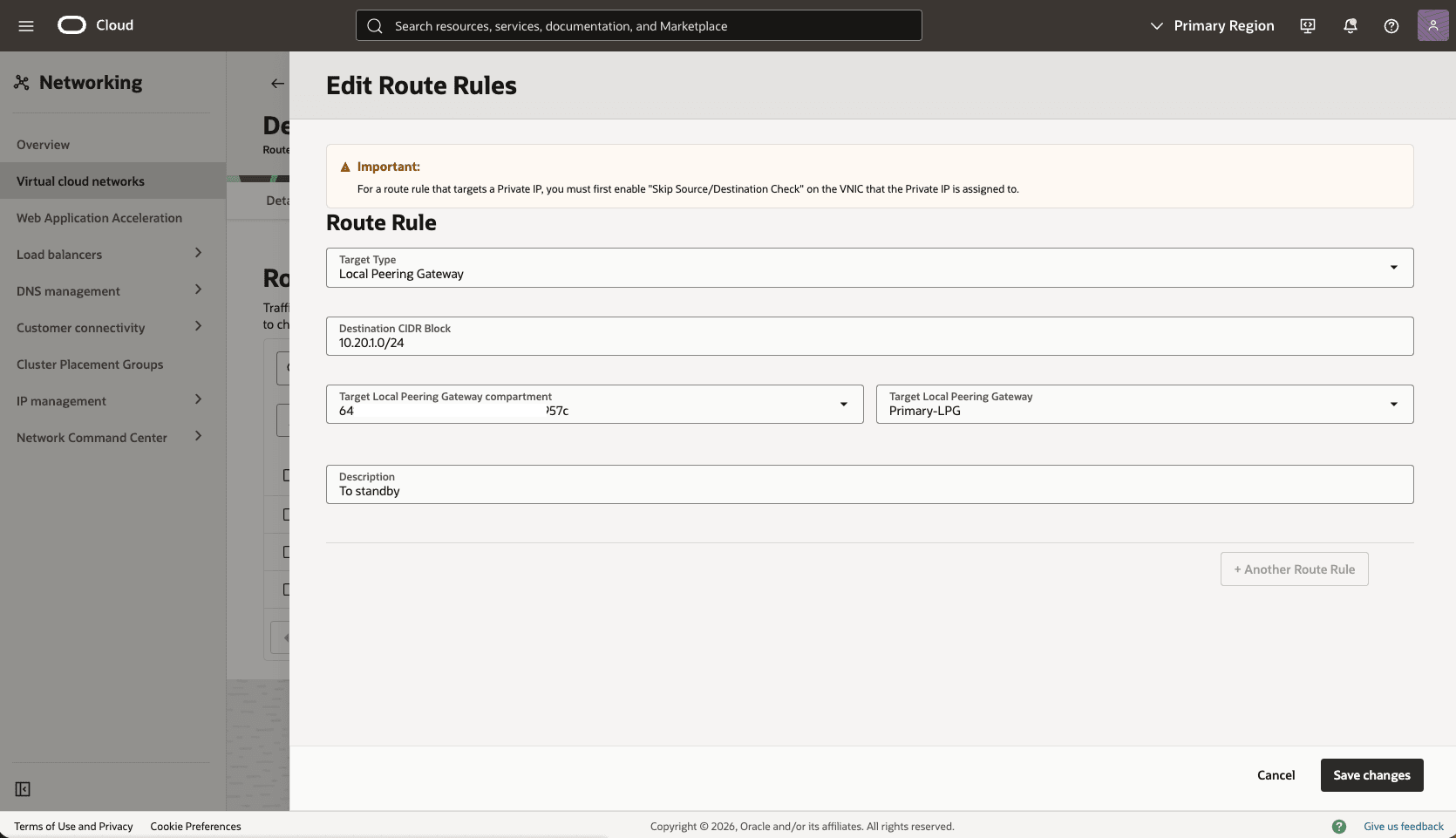
Select the Route Rules tab, and then select the Add Route Rules button.
-
Route Rule: Local Peering Gateway
-
Destination CIDR Block: Enter your primary CIDR block. For example:
10.10.1.0/24. -
Target Local Peering Gateway Compartment: Select the compartment where you created the local peering gateway in the previous step
-
Target Local Peering Gateway: Select your Local Peering Gateway
-
Description: Enter a description for this Route rule
-
Select the Add Route Rules button.
-
-
Test Connectivity
-
Test connectivity from Primary to Standby and Standby to Primary. You can use ping or SSH if you add SSH access to the applicable network security group.
-
For configuring Data Guard, see the next section.
-
There is currently no content for this page. Oracle AI Database@Google Cloud team intends to add content here, and this placeholder text is provided until that text is added.
The Oracle AI Database@Google Cloud team is excited about future new features, enhancements, and fixes to this product and this accompanying documentation. We strongly recommend you watch this page for those updates.
Connectivity by Google Cloud Network
The following diagram illustrates the architecture diagram for configuring cross-zone connectivity using Google Cloud network in a single Google Cloud region.
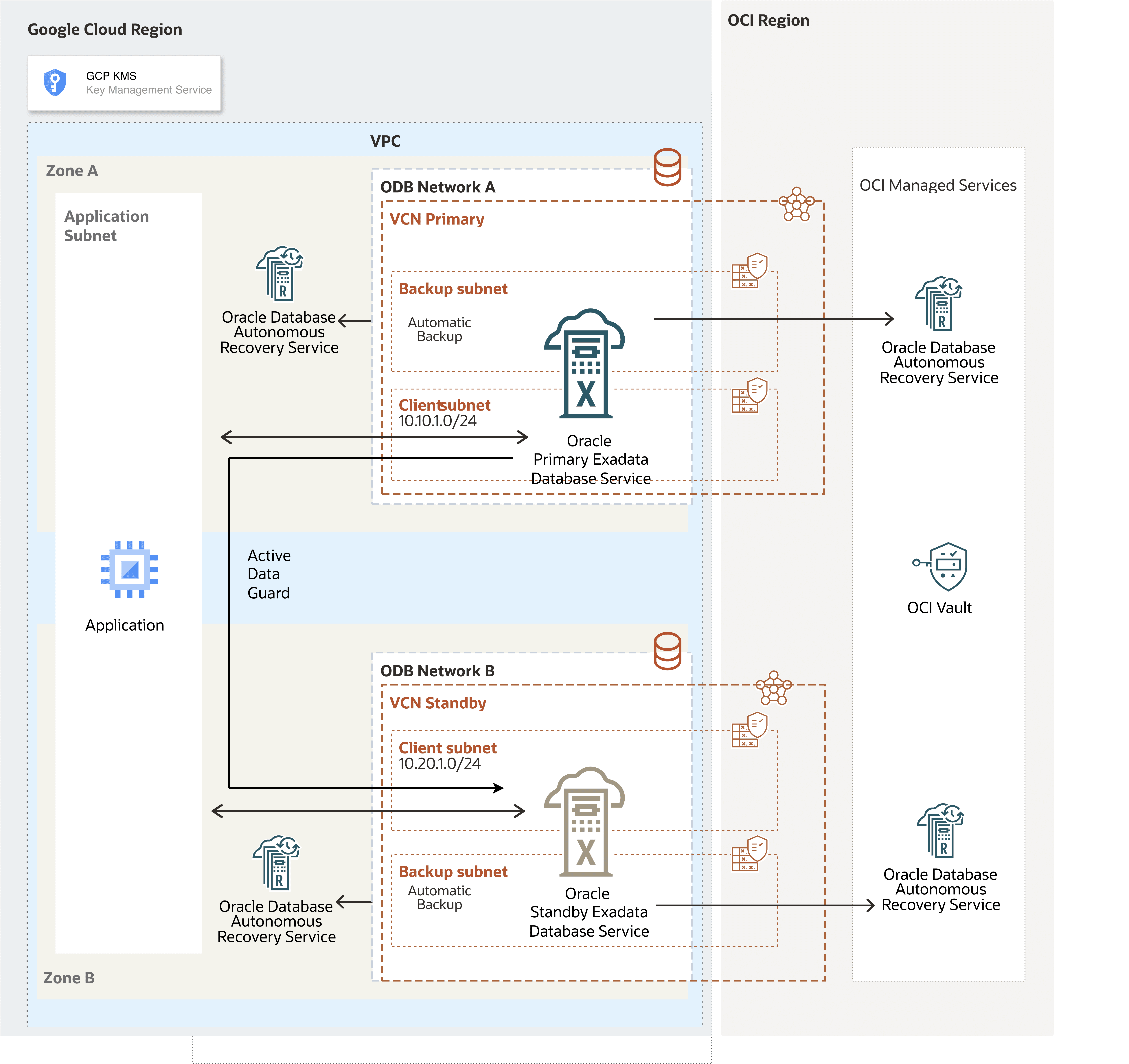
In this architecture, the Google Cloud VPC spans the region. The application subnet is regional, and the ODB networks are deployed in each zone with non-overlapping CIDR ranges.
Oracle AI Database@Google Cloud service, for example, Exadata VM Cluster is deployed in each zone per the ODB network.
In this architecture:
-
The primary Exadata VM Cluster is deployed in the primary zone, ODB network A,
Primary VCNand the client subnet CIDR10.10.1.0/24. -
The standby Exadata VM Cluster is deployed in the standby zone and uses ODB network B,
Standby VCN, and the client subnet CIDR10.20.1.0/24.
Requirements
- Dynamic routing mode is configured to global on the VPC.
Allow Traffic between the Primary and Standby Client Networks
-
Update the OCI Network Security Group (NSG) of your primary Exadata VM Cluster to allow traffic from the standby network.
-
In the Virtual Cloud Networks detail page, select the Security tab, scroll down to the Network Security Groups section, and then select the name of your VM Cluster Network Security Groups.
-
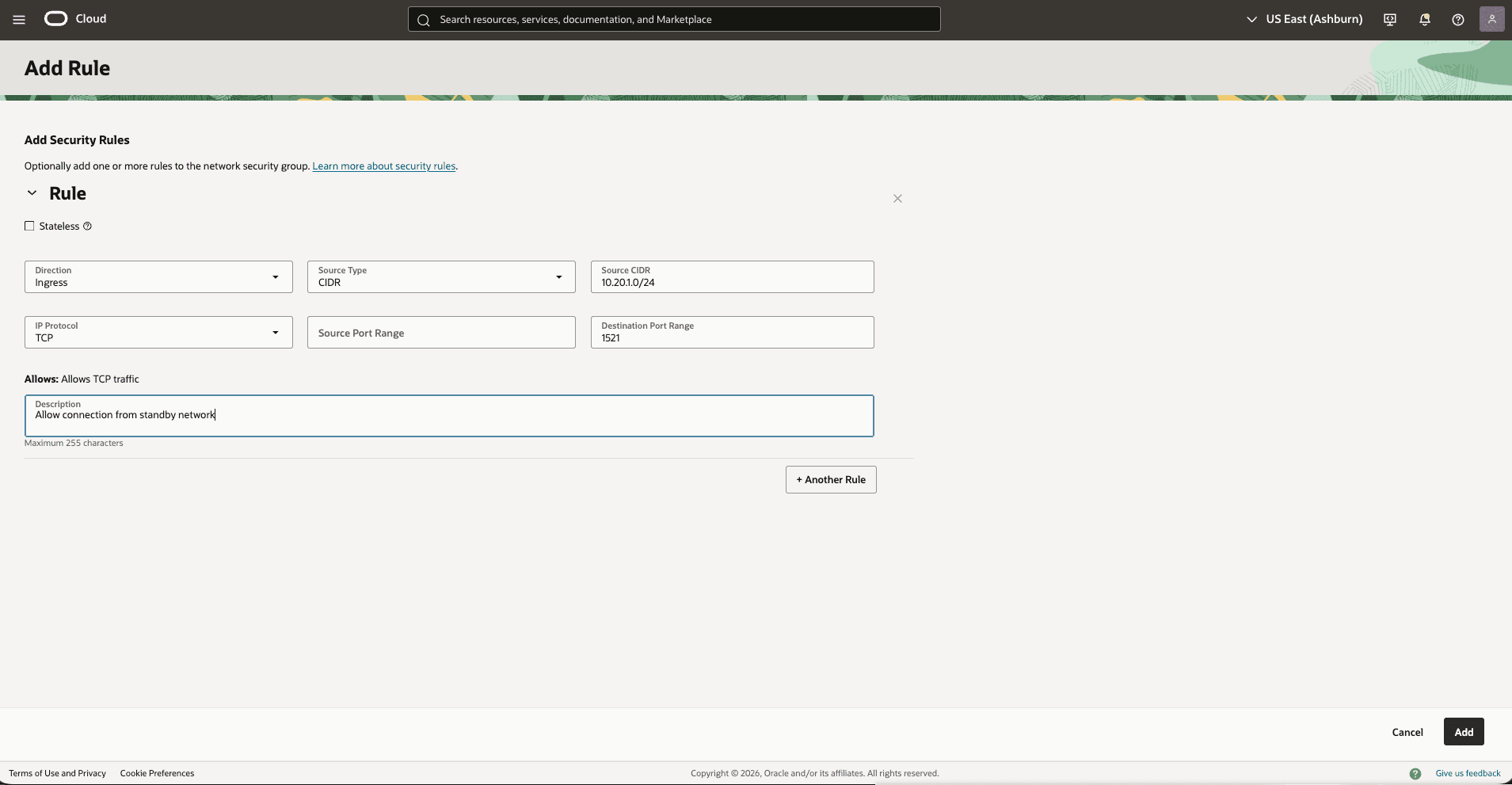
Select the Security rules tab, select the Add Rules button, then create a rule with the following information.
-
Direction: Ingress
-
Source Type: CIDR
-
Source CIDR: Enter your stand by CIDR block. For example,
10.20.1.0/24. -
IP Protocol: TCP
-
Source Port Range: Empty (All)
-
Destination Port Range: 1521
-
Description: Enter a description for this rule.
-
Select the Add button.
-
-
-
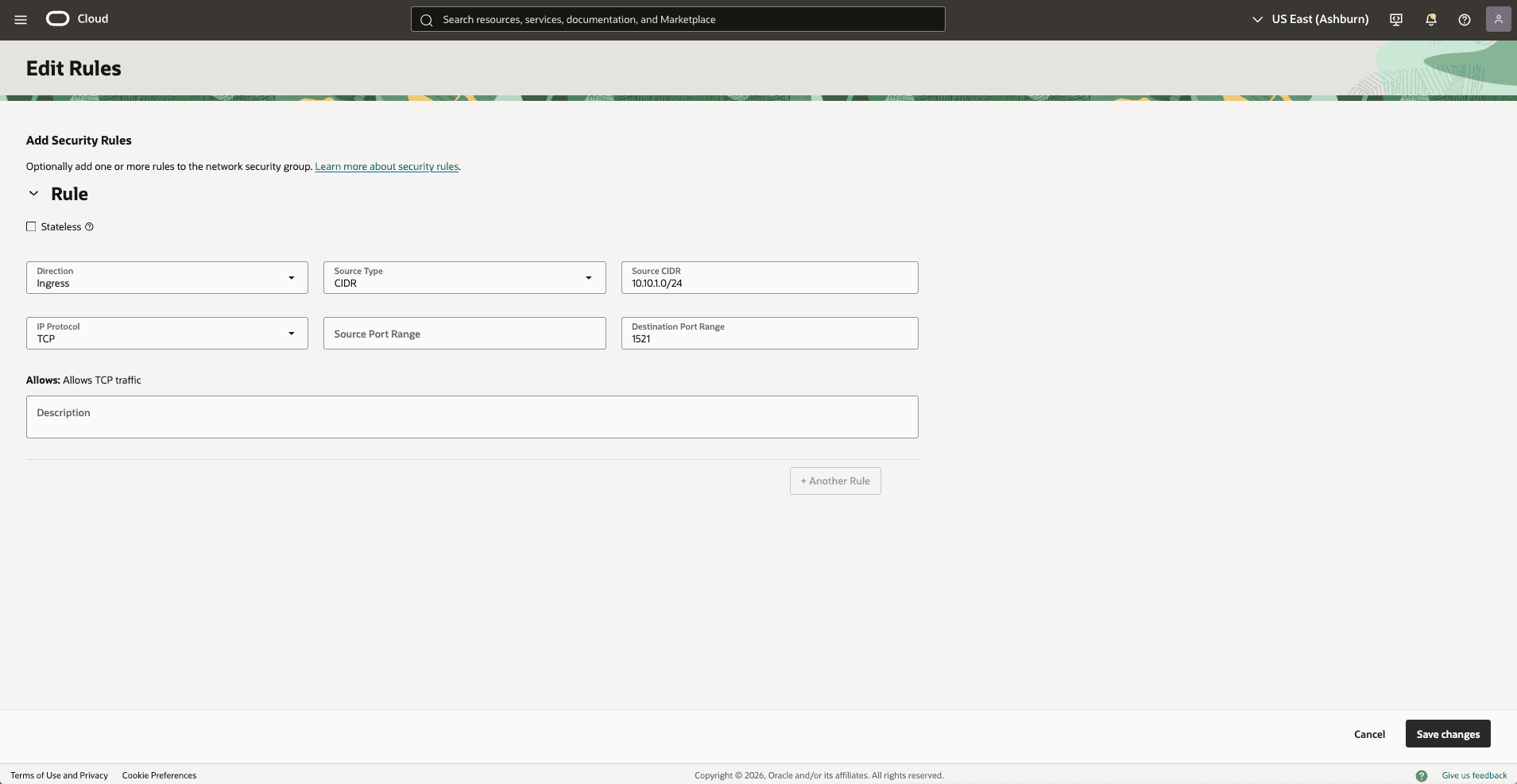
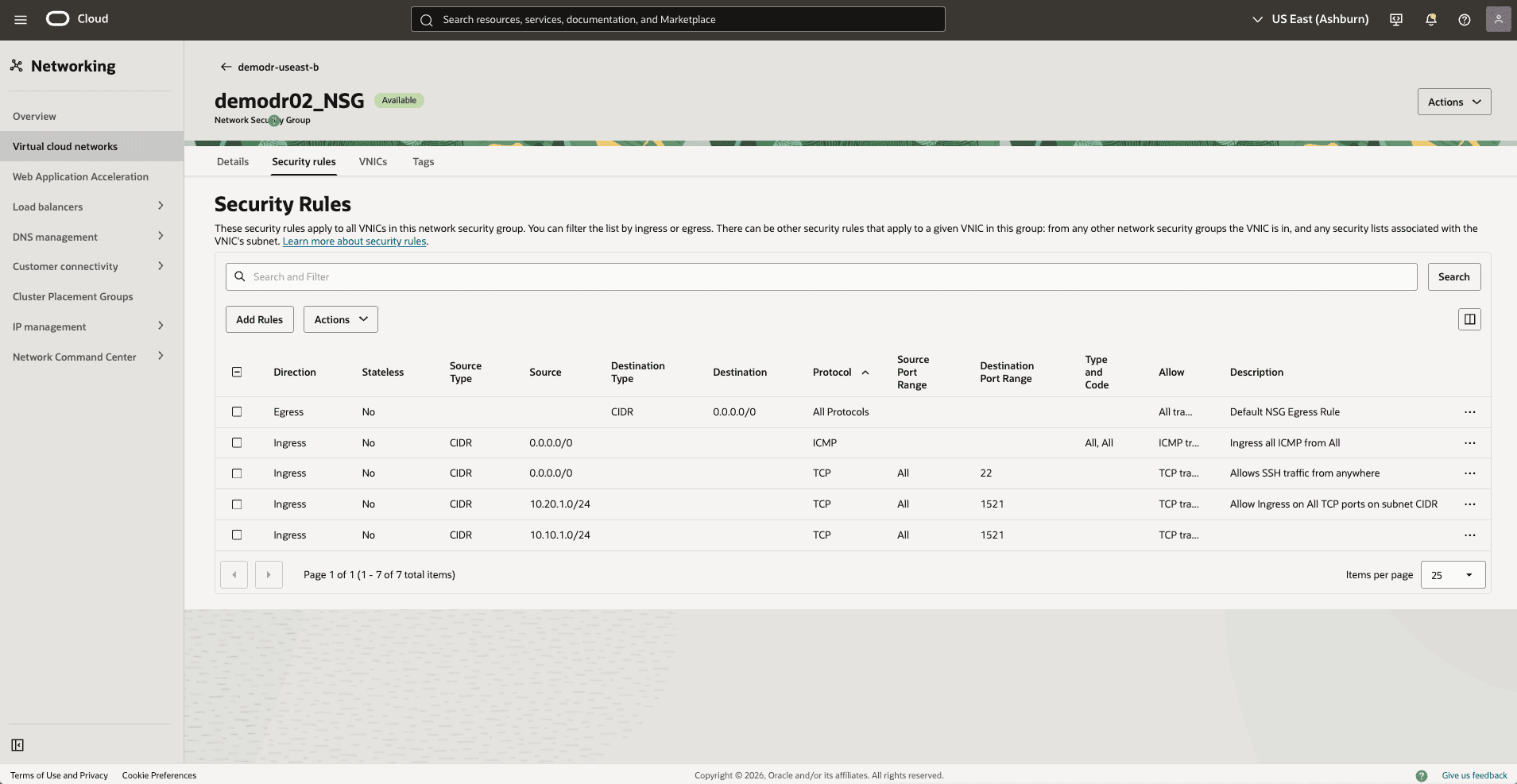
Update the OCI Network Security Group (NSG) of your standby Exadata VM Cluster to allow traffic from the primary network.
-
In the standby Virtual Cloud Networks detail page, select the Security tab, scroll down to Network Security Groups section, then select the name of your Exadata VM Cluster Network Security Groups.
-
Select the Security rules tab, select the Add Rules button, then create a rule with the following information.
-
Direction: Ingress
-
Source Type: CIDR
-
Source CIDR: Enter your stand by CIDR block. For example,
10.20.1.0/24. -
IP Protocol: TCP
-
Source Port Range: Empty (All)
-
Destination Port Range: 1521
-
Description: Enter a description for this rule.
-
Select the Add button.
-
-
-
Test connectivity:
- Test connectivity from Primary to Standby and Standby to Primary. You can use ping or SSH if you add SSH access to the applicable network security group.
-
There is currently no content for this page. Oracle AI Database@Google Cloud team intends to add content here, and this placeholder text is provided until that text is added.
The Oracle AI Database@Google Cloud team is excited about future new features, enhancements, and fixes to this product and this accompanying documentation. We strongly recommend you watch this page for those updates.
Cross-Region
This section guides you through the complete setup of the network configuration to establish data replication by using either an OCI network or a Google Cloud network across regions.
Connectivity by OCI Network
The following diagram illustrates this architecture for configuring cross-region by OCI network.
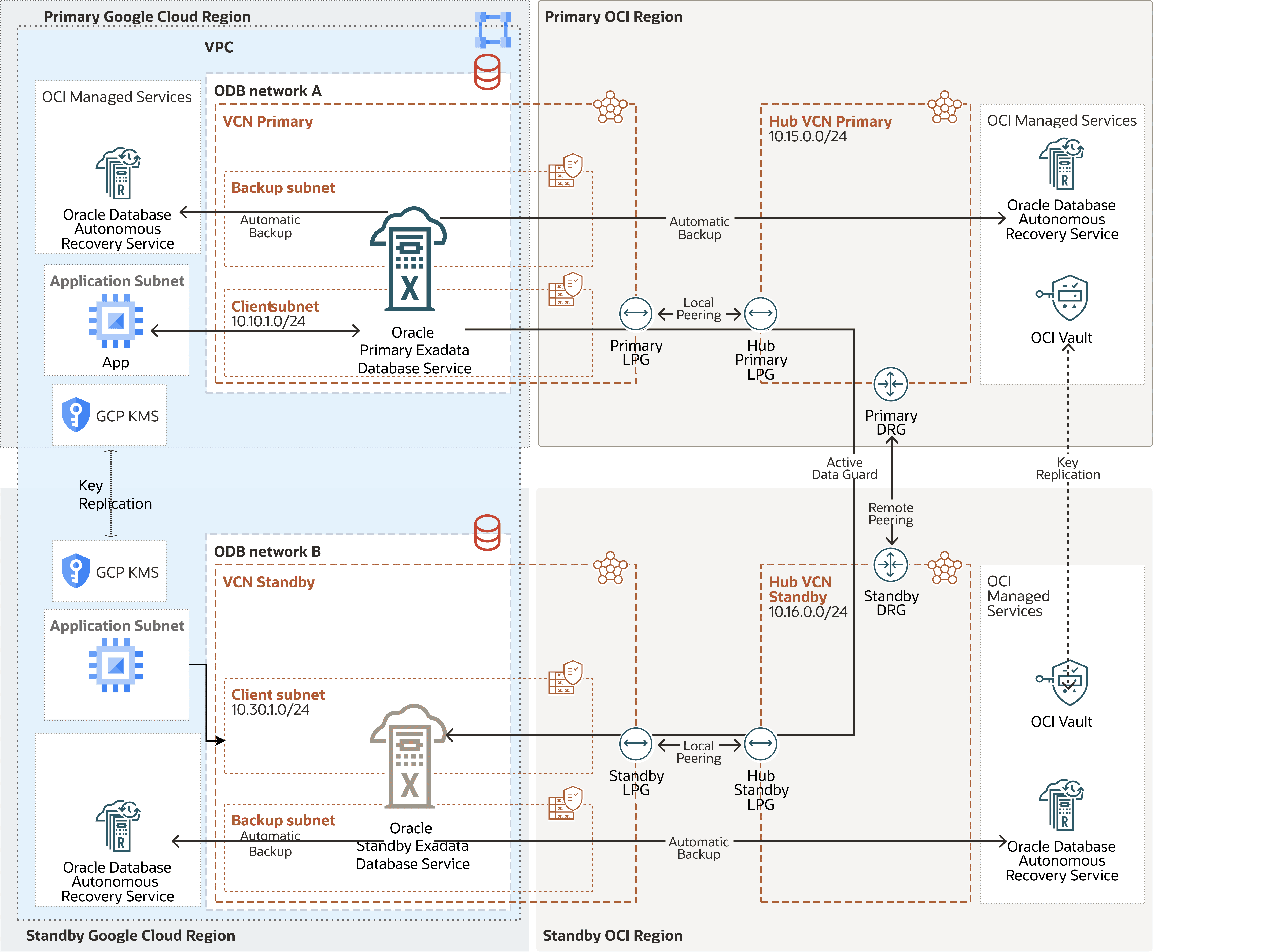
This architecture directs primary-to-standby network traffic through the OCI network to improve network throughput. OCI creates the VCNs automatically after Oracle AI Database@Google Cloud creates the deployments for the primary and standby databases.
In this architecture:
-
The Google Cloud VPC spans over the regions, the application subnets are regional and the ODB networks are deployed in regional zones with non-overlapping CIDR ranges.
-
The primary Exadata VM Cluster is deployed in the primary region in
Primary VCNand the client subnet CIDR10.10.1.0/24. -
The Primary Hub VCN
10.15.0.0/24is created. -
The standby Exadata VM Cluster is deployed in the standby region in
Standby VCNand the client subnet CIDR10.30.1.0/24. -
The Standby Hub VCN
10.16.0.0/24is created.
Note
Note:
-
Download the diagram and update the diagram with your CIDR values.
-
Review the Remote Peering Connection Count service limit, and request a service limit increase if needed.
-
Plan the hub VCN CIDR to avoid overlapping IP addresses. The hub VCN CIDR can be small, for example,
/28. -
If you plan to deploy resources in the subnet, define the CIDR accordingly, for example, compute for Data Guard Far Sync.
To configure cross-region VCN peering and establish network communication between the regions that the architecture diagram shows, complete the following steps.
Configure the Network in the Primary Region
-
From the Google Cloud Console, select the primary instance and select the Manage in OCI link to open the OCI Console.
-
From the OCI console, navigate to Networking, and create a Virtual Cloud Network (VCN) of the primary region (HUB VCN Primary).
-
From the OCI console, select Networking, and then select Virtual cloud networks.
-
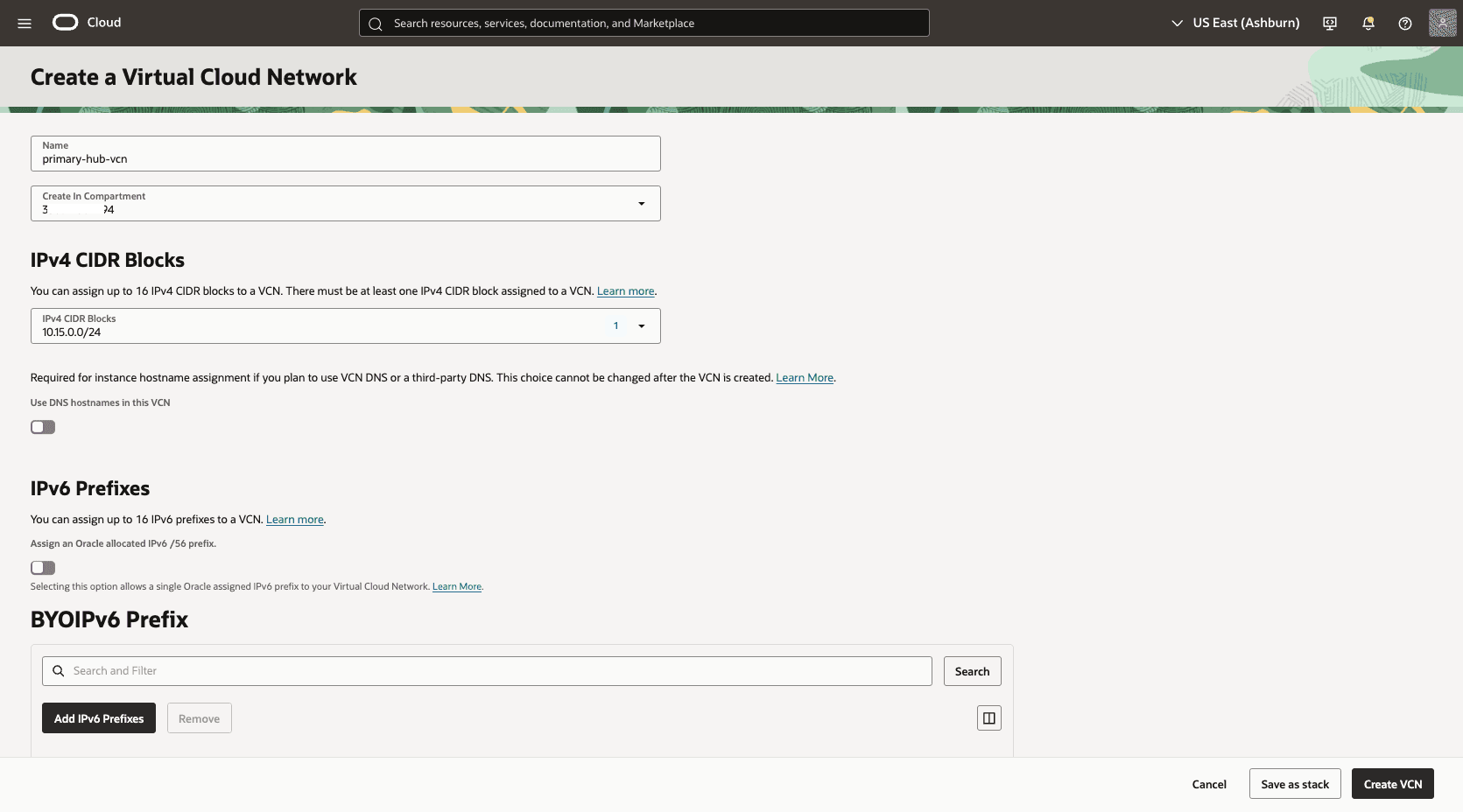
Select Create VCN button, and enter the following information.
-
Name: Enter a descriptive name. For example,
primary-hub-vcn. -
Create in compartment: Select the compartment where you want to create the VCN.
-
IPv4 CIDR Blocks: Enter the CIDR block for your Hub VCN. Ensure that this block does not overlap with your existing network address space.
-
Select the Create VCN button.
-
-
-
Deploy two local peering gateways (LPGs),
Primary-Hub-LPGandPrimary-LPG, in the primary hub VCN and the primary VCN, respectively.-
In the Primary-Hub VCN detail page, select the Gateways tab, scroll down to the Local Peering Gateways section, and then select the Create Local Peering Gateway button.
-
Choose a name. For example:
primary-hub-lpg.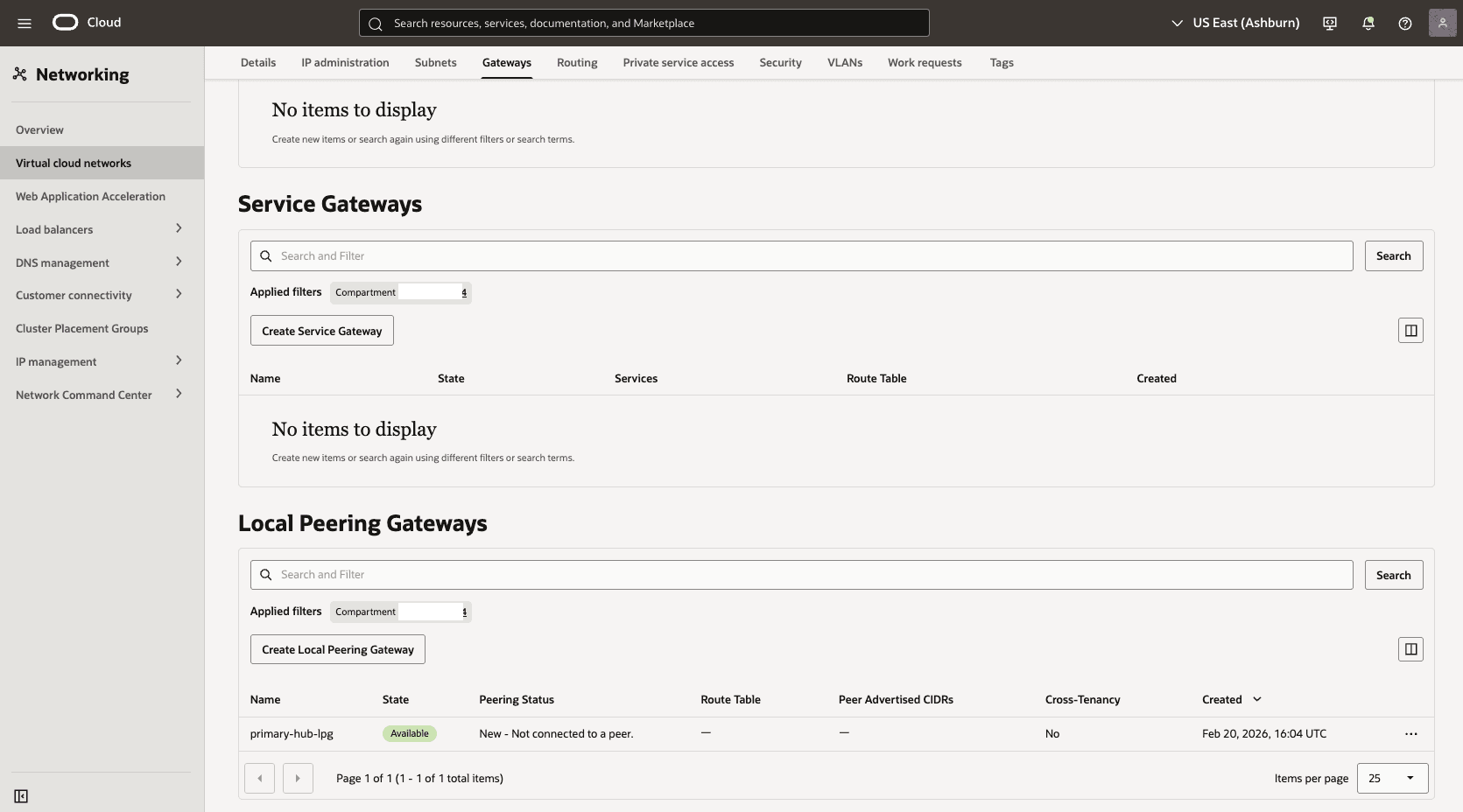
-
Select the Create Local Peering Gateway button.
-
In the Primary-Hub VCN detail page, select the Gateways tab, scroll down to the Local Peering Gateways section, and then select the Create Local Peering Gateway button.
-
Choose a name. For example:
primary-lpg. -
Select the Create Local Peering Gateway button.
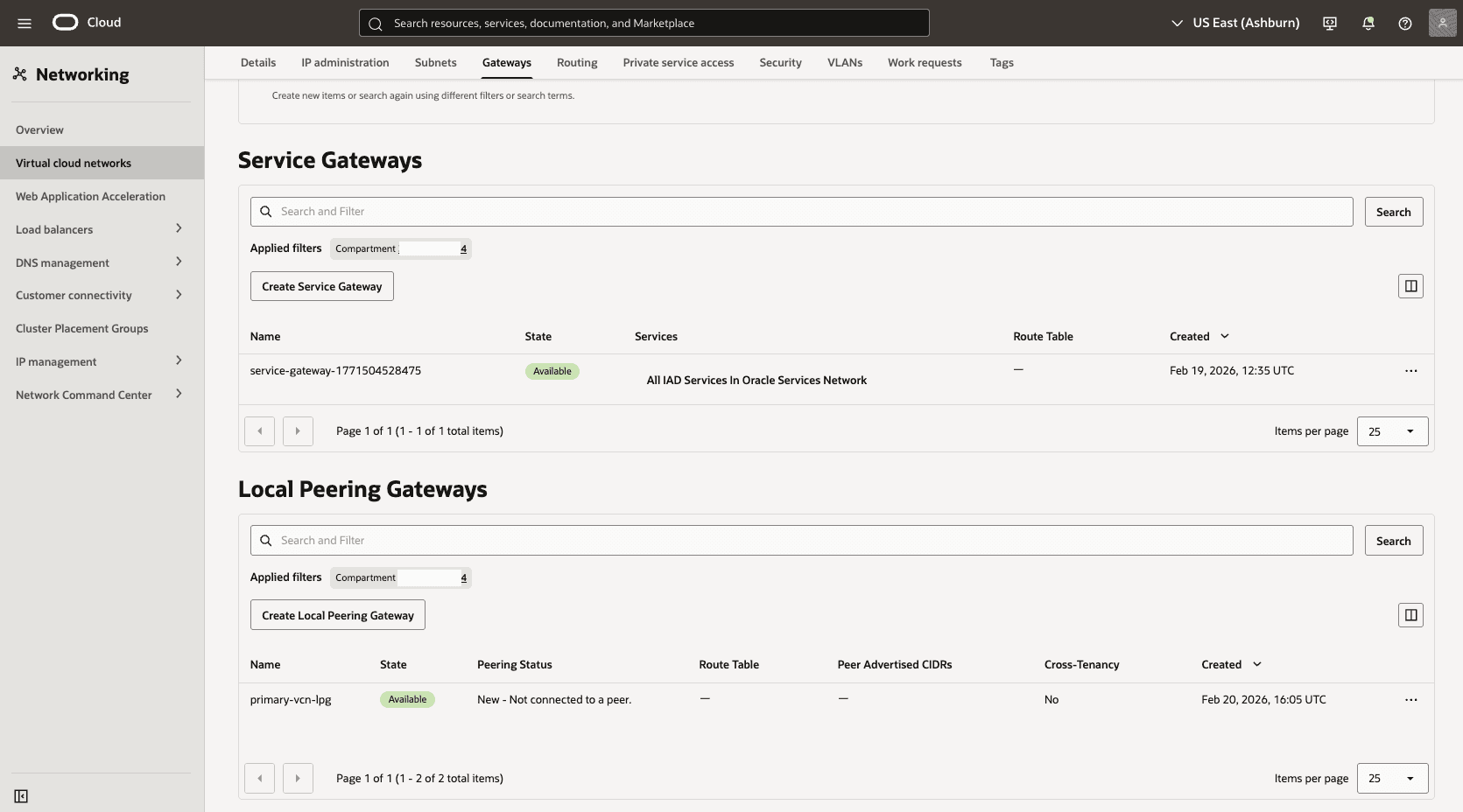
-
-
Establish an LPG peering connection between the LPGs in the primary hub VCN and the primary VCN.
-
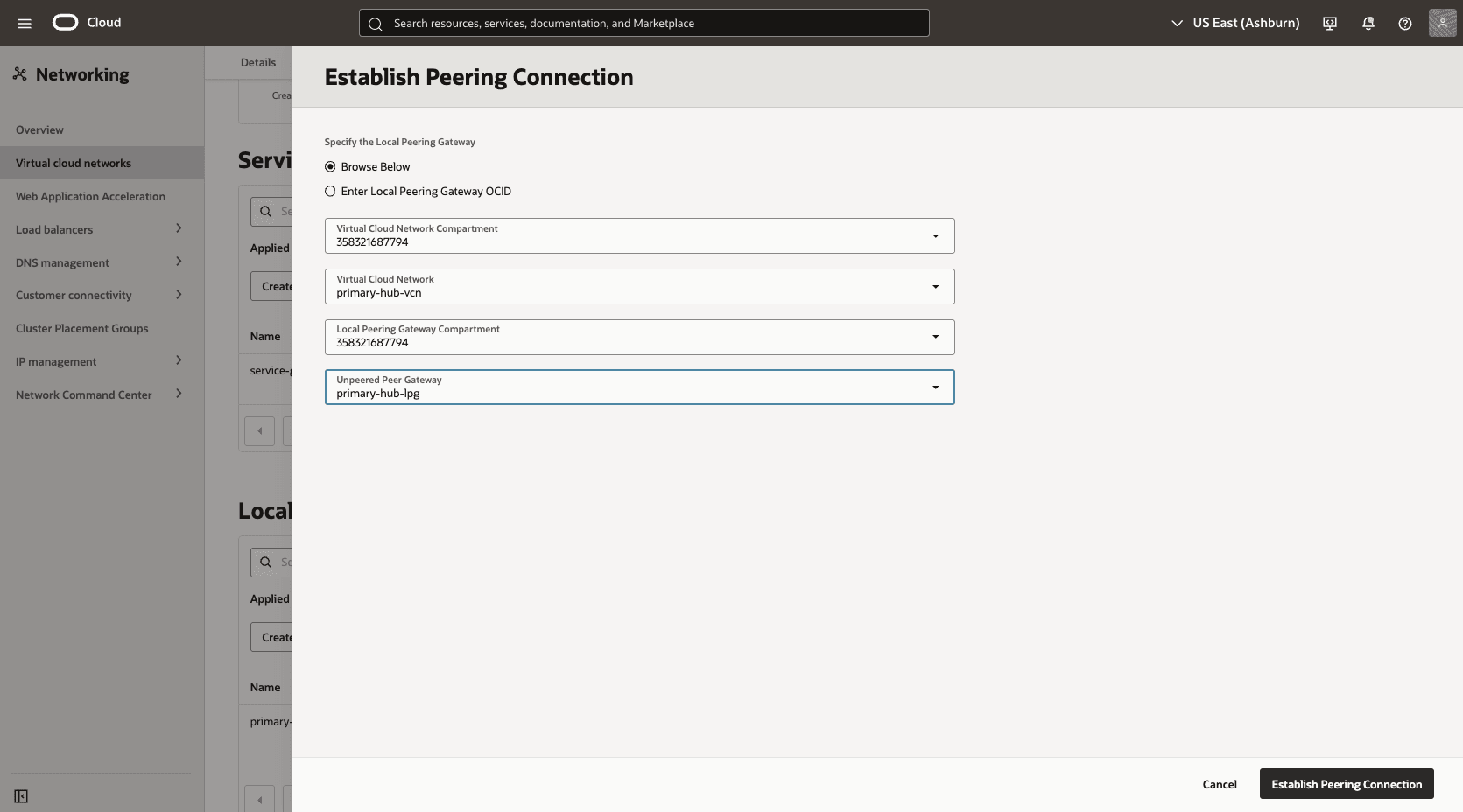
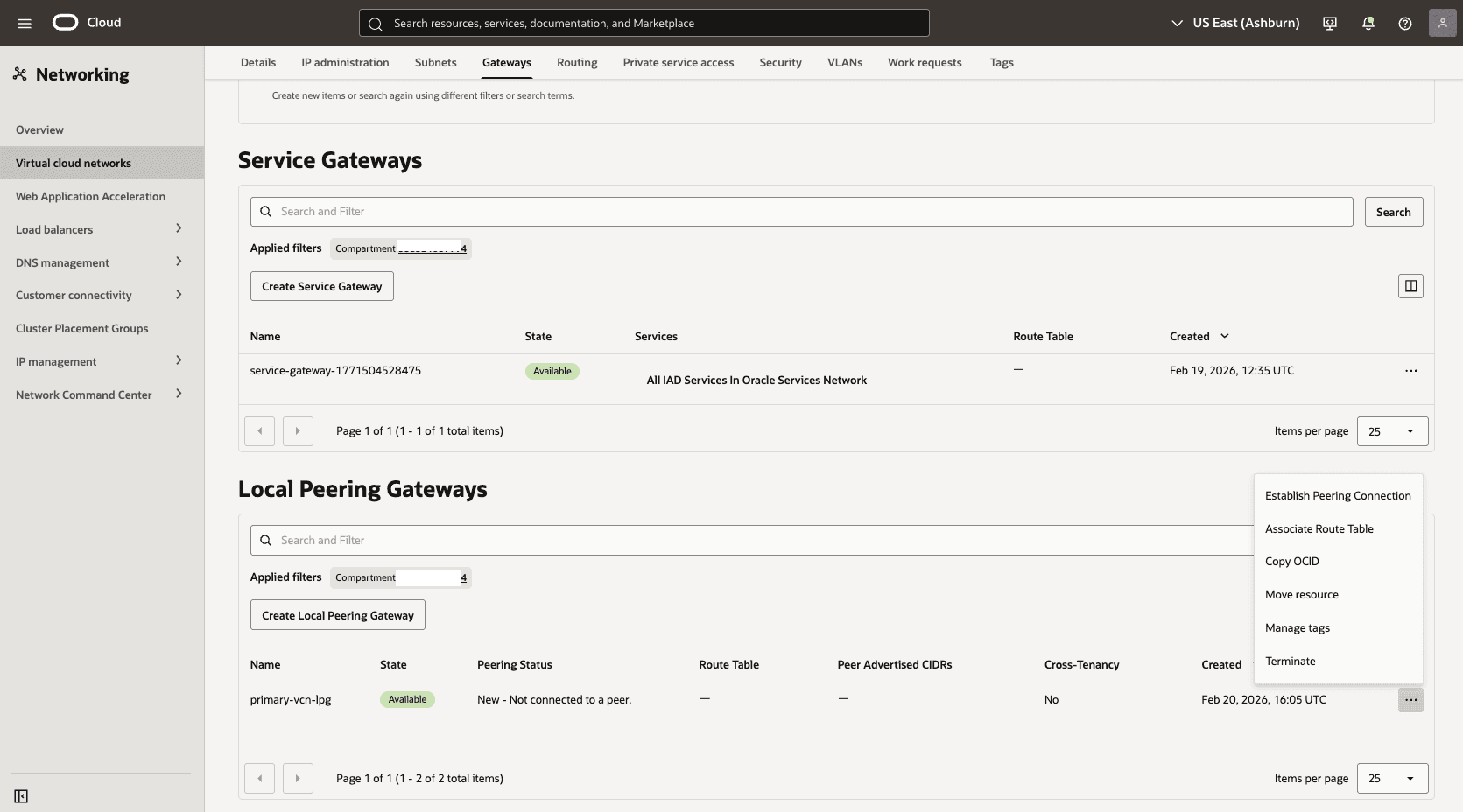
In your Primary VM Cluster VCN, select the Gateways tab and select Local Peering Gateways. Locate the LPG that you created in the previous step. Select the three dots, and then select Establish Peering Connection option.
-
From the Establish Peering Connection page, choose the Browse Below option, select the HUB VCN Primary, select the Primary-Hub-LPG, and then select the Establish Peering Connection button.
-
-
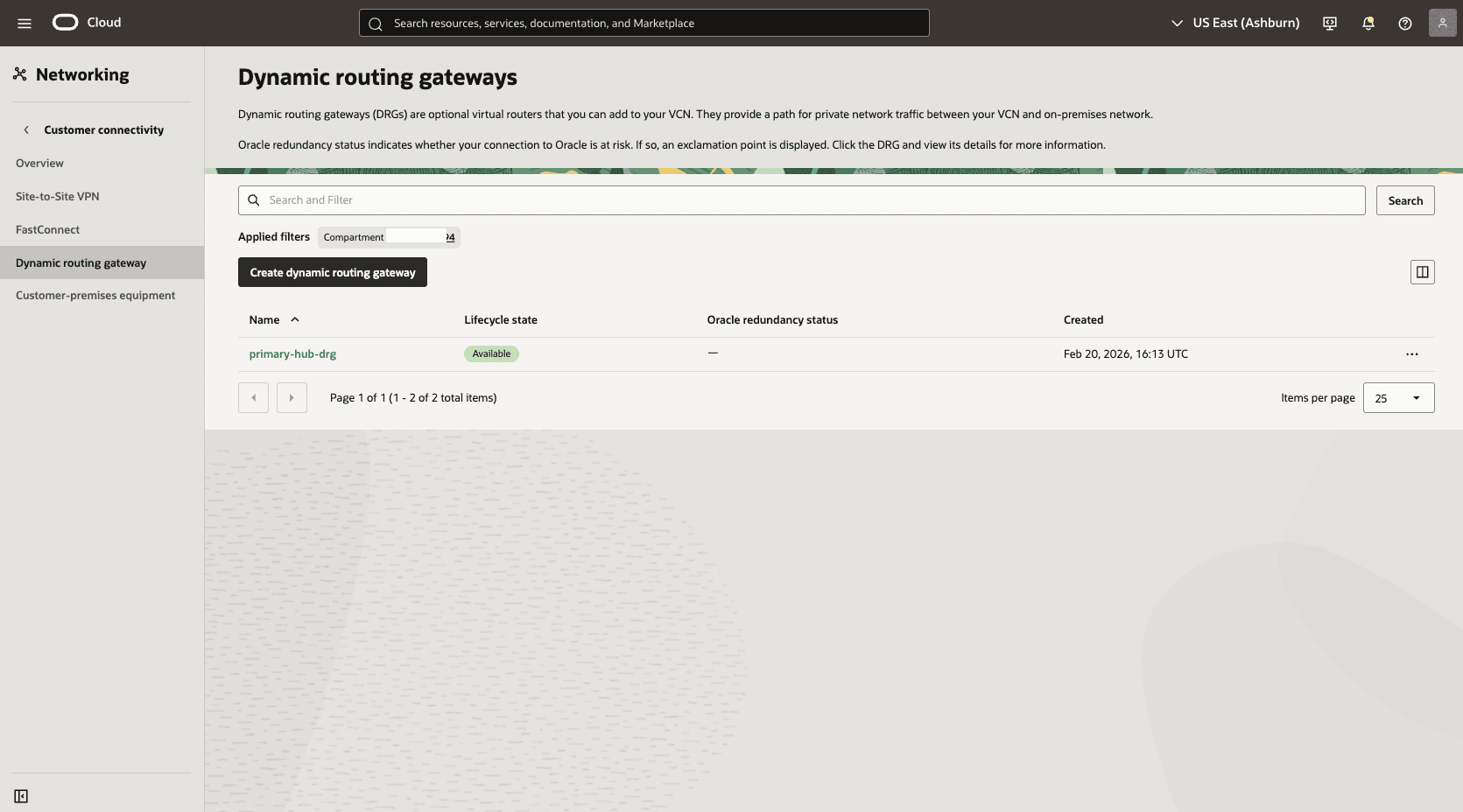
Create a dynamic routing gateway (DRG) named
Primary-hub-drg.-
From the OCI console, select Networking. Under the Customer connectivity section, select Dynamic routing gateway, and then select Create dynamic routing gateway button.
-
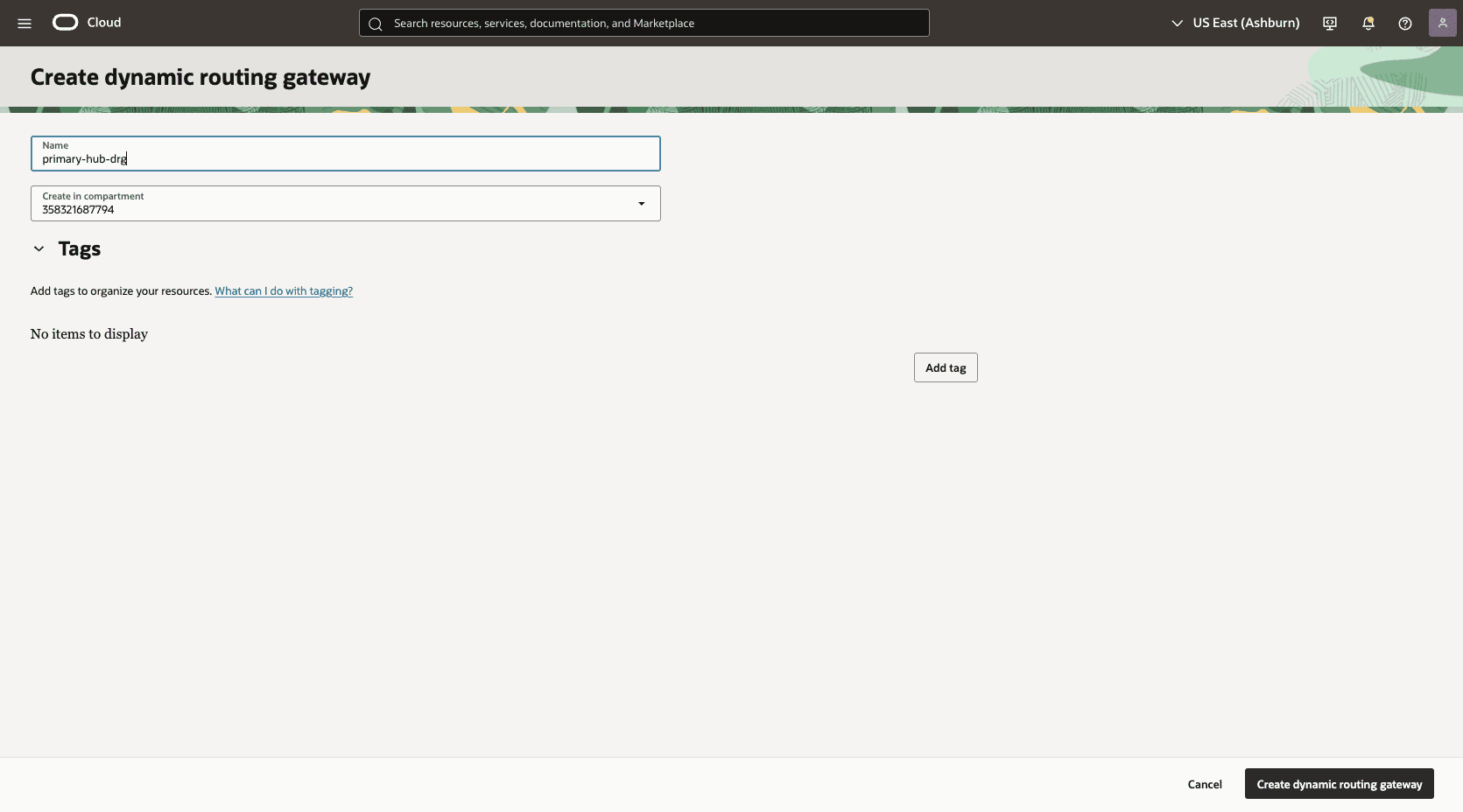
Choose a name. For example,
Primary-hub-drg.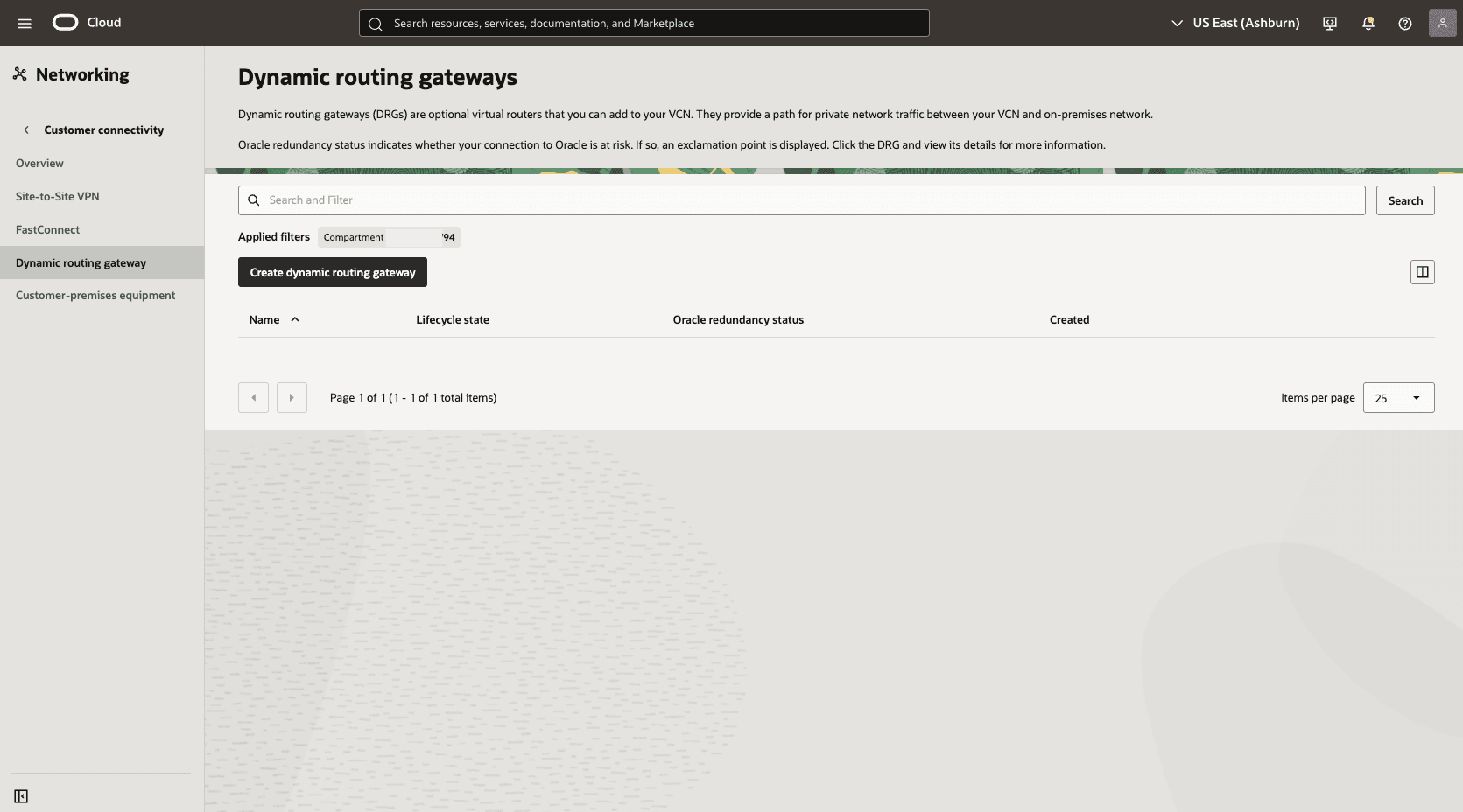
-
Select the Create dynamic routing gateway button.
-
-
-
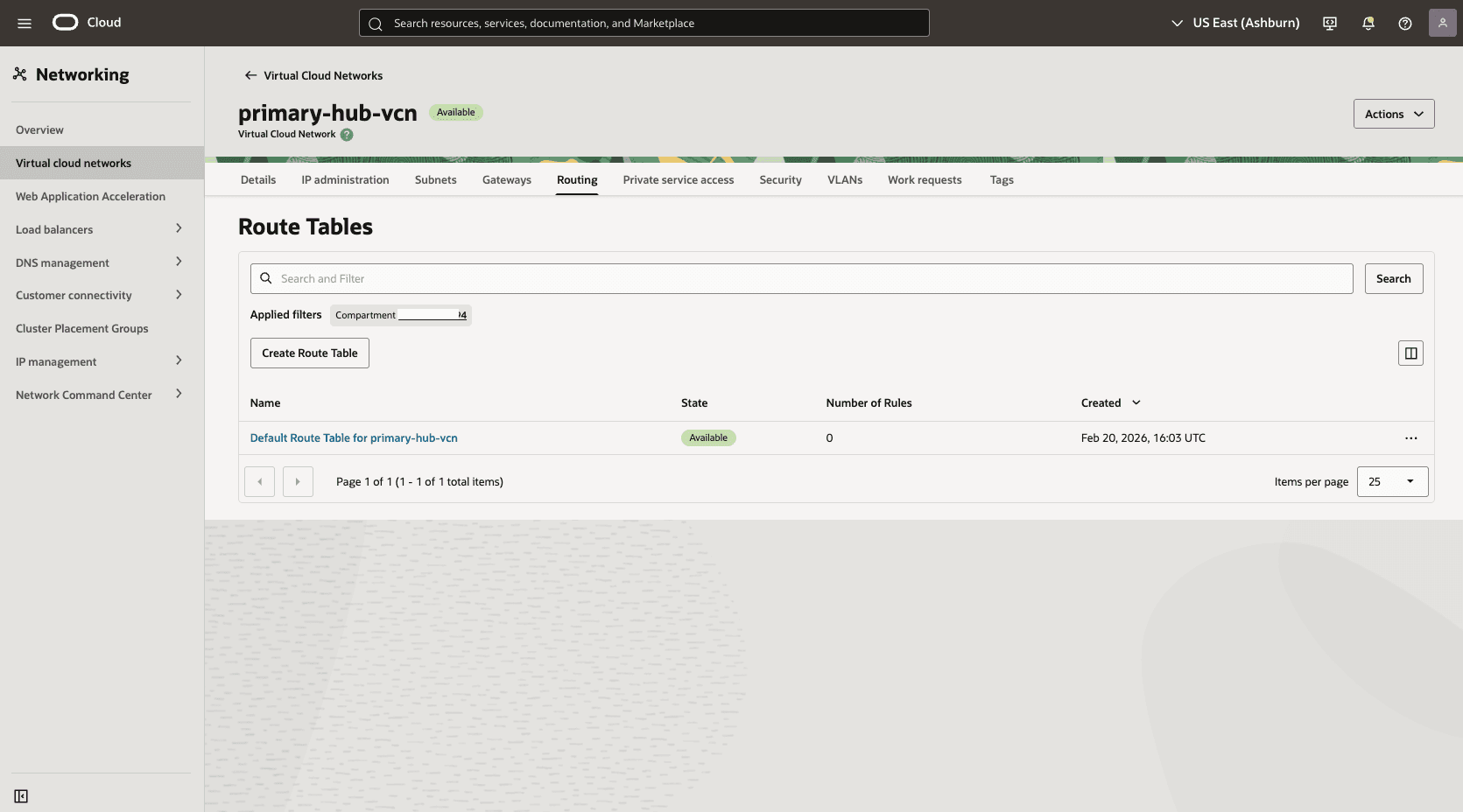
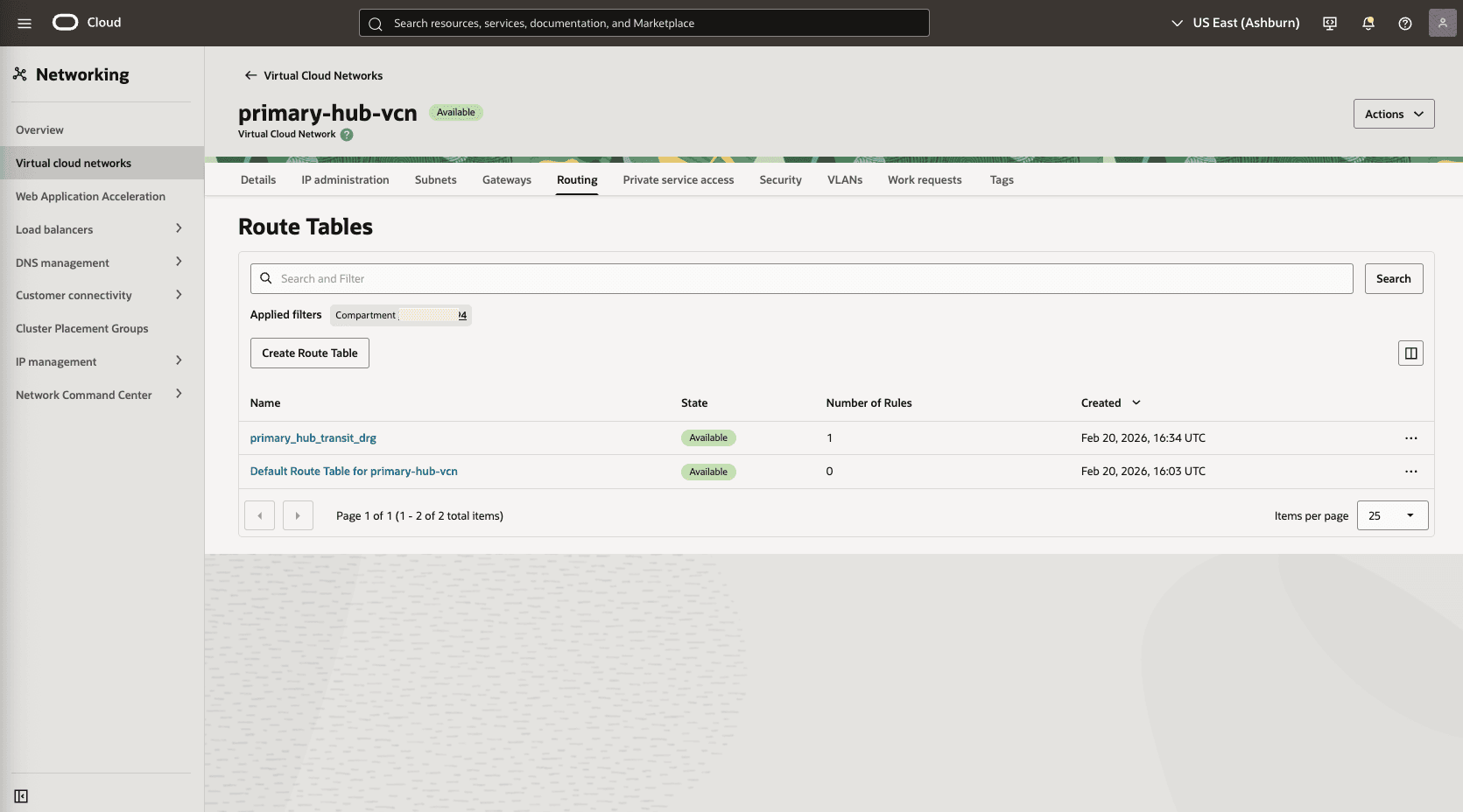
Create a route table in the primary hub VCN to route network traffic between the primary hub VCN and the primary VCN.
-
From the OCI console, select Networking, select Virtual cloud networks, and then select the HUB VCN Primary VCN.
-
Select the Routing tab, and then select the Create Route Table button.
-
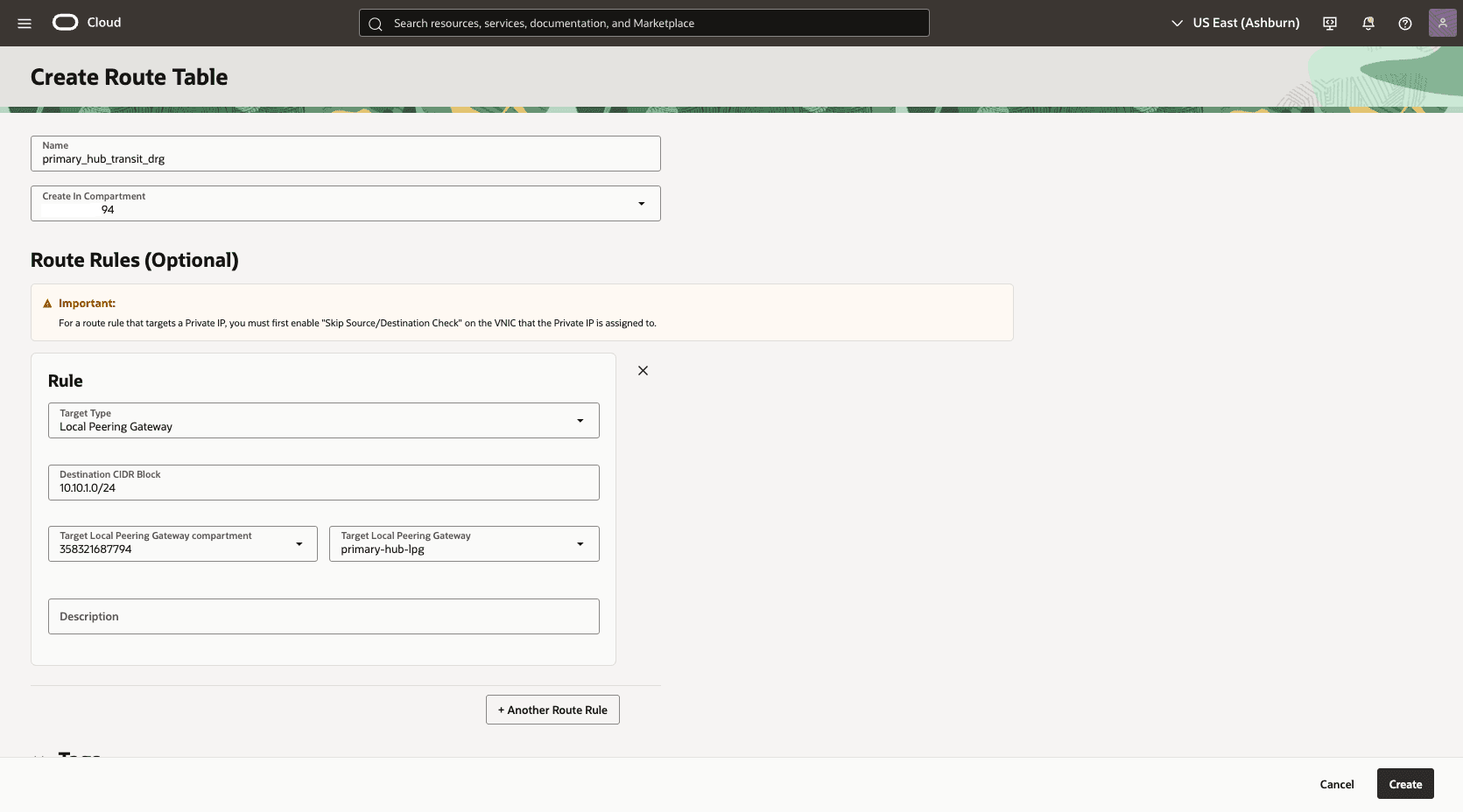
Name: Choose a name. For example,
primary_hub_transit_drg. -
Select the + Another Route Rule button.
-
Target Type: Local Peering Gateway
-
Destination CIDR Block: Enter 10.10.1.0/24 in the Primary VM Cluster Client Subnet CIDR field.
-
Target Local Peering Gateway: Select the LPG of the created in the HUB VCN Primary. For example,
primary-hub-lpg. -
Description: To primary client subnet.
-
Select the Create button.
-
-
-
Attach the DRG to the primary hub VCN.
-
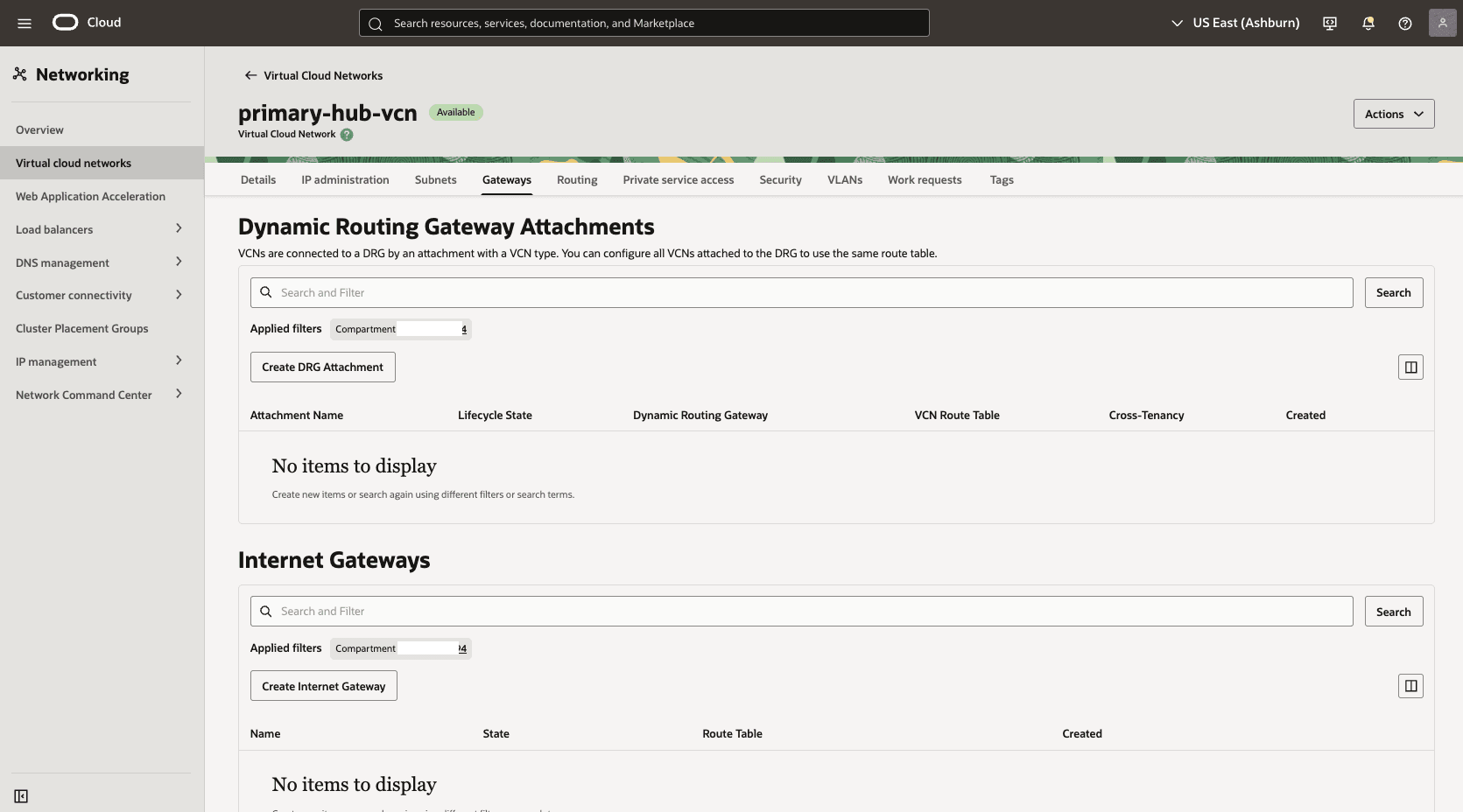
In the Hub VCN Primary VCN section, select the Gateways tab. Under the Dynamic Routing Gateway Attachments section, select the Create DRG Attachment button.
-
Name: Select a name. For example,
primary-hub-drg. -
DRG Location: Select the current tenancy.
-
Choose a DRG: Select the DRG name that you created in the previous step.
-
The Advanced Options section is optional.
-
Select the Select Existing option, then select the Routing Table that you created in the previous step. For example,
primary_hub_transit_drg.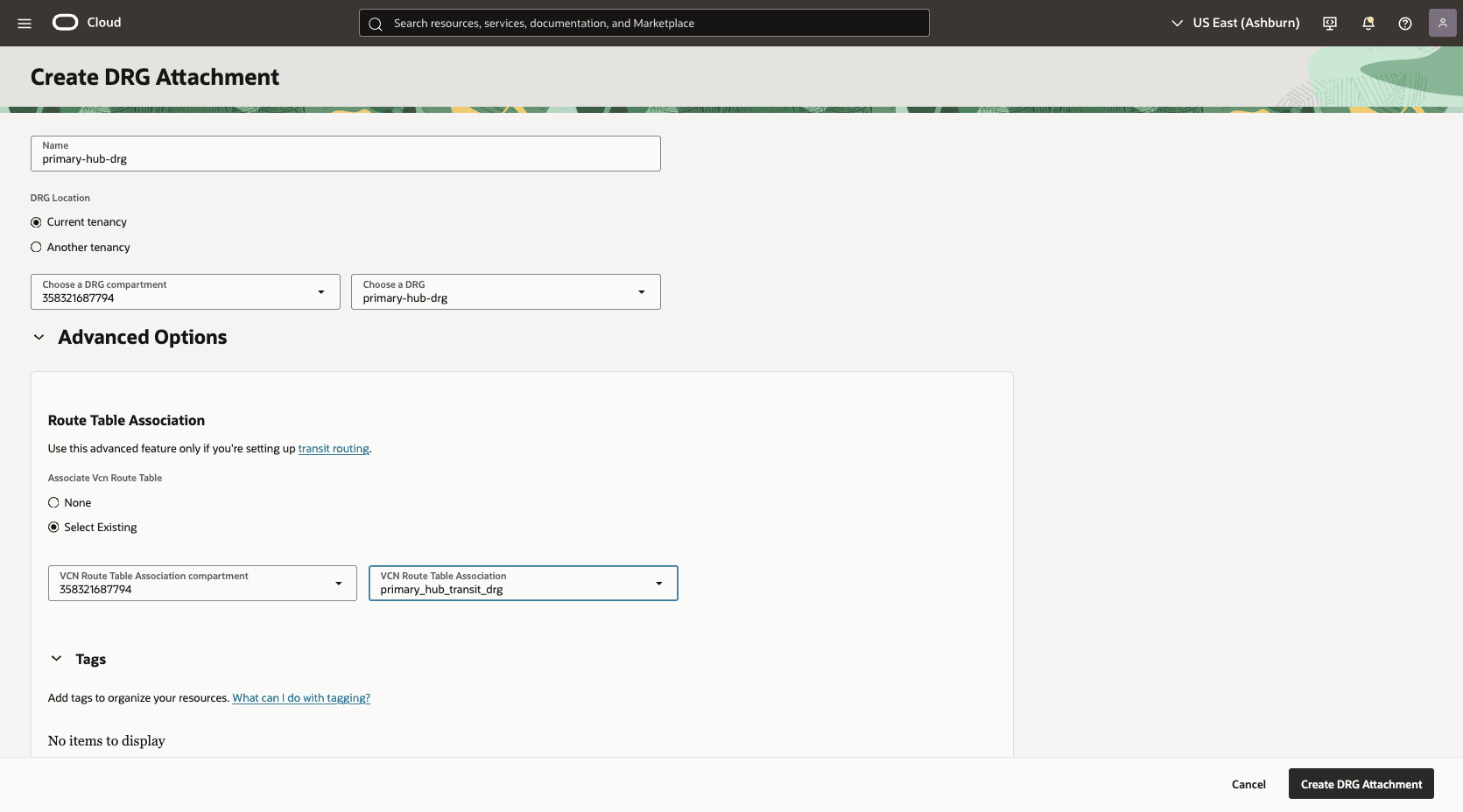
-
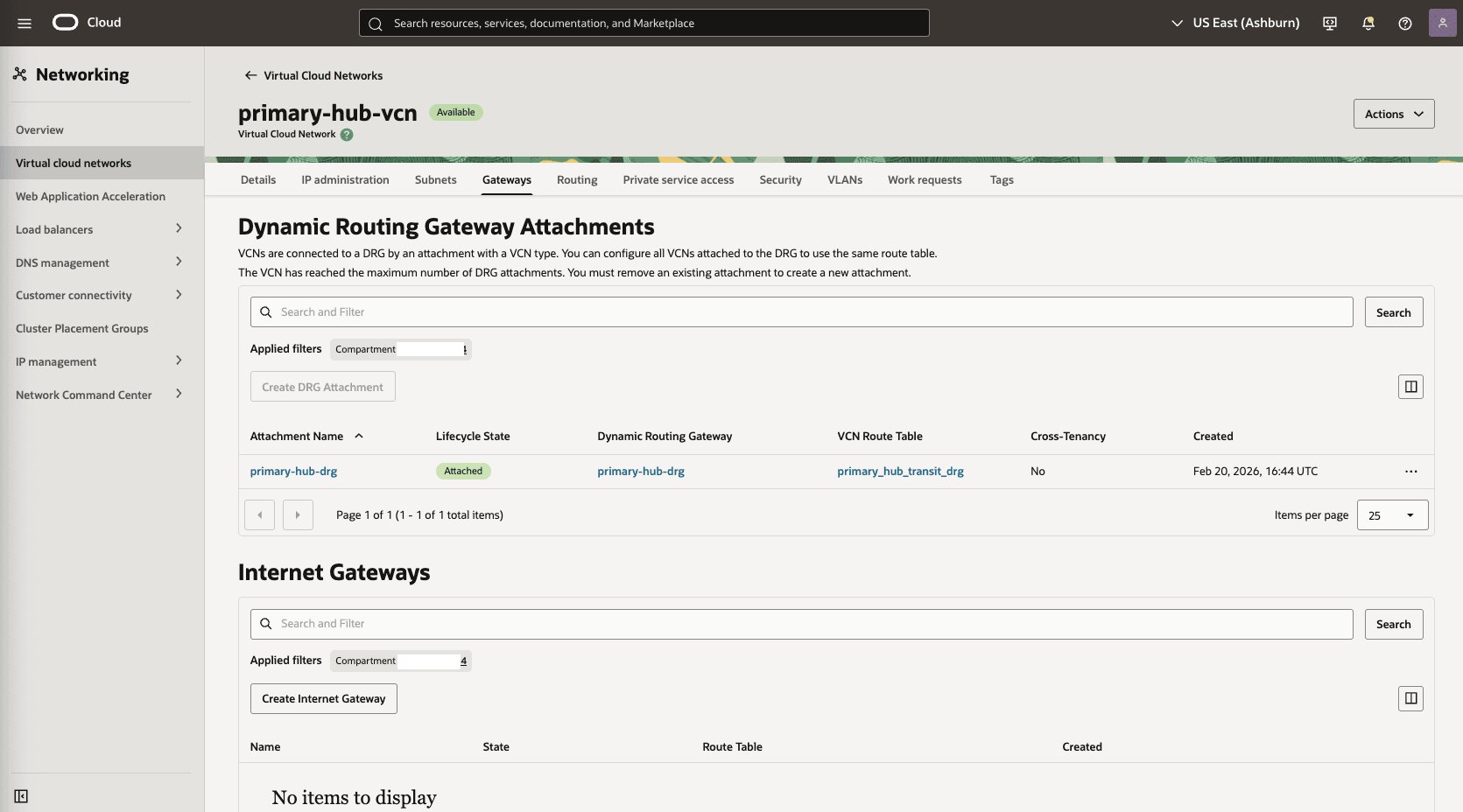
Select the Create DRG Attachment button.
-
-
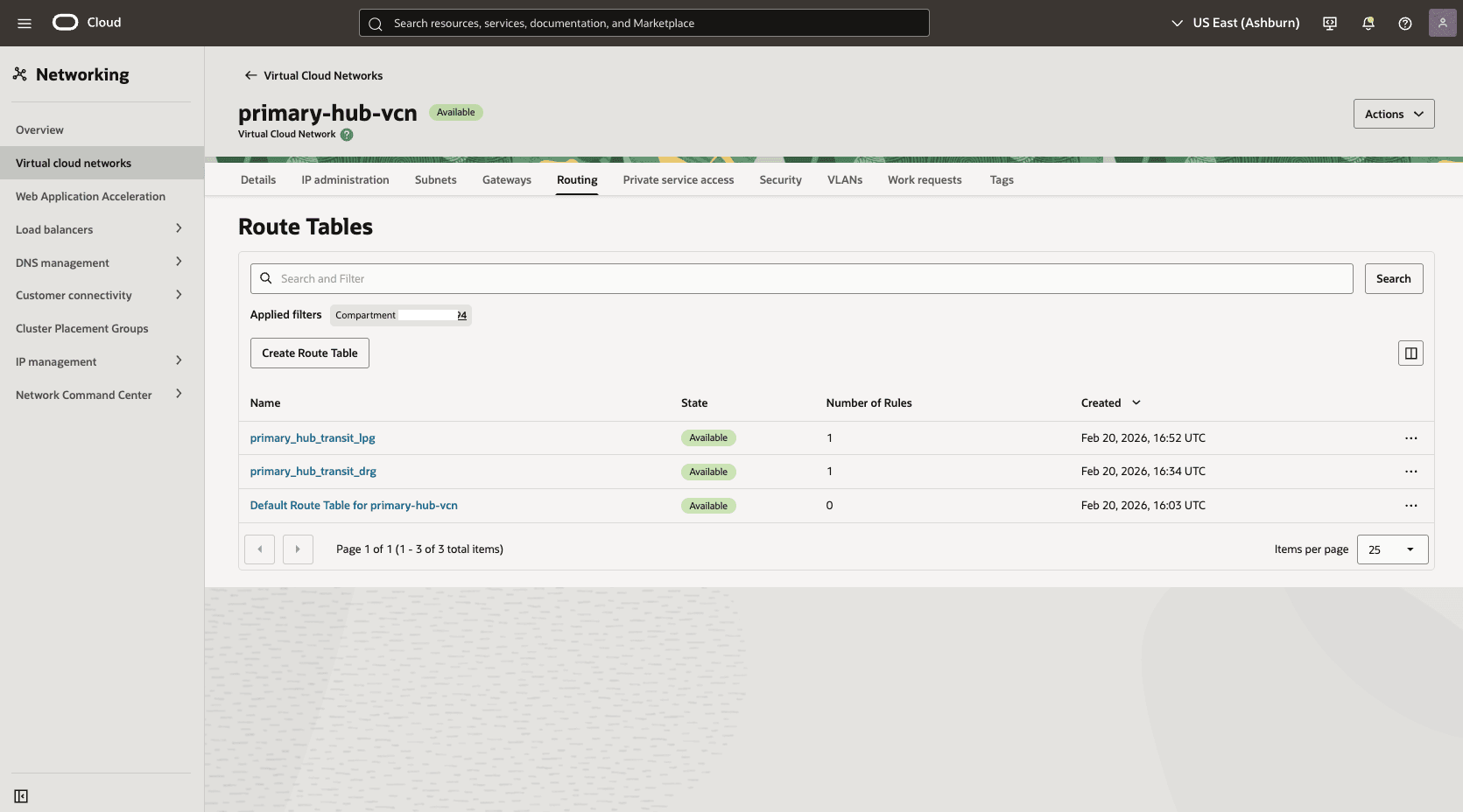
In the primary hub VCN, create a second route table to direct network traffic to the standby network.
-
From the HUB VCN Primary VCN, select the Routing tab, then select the Create Route Table button.
-
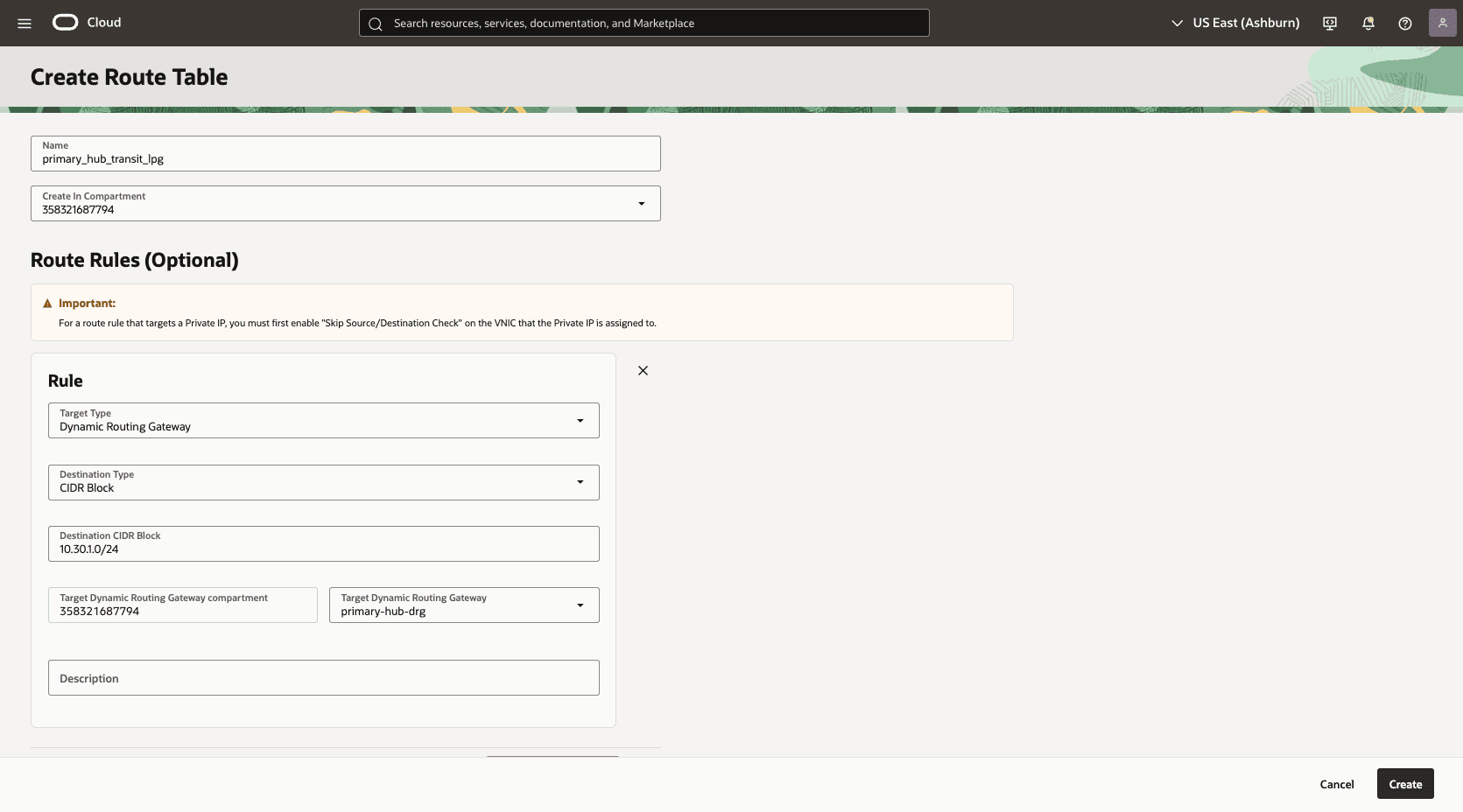
Name: Choose a name. For example,
primary_hub_transit_lpg. -
Select the + Another Route Rule button.
-
Target Type: Dynamic Routing Gateway
-
Destination CIDR Block: Enter the VCN Standby client subnet CIDR. For example,
10.30.1.0/24. -
Target Dynamic Routing Gateway: Select the DRG associated with the HUB VCN Primary For example,
primary-hub-drg. -
Description: To standby client subnet.
-
Select the Create button.
-
-
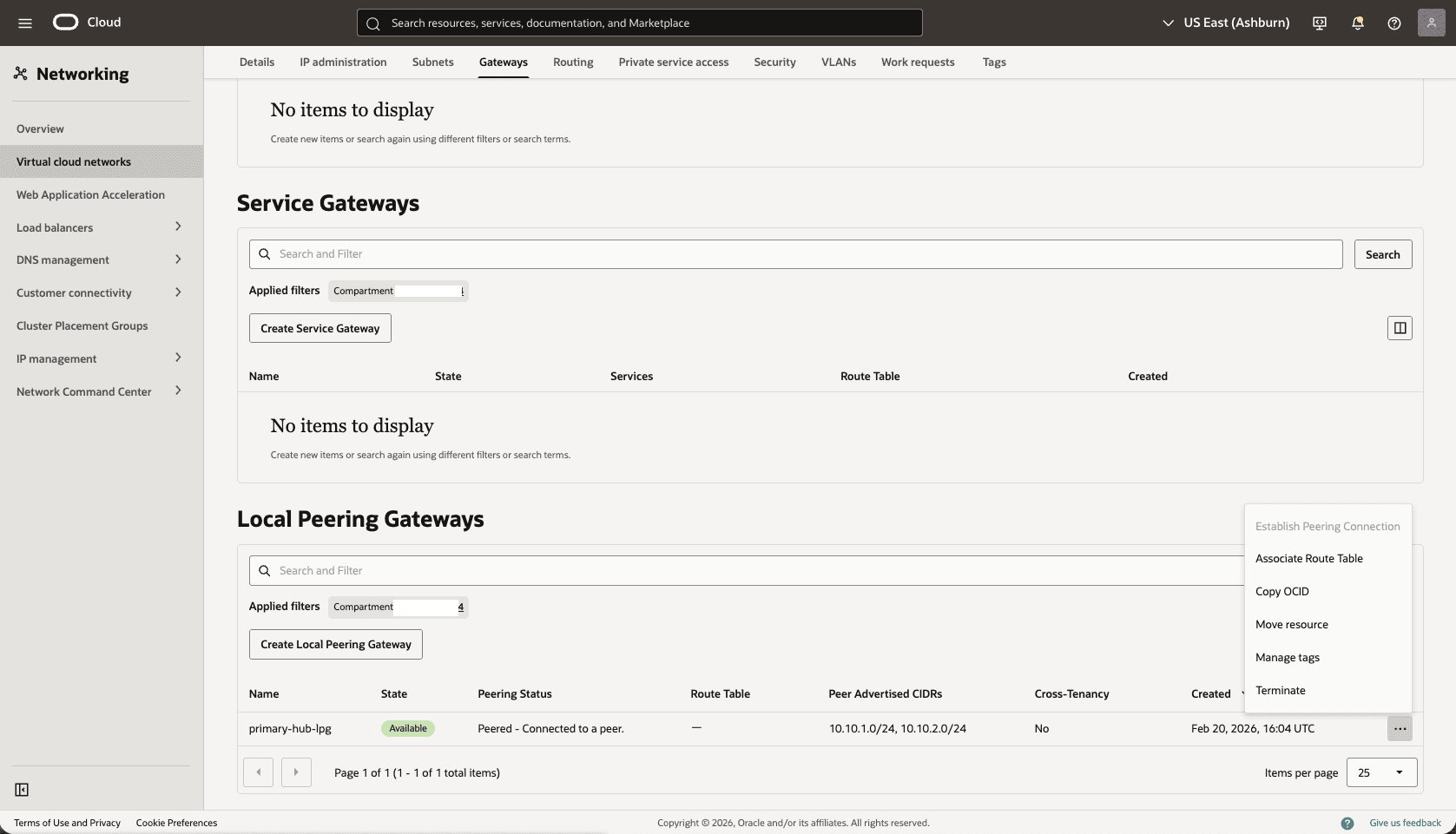
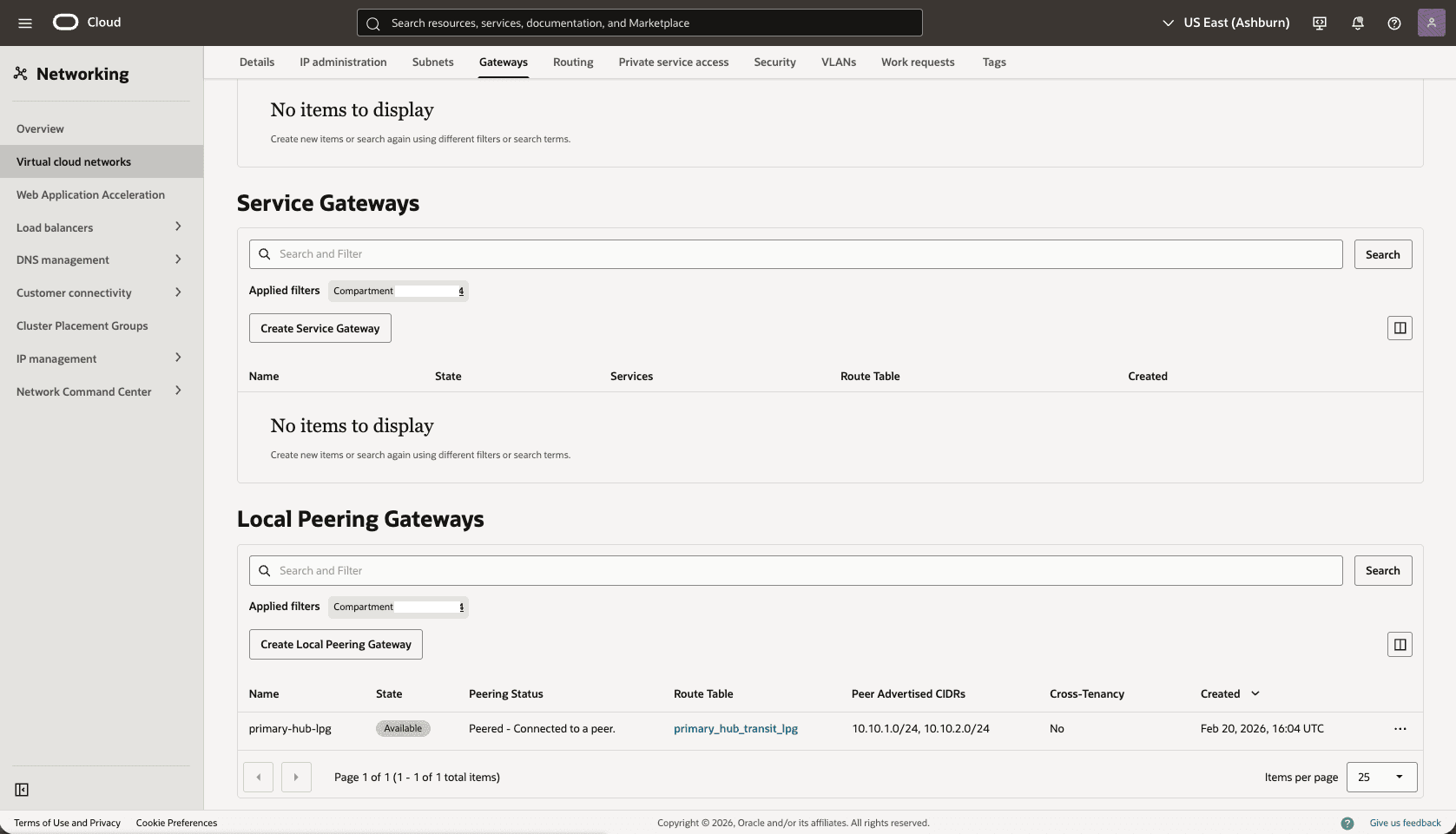
Associate the
primary_hub_transit_lpgroute table to theHub-Primary-LPGgateway.-
From the Hub VCN Primary VCN, select the Gateways tab, scroll down to the Local Peering Gateways section.
-
Select the three dots, then select the Associate Route Table option.
-
Select the route table that you created for the Local Peering Gateway. For example,
primary_hub_transit_lpg.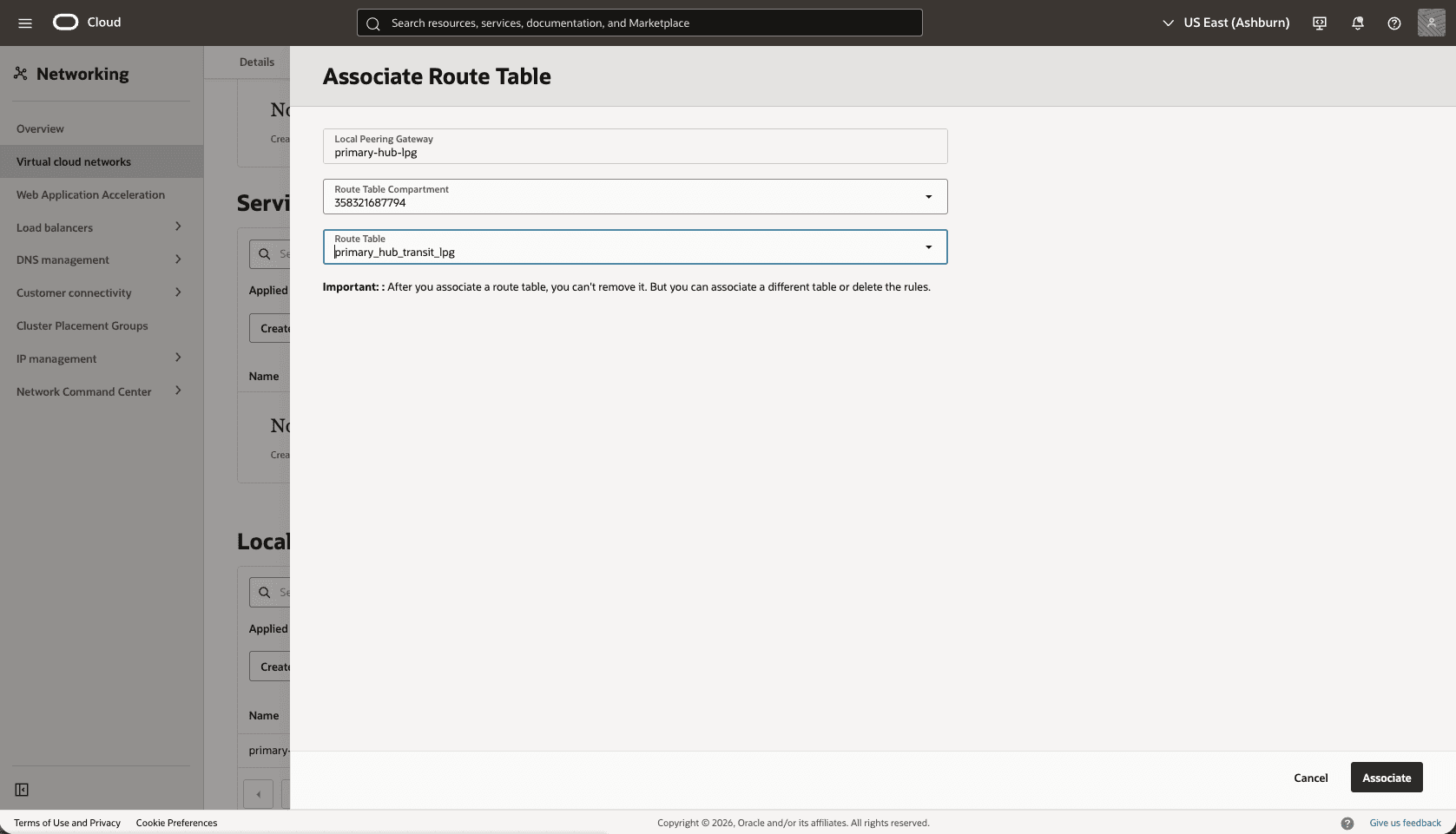
-
Select the Associate button.
-
-
Edit the
Primary-Hub-DRGattachment from thePrimary-Hub-VCNto update theDRGroute table.-
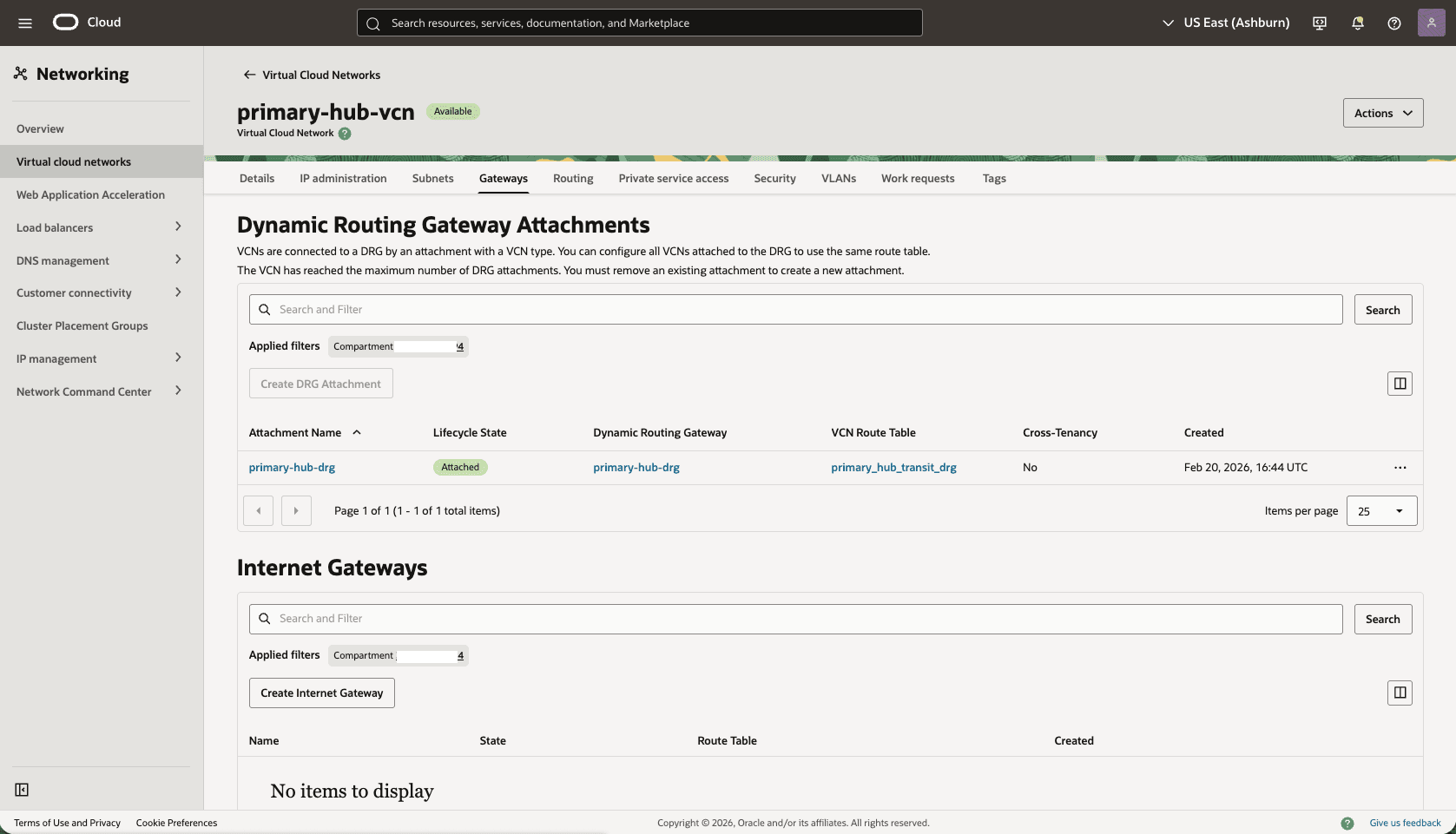
From the Hub VCN Primary VCN, select the Gateways tab. Under the Dynamic Routing Gateway Attachments section, select the name of your DRG attachment.
-
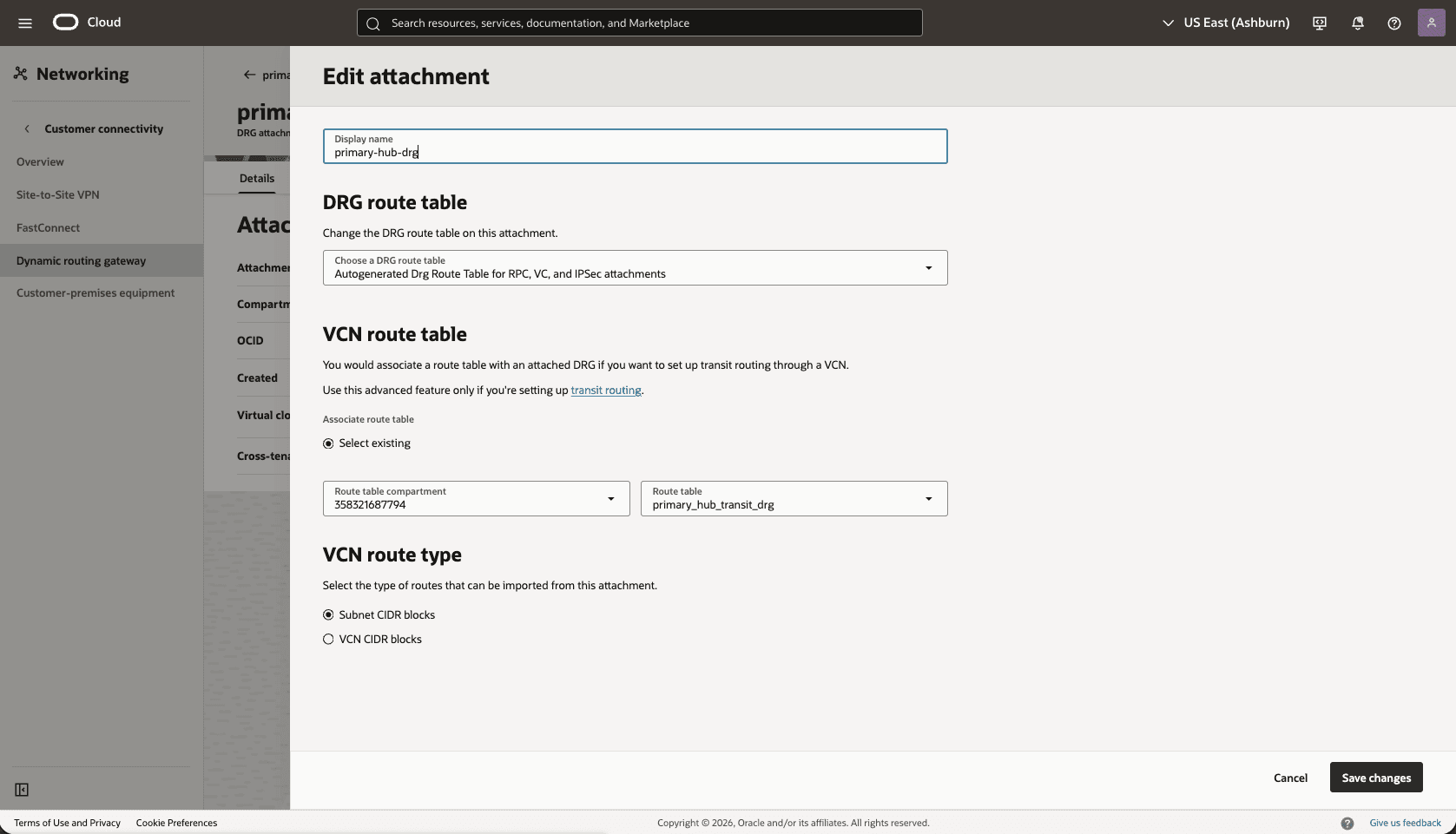
Select the Edit button.
-
In the DRG route table, select Autogenerated Drg Route Table for RPC, VC, and IPSec attachments.
-
Select the Save changes button.
-
-
Validate the DRG route table options.
-
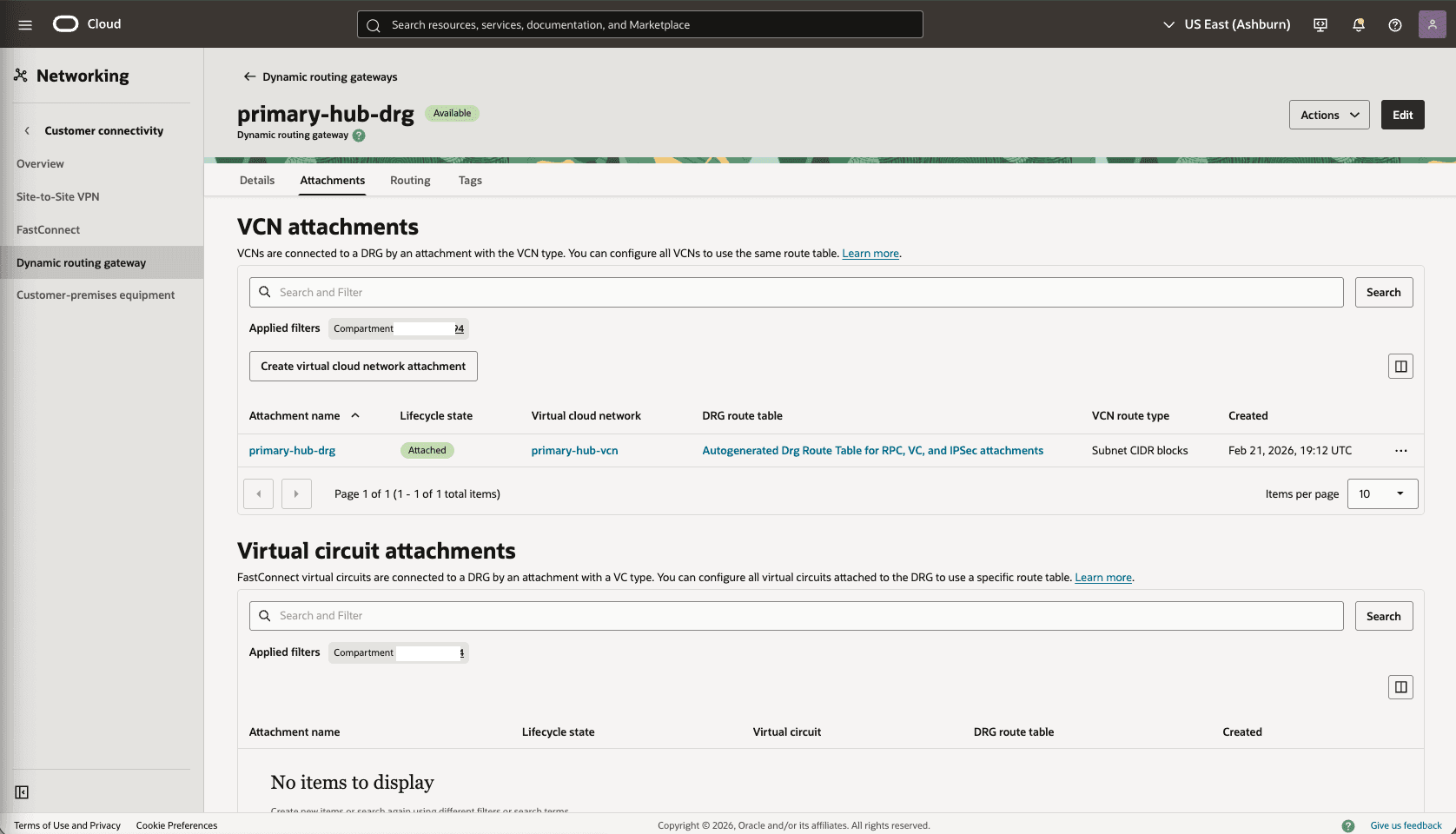
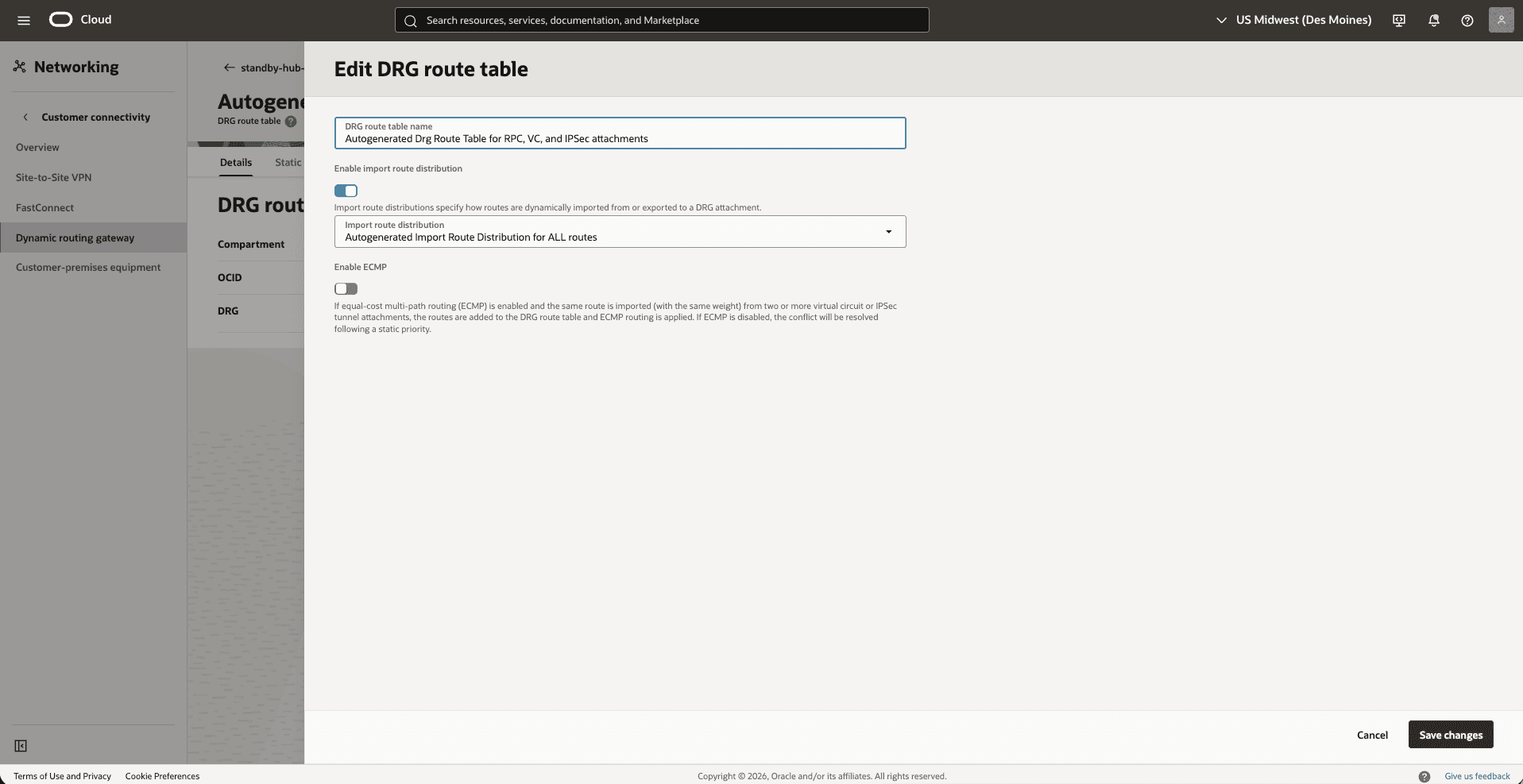
From the Dynamic Routing Gateway section, select the Attachments tab. In the VCN attachments section, under DRG route table column, select Autogenerated Drg Route Table for RPC, VC, and IPSec attachments.
-
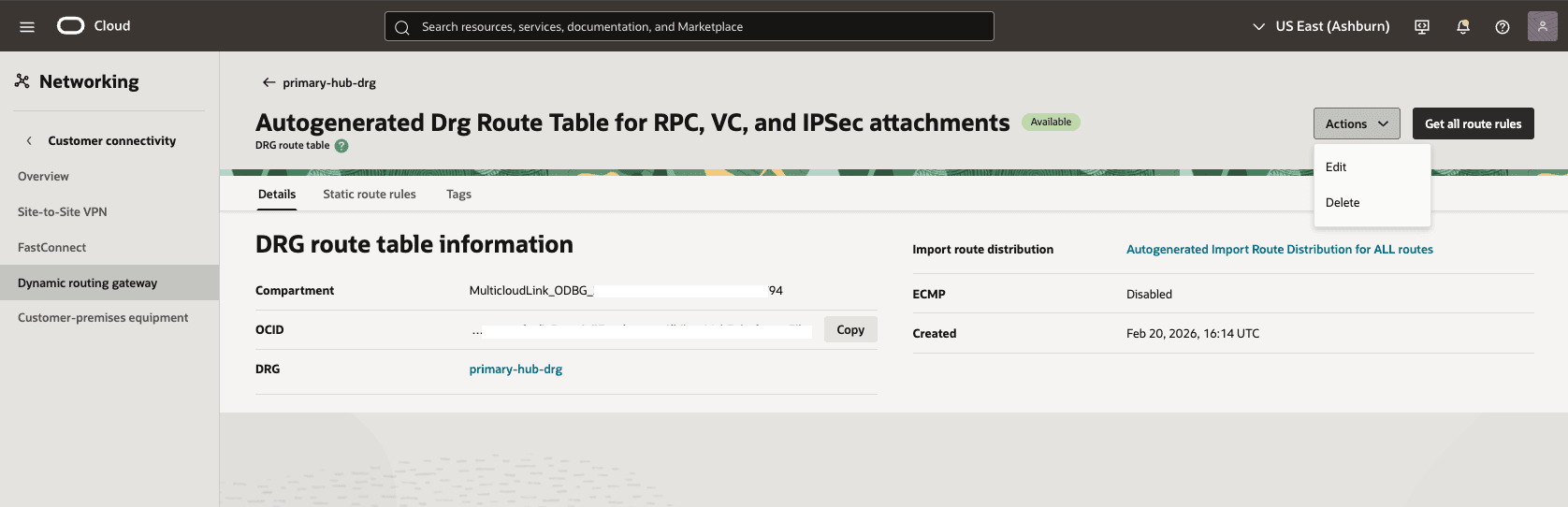
Select the Actions button, then select the Edit option.
-
Make sure that the Enable import route distribution option is enabled and Import route distribution is set to Autogenerated Import Route Distribution for ALL routes.
-
Select the Save changes option.
Note
Note:
-
For a more precise configuration, disable the import route distribution of the Autogenerated DRG Route Table for RPC, VC, and IPSec attachments route table.
-
For Autogenerated DRG Route Table for VCN attachments, create and assign a new import route distribution including only the required RPC attachment.
-
-
-
From the
Primary-Hub-DRG, create a remote peering connection attachments.-
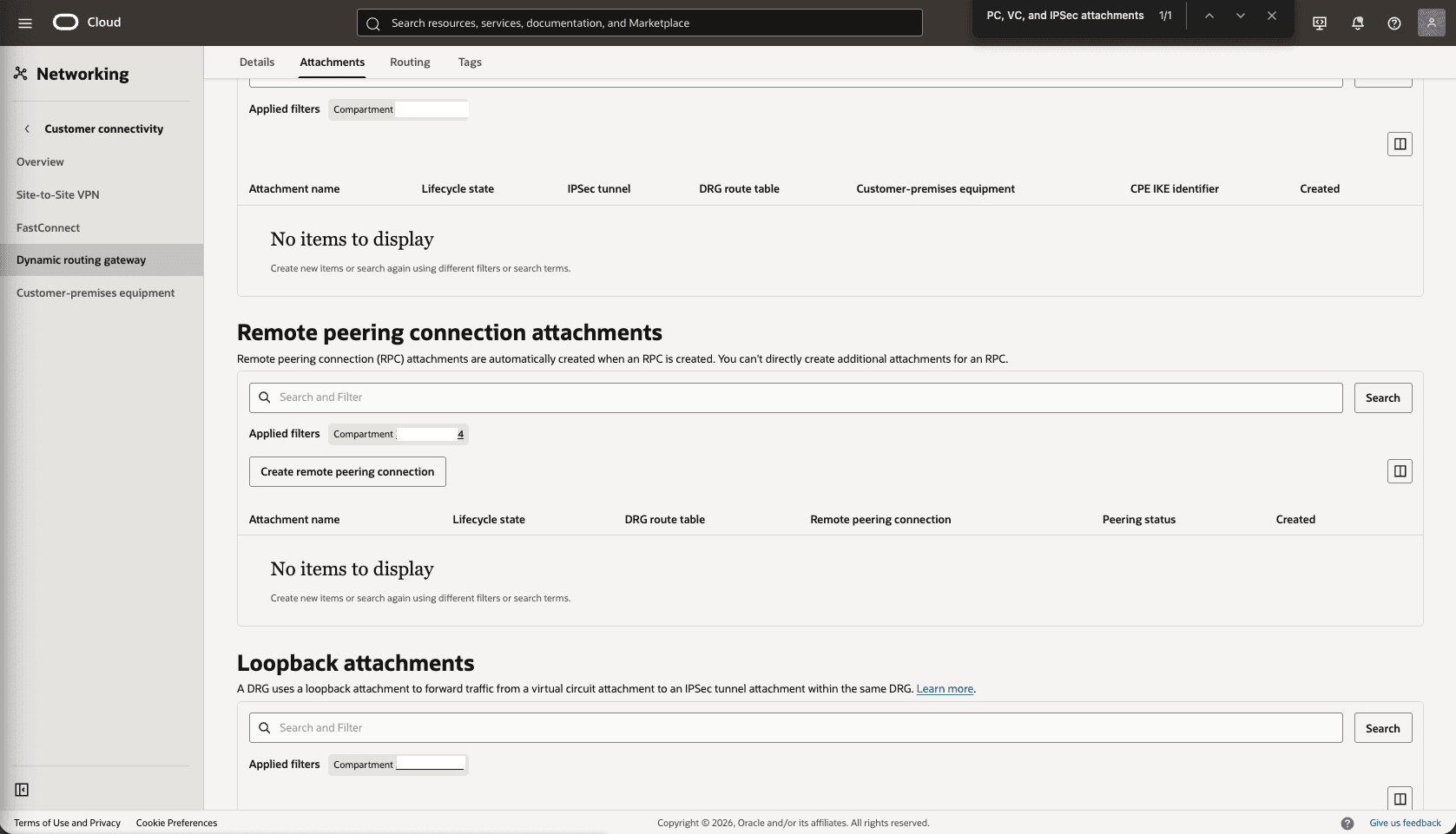
From the Network section, in the Dynamic routing gateway page, select the Attachments tab, scroll down to the Remote peering connection attachments section, select the Create remote peering connection button.
-
Choose a name. For example,
primary-hub-drg.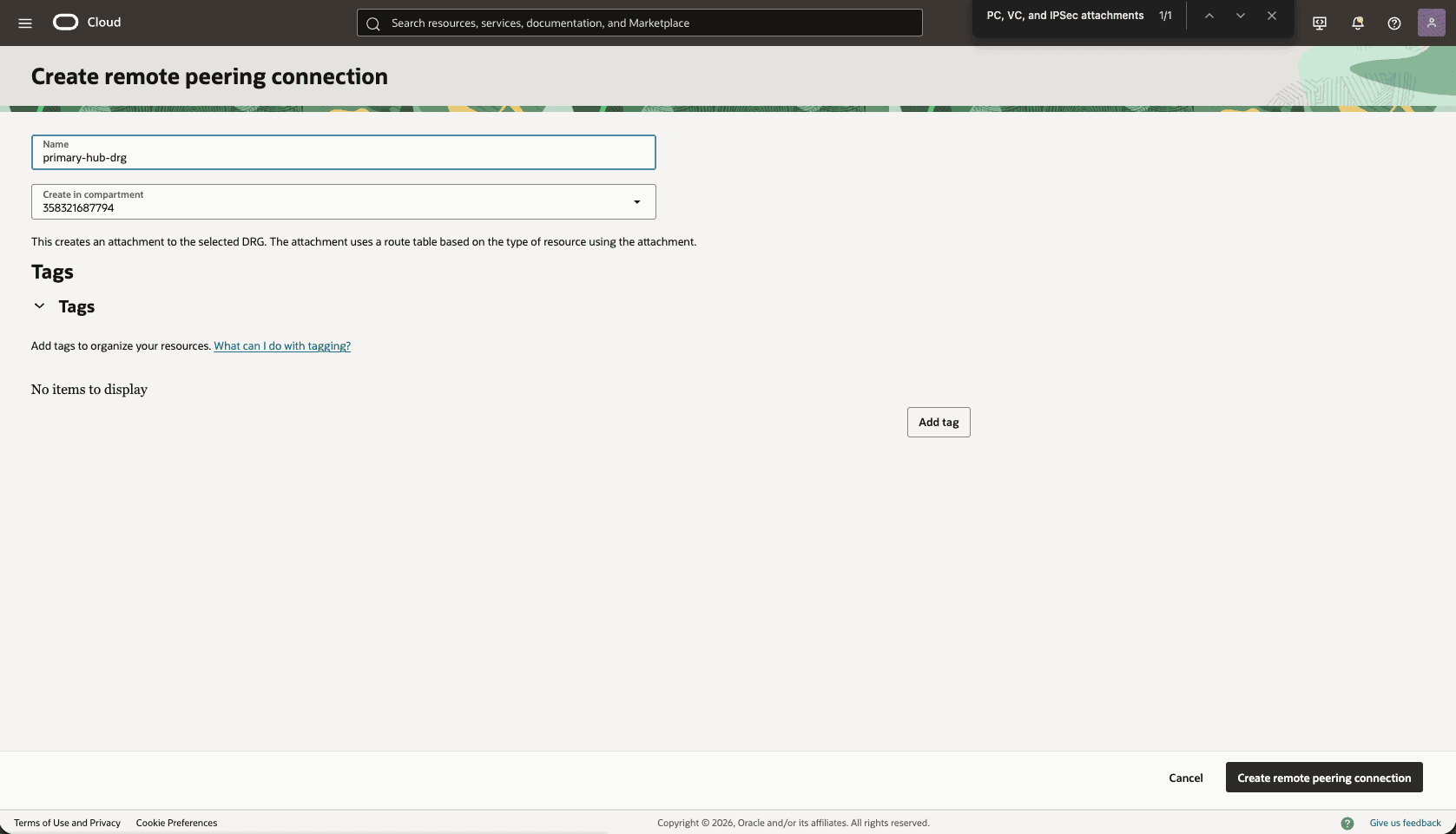
-
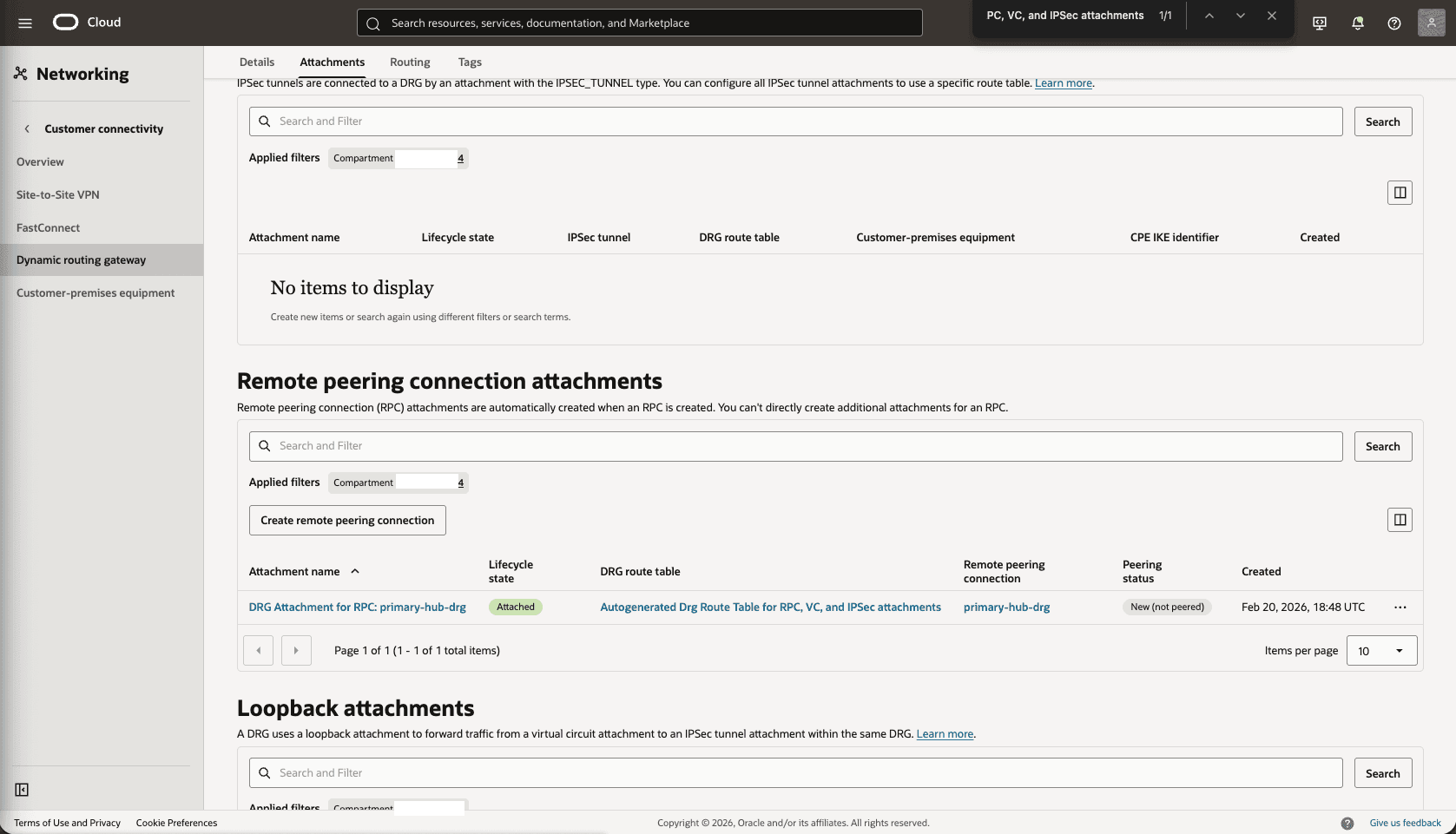
Select the Create remote peering connection button.
-
Select the remote peering connection
primary-hub-drgthat you created in the previous step, and take note of the OCID.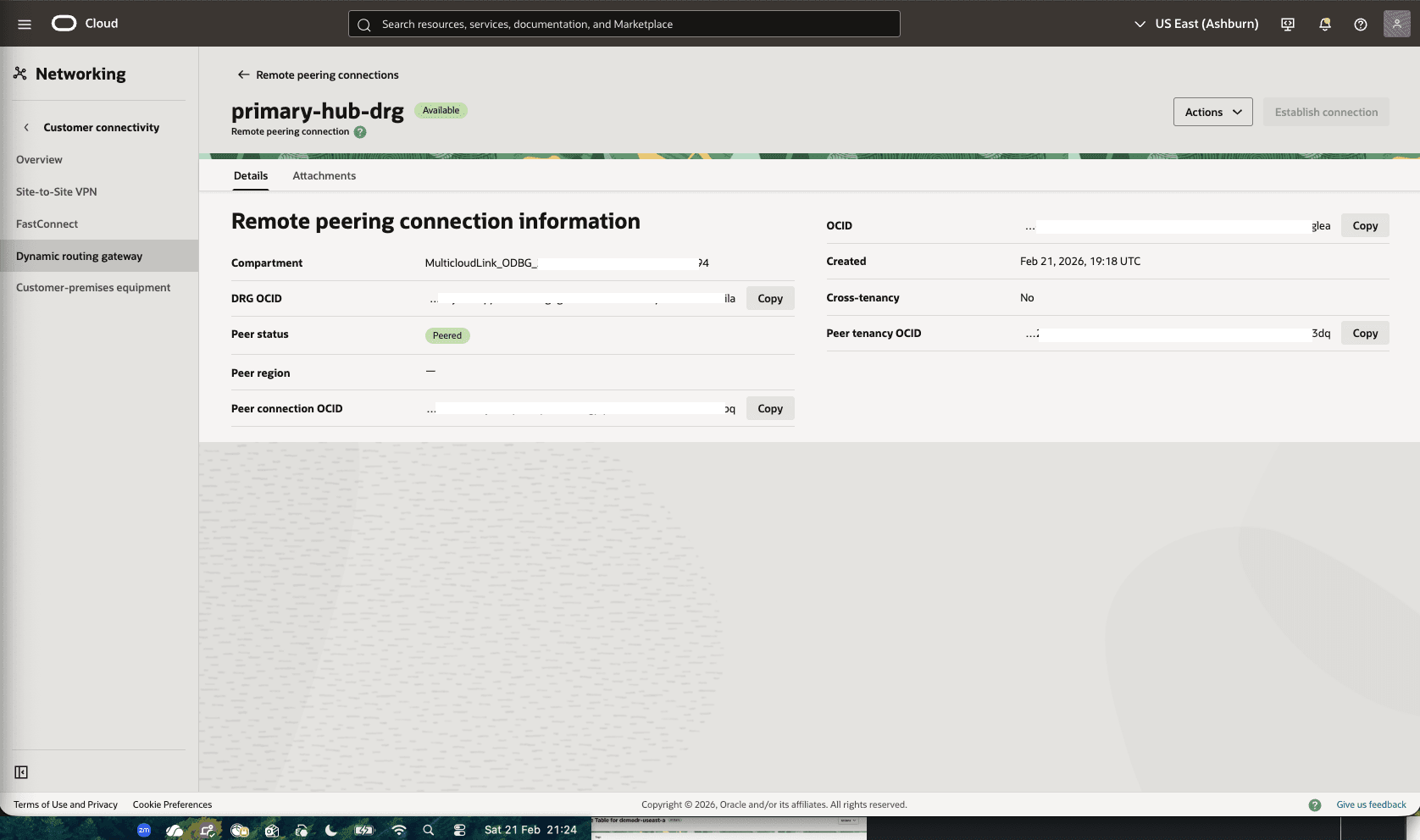
-
-
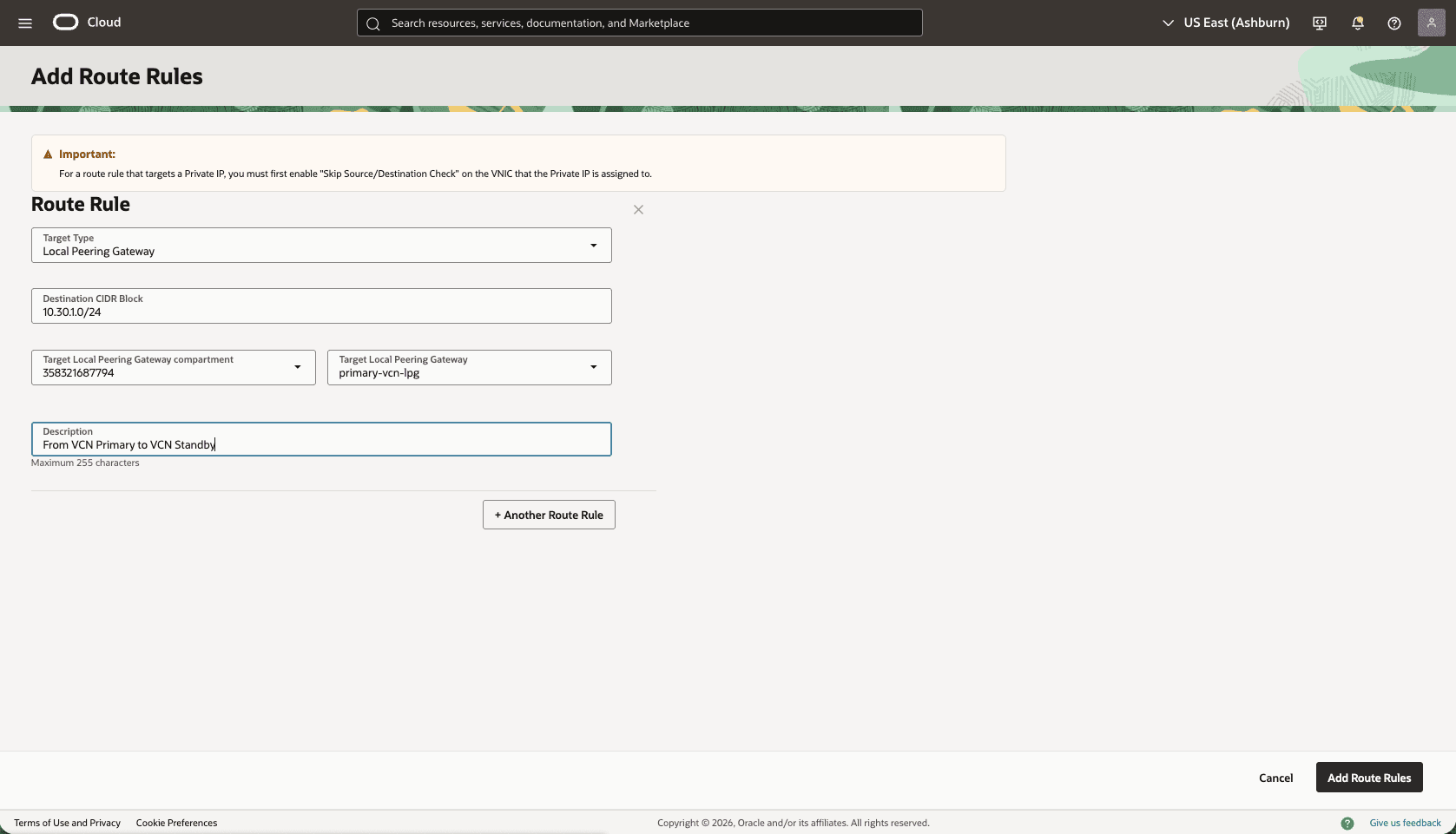
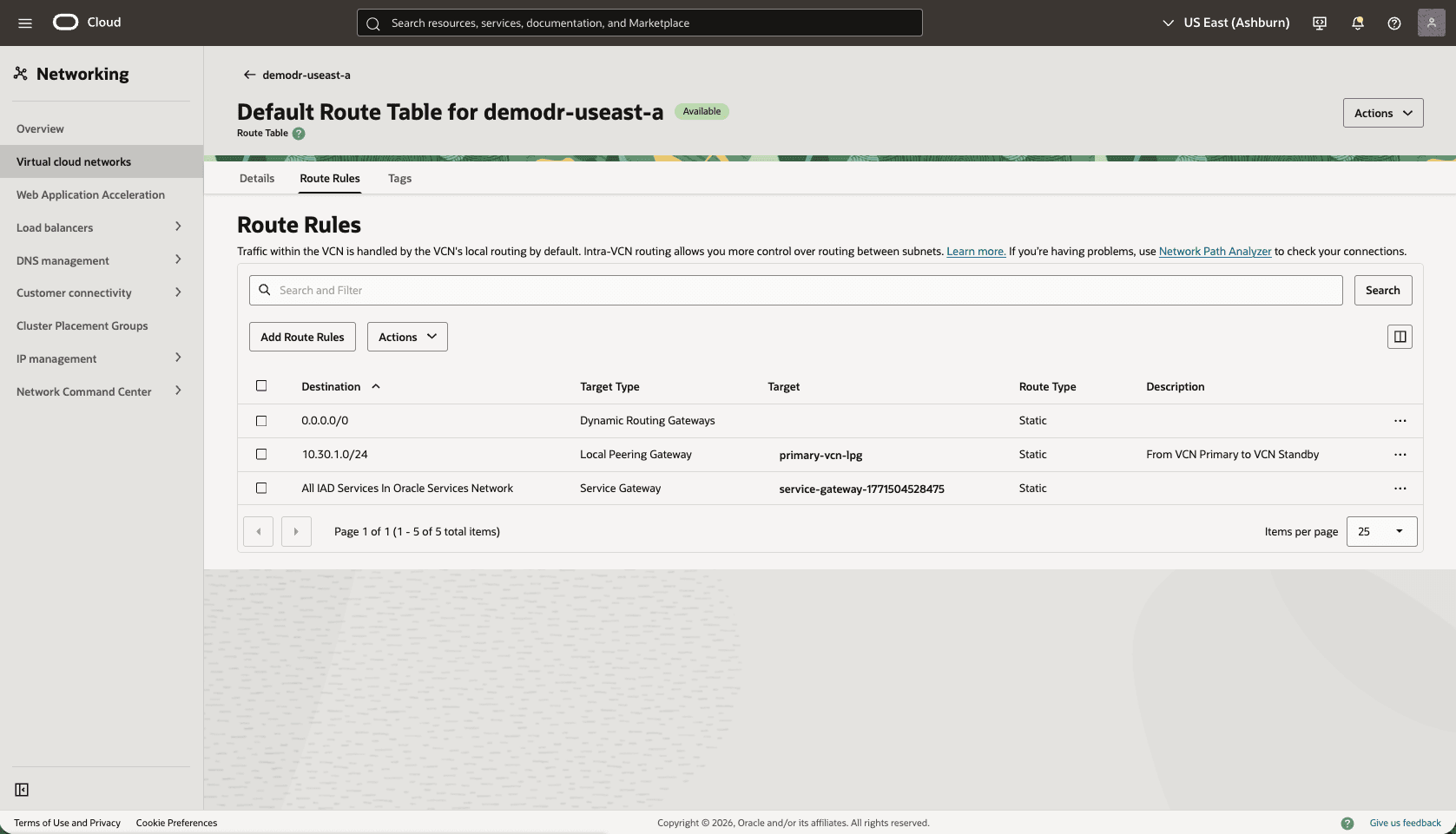
Update the primary VCN Default Route Table. Add a route rule for the Standby VCN Client Subnet CIDR range.
-
From your Primary VM cluster VCN, select the Routing tab, then select the name of the Default Route table.
-
Select the Route Rules tab, then select Add Route Rules button.
-
Target Type: Local Peering Gateway
-
Destination CIDR Block: select the standby VCN client subnet CIDR. For example,
10.30.1.0/24. -
Target Local Peering Gateway: select your LPG. For example,
primary-vcn-lpg. -
Description: Enter a description.
-
Select the Add Route Rules button.
-
-
From the Google Cloud Console, select the primary instance and select the Manage in OCI link to open the OCI Console.
-
From the OCI console, navigate to the Network section, and then select the Client network security groups.
-
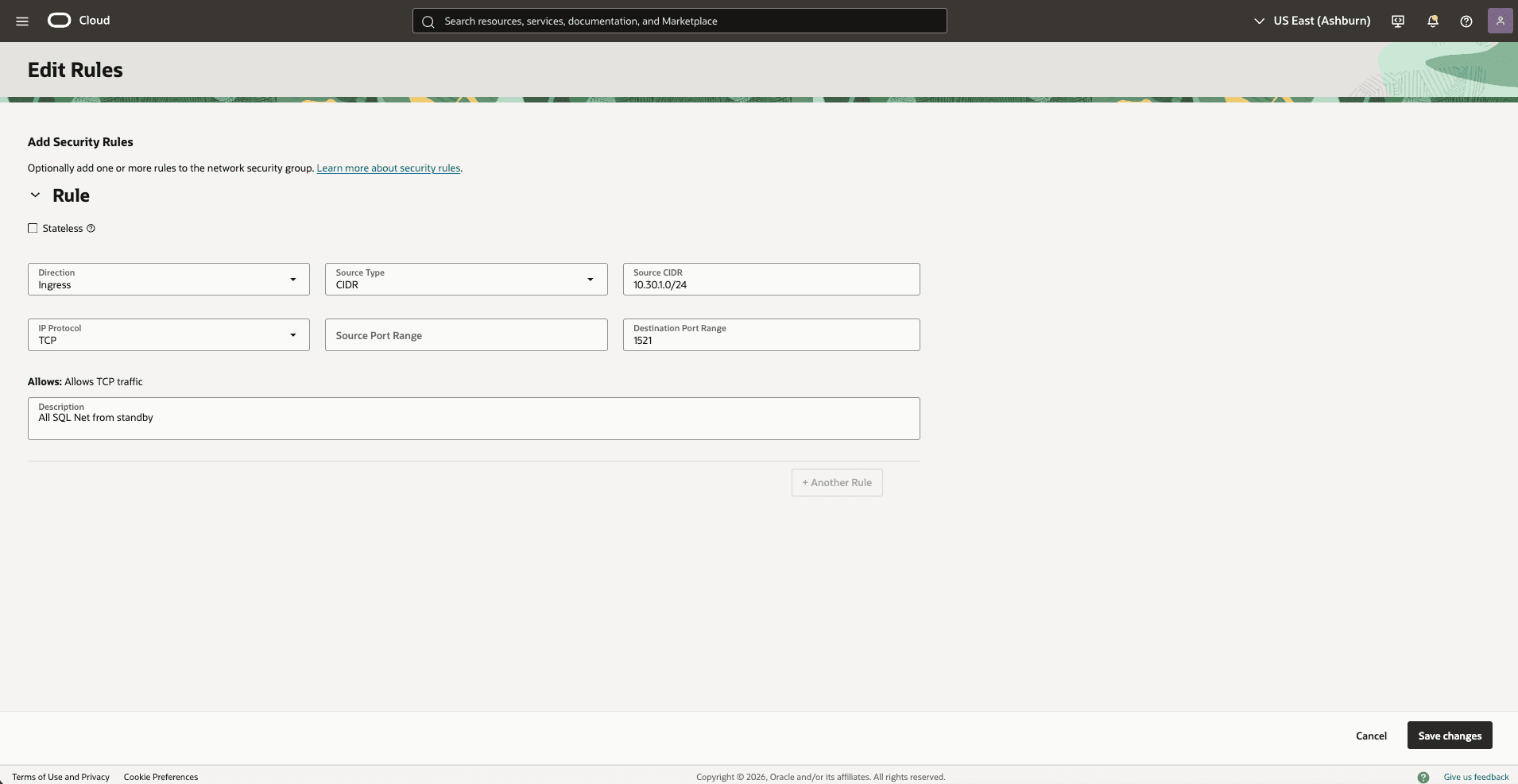
Update the OCI network security group (NSG) of your primary VM cluster VCN to allow traffic from the standby network.
-
In the Virtual Cloud Networks detail page of the primary VCN (
10.10.10.0/24), select the Security tab, scroll down to the Network Security Groups section, then select the name of your VM Cluster Network Security Groups. -
Select the Security rules tab, select the Add Rules button, then create a rule with the following specifications.
-
Direction: Ingress
-
Source Type: CIDR
-
Source CIDR: Enter your stand by CIDR block. For example,
10.30.1.0/24. -
IP Protocol: TCP
-
Source Port Range: Empty (All)
-
Destination Port Range: 1521
-
Description: Enter a description for this rule.
-
Select the Add button.
-
Optionally, you can add SSH port 22 to SSH the standby VM Cluster.
-
-
Configure the Network in the Standby Region
-
From the Google Cloud Console, select the standby instance and then select the Manage in OCI link to open the OCI Console.
-
From the OCI console, in the Networking menu, create a Virtual Cloud Network (VCN) of the standby region (HUB VCN Standby).
-
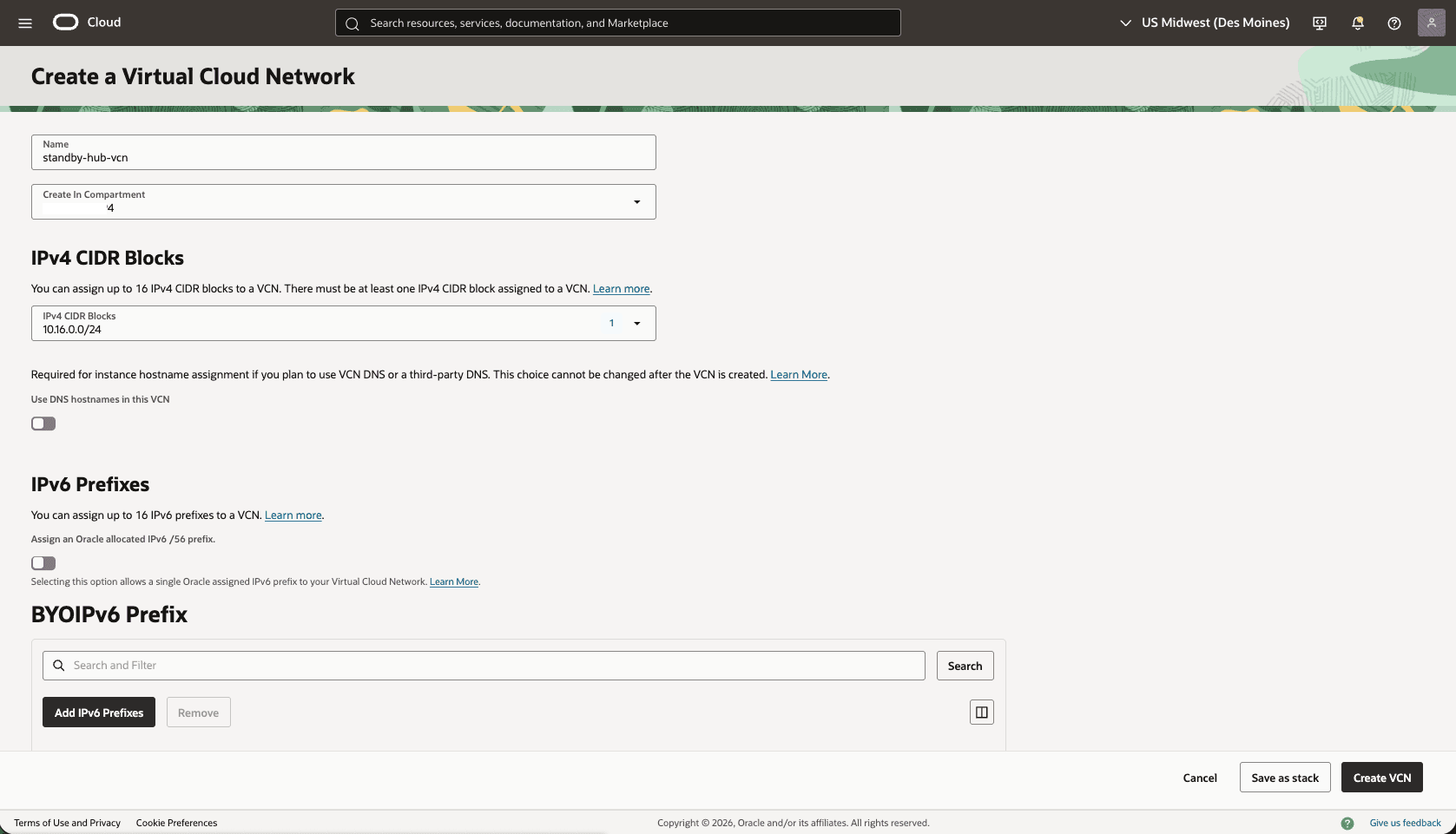
From the OCI console, select Networking, then select Virtual cloud networks. Select Create VCN button and enter the following information.
-
Name: Choose a name. For example,
standby-hub-vcn. -
Create In compartment: Select the compartment that you want to create the VCN.
-
Enter the CIDR block for your Hub VCN. Ensure that this block does not overlap with your existing network address space.
-
Select the Create VCN button.
-
-
-
Deploy two local peering gateways (LPGs), Standby-Hub-LPG and Standby-LPG, in the standby hub VCN and the standby VCN, respectively.
-
In the Standby-Hub VCN detail page, select the Gateways tab, scroll down to the Local Peering Gateways section, and then select the Create Local Peering Gateway button.
-
Choose a name. For example,
standby-hub-lpg. Then select the Create Local Peering Gateway button.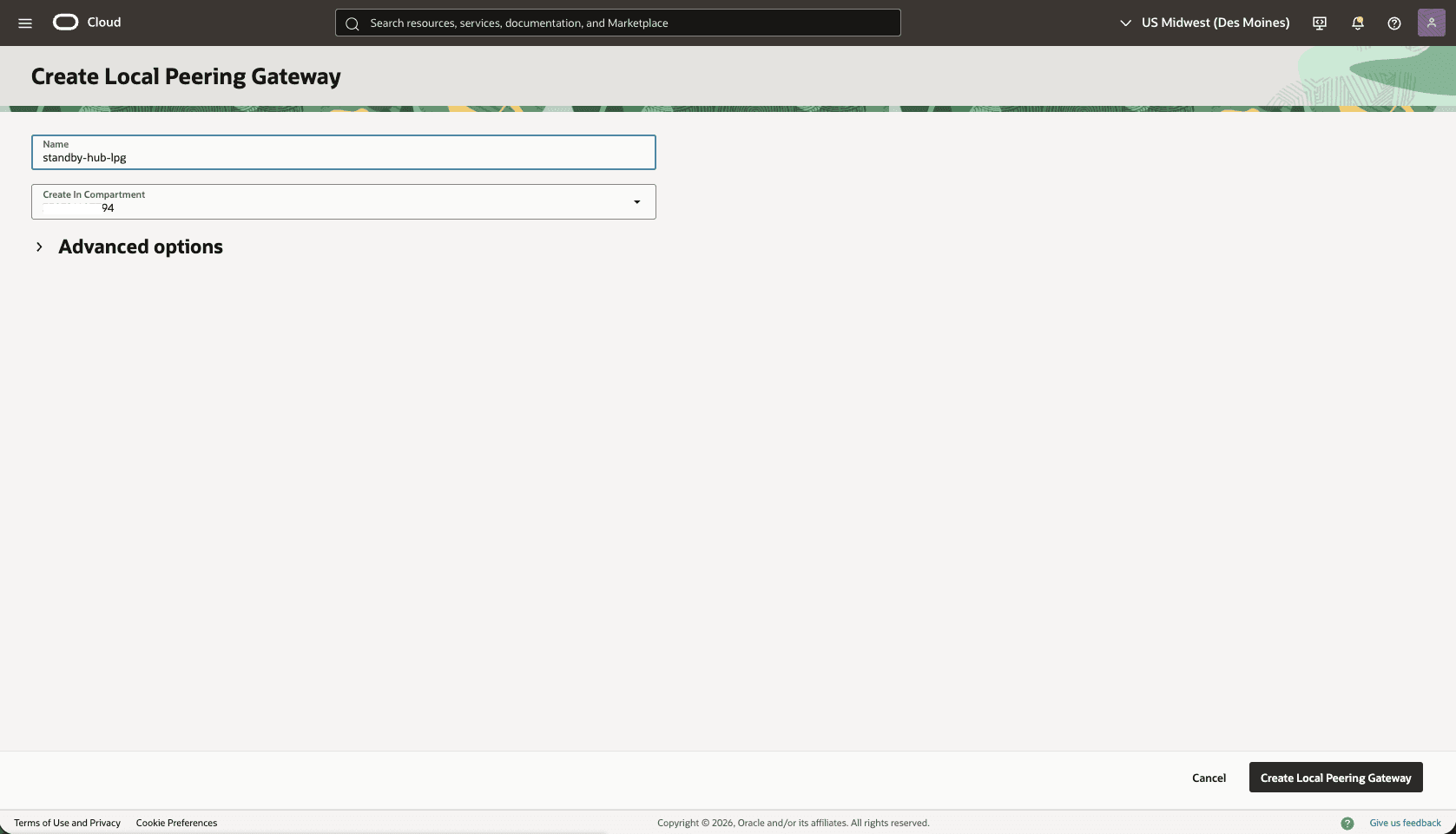
-
In the Standby VM cluster VCN detail page, select the Gateways tab, scroll down to the Local Peering Gateways section, then select the Create Local Peering Gateway button.
-
Choose a name. For example,
standby-lpg. Then, select the Create Local Peering Gateway button.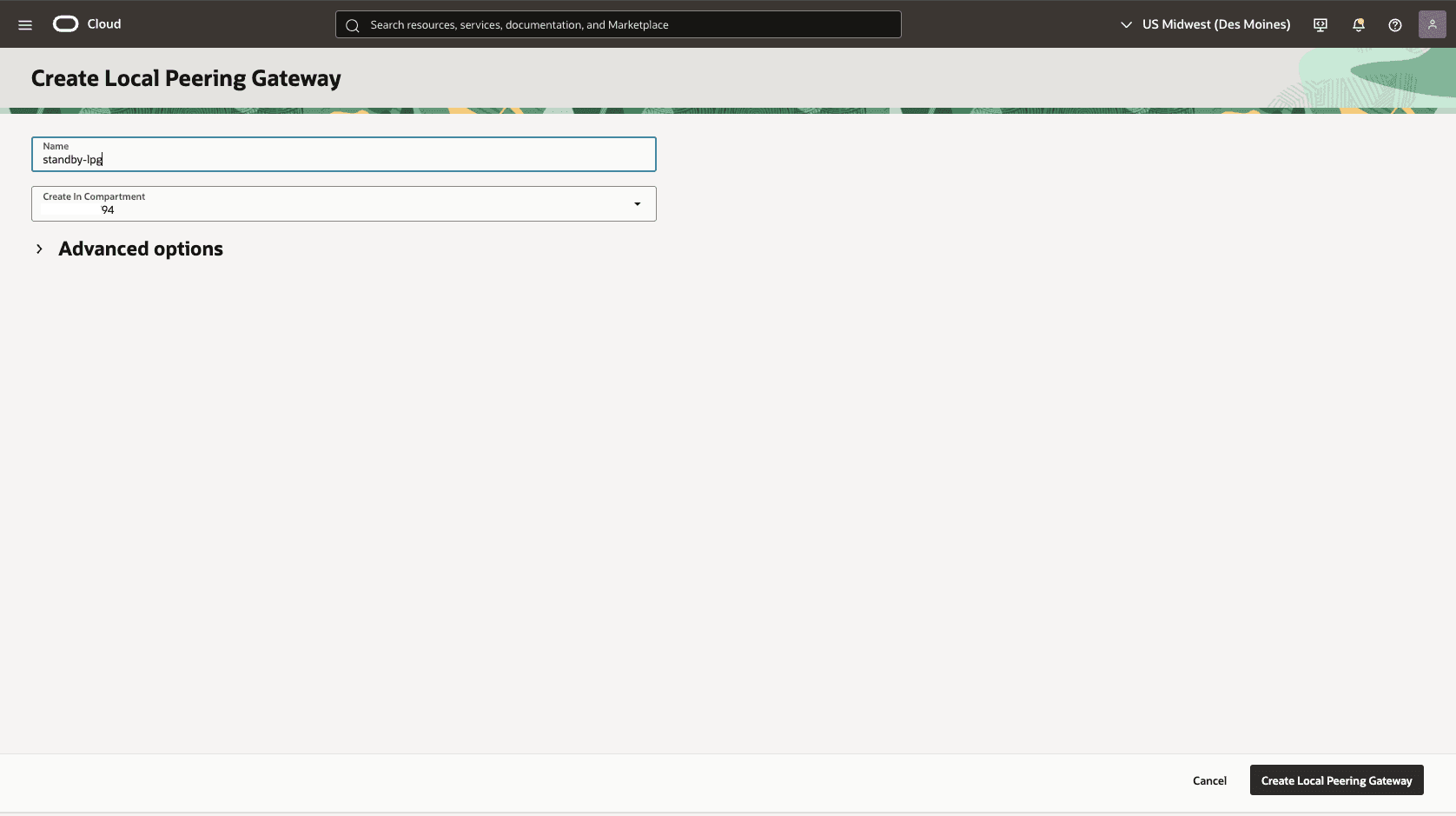
-
-
Establish a peer LPG connection between LPGs for VCN Standby and HUB VCN Standby.
-
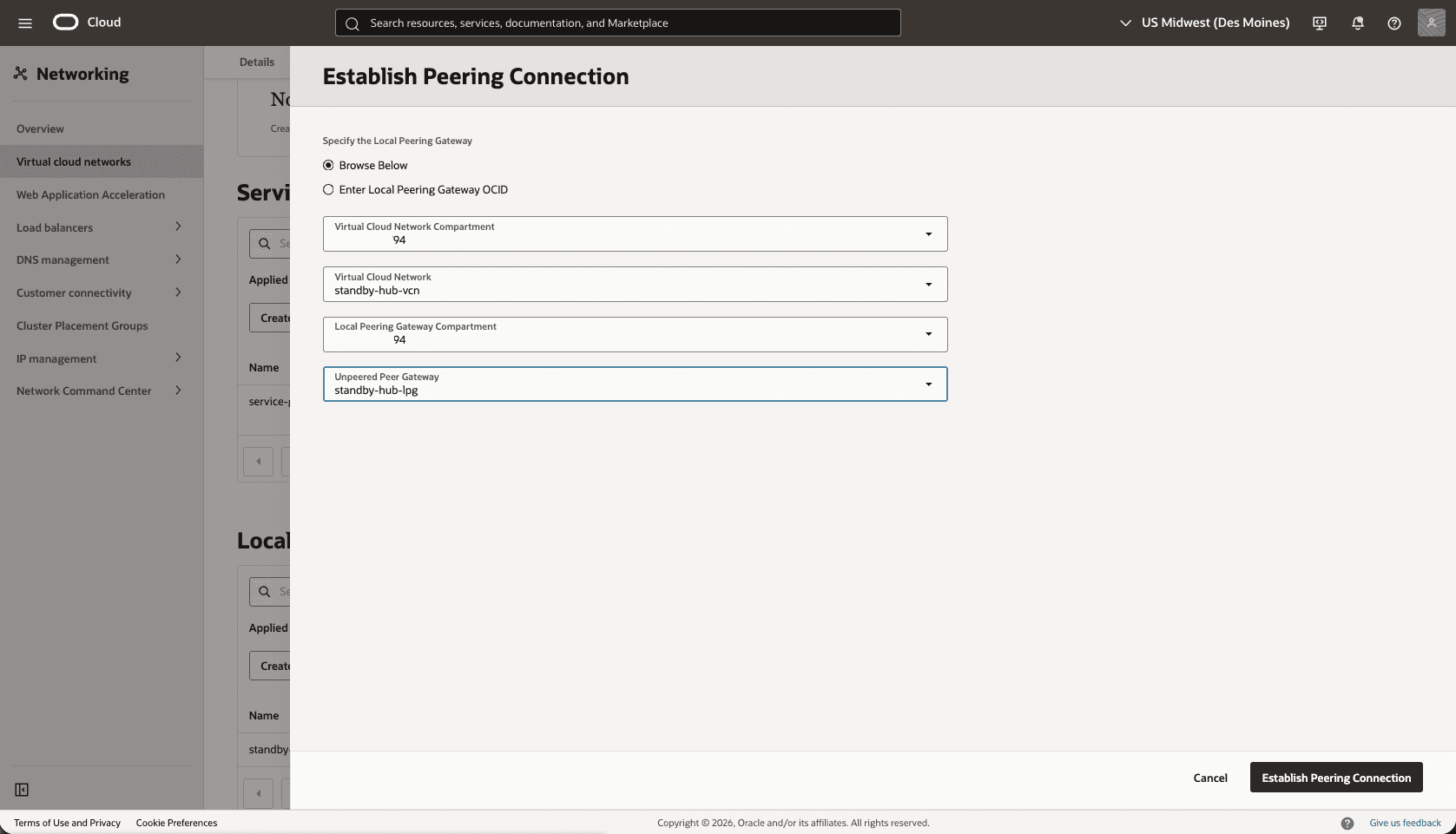
In your Standby VM Cluster VCN, select the Gateways tab, and then select Local Peering Gateways. Locate the LPG that you created in the previous step. Select the three dots, and then select Establish Peering.
-
Select the Browse Below option, select the Standby-Hub VCN, Standby-Hub-LPG, and then select the Establish Peering Connection button.
-
-
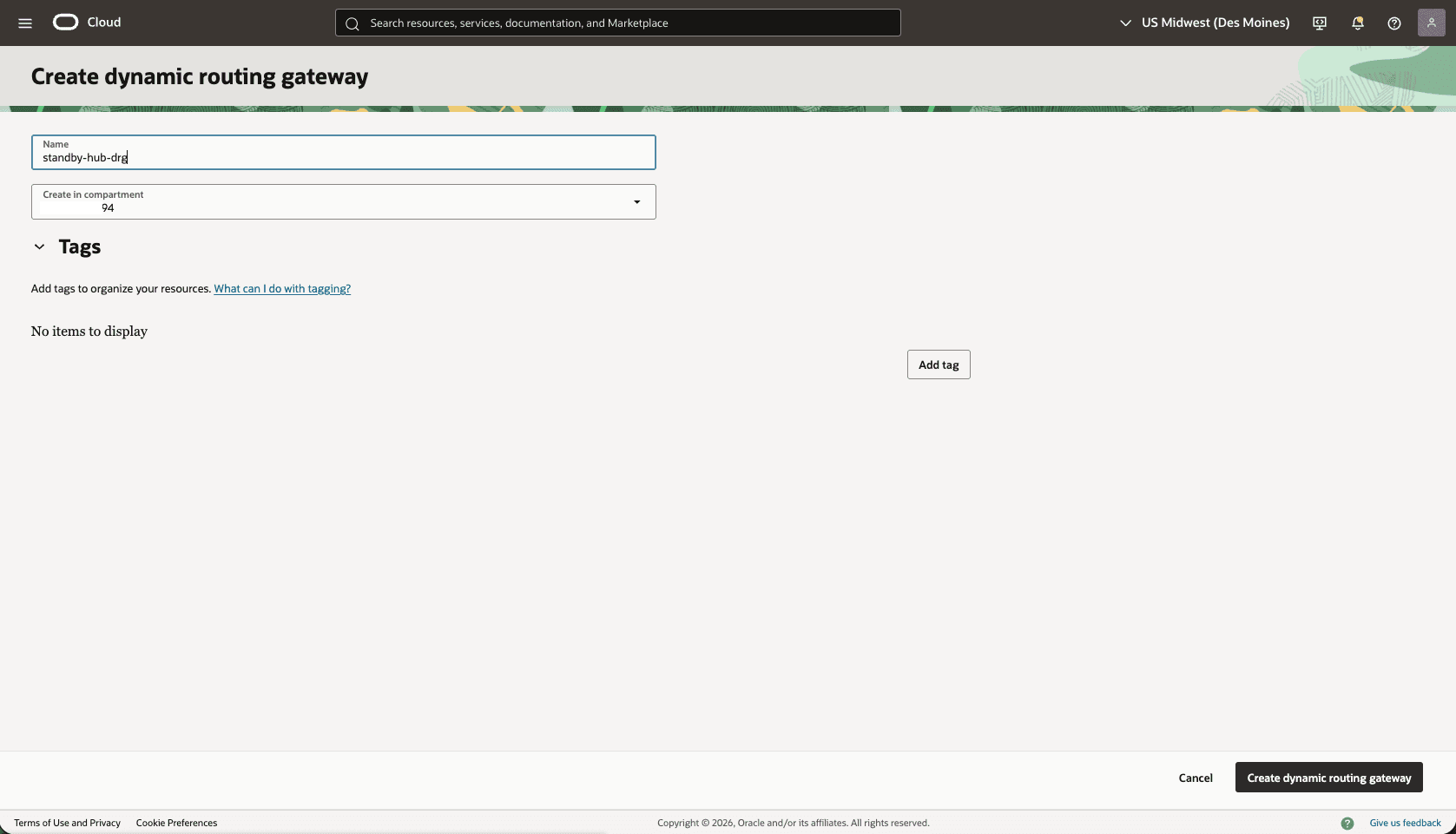
Create a dynamic routing gateway (DRG) named
Stanby-hub-drg.-
From the OCI console, select Networking. Under the Customer connectivity section, select Dynamic routing gateway, and then select Create dynamic routing gateway button.
-
Choose a name. For example,
standby-hub-drg. -
Select the Create dynamic routing gateway button.
-
-
-
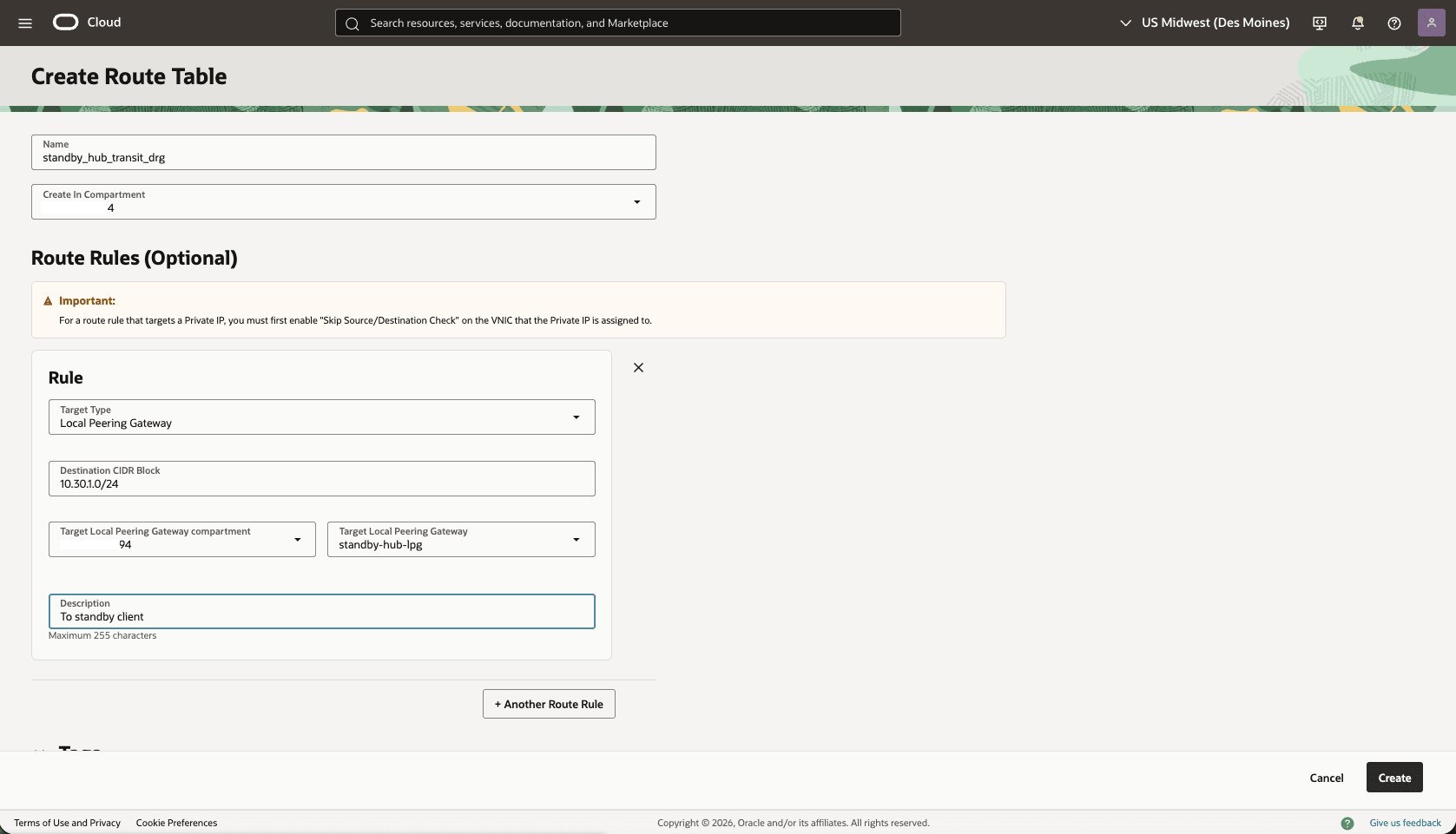
Create a route table in the HUB VCN Standby VCN, to route the network traffic between the HUB VCN Standby and VCN Standby.
-
From the OCI console, select Networking, select Virtual cloud networks, then select the HUB VCN Standby VCN.
-
Select the Routing tab, then select the Create Route Table button.
-
Name: Choose a name. For example,
standby_hub_transit_drg. -
Select the + Another Route Rule button.
-
Target Type: Local Peering Gateway
-
Destination CIDR Block: Enter the Standby VM Cluster Client Subnet CIDR. For example,
10.30.1.0/24. -
Target Local Peering Gateway: Select the LPG of the created in the HUB VCN Primary. For example,
standby-hub-lpg. -
Description: Enter a description.
-
Select the Create button.
-
-
-
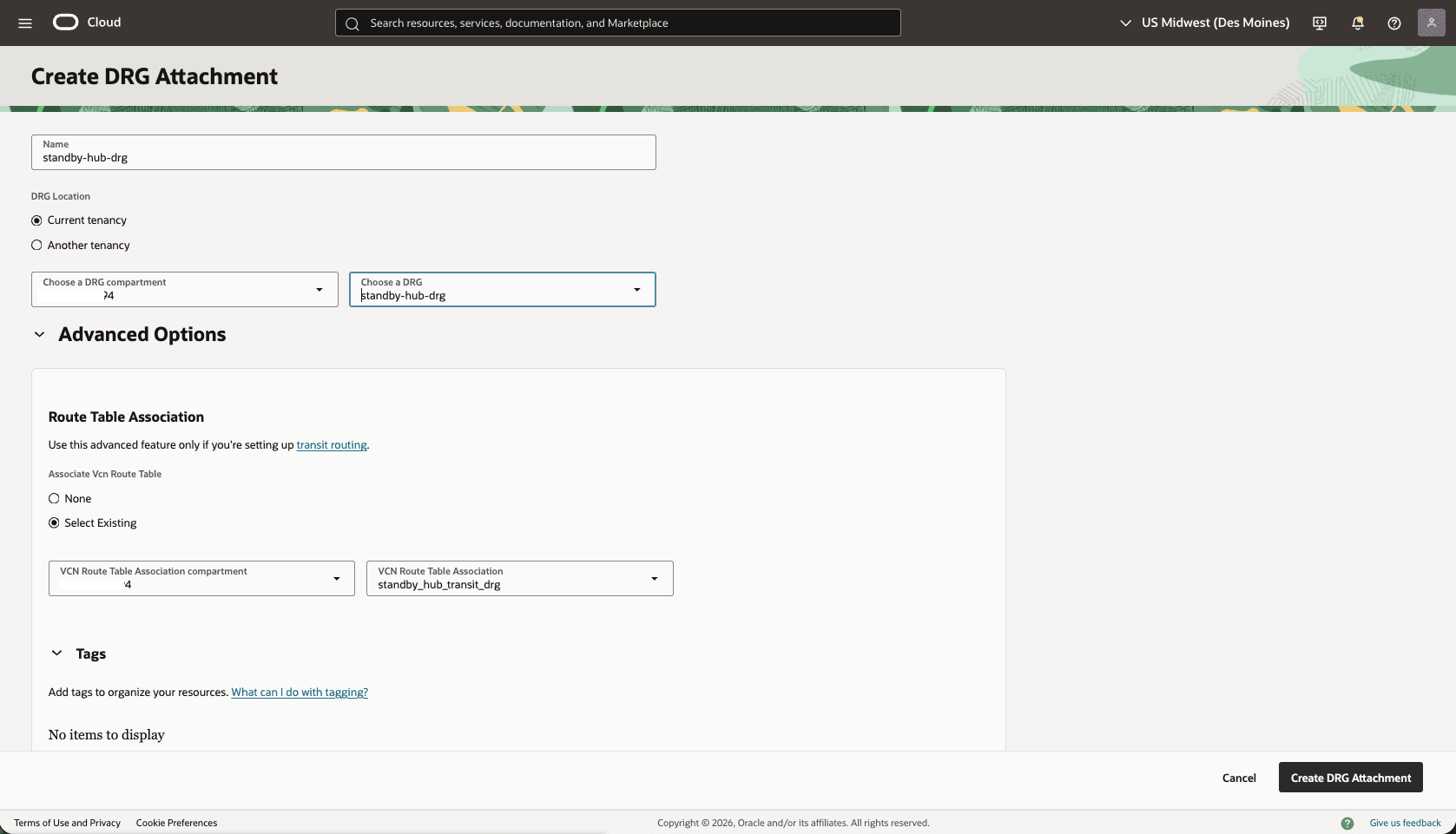
Attach the DRG to the HUB VCN Standby VCN
-
In the HUB VCN Standby VCN, select the Gateways tab, under Dynamic Routing Gateway Attachments section, select the Create DRG Attachment button.
-
Name: Select a name. For example,
standby-hub-drg. -
DRG Location: Select the current tenancy
-
Choose a DRG: Select the DRG name that you created in the previous step.
-
The Advanced Options section is optional.
-
Choose the Select Existing option, then select the Routing Table that you created in the previous step. For example,
standby_hub_transit_drg. -
Select the Create DRG Attachment button.
-
-
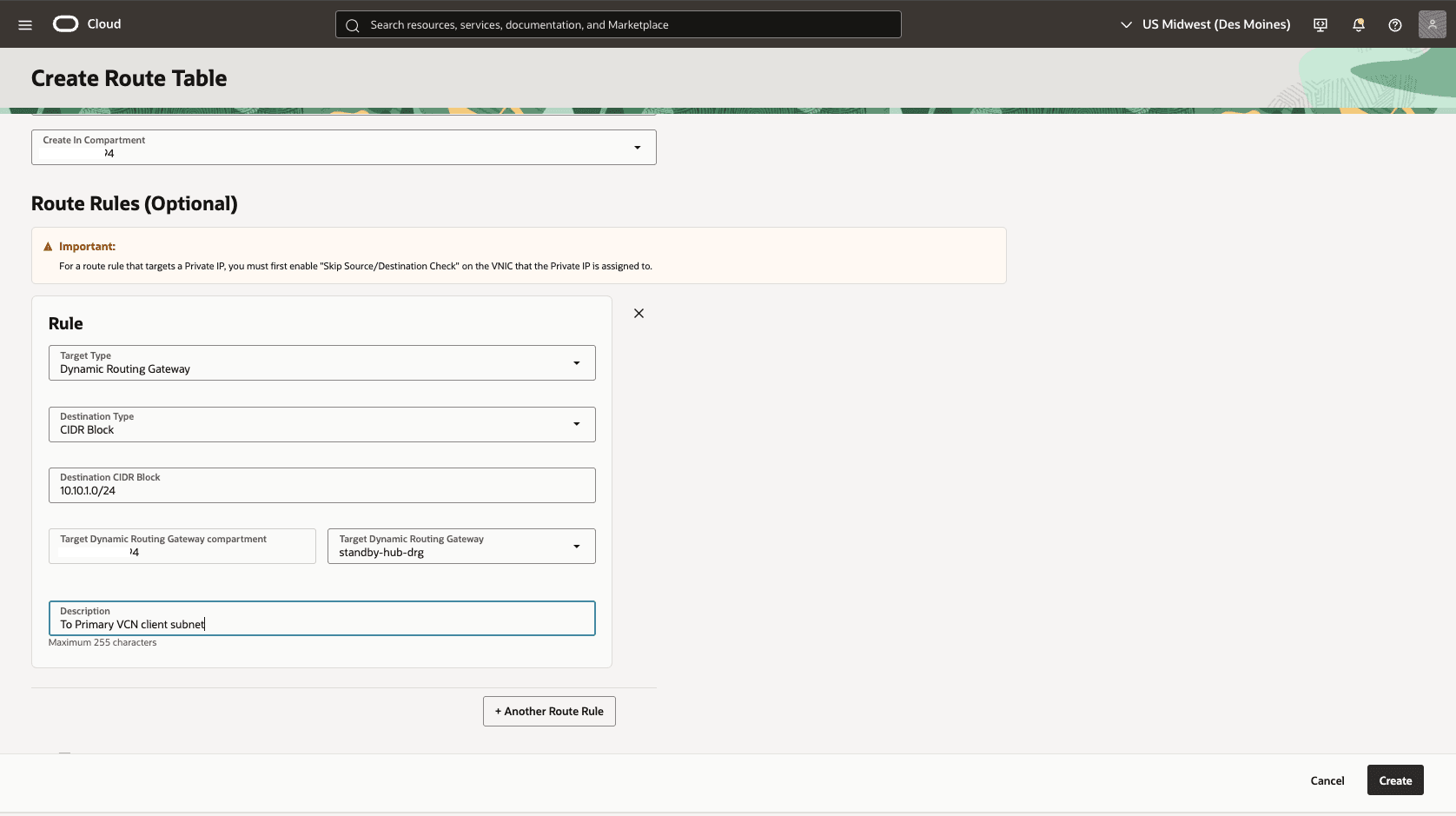
In the HUB VCN Standby VCN, create a second Route Table to direct network traffic to the Standby Network.
-
From the HUB VCN Standby VCN, select the Routing tab, then select the Create Route Table button.
-
Name: choose a name. For example,
standby_hub_transit_lpg. -
Select the + Another Route Rule button.
-
Target Type: Dynamic Routing Gateway
-
Destination CIDR Block: Enter the VCN Primary client subnet CIDR. For example,
10.10.1.0/24. -
Target Dynamic Routing Gateway: Select the DRG associated with the HUB VCN Standby VCN. For example,
standby-hub-drg. -
Description: To primary VCN client subnet
-
Select the Create button.
-
-
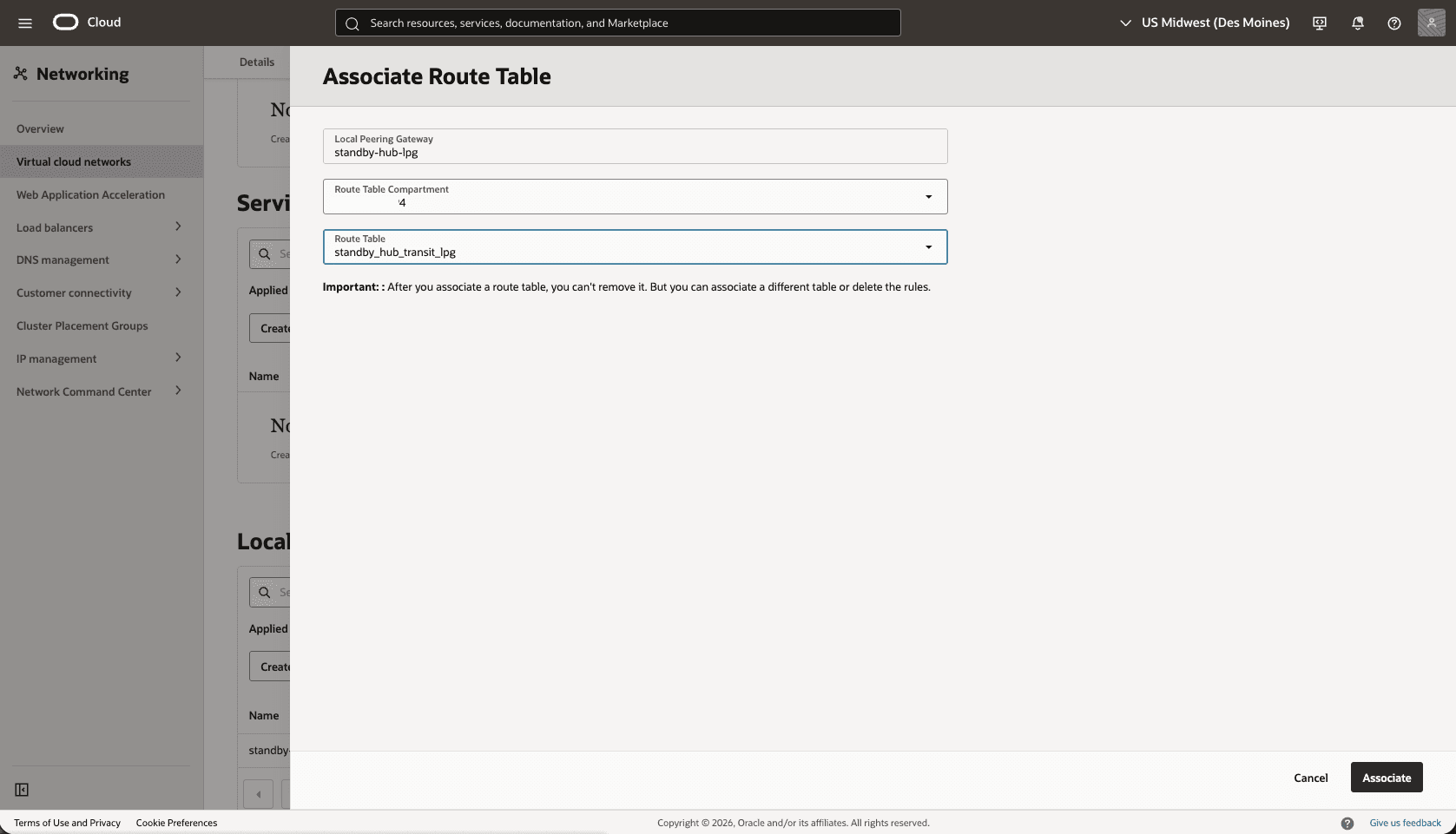
Associate the
standby_hub_transit_lpgroute table to theHub-Standby-LPGgateway.-
From the Hub VCN Primary VCN, select the Gateways tab, scroll down to the Local Peering Gateways section.
-
Select the three dots, then select Associate Route Table option.
-
Select the Route table that you created for the Local Peering Gateway. For example,
standby_hub_transit_lpg. -
Select the Associate button.
-
-
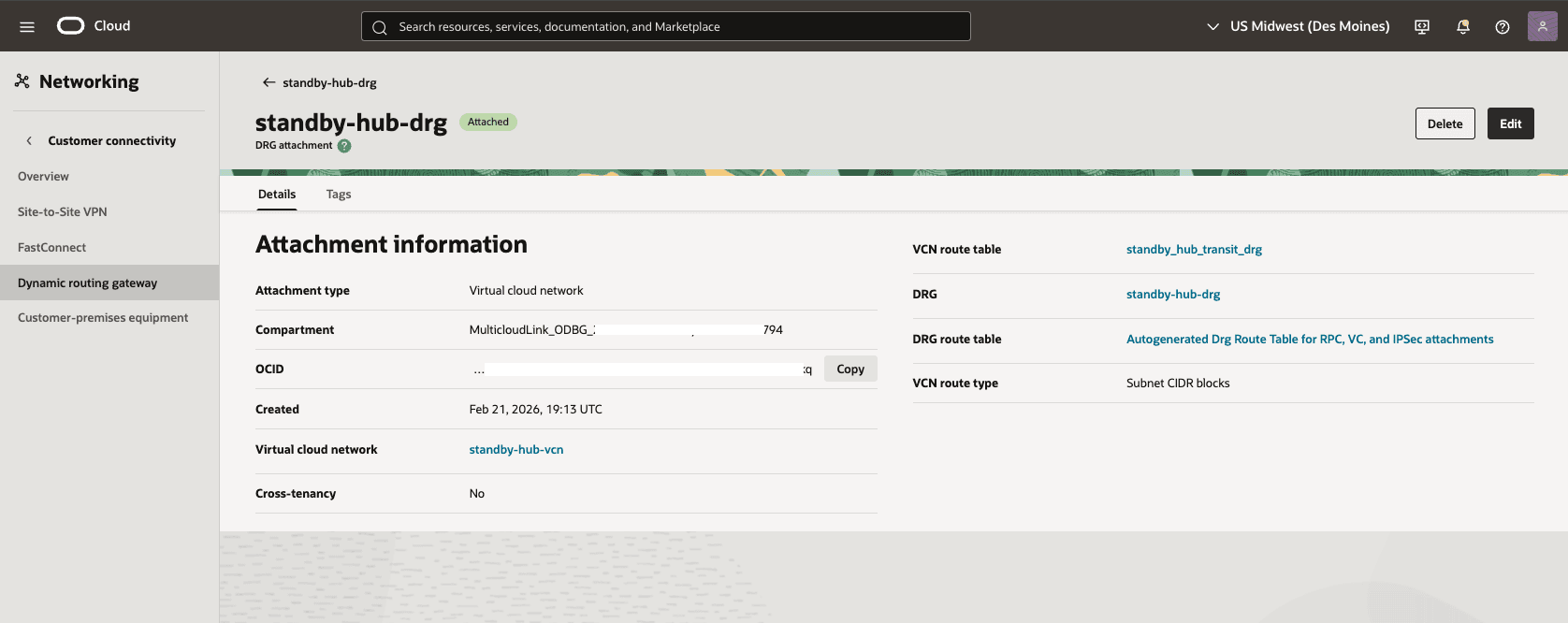
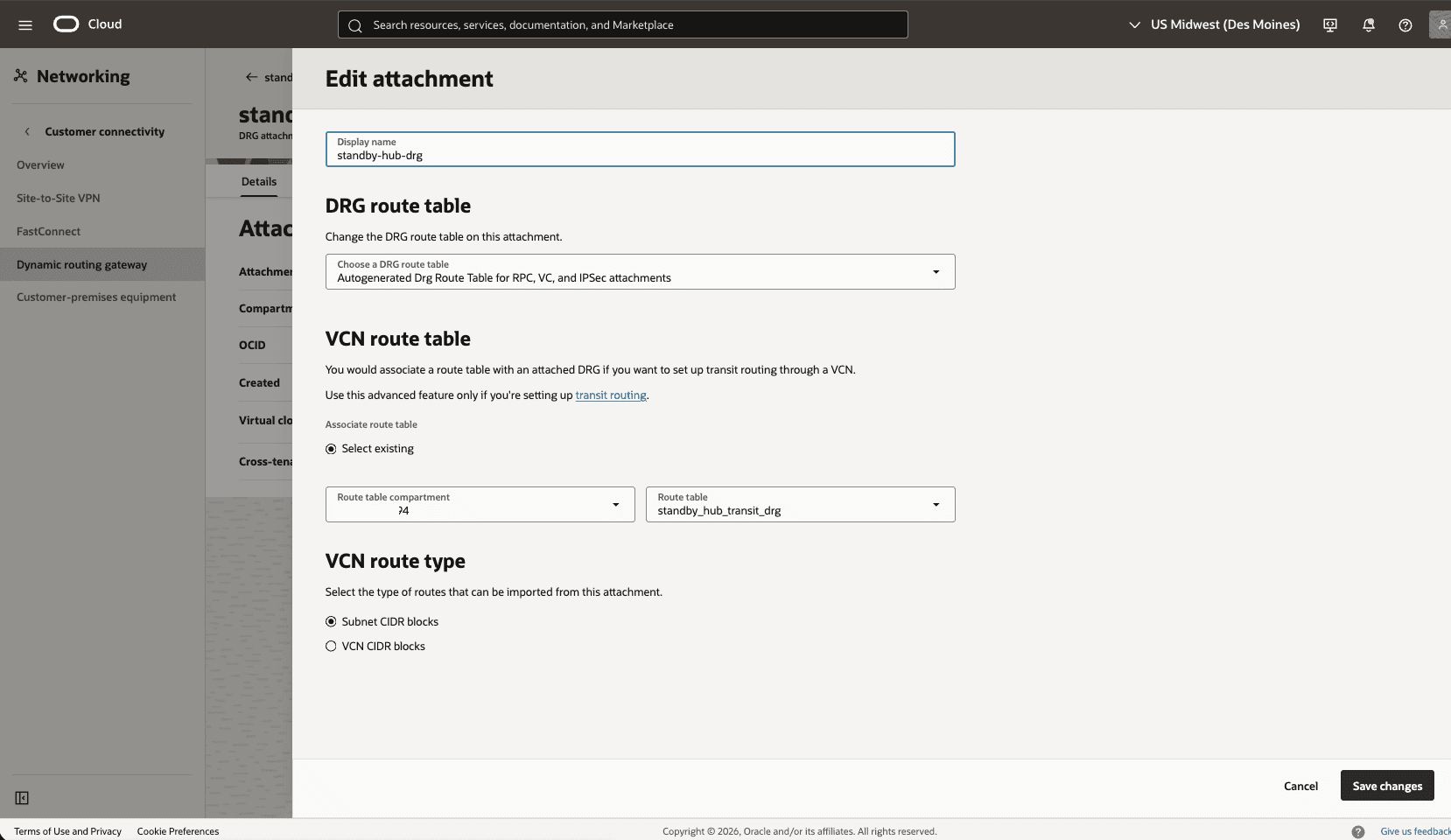
Edit the Standby-Hub-DRG attachment from the Standby-Hub-VCN to add DRG route table.
-
From the Standby-Hub-VCN, select the Gateways tab, under Dynamic Routing Gateway Attachments section, select the name of your DRG Attachment.
-
Select the Edit button.
-
In the DRG route table, select Autogenerated Drg Route Table for RPC, VC, and IPSec attachments.
-
Select the Save changes button.
-
-
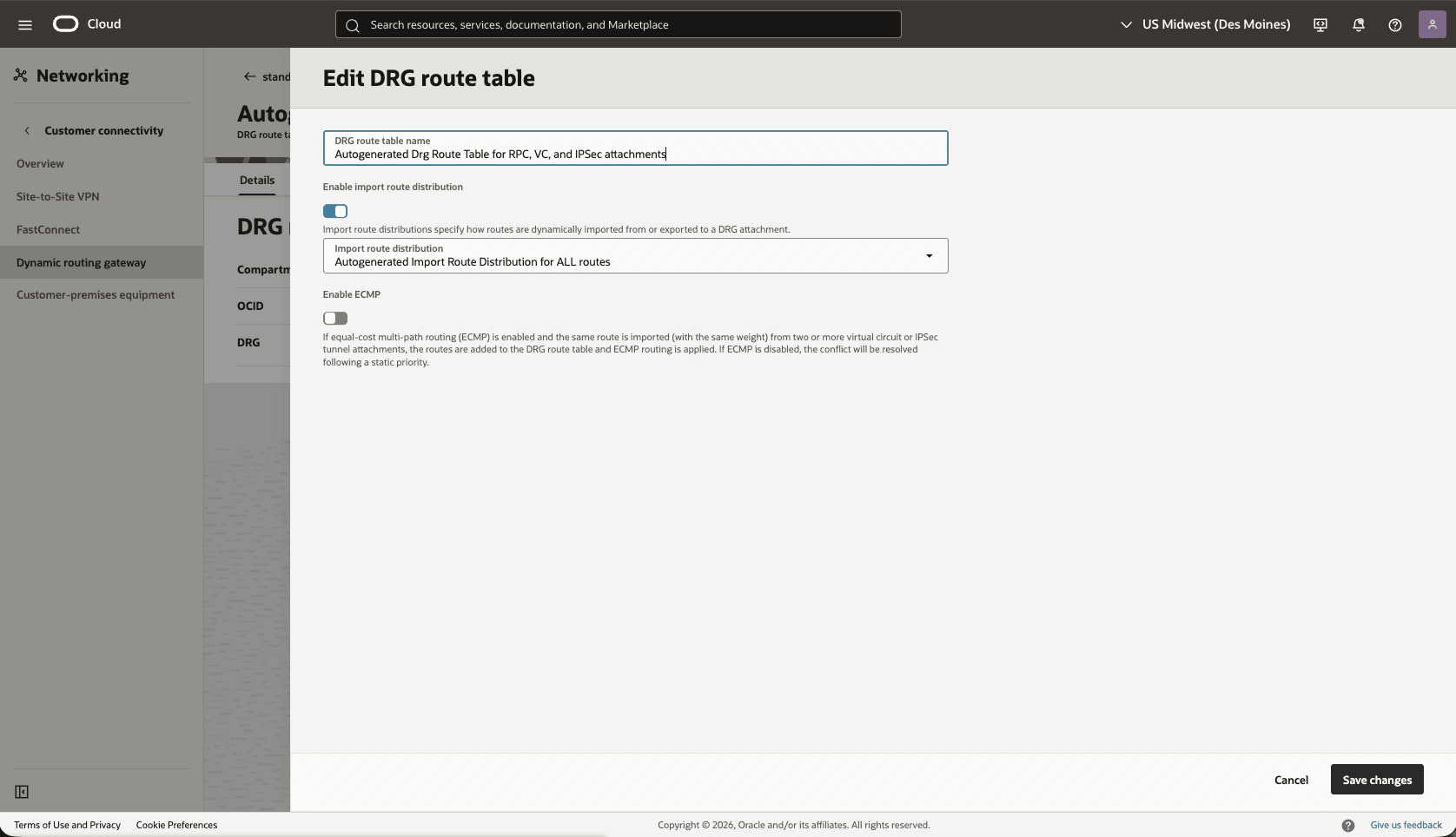
Validate the DRG route table options
-
From Dynamic Routing Gateway, select the Attachments tab, in the VCN attachments section, under the DRG route table column, select Autogenerated Drg Route Table for RPC, VC, and IPSec attachments.
-
select the Actions button, then select the Edit option.
-
Make sure that the Enable import route distribution option is enabled and Import route distribution is set to Autogenerated Import Route Distribution for ALL routes.
-
Select the Save changes option.
Note
Note:
-
For a more precise configuration, disable the import route distribution of the Autogenerated DRG Route Table for RPC, VC, and IPSec attachments route table.
-
For Autogenerated DRG Route Table for VCN attachments, create and assign a new import route distribution including only the required RPC attachment.
-
-
-
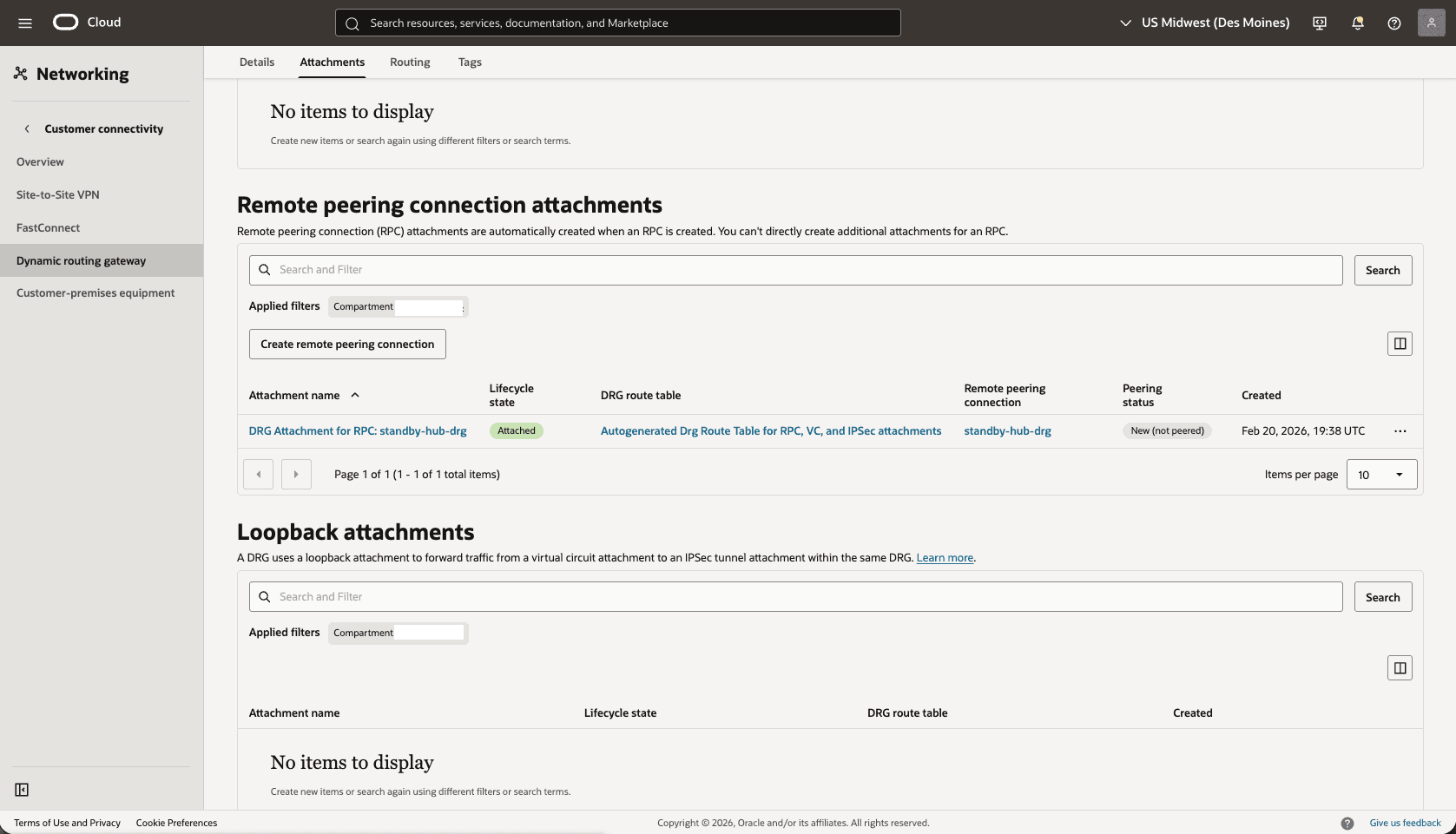
From the
Standby-Hub-DRG, create a remote peering connection attachments.-
From the Dynamic routing gateway page, select the Attachments tab, scroll down to the Remote peering connection attachments section, and select the Create remote peering connection button.
-
Choose a name. For example,
standby-hub-drg. -
Select the Create remote peering connection button.
-
From the
Standby-Hub-DRG, scroll down to the Remote peering connection attachments section, under Remote peering connection column, select the remote peering connection. For example,standby-hub-drg.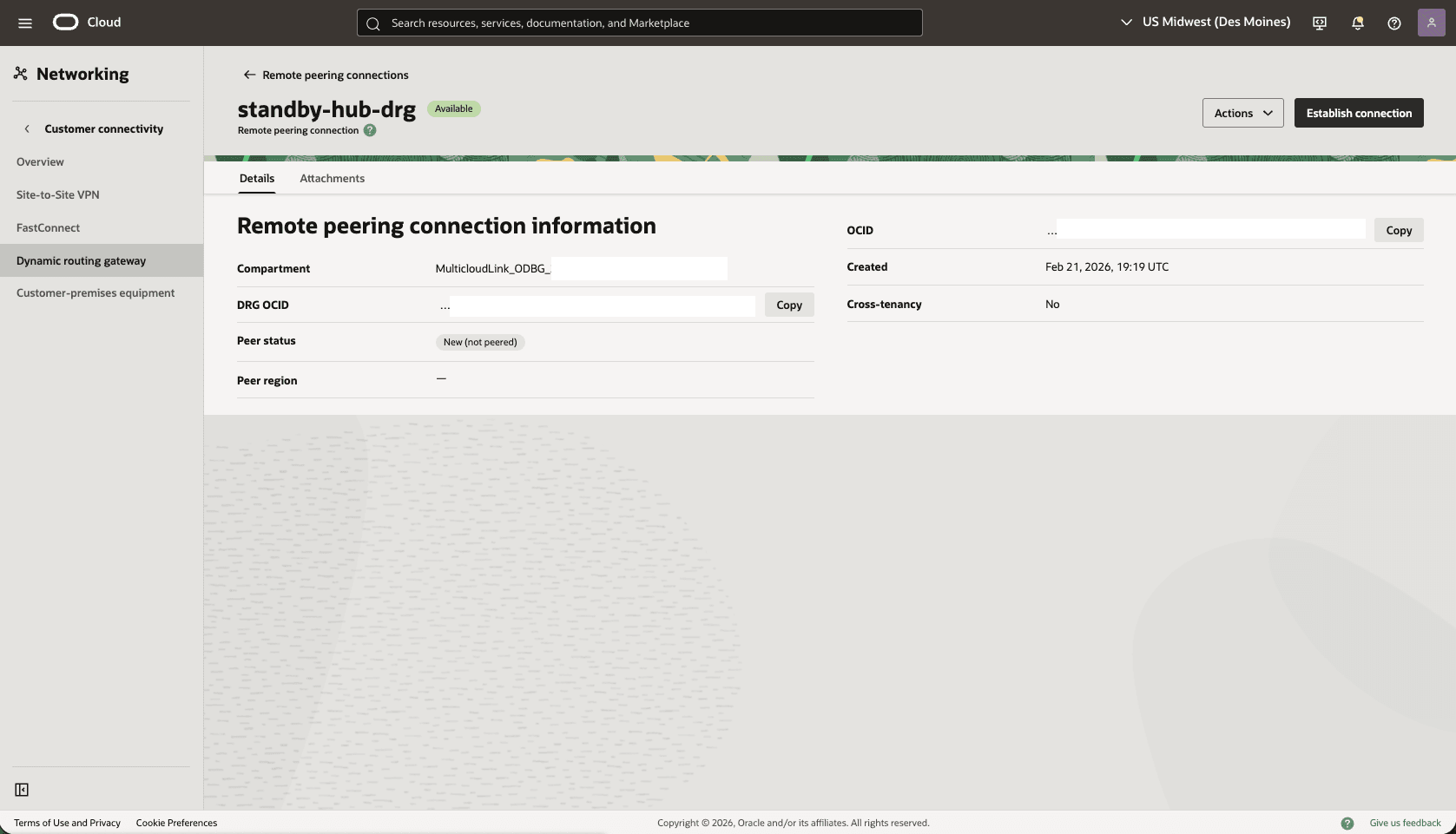
-
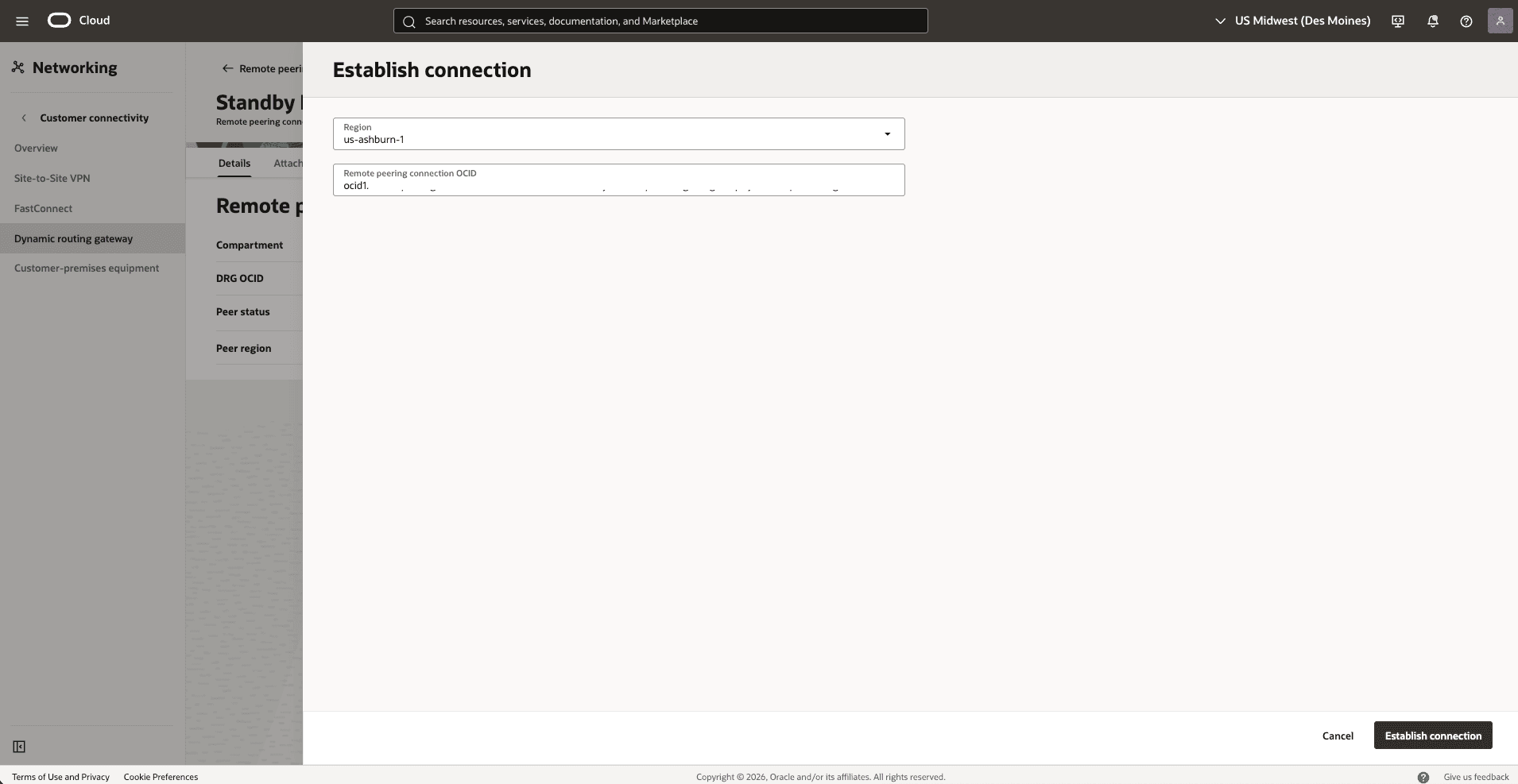
Select the Establish Connection button and enter the following information.
-
Region: Select your primary Region.
-
Remote peering connection OCID: Provide the Primary-Hub-drg remote peering connection OCID captured before.
-
Select the Establish connection button.
Note
Note: When the peering status becomes peered. Both regions are connected.
-
-
-
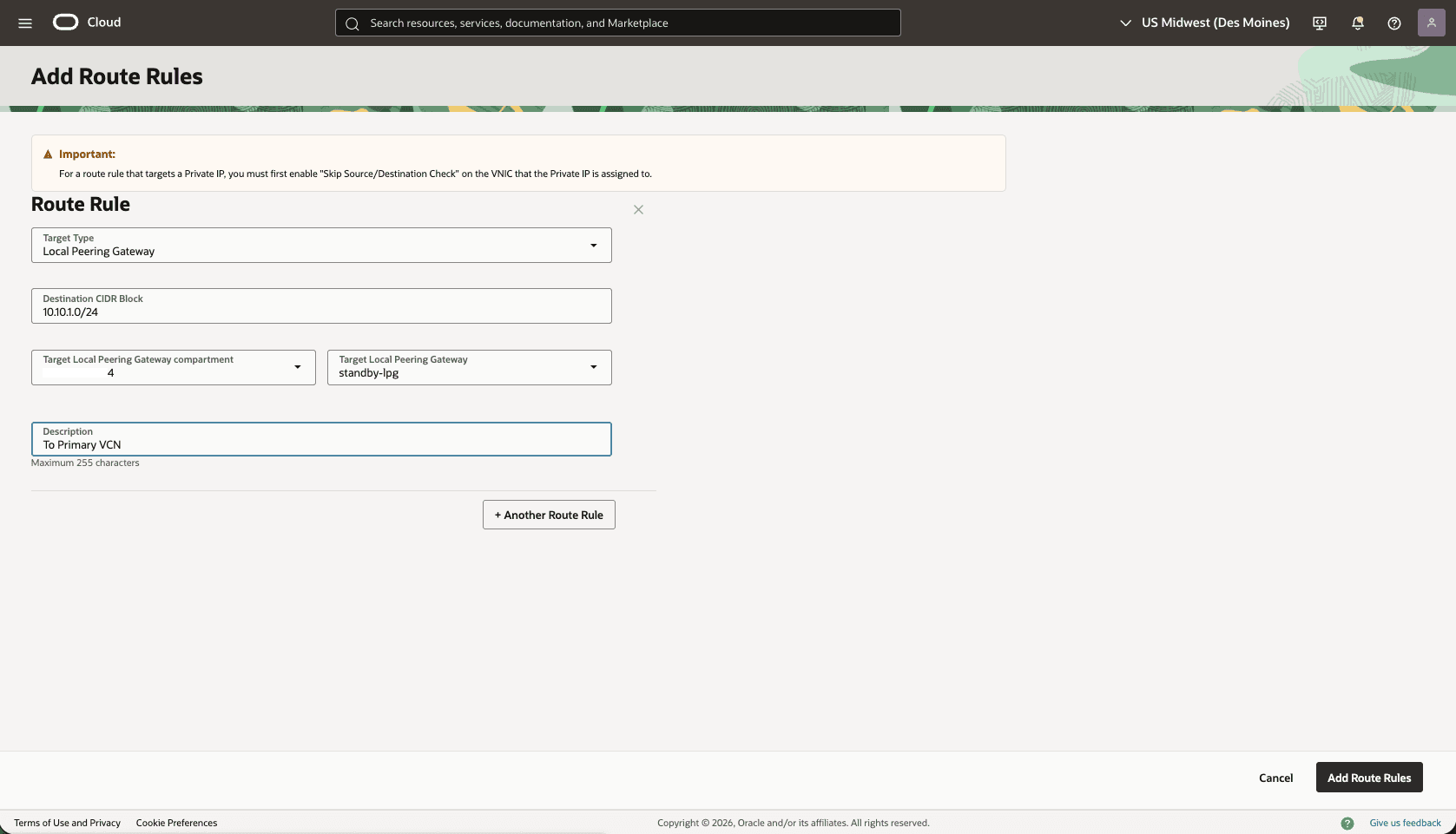
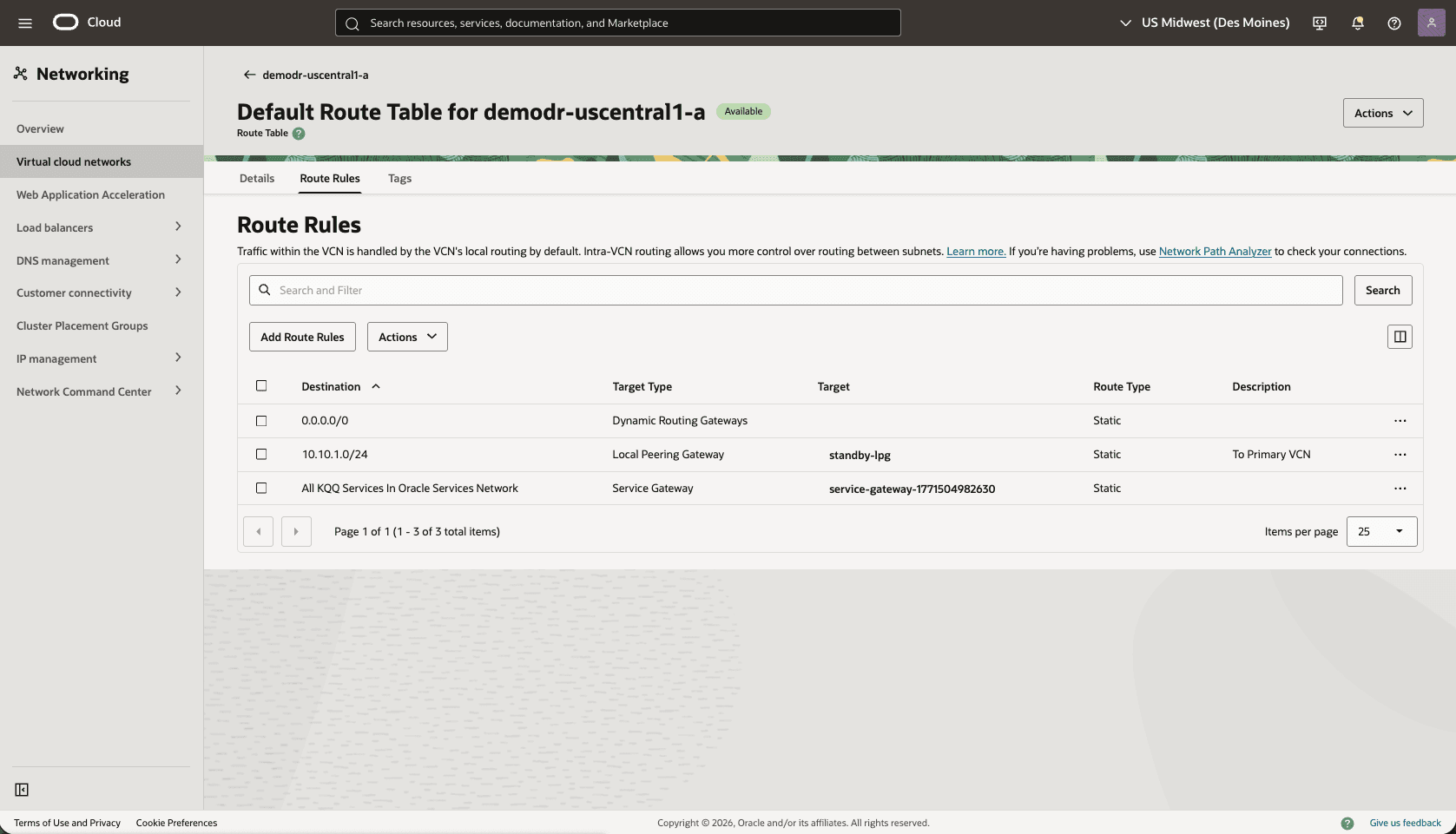
Update the Standby VCN Default Route Table, add a route rule to the Primary VCN Client Subnet CIDR range
-
From your Standby VM cluster VCN, select the Routing tab, then select the name of the Default Route table.
-
Select the Route Rules tab, then select Add Route Rules button.
-
Target Type: Local Peering Gateway.
-
Destination CIDR Block: Select the primary VCN client subnet CIDR. For example,
10.10.1.0/24). -
Target Local Peering Gateway: select your LPG. For example,
standby-lpg. -
Description: Enter a description.
-
Select the Add Route Rules button.
-
In the VCN Standby client subnet, update the NSG to create a security rule to allow ingress for TCP port 1521. Optionally, you can add SSH port 22 for direct SSH access to the database servers.
-
Test Connectivity
- Test connectivity from Primary to Standby and Standby to Primary, according to the NSG you can use ping, SSH or SQL Net.
-
There is currently no content for this page. Oracle AI Database@Google Cloud team intends to add content here, and this placeholder text is provided until that text is added.
The Oracle AI Database@Google Cloud team is excited about future new features, enhancements, and fixes to this product and this accompanying documentation. We strongly recommend you watch this page for those updates.
Connectivity by Google Cloud Network
The following diagram illustrates the architecture diagram for configuring cross-region connectivity using Google Cloud network in a single Google Cloud region.
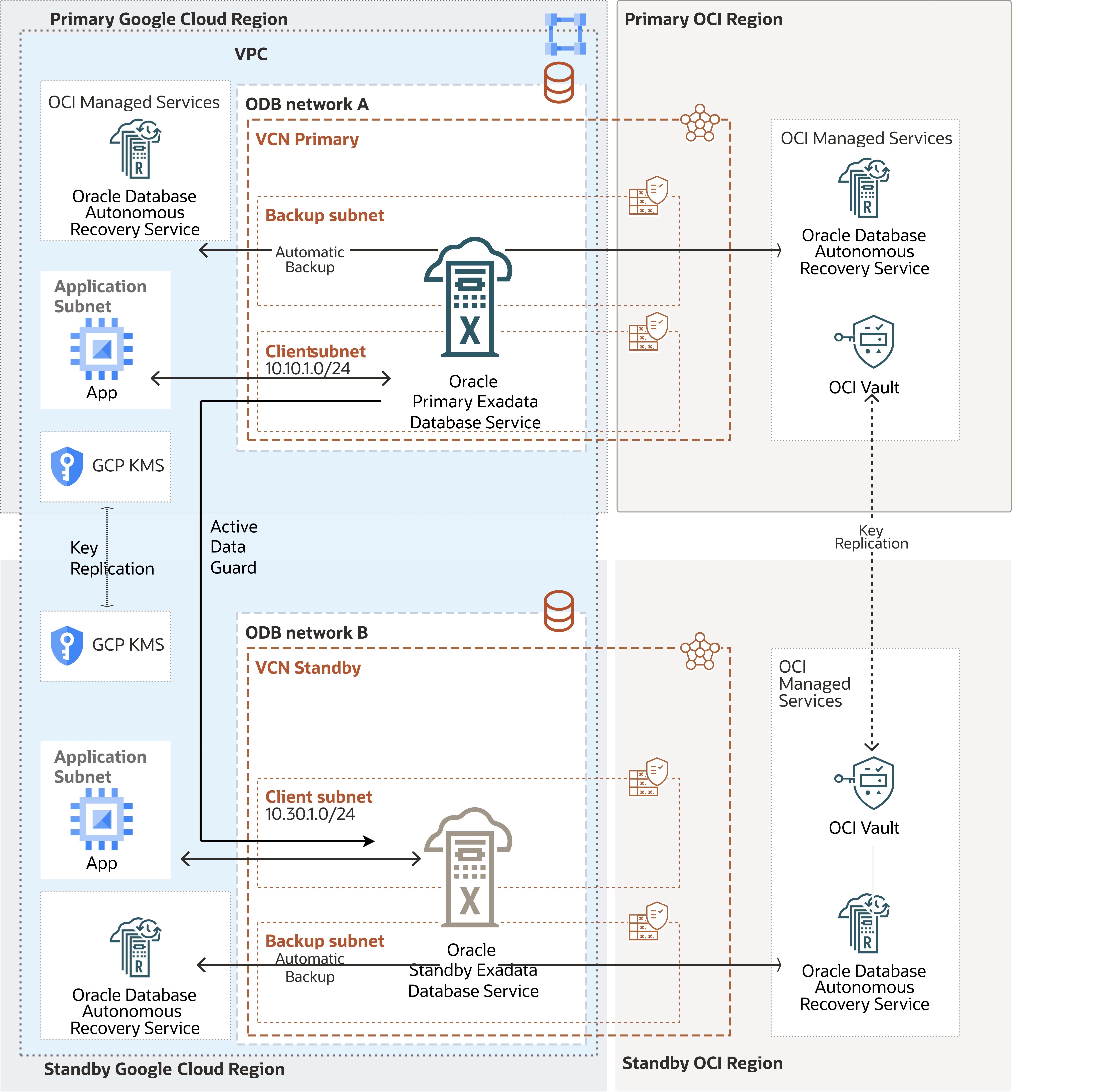
In this architecture, the Google Cloud VPC spans the region. The application subnet is regional, and the ODB networks are deployed in each zone with non-overlapping CIDR ranges.
Oracle AI Database@Google Cloud service, for example, Exadata VM Cluster is deployed in each zone per the ODB network.
In this architecture:
-
The primary Exadata VM Cluster is deployed in the primary zone in the
Primary VCNand uses the client subnet CIDR10.10.1.0/24. -
The standby Exadata VM Cluster is deployed in the standby zone in the
Standby VCNand uses the client subnet CIDR10.30.1.0/24.
Requirements
-
Dynamic routing mode is configured to global on the VPC.
-
To provide best performance and reduce packet fragmentation across regions, configure a large MTU size (8896) on the VPC.
-
File a Google support ticket to request an increase in Google Cloud Interconnect VLAN bandwidth. This step is optional.
Allow Traffic between the Primary and Standby Client Networks
-
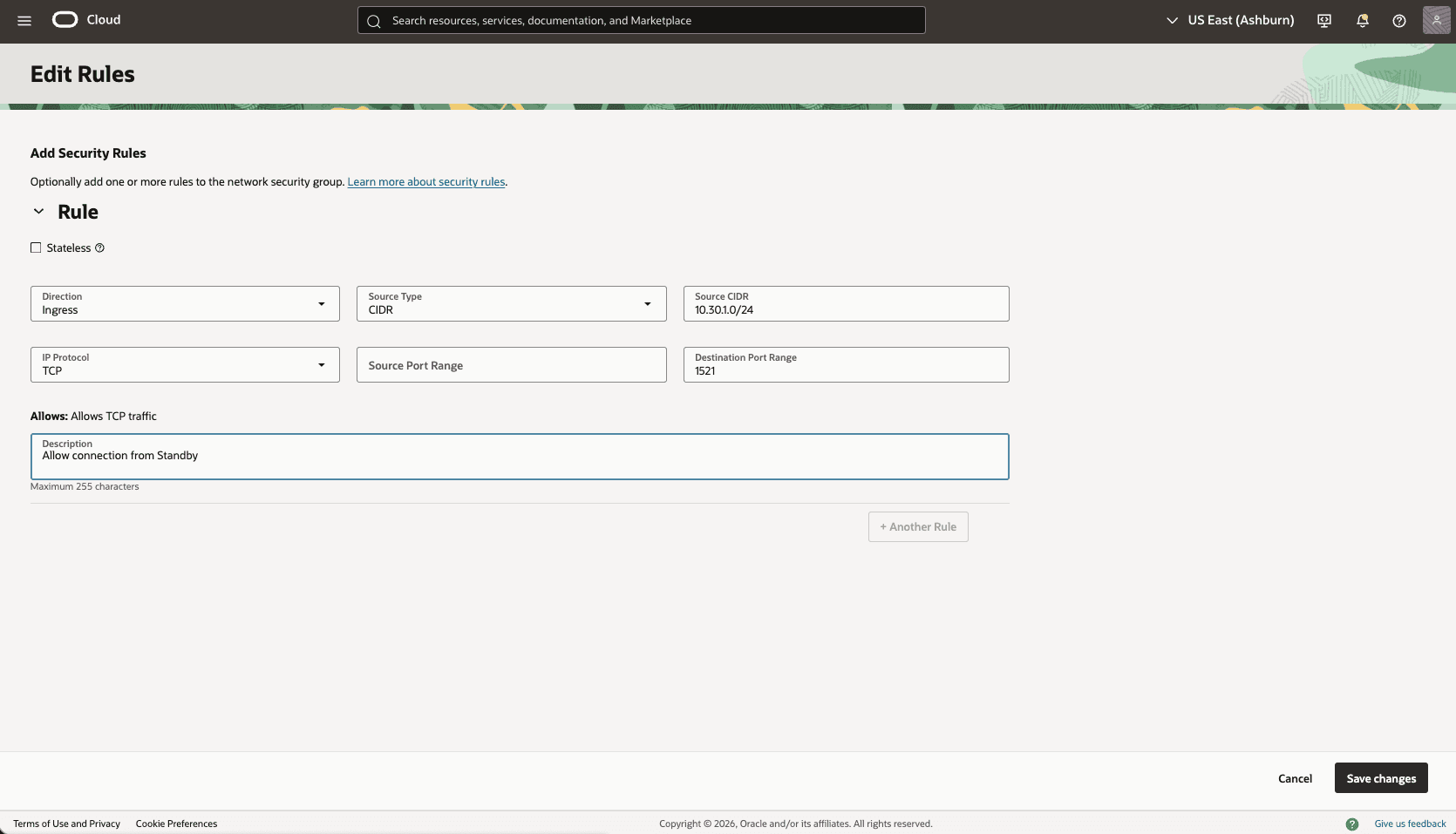
Update the OCI Network Security Group (NSG) of your primary Exadata VM Cluster to allow traffic from the standby network.
-
In the Virtual Cloud Networks detail page, select the Security tab, scroll down to the Network Security Groups section, and then select the name of your VM Cluster Network Security Groups.
-
Select the Security rules tab, select the Add Rules button, then create a rule with the following information.
-
Direction: Ingress
-
Source Type: CIDR
-
Source CIDR: Enter your stand by CIDR block. For example,
10.30.1.0/24. -
IP Protocol: TCP
-
Source Port Range: Empty (All)
-
Destination Port Range: 1521
-
Description: Enter a description for this rule.
-
Select the Add button.
-
-
-
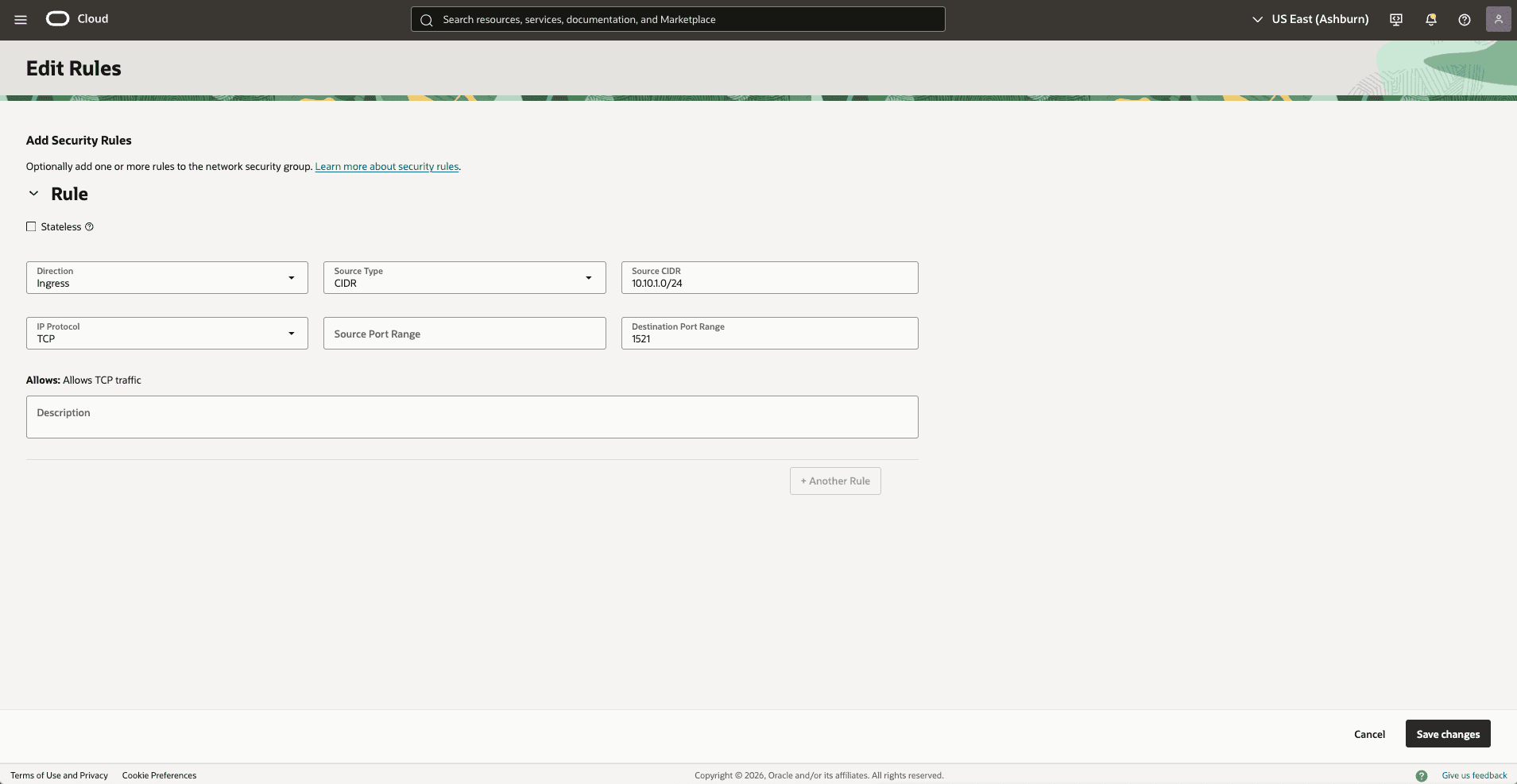
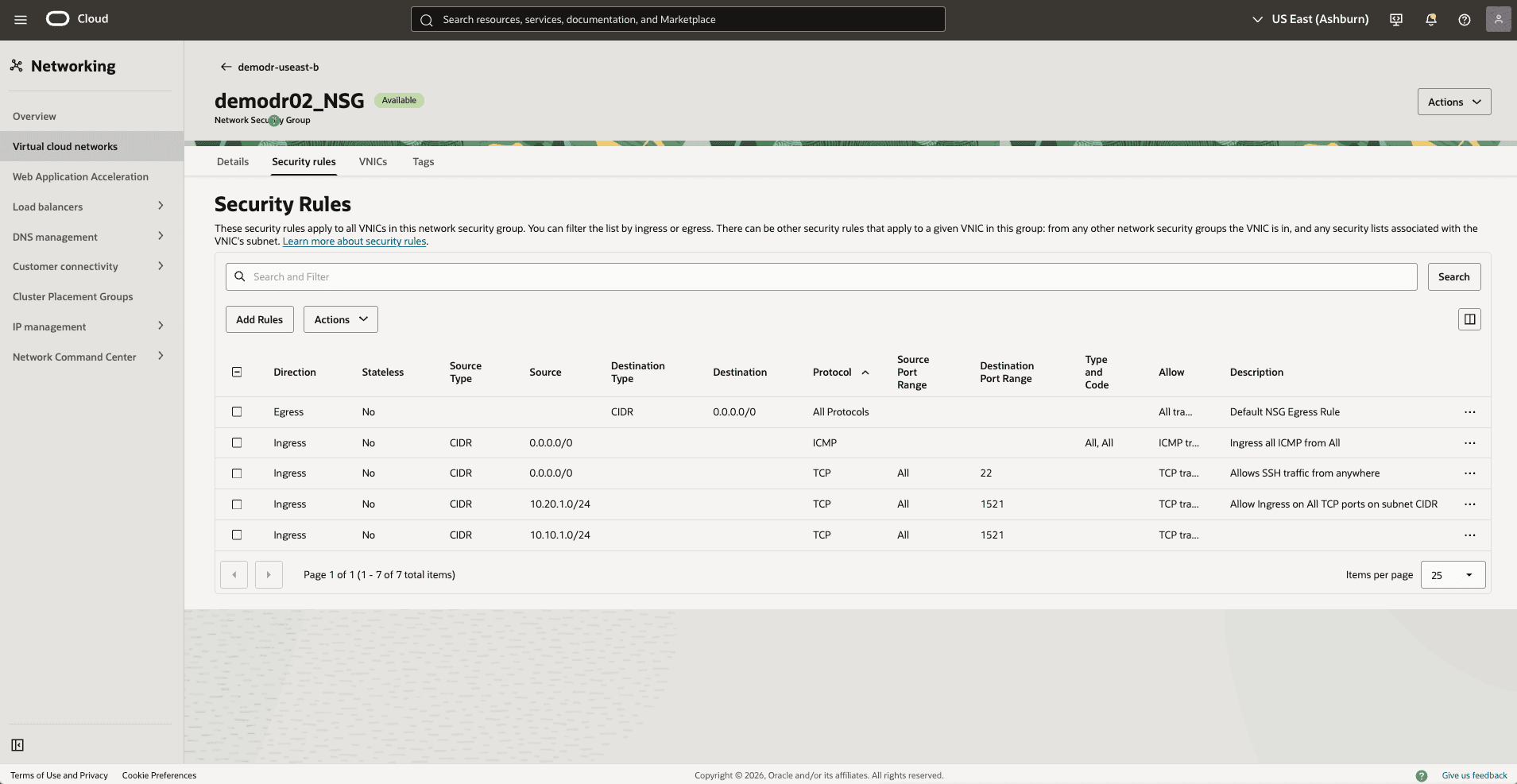
Update the OCI Network Security Group (NSG) of your standby Exadata VM Cluster to allow traffic from the primary network.
-
In the standby Virtual Cloud Networks detail page, select the Security tab, scroll down to Network Security Groups section, then select the name of your Exadata VM Cluster Network Security Groups.
-
Select the Security rules tab, select the Add Rules button, then create a rule with the following information.
-
Direction: Ingress
-
Source Type: CIDR
-
Source CIDR: Enter your stand by CIDR block. For example,
10.10.1.0/24. -
IP Protocol: TCP
-
Source Port Range: Empty (All)
-
Destination Port Range: 1521
-
Description: Enter a description for this rule.
-
Select the Add button.
-
-
-
Test connectivity:
- Test connectivity from Primary to Standby and Standby to Primary. You can use ping or SSH if you add SSH access to the applicable network security group.
-
There is currently no content for this page. Oracle AI Database@Google Cloud team intends to add content here, and this placeholder text is provided until that text is added.
The Oracle AI Database@Google Cloud team is excited about future new features, enhancements, and fixes to this product and this accompanying documentation. We strongly recommend you watch this page for those updates.