Scenario: Create Digital Twins for Indirectly Connected Devices Using a Gateway
Create digital twin models, adapters, a gateway, direct, and indirect device digital twin instances so that you can route telemetry and commands through a shared gateway.
Use this scenario to create one reusable gateway, one directly connected device, and several indirectly connected devices.
- A gateway named
Bosch Gateway 1authenticates to the IoT domain and collects or routes data for devices such as HVAC units, boilers, and dehumidifiers. - The directly connected HVAC instance shows a device that sends its own telemetry.
- The indirectly connected HVAC, boiler, and dehumidifier instances show devices whose telemetry and commands move through the gateway instead.
For more concepts, see Indirectly Connected Devices FAQ. To route messages for different device families or nested payload structures, see Route Indirect Device Data Using target and contentRoot.
Review the diagram to understand how the gateway, directly connected devices, and indirectly connected devices interact with the 3 types of digital twin instances.
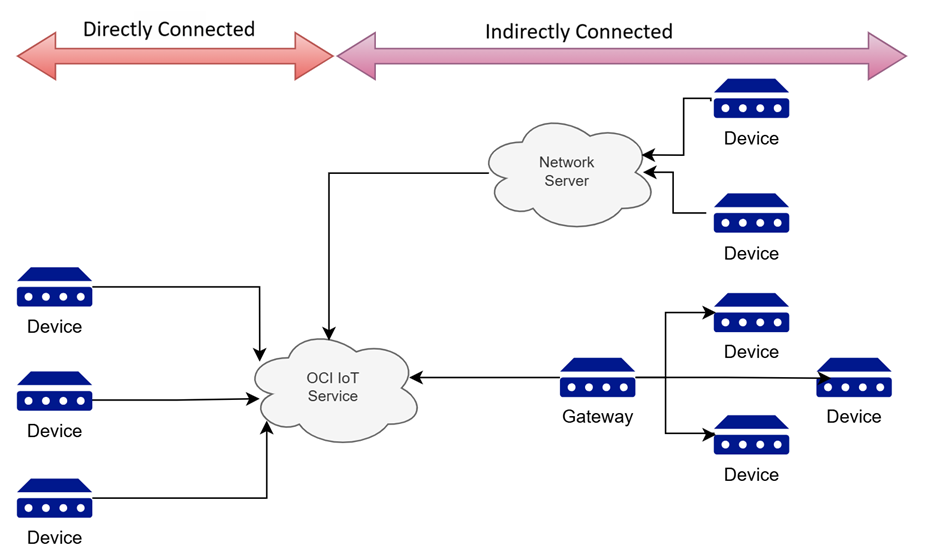
Tasks
- Create digital twin models
- Create digital twin adapters
- Create the gateway and device instances
- Change a digital twin instance connectivity type
- Send telemetry data
- Get the digital twin instance contents
- Invoke commands
For more information about referencing files from the CLI, see Using a JSON File for Complex Input.
Step 1: Create Digital Twin Models
Create a digital twin model for the gateway and one digital twin model for each device type in the scenario. These devices emit structured data.
Use the snippets below to save these files: gateway-model.json, hvac-model.json, and boiler-model.json.
Use the Console when you want to upload a saved model file or paste the specification directly.
- On the IoT domains list page, open the domain you want to work with. If you need help finding the IoT domains list page, see Listing IoT Domains or Create a new IoT Domain.
- Select the Digital twin models tab, and then select Create.
- Enter a name and an optional description. Avoid entering confidential information.
- Choose Upload the specification or Paste specification, and then use one of the example files from this scenario.
- Optional: Add tags.
- Select Create.
Use one of the following files when you upload or paste the specification.
gateway-model.json{ "@context": [ "dtmi:dtdl:context;3" ], "@id": "dtmi:com:oracle:example:gateway;1", "@type": "Interface", "displayName": "Gateway", "description": "A digital twin model for Gateway", "contents": [ { "@type": "Telemetry", "name": "cpuUtilization", "schema": "integer" }, { "@type": "Telemetry", "name": "memoryUtilization", "schema": "integer" }, { "@type": "Telemetry", "name": "storageUtilization", "schema": "integer" }, { "@type": "Property", "name": "firmwareVersion", "schema": "string" } ] }hvac-model.json{ "@context": [ "dtmi:dtdl:context;3" ], "@id": "dtmi:com:oracle:example:hvac;1", "@type": "Interface", "displayName": "HVAC", "description": "A digital twin model for HVAC", "contents": [ { "@type": "Telemetry", "name": "temperature", "schema": "integer" }, { "@type": "Telemetry", "name": "humidity", "schema": "integer" } ] }boiler-model.json{ "@context": [ "dtmi:dtdl:context;3" ], "@id": "dtmi:com:oracle:example:boiler;1", "@type": "Interface", "displayName": "Boiler", "description": "A digital twin model for Boiler", "contents": [ { "@type": "Telemetry", "name": "temperature", "schema": "integer" }, { "@type": "Telemetry", "name": "pressure", "schema": "integer" } ] }Use the oci iot digital-twin-model create command to create each digital twin model in the IoT domain.
Create the gateway model
oci iot digital-twin-model create \
  --iot-domain-id <iot-domain-OCID> \
  --spec file://gateway-model.json
Create the HVAC model
oci iot digital-twin-model create \
  --iot-domain-id <iot-domain-OCID> \
  --spec file://hvac-model.json
Create the boiler model
oci iot digital-twin-model create \
  --iot-domain-id <iot-domain-OCID> \
  --spec file://boiler-model.json
For this example, save these snippets to these model files,
gateway-model.json,hvac-model.json, andboiler-model.json.gateway-model.json{ "@context": [ "dtmi:dtdl:context;3" ], "@id": "dtmi:com:oracle:example:gateway;1", "@type": "Interface", "displayName": "Gateway", "description": "A digital twin model for Gateway", "contents": [ { "@type": "Telemetry", "name": "cpuUtilization", "schema": "integer" }, { "@type": "Telemetry", "name": "memoryUtilization", "schema": "integer" }, { "@type": "Telemetry", "name": "storageUtilization", "schema": "integer" }, { "@type": "Property", "name": "firmwareVersion", "schema": "string" } ] }hvac-model.json{ "@context": [ "dtmi:dtdl:context;3" ], "@id": "dtmi:com:oracle:example:hvac;1", "@type": "Interface", "displayName": "HVAC", "description": "A digital twin model for HVAC", "contents": [ { "@type": "Telemetry", "name": "temperature", "schema": "integer" }, { "@type": "Telemetry", "name": "humidity", "schema": "integer" } ] }boiler-model.json{ "@context": [ "dtmi:dtdl:context;3" ], "@id": "dtmi:com:oracle:example:boiler;1", "@type": "Interface", "displayName": "Boiler", "description": "A digital twin model for Boiler", "contents": [ { "@type": "Telemetry", "name": "temperature", "schema": "integer" }, { "@type": "Telemetry", "name": "pressure", "schema": "integer" } ] }Run the CreateDigitalTwinModel operation to create a digital twin model in the IoT domain.
Use the same DTDL payload shown in the example digital twin model files when you call the API.
Step 2: Create Digital Twin Adapters
Create one adapter for the gateway and one adapter for each structured device type that needs payload mapping.
Use the snippets below to save these files: gateway-envelope.json, gateway-routes.json, hvac-envelope.json, hvac-routes.json, boiler-envelope.json, and boiler-routes.json.
Resolve the target in the inbound envelope
Gateway adapters can identify the target digital twin instance when all forwarded device messages follow the same topic or payload convention. The gateway authenticates as itself, the service checks that the resolved target is an indirectly connected digital twin instance associated with that gateway, and then the service delegates the payload to the target device's adapter when structured mapping is required.
The gateway resolves target and contentRoot once for the whole message before routes run. If target resolves to an indirectly connected device external key, the payload is delegated to that device. If target is empty or null, the message is treated as gateway data.
Use a digital twin adapter when the incoming payload must be mapped to the target digital twin model. A digital twin adapter is not required when the device sends unstructured data, you can pass data through unchanged.
- On the IoT domains list page, open the domain you want to work with.
- Select the Digital twin adapters tab, and then select Create.
- Enter a Name and an optional Description. Avoid entering confidential information.
- Select the digital twin model that matches the payload you are mapping.
- Turn on Specify inbound envelope and routes, and then upload or paste the envelope JSON and routes JSON for the adapter.
- Optional: Add tags.
- Select Create.
Create the gateway adapter with these gateway files.
gateway-envelope.json{ "referenceEndpoint": "/data", "referencePayload": { "dataFormat": "JSON", "data": { "time": 1773768299143534, "cpuUtil": 0, "memUtil": 0, "diskUtil": 0, "firmware": "Oracle Linux 9.1" } }, "envelopeMapping": { "timeObserved": "$.time", "target": "${if ([\"boilers\", \"hvacs\", \"dehumidifiers\"] | contains([endpoint(1)])) then endpoint(2) else null end}", "contentRoot": "$" } }gateway-routes.json[ { "condition": "*", "payloadMapping": { "$.cpuUtilization": "$.cpuUtil", "$.memoryUtilization": "$.memUtil", "$.storageUtilization": "$.diskUtil", "$.firmwareVersion": "$.firmware" } } ]Create the HVAC and boiler adapters with the matching device files.
hvac-envelope.json{ "referenceEndpoint": "/telemetry", "referencePayload": { "dataFormat": "JSON", "data": { "time": 1773768299143534, "temperature": 0, "humidity": 0 } }, "envelopeMapping": { "timeObserved": "$.time" } }hvac-routes.json[ { "condition": "*", "payloadMapping": { "$.temperature": "$.temperature", "$.humidity": "$.humidity" } } ]boiler-envelope.json{ "referenceEndpoint": "/telemetry", "referencePayload": { "dataFormat": "JSON", "data": { "timestamp": 1773768299143534, "temperature": 0, "pressure": 0 } }, "envelopeMapping": { "timeObserved": "$.timestamp" } }boiler-routes.json[ { "condition": "*", "payloadMapping": { "$.temperature": "$.temperature", "$.pressure": "$.pressure" } } ]Use the oci iot digital-twin-adapter create command to create each adapter in the IoT domain.
Create the gateway adapter
Use this command to create a digital twin adapter. This example shows how to associate the digital twin model using the DTMI and how to define the envelope and routes using
.jsonfiles.oci iot digital-twin-adapter create \ --iot-domain-id <iot-domain-OCID> \ --digital-twin-model-spec-uri "dtmi:com:oracle:example:gateway;1" \ --inbound-envelope file://gateway-envelope.json \ --inbound-routes file://gateway-routes.jsongateway-envelope.json{ "referenceEndpoint": "/data", "referencePayload": { "dataFormat": "JSON", "data": { "time": 1773768299143534, "cpuUtil": 0, "memUtil": 0, "diskUtil": 0, "firmware": "Oracle Linux 9.1" } }, "envelopeMapping": { "timeObserved": "$.time", "target": "${if ([\"boilers\", \"hvacs\", \"dehumidifiers\"] | contains([endpoint(1)])) then endpoint(2) else null end}", "contentRoot": "$" } }gateway-routes.json[ { "condition": "*", "payloadMapping": { "$.cpuUtilization": "$.cpuUtil", "$.memoryUtilization": "$.memUtil", "$.storageUtilization": "$.diskUtil", "$.firmwareVersion": "$.firmware" } } ]Create the HVAC adapter
Use this command to create a digital twin adapter. This example shows how to associate the digital twin model using the DTMI and how to define the envelope and routes using
.jsonfiles.oci iot digital-twin-adapter create \ --iot-domain-id <iot-domain-OCID> \ --digital-twin-model-spec-uri "dtmi:com:oracle:example:hvac;1" \ --inbound-envelope file://hvac-envelope.json \ --inbound-routes file://hvac-routes.jsonhvac-envelope.json{ "referenceEndpoint": "/telemetry", "referencePayload": { "dataFormat": "JSON", "data": { "time": 1773768299143534, "temperature": 0, "humidity": 0 } }, "envelopeMapping": { "timeObserved": "$.time" } }hvac-routes.json[ { "condition": "*", "payloadMapping": { "$.temperature": "$.temperature", "$.humidity": "$.humidity" } } ]Create the boiler adapter
Use this command to create a digital twin adapter. This example shows how to associate the digital twin model using the DTMI and how to define the envelope and routes using
.jsonfiles.oci iot digital-twin-adapter create \ --iot-domain-id <iot-domain-OCID> \ --digital-twin-model-spec-uri "dtmi:com:oracle:example:boiler;1" \ --inbound-envelope file://boiler-envelope.json \ --inbound-routes file://boiler-routes.jsonboiler-envelope.json{ "referenceEndpoint": "/telemetry", "referencePayload": { "dataFormat": "JSON", "data": { "timestamp": 1773768299143534, "temperature": 0, "pressure": 0 } }, "envelopeMapping": { "timeObserved": "$.timestamp" } }boiler-routes.json[ { "condition": "*", "payloadMapping": { "$.temperature": "$.temperature", "$.pressure": "$.pressure" } } ]For more information about referencing files from the CLI, see Using a JSON File for Complex Input.
Run the CreateDigitalTwinAdapter operation to create a digital twin adapter in the IoT domain.
Use the same inbound envelope and inbound routes payloads shown in the example files.
Step 3: Create the Gateway and Device Instances
Create the gateway first so you can reuse it when you create the indirectly connected devices.
Authentication ID options:
- For testing digital twin instances, if you use secret OCID as the authentication ID, then use the device username as the external key and the plain-text secret contents as the device password. For instructions, when you Create a Secret see Step 7 and for secrets that are already created, see Getting a Secret's Contents.
For production digital twin instances use mTLS certificate OCID instead of a vault secret as the authentication ID. When you use a mTLS certificate, then you need to use the common name from the certificate details as the external key:
--external-key <common-name-from-certificate-details>
Use the Console to create a gateway and associate multiple devices to it.
In the Console, there are two ways to create a gateway for the IoT domain. You can create a gateway from the Digital twin instance tab, by selecting the gateway type when you create a digital twin instance. Or you can select the Gateway tab to create the gateway.
- On the IoT domains list page, open the IoT domain you want to work with.
- Select the Gateways tab and then select Create to create a Bosch Gateway Instance so that it's available for indirect devices.
- Enter a Name for the gateway and a Description.
- Enter the external key gateway1.
- Select the adapter that uses the
gateway-envelope.jsonandgateway-routes.jsoncreated in Step 2. - Select the authentication ID or paste the authentication ID's OCID and then select Create.
- On the IoT domain page, select the Digital twin instances tab, select Create and then select directly connected or indirectly connected as the type to create the digital twin instances for these devices, using the model and adapters created in Step 1 and Step 2 for:
- directly connected LG HVAC instance with the external key hvac1.
- indirectly connected HVAC instance with the external key hvac2
- indirectly connected boiler instance with the external key boiler1.
- indirectly connected dehumidifier instance with the external key dehumidifier1. The dehumidifier does not use a digital twin adapter or digital twin model since it sends unstructured raw telemetry that does not need structured payload mapping. It can also receive raw commands through the gateway.
Note
If you do not enter an external key, it will be generated. - For the directly connected and the gateway instance, select an authentication ID.
- For an indirectly connected instance, select one or more existing gateways instead of adding device authentication credentials. Select more than one gateway when a wireless device might roam between gateways.
- Optional: Add tags.
- Review the digital twin instance summary, and then select Create.
After you create the digital twin instances use the Gateway details page to view which devices depend on and are associated to the gateway.- Find the Gateway details on the IoT domain page, by selecting the Gateway tab to view the gateway list, select a gateway to go to the Gateway details page.
- On the Digital twin instance tab, you can search by type to view the different digital twin instance types for an IoT domain.
- View the directly and indirectly connected devices from the Digital twin instance details page.
For a complete list of settings, see Creating a Digital Twin Instance, Listing Digital Twin Instances, and Getting a Digital Twin's Instance Details.
Use the oci iot digital-twin-instance create command to create the gateway and the directly connected and indirectly connected device instances.
Create the directly connected HVAC instance
Use this command to create a digital twin instance that's associated to a specific IoT domain and that's directly connected, using an external key
hvac1.oci iot digital-twin-instance create \ --iot-domain-id <iot-domain-OCID> \ --connectivity-type DIRECT \ --display-name "LG HVAC 1" \ --auth-id <certificate-or-secret-OCID> \ --digital-twin-adapter-id <hvac-adapter-OCID> \ --external-key hvac1Create the gateway instance
Use this command to create a digital twin instance that's associated to a specific IoT domain, use the required
--connectivity-typeparameter with theGATEWAYvalue to create a digital twin instance that's a gateway. The external key isgateway1.oci iot digital-twin-instance create \ --iot-domain-id <iot-domain-OCID> \ --connectivity-typeGATEWAY\ --display-name "Bosch Gateway 1" \ --auth-id <certificate-or-secret-OCID> \ --digital-twin-adapter-id <gateway-adapter-OCID> \ --external-key gateway1Create the indirectly connected HVAC instance
Use this command and the required parameter--connectivity-typeINDIRECTto create a digital twin that's an indirectly connected device. This scenario shows one gateway association per device. When your deployment supports roaming, associate the indirectly connected device with more than one gateway so it can move between them without changing the digital twin instance.Note
When you create an indirectly connected device using the required--gatewaysparameter, it's a complex type and must use a JSON array. For example:--gateways '["<gateway-instance-OCID>"]'or for roaming use--gateways '["<gateway-instance-1-OCID>","<gateway-instance-2-OCID>"]'. Alternatively, you can use a.jsonfile.oci iot digital-twin-instance create \ --iot-domain-id <iot-domain-OCID> \ --connectivity-typeINDIRECT\ --display-name "LG HVAC 2" \ --gateways '["<gateway-instance-OCID>"]' \ --digital-twin-adapter-id <hvac-adapter-OCID> \ --external-key hvac2Create the indirectly connected boiler instance
Use this command and the required parameter
--connectivity-typeINDIRECTto create a digital twin that's an indirectly connected device.oci iot digital-twin-instance create \ --iot-domain-id <iot-domain-OCID> \ --connectivity-typeINDIRECT\ --display-name "GE Boiler 1" \ --gateways '["<gateway-instance-OCID>"]' \ --digital-twin-adapter-id <boiler-adapter-OCID> \ --external-key boiler1Create the indirectly connected dehumidifier instance
Use this command and the required parameter
--connectivity-typeINDIRECTto create a digital twin that's an indirectly connected device.oci iot digital-twin-instance create \ --iot-domain-id <iot-domain-OCID> \ --connectivity-typeINDIRECT\ --display-name Danby Dehumidifier 1 \ --gateways '["<gateway-instance-OCID>"]' \ --external-key dehumidifier1Run the CreateDigitalTwinInstance operation to create a gateway instance, a directly connected instance, and an indirectly connected instance.
When you create an indirectly connected instance, make sure that the request includes the gateway association.
Change a Digital Twin Instance Connectivity Type
After creating the instances in this scenario, you can change the directly connected LG HVAC 1 instance to indirectly connected by associating it with the Bosch Gateway 1 instance. Change it back to directly connected before continuing to send telemetry directly from hvac1 in Step 4.
For a complete transition workflow, see Change a Digital Twin Instance Connectivity Type. For the authoritative operation requirements, see Updating a Digital Twin Instance.
- On the IoT domains list page, select the domain that contains LG HVAC 1. If you need help finding the IoT domains list page or an IoT domain, see Listing IoT Domains.
- Select Digital twin instances.
- Select LG HVAC 1 to open the digital twin instance details page, and then select Edit.
- Change the Connectivity type to Indirectly connected, select the adapter without gateway target mapping used by LG HVAC 1, and select Bosch Gateway 1 as the gateway. An indirectly connected instance doesn't use an authentication ID.
- Select Update, and then select Confirm change connectivity type.
- Before continuing to Step 4, select Edit again, change the Connectivity type back to Directly connected, and select the authentication ID and compatible adapter for LG HVAC 1. Select Update, and then select Confirm change connectivity type.
Change the indirectly connected HVAC instance back to directly connected
Use the Console or API tab to change LG HVAC 1 to indirectly connected. After completing that part of the scenario, use this command to change it back to directly connected with its authentication ID and direct adapter.
oci iot digital-twin-instance update \
  --digital-twin-instance-id <hvac1-digital-twin-instance-OCID> \
  --connectivity-type DIRECT \
  --auth-id <certificate-or-secret-OCID> \
  --digital-twin-adapter-id <hvac-adapter-OCID> \
  --force
For other supported CLI transitions and troubleshooting, see Change a Digital Twin Instance Connectivity Type.
Run the UpdateDigitalTwinInstance operation to change the connectivity type.
To change LG HVAC 1 to indirectly connected, set
connectivityTypetoINDIRECT, clearauthId, retain its adapter without gateway target mapping, and include the Bosch Gateway 1 digital twin instance OCID ingateways:{ "connectivityType": "INDIRECT", "authId": null, "digitalTwinAdapterId": "<hvac-adapter-OCID>", "gateways": [ "<gateway-instance-OCID>" ] }To change the instance back to directly connected, set
connectivityTypetoDIRECT, include its certificate or secret OCID inauthId, and retain its adapter without gateway target mapping.
Step 4: Send Telemetry Data
These examples show three data paths. A directly connected device, such as hvac1, authenticates with its own external key and sends data to its own digital twin instance. The gateway, gateway1, also authenticates with its own external key when it sends its own CPU, memory, storage, and firmware telemetry.
Indirectly connected devices do not authenticate to the IoT domain; the gateway authenticates as gateway1 and the endpoint path, such as hvacs/hvac2, boilers/boiler1, or dehumidifiers/dehumidifier1, identifies the target device behind the gateway.
- Use the
<digital-twin-instance-external-key>as the device username. If you need to find the digital instance external key, you can Getting a Digital Twin's Instance Details. - Connect to
<domain-short-id>.device.iot.<region>.oci.oraclecloud.comon port8883, enable SSL/TLS, and use a clean session.
Send telemetry from the directly connected HVAC instance:
mqttx pub \
  -h '<domain-short-id>.device.iot.<region>.oci.oraclecloud.com' \
  -p 8883 \
  -l mqtts \
  -t 'data' \
  -m '{
    "temperature": 70,
    "humidity": 60
  }' \
  -u hvac1 \
  -P '<secret-contents>'
Send telemetry from the gateway instance:
mqttx pub \
  -h '<domain-short-id>.device.iot.<region>.oci.oraclecloud.com' \
  -p 8883 \
  -l mqtts \
  -t 'data' \
  -m '{
    "cpuUtil": 30,
    "memUtil": 25,
    "diskUtil": 20,
    "firmware": "Oracle Linux 9.1"
  }' \
  -u gateway1 \
  -P '<secret-contents>'
Send telemetry for the indirectly connected HVAC instance through the gateway:
mqttx pub \
  -h '<domain-short-id>.device.iot.<region>.oci.oraclecloud.com' \
  -p 8883 \
  -l mqtts \
  -t 'hvacs/hvac2' \
  -m '{
    "temperature": 75,
    "humidity": 65
  }' \
  -u gateway1 \
  -P '<secret-contents>'
Send telemetry for the indirectly connected boiler instance through the gateway:
mqttx pub \
  -h '<domain-short-id>.device.iot.<region>.oci.oraclecloud.com' \
  -p 8883 \
  -l mqtts \
  -t 'boilers/boiler1' \
  -m '{
    "temperature": 80,
    "pressure": 90
  }' \
  -u gateway1 \
  -P '<secret-contents>'
Send telemetry for the indirectly connected dehumidifier instance through the gateway:
mqttx pub \
  -h '<domain-short-id>.device.iot.<region>.oci.oraclecloud.com' \
  -p 8883 \
  -l mqtts \
  -t 'dehumidifiers/dehumidifier1' \
  -m 'humidity=50,fanSpeed=medium' \
  -u gateway1 \
  -P '<secret-contents>'
Use
curlto send telemetry over HTTPS. These examples use HTTP basic authentication with the digital twin instance external key and the plain-text secret contents.- Use the digital twin instance external key as the username. For example for the directly connected telemetry, use the instance external key, such as
hvac1. - Use the plain-text secret contents as the password.
- Send the request to
https://<domain-short-id>.device.iot.<region>.oci.oraclecloud.com/<endpoint-path>. - For indirectly connected devices, authenticate as the gateway instance and use the endpoint path to identify the target device, such as
hvacs/hvac2orboilers/boiler1.
Send telemetry from the directly connected HVAC instance:
curl -i -u "hvac1:<secret-contents>" \
  -H "Content-Type: application/json" \
  -X POST \
  "https://<domain-short-id>.device.iot.<region>.oci.oraclecloud.com/data" \
  -d '{
    "temperature": 70,
    "humidity": 60
  }'
Send telemetry from the gateway instance:
curl -i -u "gateway1:<secret-contents>" \
  -H "Content-Type: application/json" \
  -X POST \
  "https://<domain-short-id>.device.iot.<region>.oci.oraclecloud.com/data" \
  -d '{
  "cpuUtil": 30,
  "memUtil": 25,
  "diskUtil": 20,
  "firmware": "Oracle Linux 9.1"
}'
Send telemetry for the indirectly connected HVAC instance through the gateway:
curl -i -u "gateway1:<secret-contents>" \
  -H "Content-Type: application/json" \
  -X POST \
  "https://<domain-short-id>.device.iot.<region>.oci.oraclecloud.com/hvacs/hvac2" \
  -d '{
    "temperature": 75,
    "humidity": 65
  }'
Send telemetry for the indirectly connected boiler instance through the gateway:
curl -i -u "gateway1:<secret-contents>" \
  -H "Content-Type: application/json" \
  -X POST \
  "https://<domain-short-id>.device.iot.<region>.oci.oraclecloud.com/boilers/boiler1" \
  -d '{
    "temperature": 80,
    "pressure": 90
  }'
Send telemetry for the indirectly connected dehumidifier instance through the gateway:
curl -i -u "gateway1:<secret-contents>" \ -H "Content-Type: text/plain" \ -X POST \ "https://<domain-short-id>.device.iot.<region>.oci.oraclecloud.com/dehumidifiers/dehumidifier1" \ -d 'humidity=50,fanSpeed=medium'- Use the digital twin instance external key as the username. For example for the directly connected telemetry, use the instance external key, such as
Optional Step 5: Get a Digital Twin's Instance Content
To confirm the digital twin instance's data is captured use the Console, the CLI, or the API to view the digital twin's instance content, that's the latest snapshot data.
For an unstructured data digital twin instance, it typically does not have an associated digital twin model so you can not use the get contents for a digital twin instance to view it's data.
- On the Domains list page, select the domain that you want to work with. If you need help finding the IoT domains list page or an IoT domain, see Listing IoT Domains.
- Select the Digital twin instances tab.
- Select the digital twin instance name, the details page opens.
- Select the Data tab, to view the latest snapshot data for this instance. For more information, see IoT Domain Database Schema Reference.
Use the oci iot digital-twin-instance get-content command and the required parameter to get a digital twin's instance content:
Verify the directly connected HVAC instance:
oci iot digital-twin-instance get-content \
  --digital-twin-instance-id <lg-hvac-1-OCID>
Verify the gateway instance:
oci iot digital-twin-instance get-content \
  --digital-twin-instance-id <bosch-gateway-1-OCID>
Verify the indirectly connected HVAC instance:
oci iot digital-twin-instance get-content \
  --digital-twin-instance-id <lg-hvac-2-OCID>
Verify the indirectly connected boiler instance:
oci iot digital-twin-instance get-content \
  --digital-twin-instance-id <ge-boiler-1-OCID>
Run the GetDigitalTwinInstanceContent operation to get content from a digital twin instance.
Step 6: Invoke Commands
For indirectly connected devices, use an at-least-once delivery policy and expect retries or duplicate delivery.
When a response is required, configure a response endpoint so the gateway can publish the reply on behalf of the target device.
Use the Console when you want to send a raw command from the digital twin instance details page.
- Open the IoT domain and select the Digital twin instances tab.
- Select the instance that you want to control.
- From the Actions menu, select Send raw command.
- Enter the request endpoint, the request duration, and the command payload.
- Optional: Configure a response endpoint and response duration, and then select Send raw command. Use the values from these files:
gateway-command.json,boiler-command.json
gateway-command.json{ "force": true }boiler-command.json{ "hardReset": false }Use the
oci iot digital-twin-instance invoke-raw-json-commandcommand to invoke the example actions in this scenario. For more information, see Sending a Raw Command from a Digital Twin Instance.Reboot the gateway instance
oci iot digital-twin-instance invoke-raw-json-command \
  --digital-twin-instance-id <bosch-gateway-1-OCID> \
  --request-endpoint "actions/reboot" \
  --request-data '{"force": true}'
Reset the indirectly connected boiler instance
Specify the
--request-endpoint, in this example that'sboilers/boiler1/actions/reset.Specify the
--response-endpoint, in this example that'sboilers/boiler1/actions/response.If you expect a response, then you must include the
--response-durationparameter. If not, the command transitions to aCOMPLETEDstate without receiving the response. As a result, the command's response is not captured in theRAW_COMMAND_DATAdatabase table.oci iot digital-twin-instance invoke-raw-json-command \ --digital-twin-instance-id <ge-boiler-1-OCID> \ --request-endpoint "boilers/boiler1/actions/reset" \ --request-data '{"hardReset": false}' \ --response-endpoint "boilers/boiler1/actions/response" \ --response-duration PT10MPublish the boiler response
Use the response endpoint to publish the boiler response to this endpoint:
boilers/boiler1/actions/responsein this example gateway1 is the external key and the device username.mqttx pub \ -h '<domain-short-id>.device.iot.<region>.oci.oraclecloud.com' \ -p 8883 \ -l mqtts \ -t "boilers/boiler1/actions/response" \ -m '{ "status":"OK"}' \ -u gateway1 \ -P '<secret-contents>'Turn off the indirectly connected dehumidifier fan
Use this command to invoke a raw JSON command on the device that shuts off the fan on the dehumidifier.
oci iot digital-twin-instance invoke-raw-json-command \
  --digital-twin-instance-id <danby-dehumidifier-1-OCID> \
  --request-endpoint "dehumidifiers/dehumidifier1/actions/fanOff" \
  --request-data '{"fanOff": true}'
Run the InvokeRawCommand operation to invoke a raw command on a device.
Use a response endpoint when the command should return an application-level acknowledgement.
Choose the Right Connectivity Type for your Digital Twin Instance
How to decide which connectivity type to use for a digital twin instance. To complete an end-to-end connectivity change, see Change a Digital Twin Instance Connectivity Type.
Directly Connected
- Use when
- The device connects to the IoT domain on its own.
- Required parameter
- Authentication ID, for testing use a secret and for production use mTLS certificate.
- Required for structured data
- A digital twin adapter matching the digital twin model can be provided or inferred from the adapter, and the model must contain at least one telemetry, property, or command.
- For unstructured data
- Do not use a digital twin adapter or digital twin model.
- Optional input
- External key, if you do not provide an external, the service generates one. Use for the device username.
- Do not use
- Gateway association with a directly connected device.
Gateway
- Use when
- A device forwards data and commands for itself and for other devices.
- Required parameters
- Authentication ID and a gateway adapter. Gateway instances do not support unstructured telemetry, so the adapter is required.
- Digital Twin Model
- The gateway's digital twin model can be associated or inferred from the digital twin adapter, and the model must contain at least one telemetry, property, or command. You can create a digital twin instance with an adapter without specifying the model, a model is associated through the adapter.
- Optional input
- External key, if you do not provide one, the service generates one.
- Recommended
- Before you change or delete it, review the gateway details page to see how many devices depend on the gateway.
- Do not
- Associate a gateway instance to another gateway instance.
Indirectly Connected
- Use when
- Another device, typically a gateway, sends telemetry data and receives commands on the device's behalf.
- Required
- One or more gateway associations is required. Use more than one gateway when a wireless device might roam between gateways. Confirm with an administrator if this works in your environment.
- For structured data
- For structured data a digital twin adapter is required. The corresponding digital twin model can be provided or inferred from the adapter, by specifying the DTMI or the digital twin model OCID, the model must contain at least one telemetry, property, or command.
- For unstructured data
- For unstructured data do not use a digital twin adapter or digital twin model. You can not get contents for unstructured data since it does not contain a digital twin model.
- Optional input
- External key, if you do not provide an external key, the service generates one.
- Authentication ID
- Do not use an authentication ID for an indirectly connected digital twin instance.
Not Connected
- Use when
- Testing a digital twin instance that does not authenticate, send, or receive device data so that you can test digital twin relationships to test your IoT configuration without the complexity of data or authentication.
- Required
- For structured data, a digital twin model is required and must not contain telemetry, properties, or commands.
- Optional
- Digital twin relationships for testing. For more information, see Digital Twin Relationships.
- Do not use
- Authentication ID, external key, digital twin adapter, gateway association, or device data on digital twin instances that are not connected.
FAQ
This FAQ describes the gateway user stories described in this scenario.
- Can I configure a digital twin instance to be indirectly connected so that another device sends data on its behalf?
- Yes. Create the digital twin instance for the device with
INDIRECTconnectivity type and associate it with one or more gateway digital twin instances instead of giving the device its own authentication ID. - How can I tell which devices are connected through a specific gateway and understand the impact of losing that gateway?
- Use the gateway details page to review the associated device count and the list of dependent digital twin instances. This gives you the fastest view of the gateway's blast radius before maintenance, migration, or delete operations.
- How do I know how many of my digital twin instances are directly connected, indirectly connected, or gateways?
- On the Digital twin instance's list page or the Gateway list page you can find the list of gateways.
- How can I configure an adapter for my gateway so that incoming telemetry is routed to the correct target device?
- Resolve
targetin the inbound envelope when forwarded messages use one consistent device identification and payload convention. Resolve it in the inbound routes when device families require different target expressions, content roots, endpoint conditions, or payload mappings. See Step 2: Create Digital Twin Adapters and Route Indirect Device Data Using target and contentRoot. - When should I put
targetin the inbound routes instead of the inbound envelope? - Use route-level targeting when one gateway handles device families that require different target expressions, content roots, endpoint conditions, or payload mappings. Use envelope-level targeting when forwarded messages follow one consistent device identification and payload convention. See Choose a Gateway Adapter Pattern.
- What happens if
targetis empty or null? - If an envelope-level
targetis absent or resolves to null, the service evaluates the gateway's inbound routes. If a route-leveltargetresolves to null, the route'scontentRootis ignored and anypayloadMappingis applied to the gateway digital twin. - Can one gateway adapter handle both gateway telemetry and indirectly connected device telemetry?
- Yes. Routes with a non-null
targetdelegate data to indirectly connected devices, while a route without a target can map telemetry to the gateway digital twin. See Route by target and contentRoot. - Can I reuse one gateway across directly connected and indirectly connected devices without duplicating my definitions?
- Yes. Treat the gateway as a reusable asset, create the matching adapters once, and then associate the gateway to each indirectly connected device that should use that adapter route condition.
- Can I send unstructured telemetry from indirectly connected devices?
- Yes. If you do not need structured payload mapping for the target device, you can send the raw payload through the gateway and skip the device-specific adapter.
- Can I invoke unstructured commands on indirectly connected devices and on the gateway itself?
- Yes. Use raw command endpoints for both patterns. Add a response endpoint to the unstructured command when you need the gateway to publish an application-level acknowledgement for the target device.
- Can I associate a device with multiple gateways so that it can roam?
- Yes. An indirectly connected device can be associated with one or more gateways. This lets a wireless device keep the same digital twin instance while it moves between available gateways.
Troubleshooting
Command stays in ACCEPTED state
--request-data parameter the command stays in the ACCEPTED state and results in an error: Invalid Command Invocation id [unique-id]: [Previous command invocation is not finished yet]Next Steps
To route nested payloads for different device families, see Route Indirect Device Data Using target and contentRoot.