注意:
- 此教程需要访问 Oracle Cloud。要注册免费账户,请参阅开始使用 Oracle Cloud Infrastructure Free Tier 。
- 它使用 Oracle Cloud Infrastructure 身份证明、租户和区间示例值。完成实验室时,请将这些值替换为特定于云环境的值。
在 OCI 上部署具有 Windows Active Directory 的 HA Samba 集群
简介
我们将讨论如何通过将 Ubuntu 实例上的 Samba 自动故障转移到 Oracle Cloud Infrastructure (OCI) 来配置高可用性 (HA)。此解决方案是一个强大而可靠的文件服务器基础设施,利用集群服务器消息块 (Server Message Block,SMB) 设置的强大功能和完全免费许可证。成本仅与使用量(oCPU 和块存储卷大小)相关。
在组织中实施群集 SMB 文件服务器服务的好处包括:
-
可靠性:集群配置可确保高可用性,尽可能降低停机风险并确保持续访问关键文件。
-
容错:在服务器发生故障时,群集设置提供自动故障转移,保证对文件的访问不中断并保持业务连续性。
-
资源利用率:高效的资源分配可确保服务器资源的最佳利用率,最大限度地提高工作效率,同时最大限度地降低运营成本。
-
高性能:实施集群 SMB 文件服务器是创建弹性、高性能的 IT 环境的战略举措,旨在满足不断发展的业务需求。
体系结构
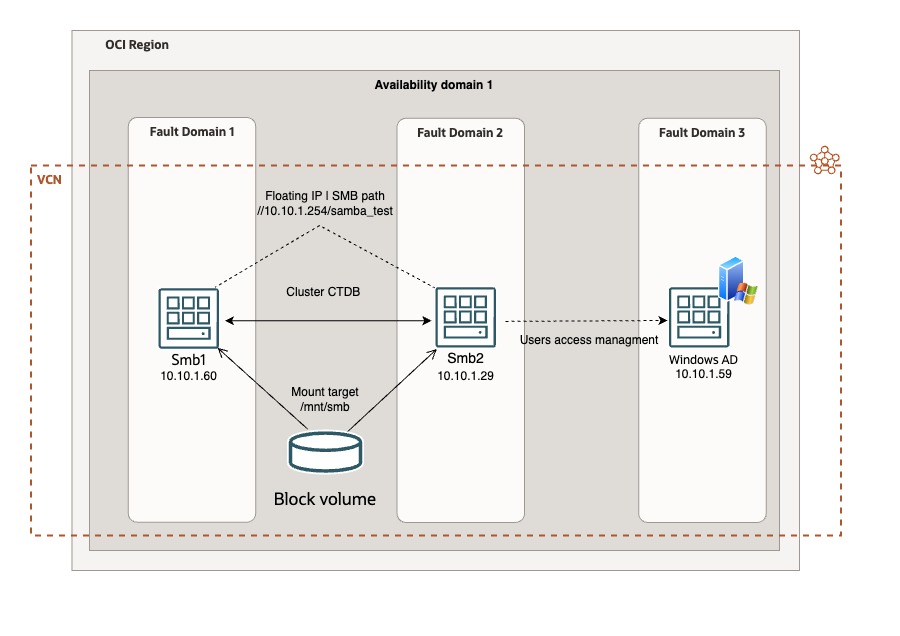
目标
- 在支持 SMB 协议的 HA 中部署与 Windows Active Directory 集成的可靠文件服务器。
先决条件
-
访问 OCI 租户。
-
两个 Linux Ubuntu VM。
-
一个块存储卷。
任务 1:设置环境
-
创建两个 Ubuntu 22.04 计算实例。
-
在两个计算实例上,建立存储文件和配置 Samba 服务器的目录。例如:
/mnt/smb。 -
创建 SMB 数据存储具有所需大小的块存储卷,并将其连接到两个计算实例(iSCSI、读/写 - 可共享)。有关更多信息,请参见 Attaching a Volume to Multiple Instances 。
-
请注意分配给使用以下命令连接的块存储卷的开发名称。
sudo lsblk -
在第一个节点上分配辅助专用 IP 地址。这是一个浮动的 IP 地址。例如:
10.10.1.254。 -
更新两个 Ubuntu 实例上的
/etc/hosts文件,以包括所有节点(包括将用于用户验证的 Windows Active Directory 服务器)的 IP 地址和主机名。例如:10.10.1.60 smb1、10.10.1.29 smb2、10.10.1.59 ad.testad.oci testad.oci AD。 -
根据需要,在两个 Ubuntu 实例上配置
iptables。注:Ubuntu 实例附带预配置的 iptables。INPUT 部分中的第六条规则拒绝其他所有规则,因此您可以选择删除它或添加在此规则之前允许的特定协议和端口。
-
在两个 Ubuntu 实例上安装和配置 Oracle Cloud Infrastructure 命令行界面 (OCI CLI)。有关更多信息,请参见 Install the OCI CLI and configure it (configuration command:oci setup config) 。
注:将 OCI CLI 安装到
/usr/bin或您的用户路径中,以避免权限问题,默认情况下为 root。bash -c "$(curl -L https://raw.githubusercontent.com/oracle/ocicli/master/scripts/install/install.sh)"
任务 2:配置 Oracle Cluster File System 版本 2 (OCFS2)
Oracle Cluster File System 版本 2 (OCFS2) 是 Oracle Corporation 开发并根据 GNU 通用公共许可证发布的通用共享磁盘文件系统。
要管理共享可写块存储卷,必须部署 OCFS2。有关更多信息,请参见 A Simple Guide to Oracle Cluster File System (OCFS2) using iSCSI on Oracle Cloud Infrastructure 。
-
在两个节点上运行以下命令。
sudo apt-get install ocfs2-tools -y -
在
/etc/default/o2cb文件中将O2CB_ENABLED的值从 false 更新为 true 。O2CB_ENABLED=true -
在
/etc/ocfs2/cluster.conf文件中输入以下代码。注:注意文件的缩进和格式。
cluster: name = ocfs2 heartbeat_mode = local node_count = 2 node: cluster = ocfs2 number = 0 ip_port = 7777 ip_address = 10.10.1.60 name = smb1 node: cluster = ocfs2 number = 1 ip_port = 7777 ip_address = 10.10.1.29 name = smb2 -
现在,启动
o2cb服务。sudo /etc/init.d/o2cb start -
使用 OCFS2 文件系统格式化块存储卷设备。仅在第一个节点上运行以下命令。
注:我们在步骤 3 中记录的设备的路径。
sudo mkfs.ocfs2 "MyOCFS2Cluster" /dev/sd* -
使用以下命令注册群集。
sudo o2cb register-cluster ocfs2 -
将块存储卷挂载到为 Samba 服务器分配的目录上。例如:
/mnt/smb。sudo mount /dev/sd* /mnt/smb -
使用以下命令检查群集状态。
sudo o2cb list-nodes ocfs2 -
使用以下命令启用服务。
sudo systemctl enable o2cb sudo systemctl enable ocfs2 -
更新
/etc/fstab中的fstab以在启动时自动挂载块存储卷。注:根据您的开发名称调整
/dev/sd\*设备。/dev/sd* /mnt/smb ocfs2 _netdev,defaults 0 0
任务 3:设置 Samba 集群
Samba 允许在 Microsoft Windows 和 Unix 上运行的计算机之间进行文件和打印共享。它是数十种服务和协议的实现,包括:NetBIOS over TCP/IP (NBT) 和 SMB - 有时称为通用 Internet 文件系统 (Common Internet File System,CIFS)。
-
使用以下命令在两个节点上安装 Samba 和 Cluster Trivial Database (CTDB)。
sudo apt-get install ctdb samba samba-common winbind smbclient -y -
编辑 Samba 配置文件。
sudo nano /etc/samba/smb.conf复制并粘贴以下参数。
注:
- 您必须相应地配置环境和 Windows
domain/workgroup。 - 对于所有节点,
netbios name参数必须相同。
[global] server string = samba_server workgroup = TESTAD password server = ad.testad.oci realm = testad.oci winbind enum groups = yes winbind enum users = yes winbind use default domain = yes security = ADS debuglevel = 2 wins support = no idmap config TESTAD : backend = rid idmap config TESTAD : range = 10000 - 50000 idmap config * : backend = tdb idmap config * : range = 1000-9999 template shell = /bin/false winbind offline logon = false interfaces = lo ens3 clustering = yes guest ok = yes bind interfaces only = no disable netbios = no netbios name = sambacluster1 smb ports = 445 log file = /var/log/samba/smb.log max log size = 10000 veto files = /._*/.DS_Store/.Trashes/.TemporaryItems/ delete veto files = yes nt acl support = yes inherit acls = yes map acl inherit = yes map archive = yes map hidden = yes map read only = yes map system = yes store dos attributes = yes inherit permissions = yes unix extensions = no [samba_test] path = /mnt/smb browseable = yes writeable = yes read only = no public = yes inherit acls = no admin users = "testad.oci\administrator" create mask = 0744 directory mask = 0755 - 您必须相应地配置环境和 Windows
-
要设置群集,请编辑 CTDB 配置文件。
sudo nano /etc/ctdb/ctdb.conf复制并粘贴以下参数。
CTDB_NODES=/etc/ctdb/nodes CTDB_PUBLIC_ADDRESSES=/etc/ctdb/public_addresses CTDB_RECOVERY_LOCK="/mnt/Samba/ctdb/.ctdb.lock" CTDB_MANAGES_SAMBA=yes CTDB_MANAGES_WINBIND=yes CTDB_SERVICE_SMB=smbd -
编辑节点配置文件以配置群集。
sudo nano /etc/ctdb/nodes添加节点的 IP 地址。
10.10.1.60 10.10.1.29 -
编辑 CTDB 公共地址配置文件(浮动 IP 地址)。
Sudo nano /etc/ctdb/public_addresses添加浮动 IP 地址。
10.10.1.254/0 ens3 -
我们必须添加脚本以在 OCI 级别管理浮动 IP 地址,并在发生故障转移时自动迁移该地址。
Sudo nano /etc/ctdb/functions在 add_ip_to_iface () 部分后面添加以下代码。
注:使用节点 VNIC OCID 和主机名更改 Oracle Cloud 标识符 (OCID) 和主机名。
##### OCI vNIC variables server="`hostname -s`" smb1vnic="ocid1.vnic.oc1.eu-frankfurt-1.YOUR_NODE1_VNIC_OCID" smb2vnic="ocid1.vnic.oc1.eu-frankfurt-1.YOUR_NODE2_VNIC_OCID" vnicip="10.10.1.254" #export LC_ALL=C.UTF-8 #export LANG=C.UTF-8 #touch /tmp/vip.log ##### OCI/IPaddr Integration if [ $server = "smb1" ]; then /usr/bin/oci network vnic assign-private-ip --unassign-if-already-assigned --vnic-id $smb1vnic --ip-address $vnicip 2>/dev/null else /usr/bin/oci network vnic assign-private-ip --unassign-if-already-assigned --vnic-id $smb2vnic --ip-address $vnicip 2>/dev/null fi -
如果浮动 IP 地址迁移不起作用,请使用以下命令对其进行故障排除。
sudo journalctl -u ctdb.service
任务 4:集成 Windows Active Directory
-
要将用户访问与 Windows Active Directory 服务器集成,必须在两个节点上安装 Kerberos。
sudo apt -y install winbind libpam-winbind libnss-winbind krb5-config samba-dsdb-modules samba-vfs-modules -
使用以下命令配置 Kerberos。
sudo nano /etc/krb5.conf -
使用以下代码检查配置文件。
注:请记住使用环境中配置的 Windows 域/领域。
[libdefaults] default_realm = TESTAD.OCI # The following krb5.conf variables are only for MIT Kerberos. kdc_timesync = 1 ccache_type = 4 forwardable = true proxiable = true # The following encryption type specification will be used by MIT Kerberos. # if uncommented. In general, the defaults in the MIT Kerberos code are # correct and overriding these specifications only serves to disable new # encryption types as they are added, creating interoperability problems. # The only time when you might need to uncomment these lines and change # the enctypes is if you have local software that will break on ticket # caches containing ticket encryption types it doesn't know about (such as # old versions of Sun Java). # default_tgs_enctypes = des3-hmac-sha1 # default_tkt_enctypes = des3-hmac-sha1 # permitted_enctypes = des3-hmac-sha1 # The following libdefaults parameters are only for Heimdal Kerberos. fcc-mit-ticketflags = true [realms] TESTAD.OCI = { kdc = ad.testad.oci admin_server = ad.testad.oci -
最后一步是使用以下命令将两个主机加入 Windows 域。
Sudo net ads join -U Administrator -S testad.oci
现在,尝试使用浮动 IP 地址和 Windows Active Directory 用户将客户端连接到 Samba 服务器(例如://10.10.1.254/samba_test),并在一个节点关闭或重新启动时测试业务连续性。
新的 Samba 集群已经准备就绪!
相关链接
确认
- 作者 - Marco Santucci(EMEA 企业云解决方案架构师)
更多学习资源
浏览 docs.oracle.com/learn 上的其他实验室,或者通过 Oracle Learning YouTube 频道访问更多免费学习内容。此外,请访问 education.oracle.com/learning-explorer 以成为 Oracle Learning Explorer。
有关产品文档,请访问 Oracle 帮助中心。
Deploy an HA Samba Cluster with Windows Active Directory on OCI
F92346-02
February 2024
Copyright © 2024, Oracle and/or its affiliates.