| Skip Navigation Links | |
| Exit Print View | |

|
Sun Server X2-8 (formerly Sun Fire X4800 M2) Installation Guide for Windows Operating Systems Sun Server X2-8 (formerly Sun Fire X4800 M2) Documentation Library |
| Skip Navigation Links | |
| Exit Print View | |
|
|
Sun Server X2-8 (formerly Sun Fire X4800 M2) Installation Guide for Windows Operating Systems Sun Server X2-8 (formerly Sun Fire X4800 M2) Documentation Library |



Windows Server OS Installation Planning
Windows Server Installation Methods
Preparing For Windows OS Installation
Supported Windows Operating Systems
Windows Server Installation Considerations
Selecting a Windows OS Media Delivery Method
Oracle Hardware Installation Assistant (OHIA)
How to Download Server Software
How to Install Windows Server 2008 R2
How to Install Windows Server 2012
How to Install Windows Server 2008 Using PXE
How to Install Windows Server 2012 Using PXE
Updating Critical Drivers and Installing Supplemental Software
Installing Critical Device Drivers
Installing Supplemental Software
Managing RAID Using the MegaRAID Storage Manager
Configuring Support for the Trusted Platform Module
Incorporating Windows Server 2008 Device Drivers Into WIM Images for WDS
Location of Device Drivers on Tools and Drivers DVD
Device Drivers to Incorporate Into WIM Images
Prerequisites and Task Overview for the Device Driver WIM Images
Incorporating Drivers Into the WIM Image
Downloading the ISO Image for the Tools and Drivers DVD
Identifying Network Interfaces in Windows
How to Determine the Server's Active Network Data Ports
How to Confirm Physical Port MAC Addresses and Map Them to Windows Device Names
This task allows you to access your server from a remotely-located client system, using the Oracle ILOM Remote Console.
Before You Begin
The following requirements must be met:
The client must be running Oracle Solaris, Linux, or Windows.
The client must be connected to a network that has access to the Oracle server Ethernet management port.
Java Runtime Environment (JRE) must be installed on the client.
If the client is running Oracle Solaris, volume management must be disabled for Oracle ILOM Remote Console to access the CD/DVD-ROM drive.
If the client system is running Windows, Internet Explorer Enhanced Security must be disabled.
The server's ILOM service processor must be set up according to the instructions in the Oracle Integrated Lights Out Manager (ILOM) documentation for your server.
 | Caution - Using Oracle ILOM Remote Console to install the Windows Server might significantly increase the installation time, depending on network connectivity and traffic. It also has a greater risk of issues due to transient network errors. |

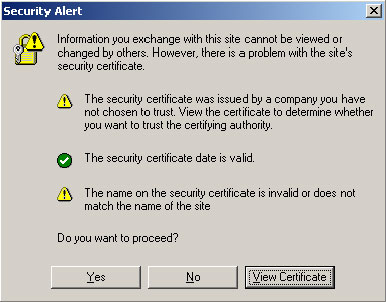
The Security Alert dialog box appears.
The Oracle ILOM login screen appears.
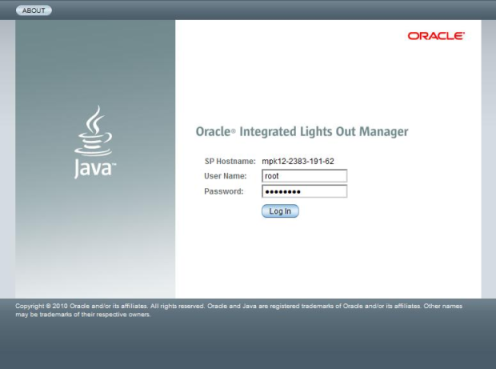
The default user name is root, and default password is changeme.
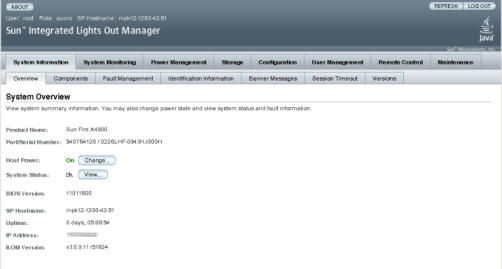
The Oracle ILOM System Overview screen appears.
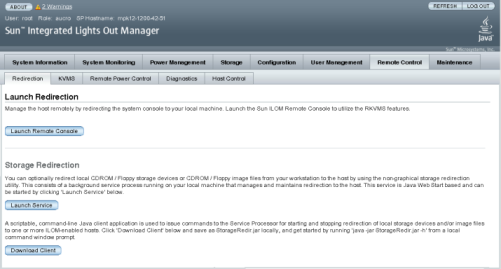
The Launch Redirection screen appears.
Note - Make sure that the mouse mode is set to Absolute mode in the Mouse Mode Settings tab.
The Launch Redirection screen appears.
Note - If the dialog box regarding verifying the web site's certificate appears, click the Yes button if you choose to continue.
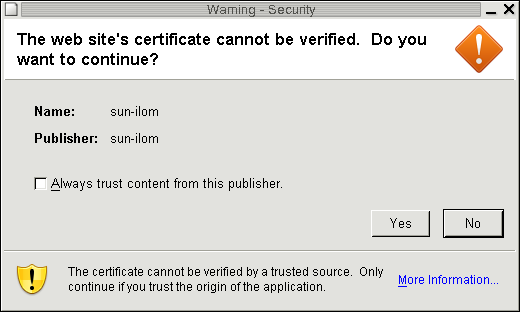
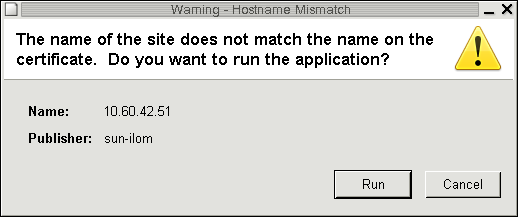
Note - When you are running redirection on a client running Windows, an additional warning might appear. If the Hostname Mismatch dialog box appears, click the Run button.
The default user name is root and password is changeme.
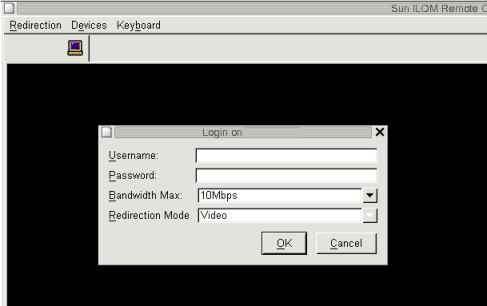
After the login is successful, the Oracle ILOM Remote Console screen appears:
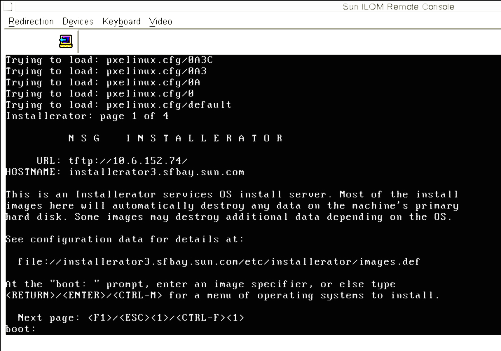
The Oracle ILOM Remote Console session is now established and ready for you to proceed.
Next Steps


|