| Skip Navigation Links | |
| Exit Print View | |

|
Sun Server X3-2L HTML Documentation Collection |



Getting the Latest Software and Firmware
Preparing the Site for Installation
About the Installation Procedure
Installation Procedure Overview
About Server Features and Components
Front Panel Status Indicators, Connectors, and Drives
Back Panel Status Indicators, Connectors, Drives, and PCIe Slots
Server Management Software Overview
Preparing for Server Installation
Optional Component Installation
Tools and Equipment Needed for Installation
Installing the Server Into a Rack
Safety Precautions When Rackmounting the Server
Stabilize the Rack for Installation
Attach Tool-less Slide-Rail Assemblies
Install the Server Into the Slide-Rail Assemblies
Install the Second-Generation Cable Management Arm
Remove the Second-Generation Cable Management Arm
Install the First-Generation Cable Management Arm
Rear Cable Connections and Ports
Attaching Data Cables and Power Cords to the Server
Oracle ILOM Hardware and Interfaces
Logging In to Oracle ILOM Using a Local Serial Connection
Logging In to Oracle ILOM Using a Remote Ethernet Connection
Accessing the Host Console Through Oracle ILOM
Troubleshooting the Service Processor Connection
Setting Up Software and Firmware Using Oracle System Assistant
Setting Up an Operating System and Drivers
Configuring Server Drives for OS Installation
RAID Configuration Requirements
Configuring Storage Drives Into RAID Volumes Using Oracle System Assistant
Configuring RAID Using the BIOS RAID Configuration Utilities
Configuring the Preinstalled Oracle Solaris 11 Operating System
Preinstalled Operating System RAID Limitations
Oracle Solaris Configuration Worksheet
Configure the Preinstalled Oracle Solaris 11 Operating System
Oracle Solaris 11 Operating System Documentation
Configuring the Preinstalled Oracle Linux 6.x Operating System
Oracle Linux 6.x Configuration Worksheet
Configure the Preinstalled Oracle Linux Operating System
Register and Update Your Linux OS
Oracle Linux Operating System Documentation
Configuring the Preinstalled Oracle VM 3.x Software
Preinstalled Oracle VM Server and Oracle VM Manager Compatibility Requirements
Oracle VM Server Configuration Worksheet
Configure the Preinstalled Oracle VM
Controlling System Power and Troubleshooting Installation Issues
Power Off the Server for Orderly Shutdown
Power Off the Server for Immediate Shutdown
Technical Support Information Worksheet
Locating the System Serial Number
Getting Server Firmware and Software
Firmware and Software Access Options
Getting Firmware and Software from MOS or PMR
Installing Updates Using Other Methods
About Oracle Solaris Operating System Installs
Oracle Solaris OS Installation Task Map
Selecting the Console Display Option
Selecting the Boot Media Option
Selecting the Installation Target Option
Solaris OS Installation Options
Preparing to Install the Operating System
Installing the Oracle Solaris Operating System
Installing the Oracle Solaris 10 or 11 Operating System on a Single System Using Media
Install Oracle Solaris 10 Using Local or Remote Media
Install Oracle Solaris 11 Using Local or Remote Media
Post Installation Tasks for Oracle Solaris
Getting Server Firmware and Software
Firmware and Software Access Options
Getting Firmware and Software From MOS or PMR
Installing Updates Using Other Methods
Oracle VM Installation Task Map
Selecting the Console Display Option
Selecting the Boot Media Option
Selecting the Installation Target Option
Oracle VM Installation Options
Single-Server Installation Methods
Preparing to Install Oracle VM
Verify the BIOS Factory Defaults
Installing Oracle VM on a Single System Using Oracle System Assistant
Installing Oracle VM on a Single System Using Media
Post Installation Tasks for Oracle VM
Configuring Network Interfaces
Getting Server Firmware and Software
Firmware and Software Access Options
Getting Firmware and Software From MOS or PMR
Installing Updates Using Other Methods
About Linux Operating System Installs
Supported Linux Operating Systems
Oracle Unbreakable Enterprise Kernel for Linux
Selecting the Console Display Option
Selecting the Boot Media Option
Selecting the Installation Target Option
Oracle System Assistant Overview
Get Updates and Install OS Tasks
Obtaining Oracle System Assistant
Preparing to Install the Operating System
Configuring the SLES 11 SP1 Operating System Software to Support Network Connections
Installing the Linux Operating System
Installing a Linux OS on a Single System Using Oracle System Assistant
Installing Oracle Linux on a Single System Using Media
Installing Red Hat Enterprise Linux on a Single System Using Media
Installing SUSE Linux Enterprise Server on a Single System Using Media
Configuring Network Interfaces
Getting Server Firmware and Software
Firmware and Software Access Options
Getting Firmware and Software From MOS or PMR
Installing Updates Using Other Methods
About Microsoft Windows Server Operating System Installs
Windows OS Installation Task Map
Supported Windows Operating Systems
SAS PCIe HBAs Requiring LSI Mass Storage Driver for Windows Server 2008 SP2
Selecting the Console Display Option
Selecting the Boot Media Option
Selecting the Installation Target Option
Windows OS Installation Options
Preparing to Install the Operating System
Installing Windows Server Operating System
Installing Windows Server on a Single System Using Oracle System Assistant
Installing Windows Server on a Single System Using Media
Post Installation Tasks for Windows Server
Supplemental Software Component Options
Installing Device Drivers and Supplemental Software
Getting Server Firmware and Software
Firmware and Software Access Options
Getting Firmware and Software from MOS or PMR
Installing Updates Using Other Methods
VMware ESXi Installation Task Map
Supported VMware ESXi Software
Selecting the Console Display Option
Selecting the Boot Media Option
Selecting the Installation Target Option
VMware ESXi Installation Options
Preparing to Install VMware ESXi
Configuring the VMware ESXi 5.0 Software or the Server Hardware to Support Network Connections
Installing VMware ESXi on a Single System Using Media
Post Installation Tasks for VMware ESXi
Configure Network Adapter Settings
Determine the MAC Address of a Connected Server Network Port
Update the VMware ESXi Software
Configuring Network Interfaces
Getting Server Firmware and Software
Firmware and Software Access Options
Getting Firmware and Software from MOS or PMR
Installing Updates Using Other Methods
About Server and Component LEDs
Service Troubleshooting Task List
Locate the Server Serial Number
Electrostatic Discharge Safety
Preparing the Server for Component Replacement
Servicing CRUs That Do Not Require Server Power-Off
Servicing Storage Drives and Rear Drives (CRU)
Servicing Power Supplies (CRU)
Servicing CRUs That Require Server Power-Off
Servicing the SAS Expander Module (CRU)
Servicing the Air Baffle (CRU)
Servicing the Internal USB Flash Drives (CRU)
Servicing the Front and Rear Storage Drive Backplanes (FRU)
Servicing the Front LED/USB Indicator Modules (FRU)
Servicing the Motherboard Assembly (FRU)
Returning the Server to Operation
Server Filler Panel Requirements
Remove and Install Filler Panels
Reinstall the Server Chassis in the Rack
Reconnect Power and Data Cables
Getting Server Firmware and Software
Firmware and Software Access Options
Getting Firmware and Software From MOS or PMR
Installing Updates Using Other Methods
Planning the System Management Environment
Choosing Tools for Single System Management
Choosing Tools for Multiple System Management
System Management Tools Overview
Common System Management Tasks
Common System Administrative Tasks
Evaluating the Server Environment
Installing System Management Tools
System Management Documentation
Accessing System Management Tools
Accessing Oracle System Assistant
Accessing Oracle Hardware Management Pack
Setting Up Software and Firmware
Set Up Software and Firmware Using Oracle System Assistant
Set Up Software and Firmware Using Oracle ILOM
Set Up Software and Firmware Using Oracle Hardware Management Pack
Setting Up the Server Using Oracle System Assistant
Organization of Oracle System Assistant
Configuring the Server Using Oracle System Assistant
Mounting the Oracle System Assistant USB Flash Drive
Troubleshooting Oracle System Assistant
Accessing the Oracle System Assistant Filesystem
Managing the Server Using Oracle ILOM
Oracle ILOM Features for Oracle x86 Servers
Supported HBA Disk Controllers
Creating a RAID Volume Before Installing an Operating System
Creating a RAID Volume After Installing an Operating System
Using Oracle ILOM to Monitor Storage Devices
Setting Up BIOS Configuration Parameters
Managing the BIOS Configuration
Accessing the BIOS Setup Utility
Using BIOS for Resource Allocation
Common BIOS Setup Utility Tasks
BIOS Setup Utility Menu Options
UEFI Driver Control Menu Selections
BIOS Save & Exit Menu Selections
Monitoring Components and Identifying SNMP Messages
Monitoring Component Health and Faults Using Oracle ILOM
Identifying SNMP Trap Messages
Getting Server Firmware and Software
Firmware and Software Access Options
Getting Firmware and Software from MOS or PMR
Before You Begin
The following requirements must be met prior to starting the Oracle Solaris 10 or 11 PXE boot installation.
Note - JumpStart or Automated Installer can help you eliminate some or most of the manual tasks of setting up the Oracle Solaris operating system for the first time on multiple servers. JumpStart installs Oracle Solaris 10 and earlier versions of the Oracle Solaris OS. Automated Installer installs the Oracle Solaris 11 OS.
To use PXE to boot the installation media over the network, you should have completed the following tasks:
For Oracle Solaris 10, ensure that the PXE/boot JumpStart install server is properly setup and accessible to your server on the network. For more information about using a JumpStart image in Oracle Solaris 10 8/11, see Oracle Solaris 10 8/11 Installation Guide: Custom JumpStart and Advanced Installations at: http://docs.oracle.com/cd/E23823_01/html/E23802/index.html. For more information about using a JumpStart image in Oracle Solaris 10 1/13, see Oracle Solaris 10 1/13 Installation Guide: JumpStart InstallationsOracle Solaris 10 1/13 Installation Guide: JumpStart Installations at: http://docs.oracle.com/cd/E26505_01/html/E28039/index.html).
For Oracle Solaris 11, ensure that the Automated Installer (AI) image install server is setup and accessible to your server over the network. For more information about using Automated Installer, see the Oracle Solaris 11 Information Library, Transitioning From Oracle Solaris 10 JumpStart to Oracle Solaris 11 Automated Installer at: http://docs.oracle.com/cd/E23824_01/html/E21799/index.html.
Ensure that the Automated Installation install server has the MAC address of the network interface from which the system will PXE boot. As an example, if you want to PXE boot from NET0, you can obtain its MAC address by logging in to the Oracle ILOM SP as root, and typing:
-> show /SYS/MB/NET0 fru_macaddress
  /SYS/MB/NET0
    Properties:
fru_macaddress = 00:21:28:e7:77:24Ensure that the Oracle Solaris 10 or 11 installation media is available for PXE boot. For details, see one of the following documents:
For Oracle Solaris 10 8/11, see “Planning to Install Over the Network” in the Oracle Solaris 10 8/11 Installation Guide: Network-Based Installations at: http://docs.oracle.com/cd/E23823_01/index.html
For Oracle Solaris 10 1/13, see “Planning to Install Over the Network” in the Oracle Solaris 10 1/13 Installation Guide: Network-Based Installations at: http://docs.oracle.com/cd/E26505_01/index.html
For Oracle Solaris 11 11/11, see Creating a Custom Oracle Solaris 11 Installation Image at: http://docs.oracle.com/cd/E23824_01/index.html.
For Oracle Solaris 11.1, see Creating a Custom Oracle Solaris 11.1 Installation Image at: http://docs.oracle.com/cd/E26502_01/index.html.
Ensure that the BIOS mode configured on your system is compatible with the Oracle Solaris operating system you are installing. For more details refer to Switch Between Legacy BIOS and UEFI BIOS Mode.
The following procedure describes how to install the Oracle Solaris 10 or 11 Operating System installation from a PXE network environment.
For example:
From the local server, press the Power button (approximately 1 second) on the front panel of the server to turn the server off, then press the Power button again to power on the server.
From the Oracle ILOM web interface, click Host Management > Power Control and select Reset from the Select Action list box.
From the Oracle ILOM CLI on server SP, type: reset /System
The BIOS screen appears.
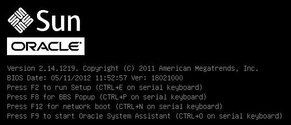
Note - The next events occur very quickly; therefore, focused attention is needed for the following steps. Please watch carefully for these messages as they appear on the screen for a brief time.
Note - PXE boot is enabled by default, however, this step directs you to verify that PXE boot is enabled just in case it was disabled. Once you have verified that PXE boot is enabled, you can omit this step on subsequent PXE boots.
The BIOS Setup Utility appears.

This causes the server to reset. After resetting, the BIOS screen appears again.
The Please Select Boot Device menu appears, listing the available boot devices. The screen that appears will be different depending on whether you have BIOS configured for legacy BIOS mode or UEFI mode.
For legacy BIOS, the following screen appears:

For UEFI mode, the following screen appears:

Note - Your Please Select Boot Device menu options might differ depending on the type of disk controller installed in your server.
The PXE boot port is the physical network port configured to communicate with your network install server.
The GRUB menu appears.
For instructions for completing the PXE installation, refer to the following documents:
For Oracle Solaris 10 8/11, see “Planning to Install Over the Network” in the Oracle Solaris 10 8/11 Installation Guide: Network-Based Installations at: http://docs.oracle.com/cd/E23823_01/index.html.
For Oracle Solaris 10 1/13, see “Planning to Install Over the Network” in the Oracle Solaris 10 1/13 Installation Guide: Network-Based Installations at: http://docs.oracle.com/cd/E26505_01/index.html.
For Oracle Solaris 11 11/11, refer to the Creating a Custom Oracle Solaris 11 Installation Image at: http://docs.oracle.com/cd/E23824_01/index.html.
For Oracle Solaris 11.1, refer to the Creating a Custom Oracle Solaris 11.1 Installation Image at: http://docs.oracle.com/cd/E26502_01/index.html.


|