 Understanding Sales Overage Processing
This chapter provides overviews of sales overage processing, billing calculations and sales overage computation methods, and sales overage processing methods and discusses how to:
Enter sales overage information.
Generate the expected sales report.
Enter expected and unexpected sales.
Review sales report batches.
Post sales reports to history.
Adjust posted sales.
Generating sales overage billings.
Review sales history.
Understanding Sales Overage Processing
In many leases with retail tenants, you establish rent that is based upon a portion of reported sales. In return for a lower fixed rent or no fixed rent at all, tenants pay a percentage of their sales to the landlord. This billing process is called percentage sales or sales overage because the sales usually must be over (exceed) a certain level (breakpoint) before rent is billed. You can change the percentage charged as sales increase to provide tenants incentives to increase their sales.
Sales overage is attractive to tenants, especially start-up businesses or tenants moving to a new location, because generally:
The overhead for operation from a higher fixed rent is reduced.
A major portion of the landlord's revenue is tied directly to the success of the tenants' business.
To promote the tenant's success, the landlord invests in maintaining the property's attractiveness and general appeal and leases space to a variety of business types.
The landlord benefits from sales overage because:
The revenue associated with sales is potentially higher than for a fixed rent amount.
Establishing rent as a percentage of sales dollars results in an automatic hedge on inflation.
This table describes the process to set up and calculate sales overages:
|
Sales Overage Process |
Description |
|
Enter sales overage information. |
You specify which leases to process for sales overage billings by adding sales overage information. You use the Sales Overage Information program (P15013) to set up the lease appropriately. When you enter sales overage information, the system creates a record in the Sales Overage Master File table (F15013B) and the Product Sales Master table (F15014B). |
|
Generate expected sales report. |
After you set up the lease to report on sales overages, you must create records in the Sales Report Control table (F1540B). You enter expected sales amounts in the records generated in table F1540B to be able to run reports and generate billings. |
|
Enter expected sales. |
By having records in the Sales Report Control table (F1540B), you need only enter sales amounts; you do not have to enter lease, building, and tenant information. You use the Expected Sales Report Entry program (P1540) to locate records to which sales amounts are added. Note. Sales are always entered by calendar year, not the fiscal pattern of the company attached to the lease. |
|
Enter unexpected sales. |
If the tenant reports unexpected sales, you can add records directly into the Sales Report Control table (F1540B) for these sales amounts. Note. Sales are always entered by calendar year, not the fiscal pattern of the company attached to the lease. |
|
Review sales report batches. |
After you enter sales amounts, you must post the batches to update the records in these tables:
|
|
Post sales report batches. |
When you post sales report batches, the system updates the Tenant Sales History table or the Tenant Weekly Sales table. |
|
Adjust posted sales. |
If errors were made while entering sales amounts, you can adjust posted sales records and repost them. Additionally, you can generate adjusted billings. |
|
Generate sales overage billings. |
After you enter sales amounts, you generate billings by running the Sales Overage Generation program (R15120). |
|
Post billings. |
After you generate billings, you must post them to create the invoice and voucher transactions. |
|
Track and report sales. |
The system provides various reports that you can use as an alternative to online inquiries, as well as to compare weekly sales, report occupancy rents, and so on. |
Understanding Billing Calculations and Sales Overage Computation Methods
Before the system performs the billing calculations for sales overage, it verifies the information in these tables:
By referring to these tables, the system ensures that a billing generation includes only leases with reported sales that have not already been processed.
The system does not perform calculations for a lease if one or more of these conditions is present:
The billings for sales overage were already calculated for the respective period.
No projected or actual sales were reported for the period.
Sales were reported and entered, but the Tenant Sales History table has not been updated with that information.
The sales information is estimated or verbal; billings cannot be based on estimated sales.
The sales information is controlled by the Sales Report Type field in the Sales Report Control table and the Invoice Estimates field in the Sales Overage Master table. If sales estimates exist in the F1542 table, the system includes those leases.
The YTD (year-to-date) sales do not exceed the breakpoint for the lease.
In this case, the Billing Period field in the Billings Generation Control Master table is updated to G (generated) for the related control record. Therefore, the system does not consider the lease for that period.
Methods of computation control how the system handles the sales information, breakpoints, and percentages.
To calculate sales overage, you can select from seven methods of computation, as described in this table:
|
Computation Method |
Description |
|
The system uses the sales amount for the week to calculate the gross overage billing. |
|
|
The system multiplies the sales amount for the current period by 12 to calculate the YTD gross overage billing. The system then divides the result by 12 to calculate the gross overage billing. |
|
|
The system uses the YTD sales amount to calculate the gross overage billing. The previous YTD gross overage billing is then deducted to calculate the current gross overage billing. |
|
|
The system multiplies the YTD sales amount by 12 to calculate the YTD gross overage billing. This amount is then divided by 12 before the previous YTD gross overage billing is deducted. |
|
|
The system uses the YTD sales amount to calculate the YTD gross overage billing. During the calculation, the percentage for the highest breakpoint that is reached is applied to the entire amount of sales that exceeds the first breakpoint. The previous YTD gross overage billing is then deducted to calculate the current gross overage billing. |
|
|
This method is used with the process for a year-end override if a tenant has moved in or out within a fiscal year that is specified in the system constants. |
|
|
This method is similar to Method 3 except that it uses the lease breakpoint to determine a maximum billable amount for the lease. The billable amount is then prorated by the product code, based on the product code sales being a percentage of total sales. |
Example: Sample Calculations
The sample calculations for the first five methods are based on the following information for a product sale record. The gross sales-overage rent is calculated for the second period except for the weekly billing, which only accounts for sales for period 1.
This table shows the differences in the calculations that the system uses in the first five methods of computation:
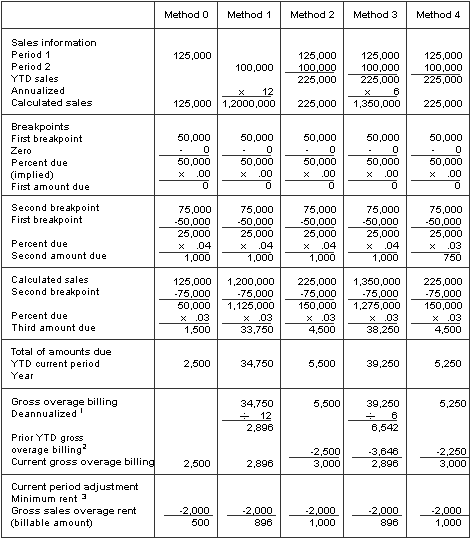
Sample calculations for the first five methods of computation
Note. 1: A gross overage billing that is based on one month is deannualized to 1/12, a billing based on two months is deannualized
to 2/12 or 1/6, a billing based on three months is deannualized to 3/12 or 1/4, and so on.
2: This method was used to calculate the previous YTD gross overage billing.
3: The minimum rent is the amount in effect at the time of the calculation.
Calculation for Method 5
An owner or property manager can set up values in the Real Estate Management system constants to organize the billing operations for all the tenants for a fiscal lease year. A specialized billing reconciliation, such as sales overage, uses this lease year as the cutoff date. Therefore, any tenant who moves in or out within the lease year can be charged a prorated share of the sales for the partial year. The calculation includes the tenant's sales for either the ensuing 12 months if the calculation is associated with a move-in or the preceding year if the calculation is associated with a move-out. A daily proration is calculated from the sales and applied to the partial year.
You can also specify a period of sales either greater than or less than 12 months, if necessary. This value is controlled by the Beg Period (Beginning Period), Beg Year (Beginning Year), and Override Year values in the Sales Overage Master table.
For example, suppose that a tenant's lease begins on June 1, 2007, and the fiscal lease year begins on January 1. The calculation for sales overage is based on the owner's fiscal year rather than the tenant's rent year.
This example also assumes:
Sales from June 1, 2007, to December 31, 2007 = 85,000 USD.
Sales from January 1, 2008, to May 31, 2008 = 25,000 USD.
Dollar breakpoint = 50,000 USD.
Percentage due = 10.
The system performs the following steps in the sequence shown to calculate the sales overage for the partial year:
Gather the reported sales for a full year to determine the gross sales (85,000 + 25,000 = 110,000).
Subtract the dollar breakpoint from the gross sales (110,000 − 50,000 = 60,000).
Multiply the difference from step 2 by the percentage due to determine the gross overage billing (60,000 × .10 = 6,000).
Prorate the gross overage billing based on the number of days in the partial year (6,000 × 214 ÷ 365 = 3518).
The billable amount is 3518 USD for the partial year from June 1, 2007, to December 31, 2007.
Calculation Method 6 - Lease Pro Rata
This example shows how the system uses the Lease Pro Rata method to calculate a lease through the first four months of the sales year. Lease 333 has a percentage due of 5 percent, and a total breakpoint of 2,700,000.00 USD, which was set up in the Product Scales Master table (F15014B). This table shows the product code breakdown:
|
Product Code |
Dollar Breakpoint |
Percent Due |
|
CLTH |
600,000.00 |
5.00 |
|
ELEC |
900,000.00 |
5.00 |
|
SPRT |
1,200,000.00 |
5.00 |
This table shows the sales for January through April, 2007:
|
Product Code |
January |
February |
March |
April |
|
CLTH |
40,000.00 |
60,000.00 |
90,000.00 |
95,000.00 |
|
ELEC |
50,000.00 |
65,000.00 |
70,000.00 |
125,000.00 |
|
SPRT |
150,000.00 |
160,000.00 |
175,000.00 |
180,000.00 |
When the Sales Overage Generation is run for January 2007, the results are:
Lease breakpoint is 2,700,000.00 USD.
Gross sales are 240,000.00 USD (40,000 + 50,000 + 150,000).
Annualized sales are 2,880,000.00 USD (240,000 × 12).
This table shows:
|
Product Code |
Description |
Amount One |
Amount Two |
Percent |
Billing Amount |
Annualized Amount |
|
CLTH |
Sales (Period, Annualize) |
40,000 |
480,000 (40,000 × 12) |
|||
|
ELEC |
Sales (Period, Annualize) |
50,000 |
600,000 (50,000 × 12) |
|||
|
SPRT |
Sales (Period, Annualize) |
150,000 |
1,800,000 (150000 × 12) |
|||
|
SPRT |
Overage Calculation (Bkpt) |
1,200,000 |
600,000 (1800000 − 1200000) |
5 |
||
|
SPRT |
PR percent (Prod/Lease Billable) |
30,000 (600,000×5 percent) |
30,000 |
100 |
750 |
9,000 |
|
Total Gross Billing |
750 |
Note. SPRT is the only product code that went over its breakpoint, so that product code owes the entire 5 percent. The total gross
billing is calculated as:
(2,880,000.00 − 2,700,000.00) = (180,000 × 5 percent) = (9,000 ÷ 12) = 750.00.
When the Sales Overage Generation is run for February 2007, the results are:
Lease breakpoint is 2,700,000.00 USD.
Gross sales are 525,000.00 USD (240,000 + 60,000 + 65,000 + 160,000).
Annualized sales are 3,150,000.00 USD (525,000 × 12 ÷ 2).
This table shows:
|
Product Code |
Description |
Amount One |
Amount Two |
Percent |
Billing Amount |
Annualized Amount |
|
CLTH |
Sales (Period, Annualize) |
60,000 |
600,000 (100,000 × 12 ÷ 2) |
|||
|
ELEC |
Sales (Period, Annualize) |
65,000 |
690,000 (115,000 × 12 ÷ 2) |
|||
|
SPRT |
Sales (Period, Annualize) |
160,000 |
1,860,000 (310,000 × 12 ÷ 2) |
|||
|
SPRT |
Overage Calculation (Bkpt) |
1,200,000 |
660,000 (1,860,000 − 1,200,000) |
5 |
||
|
SPRT |
PR Percent (Prod/Lease Billable) |
33,000 (660,000 × 5 percent) |
33,000 |
100 |
3,750 |
22,500 |
|
Total Gross Billing |
3,750 |
|||||
|
Prior Gross Billing |
(750) |
|||||
|
Current Gross Billing |
3,000 |
|||||
|
Net Invoice Amount |
3,000 |
Note. Again, SPRT is the only product code that went over its breakpoint; so that product code owes the entire 5 percent. The total
gross billing is calculated as:
3,150,000.00 − 2,700,000.00 = 450,000 × 5 percent = 22,500 ÷ 12 × 2 = 3,750.00
When the Sales Overage Generation is run for March 2007, the results are:
Lease breakpoint is 2,700,000.00 USD.
Gross sales are 860,000.00 USD (525,000 + 90,000 + 70,000 + 175,000).
Annualized sales are 3,440,000.00 USD (860,000 × 12 ÷ 3).
This table shows:
|
Product Code |
Description |
Amount One |
Amount Two |
Percent |
Billing Amount |
Annualized Amount |
|
CLTH |
Sales (Period, Annualize) |
90,000 |
760,000.00 (190,000 × 12 ÷ 3) |
|||
|
CLTH |
Overage Calculation (Bkpt) |
600,000 |
160,000 (760,000 − 600,000) |
5.00 |
||
|
CLTH |
PR Percent (Prod/Lease Billable) |
8,000 (160,000×5 percent) |
45,000 (8000 + 37000) |
17.78 (8000/45000) |
1,644.65 |
6,578.60 |
|
ELEC |
Sales (Period, Annualize) |
70,000 |
740,000 (185,000 × 12 ÷ 3) |
|||
|
SPRT |
Sales (Period, Annualize) |
175,000 |
1,940,000 (485,000 × 12 ÷ 3) |
|||
|
SPRT |
Overage Calculation (breakpoint) |
1,200,000 |
740,000 (1,940,000 − 1,200,000) |
5.00 |
||
|
SPRT |
PR Percent (Prod/Lease Billable) |
37,000 (740,000 × 5 percent) |
45,000 (37,000 + 8,000) |
82.22 (37,000 ÷ 45,000) |
7,605.35 |
30,421.40 |
|
Total Gross Billing |
9,250.00 |
|||||
|
Prior Gross Billing |
(3,750.00) |
|||||
|
Current Gross Billing |
5,500.00 |
|||||
|
Net Invoice Amount |
5,500.00 |
Note. Both CLTH and SPRT are over their respective breakpoints, and both product codes must share a percentage of the total billable.
The total gross billing is calculated as:
(3,440,000.00 − 2,700,000.00) = (740,000 × 5 percent) = (37,000 ÷ 12 × 3) = 9,250.00
The billing amount for product code CLTH is: 9,250.00 × 17.78 percent = 1,644.65
The billing amount for product code SPRT is: 9,250.00 × 82.22 percent = 7,605.35
When the Sales Overage Generation is run for April 2007, the results are:
Lease breakpoint is 2,700,000.00 USD.
Gross sales are 1,260,000.00 USD (860,000 + 95,000 + 125,000 + 180,000).
Annualized sales are 3,780,000.00 USD (1,260,000 × 12 ÷ 4).
|
Product Code |
Description |
Amount One |
Amount Two |
Percent |
Billing Amount |
Annualized Amount |
|
CLTH |
Sales (Period, Annualize) |
95,000 |
855,000 (285,000 × 12 ÷ 4) |
|||
|
CLTH |
Overage Calculation (Bkpt) |
600,000 |
255,000 (855,000 − 600,000) |
5 |
||
|
CLTH |
PR Percent (Prod/Lease Billable) |
12,750 (255,000×5 percent) |
54,000 |
100 |
4,250 (12750 ÷ 12 × 4) |
12,750 |
|
ELEC |
Sales (Period, Annualize) |
125,000 |
930,000 (310,000 × 12 ÷ 4) |
|||
|
ELEC |
Overage Calculation (Bkpt) |
900,000 |
30,000 (930,000 − 900,000) |
5 |
||
|
ELEC |
PR percent (Prod/Lease Billable) |
1,500 (30,000 × 5 percent) |
54,000 |
100 |
500 (1500 ÷ 12 × 4) |
1,500 |
|
SPRT |
Sales (Period, Annualize) |
180,000 |
1,995,000 (665000 × 12 ÷ 4) |
|||
|
SPRT |
Overage Calculation (Bkpt) |
1,200,000 |
795,000 (1,995,000 − 1,,00,000) |
5 |
||
|
SPRT |
PR Percent (Prod/Lease Billable) |
39,750 (795,000 × 5 percent) |
54,000 |
100 |
13,250 (39,750 ÷ 12 × 4) |
39,750 |
|
Total Gross Billing |
18,000 |
|||||
|
Prior Gross Billing |
(9,250) |
|||||
|
Current Gross Billing |
8,750 |
|||||
|
Net Invoice Amount |
8,750 |
Now that all of the product codes are over their respective breakpoints, each owes the entire 5 percent. The total gross billing is calculated as follows:
(3,780,000.00 − 2,700,000.00) = (1,080,000 × 5 percent) = (54,000 ÷ 12 × 4) = 18,000.00
Understanding Sales Overage Processing Methods
When you process sales overage, you can create two records for the same lease:
One record with sales information (normal processing).
One record with year-end override information.
The value in the Year End Override Code field in the Sales Overage Master and Min/Max Rents and Recoveries Master tables determines whether the system performs year-end override processing. Normal processing occurs when the Year End Override Code field is blank. In this case, the sales information that is used to calculate the overage is determined by the gross overage billing amounts for each product scale record.
Year-end override processing occurs when the Year End Override Code field contains a user-defined, one-character code (for example, Y). This value lets you depart from normal processing to:
Recalculate the overage rent if sales have been reviewed and adjusted at the end of the year.
Rebill for previous periods.
Reconcile with previous periods.
Prorate the sales if a move-in or move-out results in a partial occupancy for a lease year.
Sales Overage Accruals
For leases that are based on sales overages, you can create accrual entries (F0911 account ledger records only). You create accrual entries based on the Accrual Method field on the Sales Information Revisions form in the sales overage information for the lease. You also set the Generate Accruals processing option on the Process tab in the Sales Overage Generation program (R15120).
These methods exist for generating sales overage accruals:
|
Method |
Description |
|
1 |
When you select accrual method 1, the system generates the record as a reversing accrual each month, except the report year-end month. |
|
2 |
When you select accrual method 2, the system generates the record as a reversing accrual, regardless of the report year-end month. For the report year-end month, the accrual entry is not reversed. |
|
3 |
When you select accrual method 3, the system generates the record as a reversing accrual each month, except for the report year-end month. If actual or estimated sales exceed the actual breakpoint, generate an invoice or voucher, regardless of the reporting month. |
When the system creates accrual entries, it:
Writes the records in the Lease Billings Master table (F1511B).
Updates the billing control information.
Populates the transaction type with an A for accruals in the Lease Billings Master table.
Uses the bill code in the Product Scales Master table (F15014B).
If this field is blank, the system uses the bill code in the Sales Overage Master File table (F15013B).
Be aware that the system does not write records to the Lease Billings History table (F1511HB). Consequently, no previous gross billings exist.
When the system creates billings, it:
Writes records to the Lease Billings Master table (F1511B).
Updates the billing control information.
Writes records to the Lease Billings History table (F1511HB).
Consequently, previous gross billings are created.
Sets the transaction type to blank in the F1511B table.
Uses the bill code in the Sales Overage Master File table.
You can create accrual entries that are based on actual tenant sales from the F1541B table or projected sales from the F1542 table.
Entering Sales Overage Information
This section provides an overview of sales overage information and discusses how to:
Set processing options for Sales Overage Information (P15013).
Enter sales overage information.
Enter minimum and maximum rent and recovery information.
 Understanding Sales Overage Information
You can set up and work with the information that the system uses to calculate sales overage for a lease. When you enter sales overage information, you can also enter minimum rent, maximum rent, and recovery information for the lease.
The system stores sales overage information in these tables:
Sales Overage Master (F15013B).
Product Scales Master (F15014B).
Min/Max Rents And Recoveries Master (F15015B).
Note. When assigning billing frequencies for the Report Frequency Code and the Billing Frequency Code, make sure to assign a code that has the calendar fiscal pattern R attached. Sales Overage is determined by calendar year, and sales must be entered by calendar year. When the Sales Overage Generation is run, the GL date used for sales overage billings will define the period for which the billings are posted.
Minimum Rent, Maximum Rent, and Recovery Adjustments
Sales overage adjustments can include minimum rent, maximum rent, and recoveries. Minimum rent, or fixed rent, is the amount that is deducted from the gross overage billing for a billing period. If the gross overage is less than this amount, the billing for the period does not include sales overage. Typically, a minimum rent is involved with a lease that is set up both for regular rent as a recurring billing and for sales overage. In this case, the bill code line for recurring billing has the same amount and bill code as the minimum rent for sales overage.
Maximum rent is the upper limit of the gross overage billing for a billing period. If the gross overage is greater than this amount, the system uses the maximum amount in the calculation.
Recovery is normally an amount that a tenant has paid or has been billed that can be deducted from the gross overage billing for the billing period. For example, suppose a tenant paid a contractor to improve the appearance of a storefront. Depending on the terms of the lease, the tenant can recover this expense over a period of time against the sales overage.
Assigning Sales Overage Information to a New Version of the Lease
If you need to assign sales overage information to a new version of the lease, select the lease and select Versions from the Row menu.
The system displays a version confirmation message. To suspend the selected sales overage information line, click OK.
The system copies all of the relevant information to a new line and enters the date one day previous to the date of the new effective date for the version in the Suspend Date field for the original bill code lines.
The system also copies any minimum and maximum rent and recovery information.
Forms Used to Enter Sales Overage Information
|
Form Name |
FormID |
Navigation |
Usage |
|
Work With Sales Information |
W15013D |
Sales Overage (G1522), Sales Overage Information |
Select sales overage records. |
|
Sales Information Revisions |
W15013E |
Click Add on the Work With Sales Information form. |
Add or revise sales overage information. |
|
Min/Max Rent & Recoveries Revisions |
W15015A |
Select Min/Max Rent from the Form menu on the Sales Information Revision form. |
Add or revise minimum, maximum, and recovery amounts. |
Setting Processing Options for Sales Overage Information (P15013)
Processing options enable you to generate records for a specific period or for all of the periods in a year. If you are entering weekly sales reports, ensure that you enter the weekly sales date in the appropriate processing option.
Process
Use these processing options to specify how to display tax fields on the report and what information the system uses to run the report.
|
1. Display Tax Fields |
Specify whether to display the Tax Explanation Code and Tax Rate/Area fields on the Sales Information Revisions form. Values are: Blank: Use the setting of the Tax Suppress option in the Real Estate Management Constants table (F1510B) to determine whether to display the tax fields. 0: Display. If you select this option, the system ignores the setting of the Tax Suppress option in the Real Estate Management Constants table (F1510B). 1: Do not display. If you select this option, the system ignores the setting of the Tax Suppress option in the Real Estate Management Constants table (F1510B). |
|
2. Date Edits Against the Lease Master |
Specify whether the system validates sales overage entries against the beginning and ending dates of the lease. Values are: Blank: Do not validate. The system accepts all sales overage entries regardless of the beginning and ending dates entered. 1:: Validate. The system validates that the beginning and ending dates entered for the sales overage entry occur within the beginning and ending date range of the lease. |
|
3. Populate Area Automatically |
Specify whether the system updates the Area field (SUSA) on the Sales Information Revisions form with the rentable or usable area from the Lease Master Detail table (F15017). You can override the default value. Values are: Blank: Do not update the Area field. 1: Update the Area field with the rentable area. 2: Update the Area field with the usable area. |
Defaults
Use these processing options to specify the default information that the system uses for this report.
|
1. Lease Version Effective Date |
Specify the date to use to retrieve the lease version. If you leave this processing option blank, the system uses the value entered in the Search Default for Lease Version processing option. |
|
2. Search Default For Lease Version |
Specify whether the system retrieves the version of the lease that is based on today's date (the system date) or the latest effective date. Values are: Blank: Displays the version of the lease that is effective as of the system date. 1: Displays the version of the lease with the latest (future) effective date. For example, if today's date is June 30, 2007, and the lease has two versions dated January 1, 2007, and October 1, 2007, respectively, the system displays the version dated October 1, 2007. Note. If versioning is not set up in the Real Estate Management Constants table (F1510B), the system ignores this processing option. |
Currency
Use these processing options to specify currency information for the report.
|
1. Transaction Currency Override |
Specify whether to enable users to override the transaction currency code from the default value on the lease. Regardless of the setting of this processing option, the system does not enable the transaction currency code to be changed after a transaction has been billed for the lease. Values are: Blank: Allow. 1: Do not allow. |
|
2. Exchange Rate Override |
Specify whether to enable users to enter a value in the Exchange Rate field (CRR). The system uses the value that you enter as the exchange rate for transactions billed in foreign currency. If you leave this option blank, the system uses the default exchange rate that is entered on the lease. If the lease does not have an exchange rate, the system uses the exchange that is set up in the Currency Exchange Rates table (F0015). Overrides to the exchange rate should be limited to those instances when an agreement has been made between the tenant and landlord to use a fixed exchange rate for the term of the lease. Values are: Blank: Allow. 1: Do not allow. |
Entering Sales Overage Information
Access the Sales Information Revisions form.
|
Year End Override Code |
Displays a value indicating that the specifications for a user-defined sales overage period might differ from the normal lease specifications. You use this value to differentiate between normal sales overage processing and year-end override processing, which includes partial lease-year occupancies. You can specify a time period for which to process the override, or you can leave the date range fields blank to print the Year-End Month report, which is an annual report. This report might duplicate or override the sales overage specifications for a lease, including the minimum and maximum rents and recoveries. |
|
Tenant Sales Category |
Enter the additional ULI (Urban Land Institute) code for Tenant Sales categorization. The ULI code is an industry-standard code used to identify the nature of a business or enterprise. The ULI is a real estate trade organization that publishes sales, expenses, and other statistical information by types of buildings, developments, and tenants. |
|
Report Frequency Code |
Indicate the frequency that a tenant's sales reports will be due. These codes must be set up in user-defined codes (UDCs) (15/BC). You can establish codes for all possible combinations of reporting frequencies, including 12- and 13-period accounting years. |
|
Report Due Days |
Enter the number of days after the end of a reporting period in which the tenant's sales reports must be submitted. This field is informational and is also used to generate the Delinquent Sales Report Notice and Delinquent Sales Report Letter FASTR reports. |
|
Annual Report Due Days |
Enter the number of days after the end of the tenant's fiscal year in which the tenant's annual (year total) sales report must be submitted. The field is informational. |
|
Review Sales from Month/Year |
Enter the first period or month to be included in the processing of sales for a series of periods or months. |
|
Report Year End (Mo) (report year end month) |
Enter the period in which the tenant's fiscal year ends. For example, if the tenant's fiscal year ends on December 31st, enter 12 in this field. |
|
Year End Override Year |
Enter the applicable year and century. |
|
Audit Date |
Enter the audit date. Its intended purpose is to record a date for the finalization of sales overage recording and calculation for a tenant for a given year. |
|
Computation Method |
Enter the number that specifies the method that the system uses to calculate percentage rent by comparing breakpoints and percentages to tenant sales. Values are: 0: Weekly Sales. The system uses the sales amount for the week to directly calculate the gross overage billing. The system calculates sales for each period, does not annualize the amounts, and expresses the breakpoints as period amounts. 1:: Each Period. The system annualizes and processes current period sales. It then deannualizes the resulting amount to determine the current gross amount of the overage rent. 2: Cumulative. The system directly processes YTD sales to determine the YTD gross amount of the overage rent. It then deducts YTD billings to determine the current gross amount of the overage rent. 3: Cumulative Pro Rata. This method is similar to method 2, except that the system annualizes and processes YTD sales and the result is deannualized. 4: Modified Cumulative. This method is similar to method 2, except that when the system reaches a higher breakpoint it applies the rate associated with this breakpoint to all sales that exceed the first breakpoint. 5: Partial Year Pro Rata. The system calculates billings on the nearest 12 months of sales and then prorates them daily for the tenant's partial lease year occupancy. 6: Lease Pro Rata. This method is similar to method 3, except that the system uses the lease breakpoint to determine a maximum amount that is billable for the lease. The system then prorates the billable amount by product code and calculates the product code sales as a percentage of total sales. |
|
Lease Breakpoint |
Specify the amount that tenant sales must exceed before the system applies the sales breakpoint percentage. Depending on the computation method, the system compares the period, cumulative period, cumulative period annualized, or annual sales amounts to the breakpoint. If you set up multiple breakpoint amounts, the system applies the sales breakpoint percentage to the difference between the breakpoint amounts. |
|
Invoice Estimates |
Enter the code that specifies whether the system generates sales overage billing for non-actual sales. A non-actual sale is one for which the sales report type is not blank and a followup is required. Examples of non-actual sales include estimated sales and verbal sales (reported only). However, non-actual sales do not include those that the Projected Sales Generation program (R1542) forecasts. Values are: N: Do not calculate sales overage billing for non-actual sales. Y: Calculate sales overage billing for non-actual sales. |
|
Manual Review Reqd (manual review required) |
Enter the code that specifies whether a billing record must be reviewed before it can be approved for posting. Codes are: Blank: A review is not required. Y: A review is required. The batch retains a status of Error until the Manual Rev Reqd field for the billing record is changed from Y to blank. |
|
Property Code 1 |
Enter a code from the 20 user-defined reporting codes that exist within the Property Management system. These three-character codes can be used to further define and categorize records, such as Property/Buildings, Floors, Units, Leases, and Billing Records. |
|
Percent Due |
Enter the percentage that the system will use to calculate Sales Overage Rent for the associated breakpoint. For example, five and a half percent would be entered as 5.5. Sales Overage, or Percentage Rent, is calculated on a Product Code line basis across a scale with various breakpoints. Each breakpoint must have a percentage associated with it. This percentage represents the rate at which a tenant will be billed Sales Overage Rent for sales that are greater than one breakpoint and less than the next one. |
|
P R (prorate overage) |
Specify whether to prorate overage. You can use this field to prorate Sales Overage Billing based on percentages specified at detail (Product Scale) levels with a total lease-level breakpoint. When this field is used, the system bills overage for all of the lease's sales in excess of the lease-level breakpoint using this logic:
Values are: N: Do not prorate Y: Prorate |
|
P C (process code) |
Define the purpose of each Product Scale record. Usually the Product Scale (Building/Unit/DBA/Product Code) identifies both the level at which sales must be reported and the level at which billing specifications should be applied. However, billing requirements may be specified at a different level than sales reporting requirements. This field enables you to distinguish between the two levels. Values are: Blank: Use Product Scale for Sales Report Control and Billing Calculations. B: Use Product Scale only for Billing Calculations (Product Scale fields are used to identify sales subject to said breakpoint and percent). R: Use Product Scale only for Sales Report Control (product scale fields are used to identify how sales are expected to be reported). |
|
Accrual Method |
Enter the UDC (15/AU) that specifies the method that the system uses to generate accruals. Values are: Blank: Do not generate accruals. 1: Generate this record as a reversing accrual each month, except for the report year-end month. 2: Always generate this record as a reversing accrual, regardless of the report year-end month. For the report year-end month, the accrual entry is not reversed. 3: Generate this record as a reversing accrual each month, except for the report year-end month. If actual or estimated sales exceed the breakpoint, generate an invoice or voucher regardless of the reporting month. |
|
Sales Lease |
Enter a lease number that the system will use to retrieve sales amounts. The same sales reporting lease number should be entered on each line of a group of Product Scales records. A group of Product Scales records has the same values in DBA, Product Code, Building, and Unit. This field is intended to be used in situations involving subleases, where billings for more than one lease are based on the same sales amounts. |
|
V S (version suspend) |
Enter the code that indicates whether a billing record is suspended by the versioning process. Values are: Blank: Active. The billing record is not suspended. 1: Suspended. The billing record is suspended by the versioning process. A new billing record might exist for the next (subsequent) version of the lease. |
Entering Minimum and Maximum Rent and Recovery Information
Access the Min/Max Rent & Recoveries Revisions form.
|
S.O. Type (sales overage type code) |
Enter the code that relates the pay item to sales overage rent. Values are: RC: Recovery that is generally exempt from the calculation of sales overage. A lease may have more than one recovery active for a given billing period. MN: Minimum rent that is fixed and generally credited against sales overage in a given billing period. MX: Maximum rent that specifies the ceiling for a tenant's sales overage in a given billing period. |
|
Amount |
Enter the value that specifies the total amount of the invoice or voucher pay item. The gross amount might include the tax amount, depending on the tax explanation code. The system does not decrease the gross amount when payments are applied. When you void a transaction, the system clears the gross amount field. |
|
Limit Period |
Enter a value that specifies the period associated with the Maximum Rent amount for Sales Overage Rent. Values are: A: The Maximum Rent amount is an annual maximum. P: The Maximum Rent amount is a maximum for the current billing period. L: The Maximum Rent amount is a maximum for the entire Lease term. |
|
Rfrc B/C (reference bill code) |
Enter the reference bill code. For minimum rent, you can enter the Bill Code associated with amounts already invoiced to a Tenant in this field. The system will compare these amounts to the Sales Overage calculation amounts to determine whether the Minimum Rent amount has been reached. For a example, a Tenant is billed estimated Minimum Rent of 500 per month through the Recurring Billing system (P1502), and a Minimum Rent of 500 has been set up on the Min/Max Rents & Recoveries Revisions form. The Bill Code for the estimated Minimum Rent should be entered in the Reference Bill Code field. The system will then calculate Sales Overage Rent, compare the amount with what has already been billed, and calculate the net charge or credit. For recoveries, enter the Bill Code associated with the general ledger account that contains the amount to be recovered. The system will automatically calculate the gross amount of recovery based on this code and the percentage entered in the Recovery Rate field. |
|
Recovery Rate Percent |
Enter the rate at which Recoveries are deducted from Gross Overage Rent. After the system calculates the Recovery amount, identified through the use of a Reference Bill Code applicable to the given period, it modifies the Recovery amount by this rate. The modified Recovery amount is then deducted, subject to other limits and rates, from Gross Overage Rent. |
|
Recovery Limit Percent |
Enter the maximum increase in percentage of dollars that is allowed for an annual escalation. For example, the value 6.000 represents a 6 percent maximum in the increase between a recurring charge being escalated and the new recurring charge. |
|
C F (period carry forward) |
Allows carry forward. You can use this field to cause Maximum Rent adjustments made to Gross Overage Rent or Recovery adjustments based on Recovery Limits to be carried forward to the following billing period. For a Recovery, if Carry Forward is in effect, the Recovery amount calculated in excess of the Gross Overage Billing will be added to the following period's Recoveries. For a Maximum Rent, if Carry Forward is in effect, the Maximum Rent amount (Gross Billing - Maximum Rent) will be added to the following period's Gross Overage Billing. Carry Forwards can be financially advantageous to the Property Manager/Owner when processing a Maximum Rent adjustment and disadvantageous when processing a Recovery. Y: Allow. N: Do not allow. |
|
Priority Sequence |
Enter the value that resequences the order in which the system calculates minimum rent, maximum rent, and recovery adjustments. The system processes the adjustments in the order in which the Minimum/Maximum Rents and Recoveries program (P15015) displays them. To change this order, enter an alphanumeric sequence value or a series of values in the Priority Sequence field. |
|
Limit Amount |
Define the limit amount (or maximum amount) of a Recovery. The Recovery Limit amount is the maximum amount that will be allowed over the term of the lease. After the system calculates the Recovery amount deductible from Gross Overage Rent for the given billing period, it adjusts the Recovery amount so as to not exceed the Recovery Limit for the life of the Lease. |
Generating the Expected Sales Report
Before you can enter expected sales, you must generate the expected sales report. When you run the Expected Sales Report Generation program (R15780), you prepare the system to accept sales information that you expect to receive for a specific lease by first creating records without monetary amounts (records with empty buckets).
This section discusses how to:
Run the Expected Sales Report Generation program (R15780).
Set processing options for Expected Sales Report Generation (R15780).
Running the Expected Sales Report Generation Program (R15780)
Select Sales Report Processing (G15221), Expected Sales Report Generation.
Setting Processing Options for Expected Sales Report Generation (R15780)
Set these processing options before you run Expected Sales Report Generation program (R15780).
Select
Use these processing options to specify dates for sales report control records.
|
1. Sales Report Month |
Specify the month to use to create Sales Report Control records (F1540B). The system generates a separate record for each month and year for each building, unit, and product code for leases that have a Sales Overage Information record (F15013B) set up. |
|
2. Sales Report Year |
Specify the year to use to create Sales Report Control records (F1540B). The system generates a separate record for each year and month for each building, unit, and product code for leases that have a Sales Overage Information record (F15013B) set up. |
|
3. Weekly Sales Date |
Specify the date to use to create weekly Sales Report Control records (F1540B). The system generates a separate record for each week and year for each building, unit, and product code for leases that have a Sales Overage Information record (F15013B) set up. |
|
4. Reporting Month-End Date |
Specify the month-end date that the system uses to calculate the tenants sales report due date. The system adds the number of days entered in the Report Due Days field (RFDY) on the Sales Information Revisions form, to the date you enter in this processing option to calculate the sales report due date (DLSD) that the system stores in the Sales Report Control table (F1540B). Note. If you complete the Weekly Sales Date processing option, the system ignores this processing option. |
|
5. Process by Period or Year |
Specify whether the system generates expected sales reports for the period (week and month) that corresponds to the Sales Report Month and Weekly Sales Date processing option, or for all of the periods for the year specified in the Sales Report Year processing option. Values are: Blank: Generate expected sales reports for the period (week and month). 1: Generate expected sales reports for all periods in the year. |
Use this processing option to specify the information to print on the report.
|
1. Expected Sales Record Report |
Specify whether to print a detailed report of the records created in the Sales Report Control records (F1540B) that includes information such as the lease number and description, building, unit, DBA number, product code and description, report year and period. Values are: Blank: Do not print. 1: Print. |
Entering Expected and Unexpected Sales
After you run the Expected Sales Report Generation program (R15780), you can enter the expected and unexpected sales figures from the tenants. The menu provides a different version of the same program (P1540) that you use to enter expected and unexpected sales.
This section discusses how to:
Set processing options for Sales Report Entry (P1540).
Enter expected sales
Enter unexpected sales
Forms Used to Enter Expected and Unexpected Sales
|
Form Name |
FormID |
Navigation |
Usage |
|
Work With Sales Entry |
W1540E |
|
Review and select sales report records. The navigation that you use depends on whether you want to add expected or unexpected sales amounts. |
|
Expected Sales Entry |
W1540A |
Click Add on the Work With Sales Entry form. |
Add or revise expected sales amounts for individual sales report records. |
|
Multiple Expected Sales Report Revisions |
W1540D |
Locate the sales report records and select Multiple Revisions from the Form or Row menu on the Work With Sales Entry form. |
Use one form to add or revise sales amounts for multiple records. |
|
Unexpected Sales Revisions |
W1540B |
Click Add on the Work With Sales Entry form. |
Add or revise unexpected sales amounts for individual sales report records. |
Setting Processing Options for Sales Report Entry (P1540)
Set these processing options before you run the Sales Report Entry program (P1540).
Process
These processing options enable you to specify whether to allow the entry of unexpected and adjusted sales amounts.
|
1. Unexpected Sales Entry |
Specify whether to allow the entry of unexpected sales amounts when the Sales Report Control record (F1540B) has not been generated. Values are: Blank: Do not allow. 1: Allow the entry of unexpected sales amounts regardless of whether the Sales Report Control record is generated. |
|
2. Adjusted Sales Entry |
Specify whether to allow the entry of adjusted sales amounts to periods for which sales have been reported. Values are: Blank: Do not allow. 1: Allow. |
Defaults
This processing option enables you to specify whether to activate batch control when entering sales amounts.
|
1. Batch Control |
Specify whether to activate batch control for entering sales amounts regardless of the setting of the Batch Control Required field in the Accounts Receivable constants. Values are: Blank: Use the value entered in the Batch Control Required field on the Accounts Receivable constants. 1: Activate. 0: Do not activate. |
Entering Expected Sales
Access the Multiple Expected Sales Report Revisions form or the Expected Sales Entry form.
|
Report Per/Yr (sales report period/year - calendar year) |
Enter the report period. This field is used to record the Tenant's Sales reporting period. These periods will usually correspond to calendar months, quarters, or to periods of some other established year. |
|
Weekly Sales Date |
Enter the last calendar date that a tenant's sales report represents. If you are entering weekly sales, enter the weekly sales date. The system will calculate the report month and report year for you. |
|
Report Type |
Enter the types of Sales Reports, which are user-defined. Some examples of Sales Report Types are Actual Sales, Estimated Sales, and Verbal Sales (reported verbally). Actual Sales are Sales Reports that require no followup and are eligible for purging from the Sales Report Control table. The default value of blank in the Sales Report Type field is Actual Sales. Any non-blank value in the Sales Report Type field indicates that some followup is required. The system retains non-blank Sales Report Type records in the control file for reporting and followup purposes. You can use the Sales Report Type codes to differentiate between Sales Report conditions that require unique types of followup. |
|
Sales Rpt Status (sales report status) |
Enter the sales report status code. These codes are assigned by the system; you cannot add, change, or delete them. Values are: Blank: Most recent, unposted Sales Report for a given Product Scale and billing period. P: Posted Sales Report that has not been replaced by any Adjusting Sales Reports for a given Product Scale and billing period. X: Posted Sales Report that has been replaced by an Adjusting Sales Report for a given Product Scale and billing period. |
|
Expected Sales |
Enter the expected sales code. This code is used by the Property Management Sales Overage system to determine whether a sales report record is invited or expected. This code is intended for internal use and is not accessible to the user. The sales-invited code values are: X: Invited. This record was generated before sales report entry. Blank: Uninvited. This record is an unexpected sales report. |
|
All Sales Reports |
Enter the All Sales Report code. This code is used by the Property Management Sales Overage system to determine whether a sales report record is invited or expected. This code is intended for internal use and is not accessible to the user. The sales-invited code values are: X: Invited. This record was generated before sales report entry. Blank: Uninvited. This record is an unexpected sales report. |
|
Posted, Unposted, All |
Enter the Posted Sales Report code. Sales Report Status Codes are assigned by the system; you cannot add, change, or delete them. Values are: Blank: Most recent, unposted Sales Report for a given Product Scale and billing period. P: Posted Sales Report that has not been replaced by any Adjusting Sales Reports for a given Product Scale and billing period. X: Posted Sales Report that has been replaced by an Adjusting Sales Report for a given Product Scale and billing period. |
|
Sales Amount |
Enter the total sales amount for the associated product and sales period. |
|
Batch Number |
Enter the number that identifies a group of transactions that the system processes and balances as a unit. When you enter a batch, you can either assign a batch number or let the system assign it using the Next Numbers program. |
Entering Unexpected Sales
To save time when you are entering sales for the same lease, product code, or report month and year, consider completing those fields in the header so that the system enters the default information into the detail area when you enter sales amounts.
Access the Unexpected Sales Revisions form.
Reviewing Sales Report Batches
This section provides an overview of reviewing sales report batches and discusses how to:
Set processing options for Sales Report Batch Review (P15206).
Review sales report batches.
Understanding Sales Report Batch Review
Before you generate sales overage billings, you can review batches of sales information for posting using the Sales Report Batch Review program (P15206). For example, you might run this program after posting and adjusting sales. The sales information is stored in the Batch Control Records (F0011) and the sales report control tables.
Real Estate Management provides these levels of detail for reviewing and approving batches of sales report batches:
General batch review.
General review of the information in a batch.
Detailed review of a batch.
You use Sales Report Batch Review to review batches of transactions at the highest (most general) level of detail. You can display a list of batches based on information such as user ID, batch number, and batch date.
When you review batches of transactions, you can review sales report batch details for posted batches (for example, to check batch totals) and batches in error.
Note. If you use batch control, the system shows the differences between what you expect to enter and what you actually enter for both the input total (Difference Amount) and the number of documents (Difference Documents). If you do not use batch control, the system subtracts the actual entries from zero, which results in negative numbers in these fields.
Form Used to Review Sales Report Batches
|
Form Name |
FormID |
Navigation |
Usage |
|
Work With Batches |
W15206A |
Sales Report Processing (G15221), Sales Report Batch Review. Sales Report Batch Review, Work with Batches |
Review, select, approve, and post sales report batches. |
Setting Processing Options for Sales Report Batch Review (P15206)
Set these processing options before you run the Sales Report Batch Review program.
Process
These processing options enable you to specify the default information that appears when you access the program.
|
1. Batch Type |
Specify the default value for the Batch Type field. If you leave this processing option blank, the system uses *. |
|
2. Display Multiple Status Column |
Specify whether to display multiple status columns on the report. Values are: Blank: Do not display. 1: Display. |
Versions
This processing option enables you to specify the version of the program to run when you post by batch.
|
1. Post Sales Reports to History (R15820) |
Specify the version of the Post Sales Reports to History program (R15820) to use if you select to post by batch. If you leave this processing option blank, the system uses version XJDE0001. |
Reviewing Sales Report Batches
Access the Work With Batches form.
Posting Sales Reports to History
This section discusses how to:
Post sales reports.
Set processing options for Post Sales Reports to History (R15820).
Posting Sales Reports
You use the Post Sales Reports to History program (R15820) to post both expected and unexpected sales. You can also specify whether the system generates sales analysis information when you post sales batches.
See Setting Up Levels of Detail for Sales Analysis.
When you post sales batches, the system updates the Tenant Sales History File table (F1541B) and, for weekly sales, the Tenant Weekly Sales table (F15410).
Select Sales Report Processing (G15221), Post Sales Reports to History.
Setting Processing Options for Post Sales Reports to History (R15820)
Set this processing option before you run the report.
This processing option enables you to specify whether the program runs in proof or final mode.
|
1. Proof or Final Mode |
Specify whether to run the program in proof or final mode. Values are: Blank: Proof mode. The system prints a report of the sales amounts to post. 1: Final mode. The system updates the sales amounts to the Tenant Sales History table (F1541B) and prints a report. |
Adjusting Posted Sales
This section provides an overview of adjusted sales and discusses how to adjust posted sales.
Understanding Adjusted Sales
After you post sales, you might need to change the sales figures (for example, when a tenant's actual sales have changed since the posting). You use the Adjust Sales Reports program (P1540) to change the posted sales amounts.
Note. If you try to select posted sales records from the Work With Sales Entry form that the system displays when you select the Expected Sales Entry and Unexpected Sales Entry programs, the system returns an error. You must use the Adjust Sales Report program. You can, however, select and revise unposted sales report records using the Expected Sales Entry, Unexpected Sales Entry, or Adjust Sales Reports programs.
When you revise posted sales amounts, the system:
Reopens the batch header record (F0011).
Changes the Rpt Sts (report status) field from P to X, which indicates that the value has been changed.
Adds a detail record with the new sales amount.
The report status for the new sales amount is blank until you post the batch.
The system retains the original sales amount to provide an audit trail of the changes. After you post the batch, the system updates the report status on both the detail record displayed on the Adjusted Sales Revisions form, as well as the report status on the Work With Sales Entry form.
Forms Used to Adjust Posted Sales
|
Form Name |
FormID |
Navigation |
Usage |
|
Work With Sales Entry |
W1540E |
Sales Report Processing (G15221), Adjust Sales Reports |
Review and select posted sales report records. |
|
Adjusted Sales Revisions |
W1540F |
Select a posted sales report record on the Work With Sales Entry form. |
Revise posted sales report records. |
Adjusting Posted Sales
Access the Adjusted Sales Revisions form.
Generating Sales Overage Billings
This section provides an overview of sales overage generation and discusses how to:
Run the Sales Overage Generation program.
Set processing options for Sales Overage Generation (R15120).
Understanding Sales Overage Generation
When you run Sales Overage Generation (R15120), the system:
Creates a batch header record in the Batch Control Records table (F0011).
Assigns the batch a batch type of 1.
Assigns the batch a batch status (error, pending, or approved).
Runs a version of the Billing Edit/Register program (R15300), which generates the records in the Lease Billings Master table for generation type 3.
You use processing options to specify:
The records that the system processes.
Whether the system creates billing records for vouchers or invoices.
The dates to assign to the billing records.
Note. The billing period that you specify in the data selection must be the same as the billing period that you specify in the first processing option on the Process tab.
Related Tasks for Processing Sales Overage Billings
This table lists the related tasks to perform after you generate the sales overage billing records. You must run the programs that are designated as Required to complete the sales overage billing generation process:
|
Task |
Description |
|
Sales Overage Journal Review |
You can review the batch of sales overage billing records before you post them, and revise or delete billing transactions as necessary. |
|
Posting Invoices and Vouchers (Required) |
After you generate the billing edit register, you must post the sales overage billing transactions to generate the invoice or voucher records. See Posting Invoices and Vouchers for Real Estate Management. |
|
Printing Invoices |
After you post invoices, you can print and send them to the tenants. |
|
Printing Statements |
After you post invoices, you can print statements and send them to the tenants. |
|
Reviewing Billing Transactions |
You can review sales overage billing transactions in detail using the Billings Transaction Inquiry program (P15211). |
|
Reviewing Invoice Transactions |
You can review the invoices generated from the sales overage process by using the Tenant Ledger Inquiry program (P15222). |
|
Reviewing Voucher Transactions |
You can review the vouchers generated from the sales overage process by using the Supplier Ledger Inquiry (P0411). |
Running the Sales Overage Generation Program (R15120)
Select Sales Overage (G1522), Sales Overage Generation.
Setting Processing Options for Sales Overage Generation (R15120)
Set these processing options before you run the report.
Process
These processing options enable you to specify the parameters to use to process the records.
|
1. Month and 2. Year |
Specify the month and year through which you want to process tenant sales. The system processes all sales that are posted to the Tenant Sales History table (F1541B) and, for weekly sales, the Tenant Weekly Sales table (F15410) from the beginning of the tenant's reporting year through the date that you enter in this processing option. |
|
3. G/L Date (general ledger date) |
Specify the GL date to assign to the records in the Lease Billings Master table (F1511B) that the system generates. |
|
4. Invoice Date |
Specify the invoice date to assign to the records in the Lease Billings Master table (F1511B) that the system generates. If you leave this processing option blank, the system uses today's date as the invoice date. |
|
5. Service / Tax Date |
Specify the service/tax date to use to retrieve previous sales overage billings from the Lease Billings Master table (F1511B) that are used to adjust current sales overage billings. The system selects all records for the period in which the date that you enter occurs. If you leave this processing option blank, the system uses the first day of the last period (based on today's date). |
|
6. Search Default for Lease Version |
Specify whether the system calculates sales overage billings for the version of the lease that is based on today's date (the system date) or the latest effective date. If the version of the lease specified does not have associated sales overage information, the system uses version 1 of the lease. Values are: Blank: Uses the version of the lease that is effective as of the system date. 1: Uses the version of the lease with the latest (future) effective date. For example, if today's date is June 30, 2007, and the lease has two versions dated January 1, 2007, and October 1, 2007, respectively, the system displays the version dated October 1, 2007. Note. If versioning is not set up in the Real Estate Management Constants table (F1510B), the system ignores this processing option. |
|
7. Weekly Sales Date |
Specify the date to use to select records to process for weekly sales. The system processes all sales entered for the period in which the date you enter occurs. If you leave this processing option blank, the system processes records for the period associated with today's date. |
|
8. Generate Accruals |
Specify whether to generate accrual entries when billing records are posted. Values are: Blank: Do not generate. The system generates billing records in the Lease Billings Master table (F1511B) only. 1: Generate. The system generates billing records in the Lease Billings Master table (F1511B) and updates the Transaction Billing Type field (TRAN) with A, which generates the accrual entries when the batch is posted. The Accrual Method field on the Sales Information Revisions form must be completed for the system to generate accrual entries. |
|
9. Process Estimated Sales |
Specify whether to use only actual sales amounts or both actual and estimated sales amounts to generate sales overage billings. The system retrieves estimated sales amounts only from the F1542 table. Values are: Blank: Actual sales amounts only. 1: Actual and estimated sales amounts. |
Options
These processing options enable you to specify the parameters to use to process the selected records.
|
1. Receivables or Payables |
Specify whether to select leases that generate invoice records or leases that generate voucher records. If the value of the Lessee field (STMB) on the lease is blank, the system generates invoice records when you post billings. If the value of the Lessee field (STMB) on the lease is not blank, the system generates voucher records when you post billings. The system processes only those leases that have a value in the Lessee field that corresponds to the setting of this processing option. Values are: Blank: Invoice records. 1: Voucher records. Note. You must process sales overage billings that generate invoices separately from sales overage billings that generate vouchers. |
|
2. Amount to Retrieve From A/R or A/P (amount to retrieve from accounts receivable or accounts payable) |
Specify the amount to retrieve from the Customer Ledger (F03B11) or Accounts Payable Ledger (F0411) table if you have set up minimum maximum rent amounts, and recovery amounts using the Min/Max Rents & Recoveries program (P15015). Values are: Blank: Use the gross amount of the transaction. 1: Use the gross amount less adjustments (such as write-offs) that have been made to the invoice, if any. This value is valid only if you process invoices. 2: Use the amounts that have been paid against the transaction. |
|
3. AR/AP Retrieval Date (accounts receivable/accounts payable retrieval date) |
Specify the date type to use to retrieve invoice records, including unapplied receipts, from the Customer Ledger table (F03B11) or vouchers from the Accounts Payable Ledger table (F0411). The system selects all records for the date type specified for the period and year entered in the Tenant Sales Through Date processing option. For example, if you specify Due Date in this processing option and 06 and 2007 in the Tenant Sales Through Date processing option, the system retrieves all records with a due date between June 01, 2007, and June 30, 2007. Values are: Blank: Invoice Date 1: Due Date 2: Service/Tax Date 3: GL Date |
|
4. Prior Gross Billings Calculation |
Specify how the system calculates prior gross billings before updating them to the Tenant/Lease Billings Detail Master (F1511B) and Tenant/Lease Billings Detail History (F1511HB) tables. Values are: Blank: Lease level. 1: Detail level (building, unit, and product code). |
This processing option enables you to specify whether to generate a printed report.
|
1. Print Billing Report |
Specify whether to print a billing report, and the type of billing report to print. Values are: Blank: Do not print a billing report. 1: Summarized billing report. The system prints billing totals only. 2: Detailed billing report. The system prints all prior, current, and year-to-date billing totals, as well as the calculations for each amount. |
Versions
This processing option enables you to specify the version of the program to run.
|
1. Billing/Edit Register (R15300) |
Specify the version of the Billing/Edit Register program (R15300) to run after the system generates sales overage billings. If you leave this processing option blank, the system uses version XJDE0003. |
Reviewing Sales History
Sales History Inquiry is an online, date-sensitive program that displays actual sales from the F1541B table and projected sales from the F1542 table. The program displays the start date and the end date for the first 12-month cycle, as well as the start date and end date of the subsequent 12-month cycle. This information appears:
Total sales for the first 12-month cycle.
Total sales for the second 12-month cycle.
Total sales for the 24-month cycle.
Sales per square foot for the first 12-month cycle.
Sales per square foot for the second 12-month cycle.
The system uses these tables in the sales inquiry:
Lease Master Header (F1501B).
Lease Master Detail (F15017).
Tenant Sales History (F1541B).
Projected Sales (F1542).
Sales History Work File (F1541BW).
Real Estate Management Constants (F1510B).
Unit Master (F1507).
Area Master (F1514).
Total sales are calculated using these formulas for the sales per square foot amounts for the first and second 12-month cycles:
|
Total |
Formula |
|
Total Sales (12-month) |
= Sales 1 + Sales 2 + ? + Sales 11 + Sales 12 |
|
Total Square Foot (12-month) |
= Sq Ft 1 + Sq Ft 2 + ? + Sq Ft 11 + Sq Ft 12 |
|
Total Sales ÷ Sq Ft (12-month) |
= Total Sales (12-month) ÷ Total Sq Ft (12-month) |
Total sales are calculated using these formulas for the sales per square foot amounts for the overall 24-month period:
|
Total |
Formula |
|
Total Sales (24-month) |
= Sales 1 + Sales 2 + ? + Sales 23 + Sales 24 |
|
Total Square Foot (24-month) |
= Sq Ft 1 + Sq Ft 2 + ? Sq Ft 23 + Sq Ft 24 |
|
Total Sales ÷ Square Foot (24-month) |
= Total Sales (24-month) ÷ Total Sq Ft (24-month) |
Note. Because total sales and sales per square foot can be weighted differently, they cannot simply be added for the first and second 12-month cycles.
Forms Used to Review Sales History
|
Form Name |
FormID |
Navigation |
Usage |
|
Sales History Inquiry |
W1541BB |
Sales Report Processing (G15221), Sales History Inquiry |
Review sales amounts for actual and estimated sales. |
|
Sales By Unit Detail |
W1541BC |
Select a sales report record on the Sales History Inquiry form. |
Review sales history amounts in detail by unit. |
|
Monthly Sales Area |
W1541BA |
Select a sales report record and select Monthly Area from the Row menu on the Sales By Unit Detail form. |
Review sales, area, and sales per square foot for the unit on one form. |
Setting Processing Options for Sales History Inquiry (P1541B)
Set these processing options to specify the default processing for the program.
Process
These processing options enable you to specify the parameters to use to retrieve sales history data.
|
1. Select Area Type |
Specify the area type that the system uses to calculate the sales per square foot amount that appears on the Monthly Sales Area form. The system retrieves this area type from the Real Estate Management Constants table (F1510B). Values are: Blank: Use the value from the Alternate Area Type processing option. 1: Rentable Area Type field (RNAT). 2: Usable Area Type field (USAT). If both area-type processing options are blank, the system uses the value from the Rentable Area Type field (RNAT). |
|
2. Alternate Area Type |
Specify the alternate area type to use if the Unit Area Type processing option is blank. The value that you specify must exist in UDC 15/AR. The system uses the area type to calculate the sales per square foot when you select the option. The system ignores this processing option if you entered a value in the Unit Area Type processing option. |
|
3. Gross Leasable Area (GLA) Retrieval |
Specify whether to retrieve the area, which is used to calculate the gross leasable area (GLA), based on the first day of the month or the last day of the month. Values are: Blank: First day of the month. 1: Last day of the month. |
|
4. Sales to Display |
Specify the default option to select to display sales amounts on the Sales History Inquiry form. You can override this default option on the form, if desired. Values are: Blank: Actual sales amounts 1: Estimated sales amounts. 2: Actual and estimated sales. |
Reviewing Actual and Estimated Sales
The system displays sales or sales per square feet amounts for the 24-month cycle in the detail area. Columns for periods that do not fall in the date range that you specified are either not displayed or are unavailable for input. For sales that exist in the F1541B table or the F1542 table, if only part of the year falls within the 24-month rolling date range, the months that are outside of the range are unavailable for input.
Access the Sales History Inquiry form.
|
Property |
Enter the number that identifies the associated property, building, or project. This number is a business unit. The business unit for a property can be different from the business unit for an associated building. |
|
DBA (doing business as) |
Enter the address book number that identifies the name under which a tenant operates, if the tenant name is different from the tenant name on the lease. You can use the DBA number to separate or combine sales information for reports. The system validates the number that you enter against the Address Book Master table (F0101). |
|
Product Code |
Enter the product code. Product codes are four-character UDCs used to categorize tenants' sales. The codes are used for sales reporting in the Sales Overage module of the Property Management system. You can set up allowed code values and short descriptions in UDCs (15/PC). Example product codes are: FOOD: Food GIFT: Gift Merchandise TOYS: Toys OFCF: Office Furniture BOOK: Books |
|
Store Number |
Enter the alphanumeric code that identifies a particular store number. |
|
Base Currency |
Enter the code that identifies the currency of a transaction. |
|
Property Code 11–15, 21–25 |
Enter the property codes. These user-defined reporting codes exist within the Property Management system. These codes, which are three characters in length, can be used to further define and categorize records such as property or buildings, floors, units, leases, and billing records. |
|
From Date |
Enter the date from which to display a rolling 24 months of sales. |
|
Actual Sales |
Select this option to display actual sales. |
|
Estimated Sales |
Select this option to display estimated sales. |
|
Both |
Select this option to display both actual and estimated sales. |
|
Sales Per Square Foot |
Specify whether the system displays monthly sales or monthly sales per square foot. |
|
January through December |
Display sales report history information, which is retained for 13 reporting periods per year. Sales amounts are used to generate Sales Analysis reporting and to calculate Sales Overage billing. |
Reviewing Sales By Unit Detail
Note. The search fields on the Sales By Unit Detail form are completed automatically from the header fields that you completed on Sales History Inquiry. Sales or sales per square foot amounts for the units appear for the months of the year that you specified. Since sales per square foot amounts are summarized on the Sales History Inquiry form, the Sales By Unit Detail form displays the units which make up the total Different units might have contributed to sales for different months.
Access the Sales By Unit Detail form.