 Understanding Network Security and Direct Connect
TheJD Edwards EnterpriseOne Direct Connect solution uses the combination of EnterpriseOne, XAPI communication, and the JD Edwards EnterpriseOne Integration Server technologies to conform to the cXML 1.2.009 Direct PunchOut standard.
This chapter provides an overview of network security and Direct Connect and discusses how to:
Set up the system for Direct Connect.
Set up the Integration Server services for Direct Connect.
Set up supplier Direct Connect information.
Understanding Network Security and Direct Connect
Certain network configurations prevent outbound or inbound internet traffic through the firewall. In some cases, the you will need to re-configure network security to allow outbound and inbound internet traffic. Direct Connect functionality requires the ability to access the vendor's website outside the firewall, and also requires the ability to allow the vendor website to access the Web Services Gateway (WSG) server from outside the firewall.
Setting Up the System for Direct Connect
This section discusses how to set up the JD Edwards EnterpriseOne system for Direct Connect.
 Setting Up the System for Direct Connect
These are the required steps for setting up the system for Direct Connect:
Install and set up the EnterpriseOne JAS server.
Install and set up the transaction server.
See EnterpriseOne Tools 8.96 Transaction Server Installation Guide
Set up JD Edwards EnterpriseOne XAPI/Real Time Events.
See JD Edwards EnterpriseOne Tools 8.96 Interoperability Guide, Using XAPI Events – Guaranteed
Verify that the following XAPI events for Direct Connect are set up and activated: RTEMPTYCRT, XAPIAUTHEN, XAPIGETURL, XAPIREQCRT, XAPIGETCRT.
See Direct Connect.
See JD Edwards EnterpriseOne Tools 8.96 Interoperability Guide, Using Events - Guaranteed, Defining Events
Set up the subscriber. This is the same user sign on for the EnterpriseOne Adapter.
See Oracle JD Edwards EnterpriseOne Tools Guide: Interoperability, Using Events - Guaranteed, Establishing Subscribers and Subscriptions
Set up event subscriptions for the event subscriber.
See JD Edwards EnterpriseOne Tools Guide: Interoperability, Using Events - Guaranteed, Establishing Subscribers and Subscriptions
Attach subscribed events to the event subscription. Direct Connect uses the following subscriber events: RTEMPTYCRT, XAPIAUTHEN, XAPIGETURL, XAPIREQCRT, XAPIGETCRT
See JD Edwards EnterpriseOne Tools 8.96 Interoperability Guide, Using Events - Guaranteed, Establishing Subscribers and Subscriptions
Attach subscribed environments to subscription.
See JD Edwards EnterpriseOne Tools 8.96 Interoperability Guide, Using Events - Guaranteed, Establishing Subscribers and Subscriptions
Set up suppliers for Direct Connect
Set up the commodity structure.
Set up the Web Services Gateway (WSG) Integration Server
Start the Event Connector
See Oracle JD Edwards EnterpriseOne Web Services Gateway 8.96 Installation and Setup Guide, Configuring the EnterpriseOne Adapter
Install the following Direct Connect Packages:PSFT_E1_Adapter, PSFT_EnterprisOne_AdapterServices, PSFT_EnterpriseOne_SRM_PunchOut, PSFT_JDBCAdapterServices, PSFT_PackageManagement, PSFT_Utils, and PSFT_XrefandSoftCoding
Install the EnterpriseOne Adapter
See JD Edwards EnterpriseOne Tools 8.96 Web Services Gateway: EnterpriseOne Adapter Programmer's Guide, Configuring the EnterpriseOne Adapter
Enable the JDBC Adapter
See JD Edwards EnterpriseOne Tools 8.96 Web Services Gateway: EnterpriseOne Adapter Programmer's Guide, Configuring the EnterpriseOne Adapter
Enable EnterpriseOne Adapter connections
See JD Edwards EnterpriseOne Tools 8.96 Web Services Gateway: EnterpriseOne Adapter Programmer's Guide, Configuring the EnterpriseOne Adapter
Enable EnterpriseOne Adapter listeners
See JD Edwards EnterpriseOne Tools 8.96 Web Services Gateway: EnterpriseOne Adapter Programmer's Guide, Configuring the EnterpriseOne Adapter
Enable the following listener notifications for Direct Connect.
AdapterServices.Notification.eRequisitions:notifyXAPIAUTHENEvent
AdapterServices.Notification.eRequisitions:notifyRTEMPTYCRTEvent
AdapterServices.Notification.eRequisitions:notifyXAPIREQCRTEvent
The package name is: PSFT_EnterpriseOne_AdapterServices
See JD Edwards EnterpriseOne Tools 8.96 Web Services Gateway: EnterpriseOne Adapter Programmer's Guide, Configuring the EnterpriseOne Adapter
Set up the EnterpriseOne Integration Server Services for Direct Connect
See Setting Up Direct Connect Services for the Integration Server.
Set up the integration options for Direct Connect.
Setting Up Direct Connect Services for the Integration Server
This section provides overviews of the Direct Connect Services and discusses how to:
Set up the Authentication service
Set up the Shopping Cart Request service.
Set up the Empty Shopping Cart Response service.
Set up the JD Edwards EnterpriseOne Integration Server Scheduler Cleanup service.
Set up the Get Shopping Cart Response service.
Set up the Key Cross References.
Set up the Purchase Order Dispatch to cXML service.
Understanding the Services for Direct Connect
Direct Connect uses the following services:
Authentication.
Shopping Cart Request.
Empty Shopping Cart Response.
EnterpriseOne Integration Server Scheduler CleanUp.
Get Shopping Cart Response.
Purchase Order Dispatch to cXML.
This graphic illustrates the services for Direct Connect:
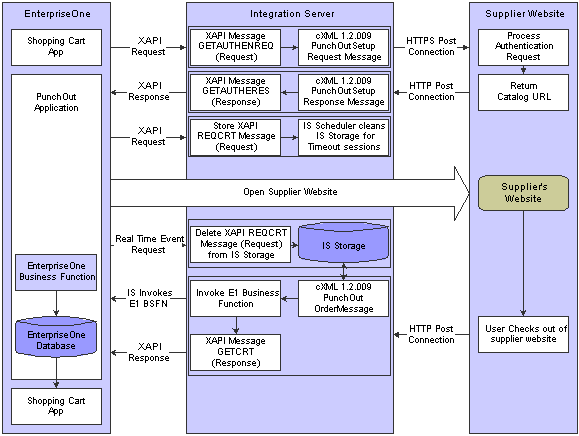
Services for Direct Connect
Where required, the system provides default values for integration options, maps, triggers, and adapter services that are based on cXML version 1.2.9. If your suppliers use a different version of cXML and you need to change any of the services that are discussed in this section, you must also change the values for the corresponding integration options, maps, triggers, and adapter services
Authentication Service
Use this service to perform the authentication method with the Direct Connect supplier website. This service supports these authentication methods:
Digital certificates
Message authentication code (MAC) credentials
Shared secrets
The integration name for this service is E1_XAPIAUTHEN_To_cXML_1_2_009_PunchOutSetupRequest. The process involves these steps:
EnterpriseOne sends an XAPI Authentication Request message to the EnterpriseOne Integration Server.
The EnterpriseOne Integration Server converts the XAPI Authentication Request message into the cXML PunchOutSetupRequest XML document.
The EnterpriseOne Integration Server initiates an HTTP Post connection to the supplier.
If digital certificates are used, then the Integration Server first authenticates the digital certificates during the HTTP Post connection process.
See EnterpriseOne Tools 8.96 Web Development Client Installation Guide.
The supplier website returns a cXML PunchOutSetupResponse message through the same HTTP Post connection that was initiated by the Integration Server.
The EnterpriseOne Integration Server transforms the cXML PunchOutSetupResponse XML document into an XAPI Authentication Response message.
EnterpriseOne receives the XAPI Authentication message and opens a new browser window by using the catalog URL that was returned.
Note. Depending on the vendors that you are using, you may need to customize the XML message because the vendor that you are connecting to does not conform exactly to the cXML standards.
Shopping Cart Request Service
The Shopping Cart Request service notifies the Integration Server that EnterpriseOne is waiting for an inbound shopping cart request from the supplier website. This service stores necessary information that relates to the XAPI request so that the Integration Server can send an XAPI response back to the correct user session awaiting the shopping cart in EnterpriseOne.
The integration name for this service is: E1_XAPIREQCRT_To_IS_Store. The Shopping Cart Request service involves these steps:
EnterpriseOne sends an XAPI Shopping Cart Request message to the Integration Server.
The Integration Server stores the XAPI message information in the Integration Server storage database.
Empty Shopping Cart Response Service
This service notifies the Integration Server that EnterpriseOne has canceled the request to wait for an inbound shopping cart from the supplier. This situation occurs when the user cancels the transaction from the EnterpriseOne Direct Connect Shopping Cart application. This service deletes the XAPI Shopping Cart Request information from the Integration Server storage database.
The integration name for this service is: delete_E1_RTEMPTYCRT_From_IS_Store. The Empty Shopping Cart Response service involves these steps:
EnterpriseOne sends a Real Time Empty Shopping Cart Event message to the Integration Server.
The Integration Server deletes the XAPI message information from the Integration Server storage database.
EnterpriseOne Integration Server Scheduler CleanUp Service
The EnterpriseOne Integration Server Scheduler CleanUp service reviews the Integration Server's storage database and removes any XAPIREQCRT message information, which removes any shopping cart requests that were created when a user's session timed out. This service is initiated by the scheduler process in the Integration Server. You can schedule the frequency of the scheduler through the EnterpriseOne scheduler setup.
The integration name for this service is: E1_To_IS_SchedulerCleanup. The EnterpriseOne Integration Server Scheduler CleanUp service involves these steps:
The Integration Server initiates the scheduler cleanup service based on the frequency that you set up.
The Integration Server deletes the XAPI message information from the Integration Server storage database.
Note. You must set up integration options for this service.
See Setting Up the JD Edwards EnterpriseOne Integration Server Scheduler CleanUp Service.
Get Shopping Cart Response Service
This service sends the contents of the shopping cart from the supplier website to the EnterpriseOne Direct Connect Shopping Cart application. This service converts the cXML PunchOutOrderMessage to the XAPIGETCRT message and notifies EnterpriseOne that the shopping cart has been received. This service also initiates an EnterpriseOne business function to pass the contents of the shopping cart.
The integration name for this service is convert_cXML_1_2_009_PunchOutOrderMessage_To_E1_XAPIGETCRT. The Get Shopping Cart Response service involves these steps:
The supplier website initiates an HTTP Post connection with the Integration Server and sends the contents of the shopping cart.
The service is initiated by the post back URL that was sent to the supplier during the authentication process. The post back URL initiates the Integration Server’s convert_cXML_1_2_009_PunchOutOrderMessage_To_E1_XAPIGETCRT, and therefore there are no triggers for this service.
The Integration Server converts the cXML PunchOutOrderMessage XML document into an XAPIGETCRT message.
Transforming the cXML PunchOutOrderMessage XML document into the XAPICETCRT message involves:
The Get Shopping Cart Response service converts the incoming cxml-urlencoded text into an Integration Server document that complies with the cXML standard.
The Get Shopping Cart Response service retrieves the buyer cookie to retrieve the XAPIREQCRT message information from the Integration Server storage database.
The Get Shopping Cart Response service converts the cXML standard document into an internal doc_PunchOutOrderMessageDocument document.
The purpose of this process is to convert the native values into EnterpriseOne canonical values by cross-referencing predefined cross-reference fields. The following fields are cross-referenced (the application ID is DirectConnect): Currency Code, Language Code, Supplier, and Unit of Measure.
Note. The supplier cross-reference must be setup in the Web Services Gateway (WSG) cross- reference table. The EnterpriseOne system accepts an 8-digit numeric field, but the supplier may send sender identity that is greater than 8 digits. Therefore, it is necessary to set up the supplier cross-reference to correctly identify the supplier in the JD Edwards EnterpriseOne system.
The Get Shopping Cart Response service reviews all shopping cart contents in the doc_PunchOutOrderMessageDocument and initiates the EnterpriseOne eReqSetShoppingCartWorkFile business function through an EnterpriseOne adapter service.
The Get Shopping Cart Response service initiates the XAPIGETCRT response message to notify the EnterpriseOne Direct Connect Shopping Cart application that the contents of the shopping cart have been sent to EnterpriseOne.
The XAPIGETCRT message contains the information that is needed to send the notification back to the correct user session that initiated the checkout on the supplier website.
Purchase Order Dispatch to cXML Service
This service is invoked when the Purchase Order Print program (R43500) within the JD Edwards EnterpriseOne system sends an RTPOOUT notification. The system passes the notification to a mapping service, map_E1_PO_To_cXML_PO, which converts the JD Edwards EnterpriseOne event to a cXML Order Request document. This service then sends the cXML document to the supplier using the url specified in the Authentication URL field on the Setup Direct Connect Supplier form. This url is sent in the RTPOOUT notification.
Setting Up the Authentication Service
The E1_XAPIAUTHEN_To_cXML_1_2_009_PunchOutSetupRequest service is in the following location: EnterpriseOne, PointToPoint_EnterpriseOne, eRequisition.
Integration Options
This service requires the following setup for integration options:
|
Key |
Description |
Value |
Data Type |
|
46c3df89c49e1315:4ade31:fbad344ce9:-7ffe |
Host machine ID |
For example: den-machinename |
String |
|
0796435da456bf9d:1b688e:fc0e295000:-8000 |
Host name |
For example: oracle.com |
String |
|
46c3df89c49e1315:5f4a7f:fbbcc0d65a:-8000 |
Port number |
For example: 5555 |
String |
|
46c3df89c49e1315:5f4a7f:fbbcc0d65a:-8000 |
Post back service |
For example: PSFT_EnterpriseOne_SRM_PunchOut.PunchOut.cXML_1_2_009_PunchOutOrderMessage_To_E1_XAPIGETCRT:convert_cXML_1_2_009_PunchOutOrderMessage_To_E1_XAPIGETCRT |
String |
|
d7b734135616092e:3d09e8:fc6196ea2e:-7fff |
SchedulerTimeOutSetting |
For example: 86400 (always represents milliseconds) |
String |
Map
Verify that the default value to map the XAPI Authentication message request to the cXML PunchOutSetupRequest XML document is as follows: map_E1_XAPIAUTHEN_T0_cXML_1_2_009_PunchOutSetupRequest.
Trigger
Verify that the default value for the trigger for the Authentication service is:
trigger_notifyXAPIAUTHENEventPublishDocument
This trigger launches the convert_E1_XAPIAUTHEN_To_cXML_1_2_009_And_Response service when a notifyXAPIAUTHENEventPublishDocument is received by the Integration Server.
EnterpriseOne Adapter Services
Verify the following values for the EnterpriseOne adapter services:
|
Notifications |
Description |
|
notifyXAPIAUTHENEvent |
Adapter service that receives the XAPIAUTHEN message. |
|
notifyXAPIAUTHENEventPublishDocument |
Published document of the XAPIAUTHEN message. |
|
respondXAPIGETURL |
XAPIGETURL response message to EnterpriseOne. |
Setting Up the Shopping Cart Request Service
The service for a shopping cart request is: E1_XAPIREQCRT_To_IS_Store.
No integration options are required for the Shopping Cart Request service.
Map
Verify that the default setting to convert the XAPIREQCRT message to a doc_StoreDocument document for storage in the Integration Server is:
map_E1_XAPIREQCRT_To_IS_Store
Trigger
Verify that the default value to trigger the add_E1XAPIREQCRT_To_IS_Store service when a notify XAPIREQCRTEventPublishDocument is received by the Integration Server is: trigger_notifyXAPIREQCRTEventPublishDocument.
EnterpriseOne Adapter Services
Verify the following values for the EnterpriseOne adapter services:
|
Notifications |
Description |
|
notifyXAPIREQCRTEvent |
Adapter service that receives the XAPIREQCRT message. |
|
notifyXAPIREQCRTEventPublishDocument |
Published document of the XAPIREQCRT message. |
Setting Up the Empty Shopping Cart Response Service
The service for the shopping cart response is: delete_E1_RTEMPTYCRT_From_IS_Store. No integration options or maps are required for this service.
Triggers
Verify that the default value to trigger the delete_E1_RTEMPTYCRT_From_IS_Store service when a notifyRTEMPTYCRTEventPublishDocument is received by the Integration Server is: trigger_notifyRTEMPTYCRTEventPublishDocument.
EnterpriseOne Adapter Services
Verify the following values for the EnterpriseOne adapter services:
|
Notifications |
Description |
|
notifyRTEMPTYCRTEvent |
Adapter service that receives the Real Time RTEMPTYCRT Event message. |
|
notifyRTEMPTYCRTEventPublishDocument |
Published document of the RTEMPTYCRT message. |
Setting Up the JD Edwards EnterpriseOne Integration Server Scheduler CleanUp Service
The service for the EnterpriseOne Integration Server Scheduler CleanUp service is: E1_To_IS_SchedulerCleanup
No maps, triggers, or adapter services are required for this service, but you must verify the default settings for the integration options:
|
Key |
Description |
Value |
Data Type |
|
d7b734135616092e:3d09e8:fc6196ea2e:-7fff |
SchedulerTimeOutSetting |
86400 |
String |
Setting Up the Get Shopping Cart Response Service
The service for Get Shopping Cart Response is convert_cXML_1_2_009_PunchOutOrderMessage_To_E1_XAPIGETCRT
Integration options and triggers are not required for this service. Triggers are not required because the supplier website initiates this service through the Post Back URL that is sent to the supplier in the PunchOutSetup Request.
The default setting of the flow services sent out for Direct Connect has the execute privilege of the PSFT_EnterpriseOne_SRM_PunchOut.PunchOut.cXML_1_2_009_PunchOutOrderMessage_To_E1_XAPIGETCRT: convert_cXML_1_2_009_PunchOutOrderMessage_To_E1_XAPIGETCRT flow service. The execute privilege setting for this flow service needs to be reset to anonymous to allow the vendor website to invoke this flow service.
Note. This service maps the UNSPSC code only when the classification element value in the cXML PunchOutOrderMessage in the ItemIn element is UNSPSC.
Maps
Verify the default values for the following maps for the Get Shopping Cart Response service:
|
Map |
Description |
|
map_cXML_1_2_009_PunchOutOrderMessage_To_BuyerCookie |
Retrieves the buyer cookie from the cXML PunchOutOrderMessage. |
|
map_cXML_1_2_009_PunchOutOrderMessage_To_Doc |
Maps the cXML PunchOutOrderMessage to an EnterpriseOne Integration Server internal document. This mapping also cross-references native values with canonical values for EnterpriseOne. |
|
map_Doc_To_E1_eReqShoppingCartWorkFile |
Maps the EnterpriseOne Integration Server internal document to eReqShoppingCartWorkFile adapter service. This service invokes the EnterpriseOne eReqShoppingCartWorkFile business function. |
|
map_StoreDocument_To_E1_XAPIGETCRT |
Maps the EnterpriseOne Integration Server doc_StoreDocument to XAPIGETCRT adapter service. This service invokes the XAPIGETCRT message to EnterpriseOne to notify the shopping cart application that the contents of the shopping cart have been sent to EnterpriseOne. |
EnterpriseOne Adapter Services
Verify the following values for the EnterpriseOne adapter services:
|
Notifications |
Description |
|
eReqSetShoppingCartWorkFile |
Invokes the EnterpriseOne eReqSetShoppingCartWorkFile business function. |
|
respondXAPIGETCRT |
XAPIGETCRT message event to send an XAPIGETCRT message to EnterpriseOne. |
Setting Up Key Cross-References
This table describes the required settings for the key cross-references:
|
Application ID |
ObjectType |
NATIVE_ID |
CANONICAL_ID |
|
DirectConnect Note. This value is hard-coded. |
currencycode |
Enter the values from the supplier. |
Enter the values for your EnterpriseOne system. |
|
DirectConnect Note. This value is hard-coded. |
unitofmeasure |
Enter the values from the supplier. |
Enter the values for your EnterpriseOne system. |
|
DirectConnect Note. This value is hard-coded. |
supplier |
Enter the values from the supplier. |
Enter the values for your EnterpriseOne system. |
|
DirectConnect Note. This value is hard-coded. |
languagecode |
Enter the values from the supplier. |
Enter the values for your EnterpriseOne system. |
Setting Up the Purchase Order Dispatch to CXML Service
The E1_PODispatch_To_cXML_1_2_009_OrderRequest is in the following location: PSFT_EnterpriseOne_Commerce.E1_PODispatch_To_cXML_1_2_009_OrderRequest:convert_E1_PODispatch_To_cXML_OrderRequest
This service requires integration options, which are located at: PSFT_EnterpriseOne_Commerce.E1_PODispatch_To_cXML_1_2_009_OrderRequest:convert_E1_PODispatch_To_cXML_OrderRequest
This table describes the integration options that are required:
|
Key |
Description |
Value |
Sample Value |
Data Type |
|
f1594b152eff9e1c:3b2bc3:101f31fc115:-7fff |
Domain Name |
oracle.com |
String |
|
|
f1594b152eff9e1c:3b2bc3:101f31fc115:-7ffe |
xml/lang |
en |
String |
|
|
f1594b152eff9e1c:3b2bc3:101f31fc115:-7ffc |
Deployment Mode |
production |
test |
String |
|
f1594b152eff9e1c:3b2bc3:101f31fc115:-7ffb |
Last Status Cancel |
User-defined code (UDC) code for status |
String |
|
|
f1594b152eff9e1c:3b2bc3:101f31fc115:-7ffa |
Next Status Cancel |
UDC code for status |
String |
Maps
Verify that the default value to map the EnterpriseOne notification (RTPOOUT) to a cXML Order Request document is as follows: map_E1_PO_To_cXML_PO.
Triggers
Verify that the default value to trigger the E1_PODispatch_To_cXML_1_2_009_OrderRequest service when a RTPOOUT event is received by the Integration Server is: trigger_notifyPurchaseOrderEvent.
Cross-Reference Codes
This table describes the required setting for the cross-reference codes:
|
Application ID |
Object Type |
Canonical |
Native |
|
cXML |
unitofmeasurecode |
optional |
optional |
|
cXML |
countrycode |
optional |
optional |
|
cXML |
currencycode |
optional |
optional |
|
cXML |
freighthandlingcode |
optional |
optional |
Setting Up Supplier Direct Connect Information
This section provides an overview of Direct Connect information for suppliers and discusses how to set up Direct Connect information for suppliers.
Understanding Direct Connect Information for Suppliers
You use the Direct Connect Setup Application program (P43E22) to enter Direct Connect information for suppliers. You access this program from the Supplier Master Revisions form.
When you set up your suppliers for Direct Connect, you must specify a communication method. The Direct Connect communication method enables you to connect to your suppliers to view their websites. The PO Dispatch method enables you to send a cXML message to the supplier that contains the items that you want to order from their site. To use both methods, you must set up the information on the Setup Direct Connect Supplier form twice- once for each method.
Before setting up Direct Connect information for suppliers, you must set up two user-defined code (UDC) tables, 43E/CM and 43E/XS.
This table describes the values you must set up for UDC table 43E/CM:
|
Codes |
Description 01 |
|
1 |
Direct Connect |
|
2 |
PO Dispatch |
This table describes the values you must set up for UDC table 43E/XS:
|
Codes |
Description 01 |
|
CXML12009 |
cXML 1.2.009 |
You must add additional values to UDC table 43E/XS if you add additional customized flow services to invoke. For example, if you create a specialized flow service for Corporate Express, you must add a value to UDC table 43E/XS similar to the values in the following table:
|
Codes |
Description 01 |
|
CORPEXP |
Corporate Express |
When the system sends a notification to WSG, the customized trigger in WSG can trigger the custom flow service using this value.
Form Used to Set Up Direct Connect Information for Suppliers
|
Form Name |
FormID |
Navigation |
Usage |
|
W43E22A |
Supplier and Voucher Entry (G0411), Supplier Master Information Select a supplier on the Work With Supplier Master form and select Direct Connect from the Row menu. |
Enter Direct Connect information for a supplier. |
Setting Up Direct Connect Information for Suppliers
Access the Set Up Direct Connect Supplier form.
|
Communication Method |
The JD Edwards EnterpriseOne system is set up to support the cXML 1.2.009 Direct Punch Out standard. Therefore, you must select Direct Connect. If your suppliers use a different version, you can configure the Direct Connect setup to support the different version. To set up suppliers for PO Dispatch, select PO Dispatch. PO Dispatch enables you to send a message to the supplier that contains the items that you want to order from their website. |
Authentication
These fields define the information needed for authentication.
|
Login ID |
Enter the sign-in user ID for authenticating with the third-party website. |
|
Shared Secret |
Enter the password to sign in to the EnterpriseOne menu driver. |
|
Authentication URL |
Enter the URL for authenticating user credentials on the supplier website. |
|
Authentication Method |
Select the method to authenticate with the supplier website. Values are: 1: Digital Certificates See EnterpriseOne Tools 8.96 Web Development Client Installation Guide 2: Mac Credentials 3: Shared Secrets |
|
Software Name |
Enter the name of the software that communicates with the supplier website. The supplier uses this value to determine the software with which it is communicating. For example, enter JD Edwards EnterpriseOne 8.12. |
XML Schema
These fields define the information that is required for the XML schema.
|
Authentication Request |
Select the Integration Server service for authentication. |
|
Shopping Cart Request |
Select the Integration Server service for the shopping cart request. |
MAC Credentials
These fields define the MAC Credentials. You must set up this information if you are using a third-party authentication provider.
|
Buyer Domain Name |
Enter the name of the buyer domain. |
|
Identity |
Enter the identity of the buyer domain. |
|
Supplier Domain Name |
Enter the name of the supplier domain. |
|
Identity |
Enter the identity of the supplier domain. |
|
Sender Domain Name |
Enter the name of the sender domain. |
|
Identity |
Enter the identity of the sender domain. |
|
Algorithm |
Enter the algorithm for decrypting the MAC credentials. |
|
Type |
Enter the type of the algorithm for decrypting the MAC credentials. |
|
Creation Date |
Enter the date that the MAC credentials were created. |
|
Expiration Date |
Enter the date that the MAC credentials expire. |
|
MAC Value |
Enter the value of the MAC credentials that were given by the third-party authentication process. |
Set Up Extrinsic Information
These fields define any additional data that might be required by a supplier for authentication and access to their website. These values create a cross-reference that indicates to the supplier which user is connecting to their website so that the supplier knows what information to display for the user. You can map the additional required data using only these tables:
F0101– Address Book Master
F0111– Address Book - Who's Who
F0006– Business Unit Master
F0010– Company Constants
F0401– Supplier Master
|
Extrinsic Name |
Enter the name of the element for the extrinsic information section of the cXML document. For example, enter USER. If you enter USER, the extrinsic information appears as: <Extrinsic name=”User”>98372762</Extrinsic>. This value must be a single string. Do not enter any spaces or special characters. |
|
Description |
Enter the description of the element name. For example, enter User ID to describe the element name of USER. |
|
Table ID |
Enter a valid table number from UDC table 43/ET. The system uses this table to retrieve the value that is specified in the Element Name field. For example, enter F0101 if you want the system to retrieve the user ID from the F0101 table. Note. The values in user-defined code table are hard-coded. You cannot enter a table other than those listed in the UDC table. |
|
Data Dictionary Alias |
Enter the data dictionary alias to retrieve the value that is specified in the Element Name field. The system uses a predefined key to retrieve any specified columns of the table ID, and populates the cXML document with this information. For example, the F0101 table contains the information:
Based on this information, the system cross-references the F0101 table by retrieving the F0101 Address Book using the address book number and returns the value of 98372762. The system uses this information to create an extrinsic information element in the cXML document. The element displays as <Extrinsic name=”User”>98372762</Extrinsic>. |