You are here: Getting Started > Main Explorer Tab
Oracle® Insurance Rules Palette 9.4.0.0 E18894_01
Main Explorer Tab
The Main Explorer
tab allows you to log into environments and navigate through rules associated
with companies, plans, plan rules, segments, transactions, plan data and
funds.
In the Main Explorer
you will use a folder structure to navigate to the appropriate rules for
configuration. Each type of rule has its own folder.
Each company also has its own folder, which has
a subfolder for company data
and for each plan. The plan folder organizes the
rules into six main categories, which are as follows:
|
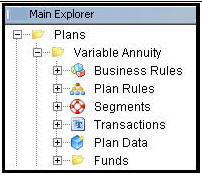
Plan Folders
in Main Explorer
|
Business Rules: Any rules that
are attached to the plan, interface, screen, system, user defined, calculate
and CopyBooks.
Plan Rules: Any rules that
are overridden at the plan level and are required for a plan to run in
the application.
Segments: All the segments
attached to the plan.
Transactions: All the transactions
attached to the plan.
Plan Data: Constant values
for a plan that can be used for configuration calculations.
Funds: Only for plans
that use funds. This will store fund information
|
Right-click Menus
Each main folder level in the Main Explorer
has a right-click menu with available options that can be performed. Below
is a list of the folder levels you can click and the associated right-click
options that will display.

Company Right-Click
Option
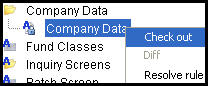
Company Data Right-Click
Options
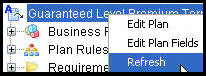
Plan Right-Click Options
-
Business Rules: No
right-click menu available.
-
Plan Rules: No
right-click menu available.
-
Segments: New
Segment, Refresh or Compile
-
New Segment: Add
a new segment to the plan.
-
Refresh: Refreshes
all segment information for the plan so that any recently added or updated
segment information from other CSRs will display in your view of the Main
Explorer.
-
Compile Segments:
The segments will compile and any errors will display
in the Engine Error Output window.
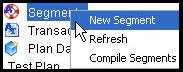
Segment Right-Click
Options
-
Transactions:
New Transaction, Refresh or Compile
-
New Transaction: Add
a new transaction to the plan.
-
Refresh: Refreshes
all transaction information for the plan so that any recently added or
updated transaction information from other CSRs will display in your view
of the Main Explorer.
-
Compile Transaction:
The transaction will compile and any errors will
display in the Engine Error Output window.
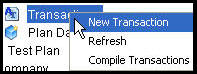
Transaction Right-Click
Options
Searching in Main Explorer
You can also search for a specific company,
plan or term through the search box at the top of the Main
Explorer window. Enter your search criteria
and then click the  flashlight button. The number
of results will display under the Search box and each search result will
be highlighted in the navigation tree structure.
flashlight button. The number
of results will display under the Search box and each search result will
be highlighted in the navigation tree structure.
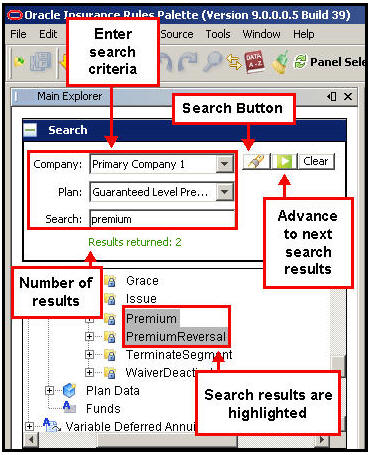
Search and Search Results
By double-clicking a rule’s XML file
in the navigation tree window, you can open its configuration in the Configuration Area.
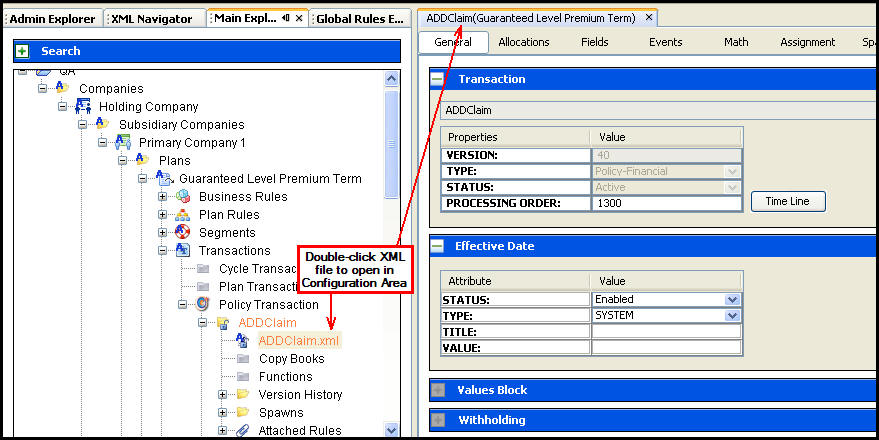
File Opened in Configuration
Area
Copyright © 2009, 2011, Oracle and/or its affiliates. All rights reserved. Legal Notices
Open table of contents