Oracle® Insurance Rules Palette 9.4.0.0 E18894_01
The AllocationScreen business rule controls the allocation screen at the Plan and Policy level. While the Allocation Screen is not required for valuation or fund processing, it is commonly used to satisfy business workflow. For example, if a plan configured to solely use policy-level allocations, and not plan-level allocations, the following configuration could be used:
<AllocationScreen>
<Allocations TYPE="Policy" AMOUNTPRECISION="2" PERCENTPRECISION="2"></Allocations>
</AllocationScreen>
The AllocationScreen can also support more complex configurations, such as having both a plan-level default allocation, and configurable policy-level allocations. The configuration can allow for specifc funds to be enabled or disabled for allocation, specific numbers of funds and specific types of funds, as needed.
Plan Level allocations are typically allocations that are established as part of business processing rules. For example, during the FreeLook period all deposits are invested in Fund A, or all deposits are moved into Fund B at notification of death. The plan level allocation is not unique to a specific policy or determined by the policy owner. There can be multiple plan level allocations; however, each allocation type must be assigned its own allocation typecode. Any unused code can be designated as a plan typecode. See Code Names for further information on setting up codes to be used for configuring typecodes.
Policy Level allocations determine the types of allocations that can be set-up for a policy such as in future payment, dollar cost averaging or a systematic withdrawal transaction.
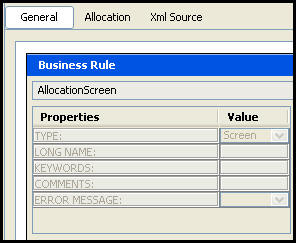
The Allocation screen General pane displays the name of the rule, the properties of the Allocation screen and their associated values.
General Pane of Allocation Screen
The Allocation pane is used to configure how allocations are assigned for the plan and policy. The pane appears in a tree-structure with the same drag and drop functionality as in other dynamic editor rules.
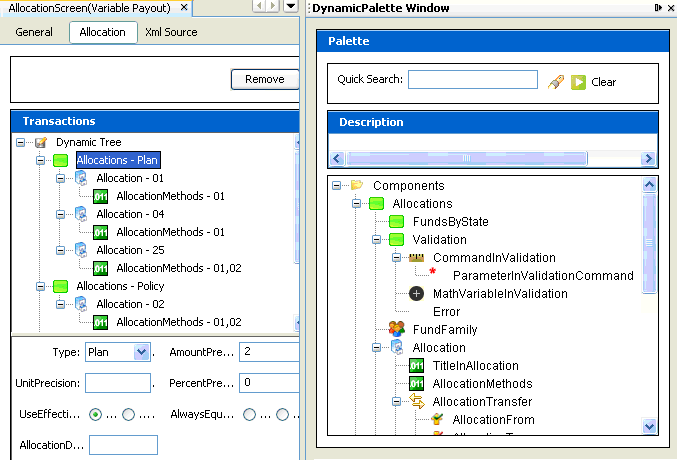
Allocation Pane of AllocationScreen Business Rule
Depending on what is selected in the dynamic tree, a different list of default fields will appear on the screen below the tree. Drag and drop fields into the Dynamic Tree to configure the screen as required. The following is a list of potential fields that can appear and be configured on the screen.
|
Field Name |
Field Description |
|---|---|
|
Type |
Can be plan or policy. Corresponds with the level the allocation is on. |
|
AmountPrecision |
One of three attributes (AmountPrecision, UnitPrecision, and PercentPrecision) that can be used to set the number of decimal places for the AllocationMethod(s) used. Used when allocating money. |
|
UnitPrecision |
One of three attributes (AmountPrecision, UnitPrecision, and PercentPrecision) that can be used to set the number of decimal places for the AllocationMethod(s) used. Used when allocations are unit values.
|
|
PercentPrecision |
One of three attributes (AmountPrecision, UnitPrecision, and PercentPrecision) that can be used to set the number of decimal places for the AllocationMethod(s) used. Used when allocations are in percentages. |
|
UseEffectiveDate |
Used to display different effective dates for a model and allows you to select a group of allocations by model and effective date. The value Yes allows for effective dates and No indicates effective dates aren’t used.
|
|
AllocationMethods
|
The method used to allocate. The element value is the Code value from AsCodeAllocationMethod: 01(Percent), 02(Amount), 03(Units), 04(Pro Rata), 05(Mixed). |
|
TypeCode |
The allocation code number that is defined in AsCodeAllocationType. TYPECODE 01 is a system code reserved for plans. Any code defined in AsCodeAllocation can be designated as a plan TypeCode except the TypeCodes reserved by the system. If you do designate a different TypeCode you should only use it with an allocations type that equals plan.
|
|
Repeat Funds |
Presence of this element creates a fund transfer (i.e.To/From Fund selection for the particular allocation type). If Yes, allows user to select the same fund in the From and To sections for a transfer type transaction. |
|
FundLimit |
Can be used to limit the number of allocations that are allowed to be selected (plan)/attached to a policy, use integer number (policy). |
|
ExcludeFundStatus |
Allows you to exclude funds from the Allocation Fund drop-down box based on their status. Use the fund TypeCodes listed in AsCodeFundStatus. |
|
MethodCodes |
Code (as defined in AsCode/AsCodeAllocationMethod). Comma delimited list of allocation method codes (Amount, Percent, etc.). |
|
DisablePolicyStatus |
Sub-element of DisableAllocation fields. If used then the policy allocation screen fields will be disabled if the policy is currently in one of the listed status codes. Status codes are stored in AsCodeStatus. |
Drag the Allocations component from the Palette.
Select whether the Allocation screen type will be at the plan, policy, or segment level.
Enter any restrictions, formatting, or other guidelines for the allocation structure.
Drag allocation from the Allocation components in the Palette.
Enter the TypeCode of the Allocation from the AsCode table and the number of funds that may be selected.
Save the configuration.
Note: Each allocation must have a distinct typecode.
Security is applied to the buttons on the Allocation screen in the Admin Explorer. Open the Security folder to reveal the options for applying security.
Steps to Add Security to Buttons
Configuration can also be done in XML via the XML Source pane. The XML Source pane includes XML Editor functionality that enhances the configuration experience. More detailed information on configuration using the XML Source pane can be found in the XML Source Editing section.
Important: Math associated with the Allocation screen needs to be configured using the XML Source Pane.
Please see the XML Configuration Guide topic in this help system for a list of all elements, attributes and values needed for configuration. View Business Rules | Screen Rules | Allocation Screen.
Copyright © 2009, 2011, Oracle and/or its affiliates. All rights reserved. Legal Notices