Oracle® Insurance Rules Palette 9.4.0.0 E18894_01
You can configure plan data fields at the global level or at the individual plan level. When you want to change or configure plan data fields at the global level, select the Global Rules Explorer and locate the appropriate screen rule. If you want to change or configure plan data fields at the plan level, select the Main Explorer and locate the appropriate screen rule.
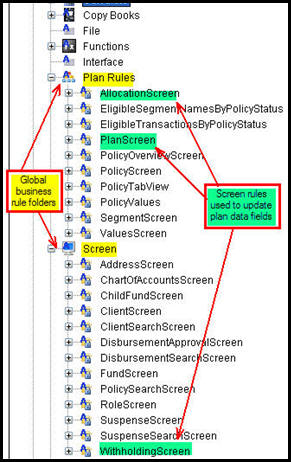
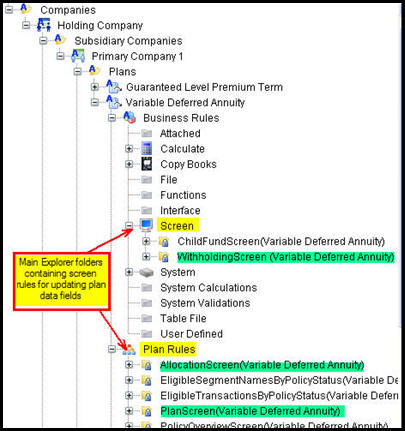
The Plan and Allocation screen business rules are located in the Plan Rules folder and can be found at both the global level via Global Rules Explorer and at the plan level via Main Explorer.
The Withholding screen business rule is located initially only in the Global Rules Explorer in the Business Rules | Screen folder. This is because it is not a plan rule so it is not automatically created when a new plan is created. You can create a plan level override of the Withholding screen by going into the Global Rules Explorer, right-clicking on Withholding Screen and selecting New Withholding Screen Override. Once a plan level override is created, you can find the Withholding screen in Main Explorer in the Company | Plans | Plan | Business Rules | Screen folder.
The steps to update field information are listed below. You can also change Plan Data Values on all three screens.
Global Rules Explorer Folder Structure Main Explorer Folder Structure
Determine the plan rule you want to update and open Global Rules Explorer or Main Explorer. Refer to the explanation above for more information on which explorer to use.
Expand the Plan Rules folder. The two screens that pertain to plan data are PlanScreen and AllocationScreen. If you are using Main Explorer you will need to open the appropriate plan folder first and then you will find the Plan Rules folder.
Note: If you only need to update the Withholding screen, skip to Step 6.
Right-click on the rule you want to update and select Check-out.
Use the visual configuration tools to update either the PlanScreen or AllocationScreen.
Right-click on the plan rule XML file and select Check-in. This will save the changes to the database.
Expand the Screen folder and select WithholdingScreen. If you are using Main Explorer you will need to open the appropriate plan folder first and then you will see the Business Rules | Screen folder.
Click the XML Source tab and make the updates.
Right-click on the plan rule XML file and select Check-in. This will save the changes to the database.
Copyright © 2009, 2011, Oracle and/or its affiliates. All rights reserved. Legal Notices