
Retiring Financial Assets
This section discusses how to:
Retire an asset.
Define other retirement options.
Select retirement transactions by ChartField.
Select child assets.
Review a capital gain summary for retirements.
Integrate retired asset information with PeopleSoft Billing.
Specify how value-added tax (VAT) is calculated for asset retirement.
Auto-retire fully depreciated assets.
Initiate asset retirement using the disposal worksheet.
Put assets up for auction.
Pages Used to Retire Financial Assets
|
Page Name |
Definition Name |
Navigation |
Usage |
|---|---|---|---|
|
Retire Assets |
ASSET_RETIRE_01 |
|
Retire or reinstate an asset. Click the appropriate button to access other fields based on your selection. |
|
Like Kind Exchange |
LIKE_KIND_EXCH |
Click the Like Kind Exchange Info (like-kind exchange information) link on the Retire Assets page. In the Retire As field, select the Like Kind Exchange option to display the link. |
Enter fair values and descriptions for each asset to add multiple assets as part of a like-kind exchange. |
|
General Info |
CUST_GENERAL1 |
Click the Customer General Info link on the Retire Assets page. |
Search for and select customer information to add for retirements by sale or trade. |
|
Retire/Reinstate Assets - Other Options |
ASSET_RETIRE_02 |
|
Select assets to be retired based on gain or loss and on other options. |
|
Retire/Reinstate Assets - By ChartField |
ASSET_RETIRE_03 |
|
Override PeopleSoft Asset Management calculations when shared assets are partially retired. |
|
Child Assets |
CHILD_ASSETS |
|
Select child assets to include in a retirement transaction that you have initiated against the parent on the Retire Assets page. |
|
Child Asset Retirement Options |
AM_PARCHD_RET01 |
Click Child Details on the Child Assets page. |
Specify retirement overrides for a specific child asset. For example, you might specify a different retirement disposal code for the child asset. |
|
Advanced Transaction Details |
FULL_PART_SEC |
Click Child Details on the Child Assets page. |
Specify transaction overrides for all child assets at once. |
|
Proceeds and Removal Cost Allocation |
AM_PARCHD_ALLOC |
Click the Allocation Option link on the Child Assets page. |
Specify allocation options to calculate removal cost and proceeds for the parent (if selected) and selected children. |
|
VAT |
AM_VAT_TRANS_RET |
|
Specify options to use to calculate VAT on an asset retirement. |
|
Auto-Retire Fully Depr Assets (automatically retire fully depreciated assets) |
RUN_AMRETFDA |
|
Identify run-control parameters to initiate the Auto-Retire Fully Depreciated Assets process (RUN_AMRETFDA). |
|
Auto-Retired Assets |
RUN_AMRET001 |
|
Identify run-control parameters to generate the Auto-Retire Assets report. |
|
Proceeds and Removal Cost |
ASSET_RETIRE_SEC1 |
Click the Base Amounts and Exchange Rate icon. |
View the transaction in the base currency, alternate currency, and associated exchange rate. |
|
Capital Gain |
ASSET_RETIRE_05 |
|
View the calculations for capital gains or losses for a retirement transaction. |
|
Bill Information |
ASSET_RETIRE_07 |
|
Define default values for PeopleSoft Billing. |
|
AM/BI Interface (Asset Management - Billing interface) |
RUN_AMBI_INTFC |
|
Run the PeopleSoft Asset Management - Billing interface. |
|
Disposal Worksheet |
AM_EXPRESS_RET1 |
|
Identify and submit assets for disposal. |
|
Asset Information, Retirement Information, Other Accounting Information |
AM_DISPOSAL_00 |
Click the Retrieve button on the Disposal Worksheet page. |
Retrieve assets according to the search criteria entered. The system displays the Asset Information, Retirement Information, and Other Accounting Information tabs. |
|
ChartField Search Criteria |
AM_LOOKUP_CF_SEL |
Click the ChartField Search Criteria link. |
Select ChartFields to use as search criteria. |
|
Ownership Details |
AM_DISPOSAL_01 |
Click the View Ownership Details link. |
View the original asset owner selection attributes. |
|
Approve Disposals |
AM_DISP_APPR01 |
|
Deny or approve a retirement disposal, or place it on hold. |
Retire Assets Page
Use the Retire Assets page (ASSET_RETIRE_01) to retire or reinstate an asset.
Click the appropriate button to access other fields based on your selection.
Image: Retire Assets page
This example illustrates the fields and controls on the Retire Assets page. You can find definitions for the fields and controls later on this page.

Book
The disposal code value for assets with an asset type of ARO is automatically selected as ARO Settlement. The Retirement Amount field stores the settlement and the retirement amount field is displayed as Settlement Amount.
Disposal Codes
Disposal codes reflect the Retire As action that is selected to initiate the retirement transaction. PeopleSoft Asset Management calculates gain or loss amounts depending, in part, on the disposal code that you select. This table describes the available options in the Retire As field:
|
Code |
Usage |
Gain/Loss |
|---|---|---|
|
Abandonment |
Select when the asset has no resale value and it is left behind. For example, consider leasehold improvements. At the end of the lease term, the improvements are generally left behind and no removal costs are incurred when you turn over the improvement to the lessor. |
Gain/loss calculations are based on the asset net book value. |
|
Auto-Retire Fully Depr Asset |
Select when the asset is fully depreciated. |
Gain/loss calculations are based on the asset net book value. |
|
Cannibalize for Other Assets |
Select when the asset has been dismantled and the parts are reused within the organization. For example, if an employee reuses a monitor that is part of an unused computer, you would retire the monitor as cannibalized. Typically, cannibalized assets are partially retired. They have no proceeds and no removal costs. |
Gain/loss calculations are based on the asset net book value. |
|
Casualty Loss |
Select when an asset is unintentionally destroyed. If the asset cannot be sold, you may incur removal costs disposing of it. Retiring an asset as a casualty may have tax consequences if you have tax credits and the asset is not fully depreciated. |
PeopleSoft Asset Management deducts the accumulated depreciation from the retirement amount and adds the removal costs to determine the amount of the casualty loss. |
|
Disappeared Assets |
Select when an asset cannot be located and you are not sure whether the asset was abandoned or stolen. Disappeared assets have no proceeds or removal costs. |
Gain/loss calculations are based on the asset net book value. |
|
Disposal Due to Theft |
Select when an asset has been stolen. |
Stolen assets have no proceeds and no removal costs. |
|
Donated to External Group |
Select when an asset is donated. You typically use this option when assets are donated to nonprofit organizations for tax purposes. |
PeopleSoft Asset Management deducts the accumulated depreciation from the retirement amount, treating proceeds and removal costs as appropriate, to determine the gain or loss. Note: VAT is applicable for VAT business units. |
|
Expensed |
Select when an asset has adjustments to the original cost that requires reclassification from capital asset to expensed asset due to its cost. If the Capitalization Threshold feature is enabled, Asset Management automatically assigns this disposal code through the Capitalization Threshold Validation process if the original cost falls below the capitalization threshold. |
The accounting entry template for this disposal code reflects the loss account as the expense. Previous depreciation expense is recognized as expense too. The Interface Type is RET. |
|
Like Kind Exchange |
Select to process like-kind exchanges under U.S. federal tax code. |
See Like-Kind Exchange Processing Retiring Financial Assets. |
|
Missing Asset |
Select when an asset is missing. Missing assets have no proceeds and no removal costs. |
Gain/loss calculations are based on the asset net book value. |
|
Retirement by Sale |
Select if you sell an asset. (If you sell the entity that owns the asset, you must retire all assets that are owned by the entity.) You can use the interface with PeopleSoft Billing to generate the bill. |
The proceeds and removal cost from the sale, less the net book value of the asset, determines the gain or loss. Note: VAT is applicable for VAT business units. |
|
Returned to Inventory |
Select when the asset is returned to a common internal pool where it is available for others to use. |
PeopleSoft Asset Management deducts the accumulated depreciation from the retirement amount, treating proceeds and removal costs as appropriate, to determine the gain or loss. Note: VAT is applicable for VAT business units. |
|
Scrapped Assets |
Select when the asset is no longer useful and has no resale value. |
The gain/loss calculations include removal costs; accumulated depreciation is deducted and then the removal costs are added to derive the amount of the gain or loss. |
|
Traded In for another Asset |
Use when you are trading one asset for another. See Processing Trade-Ins. |
PeopleSoft Asset Management deducts the accumulated depreciation from the retirement amount, treating proceeds and removal costs as appropriate, to determine the gain or loss. Note: VAT is applicable for VAT business units. |

ARO Obligation
This section only displays when Asset Retirement Obligation data is recorded for the asset.
Customer/Ship from Information
This region of the Retire Assets page enables you to retrieve customer information that is related to a retirement-by-sale transaction. The fields appear only when this value is selected as the retirement option or if the retirement option is Traded In, Donated, or Returned to Inventory and the business unit is VAT-enabled.
See Understanding PeopleSoft Billing and Asset Management Integration.
General Info Page
Use the General Info page (CUST_GENERAL1) to search for and select customer information to add for retirements by sale or trade.
VAT
To access the VAT page, click this link or select the VAT tab at the top of the page. This tab and link appear only for VAT-enabled business units.
Note: The VAT default values are automatically applied the first time that you access the page by clicking the link. However, if you change the customer, ship-from, or ship-to information after the VAT default values are applied, the default values are not automatically updated. In this case, go to the VAT page and click the Reset All VAT Defaults button to redetermine all the defaults. This action is not necessary if only the proceeds information has changed.
The fields that appear on the VAT page are specific to the transaction that is recorded. In addition to depending on proceeds, the VAT default values that appear depend on the customer ID, location, ship-to ID, ship-to location, and ship-from location (or the ship-to country, ship-to state, buyer's registration country, and ship-from location if no customer information is available). The VAT drivers also determine which default values appear. The VAT drivers for assets are, in descending order of precedence: asset class, customer location, customer, PeopleSoft Asset Management business unit definition, VAT entity registration, and VAT country. The algorithm for the defaults selects information from asset class first, followed by customer location, followed by customer, and so on.
VAT is enabled based on the disposal code that is used in the transaction. VAT applies for the following disposal codes:
Retirement by Sale
Traded In for Another Asset
Donated to External Group
Returned to Inventory
See VAT Page.
Traded-In Asset Processing
To retire an asset by trading it for another asset:
Retire the asset using the disposal code in the Traded-In for Another Asset field.
Enter the amount that is gained through the trade-in into the Proceeds field.
Run depreciation to calculate the gain or loss amount.
Add the new asset by using the Asset ExpressAdd component and select Trade-in as the acquisition code.
Enter the asset ID of the asset that you traded into the Trade-in field.
Note: Be sure to run depreciation whenever you retire an asset. This process calculates the gain or loss amount. The proceeds are offset against the cost of the asset that is acquired as part of the exchange.
Like-Kind Exchange Processing
Use the Like Kind Exchange page (LIKE_KIND_EXCH) to enter fair values and descriptions for each asset to add multiple assets as part of a like-kind exchange.
Click the Like Kind Exchange Info (like-kind exchange information) link on the Retire Assets page. In the Retire As field, select the Like Kind Exchange option to display the link.
PeopleSoft Asset Management supports 1031 Like-Kind Exchange regulations under the U.S. federal tax code. It enables you to:
Retire an asset using a like-kind disposal code, recognize the gain that results, and roll the correct tax basis over to the newly acquired asset.
Verify, through a comparison of the disposition date and the replacement date, that the 180-day exchange rule is met.
Generate appropriate accounting entries for like-kind exchanges.
Run reports that detail each like-kind transaction and show the carry forward of the tax basis from the old assets to the new assets.
Click the Like-Kind Exchange Info link to enter retirement information that is specific to a retirement transaction.
Image: Like Kind Exchange page
This example illustrates the fields and controls on the Like Kind Exchange page. You can find definitions for the fields and controls later on this page.

To process like-kind exchanges:
Retire an asset using the like-kind exchange disposal code.
Enter any cash that is received as part of the exchange in the Cash field. Cash that is received in a like-kind exchange is taxable and is often referred to as boot.
Enter the fair value of the like asset that you will be adding in the FV Like-Kind field.
For example, if you are retiring a building and adding another building that is valued at 60,000 USD, enter 60,000 into the FV Like-Kind field. If you plan to add more than one like asset, select One to Many to access the one-to-many list, where you can enter the values and descriptions of assets that you are adding.
If you will also receive non-like property as part of this exchange, enter its fair value in the FV Non Like-Kind field.
A gain that is realized through the acquisition of non-like property is taxable.
Enter the amount of your liability into the Net Liability field.
For example, if you are surrendering a building with a mortgage of 70,000 USD and acquiring a building with a mortgage of 30,000 USD, then enter 40,000 USD as the net liability.
The system sums the values in the Cash, FV and Net Liability fields and populates the Proceeds field with the result. You cannot change this amount.
PeopleSoft Asset Management prorates basis calculations when you perform a one-to-many exchange.
Run the Depreciation Calculation process, which calculates both the realized gain and the recognized gain.
You can view the result of this calculation in the Gain/Loss field on the Retire Assets page. Any realized loss is not recognized.
Add the new asset by using the Asset ExpressAdd component.
Select Like-Kind Exchange as the acquisition code, and select the asset ID of the retired asset.
The asset category automatically displays the category of the retired asset, and the cost fields are populated with the cost basis for the new asset. You cannot change either the category or the cost amounts.
Note: The FV entered on the Like Kind Exchange page is not automatically assigned as the fair value of the newly acquired asset.
PeopleSoft Asset Management prorates basis calculations when you perform a one-to-many exchange.
| One to Many ID |
Enter a one-to-many ID to identify the exchange. |
| Transaction Trade In Value/Description |
For each asset that you add, enter a trade-in value and description. |
Like-Kind Exchange Example
If the owner of Building A wants to exchange it for Building B, Building A is retired using the like-kind disposal code, and Building B is added through the Asset ExpressAdd component.
|
Transaction |
Building A (Retiring) |
Building B (Adding) |
|---|---|---|
|
Cost |
85,000 USD |
60,000 USD |
|
Liability (Mortgage) |
70,000 USD |
30,000 USD |
|
Accumulated Depreciation |
10,000 USD |
None |
PeopleSoft Asset Management calculates boot, which is any cash or non-like property that is involved in the transaction, like this:
(Cash Received) + (FV of Non-like Property Received) + (Liability Assumed) = Boot
Note: Boot is money or other property that does not qualify for nonrecognition of gain.
In this example, boot is calculated like this: 0 + 0 + 40,000 = 40,000.
When you run the Depreciation Calculation process, the process identifies the recognized gain as the lesser of the boot amount or the realized gain.
In this example, in which the boot amount is 40,000 and the realized gain is 25,000, the recognized gain is 25,000.
PeopleSoft Asset Management calculates the cost basis of the property exchanged (retired) like this:
(Cost) − (Accumulated Depreciation) = (Cost Basis of Property Exchanged)
In this example, it is calculated like this: 85,000 – 10,000 = 75,000
PeopleSoft Asset Management calculates the cost basis of the added property added like this:
(Basis of Retired Property) − (Boot Amount) + (Recognized Gain or Loss) = (Basis of the Added Property)
In this example, it is calculated like this: 75,000 − 40,000 + 25,000 = 60,000
Retire/Reinstate Assets - Other Options Page
Use the Retire/Reinstate Assets - Other Options page (ASSET_RETIRE_02) to select assets to be retired based on gain or loss and on other options.
Image: Retire/Reinstate Assets - Other Options page
This example illustrates the fields and controls on the Retire/Reinstate Assets - Other Options page. You can find definitions for the fields and controls later on this page.

Gain/Loss Calculations
PeopleSoft Asset Management provides three methods for calculating retirement gain or loss. You can use these methods separately or in combination. Select the appropriate check box in the Gain/Loss Calculations group box.
Retire/Reinstate Assets - By ChartField Page
Use the Retire/Reinstate Assets - By ChartField page (ASSET_RETIRE_03) to override PeopleSoft Asset Management calculations when shared assets are partially retired.
Image: By Chartfield page
This example illustrates the fields and controls on the By Chartfield page. You can find definitions for the fields and controls later on this page.

Override the system selections by entering an amount in the Retire Amt (retire amount) field or the Quantity field. Typically, you use this page only when assets are split between departments or partially retired.
For example, suppose that the Sales and Marketing departments share 40 color monitors worth a total of 10,000 USD, and these assets are added to PeopleSoft Asset Management. Based on projected use, the Sales department is allocated 70 percent of the total cost and quantity and Marketing is allocated 30 percent. After a couple of years, all the color monitors are upgraded to flat screen, resulting in the retirement of monitors with a total cost of 10,000 USD. Based on the original allocation of cost, the system fully retires the assets with 70 percent of the retirement amount allocated to Sales (department 21101) and 30 percent to Marketing (department 22001).
However, if Sales decides that some of their monitors are worth keeping, only 50 percent, rather than 70 percent, of the total cost is retired. To make these changes, either override the amount in the Retire Amt field with 5,000 USD allocated to the Sales department or override the amount in the Quantity field with 20 allocated to Sales.
Note: When you perform a retirement by ChartField, for each ChartField combination you can retire only a cost or quantity that is less than or equal to the amount that was originally apportioned to that ChartField combination.
Child Assets Page
Use the Child Assets page (CHILD_ASSETS) to select child assets to include in a retirement transaction that you have initiated against the parent on the Retire Assets page.
Image: Child Assets Page
This example illustrates the fields and controls on the Child Assets Page. You can find definitions for the fields and controls later on this page.

Note: The Child Assets page appears in several different components of PeopleSoft Asset Management. Within the Asset Retirements component, use the Child Assets page to select child assets to include in the retirement transaction that you have initiated against its parent on the Retire Assets page. Also, you cannot view or perform transactions on child assets whose parent was created using the Asset Parent page.
Click Select All to include all child assets with the parent in the transaction that you have initiated.
Note: Parent assets created on the Parent Asset page (parent-only assets) do not have cost or basic information. They cannot be viewed in the Parent Child Basic Information component, nor can they be viewed or transacted against in the Asset Cost/Adjust Transfers component, the Asset Retirements component, or the Parent-Child NBV component. If you want to use a parent asset as a reporting umbrella only and access these pages for manipulating child assets in mass, we suggest creating a zero-cost parent asset rather than a parent-only asset. Also, to transact against parent and child assets at one time, parent and child must use the same asset profile. Also, be aware that physical asset components will not be retired when the physical parent component is retired.
To include only some child assets, select the Selected check box for the appropriate rows.
The Include Parent Asset check box is selected by default. Deselecting it enables you to perform transactions on child assets while excluding the parent asset from the transactions. However, the transaction details must be specified on the parent.
Child Asset Retirement Options Page
Use the Child Asset Retirement Options page (AM_PARCHD_RET01) to specify retirement overrides for a specific child asset for the transaction, including disposal code, removal cost, proceeds, quantity, retire amount, transaction percentage, convention and retirement option..
For example, you might specify a different retirement disposal code for the child asset.
Asset Information
Click the Asset Information link to access another copy of the Retire Assets page. The page will open populated with the child asset.
Advanced Transaction Details Page
Use the Advanced Transaction Details page (FULL_PART_SEC) to specify transaction overrides for all child assets at once.
Proceeds and Removal Cost Allocation Page
Use the Proceeds and Removal Cost Allocation page (AM_PARCHD_ALLOC) to specify allocation options to calculate removal cost and proceeds for the parent (if selected) and selected children.
Click the Allocation Option link on the Proceeds and Removal Cost Allocation page. This link is only visible for retirements on the Chid Assets page.
Image: Proceeds and Removal Cost Allocation page
This example illustrates the fields and controls on the Proceeds and Removal Cost Allocation page. You can find definitions for the fields and controls later on this page.

Click OK to trigger the allocation calculation and disbursement of the removal cost and proceeds to the selected assets according to the options that are specified. The Child Asset page will then display. You can run the allocation as necessary; the latest values override any values that already exist on the selected assets. Rounding differences are placed in last asset child that is processed.
Capital Gain Page
Use the Capital Gain page (ASSET_RETIRE_05) to view the calculations for capital gains or losses for a retirement transaction.
Image: Capital Gain page
This example illustrates the fields and controls on the Capital Gain page. You can find definitions for the fields and controls later on this page.

The Capital Gain tab appears when the business unit is enabled for Australian tax. The capital gains or losses for the retirement transaction are summarized on this page after retirement processes have run.
Bill Information Page
Use the Bill Information page (ASSET_RETIRE_07) to define default values for PeopleSoft Billing.
Image: Bill Information page
This example illustrates the fields and controls on the Bill Information page. You can find definitions for the fields and controls later on this page.
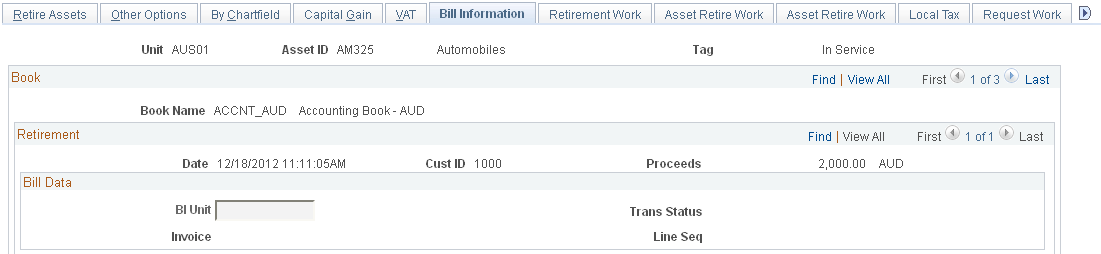
Note: Only assets that are retired with the disposal code Retirement by Sale are affected.
PeopleSoft Asset Management can be fully integrated with PeopleSoft Billing to automatically create bills when you retire assets using the Retirement by Sale disposal code. If you have implemented PeopleSoft Billing with PeopleSoft Asset Management and you have activated the PeopleSoft Asset Management-Billing interface for the processing business unit, this additional retirement tab is enabled.
PeopleSoft Asset Management sends retirement information to the PeopleSoft Asset Management-Billing business unit (usually the one with the same general-ledger business unit) and then PeopleSoft Billing generates the invoice to the customer (also a general-ledger business unit). Depending on which PeopleSoft Payables business unit has been defined in the InterUnit billing definition (general ledger business unit definition), PeopleSoft Billing sends asset InterUnit information to PeopleSoft Payables, taking the vendor and location from the retired asset's general-ledger business unit.
If a retirement is processed due to an InterUnit transfer, the information is also sent to PeopleSoft Payables, including asset ID, asset profile, and cost type. When you are performing an InterUnit transaction, you must complete additional information.
When you click Save, the retirement-by-sale create bill transactions are assigned the transaction status Pending. Select the pending transactions to be included when you are ready to run the PeopleSoft Asset Management-Billing (AMBI_INTFC) interface.
AM/BI Interface Page
Use the AM/BI Interface page (RUN_AMBI_INTFC) to run the PeopleSoft Asset Management - Billing interface.
After you enter retirement transactions for assets that PeopleSoft Billing invoices, you can initiate the process to load the transactions for the AM/BI Interface process (RUN_AMBI_INTFC). Before you launch this process, the retirement entries must be generated.
Enter the run control ID to use or add a new one. Enter the business unit and the asset ID range to be processed, and click Run.
The process assembles the pending transactions that you have entered, attaches an interface ID, changes the transaction status to In Progress, and displays the transactions in a view page (PS_INTFC_BI). The transactions are loaded into PeopleSoft Billing for processing.
You can run the AM/Billing Transaction Status report to review the transactions that were processed. You can review accounting entries before or after the PeopleSoft Asset Management-Billing interface has been run.
Note: Reinstatements are processed according to two rules. First, if the reinstatement is performed before sending the retirement information to PeopleSoft Billing, neither transaction is processed by the PeopleSoft Asset Management-Billing interface. Second, reinstatements cannot be performed until the PeopleSoft Asset Management-Billing interface application (BIIF0001) has been run for the asset's previous retirement.
When transactions between PeopleSoft Asset Management and PeopleSoft Billing occur, the system provides a clearing account, Proceeds to Billing, which accumulates the income from the transactions and matches the transactions to the PeopleSoft Asset Management accounting entries. This maintains balanced accounting entries between the applications.
Running the AM/Billing Transaction Status Report
Access the AM/Billing Transaction Status page
Enter the appropriate PeopleSoft Asset Management business unit, and range of dates for the transactions that you want to review. Click Run to generate and view the report.
Note: When processing a retirement-by-sale for a parent asset, you cannot generate an invoice for each child asset in the same transaction. You have to dispose of each child asset separately.
VAT Page
Use the VAT page (AM_VAT_TRANS_RET) to specify options to use to calculate VAT on an asset retirement.
Image: VAT page (1 of 2)
This example illustrates the fields and controls on the VAT page (1 of 2). You can find definitions for the fields and controls later on this page.

Image: VAT page (2 of 2)
This example illustrates the fields and controls on the VAT page (2 of 2). You can find definitions for the fields and controls later on this page.

If asset transactions involve VAT, the Retire/Reinstate Assets component includes the VAT page.
You must complete the following tasks before you can access this page:
Set up the VAT defaults.
Associate the business unit with a general ledger business unit that is associated with a VAT entity.
Enter customer ship-from information.
Enter a proceeds amount on the Retire Assets page.
Select Create Accounting Entries on the Business Unit/Book Definition page.
When you retire an asset, the VAT information is recorded with a VAT account entry type of VO (VAT output). If you reinstate an asset that you have retired with VAT options, the reinstatement reverses the VAT entries. When you reinstate an asset, the reversal of the VAT is recorded with a VAT account entry type of VORE (VAT output reinstatement).
The VAT page contains several collapsible sections. Each section contains fields that are blank or that display default values. VAT entries are created for all books that generate accounting entries if the associated general ledger business unit is linked to a VAT entity.
The Book collapsible section displays information that is supplied by default from the book that is associated with this asset.
The Retirement collapsible section displays information that is supplied by default from the current retirement transaction that is being processed, or it contains blank fields. Within this section are several group boxes that contain blank and populated fields.
The VAT Calculations collapsible section shows the calculated totals for the VAT transaction based on the values that are selected on the page. It also displays the default VAT information for the business unit, customer, and location.
Physical Nature
This collapsible section describes the physical nature of transactions. Options are Goods and Services. PeopleSoft Asset Management manages transactions for goods only.
| Physical Nature |
Indicates whether an object is a good or a service. In many countries, you must report the sale or purchase of goods separately from services. |
VAT Locations
You use location information to directly determine the reporting country, defaulting state, customer registration country, and treatment. This information is in turn used to determine customer exception type, VAT controls, and VAT details.
VAT Defaults

VAT Calculations
All VAT edits are applied when you click Save.
Note: In PeopleSoft Asset Management, if you retire an asset and pass the information to PeopleSoft Billing, the VAT Transaction Loader process does not retrieve the VAT information from PeopleSoft Asset Management but from the bill that is created in PeopleSoft Billing. However, if the retirement transaction remains in PeopleSoft Asset Management, the VAT Transaction Loader process gets the VAT information from PeopleSoft Asset Management.
When you run the Accounting Entry Distribution process (AM_AMAEDIST), use the accounting entry template that you would normally use for asset retirements. To make the VAT entry, the system uses an account from the VAT accounting entry template, based on the combination of VAT code, VAT account type, and VAT transaction type that is specified for the retirement. The system first determines whether VAT ChartFields are defined by the VAT code and general-ledger business unit. If no VAT accounting information is found at that level, the system then checks for VAT ChartFields that are defined at the VAT code level. If the retirement is passed to PeopleSoft Billing, PeopleSoft Asset Management does not generate accounting entries in connection with VAT because PeopleSoft Billing creates them.
Note: If PeopleSoft Asset Management is not integrated with PeopleSoft Billing, then although VAT is recorded when retiring an asset, PeopleSoft Asset Management does not generate a financial document such as a VAT invoice. If you also record the sale of an asset in PeopleSoft Billing or PeopleSoft Receivables, you might inadvertently record the applicable VAT a second time. In this case, you must ensure that the VAT is not reported on the VAT return twice.
Instead of using the VAT that is recorded in PeopleSoft Asset Management to generate the VAT return, you can use that information to enter the invoice for the sale of the asset in PeopleSoft Billing or PeopleSoft Receivables. In this case, you can copy the VAT into the VAT Transaction table. When running the VAT Transaction Loader process, do not run the process for all products and do not select Asset Management as a VAT transaction source.
Alternatively, you can exclude the PeopleSoft Asset Management VAT transactions from your VAT return. To do so, assign a specific VAT transaction type to asset retirement transactions. Then do not include that VAT transaction type on any line in the VAT report definition (or include it on an additional line in the VAT report definition but do not include the line in the report format).
Auto-Retire Fully Depr Assets Page
Use the Auto-Retire Fully Depr (Depreciated) Assets page (RUN_AMRETFDA) to identify run-control parameters to initiate the Auto-Retire Fully Depreciated Assets process (RUN_AMRETFDA).
Image: Auto-Retire Fully Depr Assets page
This example illustrates the fields and controls on the Auto-Retire Fully Depr Assets page. You can find definitions for the fields and controls later on this page.

You can retire many assets without individually identifying them by running the Auto-Retire process (AMRETFDA). You enter selection criteria to qualify eligible assets for auto-retirement on the process request, and all selected assets are automatically retired by the process. Only fully depreciated assets can be retired by this process. Fully depreciated assets are assets with an end depreciation date that is less than or equal to the retirement transaction date.
Selection Criteria
Initiating Asset Retirement Using the Disposal Worksheet
PeopleSoft Asset Management provides the Disposal Worksheet page as a quick method to select assets to retire based on the following elements: ChartField combination, location, department, manufacturer, or other fields that are related to the assets.
Use of the worksheet depends on the establishment of asset-to-owner relationships as well as owner-to-operator relationships to enable the selection, review, and approval of asset disposal. When the Asset Owner and Asset Owner User links are defined, the asset owner can generate and submit a disposal worksheet for processing or approval. After the approval process has been established, an asset owner can review asset disposal requests from worklist entry notifications. Requests can be approved, denied, or designated as pending. Upon approval of the request, you can submit the disposal worksheet for processing through the AMIF1000 transaction processor.
See Establishing Asset Ownership.
Disposal Worksheet Page
Use the Disposal Worksheet page (AM_EXPRESS_RET1) to identify and submit assets for disposal.
Image: Disposal Worksheet page
This example illustrates the fields and controls on the Disposal Worksheet page. You can find definitions for the fields and controls later on this page.

This page provides numerous selection options to retrieve assets for retirement. Assets that are available for retrieval are determined by asset ownership and user ID.
You can search for assets using ChartField search criteria, and you can view asset ownership information by clicking the View Ownership Details link.
When you click Retrieve, the result set appears in the tabbed grid at the bottom of the disposal worksheet. You can begin again by pressing the New Search button, and use the link to view ownership details.
Asset Action
The system returns a list of assets that meet the search criteria. You can review and reselect options to create a new list of assets.
So that you can process assets for disposal, retirement information is specified to indicate the date and reason for an action.
The list is presented on three tabbed views: Asset Information, Retirement Information, and Optional Accounting Information (such as cost). The information may be hidden, depending on established permissions.
Asset Information
This tabbed view displays the asset ID, description, tag number, category, and serial ID.
| Submit for Disposal, Select All, and Deselect All |
Select assets for disposal individually by selecting the Dispose check box, or select (or deselect) all. |
Retirement Information
This tabbed view displays the asset ID, cost, quantity, retire quantity, proceeds, proceeds currency, removal cost, and removal cost currency.
Optional Accounting Information
This tabbed view displays the asset ID and accounting date.
| Accounting Date |
Enter the accounting date for the retirement transaction. |
| Trans Code (transaction code) |
Enter a transaction code to be applied to each asset individually. |
Submit Asset Disposal Information
Click Submit for Disposal when you have completed the disposal worksheet. The disposal request is processed when you run the Transaction Loader process. It is routed for approval, if required, depending on the permissions that are established for the operator.
ARO Information
Approve Disposals Page
Use the Approve Disposals page (AM_DISP_APPR01) to deny or approve a retirement disposal, or place it on hold.
Image: Approve Disposals Page
This example illustrates the fields and controls on the Approve Disposals Page. You can find definitions for the fields and controls later on this page.
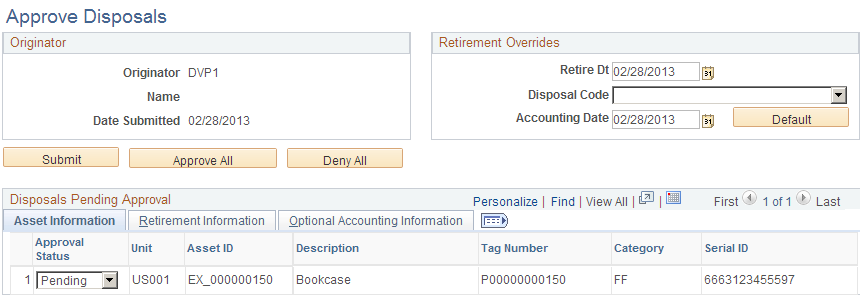
The approval process is managed by the Approval Framework settings for your organization. If the worksheet that you submit for disposal requires approval before being processed by the Transaction Loader process, a worklist entry is created and routed to the approver. Multiple assets can be associated with one worklist entry. The user who receives the worklist item approves or denies the disposal request.
For more information, see Example of Approval Framework Setup for Asset Disposal.
The approver has the following three approval-status disposal options:
The approver can then select Mark As Worked for the worklist item.
Putting Assets up for Auction
When a bid is awarded through Strategic Sourcing, the bid price is returned to PeopleSoft Asset Management as proceeds for the asset that was sold. This transaction updates the asset with the appropriate information for completing the retirement transaction.
Note these points assets that are put up for auction:
For you to enter an asset as a line item for sale in an auction event, the asset must not have the PeopleSoft Asset Management statuses other than Disposed and Transferred. It must not be a Lease Asset, or a Hazardous Asset. The auction status is equal to Allowed to be auctioned.
When you post the event, the PeopleSoft Asset Management auction status changes to Sent to Auction.
The auction status remains at Sent to Auction until the event is awarded or canceled.
If the event is not approved or is not awarded, you must set the status to Allowed to be Auctioned to remove the Sent to Auction status for the asset. When the event is awarded, Strategic Sourcing sends information to PeopleSoft Asset Management, and you must run the Transaction Loader (AMIF1000) process to finalize the retirement. Strategic Sourcing changes the auction status to Sold in Auction.
Note: PeopleSoft Asset Management does not allow PeopleSoft Strategic Sourcing to access data for hazardous materials, intangible assets, or partial retirements. Assets with a status of Sent to Auction are excluded from any transactions in PeopleSoft Asset Management until the status is changed by PeopleSoft Strategic Sourcing.