
Adding and Maintaining Asset Information
This section discusses how to:
Add asset basic information.
Enter asset details.
Enter asset acquisition details.
View asset tax information.
Enter document sequencing information.
Enter asset location, comments, and attributes information.
Enter custodial, license, and manufacturer information.
Enter property assets.
Enter property taxes.
Enter asset supplemental data.
Add attachments.
Pages Used to Add or Change Asset Information
|
Page Name |
Definition Name |
Navigation |
Usage |
|---|---|---|---|
|
General Information |
ASSET_GENERAL_01 |
|
Add asset basic information manually, or modify existing asset information. |
|
Cost History |
COST_HISTORY2 |
Click the Related Content button, then click Cost History. |
To view complete asset cost history information. |
|
Asset R&D Information (asset research and development information) |
ASSET_RD_SP |
Click the Set R and D Info link on the General Information page. |
Enter information about R&D assets. In Australia, this information is used for tax reporting purposes; otherwise, it is informational only. |
|
Warehouse Mapping |
AM_WH_MAP_ASSET |
Click the Asset Warehouse Mapping link on the General Information page. |
Enter transfer information defaults for assets used in component changeout for PeopleSoft Maintenance Management. This page is used by PeopleSoft IT Asset Management and PeopleSoft Maintenance Management to transfer assets to a defined warehouse. Custodian, Location, and Employee ID are also available. Custodian will inherit the ChartFields defined for the warehouse. |
|
Asset Management - Attachments |
AM_ADD_ATTACH_SEC |
Click the Attachments link on the General Information page. |
Add relevant supporting documents to an asset transaction. |
|
Fair Value |
AM_FMV_DEFN |
Click the Fair Value Details link on the General Information page. |
Update fair value (FV) information for each asset. The data is stored on the AM_FMV record and is used for revaluation of the asset in accordance with statutory requirements. |
|
(JPN) Local Tax Return |
LTAX_ADD_INFO_SEC |
Click the Local Tax Information link on the General Information page. |
Enter local tax information when you acquire depreciable fixed assets. Report local tax return information for Japan. |
|
Operation/Maintenance |
ASSET_GENERAL_02 |
|
Enter detailed physical information |
|
Work Order Management |
AM_WOM_OPT_ASSET |
Click the Work Order Options for Components link on the Operation/Maintenance page. |
|
|
Hazardous Asset Codes |
ASSET_FSC |
Click the Hazardous Code Info link on the Operation/Maintenance page. |
When an asset is defined as hazardous, describe it by selecting at least one hazardous code from the list. |
|
Asset Acquisition Detail |
ASSET_ACQ_DETAIL |
|
Store information about how the asset was acquired and keep track of the separate costs and acquisition details of components that make up an asset. If PeopleSoft Asset Management is integrated with PeopleSoft Payables, PeopleSoft Receivables, PeopleSoft Purchasing, or PeopleSoft Project Costing, these source systems will enter the information automatically. |
|
Acquisition Details |
ASSET_ACQ_DET_AP |
Click the Interfaces Info link on the Acquisition Detail page. |
View or enter information about assets acquired through other PeopleSoft applications. If Asset Management is integrated with other PeopleSoft applications, the source systems send the asset information through delivered interfaces. If not, you can add the information here. |
|
Acquisition Detail Chartfields |
ASSET_ACQ_DET_CF |
Click the Acquisition Detail Chartfields link on the Asset Acquisition Detail page. |
Enter acquisition ChartField details for the asset. |
|
Doc Sequencing (document sequencing) |
AM_DOC_SEQ |
|
Enter document sequencing information. |
|
Tax |
ASSET_ACQ_DET_VAT |
Click the Tax link on the Asset Acquisition Detail page. |
Enter tax information for the asset. This feature is available only if the business unit is activated for value-added tax (VAT) processing. |
|
Location/Comments/Attributes |
ASSET_IMAGE |
|
Record the location and physical properties of the asset (such as color, height, and weight) and store comments about it; view a stored image of the asset. |
|
Assets by Location - Parameters |
RUN_AMAS2200 |
|
Generate a report of assets sorted by location. |
|
Manufacture/License/Custodian |
ASSET_CUSTODIAN |
Or click the More Manufacturer Info link on the Operation/Maintenance page. |
Record custodial information, maintain license information, and store manufacturer-related information. |
|
License Address |
ASSET_LIC_ADDR_SEC |
Click the Address button on the Manufacture/License/Custodian page in the License Information group box. |
Enter address information associated with an asset license. |
|
License Information - Parameters |
RUN_AMAS1700 |
|
Generate a report of asset licenses. |
|
Asset Property |
ASSET_PROPERTY |
|
Enter details to manage property assets and to maintain property-specific attributes such as identifying information, asset hierarchy, area and occupancy, and legal descriptions. This page tab appears when the asset type of Property is selected; however, if Lease Administration is not a selected product within Installation Options and Space Management Installed is not selected within the Asset Management Installation Options, the Property page is disabled. |
|
Record Property Taxes |
ASSET_PROP_TAX |
Click the Enter Property Taxes link on the Asset Property page. |
Enter property tax details including due dates, taxing authorities, and payments. |
|
Asset Supplemental Data |
AM_ASSET_SD |
|
Record additional data based upon asset business unit, asset type, subtype, manufacturer, and model. |
General Information Page
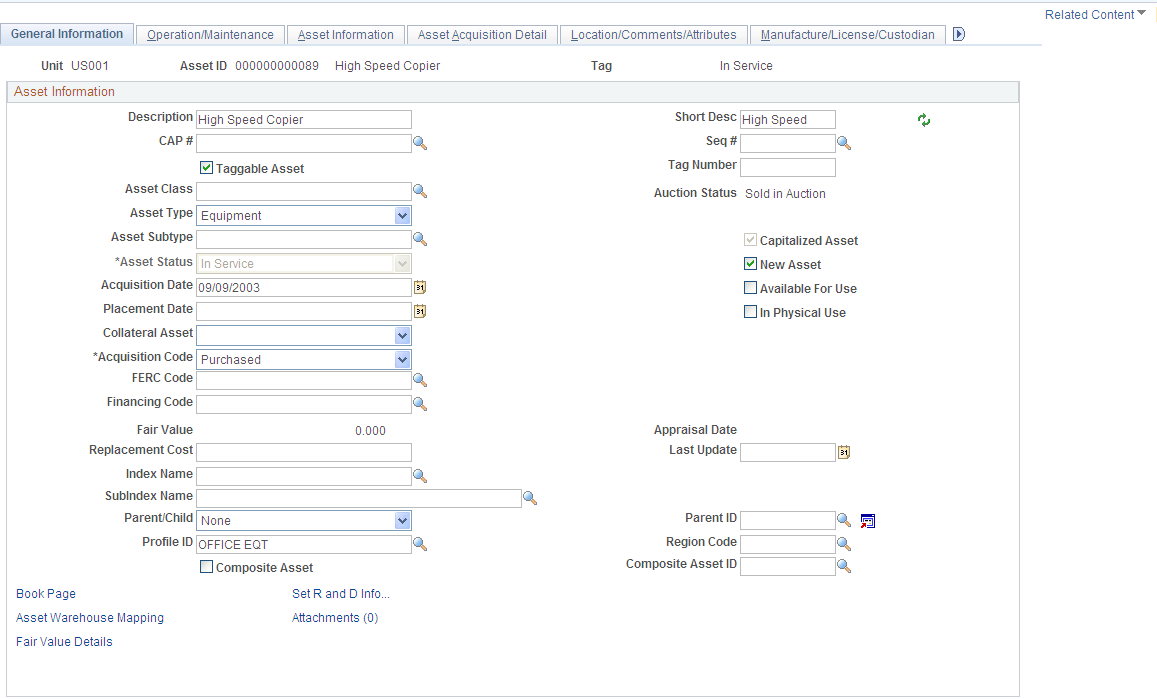
Use the General Information page (ASSET_GENERAL_01) to add asset basic information manually or modify existing asset information.
Image: Basic Add - General Information page
Basic Add - General Information page
| Unit |
Displays the business unit in which the asset is defined. |
| Asset ID |
Select the default value Next to have the system automatically assign the next available number. You can also enter an alphanumeric value of your own. Note: When entering joint venture assets that are shared among several business units, it is recommended that you assign a unique asset ID. This ensures that the assets created at the participant level all have the same ID as the assets created at the joint venture business unit level. For example, you might use the prefix JV, which would generate an asset ID such as JV000022. |
| Tag |
Displays the tag number for assets already entered. |
| Asset Status |
Displays of the current status of the asset, such as In Service. |
| Related Content |
Click this button to view the asset cost history for this asset. For more information, see Cost History Page. This button appears next to the main screen (upper right corner of every page within the Basic Add component). PeopleSoft Asset Management delivers the Related Content functionality as enabled for the Basic Add component. To manage related content, see Managing Related Content in Asset Management |
| Description and Short Description |
Enter identifying and descriptive information about the asset. The short description can be an abbreviated description. |
| CAP # (capital acquisition plan number) and Seq # (sequence number) |
Enter a capital acquisition plan number and associated sequence number, if applicable. The capital acquisition plan number ties the asset to a capital acquisition plan. Only valid numbers set up in the Capital Acquisition Plan table are accepted. The sequence number defines the detailed elements of the capital acquisition plan. |
| Taggable Asset and Tag Number |
If you use tags to track assets, enter the tag number assigned to the asset. This automatically selects the Taggable Asset check box. Asset Management performs physical inventory using the asset tag number. If the business unit for this asset is set up to allow a default tag number based on the asset ID, the default tag number appears here. Note: You must use tag numbers to perform physical inventory with the Asset Management physical inventory application. |
| Asset Class |
If you use classifications to define assets within categories, enter the asset class code here. The asset class enables you to identify assets for reporting purposes. The asset class is also used as a VAT driver. |
| Asset Type |
Select a value to indicate a type of asset. The available options are: Equipment Facility Fleet Furniture Hardware Intangible Machinery Other Property Software |
| Asset Subtype |
Select a value to indicate a subset of asset type. Subtypes are optionally user-defined and directly related to the asset type. Only asset subtypes of the selected asset type are available when defining the asset. |
| Asset Status |
Select the appropriate asset status from the following options:
|
| Acquisition Date |
Enter the date when the asset was acquired. This field is automatically populated if the asset was added from a feeder system, such as Purchasing or Payables. |
| Placement Date |
Enter the date that the asset is placed in service for physical purposes. |
| (JPN) Collateral Asset |
Japanese accounting principles require that assets offered as collateral be treated according to financial reporting regulations under the commercial law. If this asset is such a collateral asset, select one of the available options that comply with Japanese requirements. See (JPN) Using PeopleSoft Asset Management Options to Meet Japanese Requirements. |
| Acquisition Code |
The acquisition code indicates how you acquired the asset. Select one of the following options:
|
| FERC Code (Federal Energy Regulatory Commission code) |
The FERC Code is used to identify depreciation according to FERC guidelines. This field is used in the U.S., usually to identify group assets, such as telephone poles, highway signs, or other assets used in mass quantities. |
| Financing Code |
Enter the code as you have defined it. Financing codes enable you to analyze debit and credit relationships for capital-intensive and government projects. |
| In Physical Use |
Select or deselect this check box to resolve discrepancies between the asset repository and IT asset discovery. Changes made to this page are incorporated in the main asset record within the asset repository. The physical use indicator is affected when adding, transferring, retiring or reinstating hardware assets within PeopleSoft Asset Management. Only those assets that have the physical use indicator selected are included in the ITAM comparison process. |
| Fair Value |
This display-only field indicates the FV of the asset as updated from the Fair Value page. The FV is used in the calculation of asset revaluation. |
| Appraisal Date |
This display-only field indicates the date when the current FV was updated. When the asset is added to the database, the appraisal date is the same as the acquisition date by default. |
| Replacement Cost |
Indicates how much it would cost to replace the asset. When the asset is added to the database, the replacement cost is equal to the total base cost of the asset by default. The replacement cost can be derived by associating the asset to a cost index, such as the consumer price index (CPI) or inflation index. The association of the replacement cost index can be applied by default from the asset profile; the replacement cost is then calculated considering the base cost and the index amounts. The result is displayed here. |
| Last Update |
If you are calculating the replacement cost using an index, the date that you performed the last update appears here. When the asset is added, this date is the accounting date. |
| Index Name and Subindex Name |
Enter the adjustment of the replacement cost using an index, such as the consumer price index. When you calculate the replacement cost, the original replacement cost is adjusted by the index and subindex that you specify. Enter valid codes. These are established on the Indexes page during implementation. |
| Parent/Child and Parent ID |
For a parent or child asset, select the appropriate option in the Parent/Child field. If it is a child asset, enter the parent ID with which it is associated. The default value is None. Parent and child assets cannot also be composite or group assets. |
| Profile ID |
Enter a profile ID. Asset profiles are set up in the Asset Profile component. |
| Threshold ID |
This value defaults from the capitalization Threshold ID that is associated with the asset profile for a given asset. When adding an asset, the system uses the capitalization definition for the applicable Threshold ID to determine the appropriate capitalization action to take. Upon clicking the Capitalize button on the Asset Acquisition Detail page, the system compares the cost of the asset with the cost and basis option as defined on the Capitalization Threshold page and then classifies the new asset into one of the following brackets:
Note: This field appears only if the capitalization threshold option is enabled within Asset Management Installation Options and if the capitalization threshold option is enabled for a given business unit. Note: You can select a Threshold ID other than the default value to use in the capitalization evaluation for an asset. Note: Actions such as "To Capitalize Later" and "Never Capitalize" do not trigger the capitalization threshold evaluation. See Understanding Adding and Maintaining Assets, “Capitalization Threshold”. |
| (JPN) Reporting Life |
Enter the reporting life for Japanese composite assets. This life is used for calculating average life of the composite asset. |
| Asset Retirement Obligations |
Select to identify an asset that is subject to asset retirement obligation (ARO) treatment in accordance with Financial Accounting Standards. This field appears only when you have enabled ARO on the Installation Options – Asset Management page and enabled ARO at the business unit level. If you created an asset profile with ARO defaults, you can select that Profile ID value for the asset. In addition to the other defaults associated with the profile, the Asset Retirement Obligation check box is automatically selected if you select an ARO Profile ID when adding an asset. When you select this check box, the ARO Identification field appears. |
| ARO Identification (asset retirement obligation identification) |
Once you identify an asset as being subject to ARO treatment (Asset Retirement Obligations check box selected), the ARO Identification field appears. The system assigns this identification number sequentially, beginning with the number following the one that is designated on the AM Business Unit Definition page within the Last ARO Id field. |
| Set R and D Info (set research and development information) |
Click to access the Asset R&D Information page, where you can enter identifying information for the asset. |
| (JPN) Local Tax Information |
Click to access the Local Tax Return page. This link is visible when establishing setup options for Japan tax reporting. See (JPN) Using PeopleSoft Asset Management Options to Meet Japanese Requirements. |
| Asset Warehouse Mapping |
Click to access the Warehouse Mapping page. |
| Auction Status |
Displays the status of an asset that has been submitted to Strategic Sourcing for auction. |
| Region Code |
Select a region to categorize property assets by regions. Used for reporting. |
| Capitalized Asset |
Indicates whether the asset has been capitalized. This check box is display-only. |
| New Asset |
Select if this is a new asset. |
| Available For Use |
Select if the asset is available to be used. |
| Composite Asset and Composite Asset ID |
Composite asset processing enables you to group assets so that their total cost is carried by one asset and depreciated that way. By selecting this option, you indicate that this single asset is a composite asset, and associated assets are known as composite members. This feature is frequently used by utility companies, and it meets the requirements to use the Japanese Composite Depreciation Method. When you select the Composite Asset check box on the Asset Information page, an Asset ID field appears. Associate the composite member by selecting the asset ID of a composite asset. |
| (AUS) Schedule Type Code |
If this is an Australian business unit, select a schedule type code. |
| (AUS) Calculate Last Date of Review |
Click to generate the last date of mandatory review for the asset. Note: You cannot access the Schedule Type Code field, the Calculate Last Date of Review button, or the Last Date of Mandatory Review field if the last date of mandatory review has already been calculated, unless you are in correction mode. |
| (AUS) Last Review DT |
Displays the last date of mandatory review for the asset. The last date of mandatory review is stored at the asset level. See (AUS) Using PeopleSoft Asset Management Options to Meet Australian Requirements. |
| Book Page |
Click to save the component and access the Book (ASSET_BOOK_01) page. |
(AUS) Asset R&D Information Page
Use the Asset R&D Information (asset research and development information) page (ASSET_RD_SP) to enter information about R&D assets.
In Australia, this information is used for tax reporting purposes; otherwise, it is informational only.
Asset Management enables you to identify assets for the purpose of calculating research and development deductions.
See (AUS) Using PeopleSoft Asset Management Options to Meet Australian Requirements.
(JPN) Local Tax Information Page
Use the (JPN) Local Tax Return page (LTAX_ADD_INFO_SEC) to enter local tax information when you acquire depreciable fixed assets.
Image: Local Tax Information page
This example illustrates the fields and controls on the Local Tax Information page. You can find definitions for the fields and controls later on this page.
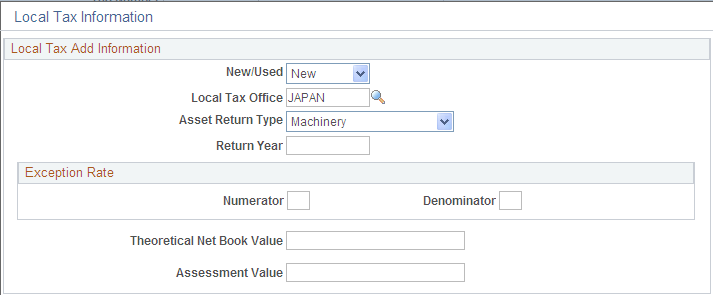
Asset Management enables you to calculate and run reports as required by Japanese local tax laws, including all required information for the local depreciable asset tax return. When the Localization Country field on the User Preferences - Overall Preferences page is set to JPN,the Establish Business Units component for PeopleSoft Asset Management includes the Business Unit Info for Japan page. If you select Use JPN Local Tax from the AM Business Unit Definition page (JPN Info link) , you enable access to the Local Tax Return page from the General Information page.
Complete the fields as necessary to generate the Japanese local tax return.
See (JPN) Using PeopleSoft Asset Management Options to Meet Japanese Requirements.
Warehouse Mapping Page
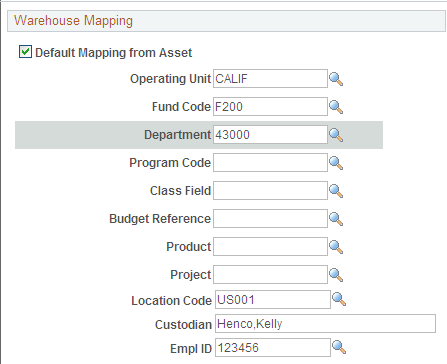
Use the Warehouse Mapping page (AM_WH_MAP_ASSET) to enter transfer information defaults for assets used in component changeout for PeopleSoft Maintenance Management.
This page is used by PeopleSoft IT Asset Management and PeopleSoft Maintenance Management to transfer assets to a defined warehouse. Custodian, Location, and Employee ID are also available. Custodian will inherit the ChartFields defined for the warehouse.
Image: Warehouse Mapping page
This example illustrates the fields and controls on the Warehouse Mapping page. You can find definitions for the fields and controls later on this page.
Asset Management – Payment Worksheet Attachments Page
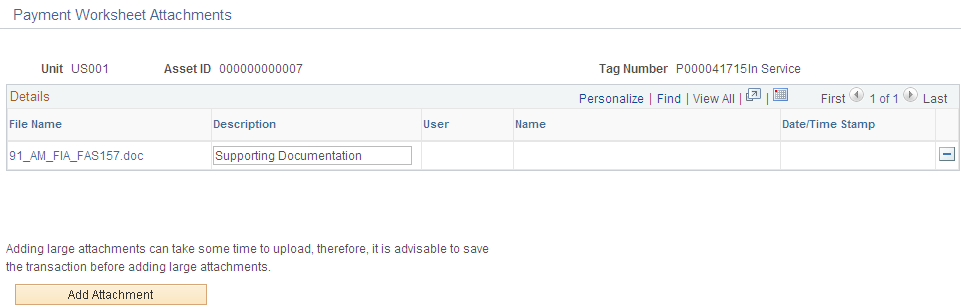
Use the Asset Management - Payment Worksheet Attachments page (AM_ADD_ATTACH_SEC) to add relevant supporting documents to an asset transaction.
Image: Asset Management - Attachments
This example illustrates the fields and controls on the Asset Management - Attachments. You can find definitions for the fields and controls later on this page.
Fair Value Page
Use the Fair Value page (AM_FMV_DEFN) to update fair value (FV) information for each asset.
The data is stored on the AM_FMV record and is used for revaluation of the asset in accordance with statutory requirements.
Image: Fair Value page
This example illustrates the fields and controls on the Fair Value page. You can find definitions for the fields and controls later on this page.

Fair value is used in establishing revaluation of assets. PeopleSoft Asset Management stores this information for each asset and allows you to add a new fair value (FV) on a regular basis, leave it blank, or let it stay as original cost, depending upon your business requirements.
Search Audit Logs Page
Access the Search Audit Logs page (click the Audit Logs link on the General Information page).
Image: Search Audit Logs page
This example illustrates the fields and controls on the Search Audit Logs page. You can find definitions for the fields and controls later on this page.
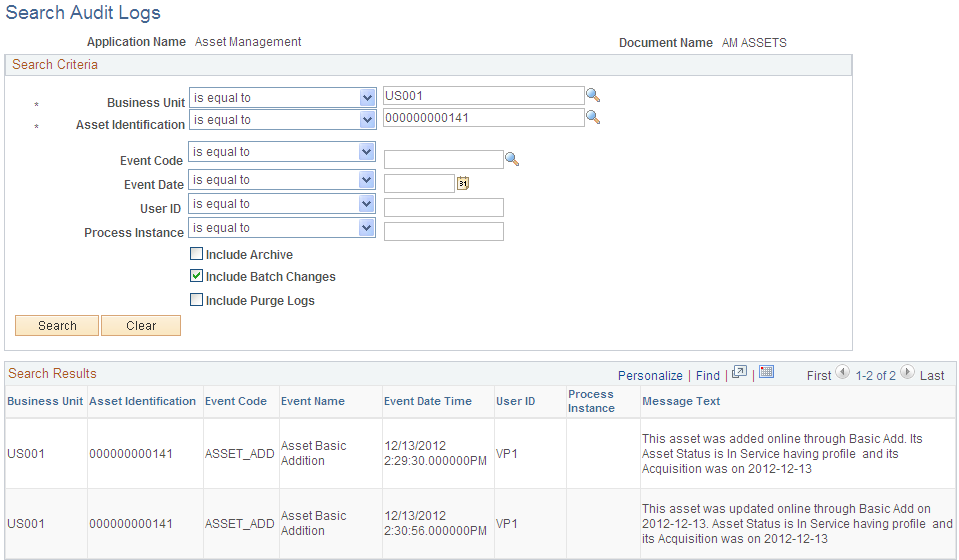
The Audit Logs link on the General Information page appears only if you have enabled audit logging for Asset Management and after you have saved the asset. Click the link to access the audit logs that pertain to this particular asset. The search results present all events for this asset that you have selected for tracking when you enabled audit logging.
Cost History Page
PeopleSoft delivers the ability to view complete asset cost history information for an asset from the Basic Add component. Access any page of the Basic Add component and click the Related Content Button and select the Cost History link.
A collapsible Related Content section appears at the bottom of the Asset Acquisition Detail page for the selected asset:
Image: Related Content Cost History Page
This example illustrates the fields and controls on the Related Content Cost History Page. You can find definitions for the fields and controls later on this page.
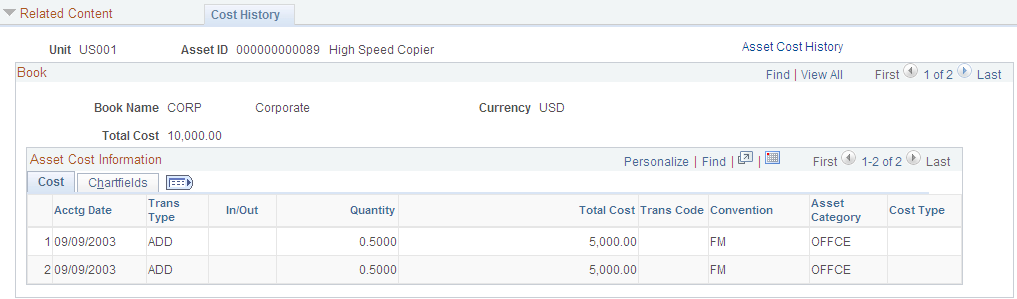
For more information regarding these pages, see Viewing Archived Data
To manage related content, see Managing Related Content in Asset Management
See also PeopleTools 8.52 Documentation: PeopleTools Portal Technologies, Developing and Configuring Related Content Services.
Operation/Maintenance Page
Use the Operation/Maintenance page (ASSET_GENERAL_02) to add or update:
Manufacturer information
Resource information
Maintenance information
Hazardous materials information
Image: Operation/Maintenance page
This example illustrates the fields and controls on the Operation/Maintenance page. You can find definitions for the fields and controls later on this page.
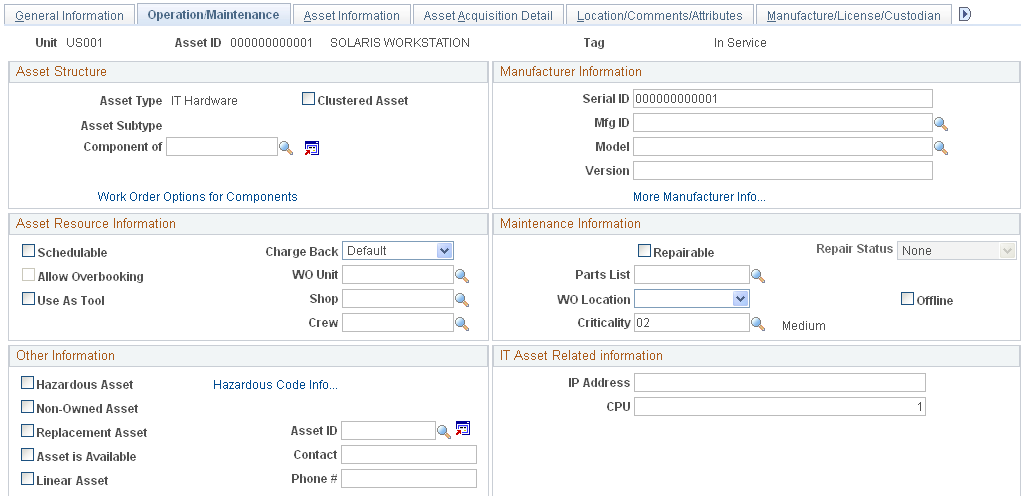
Asset Structure
This section discusses how to define the asset structure. Assets can be catalogued as assets of a certain type, with sequential subtypes, assets that are components of a higher level asset, or clustered assets, multiple assets that combine to establish a whole asset.
Manufacturer Information
This section provides information to define asset manufacturer information.
Asset Resource Information
This section provides information to define the asset as a resource.
Maintenance Information
This section provides maintenance information about the assets.
Other Information
| Hazardous Asset |
Select if the asset is considered a predominant or significant hazardous material. Note: The federal government of the United States defines hazardous materials and waste to include: "Solid, liquid, or gaseous waste, or combination of these wastes, which because of its quantity, concentration or physical, chemical, or infectious characteristics may cause significantly to an increase in mortality or an increase in serious irreversible or incapacitating illness or pose a substantial present or potential hazard to human health or the environment when improperly treated, stored, transported, disposed of, or otherwise managed." |
| Hazardous Code Info (hazardous code information) |
Click to access the Hazardous Code Information page, where you can indicate hazardous material information by selecting assigned codes. The PeopleSoft system is delivered with the U.S. Federal Supply Class (FSC) codes, or you can select from codes that are created during implementation to suit your specific needs. See Hazardous Codes Page. |
| Non-Owned Asset |
Select if this asset is not owned. |
| Replacement Asset and Asset ID |
Select if this is a replacement asset. When an asset (or asset component) has been replaced by another in PeopleSoft Maintenance Management, this field automatically displays the associated new asset ID. Note: The asset ID displayed here shows the replaced asset ID. The new asset that replaced this asset has a new asset ID on the General Information page. |
| Asset is Available, Contact, and Phone # (phone number) |
Select and complete contact information if the asset is available for reassignment to another person. |
| Linear Asset |
Identify an asset as linear within the Asset Repository. These are assets that have coordinates for their start and end points, such as a pipeline, train track, or a highway. You can identify linear assets at the asset subtype level when defining subtypes. In this way, when you select a subtype for the asset, the Linear Assetcheck box automatically inherits the designation that was made for the asset subtype. You can, however, override the subtype linear designation here at the individual asset level. Note: Identification of linear assets facilitates potential integrations with third-party products. |
IT Asset Related Information
This section discusses how to define IT asset–related information.
| IP Address |
Enter the IP address of the asset. |
| CPU |
Enter the CPU identifier. |
Work Order Management Page
Use the Work Order Management page (AM_WOM_OPT_ASSET) to enter Work Order–related information relevant to the asset.
Image: Work Order Management page
This example illustrates the fields and controls on the Work Order Management page. You can find definitions for the fields and controls later on this page.
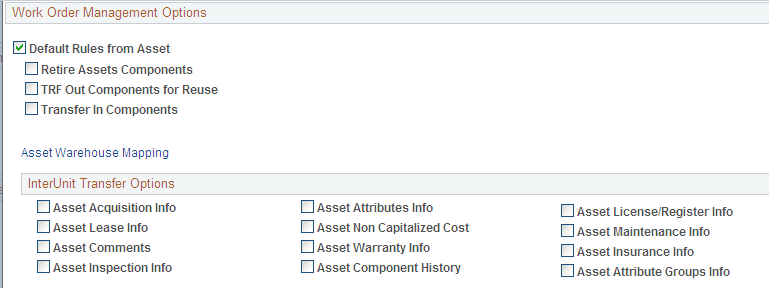
This page defines the transfer include and exclude rules for components swapped out and interunit transfer options. It is available when PeopleSoft Maintenance Management is installed. It is also available on the business unit, asset type, and subtype pages. You can define the rules at this level as an exception. If the Default Rules from Asset check box is not selected, the options are unavailable for selection as the options will be taken from other levels unless you specifically select the option to use it at the asset level.
| InterUnit Transfer Defaults Options |
Select the asset information to include with the transfer when there is an interunit transfer. |
Hazardous Asset Codes Page
Use the Hazardous Asset Codes page (ASSET_FSC) to when an asset is defined as hazardous, describe it by selecting at least one hazardous code from the list.
Image: Hazardous Asset Codes page
This example illustrates the fields and controls on the Hazardous Asset Codes page. You can find definitions for the fields and controls later on this page.

When an asset is defined as hazardous, describe it by selecting at least one hazardous code from the list. This feature supports U.S. FSC codes, which are delivered with PeopleSoft Asset Management. When you mark an asset as hazardous and associate a descriptive code with it, you can also provide additional information about its location and custodian and other pertinent data (in the Basic Add component). You can use this information to generate a report to monitor or track hazardous assets.
Asset Acquisition Detail Page
Use the Asset Acquisition Detail page (ASSET_ACQ_DETAIL) to store information about how the asset was acquired and keep track of the separate costs and acquisition details of components that make up an asset.
You can enter costs before they have been approved for capitalization. Once they are approved, you can then capitalize them. The total capitalizable costs entered here appear by default in the Capitalize Information collapsible section.
You can enter multiple transactions and adjustments for an asset without exiting the component. When you enter the first acquisition line, the page displays the Capitalize button once the To be Capitalized field value is selected as the Capitalize option. Click the Capitalize button and save. Without leaving the page, click the Add a New Row button (plus button) to add the next transaction: You may also add a noncapital transaction for the next row. Once you select the Never Capitalize field value, the Non-Capitalize button appears. Click the Non-Capitalize button and save the transaction.
For additional information on entering multiple adjustments for an asset, see Entering Multiple Cost Adjustments. Understanding Adjusting, Transferring, and Evaluating Assets, “Entering Multiple Cost Adjustments”.
Image: Asset Acquisition Detail page
This example illustrates the fields and controls on the Asset Acquisition Detail page. You can find definitions for the fields and controls later on this page.
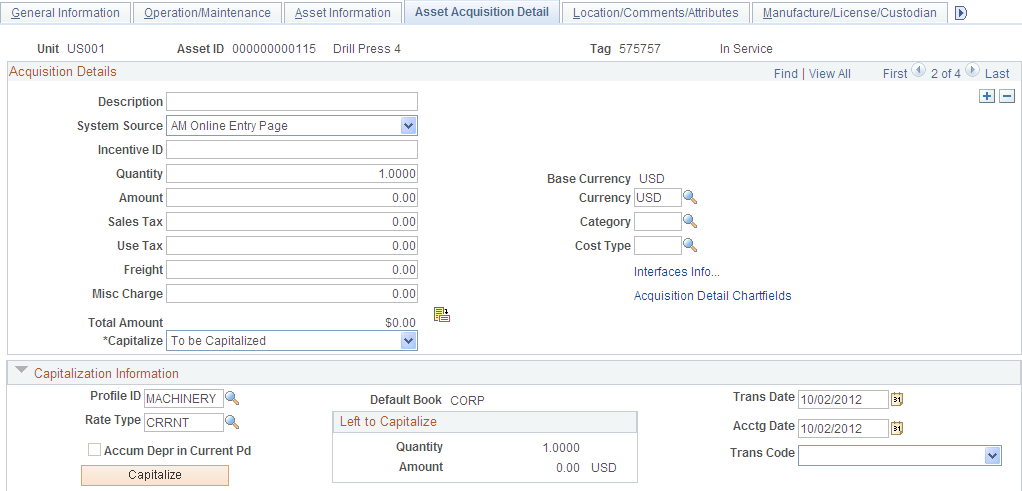
Use the Asset Acquisition Detail page to enter costs before they have been approved for capitalization. Once they are approved, you can then capitalize them. The total capitalizable costs entered here appear by default in the Capitalize Information collapsible section.
You can enter multiple transactions and adjustments for an asset without exiting the component. When you enter the first acquisition line, the page displays the Capitalize button once the To be Capitalized field value is selected as the Capitalize option. Click the Capitalize button and save. Without leaving the page, click the Add a New Row button (plus sign) to add the next transaction: You may also add a noncapital transaction for the next row. Once you select the Never Capitalize field value, the Non-Capitalize button appears. Click the Non- Capitalize button and save the transaction.
See For more information on entering multiple adjustments for an asset, see Note ID 1357360.1 on My Oracle Support website (https://support.oracle.com).
Enter the following information for each acquisition detail line:
Acquisition Details Page
Use the Acquisition Details page (ASSET_ACQ_DET_AP) to view or enter information about assets acquired through other PeopleSoft applications.
If Asset Management is integrated with other PeopleSoft applications, the source systems send the asset information through delivered interfaces. If not, you can add the information here.
Image: Acquisition Details Page
This example illustrates the fields and controls on the Acquisition Details Page. You can find definitions for the fields and controls later on this page.
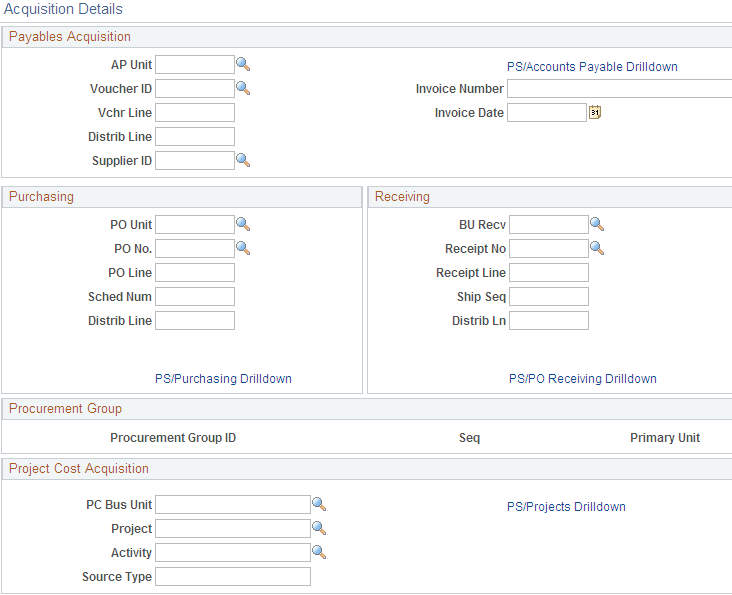
Procurement Group
| Procurement Group ID |
Displays the Procurement Group ID for the asset. A procurement group ID is an identifier that is used to associate multiple related purchased items for an asset. The Procurement Group ID can be assigned to a group of procurement transaction lines on a single purchase order or across multiple purchase orders. See Consolidating Requisition and Purchase Order Lines for Asset Components. |
| Seq (sequence) |
Displays the Procurement Group Sequence number. Each transaction within a procurement group ID is assigned a procurement group sequence number. |
| Primary Unit |
Displays the item that is the designated primary unit for the asset. The primary unit for the procurement group ID is assigned on the Procurement Group page. When an item is flagged as a primary item, a separate transaction is inserted into INTFC_PRE_AM in increments of the unit allocation quantity or amount and has its own sequence number. |
Acquisition Detail Chartfields Page
Use the Acquisition Detail Chartfields page (ASSET_ACQ_DET_CF) to enter acquisition ChartField details for the asset.
Capitalization Information and Non Capitalization Information
Use the Capitalization Information section to capitalize assets using the book information provided by the asset profile. Enter cost information into asset books. This section only displays when adding an asset.
Use the Non Capitalization Information section to add non capitalized costs associated with an asset at book level. This group box displays only when selecting the Never Capitalize option for the Capitalize field.
Local tax legislation may require capital gains tax in relation to the disposal of assets. Noncapitalized costs may need to be included in resultant capital gain (or loss) calculations.
Note: As long as all acquisition detail lines are for the same set of ChartFields (Product, Project, Department) and for the same category and cost type, you can enter them all at once and capitalize them later by clicking the Capitalize button. However, if you enter acquisition detail lines for more than one set of ChartFields and for more than one category and cost type, you must enter and capitalize the acquisition detail lines for each set of ChartFields and for each category and cost type separately.
Asset Acquisition Detail Page – Entering Multiple Cost Adjustments
To enter multiple transactions and adjustments for an asset without exiting the component, access the Asset Acquisition Detail Page.
Image: Asset Acquisition Detail (1 of 6)
This example illustrates the fields and controls on the Asset Acquisition Detail (1 of 6). You can find definitions for the fields and controls later on this page.
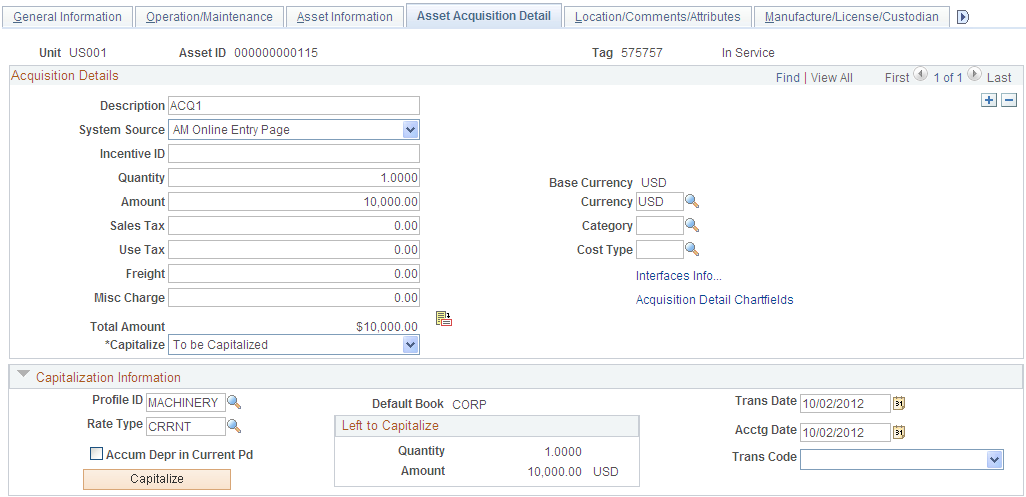
In the example pictured, the first acquisition line is entered (ACQ1 in this example). The page displays the Capitalize button once the To be Capitalized field value is selected as the Capitalize option.
Click the Capitalize button and save. Without leaving the page, click the Add a New Row button to add the next transaction:
Image: Asset Acquisition Detail (2 of 6)
This example illustrates the fields and controls on the Asset Acquisition Detail (2 of 6). You can find definitions for the fields and controls later on this page.
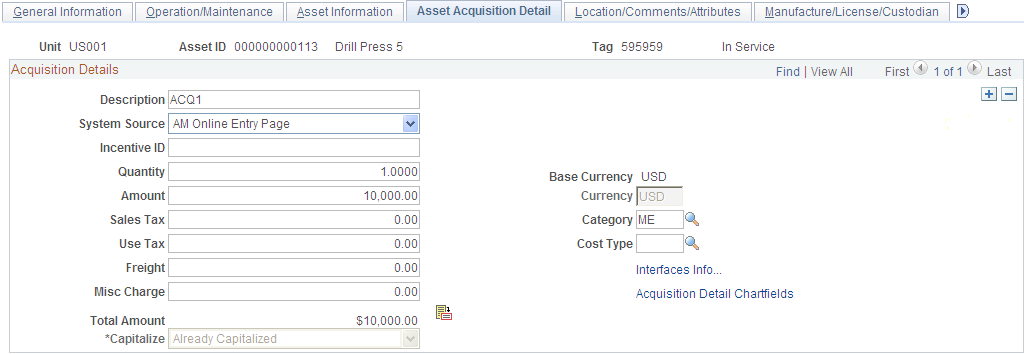
Add a non-capital acquisition line for the asset (ACQ2 in this example) as follows:
Image: Asset Acquisition Detail (3 of 6)
This example illustrates the fields and controls on the Asset Acquisition Detail (3 of 6). You can find definitions for the fields and controls later on this page.
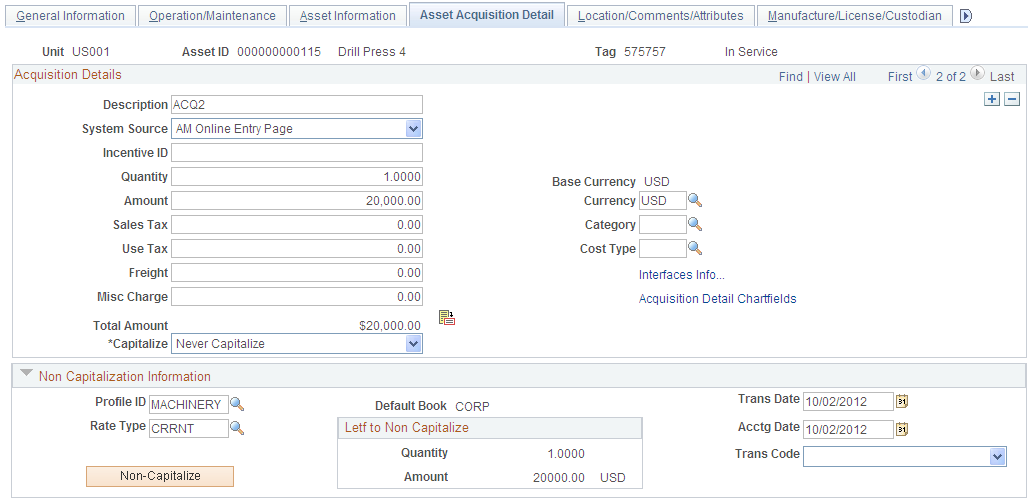
Once you select the Never Capitalize field value, the Non-Capitalize button appears. Click the Non-Capitalize button and save the transaction:
Image: Asset Acquisition Detail (4 of 6)
This example illustrates the fields and controls on the Asset Acquisition Detail (4 of 6). You can find definitions for the fields and controls later on this page.
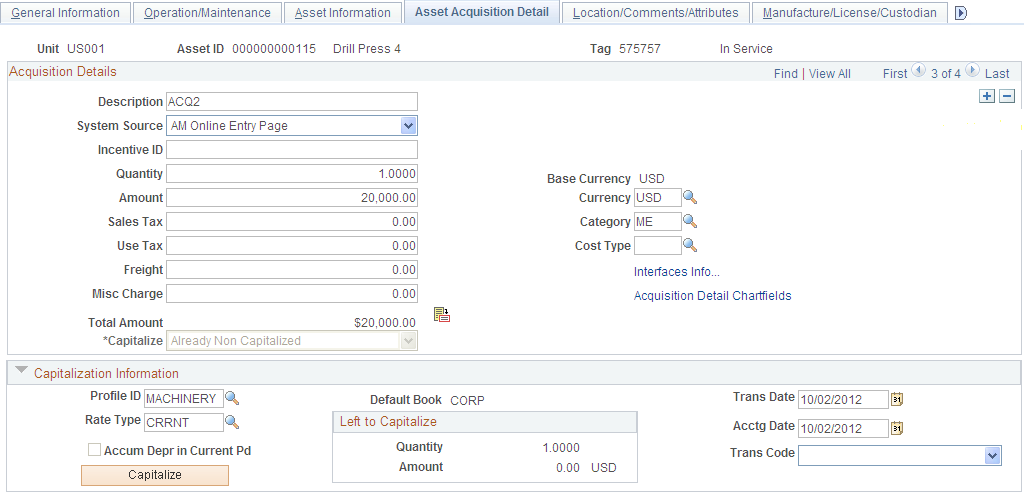
Add a third transaction row, to be capitalized. Stay on the page and click the Add a New Row button. For the third row (ACQ3 in this example), select the To be Capitalized field value. Note that the Capitalize button is available, and the Left to Capitalize amount correctly reflects the amount remaining to capitalize for the asset:
Image: Asset Acquisition Detail (5 of 6)
This example illustrates the fields and controls on the Asset Acquisition Detail (5 of 6). You can find definitions for the fields and controls later on this page.

Click the Capitalize button and save:
Image: Asset Acquisition Detail (6 of 6)
This example illustrates the fields and controls on the Asset Acquisition Detail (6 of 6). You can find definitions for the fields and controls later on this page.
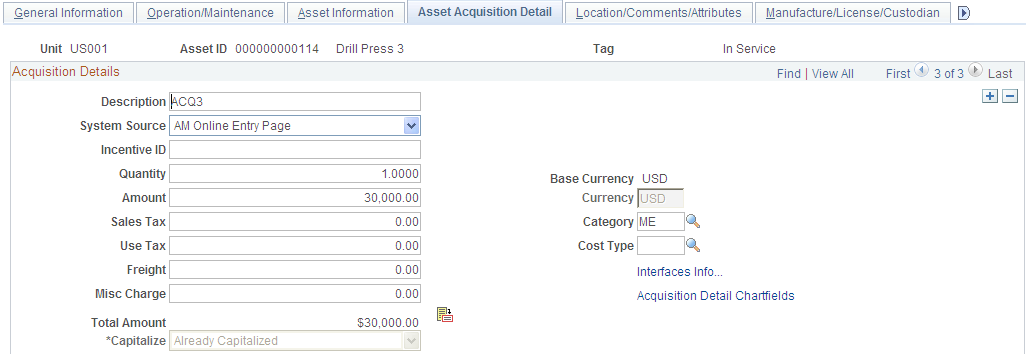
In this example, if one of the To be Capitalized lines were not yet capitalized, the Capitalize button is visible and available. If you proceed to save, you are presented with a warning reminding you that you have amounts to be capitalized that have not yet been capitalized. You can choose to save anyway or go back and capitalize those amounts.
If one of the non capital lines still has a status of Never Capitalize, the Non-Capitalize button is visible and available.
Tax Page
Use the Tax page (ASSET_ACQ_DET_VAT) to enter tax information for the asset.
This feature is available only if the business unit is activated for value-added tax (VAT) processing.
Note: This link appears only when the business unit is activated for value-added tax (VAT) processing.
Image: Tax page
This example illustrates the fields and controls on the Tax page. You can find definitions for the fields and controls later on this page.
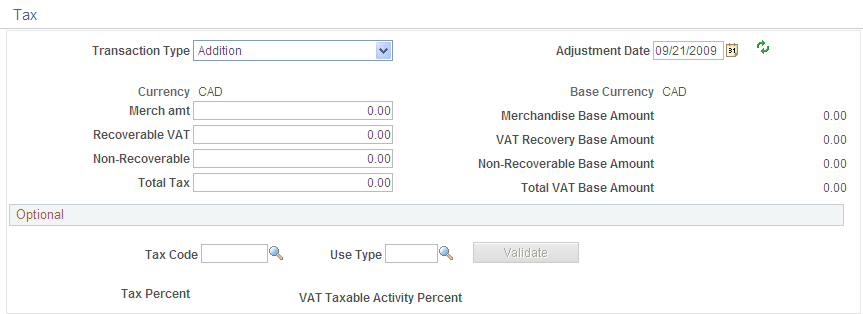
Enter tax information for the asset.
Note: This information is optional except where VAT is applied. The system only validates the tax amounts entered; it does not store them.
Doc Sequencing Page
Use the Doc Sequencing (document sequencing) page (AM_DOC_SEQ) to enter document sequencing information.
Image: Doc Sequencing page
This example illustrates the fields and controls on the Doc Sequencing page. You can find definitions for the fields and controls later on this page.
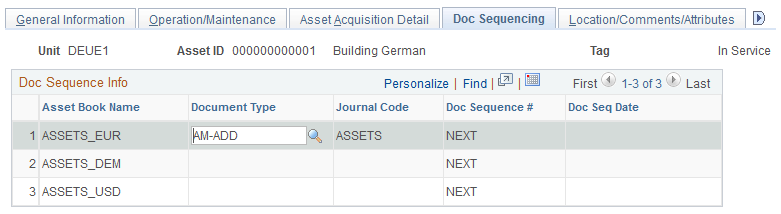
Document sequencing is enabled at the general ledger business unit level. Rows are editable or not depending upon the Keep Ledgers in Sync option defined at the ledger group level. If it is enabled, then only the primary ledger is editable; if it is not enabled, all the books that post entries to General Ledger are editable.
Location/Comments/Attributes Page
Use the Location/Comments/Attributes page (ASSET_IMAGE) to record the location and physical properties of the asset (such as color, height, and weight) and store comments about it; view a stored image of the asset.
Image: Location/Comments/Attributes page (1 of 2)
This example illustrates the fields and controls on the Location/Comments/Attributes page (1 of 2). You can find definitions for the fields and controls later on this page.
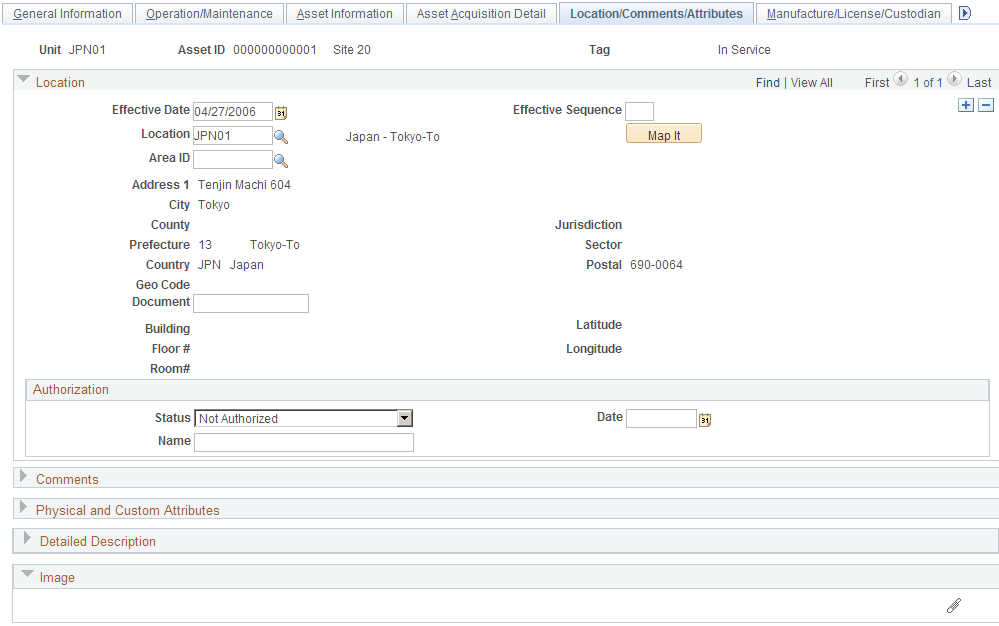
Image: Location/Comments/Attributes page (2 of 2)
This example illustrates the fields and controls on the Location/Comments/Attributes page (2 of 2). You can find definitions for the fields and controls later on this page.
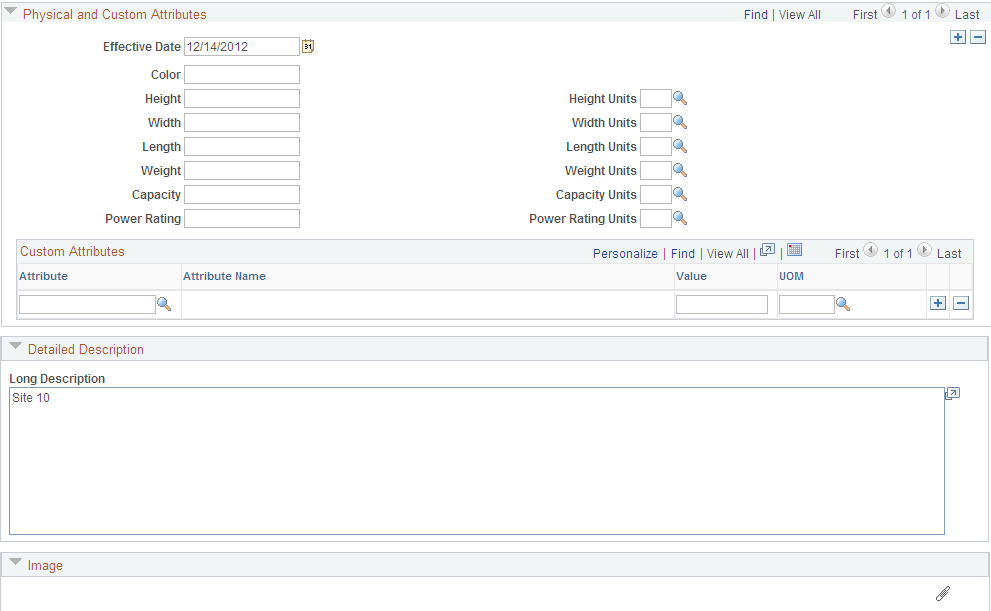
Record an asset's location and physical properties (such as color, height, and weight), enter comments, a detailed description, and associate user-defined custom attributes. You can also use this page to attach and view a stored image of the asset.
| Map It |
Click the Map It button from the Location/Comments/Attributes page to view the location of the asset on a map. This button appears on this page when you select the GIS Integration Enabled check box from the Installation Options - Overall page and enable the integration at the Asset Management business unit level from the Asset Management Definition – Interface Options page. Once enabled you can map assets using the Asset Map Dashboard and from the Basic Add component. |
Note: PeopleSoft does not automatically update the Latitude or Longitude fields in the location definition. These must be entered manually.
Map It - Asset Location Map
Visual assistants, such as maps, significantly improve the performance of locating and viewing assets for planning maintenance and deployment. Integration with ESRI ArcGIS Online enables the display of assets on a map from the Basic Add - Location/Comments/Attributes page. Access the Asset Location Map by clicking the Map It button:
Image: Map It - Asset Location Map
This example illustrates the fields and controls on the Map It - Asset Location Map. You can find definitions for the fields and controls later on this page.
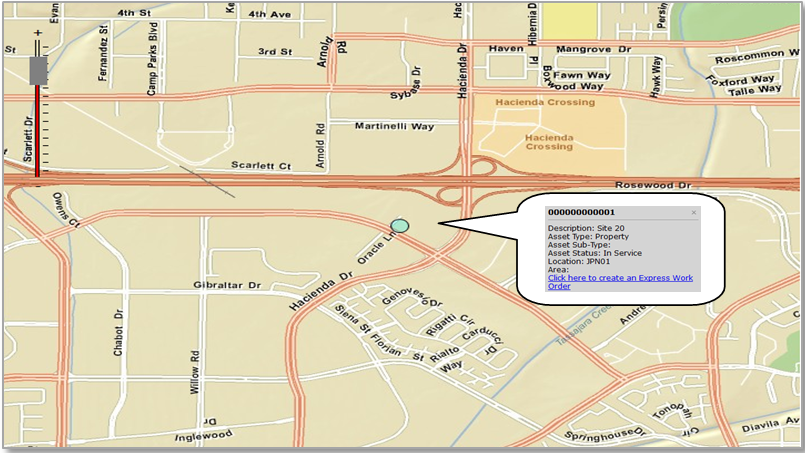
A callout box appears when you click the location dot in the modal window (once you click the Map It button). This callout shows asset information and a link where you can access the Express Work Order page to create an express work order for the asset, if needed.
To enable the map functionality, see the Map It field description on the Location/Comments/Attributes page. The GIS integration uses ArcGIS Web Mapping JavaScript APIs to embed maps in PeopleSoft. The ArcGIS JavaScript API is owned by ESRI and is subject to Terms of Use.
Manufacture/License/Custodian Page
Use the Manufacture/License/Custodian page (ASSET_CUSTODIAN) to record custodial information, maintain license information, and store manufacturer-related information.
Image: Manufacture/License/Custodian page (1 of 2)
This example illustrates the fields and controls on the Manufacture/License/Custodian page (1 of 2). You can find definitions for the fields and controls later on this page.
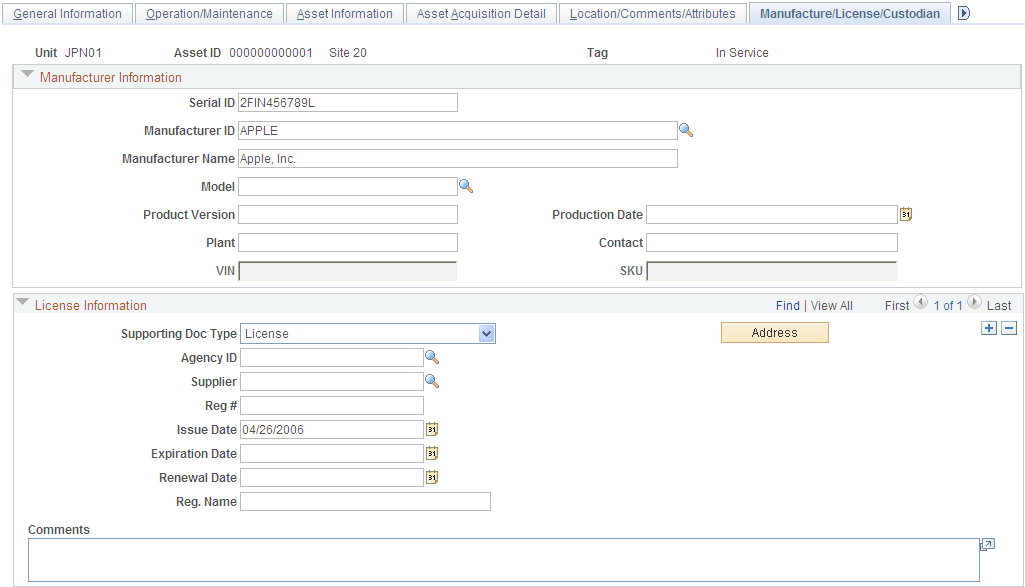
Image: Manufacture/License/Custodian page (2 of 2)
This example illustrates the fields and controls on the Manufacture/License/Custodian page (2 of 2). You can find definitions for the fields and controls later on this page.
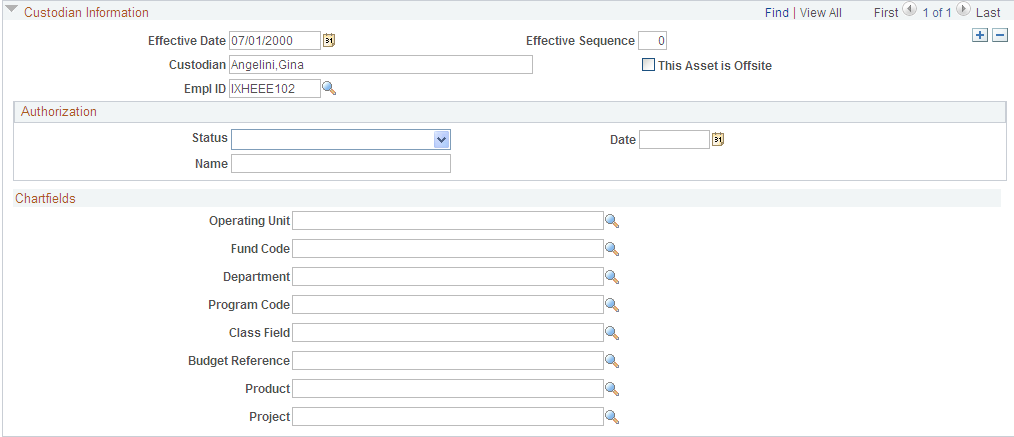
Record custodial information, maintain license information, and keep track of manufacturer-related information.
Asset Property Page
Use the Asset Property page (ASSET_PROPERTY) to Enter details to manage property assets and to maintain property-specific attributes such as identifying information, asset hierarchy, area and occupancy, and legal descriptions.
This page tab appears when the asset type of Property is selected; however, if Lease Administration is not a selected product within Installation Options and Space Management Installed is not selected within the Asset Management Installation Options, the Property page is disabled.
Image: Asset Property page
This example illustrates the fields and controls on the Asset Property page. You can find definitions for the fields and controls later on this page.
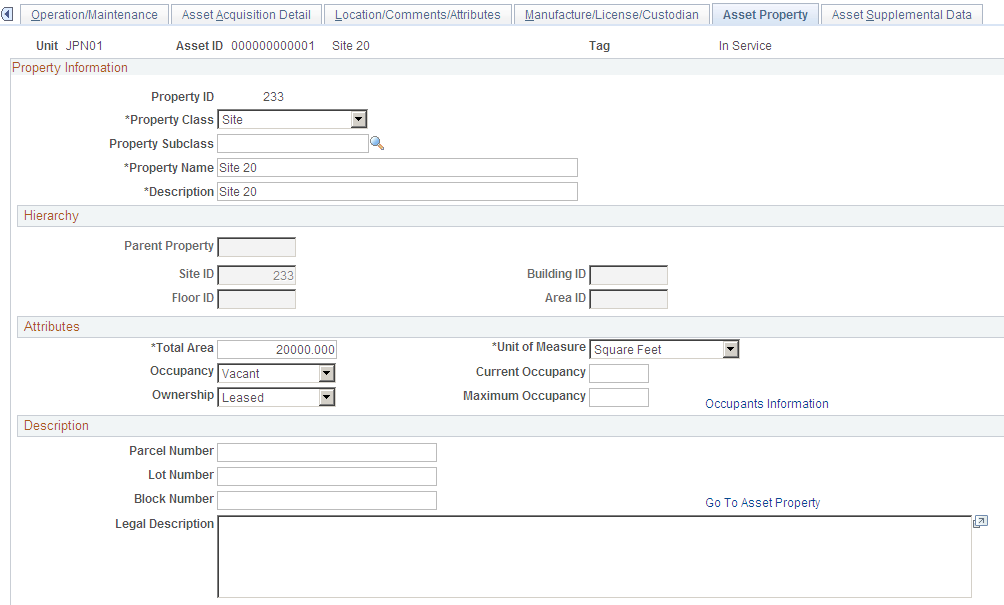
Property Information
This page appears when the asset type of Property is selected; however, if Lease Administration is not a selected product within Installation Options or Space Management Installed is not selected within the Asset Management Installation Options, the Property page does not appear.
Hierarchy
Note: The last hierarchical definition for a property is Space. The space property ID is the same as the Property ID and is not displayed at this level.
Attributes
When no hierarchy is established, the default values for Unit of Measure is Feet, for Occupancy, Occupied, and for Ownership is Owned.
When a parent property ID is established, then unit of measure, occupancy, and ownership values are inherited from the parent property.
When the parent property ID changes, however, only the unit of measure is inherited from the parent. This is because ownership and occupancy values do not usually change from parent to parent asset. For example, if Property A is leased but the parent ID changes, the property does not change ownership. It is still leased. Similarly, if a parent property changes, it does not automatically change from occupied to vacant.
Note: If you have defined custom attributes on the Asset Attributes page to be associated with an asset, the asset attributes will display with a unit of measure field. You can select the appropriate attributes from your user-defined attributes for this property as needed.
Description
This section is available only if the asset is a property defined as a site or building.
Record Property Taxes Page
Use the Record Property Taxes page (ASSET_PROP_TAX) to Enter property tax details including due dates, taxing authorities, and payments.
Image: Record Property Taxes page
This example illustrates the fields and controls on the Record Property Taxes page. You can find definitions for the fields and controls later on this page.
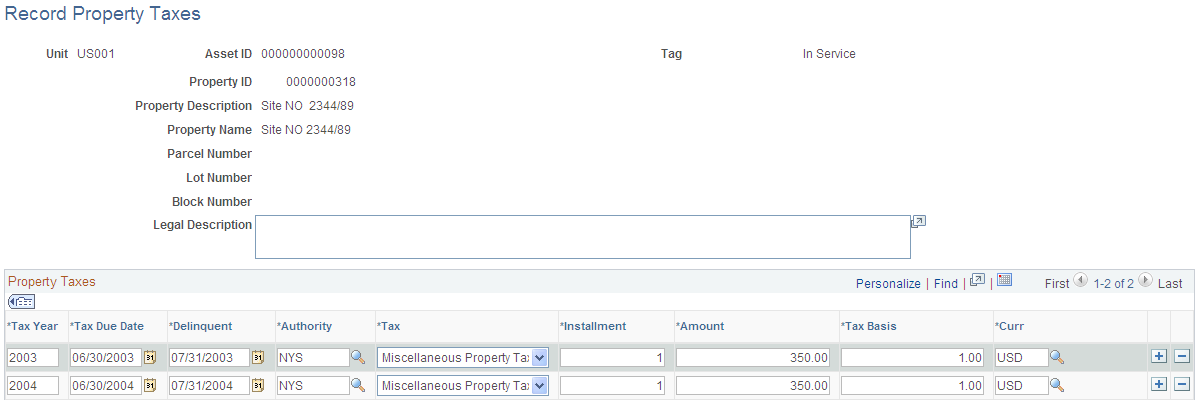
If the asset property is defined as Site or Building, the Enter Property Taxes link is available on the Asset Property page. Click the link to display the Record Property Taxes page where informational data can be entered for taxes applicable to the property.
Asset Supplemental Data Page
Use the Asset Supplemental Data page (AM_ASSET_SD) to record additional data based upon asset business unit, asset type, subtype, manufacturer, and model.
Image: Asset Supplemental Data page
This example illustrates the fields and controls on the Asset Supplemental Data page. You can find definitions for the fields and controls later on this page.
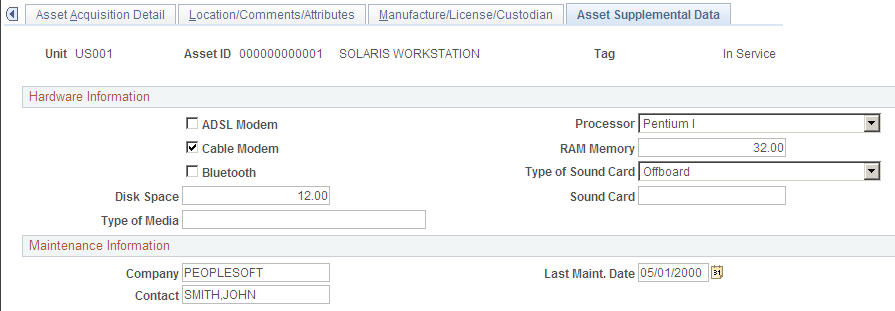
Supplemental data is used within PeopleSoft Maintenance Management for additional asset attribute details. The attribute groups displayed for each asset depend upon the values that are selected for the asset type, asset subtype, manufacturer, model, and business unit. The attributes displayed are user-defined and reflect how the attribute groups work.