
Setting Up Run Controls for Receivables Update
This section provides an overview of run control setup and discusses how to:
Create run control IDs for Receivables Update.
Select additional processes to run.
(Optional) Modify steps for AR_POST.
(Optional) Modify steps for AR_PGG.
Pages Used to Set Up Run Controls for Receivables Update
|
Page Name |
Definition Name |
Navigation |
Usage |
|---|---|---|---|
|
Receivable Update Request |
POSTING_REQUEST |
|
Enter run parameters for the Receivables Update process for specified business units and run the process. |
|
Options |
POSTING_OPTIONS |
|
Select optional processes to run and specify an accounting entry definition for the Journal Generator process and an entry events definition for the Entry Events Generator process. These options apply to all business units processed by the run control. |
|
Application Engine Request |
AE_REQUEST |
|
Modify the steps for a run control ID for AR_POST# and AR_PGG#. |
See the product documentation for PeopleTools: PeopleSoft Process Scheduler.
Understanding Run Control Setup
The Receivables Update process processes all groups for all business units specified on the Receivables Update request. Depending on your installation size and the volume that you process, you may want to use a different method known as chunking. Chunking enables you to process large sets of data more efficiently by breaking them into subsets or smaller units of work. You can chunk by business unit, by group type, by both of these, or by group.
To use chunking when you run the Receivables Update process or set up batch priority run parameters:
Create a run control ID for the Receivables Update multiprocess job on the Receivable Update Request page.
Modify the Application Engine steps for the run control ID for each AR_POST# process on the Application Engine Request page.
For example, if you have three partitions, you define the parameters for AR_POST1, AR_POST2, and AR_POST3.
Modify the Application Engine steps for the run control ID for each AR_PGG# process on the Application Engine Request page.
For example, if you have three partitions, you define the parameters for AR_PGG1, AR_PGG2, and AR_PGG3.
In most cases, you probably will run the Receivables Update process by using a scheduled job.
When you create a run control request for the Receivables Update process, you can also specify that you want to run the Entry Events Generator and the Journal Generator processes.
Receivable Update Request Page
Use the Receivable Update Request page (POSTING_REQUEST) to enter run parameters for the Receivables Update process for specified business units and run the process.
Image: Receivable Update Request page
This example illustrates the fields and controls on the Receivable Update Request page. You can find definitions for the fields and controls later on this page.

Note: If you do not want to use DSO30 or DSO90, use the System-Defined History page to make these customer history IDs inactive.
The run control ID that you used to access this page is linked to your user ID. When you add a Receivables Update request, the system creates an Application Engine request for you with the same user ID and run control ID combination, specifying AR_PGG1 and AR_POST1 as the processes. If you want to add options to other parallel processes, you must add them separately.
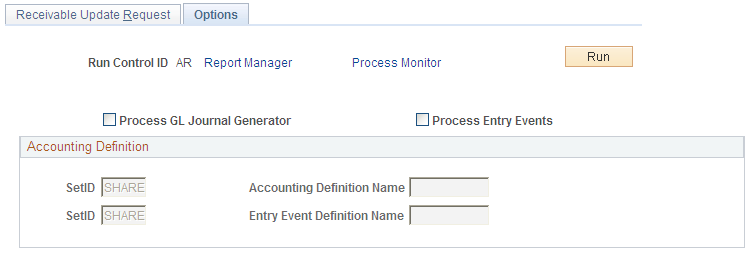
Request Receivables Update - Options Page
Use the Request Receivables Update - Options page (POSTING_OPTIONS) to select optional processes to run and specify an accounting entry definition for the Journal Generator process and an entry events definition for the Entry Events Generator process.
These options apply to all business units processed by the run control.
Image: Request Receivables Update - Options page
This example illustrates the fields and controls on the Request Receivables Update - Options page. You can find definitions for the fields and controls later on this page.
Modifying Steps for AR_POST
Use the Application Engine Request page (AE_REQUEST) to modify the steps for a run control ID for AR_POST# and AR_PGG#.
Image: Modifying run parameters for the AR_POST1 process on the Application Engine Request page
This example illustrates modifying run parameters for the AR_POST1 process on the Application Engine Request page.
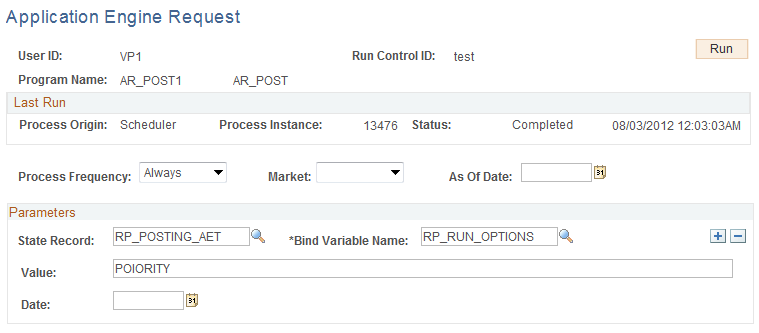
Enter the name of the appropriate AR_POST# program, such as AR_POST1.
Use the State Record, Bind Variable Name, and Value fields to define exactly what data to post. This enables you to process smaller units of data. Add as many rows as needed.
Setting PRIORITY Parameters
Enter PRIORITY in the Value field to give priority to groups whose posting action is Batch Priority. PRIORITY is designed to run on a recurrence definition that directs the system to run periodically throughout the day to pick up only new priority groups. You define recurrence definitions by using the Process Scheduler when you indicate how often to run the Receivables Update process (for example, hourly, or daily).
The following table describes PRIORITY and provides sample field values.
|
Description |
Sample Field Values |
|---|---|
|
Run PRIORITY as needed. Suppose that you have 10 business units and 5 different run control IDs, each specifying different combinations of business units by user ID. During the day, you want to post groups set to PRIORITY for any of the 10 business units. To do this, add a Receivables Update request with a new run control ID (for example, URGENT) that specifies all 10 business units. Add the PRIORITY run option as a parameter on the Application Engine request for the run control ID you created by adding an additional line. |
Program name: AR_POST#, such as AR_POST1 State record: RP_POSTING_AET Bind variable name: RP_RUN_OPTIONS Value: PRIORITY Note: After you enter the run parameters, assign the Receivables Update request to a Process Scheduler job with a scheduled run recurrence that runs every hour (for example, HOURLY). By selecting the hourly recurrence and initiating this job, direct the system to process all PRIORITY groups each hour for each of the specified business units. You can set up multiple PRIORITY server jobs to run at different intervals, processing a few business units in each job or processing only certain group types. |
Note: You do not need to set up an RP_RUN_OPTIONS for a Batch Standard run control. With standard processing, the system processes groups with either a Batch Priority or Batch Standard posting action. A standard scheduled job processes any priority groups that have not been processed since the last scheduled PRIORITY run.
Narrowing the Scope of Receivables Update
This table shows how you can narrow the scope of what the process posts.
|
Description |
Sample Field Values |
|---|---|
|
Post one group to a specific business unit. |
First row: State record: RP_POSTING_AET Bind variable name: GROUP_ID Value: (appropriate value) Second row: State record: RP_POSTING_AET Bind variable name: GROUP_BU Value: (business unit) |
|
Post one business unit to see all activity for a particular business unit. |
State record: RP_POSTING_AET Bind variable name: GROUP_BU Value: (appropriate value, such as US001) |
|
Post one group type, such as billing groups. |
State record: RP_POSTING_AET Bind variable name: GROUP_TYPE Value: (appropriate value, such as B for Billing) |
|
Post groups assigned to one user. Use this option if you run Receivables Update once a day, but you do not want to wait for the scheduled run. |
State record: RP_POSTING_AET Bind variable name: RP_USE_OPRID Value: (user ID, such as VP1) Note: Add more rows to further narrow the scope. For example, you could add a row with a bind variable name for a GROUP_BU with a value of a specific business unit. Or add a row with a bind variable name for a GROUP_TYPE with a value of P (for Payment). |
|
Combine processing options. For example, see only those payment groups in business unit US001. |
First row: State record: RP_POSTING_AET Bind variable name: GROUP_TYPE Value: (appropriate value, such as P for Payment) Second row: State record: RP_POSTING_AET Bind variable name: GROUP_BU Value: (business unit, such as US001) |
Using Chunking in Receivables Update
Chunking enables you to process large sets of data more efficiently by breaking them into subsets or smaller units of work. You can chunk by business unit, by group type, by both of these, or by group. This table shows examples of how to enter chunking parameters.
|
Description |
Sample Field Values |
|---|---|
|
Post one business unit at a time. |
State record: RP_POSTING_AET Bind variable name: RP_CHUNK_BY Value: BU |
|
Post one group type at a time across all business units requested. |
State record: RP_POSTING_AET Bind variable name: RP_CHUNK_BY Value: TYPE |
|
Post one group type at a time, one business unit at a time. |
State record: RP_POSTING_AET Bind variable name: RP_CHUNK_BY Value: BU_AND_TYPE |
|
Post each group, one at a time. |
State record: RP_POSTING_AET Bind variable name: RP_CHUNK_BY Value: GROUP |
See the documentation on managing Application Engine programs in the PeopleTools: Application Engine.
Modifying Steps for AR_PGG
Use the Application Engine Request page (Accounts Receivable, Receivables Update, Request Application Engine, Application Engine Request).
Image: Viewing run parameters for AR_PGG1 on the Application Engine Request page
This example illustrates run parameters for AR_PGG1 on the Application Engine Request page.
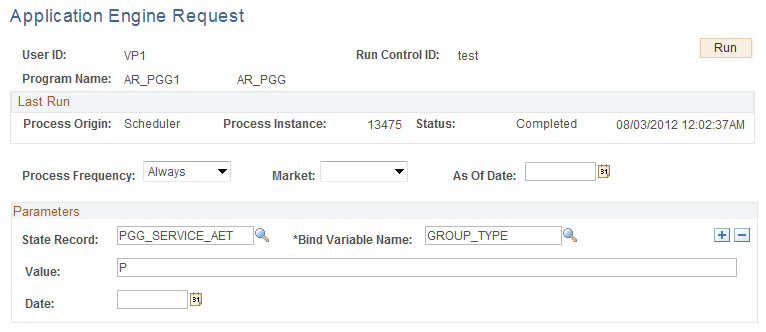
Enter the name of the appropriate AR_PGG# program, such as AR_PGG1.
You use the State Record, Bind Variable Name, and Value fields to define exactly what data to process. Add as many rows as needed.
This table shows how you can narrow the scope of what the process posts.
|
Description |
Sample Field Values |
|---|---|
|
To generate accounting entries for only group type P. |
State record: PGG_SERVICE_AET Bind variable name: GROUP_TYPE Value: P |
|
Add a parameter to specify the chunking method. You are limited to chunking by one field only, but you are not limited to specific values. |
State record: PGG_SERVICE_AET Bind variable name: AE_CHUNK_BY Value:
|