
Creating and Processing Journals with VAT
This section discusses how to:
Enter VAT in the General Ledger journal lines.
Update VAT data in the General Ledger journal VAT lines.
You normally enter VAT data as part of a PeopleSoft subsystem transaction. VAT is calculated within the transaction, the transaction is edited, the VAT Transaction Loader is run, and the transaction is posted. Use general ledger to enter adjustments, corrections, or miscellaneous transactions that either include VAT or affect only the VAT portion of a transaction.
Pages Used to Create and Process Journals with VAT
|
Page Name |
Definition Name |
Navigation |
Usage |
|---|---|---|---|
|
Journal Entry - Lines |
JOURNAL_ENTRY2_IE |
|
Include business unit, any VAT accounts that are entered or generated, and the ability to override the currency, rate, and basis amount. VAT default data from the business unit, journal source, and VAT accounts affects defaults on the GL Journal Entry - VAT page. |
|
GL Journal Entry - VAT |
JOURNAL_ENTRY_VAT |
Click the VAT link on the journal line. |
Override VAT default information generated from the business unit, source, and account that are entered on the header and lines pages, if necessary. |
Entering VAT in the General Ledger Journal Lines
Use the Journal Entry - Lines page (JOURNAL_ENTRY2_IE) to include business unit, any VAT accounts that are entered or generated, and the ability to override the currency, rate, and basis amount.
VAT default data from the business unit, journal source, and VAT accounts affects defaults on the GL Journal Entry - VAT page.
You can override the business Unit on the journal line; however, the selected business unit must have VAT functionality enabled.
If you enter a transaction with its associated ChartFields for a VAT-applicable account, the system generates the VAT journal lines.
You can also enter a journal line directly against a VAT account as an adjustment to a VAT transaction, along with the appropriate ChartFields.
You can override the default Currency and Rate Type.
The exchange rate that appears is based on these two values.
Enter the amount.
Click the VAT link to access the GL Journal Entry - VAT page.
Note: The Lines page operates in deferred processing mode. Most fields are not updated or validated until you save the page or refresh it by clicking a button, link, or tab. This delayed processing has various implications for the field values on the page. For example, if a field contains a default value, then any value you enter before the system updates the page overrides the default. Also, the system updates quantity balances or totals only when you save or click the Calculate Amounts button.
Updating VAT Data in the General Ledger Journal VAT Lines
Use the GL Journal Entry - VAT page (JOURNAL_ENTRY_VAT) to override VAT default information that is generated from the business unit, source, and account entered on the header and lines pages, if necessary.
The VAT link appears on a journal line for which the ChartField is a VAT ChartField and the business unit is VAT-enabled.
Image: GL Journal Entry - VAT page (1 of 2)
This example illustrates the fields and controls on the GL Journal Entry - VAT page (1 of 2). You can find definitions for the fields and controls later on this page.
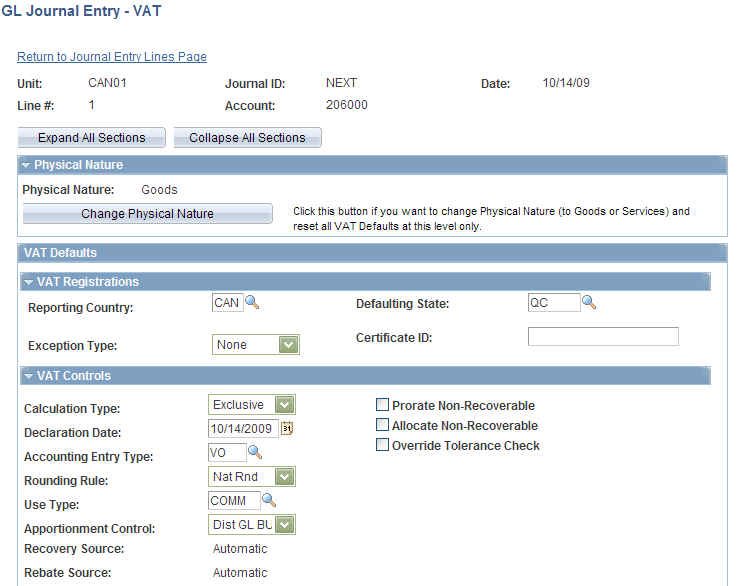
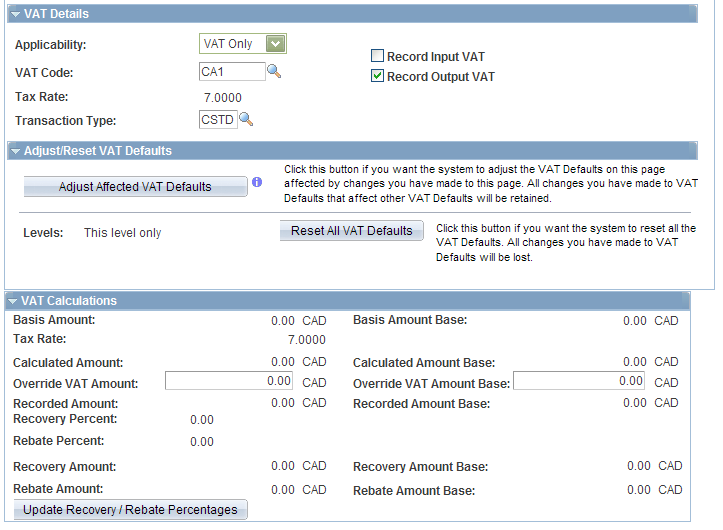
Image: GL Journal Entry - VAT page (2 of 2)
This example illustrates the fields and controls on the GL Journal Entry - VAT page (2 of 2). You can find definitions for the fields and controls later on this page.
Expanding and Collapsing Sections
To manage your VAT data more efficiently, you can expand and collapse sections of this VAT page.
Updating VAT Values
You can modify any of the accessible fields on this page. These are the VAT default values that you defined in the VAT Default Setup page for Account ChartField , Journal Source, GL Business Unit, VAT Entity Registration, and VAT Country VAT Driver.
See Establishing VAT Defaults.
Note: If you modify any of the VAT values on this page, be sure and use the options in the Adjust/Reset VAT Defaults group box.
VAT Defaults
Adjusting or resetting VAT defaults only affects the fields within this VAT Defaults group box: