
Approving Control Budget Journals Using Approval Framework
PeopleSoft Commitment Control's adoption of Approval Framework allows you to define all of the steps in the approval workflow process using PeopleSoft pages rather than Application Engine, thereby eliminating the need for technical developers to create workflow rules. PeopleSoft provides the following control budget approval functionality:
Control budget journal header level approval.
Mass budget journal approval.
Graphical approval flow display.
Ability to add attachments to the control budget journals.
Pages Used in Approving Commitment Control Budget Journals
|
Page Name |
Definition Name |
Navigation |
Usage |
|---|---|---|---|
|
Manage Control Budget Journal Approval |
KK_AF_JRNL_APPR_M |
|
Use this page to approve, deny, or pushback multiple Commitment Control journals at once. Select to approve at the header or line level. |
|
Control Budget Journal Approval |
KK_AF_JRNL_APPR |
OR
|
Use this page to approve, deny, or pushback a single budget journal entry. This page is only accessible to authorized users. |
|
Enter Budget Journals - Attachments |
KK_ATT_SEC |
|
Use this page to attach documents to a budget journal. You can select to show or not show the attachments to the approvers (default value is Yes). |
|
Approval Attachments |
KK_AF_APPR_ATT_SEC |
|
Use this page to view and add attachments for budget journals for which you have approval rights. The attachments are only visible if the Show to Approver option has been selected on the Attachments page of the budget journal entry (KK_ATT_SEC). |
|
Approval Attachments (view only) |
KK_AF_APPR2_ATT_SEC |
|
Use this page to view attachments for budget journals for which you have approval rights. The attachments are only visible if the Show to Approver option has been selected on the Attachments page of the budget journal entry (KK_ATT_SEC). |
|
Approval Flow |
KK_AF_APPR_MONITOR |
|
Access to view the display-only approval flow graphic. Access the individual Control Budget Journal Approval page to add adhoc approvers. |
Approving Budget Journals Using the Budget Journal Approval Components
PeopleSoft delivers the Manage Control Budget Journal Approval component (KK_AF_JRNL_APPR_M) for approving budget journals in mass and the Control Budget Journal Approval component (KK_AF_JRNL_APPR) for approving individual budget journals. These components include the following functionality:
This section describes the budget journal approval configuration and process using the Manage Control Budget Journal Approval components and discusses the following:
Configuring Approval Framework for control budget journal approval.
Enabling control budget journal approval.
Submitting control budget journal entries for approval.
Submitting budget transfers for approval.
Approving budget journals in mass.
Approving individual budget journals.
Adding attachments using the budget journal approval process.
Viewing attachments using the budget journal approval process.
Configuring Approval Framework for Control Budget Journal Approval
If you elect to use the Approval Framework for budget journal approval, verify that the delivered approval framework setup uses the proper values for the following:
Verify the Transaction Registry for the default Approval Component name is KK_AF_JRNL_APPR. Also add the Thread Package and Class to control the title display on the Approval Monitor.
Verify the demo email notification templates for approval actions.
Verify the Approval Component and settings in the Transaction Configuration.
Set up the approval process definitions.
See also PeopleSoft General Ledger Documentation Update: Commitment Control Budget Journal Approval. Visit Oracle's My Oracle Support website and search for 1369486.1 (Article ID).
Enabling Control Budget Journal Approval
Enable control budget journal approval:
At the business unit level from the General Ledger Definition - Approval Options page.
At the ledger group level from the Ledgers For A Unit - Approval Options page.
Submitting Control Budget Journal Entries for Approval
To submit a budget journal for approval, access the Budget Lines page (Commitment Control, Budget Journals, Enter Budget Journals, Budget Lines). Select the Submit for Approval check box to submit a budget journal for approval upon saving the page.
See Budget Lines Page.
Manage Control Budget Journal Approval Page
Use the Manage Control Budget Journal Approval page (KK_AF_JRNL_APPR_M) to approve, deny, or pushback single or multiple Commitment Control journals.
Image: Manage Control Budget Journal Approval page
This example illustrates the fields and controls on the Manage Control Budget Journal Approval page. You can find definitions for the fields and controls later on this page.
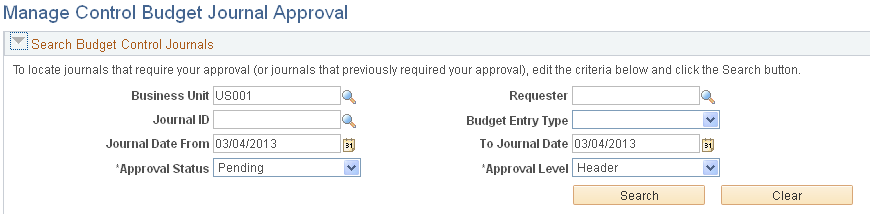
Supply the desired criteria and click the Search button. This action returns only those budget journals for which the current user is one of the approvers and that have not yet been posted or unposted. Click the Clear button to clear the search criteria.
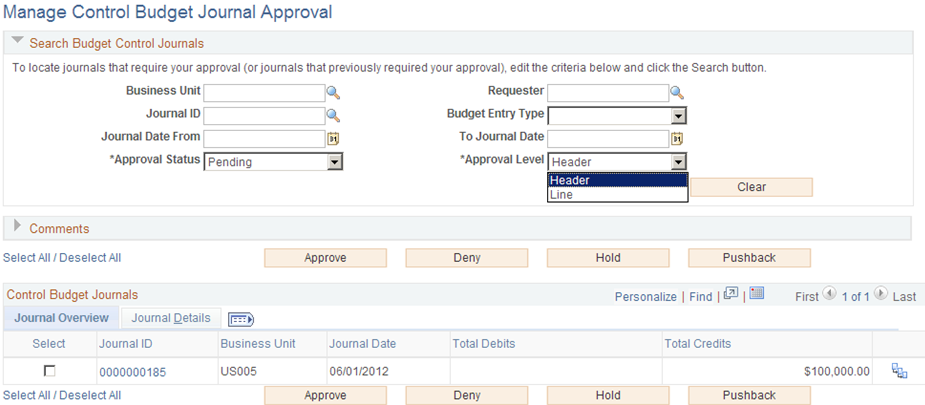
Once you click the Search button, you are presented with the budget journals that match your criteria:
Image: Manage Control Budget Journal Approval page (search results)
This example illustrates the fields and controls on the Manage Control Budget Journal Approval page (search results). You can find definitions for the fields and controls later on this page.
Comments
Expand the Comments group box to add a common comment for the selected budget journals at once and click the Add Comments button when finished entering. If you select only one journal, the comment applies only to that journal when you click the Add Comments button. If you enter comments before clicking any of the three action buttons, the comments will be saved to those journals' approval process.
Control Budget Journals - Journal Overview
Control Budget Journals - Journal Details
Access the Journal Details tab on the Manage Control Budget Journal Approval page:
Image: Manage Control Budget Journal Approval page - Journal Details tab
This example illustrates the fields and controls on the Manage Control Budget Journal Approval page - Journal Details tab. You can find definitions for the fields and controls later on this page.
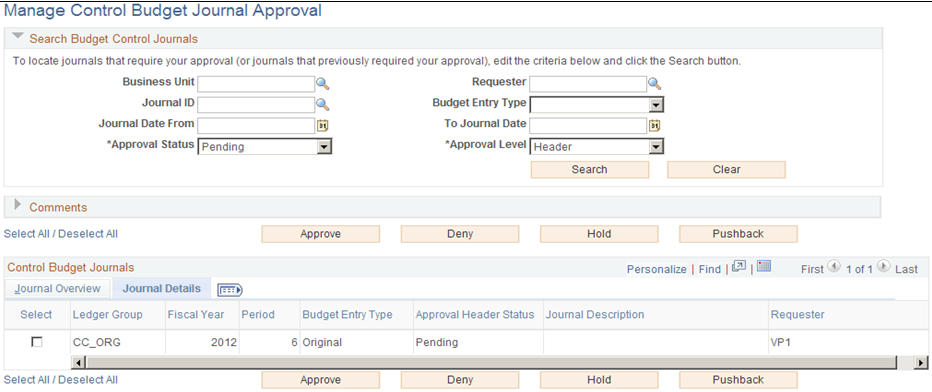
Note: The Status on the Journal Details tab is the overall approval status for the journal, while the Approval Status in the Search Journals section is the approval step status related to the current approver.
View Approval Flow
Use the Approval Flow page (KK_AF_APPR_MONITOR) to view the display-only approval flow graphic/
Note: Access the individual Control Budget Journal Approval page to add adhoc approvers.
Image: Approval Flow page
This example illustrates the fields and controls on the Approval Flow page. You can find definitions for the fields and controls later on this page.
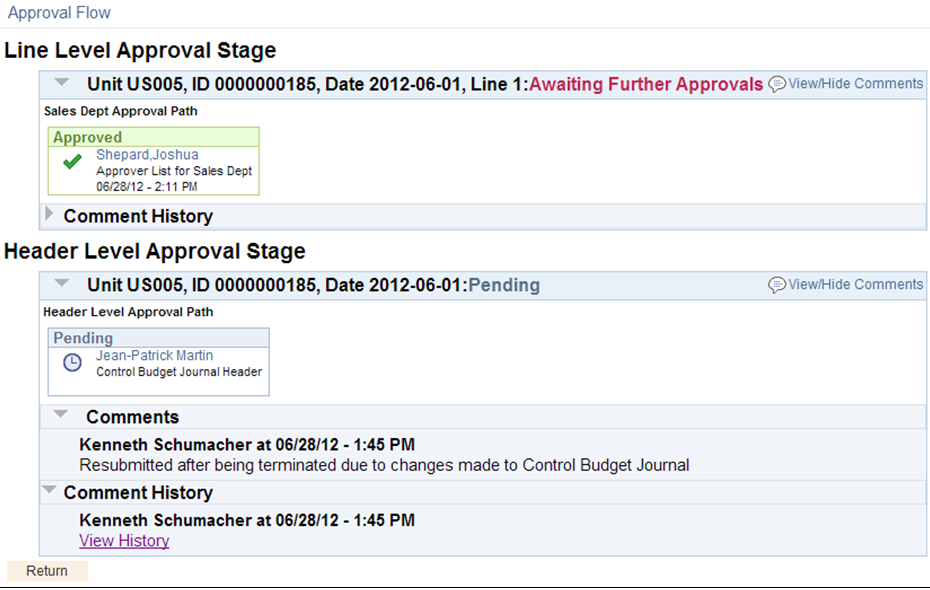
This page is display-only. You can drill to the individual Control Budget Journal Approval page to add adhoc approvers.
Control Budget Journal Approval Page
The Control Budget Journal Approval component (KK_AF_JRNL_APPR) provides the approval functionality for one budget journal at a time. The Control Budget Journal Approval page is accessible only from the Journal ID link on the Manage Control Budget Journal Approval page or from the PeopleTools Worklist link.
Note: This page is only accessible by authorized approvers; hence no ChartField Security is provided.
Use the Control Budget Journal Approval page (KK_AF_JRNL_APPR) to approve, deny, or pushback a single budget journal entry.
Image: Control Budget Journal Approval page
This example illustrates the fields and controls on the Control Budget Journal Approval page. You can find definitions for the fields and controls later on this page.
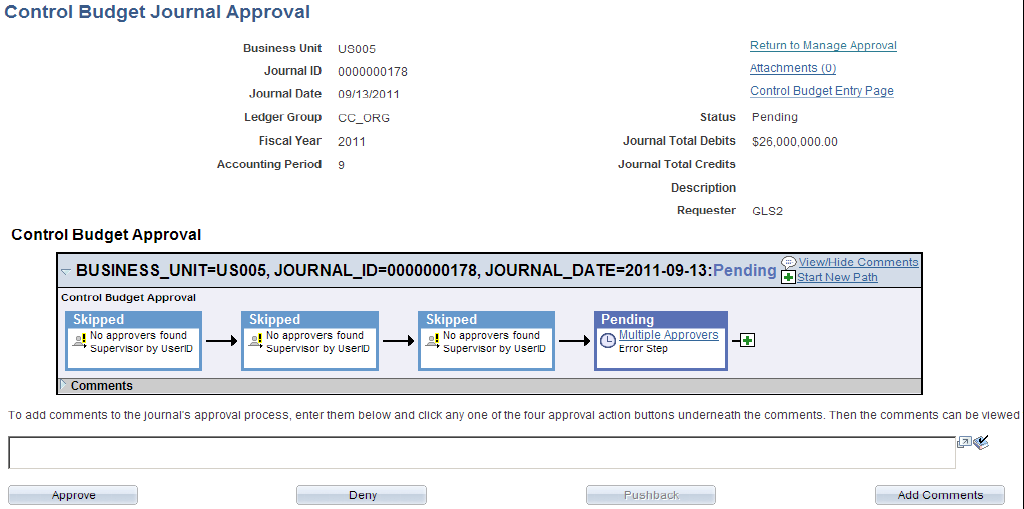
Approval Flow Graphic
| Start New Path |
Click to start a new approval path. |
| Save Approval Changes |
This button appears only after changes are made to the Approval Flow Graphic Display, such as adding adhoc approvers. |
Click the plus button to add approvers to the approval path.
You can enter comments in the space that is provided. The comments are stored in the budget journal's approval process after you click any of the action buttons (Approve, Deny, Pushback, or Add Comments buttons).
Note: If the budget journal is no longer pending for the current approver, the Approve, Deny and Pushback buttons are inactive (grayed). Regardless, the current approver can still add comments. The Pushback button is inactive if the journal is pending at the first step of the path, since the Pushback action sends the journal back to the previous step.
Control Budget Journal - Attachments Page
Use the Control Budget Journals - Attachments page (KK_ATT_SEC) to attach documents to a budget journal. You can select to show or not show the attachments to the approvers (default value is Yes).
Image: Control Budget Journal - Attachments page
This example illustrates the fields and controls on the Control Budget Journal - Attachments page. You can find definitions for the fields and controls later on this page.
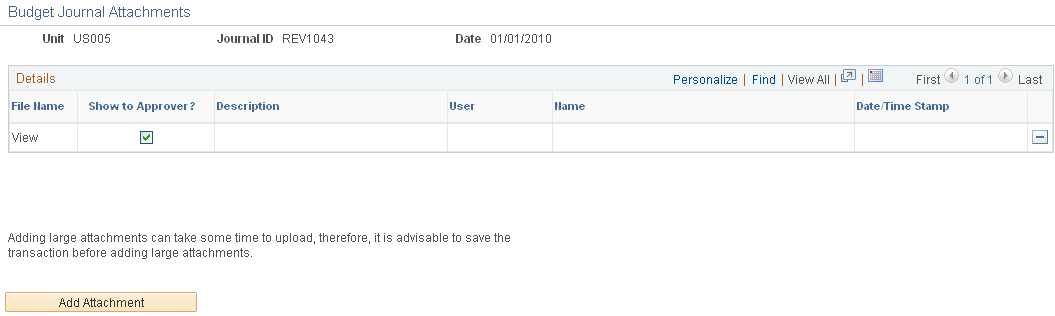
Image: Approval Attachments page
Use the Approval Attachments page (KK_AF_APPR_ATT_SEC) to view and add attachments for budget journals for which you have approval rights. The attachments are only visible if the Show to Approver option has been selected on the Attachments page of the budget journal entry (KK_ATT_SEC).
This example illustrates the fields and controls on the Approval Attachments page. You can find definitions for the fields and controls later on this page.
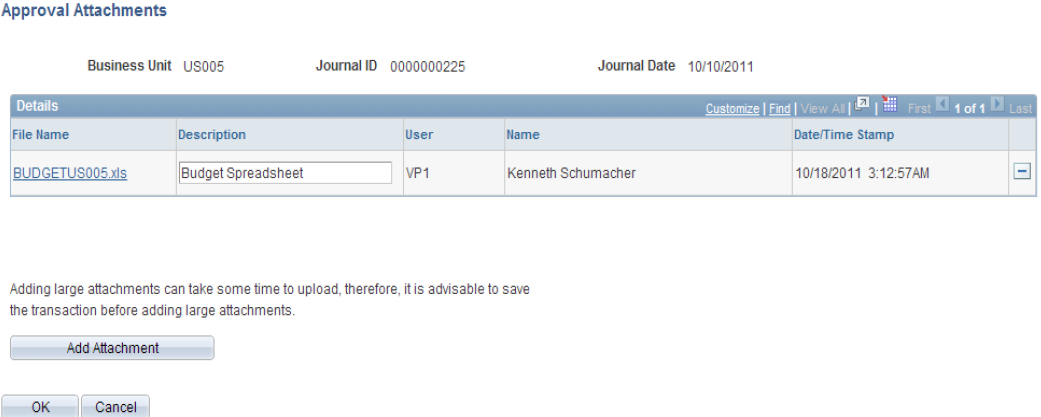
The attachments that appear on this page are only those that were marked as Show to Approvers on the budget journal entry - Attachments page. The approver can add new attachments on this page and can only modify or delete the attachments that they have added.
Approval Attachments (view only) Page
Use the Approval Attachments (view only) page (KK_AF_APPR2_ATT_SEC) to view attachments for budget journals for which you have approval rights. The attachments are only visible if the Show to Approver option has been selected on the Attachments page of the budget journal entry (KK_ATT_SEC).
Access the Approval Attachments (view only) page (KK_AF_APPR2_ATT_SEC) from the Manage Control Budget Journal Approval page (Commitment Control, Budget Journals, Manage Control Budget Journal, Manage Control Budget Journal Approval. Click the Attachments icon):
If an approver only needs to view attachments using the approval process without the need to add or modify attachments, they can access the (view only) Approval Attachments page.
Image: Approval Attachments (view only) page
This example illustrates the fields and controls on the Approval Attachments (view only) page. You can find definitions for the fields and controls later on this page.
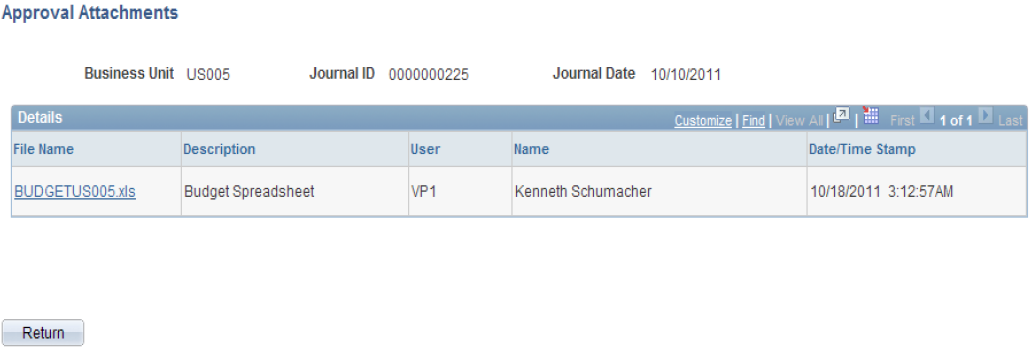
The approver cannot add or modify attachments from this display-only page.
See PeopleSoft General Ledger 9.1 Documentation Update: Commitment Control Budget Journal Approval. Visit Oracle's My Oracle Support website and search for 1369486.1 (Article ID).