
Setting Up and Running Exception Notification
To set up and run exception notifications, use the Notification Preference component (KK_NOTIFY_GRP) and the Create Alert Notification component (KK_RUN_NOTIFY_GRP).
To use the exception notification feature, you must first set up security and define notification preferences. You then run the Commitment Control Notify Application Engine process (KK_NTFY_WF) to retrieve budget exceptions and early warnings and notify the appropriate users using worklists and emails. In this section, we discuss the prerequisite security setup, along with how to:
Define notification preferences.
Run the Commitment Control Notify Application Engine process.
Work with worklists and emails.
Pages Used to Set Up and Run Exception Notifications
|
Page Name |
Definition Name |
Navigation |
Usage |
|---|---|---|---|
|
Commitment Control Notification Preference |
KK_NOTIFY_PREFS |
Commitment Control, Define Budget Security, Notification Preference, Commitment Control Notification Preference |
Identify early warnings and exceptions for which you want to be notified. |
|
Create Commitment Control Alert Notification |
RUN_KK_NOTIFY |
Commitment Control, Define Budget Security, Create Alert Notifications, Create Commitment Control Alert Notifications |
Request a run of the Commitment Control Notify Application Engine process (KK_NTFY_WF). The Commitment Control Notify process scans the exception table and early warning and exception preferences and routes the notification to email and worklists of the user. |
Prerequisites
Before users define their notification preferences, system-wide security and Commitment Control security must already be set up. The following procedure description mentions only security setup that is specific to exception notification.
To set up security for exception notification:
Define user profiles using the User Profiles component.
Enter the email address of the user on the User Profiles - General page.
Specify a default business unit for each user on the Overall Preferences page.
Activate the Workflow Notification security event using the Security Events page.
A user who receives notification and handles exceptions may also need access to the Budget Inquire, Budget Entry and Adjustment, and Budget Override security events. If you want to control access to these security events, you must activate them. If you do not do so, every user in the system who has PeopleSoft system security access to the pages on which one performs these security events has access to the events.
Define your security rules (groups of budgets) and apply them to the appropriate security events, using the Rule Definition and Apply Rule pages.
Define your rules such that all users with Workflow Notification access for a group of budgets also have Budget Inquire access, since users must be able to inquire about budgets about which they are notified. Usually a smaller subset of users has Budget Override access. Likewise, a smaller subset of users with Workflow Notification access usually has Budget Entry and Adjustment access to allow them to adjust budgets when transactions fail budget-checking.
Apply the security rules to the appropriate users, using the Associate Rules to User ID page, Assoc Rules to Permission List (associate rules to permission list) page, or Attach Dynamic Rules page.
Run the Commitment Control Security process (KSEC_FLAT) to activate the new security rules.
See also PeopleTools: Security
Commitment Control Notification Preference Page
Use the Commitment Control Notification Preference page (KK_NOTIFY_PREFS) to identify early warnings and exceptions for which you want to be notified.
Commitment Control, Define Budget Security, Notification Preference, Commitment Control Notification Preference
Image: Commitment Control Notification Preference page
This example illustrates the fields and controls on the Commitment Control Notification Preference page. You can find definitions for the fields and controls later on this page.
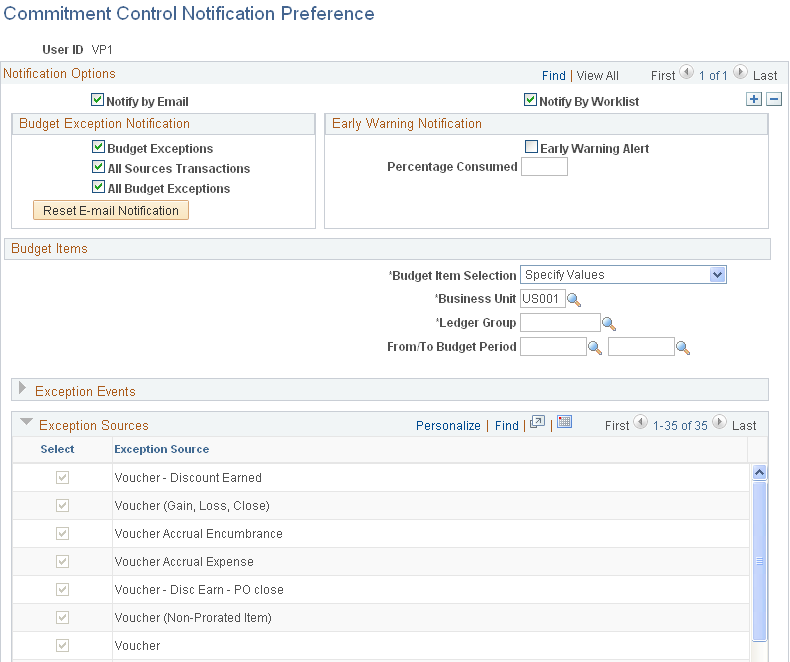
Notification Options
Budget Items
Use the Budget Items group box to identify the ChartFields and Commitment Control budgets to which these notification preferences apply.
Exception Events
See Errors and Warnings.
Exception Sources
Note: When you save your selections, the system validates your choices against the security rules. In addition, the Commitment Control Notify process rechecks security each time it runs.
Create Commitment Control Alert Notifications Page
Use the Create Commitment Control Alert Notification page (RUN_KK_NOTIFY) to request a run of the Commitment Control Notify Application Engine process (KK_NTFY_WF).
The Commitment Control Notify process scans the exception table and early warning and exception preferences and routes the notification to email and worklists of the user.
Commitment Control, Define Budget Security, Create Alert Notifications, Create Commitment Control Alert Notifications
| Unit |
Select the business unit for which you want to create notifications. |
Working with Worklists and Emails
Your Worklist page and your email exception notification list all early warnings and exceptions for budgets for which you have authorization and have requested notification. Each exception and early warning is linked to the Budget Details page, where you can view the budget details and follow links to the Budget Exceptions page and the transaction exceptions pages.
See PeopleTools: PeopleSoft Workflow..
See PeopleTools: PeopleSoft Applications User's Guide.