Viewing Recruiting Funnel Summaries
This topic discusses how to:
Set up the Recruiting Funnel.
View the resource request.
Viewing the event summary.
Viewing the resource request summary.
Viewing the candidate summary grid.
Viewing applicant overviews.
View employee overviews.
View resource requests by customer.
View resource requests by contact.
Pages used to View Recruiting Funnel Summaries
|
Page Name |
Definition Name |
Navigation |
Usage |
|---|---|---|---|
|
Resource Request |
FO_FUN_MAIN |
|
View a summary of the resource request. |
|
Event Summary |
FO_FUN_EVT |
Select one of the candidates and click the button on the Resource Request page. |
View event summary information. |
|
Candidate Summary |
FO_FUN_CAN |
Select one of the candidates on the Event Summary page and click the button or click the Show All Candidates button. |
View a grid of candidate summary event statuses. |
|
Mass Update |
FO_RF_MASS |
Select at least one candidate and click the Mass Update Candidates button. |
Update multiple statuses on one candidate or on multiple candidate’s records. |
|
Applicant Overview |
FO_APPL_OVW |
Click an applicant on the Candidate Summary page. |
View overview information on selected applicants. |
|
Employee Overview |
FO_EMPL_OVW |
Click an employee name on the Candidate Summary page. |
View overview information on selected employees. |
|
Resource Request |
FO_FUN_MAIN2 |
|
View a summary of resource requests for one customer. |
|
Recruiting Funnel By Customer – Event Summary |
FO_FUN_EVT2 |
. Select one ore more of the order IDs and order lines and click the Event Summary button. |
View how many candidates are in each status of an event, for all orders and resource requests, for one customer. The event is displayed in the event type column. |
|
Recruiting Funnel By Customer – Candidate Summary |
FO_FUN_CAN2 |
From the Recruiting Funnel By Customer – Event Summary page, select one event type and click the Show Candidates Currently at Selected Events button or click the Show All Candidates button. |
Review the candidate’s statuses for any event for a single customer’s orders and resource requests. |
|
Resource Request |
FO_FUN_MAIN3 |
|
View a summary of resource requests for one contact. |
|
Recruiting Funnel By Contact – Event Summary |
FO_FUN_EVT3 |
. Select one or more order IDs and lines and click the Event Summary button. |
View of all events for this service order for a specific contact. |
|
Recruiting Funnel By Contact – Candidate Summary |
FO_FUN_CAN3 |
From the Recruiting Funnel By Contact – Event Summary page, select one event type and click the Show Candidates Currently at Selected Events button or click the Show All Candidates button. |
Review the candidate’s statuses for any event for a single contact’s orders and resource requests. |
Understanding How to Set Up the Recruiting Funnel
In order to use the Recruiting Funnel, you must set up the system to do so. These are the options that you must set up:
Select at least one field to update on the Customer Event List page; doing so enables the Recruiting Funnel. See the Default Customer Event Lists Page.
(Optional) Select the check box “Allow Recruiting Funnel List” option on the Default Customer Event List page. See Default Customer Event Lists Page This option enables the user, when creating a new order, to select an event list that is not the default.
Attach the appropriate event list to the order on the Order page. See Order Page.
Note: If the option “Allow Recruiting Funnel List” is not checked, then users will not be able to attach an event list to the order, they must accept the default event list. In this case the event list field in the order will be read only.
Set the order status to “unfilled” on the Order page.
Assign at least one candidate to the resource request and mark the candidate as “considering” on the PeopleMatch page. See PeopleMatch Page.
Resource Request Page
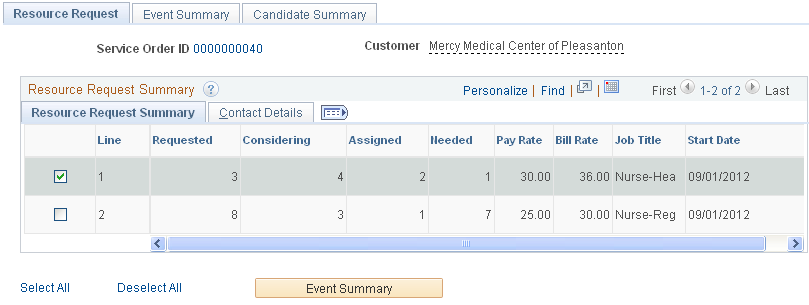
Use the Resource Request Summary page (FO_FUN_MAIN) to view a summary of the resource request.
If an order is eligible to use the Recruiting Funnel process, this page will be available.
Image: Resource Request page - Resource Request Summary tab
This example illustrates the fields and controls on the Resource Request page - Resource Request Summary tab. You can find definitions for the fields and controls later on this page.
Resource Request Summary
Contact Details
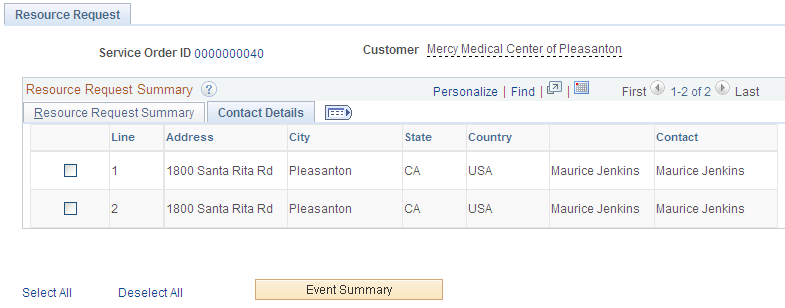
Image: Resource Request page - Contact Details tab
This example illustrates the fields and controls on the Resource Request page - Contact Details tab. You can find definitions for the fields and controls later on this page.
| Address, City, State, and Country |
Displays the address information of the customer on the order. |
| Contact |
Displays the contact information from the order. |
Event Summary Page
Use the Event Summary page (FO_FUN_EVT) to view details about all of the events for this request.
Image: Event Summary page
This example illustrates the fields and controls on the Event Summary page. You can find definitions for the fields and controls later on this page.

Only the selected order lines from the previous page will appear here.
The event summary only summarizes main events.
Candidate Summary Page
Use the Candidate Summary page (FO_FUN_CAN) to view a grid of candidate summary event statuses.
Select one of the candidates on the Event Summary page and click the button or click the Show All Candidates button.
Image: Candidate Summary page
This example illustrates the fields and controls on the Candidate Summary page. You can find definitions for the fields and controls later on this page.

Once a candidate is assigned to the order they will no longer appear in this grid. Their count will display on the Resource Request Summary grid.
From this page, you can automatically create an assignment or hire an applicant by clicking the appropriate buttons (such as “ASGN” for an assignment or “HIRE” for a hire.)
Note: Users can setup a special event for hire and a special event for assignment (installation options), such as “ASGN” and “HIRE”. Once users click an event that has been referenced via installation as a hire or as an assignment event, then the hire or assignment component is invoked. See Installation Options - Staffing Installation Page
Note: The event list determines which options you see on this screen such as “INT”, “CALL”, “ASGN”, and “HIRE”.
Note: The columns that represent events on this page differ depending upon the event being displayed.
Note: If force dependency is selected on the job order, the status icons are only clickable when the previous event is complete
Mass Update Page
Use the Mass Update page (FO_RF_MASS) to update multiple statuses on one candidate’s or on multiple candidates’ records.
Image: Mas Update Page
This example illustrates the fields and controls on the Mas Update Page. You can find definitions for the fields and controls later on this page.

If you change a process event status, then the system also changes the related sub event statuses for all selected candidates. The system displays a warning message regarding this change.
Note: The system applies logic to the event statuses in this way if the updates are to sub events:
If all sub events are at an “in progress” status, then the system sets the process event to “in progress”.
If all sub events are at a “completed” status, then the system sets the process event to “completed”.
If all sub events are at a “pending” status, then the system sets the process event to “pending”.
If at least one sub event is at an “in progress” status, then the system sets the process event to “in progress”.
Note: If some subevents are complete, but not all, and if there is no “in progress” sub event, then the process event is “partially complete”.
Applicant Overview Page
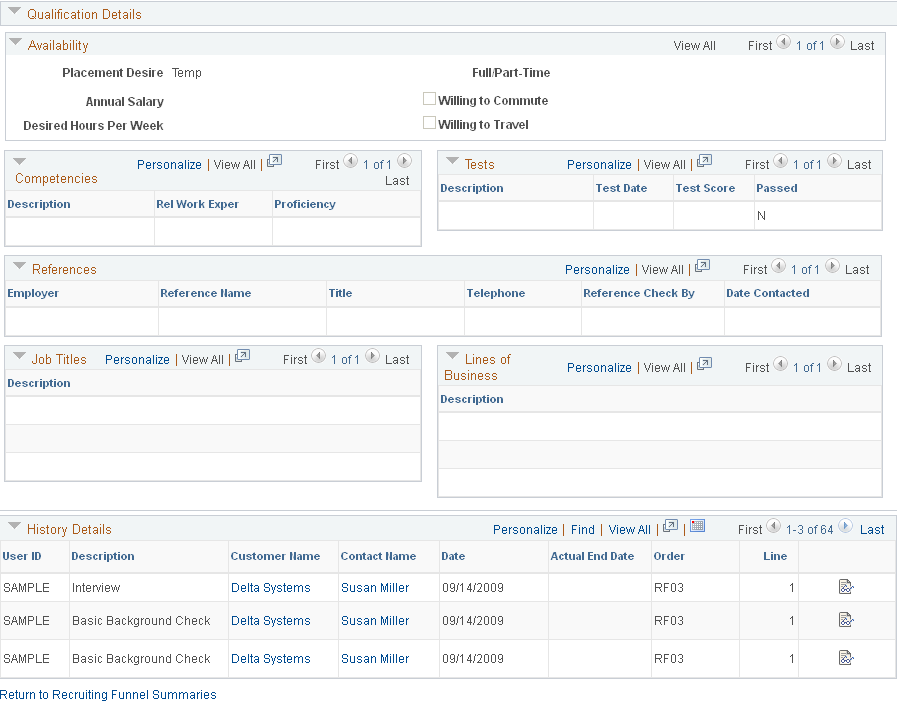
Use the Applicant Overview page (FO_APPL_OVW) to review details about the applicant’s statuses, orders, qualifications, availability, competencies, references, job titles, and history.
Note: If the candidate is an applicant, the Applicant Overview page appears. If the candidate is an employee, the Employee Overview page appears.
Image: Applicant Overview page (1 of 2)
This example illustrates the fields and controls on the Applicant Overview page (1 of 2). You can find definitions for the fields and controls later on this page.

Image: Applicant Overview page (2 of 2)
This example illustrates the fields and controls on the Applicant Overview page (2 of 2). You can find definitions for the fields and controls later on this page.
| Filter Option |
Select a filter option to narrow the information displayed. |
| Filter Criteria |
Select a filter option first, then select a value to further narrow the information displayed. |
Employee Overview Page
Use the Employee Overview page (FO_EMPL_OVW) to review details about the employee’s statuses, orders, qualifications, availability, competencies, references, job titles, and history.
Note: If the candidate is an employee, the Employee Overview page appears. If the candidate is an applicant, the Applicant Overview page appears.
Recruiting Funnel by Customer - Resource Request
Use the Resource Request page (FO_FUN_MAIN2) to review all resource requests for a single customer on one page.
Image: Recruiting Funnel By Customer - Resource Request Page
This example illustrates the fields and controls on the Recruiting Funnel By Customer - Resource Request Page. You can find definitions for the fields and controls later on this page.
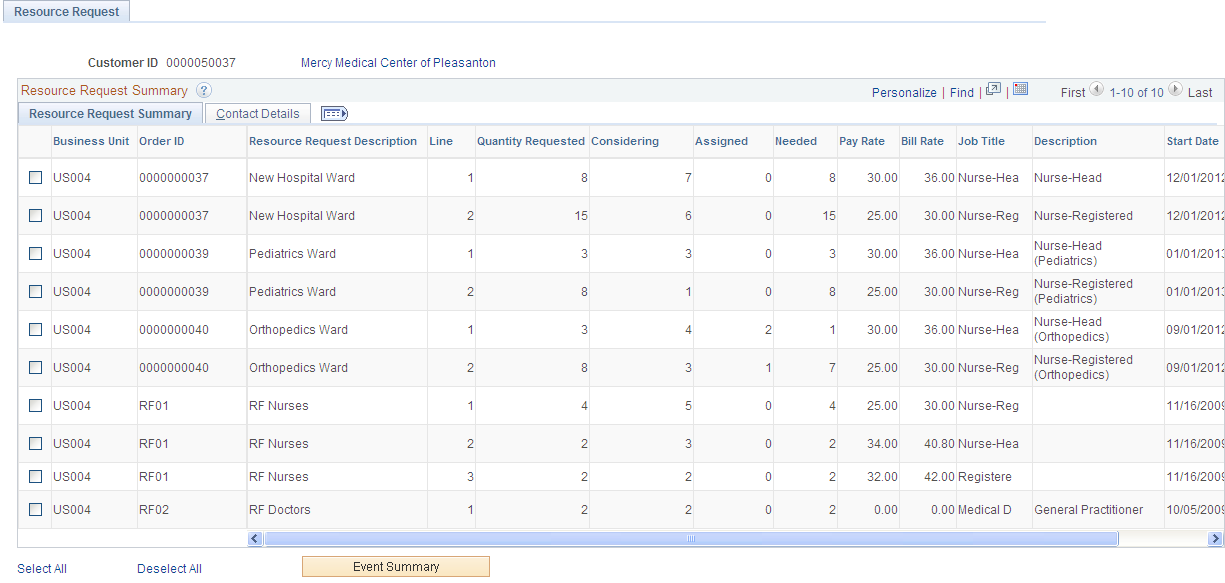
| Order ID |
Displays the order identification for all orders pertaining to the customer. |
For a description of the other fields, see Resource Request Page
Recruiting Funnel By Customer - Event Summary Page
Use the Recruiting Funnel By Customer - Event Summary Page (FO_FUN_EVT2) to display how many candidates are in each status of an event, for all orders and resource requests for one customer.
From the Resource Request page, select one or more of the orders and click the Event Summary button.
Note: The event is displayed in the event type column. Event types are grouped into event lists and event lists are attached to an order or resource request.
Image: Recruiting Funnel By Customer - Event Summary Page
This example illustrates the fields and controls on the Recruiting Funnel By Customer - Event Summary Page. You can find definitions for the fields and controls later on this page.

| Business Unit |
Displays the business unit associated with the order. |
| Service Order ID |
Displays the order number. |
For a list of field descriptions, see Event Summary Page
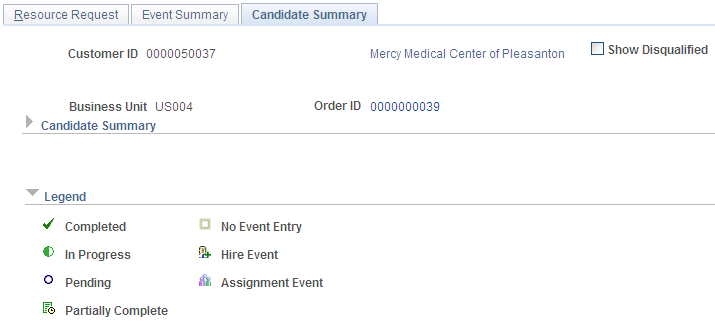
Recruiting Funnel By Customer – Candidate Summary Page
Use the Recruiting Funnel By Customer – Candidate Summary page (FO_FUN_CAN2) to review the candidate’s statuses for any event for a single customer’s orders and resource requests.
From the Event Summary page, select one or more of the events and click the button or click the Show All Candidates button.
Image: Recruiting Funnel By Customer – Candidate Summary Page
This example illustrates the fields and controls on the Recruiting Funnel By Customer – Candidate Summary Page. You can find definitions for the fields and controls later on this page.
Recruiting Funnel by Contact - Resource Request
Use the Resource Request page to review all resource requests for a single contact on one page.
Image: Recruiting Funnel by Contact - Resource Request
This example illustrates the fields and controls on the Recruiting Funnel by Contact - Resource Request. You can find definitions for the fields and controls later on this page.
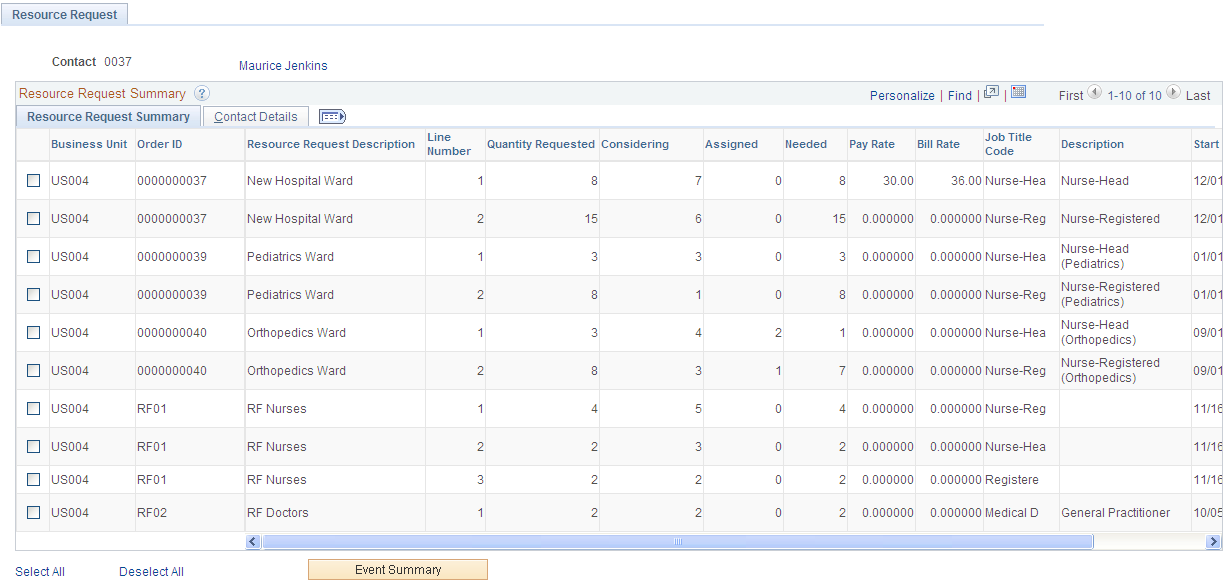
| Order ID |
Displays the order identification for all orders pertaining to the customer. |
For a description of the other fields, see Resource Request Page
Recruiting Funnel By Contact – Event Summary Page
Use the Recruiting Funnel By Contact – Event Summary page (FO_FUN_EVT3) to review all events for this service order for a specific contact. This page also provides a count of the tasks that have been, or need to be, completed.
. On the Resource Request page, select one or more of the orders and click the Event Summary button.
Image: Recruiting Funnel By Contact – Event Summary Page
This example illustrates the fields and controls on the Recruiting Funnel By Contact – Event Summary Page. You can find definitions for the fields and controls later on this page.

For a full list of field descriptions, see Event Summary Page
Recruiting Funnel By Contact – Candidate Summary Page
Use the Recruiting Funnel By Contact – Candidate Summary page to (FO_FUN_CAN3) to review the candidate’s statuses for any event for a single contact’s orders and resource requests.
From the Event Summary page, select one or more of the events and click the button or click the Show All Candidates button.
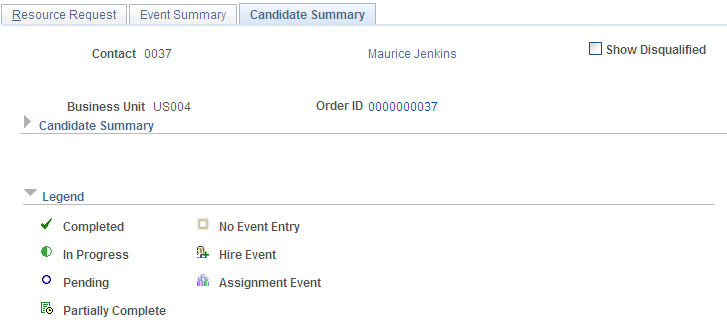
Image: Recruiting Funnel By Contact – Candidate Summary Page
This example illustrates the fields and controls on the Recruiting Funnel By Contact – Candidate Summary Page. You can find definitions for the fields and controls later on this page.