
Setting Up Interunit and Intraunit Processing
To set up interunit and intraunit processing, use the following components:
Installation Options (INSTALLATION)
Detail Ledger Group (DETAIL_LEDGER_GROU)
InterUnit Template (IU_INTER_TMPLT)
IntraUnit Template (IU_INTRA_TMPLT)
General Ledger Definition (BUS_UNIT_TBL_GL)
InterUnit Pair Maintenance (IU_INTER_PR_BASIC)
InterUnit Transaction Code (IU_TRAN_CD)
Interunit Transaction Mapping (IU_TRAN_MAP)
This section discusses how to:
Set Overall Interunit installation options.
Set balancing options for ledger groups.
Define transaction codes.
Map transaction codes to system transactions.
Provide additional options for billing invoices and interunit transfers.
Define interunit templates.
Select entries to insert for the interunit template.
Define intraunit templates.
Select entries to insert for the intraunit template.
Review setup examples using the interunit and intraunit templates.
Define interunit pairs.
Define interunit pairs options for interunit billing and interunit transfers.
Select entries to insert for interunit pairs.
Specify interunit and intraunit settings for general ledger business units.
Pages Used to Set Up Centralized Interunit and Intraunit Processing
|
Page Name |
Definition Name |
Navigation |
Usage |
|---|---|---|---|
|
General Options - Overall |
INSTALLATION_FS1 |
Set Up Financials/Supply Chain, Install, Installation Options, General Options, Overall |
Select installation options to use legal entity for interunit, the interunit method and interunit summarization option for your system. |
|
Ledger Groups - Balancing |
LEDGER_GROUP 3 |
General Ledger, Ledgers, Ledger Groups, Balancing |
Elect to use intraunit balancing entries, select balancing ChartFields and affiliates for a ledger group. |
|
Transaction Code |
IU_TRAN_CD |
Set Up Financials/Supply Chain, Common Definitions, Inter/Intra Unit, Transaction Code, Transaction Code |
Define transaction codes that enable you to categorize interunit and intraunit balances. |
|
System Transaction Map |
IU_TRAN_MAP |
Set Up Financials/Supply Chain, Common Definitions, Inter/Intra Unit, System Transaction Map, System Transaction Map |
Map transaction codes to system transactions, define the default transaction code, and access the transaction Options page. |
|
Transaction Options |
IU_TRAN_OPT1 |
Set Up Financials/Supply Chain, Common Definitions, Inter/Intra Unit, System Transaction Map, Transaction Options Click an Options link. |
Enter interunit and intraunit options for Billing and Inter/IntraUnit Transfers. |
|
InterUnit Template |
IU_INTER_TMPLT |
Set Up Financials/Supply Chain, Common Definitions, Inter/Intra Unit, InterUnit Template |
Provide ChartFields by transaction code for interunit balancing entries when using the direct or indirect interunit method. |
|
InterUnit Template - Select Entries to Insert |
IU_INTER_ENTRY |
Set Up Financials/Supply Chain, Common Definitions, Inter/Intra Unit, InterUnit Template Click the Select Entries to Insert link. |
Select which entry types to insert into the page. An alternative to the Select all Applicable Entries button. |
|
IntraUnit Template |
IU_INTRA_TMPLT |
Set Up Financials/Supply Chain, Common Definitions, Inter/Intra Unit, IntraUnit Template |
Provide ChartFields by transaction code for intraunit balancing entries. |
|
IntraUnit Template - Select Entries to Insert |
IU_INTRA_ENTRY |
Set Up Financials/Supply Chain, Common Definitions, Inter/Intra Unit, IntraUnit Template Click the Select Entries to Insert link. |
Select which entry types to insert into the page. An alternative to the Select all Applicable Entries button. |
|
General Ledger Definition - Inter/IntraUnit |
BUS_UNIT_TBL_GL6 |
Set Up Financials/Supply Chain, Business Unit Related, General Ledger, General Ledger Definition, Inter/IntraUnit |
Select interunit and intraunit templates. Enter the legal entity to which the business unit belongs. Specify options for interunit billing and interunit transfer transactions. |
|
InterUnit Pair |
IU_INTER_PR_BASIC |
Set Up Financials/Supply Chain, Common Definitions, Inter/Intra Unit, InterUnit Pair, InterUnit Pair |
Define ChartFields by transaction code for interunit balancing entries when the interunit method is pairs. Override default options for interunit billing and interunit transfer transactions. |
|
InterUnit Pair - Select Entries to Insert |
IU_PAIR_ENTRY |
Set Up Financials/Supply Chain, Common Definitions, Inter/Intra Unit, InterUnit Pair, Select Entries to Insert Click the Select Entries to Insert link. |
Select which entry types to insert into the page. An alternative to the Select all Applicable Entries button. |
Setting Overall Interunit Installation Options
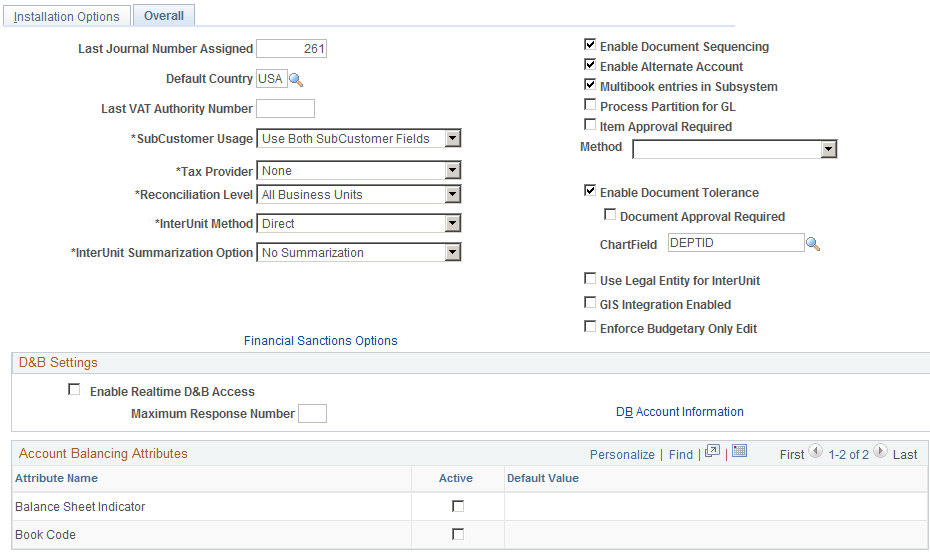
Use the Installation Options - Overall page (INSTALLATION_FS1) to select installation options to use legal entity for interunit, the interunit method and interunit summarization option for your system.
Image: Installation Options - Overall page
This example illustrates the fields and controls on the Installation Options - Overall page. You can find definitions for the fields and controls later on this page.
Ledger Group - Balancing Page
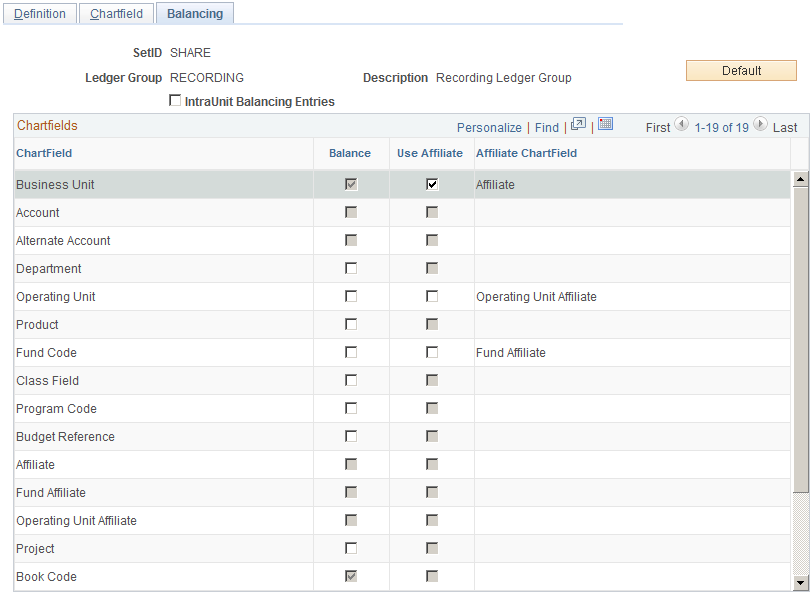
Use the Ledger Groups - Balancing page (LEDGER_GROUP 3) to elect to use intraunit balancing entries, select balancing ChartFields and affiliates for a ledger group.
Image: Ledger Group - Balancing page
This example illustrates the fields and controls on the Ledger Group - Balancing page. You can find definitions for the fields and controls later on this page.
| IntraUnit Balancing Entries |
Select and the system automatically generates intraunit balancing entries for transactions that involve multiple values of a balanced ChartField. You cannot select this option unless at least one ChartField is balanced, that is, one Balance check box must be selected that is available. If you do not have this check box selected, or if the journal is not in balance for other reasons, then the journal edit process uses the rules that you set up for balancing journals on the Journal Edit Options page to either recycle or use a suspense account. |
| Balance |
A balanced detail ledger requires that debit amounts equal the credit amounts for business unit, base currency code, book code and adjustment type. To choose additional balancing ChartFields for the ledger group select the check box if it is available for another ChartField. Some ChartFields such as account and alternate account cannot be balancing ChartFields and the check box is unavailable. When you change the value of this check box for a standard or translation ledger group, the system verifies that the new setting is valid for the existing ChartField inheritance groups. See Dealing with ChartField Inheritance Groups Requiring Special Validation with Balanced ChartFields. For balancing ChartFields, the system checks for business units that use the ledger group, as defined on the Ledgers for a Unit page in conjunction with the setIDs that business units use for ledger groups. If a business unit that is tied to the ledger group has a blank inheritance value for the balancing ChartField, you receive a warning. |
| Use Affiliate |
This field is available only if the ChartField has an affiliate associated with it on the Standard or Advanced ChartField Configuration page. Affiliate is used when it is not apparent from the ChartField account value which entities are involved in an interunit or intraunit transaction. For example business unit US001 uses the account ChartField value 114000 to designate interunit receivables from all other related business units. If US001 has elected to Use affiliate and it paid rent for US002 of 200.00 USD and for US003 rent in the amount of 300.00 USD, the interunit and intraunit processor creates two interunit receivables for the books of US001. A debit is created of 200.00 USD to the 114000 account labeled with the affiliate value US002 and it also creates a debit of 300.00 USD in the 114000 account with the affiliate value US003. The standard ChartFields shipped with PeopleSoft products include two intraunit affiliate ChartFields. One is associated with the Fund ChartField and the other with Operating Unit ChartField. You may add additional intraunit affiliate ChartFields and associate the standard ones with other related ChartFields using the Standard or Advanced ChartField Configuration page. |
| Affiliate ChartField |
Displays and is derived from the Standard or Advanced ChartField Configuration page. |
Transaction Code Page
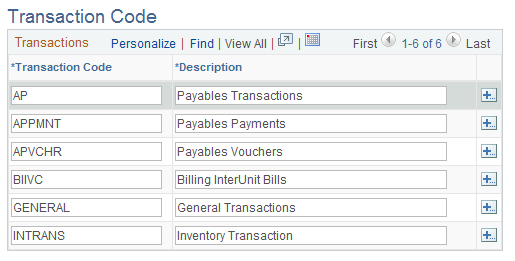
Use the Transaction Code page (IU_TRAN_CD) to define transaction codes that enable you to categorize interunit and intraunit balances.
Image: Transaction Code page
This example illustrates the fields and controls on the Transaction Code page. You can find definitions for the fields and controls later on this page.
Note: PeopleSoft ships transaction codes and system transaction mapping as sample data only and not as system data. You must define transaction codes according to the level of segregation of interunit and intraunit balances that you require.

System Transaction Map Page
Use the System Transaction Map page (IU_TRAN_MAP) to map transaction codes to system transactions, define the default transaction code, and access the transaction Options page.
There is one row on the page for each system transaction, based on the PeopleSoft products you have installed. If you have created a new system transaction, for third party transactions for example, it appear here as well. If you insert a row—the System Transaction field is input capable—you can only select a system transaction that allows multiple transaction code instances. The only system transaction that allows multiple transaction codes is general ledger journal. You can only delete a row if it is not the default. This also applies only to general ledger journal.
Note: PeopleSoft ships transaction codes and system transaction mapping as sample data only and not as system data. You must define transaction codes according to the level of segregation of interunit and intraunit balances that you require.
Transaction Options Page
Use the Transaction Options page (IU_TRAN_OPT1) to enter interunit and intraunit options for Billing and Inter/IntraUnit Transfers.
Image: Transaction Options for InterUnit Billing
This example illustrates the fields and controls on the Transaction Options for InterUnit Billing. You can find definitions for the fields and controls later on this page.
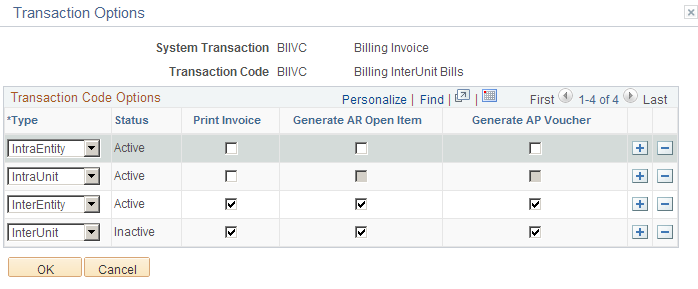
Image: Transaction Options for InterUnit transfers
This example illustrates the fields and controls on the Transaction Options for InterUnit transfers. You can find definitions for the fields and controls later on this page.
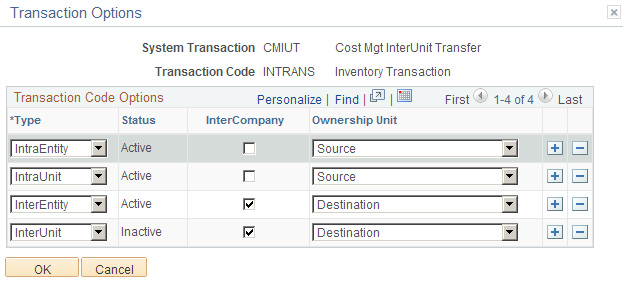
The Option link to access the Transaction Options page is present on the System Transaction Map page for the Billing Invoice and InterUnit Transfer System Transactions only. You can define different supporting document requirements for the applicable accounting entry types. If the legal entity distinction is enforced at the installation level you see InterEntity, IntraEntity and IntraUnit but if legal entity is not used you see InterUnit and IntraUnit.
These options govern the creation of supporting documents when the InterUnit Method is Direct or Indirect and ChartField values are derived from the InterUnit or IntraUnit Template. For the Pairs method, these options merely provide defaults when a new interunit pair is defined. You can override any of them for a specific pair of business units.
For the transaction code mapped to the billing invoice system transaction you can choose to print an invoice, generate an accounts receivable open item, generate an AP (accounts payable) voucher, or any combination of the three. The accounts receivable option is available only if Receivables is installed. The accounts payable option is available only if Receivables and Payables are both installed. Both the accounts receivable and accounts payable options are not applicable for intraunit transactions.
For the transaction code mapped to the Cost Mgmt (management) InterUnit Transfer System Transaction you have the option to generate an intercompany bill, and define the ownership unit while the goods are in transit. The intercompany option is available only if Billing is installed, and if it is selected, the ownership unit must be the destination unit.
InterUnit Template Page
Use the InterUnit Template page (IU_INTER_TMPLT) to provide ChartFields by transaction code for interunit balancing entries when using the direct or indirect interunit method.
Image: InterUnit Template page
This example illustrates the fields and controls on the InterUnit Template page. You can find definitions for the fields and controls later on this page.
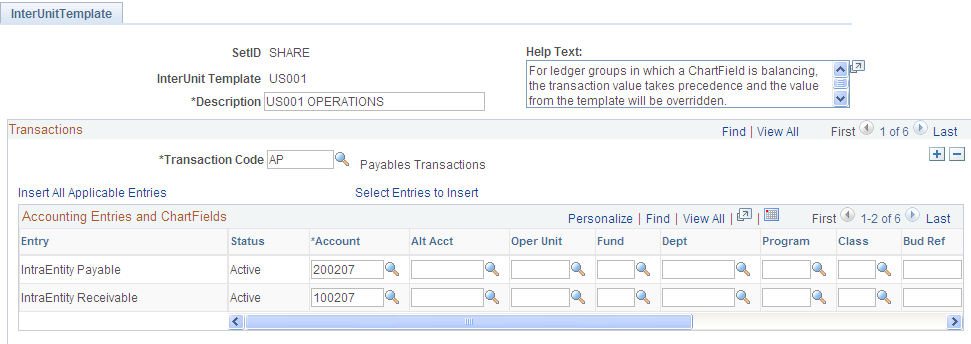
| Transaction Code |
Multiple transaction codes can be added to the interunit template and additional settings entered when applicable. |
| Default Balancing Group |
This field is displayed only when one or more account attributes are active, such as book code and balance sheet indicator. When any account attributes are active, the data on this page is only for the default balance group displayed. See Setting Installation Options for Account Balancing Groups. |
| Additional Balancing Groups |
Click to set up interunit ChartFields for additional Balance Groups for this Transaction Code. This link is available when one or more Account Attributes are active, such as Book Code and Balance Sheet Indicator. |
| Insert All Applicable Entries |
Select this link to insert the Entry types that are applicable for your system settings. Two factors affect which entry types are active. They are the Use Legal Entity option on the Installation page (interunit versus Inter Entity and Intra Entity) and the System Transactions to which the Transaction Code is mapped (Revenue and Expense for Billing Invoice, Cost of Goods, Accrued Payable, Customer Shipments, and In Transit for InterUnit Transfer). |
| Select Entries to Insert |
Click this link to manually select which Entry types are inserted into the page. |
| Entry Types |
The applicable Entry Types for a given Transaction Code depends on to which System Transaction or System Transactions this Transaction Code is linked. The Entry types that are available also vary depending on the Legal Entity option selected. If you do not select the Use Legal Entity for InterUnit option on the Overall Installation options page, the following core Entry types are available:
If the Use Legal Entity for interunit option is selected, the following core Entry types are available:
If the Transaction Code is mapped to the Billing Invoice System Transaction, then interunit or corresponding InterEntity and IntraEntity Revenue and Expense Entry types are also available. If the Transaction Code is mapped to the Cost Mgt (Inventory) InterUnit Transfer System Transaction, then interunit or corresponding InterEntity and IntraEntity Cost of Goods, Accrued Payable, Customer Shipments and In Transit Entry types are also available. |
| Status |
Indicates whether the accounting entry type is Active or Inactive based on the current system settings. For example, you added a row for interunit payable while the Use Legal Entity option is turned off. You then activate the Use Legal Entity option. When you return to this page, you see that the status of the interunit payable entry is now inactive, because you should be defining InterEntity and IntraEntity Payable entries instead. |
The following applies to the ChartField grid on this page:
There can be multiple rows in the grid depending on the product, System Transaction, Transaction Codes and Legal Entity option selected; however, only two rows are displayed in the grid at a time, unless you select the View All option on the grid.
Account, AltAccount, the configurable ChartFields (except for the Affiliates), DeptID and Project ID are available on the grid.
Affiliate ChartFields are not available because their values are automatically populated by the Central Inter/IntraUnit Processor.
The setID for the template is used as the Set Control Value to determine which setID is used to prompt and validate each of the ChartFields in the grid.
The Account ChartField is required. All other ChartFields are optional. If the ChartField is Balancing, its value on the Due To and Due From balancing entries is automatically inherited from the transaction without regard to the selection on this page.
InterUnit Template - Select Entries to Insert Page
Use the InterUnit Template - Select Entries to Insert page (IU_INTER_ENTRY) to select which entry types to insert into the page.
An alternative to the Select all Applicable Entries button.
Image: Select Entries to Insert page
This example illustrates the fields and controls on the Select Entries to Insert page. You can find definitions for the fields and controls later on this page.
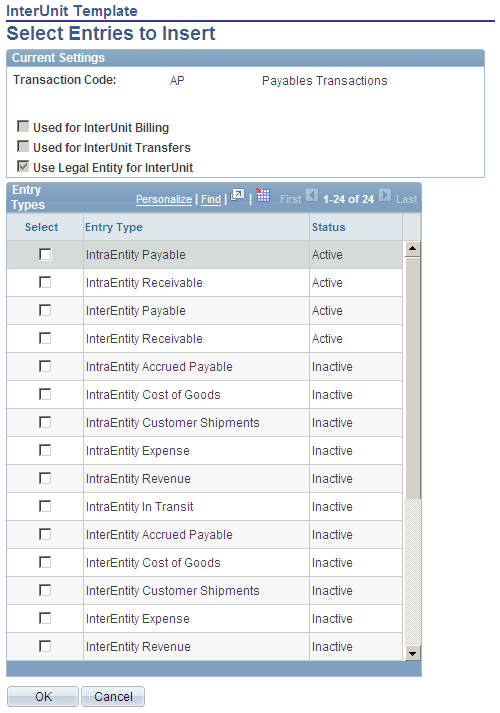
Current Settings
Displays all settings that affect the availability of entry types to the transaction code. If account attributes are active, such as book code and balance sheet indicator, the account balancing group is also displayed.
Entry Types
Intraunit Template Page
Use the IntraUnit Template page (IU_INTRA_TMPLT) to provide ChartFields by transaction code for intraunit balancing entries.
Image: IntraUnit Template page
This example illustrates the fields and controls on the IntraUnit Template page. You can find definitions for the fields and controls later on this page.
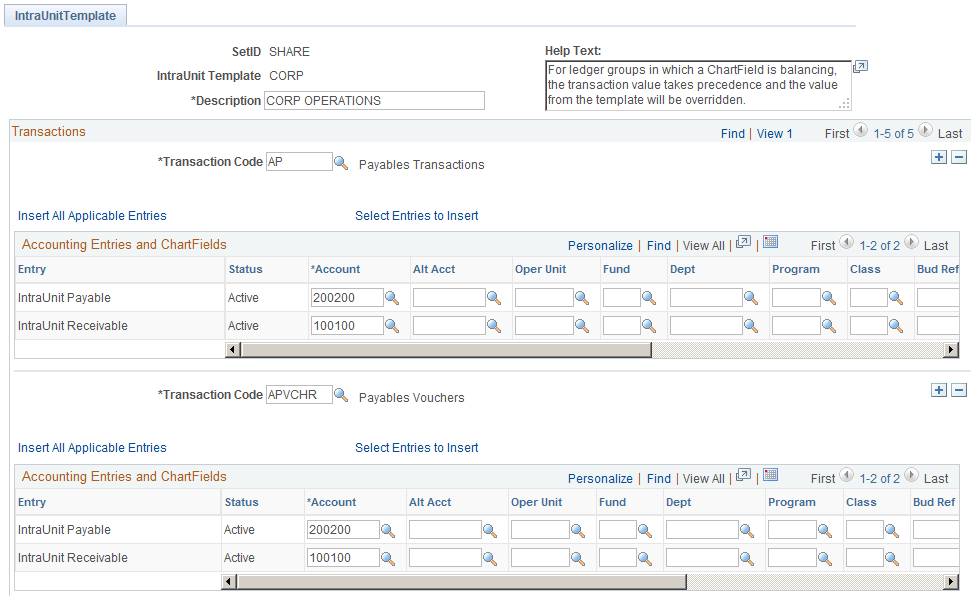
Much of the set up information is the same as for the InterUnit Template. The following are exceptions:
Intraunit Template - Select Entries to Insert Page
Use the IntraUnit Template - Select Entries to Insert page (IU_INTRA_ENTRY) to select which entry types to insert into the page.
An alternative to the Select all Applicable Entries button.
Image: IntraUnit Template - Select Entries to Insert page
This example illustrates the fields and controls on the IntraUnit Template - Select Entries to Insert page. You can find definitions for the fields and controls later on this page.
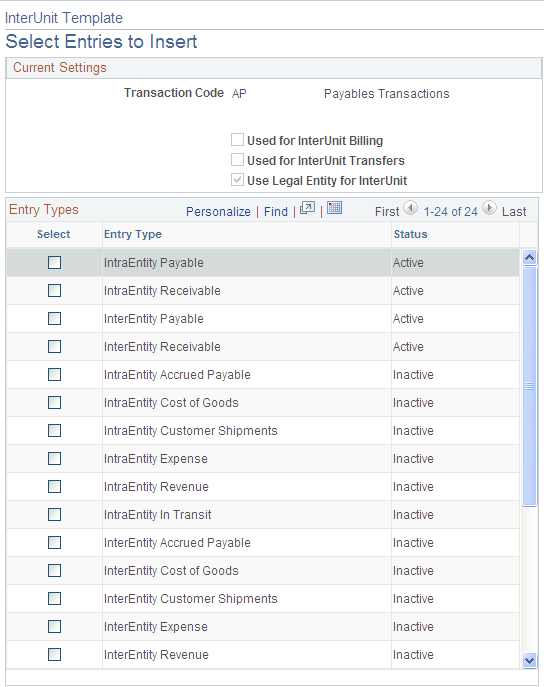
The Current Settings group box displays all settings that affect the availability of entry types to the transaction code. If account attributes are active, such as book code and balance sheet indicator, the account balancing group is also displayed.
In the Entry Types group box all the intraunit Entry Types are available for selection, regardless of their status.
Reviewing Setup Examples Using the Interunit and Intraunit Templates
The following are three scenarios for setting up the interunit and intraunit template.
Scenario A
The organizational and operational assumptions are:
You use a corporate chart of accounts for business units ranging from US001 to US050.
You use unique account values, rather than the affiliate ChartField, to segregate interunit balances by business unit trading partner.
There is no segregation of interunit balances by the type of transaction.
Installation level options are:
Interunit balancing method is indirect when unique account values are used to segregate balances by business unit, the method must be either indirect or pairs.
Do not use legal entity.
Other assumed options are:
Because all business units share the same corporate chart of accounts, all fifty business units can share the same setID.
Because there is no segregation by type of transaction, only one transaction code is required and it can be mapped to all system transactions.
A separate interunit template must be defined for each business unit because each requires a unique account value. On each template, the one transaction code is added, and all applicable entry types are defined for it.
Under scenario A, if there is processing between US008 and US009, when the system generates the balancing entry for US008, it gets the appropriate ChartFields using the setID for US008 and the InterUnit Template for US009 because the interunit balancing method is indirect.
Scenario B
The organizational and operational assumptions are:
You use a corporate chart of accounts for business units ranging from US001 to US999.
You want to segregate interunit balances into ten different accounts according to the type of transaction (AP (accounts payable) Voucher, GL (general ledger) Journal, for example).
You use the affiliate ChartField, rather than unique accounts to segregate balances by business unit trading partner.
Installation level options are:
Interunit balancing method is direct.
Do not use legal entity.
Other assumed options are:
Because all business units share the same corporate chart of accounts, all business units can share the same setID.
Ten transaction codes are created and are mapped to the appropriate system transactions to segregate transactions in the ten desired categories.
One interunit template can be used for all business units. On the one template, each of the ten transaction codes is added, and all applicable entry types are defined for each transaction code.
Under scenario B, if there is processing between US008 and US009, when the system generates the balancing entry for US008, it gets the appropriate ChartFields using the setID and the interunit template for US008 because the interunit balancing method is direct.
Scenario C
The organizational and operational assumptions are:
You use a corporate chart of accounts for business units ranging from US001 to US989 but US990 through US999 share a different chart of accounts.
You want to segregate interunit balances into ten different accounts according to the type of transaction (AP (accounts payable) Voucher, GL (general ledger) Journal, for example).
You use the affiliate ChartField, rather than unique accounts, to segregate balances by business unit trading partner.
Installation level options are:
Interunit balancing method is direct.
Do not use legal entity.
Other assumed options are:
Two interunit setIDs are required, one for each chart of accounts.
Ten transaction codes are created and are mapped to the appropriate system transactions to segregate transactions in the ten desired categories.
The same interunit template name can be used for all business units, but two interunit template definitions must be maintained, one for each setID. On each of the template definitions, each of the ten transaction codes is added, and all applicable entry types are defined for each transaction code.
Under scenario C, if there is processing between US008 and US009, when the system generates the balancing entry for US008, it gets the appropriate ChartFields using the setID and the interunit template for US008 because the interunit balancing method is direct.
Under scenario C, for example, if there is processing between US989 and US999 when the system is generating the balancing entry for US989, it gets the appropriate ChartFields using the setID and the interunit template for US989 because the interunit balancing method is direct.
Interunit Pair Page
Use the InterUnit Pair page (IU_INTER_PR_BASIC) to define ChartFields by transaction code for interunit balancing entries when the interunit method is pairs.
Override default options for interunit billing and interunit transfer transactions.
Image: InterUnit Pair page - AUS01 to JPN01
This example illustrates the fields and controls on the InterUnit Pair page - AUS01 to JPN01. You can find definitions for the fields and controls later on this page.
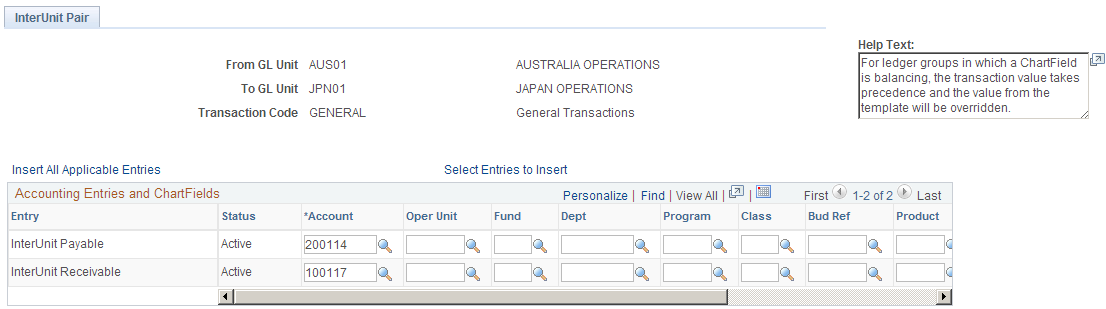
Image: InterUnit Pair page - JPN01 to AUS01
This example illustrates the fields and controls on the InterUnit Pair page - JPN01 to AUS01. You can find definitions for the fields and controls later on this page.
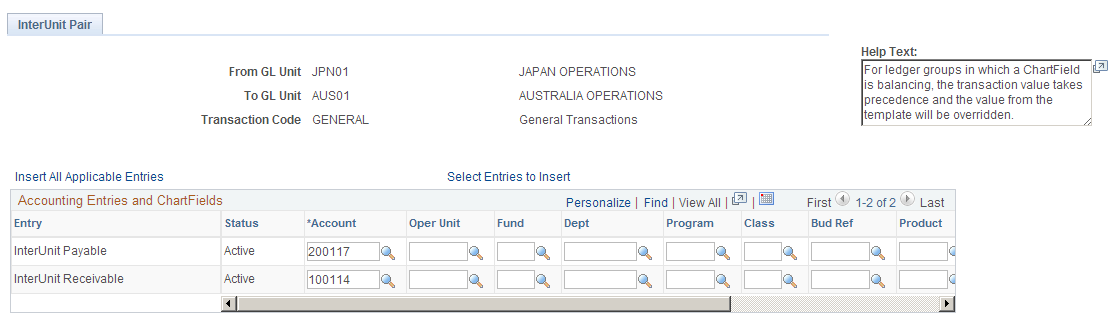
Interunit pairs are applicable if you choose to use the pairs balancing method. It requires a detailed level of setup because ChartField pairs must be established between all business units that may potentially have related transactions.
Note: If you have a large number of business units you may want to use the InterUnit Pair Mass Maintenance feature rather than this page to maintain your business unit pairs. See the section on Using Mass Maintenance for Interunit Pairs for more information.
See Using Mass Maintenance for Interunit Pairs.
This page displays the Default Balancing Group field and the Additional Balance Groups link if one or more account attributes are active.
Defining Interunit Pairs Options for Interunit Billing and Interunit Transfers - Example
Access the InterUnit Pair page.
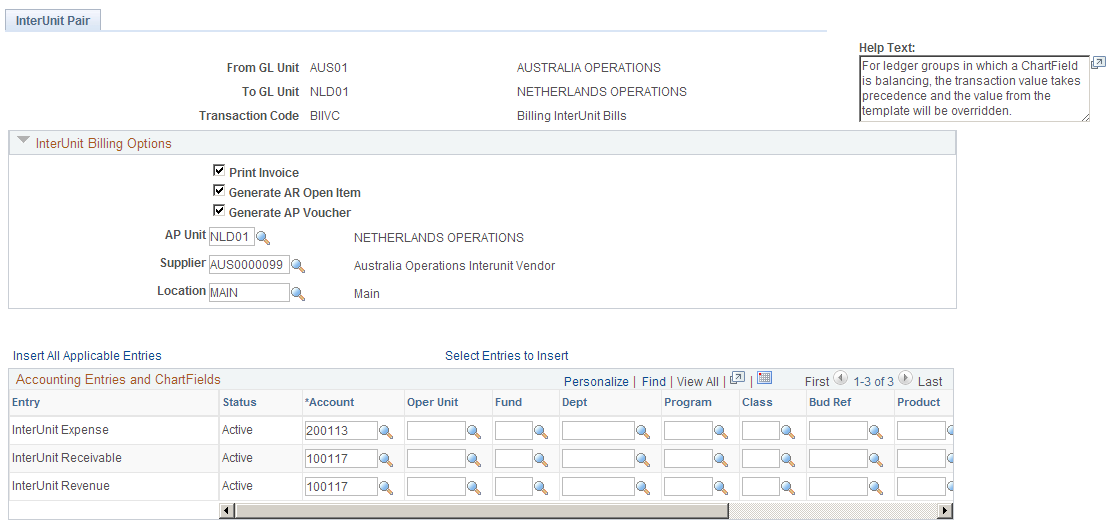
Image: InterUnit Pair page - InterUnit Billing Options
This example illustrates the fields and controls on the InterUnit Pair page - InterUnit Billing Options. You can find definitions for the fields and controls later on this page.
 |
Click to expand the Inter Unit Billing Options group box and see the following section for explanations of the field values that become available. |
Interunit Billing Options
If the transaction code is linked to the billing invoice system transaction, there are additional entry types of interunit revenue and interunit expense. You may also override the default supporting document options, such as:
Print Invoice
Generate AR (accounts receivable) Open Item
Generate AP (accounts payable) Voucher
AP Unit (accounts payable business unit)
Supplier (ID)
Supplier Location
Interunit Transfer Options
If the transaction code is linked to the Cost Management InterUnit Transfer System Transaction, there are additional entry types of InterUnit In Transit, Cost of Sales, and Accrued Payable. You must also establish InterUnit Billing Options, such as:
Ownership Unit
InterCompany Processing flag
BI Unit
Customer
The default values for these options come from the system transaction map and the GL (general ledger) business unit definition.
The options to Print an Invoice, Generate an AP Voucher and Generate an AR Item default from the options defined for the transaction code, which is mapped to the billing invoice system transaction.
The AP Unit (accounts payable unit) for the AP Voucher (accounts payable voucher) defaults from the GL Business Unit (general ledger business unit) definition for the To GL Unit field value of the pair. The supplier and location for the AP Voucher default from the GL Business Unit definition for the From GL Unit field value of the pair.
You can override any of these options here for this specific Pair. Changes made later to the System Transaction Map options or the GL Business Unit options do not affect existing interunit pair definitions.
Interunit Pair - Select Entries to Insert Page
Use the InterUnit Pair - Select Entries to Insert page (IU_PAIR_ENTRY) to select which entry types to insert into the page.
An alternative to the Select all Applicable Entries button.
Set Up Financials/Supply Chain, Common Definitions, Inter/Intra Unit, InterUnit Pair, Select Entries to Insert
Click the Select Entries to Insert link.
Current Settings
Displays all settings that affect the availability of entry types to the transaction code. If account attributes are active, such as book code and balance sheet indicator, the account balancing group is also displayed.
Entry Types
All interunit, interentity and intraentity entry types are available for selection, regardless of their status.
General Ledger Definition - Inter/IntraUnit Page
Access the General Ledger Definition - Inter/IntraUnit page.
Image: General Ledger Definition - Inter/IntraUnit page
This example illustrates the fields and controls on the General Ledger Definition - Inter/IntraUnit page. You can find definitions for the fields and controls later on this page.
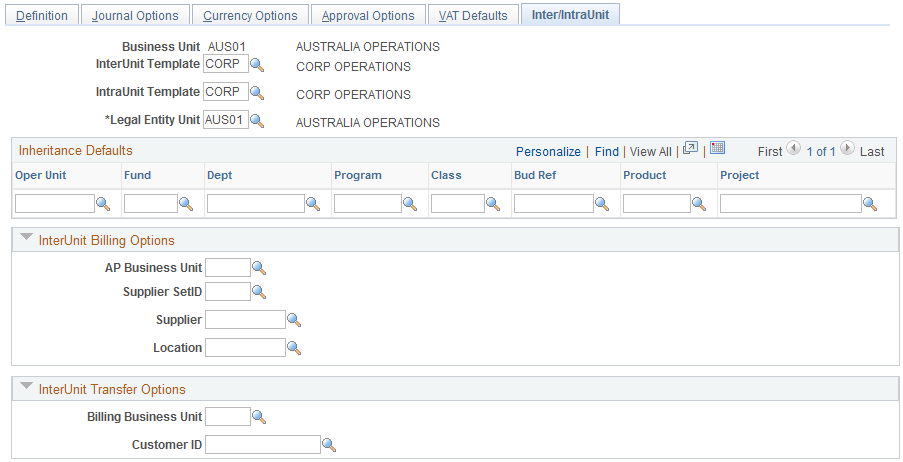
Interunit Billing Options
The following fields are used when supporting documents are created for an interunit bill, that is, when Generate an AP Voucher is selected on the System Transaction Map Options page. The fields provide default values for interunit pairs, but if these fields are changed they do not affect any existing InterUnit Pair definitions.
If both Billing and Payables are installed the following fields are displayed:
Interunit Transfer Options
The following fields are used when supporting documents are created for an interunit transfer, that is, when Intercompany Processing is selected on the System Transaction Map Options page. The options provide default values for interunit pairs, but if these fields are changed they do not affect any existing interunit pair definitions.
If both Cost Management and Billing are installed, the following fields are displayed:
For example:
An InterUnit Billing transaction is record in which a billing business unit associated with general ledger business unit JPN01 is billing an interunit customer associated with general ledger business unit US001.
The System Transaction Map for Billing Invoice has Generate an AP (accounts payable) Voucher selected on the InterUnit Billing Options, so a voucher must be created.
The voucher is created in US001, so the US001 general ledger business unit definition provides the AP (accounts payable) Business Unit for the voucher.
The Supplier and Location for the voucher come from the JPN01 general ledger business unit definition.
The supporting document options are independent of the interunit method. Whether you use the Direct or Indirect method, the options are derived from same sources, which are the Transaction Code and the GL Business Unit definitions.